> ## Documentation Index
> Fetch the complete documentation index at: https://help.scribe-mail.com/llms.txt
> Use this file to discover all available pages before exploring further.
# ChartHop
> Halten Sie E-Mail-Signaturen korrekt und aktuell, indem Sie Mitarbeiterdaten wie Position und Abteilung aus ChartHop, Ihrer HR- und Organigramm-Plattform, synchronisieren.
Folgen Sie diesen Schritten, um [die Signaturen Ihrer Teammitglieder automatisch auszufüllen](/de/smart-fields) und ChartHop als Datenquelle zu nutzen.
**Ihre Teammitglieder müssen nichts tun.**
**Änderungen in ChartHop werden automatisch mit Scribe synchronisiert.**
**SOC 2 Type II zertifiziert.** [Ihre Daten sind sicher](/de/security/data-collection/charthop).
## Installationsanleitung
### Voraussetzungen
* Ein Scribe-Konto mit Administratorzugriff
* Ein ChartHop-Konto mit Zugriff auf Apps & Bundles
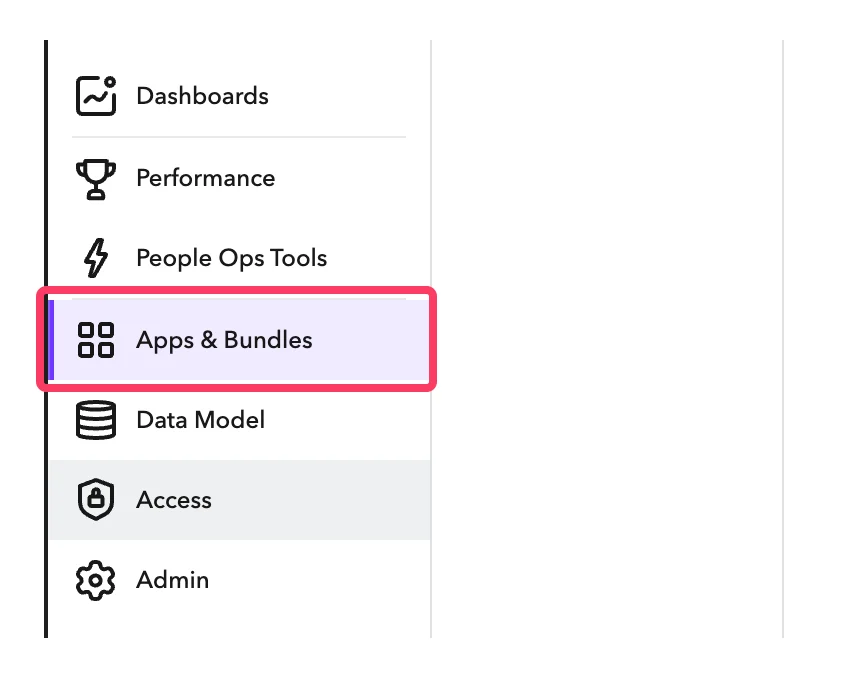
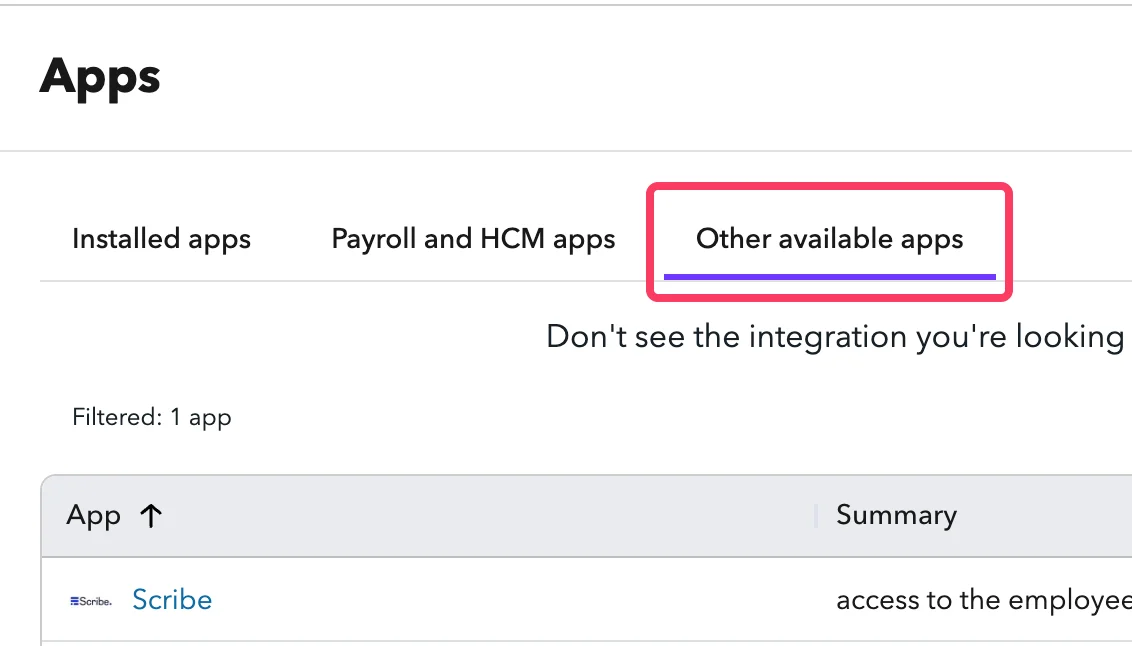
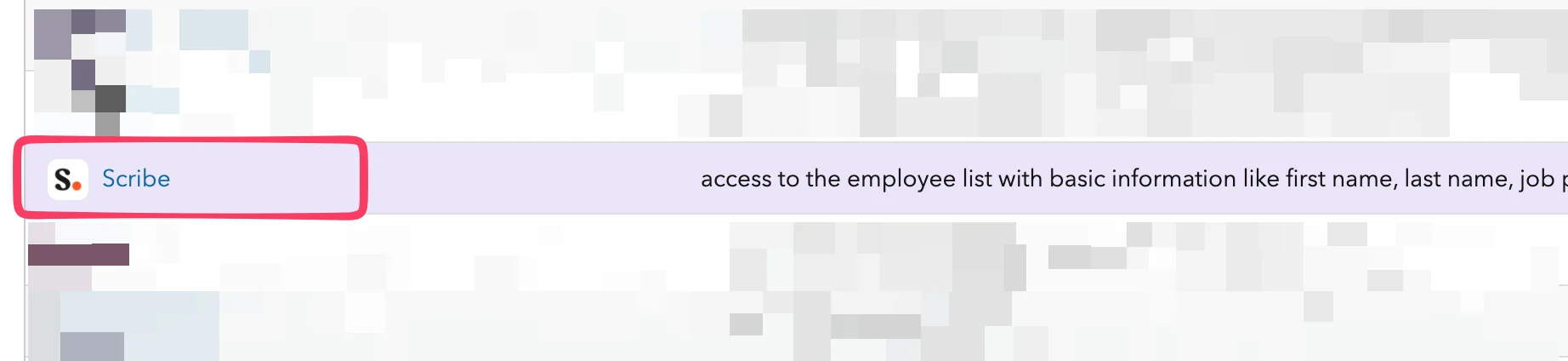
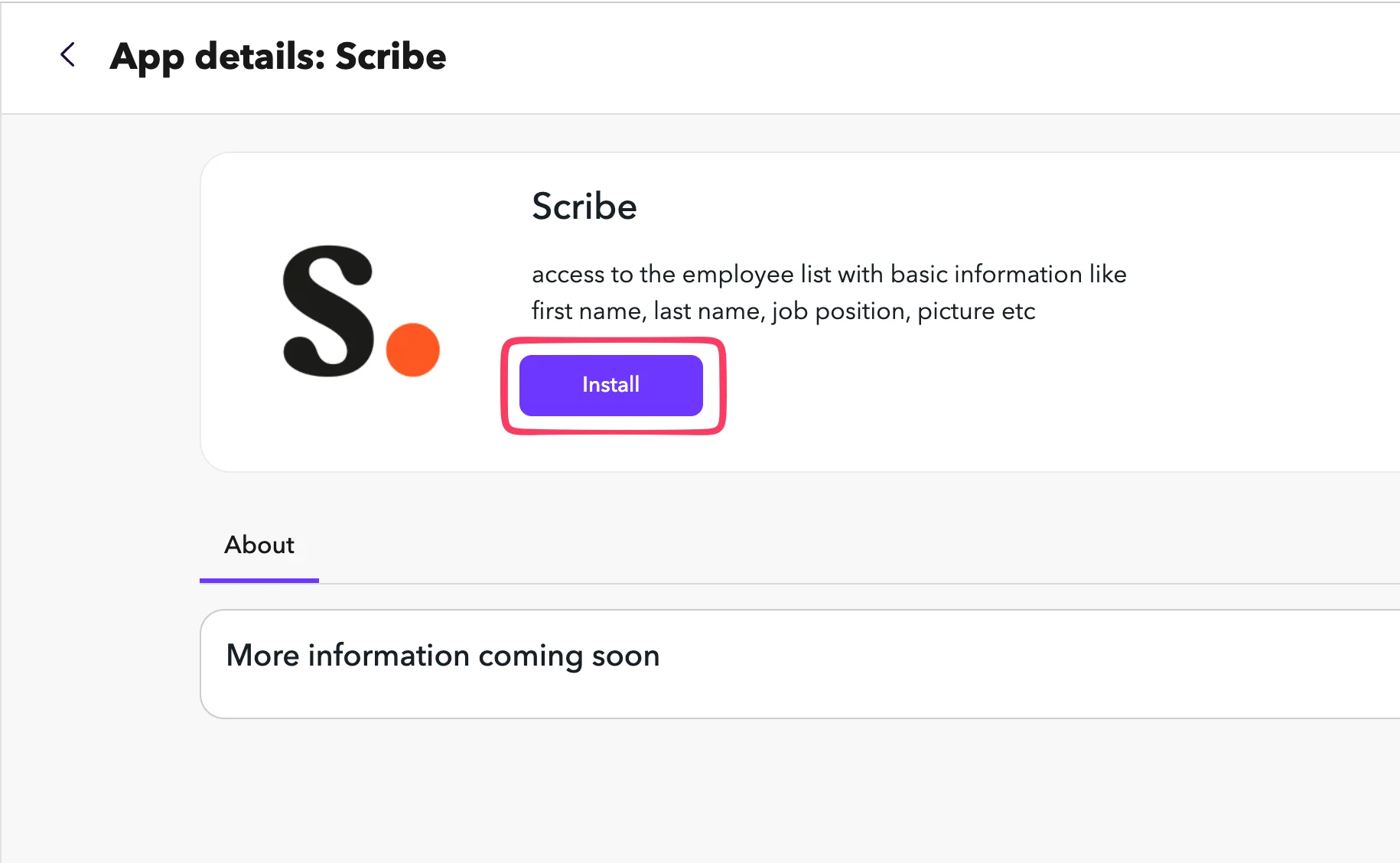 Öffnen Sie in ChartHop den Tab **Settings** der Scribe-App. Kopieren Sie das **API Token** und fügen Sie es in Scribe in das Feld API Token ein.
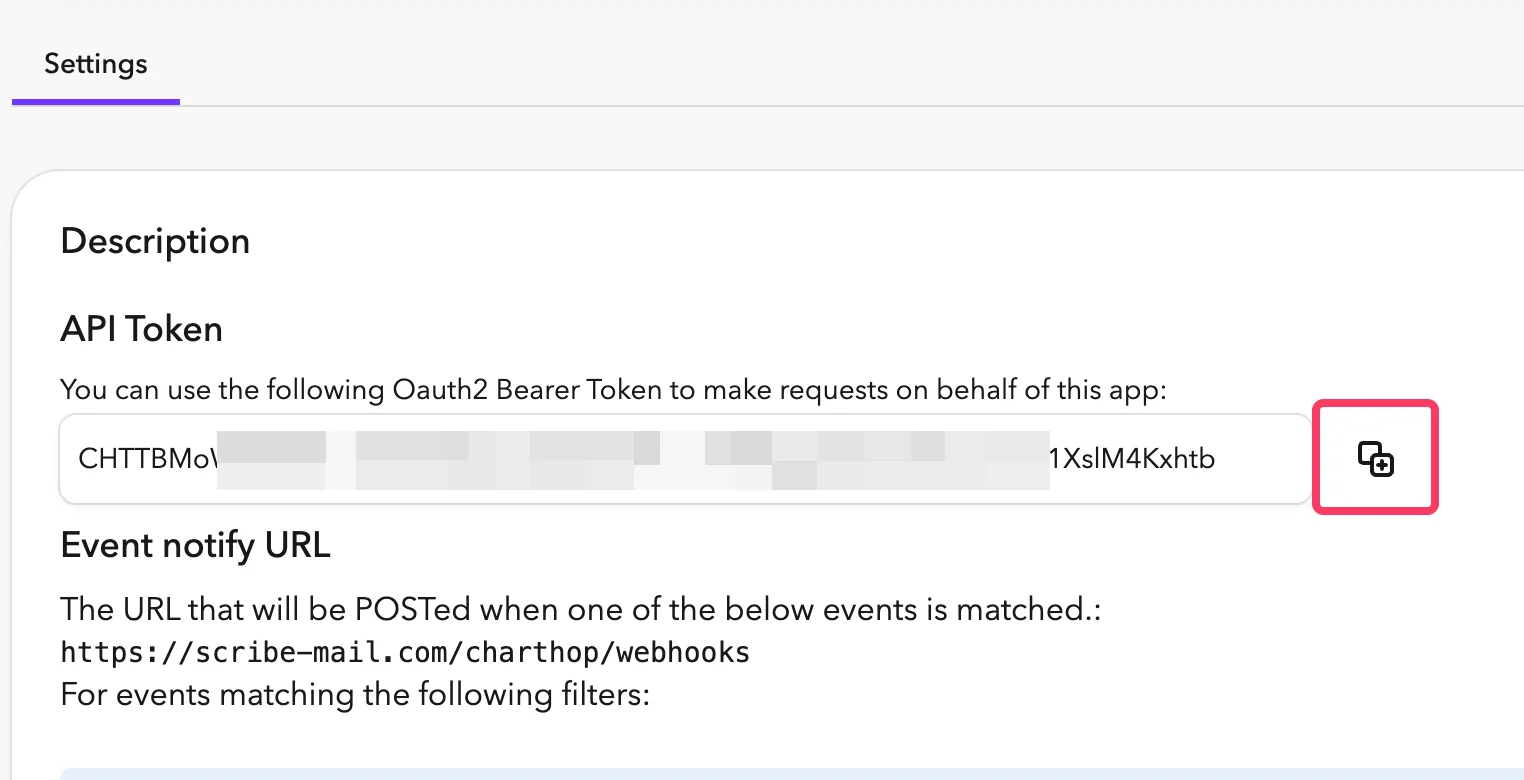 Ihr Org Nickname ist der Teil direkt nach `app.charthop.com/` in Ihrer ChartHop-URL. Geben Sie ihn in Scribe in das Feld **ChartHop Org Nickname** ein und klicken Sie dann auf **Connect ChartHop**.
 ## Verwandte Artikel
* [Deel](/de/integrations/smart-fields/deel-smart-fields): Deel-Daten in Ihre Signaturen synchronisieren.
* [Gusto](/de/integrations/smart-fields/gusto-smart-fields): Gusto-Daten in Ihre Signaturen synchronisieren.
* [Teammitglieder einer Signatur zuweisen](/de/assign-teammates-to-a-signature): Signaturen mithilfe von Smartfield-Bedingungen automatisch zuweisen.
## Verwandte Artikel
* [Deel](/de/integrations/smart-fields/deel-smart-fields): Deel-Daten in Ihre Signaturen synchronisieren.
* [Gusto](/de/integrations/smart-fields/gusto-smart-fields): Gusto-Daten in Ihre Signaturen synchronisieren.
* [Teammitglieder einer Signatur zuweisen](/de/assign-teammates-to-a-signature): Signaturen mithilfe von Smartfield-Bedingungen automatisch zuweisen.