> ## Documentation Index
> Fetch the complete documentation index at: https://help.scribe-mail.com/llms.txt
> Use this file to discover all available pages before exploring further.
# Billing
> Manage your Scribe subscription, payment method, billing address, invoices, tax information, and credits from the Billing settings page.
The Billing page is where you manage everything related to your Scribe subscription: your [plan](/en/plans), payment method, billing address, tax information, and invoices.
To access it, go to **Configuration → Billing** in the left sidebar.
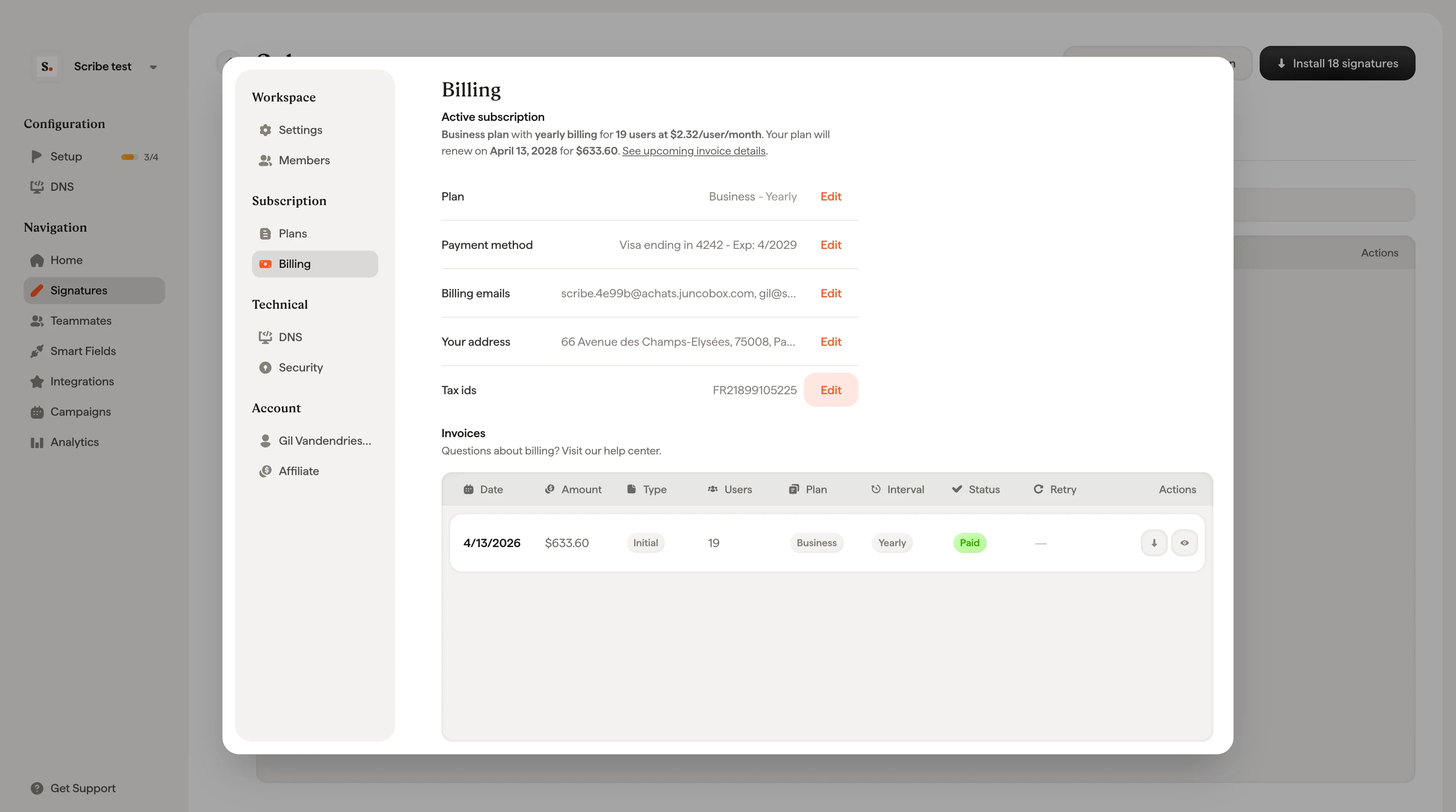 ## Subscription overview
At the top of the Billing page, you'll see a summary of your current subscription status.
During the free trial, this shows how many days remain and confirms you have access to unlimited users, unlimited signatures, and all Scribe features.
Below the summary, you can view and edit the following fields:
| Field | Description |
| ------------------ | ------------------------------------------------------------------------------------------------------------------------- |
| **Plan** | Your current plan (Free trial, Business, or Enterprise). Click **Edit** to change your plan. |
| **Payment method** | The card on file for automatic payments. Click **Edit** to add or update your payment method. |
| **Billing emails** | Email addresses that receive invoices and billing notifications. Click **Edit** to update. |
| **Your address** | Your company billing address used on invoices. Click **Edit** to update. |
| **Tax id** | Your company tax identification number (VAT, GST, etc.) for invoices. Click **Edit** to update. |
| **Credits** | Any account credits available. Credits are applied automatically to your next invoice. Click **Add** to purchase credits. |
## Update billing address
Click **Edit** next to **Your address** or **Billing emails** to open the billing address form.
The form includes:
**Information**
* **Company Name**: Your legal company name as it should appear on invoices.
* **Billing emails**: Email addresses that receive invoices and payment notifications. You can add up to 10 email addresses, separated by commas.
* **Tax IDs**: Your company tax identification number (VAT number, GST, etc.).
**Address**
* Street, house number, apartment/suite, postal code, city, and country.
Click **Update** to save your changes. Your updated billing details will appear on all future invoices.
Your billing address and tax ID are used to generate compliant invoices. Make sure they match your company's official registration details.
***
## Invoices
The bottom of the Billing page shows your full invoice history in a table.
Each invoice row includes:
| Column | Description |
| ----------------- | -------------------------------------------------------------------------------------------------------------------------------------------------------------------------------------------------- |
| **Date** | The date the invoice was issued. |
| **Amount** | The total amount charged. |
| **Invoice Type** | The type of charge. See [Invoice types](#invoice-types) below. |
| **Users** | The number of paid users on this invoice. A paid user is a teammate whose primary email is [assigned to a Scribe signature](/en/assign-teammates-to-a-signature). Alias emails are free of charge. |
| **Plan** | The plan associated with this invoice (Business or Enterprise). |
| **Interval** | Monthly or Yearly billing cycle. |
| **Status** | The payment status. See [Invoice statuses](#invoice-statuses) below. |
| **Payment Retry** | Shows the retry count (e.g. 6/9) if a payment has failed. Hover to see the next retry date. |
| **Actions** | Download, view details, or retry payment. |
### Invoice types
| Type | Description |
| -------------------- | ----------------------------------------------------------------------------------------------------------------------------------------------------------------- |
| **Initial** | Your first invoice when starting a new subscription or upgrading to a higher plan. Includes the base plan cost and any additional users. |
| **Renewal** | Regular recurring invoice for your subscription. Charged monthly or annually based on your billing cycle, plus any additional users added since the last invoice. |
| **Additional users** | Additional users added to your subscription are billed on top of your current plan. New users are prorated based on your billing cycle. |
| **Credit note** | A credit manually applied to your account by the Scribe team for billing adjustments, refunds, or other account-specific reasons. |
### Invoice statuses
| Status | Description |
| ------------------ | ----------------------------------------------------------------------------------------------------------------------------------------------------------------------------------------------- |
| **Paid** | Payment was successfully processed. The tooltip shows the exact date, time, and card used. |
| **Payment Failed** | The payment attempt was unsuccessful. Common reasons include insufficient funds or an expired card. Scribe will automatically retry the payment. See [Failed payments](#failed-payments) below. |
| **Cancelled** | After 9 failed payment attempts, Stripe automatically cancels your subscription. You'll need to activate a new subscription to keep your signatures running. |
### Invoice actions
Each invoice row has action buttons on the right:
* **Download**: Download the invoice PDF or receipt PDF.
* **View invoice details**: Opens a detailed breakdown of the invoice showing the subscription summary, user adjustments, taxes, and total.
* **Retry payment**: Manually retry a failed payment (only appears on failed invoices).
***
## View invoice details
Click the **eye icon** on any invoice row to open the Invoice Details or Upcoming Invoice modal.
The modal shows:
* **Subscription summary**: Your plan name, billing interval, number of users, per-user price, and the calculation formula (e.g. \$3.0 × 235 users × 12 months).
* **User adjustments**: Any users added or removed during the billing period, with prorated charges and credits.
* **Subtotal (excl. tax)**: The total before tax.
* **Tax**: VAT or other applicable taxes based on your billing address.
* **Total**: The final amount charged.
* **Renewal date**: When your plan will automatically renew.
* **Stripe Climate**: Scribe contributes 1% of your subscription to [remove CO₂ from the atmosphere](/en/climate) through Stripe Climate.
If you see "User adjustment for current period" on an upcoming invoice, this is a prorated credit or charge for users added or removed mid-cycle.
***
## Failed payments
When a payment fails, Scribe automatically retries the charge through Stripe. The **Payment Retry** column shows the current attempt count out of the maximum 9 attempts (e.g. 6/9).
Hover over the retry count to see the date of the next automatic retry.
After 9 failed attempts, Stripe automatically cancels your subscription and your signatures will be deactivated. To restore service, click **Activate new subscription** on the cancelled invoice row.
### Retry a payment manually
If you've updated your card or resolved the issue, you don't have to wait for the next automatic retry.
Go to **Configuration → Billing** and locate the invoice with a **Payment Failed** status.
Click the **retry** icon (circular arrow) in the Actions column.
A confirmation dialog will show the card that will be charged, the invoice date, and the amount. Click **Retry payment** to proceed.
***
## Credits
Credits are prepaid amounts that get applied automatically to your next invoice. Your current credit balance is displayed on the Billing page.
Credits can be added by clicking **Add** next to the Credits field, or may be applied by the Scribe team for billing adjustments or account-specific reasons.
## Related articles
* [Pricing](/en/pricing): how per-user pricing, proration, and the free trial work.
* [Plans](/en/plans): compare the Free, Business, and Enterprise tiers feature by feature.
* [Plan limits and changes](/en/plan-limits-and-changes): what happens when your team size or plan changes.
## Subscription overview
At the top of the Billing page, you'll see a summary of your current subscription status.
During the free trial, this shows how many days remain and confirms you have access to unlimited users, unlimited signatures, and all Scribe features.
Below the summary, you can view and edit the following fields:
| Field | Description |
| ------------------ | ------------------------------------------------------------------------------------------------------------------------- |
| **Plan** | Your current plan (Free trial, Business, or Enterprise). Click **Edit** to change your plan. |
| **Payment method** | The card on file for automatic payments. Click **Edit** to add or update your payment method. |
| **Billing emails** | Email addresses that receive invoices and billing notifications. Click **Edit** to update. |
| **Your address** | Your company billing address used on invoices. Click **Edit** to update. |
| **Tax id** | Your company tax identification number (VAT, GST, etc.) for invoices. Click **Edit** to update. |
| **Credits** | Any account credits available. Credits are applied automatically to your next invoice. Click **Add** to purchase credits. |
## Update billing address
Click **Edit** next to **Your address** or **Billing emails** to open the billing address form.
The form includes:
**Information**
* **Company Name**: Your legal company name as it should appear on invoices.
* **Billing emails**: Email addresses that receive invoices and payment notifications. You can add up to 10 email addresses, separated by commas.
* **Tax IDs**: Your company tax identification number (VAT number, GST, etc.).
**Address**
* Street, house number, apartment/suite, postal code, city, and country.
Click **Update** to save your changes. Your updated billing details will appear on all future invoices.
Your billing address and tax ID are used to generate compliant invoices. Make sure they match your company's official registration details.
***
## Invoices
The bottom of the Billing page shows your full invoice history in a table.
Each invoice row includes:
| Column | Description |
| ----------------- | -------------------------------------------------------------------------------------------------------------------------------------------------------------------------------------------------- |
| **Date** | The date the invoice was issued. |
| **Amount** | The total amount charged. |
| **Invoice Type** | The type of charge. See [Invoice types](#invoice-types) below. |
| **Users** | The number of paid users on this invoice. A paid user is a teammate whose primary email is [assigned to a Scribe signature](/en/assign-teammates-to-a-signature). Alias emails are free of charge. |
| **Plan** | The plan associated with this invoice (Business or Enterprise). |
| **Interval** | Monthly or Yearly billing cycle. |
| **Status** | The payment status. See [Invoice statuses](#invoice-statuses) below. |
| **Payment Retry** | Shows the retry count (e.g. 6/9) if a payment has failed. Hover to see the next retry date. |
| **Actions** | Download, view details, or retry payment. |
### Invoice types
| Type | Description |
| -------------------- | ----------------------------------------------------------------------------------------------------------------------------------------------------------------- |
| **Initial** | Your first invoice when starting a new subscription or upgrading to a higher plan. Includes the base plan cost and any additional users. |
| **Renewal** | Regular recurring invoice for your subscription. Charged monthly or annually based on your billing cycle, plus any additional users added since the last invoice. |
| **Additional users** | Additional users added to your subscription are billed on top of your current plan. New users are prorated based on your billing cycle. |
| **Credit note** | A credit manually applied to your account by the Scribe team for billing adjustments, refunds, or other account-specific reasons. |
### Invoice statuses
| Status | Description |
| ------------------ | ----------------------------------------------------------------------------------------------------------------------------------------------------------------------------------------------- |
| **Paid** | Payment was successfully processed. The tooltip shows the exact date, time, and card used. |
| **Payment Failed** | The payment attempt was unsuccessful. Common reasons include insufficient funds or an expired card. Scribe will automatically retry the payment. See [Failed payments](#failed-payments) below. |
| **Cancelled** | After 9 failed payment attempts, Stripe automatically cancels your subscription. You'll need to activate a new subscription to keep your signatures running. |
### Invoice actions
Each invoice row has action buttons on the right:
* **Download**: Download the invoice PDF or receipt PDF.
* **View invoice details**: Opens a detailed breakdown of the invoice showing the subscription summary, user adjustments, taxes, and total.
* **Retry payment**: Manually retry a failed payment (only appears on failed invoices).
***
## View invoice details
Click the **eye icon** on any invoice row to open the Invoice Details or Upcoming Invoice modal.
The modal shows:
* **Subscription summary**: Your plan name, billing interval, number of users, per-user price, and the calculation formula (e.g. \$3.0 × 235 users × 12 months).
* **User adjustments**: Any users added or removed during the billing period, with prorated charges and credits.
* **Subtotal (excl. tax)**: The total before tax.
* **Tax**: VAT or other applicable taxes based on your billing address.
* **Total**: The final amount charged.
* **Renewal date**: When your plan will automatically renew.
* **Stripe Climate**: Scribe contributes 1% of your subscription to [remove CO₂ from the atmosphere](/en/climate) through Stripe Climate.
If you see "User adjustment for current period" on an upcoming invoice, this is a prorated credit or charge for users added or removed mid-cycle.
***
## Failed payments
When a payment fails, Scribe automatically retries the charge through Stripe. The **Payment Retry** column shows the current attempt count out of the maximum 9 attempts (e.g. 6/9).
Hover over the retry count to see the date of the next automatic retry.
After 9 failed attempts, Stripe automatically cancels your subscription and your signatures will be deactivated. To restore service, click **Activate new subscription** on the cancelled invoice row.
### Retry a payment manually
If you've updated your card or resolved the issue, you don't have to wait for the next automatic retry.
Go to **Configuration → Billing** and locate the invoice with a **Payment Failed** status.
Click the **retry** icon (circular arrow) in the Actions column.
A confirmation dialog will show the card that will be charged, the invoice date, and the amount. Click **Retry payment** to proceed.
***
## Credits
Credits are prepaid amounts that get applied automatically to your next invoice. Your current credit balance is displayed on the Billing page.
Credits can be added by clicking **Add** next to the Credits field, or may be applied by the Scribe team for billing adjustments or account-specific reasons.
## Related articles
* [Pricing](/en/pricing): how per-user pricing, proration, and the free trial work.
* [Plans](/en/plans): compare the Free, Business, and Enterprise tiers feature by feature.
* [Plan limits and changes](/en/plan-limits-and-changes): what happens when your team size or plan changes.