> ## Documentation Index
> Fetch the complete documentation index at: https://help.scribe-mail.com/llms.txt
> Use this file to discover all available pages before exploring further.
# Configure your sending domain
> Set up a custom sending domain in Scribe so signature links use your own company domain: add two CNAME records, then verify them once DNS propagates.
This guide walks you through configuring a custom sending domain so all your signature URLs use your own company domain instead of Scribe's default (sendassets.io).
Not sure why this matters? Read [Why configure a sending domain?](/en/why-configure-a-sending-domain) first.
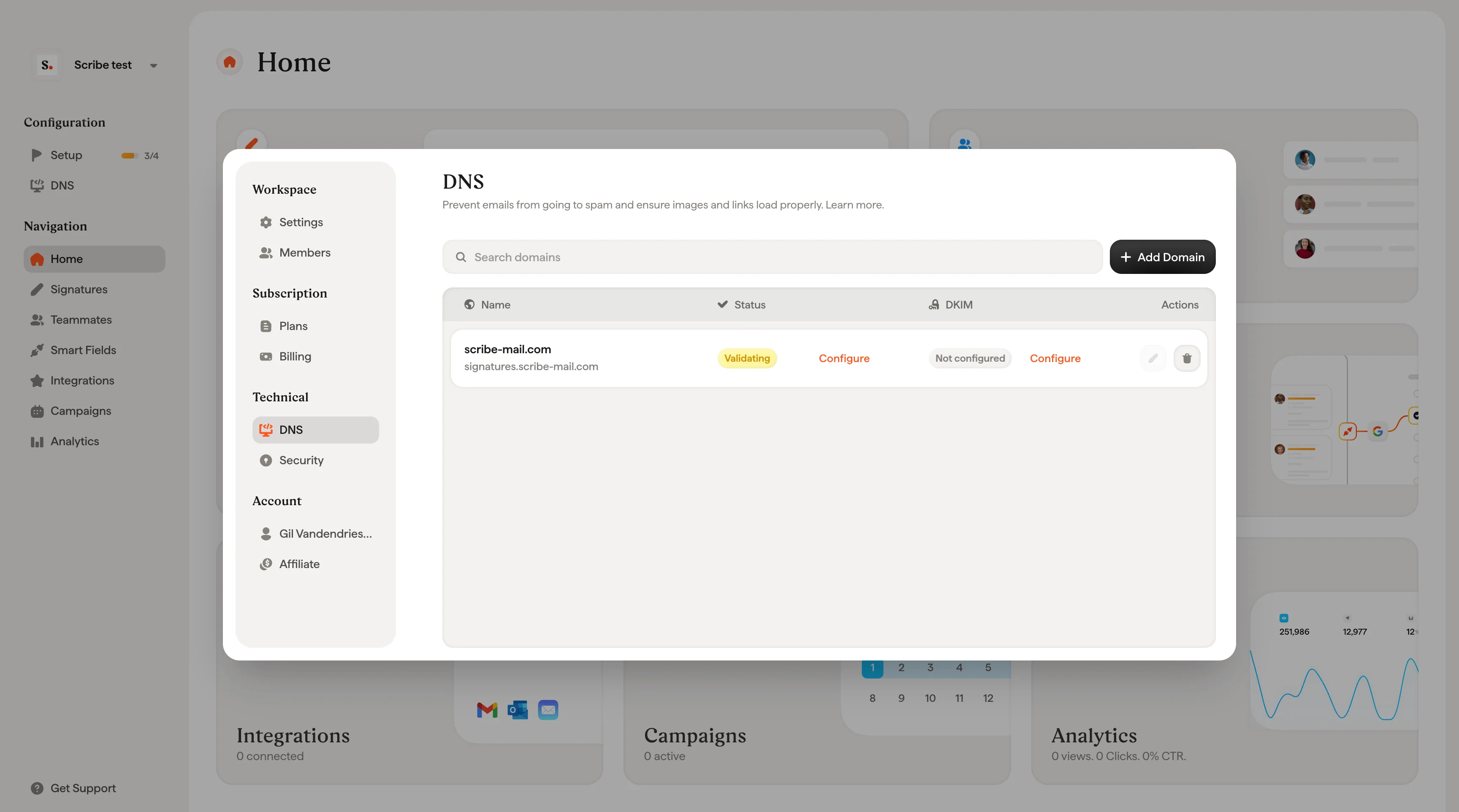 ## Set up your sending domain
Go to **Configuration → DNS** in the left sidebar.
If you've already synced your email provider (Google Workspace or Microsoft 365) with Scribe, your domain will appear automatically. Click **Configure** to proceed.
If your domain isn't listed, click **Add a domain** and enter your company domain (e.g. `mycompany.com`).
Pick a prefix for your sending domain. This will be combined with your company domain to create the full sending domain.
For example, if you enter `signature` and your domain is `mycompany.com`, your sending domain will be `signature.mycompany.com`.
Common prefix choices:
* `signature`
* `email-signature`
* `sig`
* `mail`
Scribe will display **two CNAME records** that you need to add in your domain provider's DNS settings.
| Record type | Host Name | Required Value |
| ----------- | ------------------------------------------- | ------------------------------------------------- |
| CNAME | Your chosen prefix (e.g. `email-signature`) | `custom-hostname-ass...` (provided by Scribe) |
| CNAME | `_acm...` (provided by Scribe) | `email-signature.scribe-...` (provided by Scribe) |
Use the **Copy** button next to each value to copy it exactly.
You have two options to configure them:
**Option A: Automatic setup (recommended)**
Follow Scribe's setup wizard to automatically configure the DNS records in your domain provider. No developer needed. Scribe handles the configuration for you.
**Option B: Manual setup**
If automatic setup isn't available for your provider, you'll see the two CNAME records with copy buttons. Manually add both records in your domain provider's DNS management panel (e.g. GoDaddy, Cloudflare, Google Domains, OVH, Namecheap, etc.).
Once you've added both records, click **I have copied 2/2 records** to proceed.
**Need help?** Click **Forward instructions to a colleague** to generate a shareable link. Send this link to your IT team or whoever manages your domain, and they'll be able to complete the DNS setup without needing access to Scribe.
DNS propagation can take up to 48 hours. Once the DNS records have propagated, the status in Scribe will automatically change to **Validated**.
You can check the propagation status at any time:
* In your Scribe DNS settings page
* Using an external tool like [DNS Checker](https://dnschecker.org/#CNAME/)
Once validated, all signature URLs across your workspace will automatically use your custom sending domain instead of sendassets.io. No need to update individual signatures.
**Cloudflare users**: If your domain is managed through Cloudflare, make sure to:
* Set the Proxy Status to **DNS only** (gray cloud icon, not orange).
* **Disable CNAME flattening** in your Cloudflare DNS settings.
Failing to do so will prevent Scribe from verifying your sending domain.
***
## Frequently asked questions
You can use any subdomain you like, as long as it's not already in use. We recommend something descriptive like `signature.your-company.com` or `email-signature.your-company.com`. Avoid using your root domain (e.g. `your-company.com`). Always use a subdomain.
DNS changes typically propagate within a few minutes to a few hours, but in rare cases it can take up to 48 hours. If verification hasn't completed after 48 hours, double-check that both CNAME records are correctly configured.
Yes. You can update your sending domain at any time from the DNS settings page. You'll need to add new DNS records and verify them. All signature URLs will automatically switch to the new domain once validated.
Yes. During setup, click **Forward instructions to a colleague** to generate a shareable link. Send this link to your IT team or domain administrator, and they'll see the exact records to add without needing a Scribe account.
No. The sending domain is used for signature asset URLs and tracking links, not for email authentication. DKIM and SPF are separate configurations managed through your email provider. Scribe also offers DKIM signing for marketing banners. See the [Plans comparison](/en/plans) for availability.
## Set up your sending domain
Go to **Configuration → DNS** in the left sidebar.
If you've already synced your email provider (Google Workspace or Microsoft 365) with Scribe, your domain will appear automatically. Click **Configure** to proceed.
If your domain isn't listed, click **Add a domain** and enter your company domain (e.g. `mycompany.com`).
Pick a prefix for your sending domain. This will be combined with your company domain to create the full sending domain.
For example, if you enter `signature` and your domain is `mycompany.com`, your sending domain will be `signature.mycompany.com`.
Common prefix choices:
* `signature`
* `email-signature`
* `sig`
* `mail`
Scribe will display **two CNAME records** that you need to add in your domain provider's DNS settings.
| Record type | Host Name | Required Value |
| ----------- | ------------------------------------------- | ------------------------------------------------- |
| CNAME | Your chosen prefix (e.g. `email-signature`) | `custom-hostname-ass...` (provided by Scribe) |
| CNAME | `_acm...` (provided by Scribe) | `email-signature.scribe-...` (provided by Scribe) |
Use the **Copy** button next to each value to copy it exactly.
You have two options to configure them:
**Option A: Automatic setup (recommended)**
Follow Scribe's setup wizard to automatically configure the DNS records in your domain provider. No developer needed. Scribe handles the configuration for you.
**Option B: Manual setup**
If automatic setup isn't available for your provider, you'll see the two CNAME records with copy buttons. Manually add both records in your domain provider's DNS management panel (e.g. GoDaddy, Cloudflare, Google Domains, OVH, Namecheap, etc.).
Once you've added both records, click **I have copied 2/2 records** to proceed.
**Need help?** Click **Forward instructions to a colleague** to generate a shareable link. Send this link to your IT team or whoever manages your domain, and they'll be able to complete the DNS setup without needing access to Scribe.
DNS propagation can take up to 48 hours. Once the DNS records have propagated, the status in Scribe will automatically change to **Validated**.
You can check the propagation status at any time:
* In your Scribe DNS settings page
* Using an external tool like [DNS Checker](https://dnschecker.org/#CNAME/)
Once validated, all signature URLs across your workspace will automatically use your custom sending domain instead of sendassets.io. No need to update individual signatures.
**Cloudflare users**: If your domain is managed through Cloudflare, make sure to:
* Set the Proxy Status to **DNS only** (gray cloud icon, not orange).
* **Disable CNAME flattening** in your Cloudflare DNS settings.
Failing to do so will prevent Scribe from verifying your sending domain.
***
## Frequently asked questions
You can use any subdomain you like, as long as it's not already in use. We recommend something descriptive like `signature.your-company.com` or `email-signature.your-company.com`. Avoid using your root domain (e.g. `your-company.com`). Always use a subdomain.
DNS changes typically propagate within a few minutes to a few hours, but in rare cases it can take up to 48 hours. If verification hasn't completed after 48 hours, double-check that both CNAME records are correctly configured.
Yes. You can update your sending domain at any time from the DNS settings page. You'll need to add new DNS records and verify them. All signature URLs will automatically switch to the new domain once validated.
Yes. During setup, click **Forward instructions to a colleague** to generate a shareable link. Send this link to your IT team or domain administrator, and they'll see the exact records to add without needing a Scribe account.
No. The sending domain is used for signature asset URLs and tracking links, not for email authentication. DKIM and SPF are separate configurations managed through your email provider. Scribe also offers DKIM signing for marketing banners. See the [Plans comparison](/en/plans) for availability.