> ## Documentation Index
> Fetch the complete documentation index at: https://help.scribe-mail.com/llms.txt
> Use this file to discover all available pages before exploring further.
# Action bar
> Undo and redo edits, pan the infinite canvas with the hand tool, and adjust zoom from the action bar at the bottom of the signature editor.
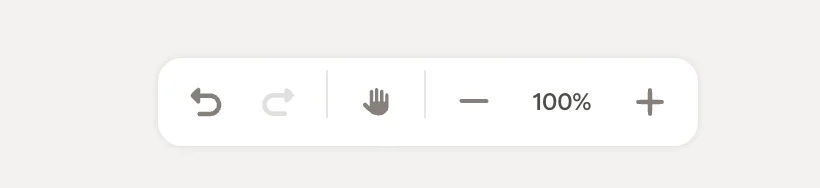
The action bar sits at the bottom of the [editor](/en/editor/editor-overview) canvas. It gives you quick access to undo/redo, canvas navigation, and zoom controls.
 ## Undo and redo
* **Undo**: Revert your last change. Click multiple times to step back through your edit history.
* **Redo**: Restore a change you just undid.
## Hand tool
The hand tool lets you pan around the canvas without accidentally selecting or moving blocks. Activate it by clicking the hand icon, which highlights when active. Click it again to deactivate and return to the default selection mode.
The hand tool is especially useful when you're zoomed in and need to navigate to a different part of your signature without disturbing your layout.
## Zoom
* **−**: Zoom out to see more of your signature
* **100%**: Shows your current zoom level. Click to reset to 100%.
* **+**: Zoom in for detailed adjustments
The canvas is infinite, so you can zoom in and out freely to design at whatever level of detail you need.
## Related articles
* [Canvas](/en/editor/canvas)
* [Tree panel](/en/editor/tree-panel)
* [Editor top bar](/en/editor/editor-top-bar)
## Undo and redo
* **Undo**: Revert your last change. Click multiple times to step back through your edit history.
* **Redo**: Restore a change you just undid.
## Hand tool
The hand tool lets you pan around the canvas without accidentally selecting or moving blocks. Activate it by clicking the hand icon, which highlights when active. Click it again to deactivate and return to the default selection mode.
The hand tool is especially useful when you're zoomed in and need to navigate to a different part of your signature without disturbing your layout.
## Zoom
* **−**: Zoom out to see more of your signature
* **100%**: Shows your current zoom level. Click to reset to 100%.
* **+**: Zoom in for detailed adjustments
The canvas is infinite, so you can zoom in and out freely to design at whatever level of detail you need.
## Related articles
* [Canvas](/en/editor/canvas)
* [Tree panel](/en/editor/tree-panel)
* [Editor top bar](/en/editor/editor-top-bar)