> ## Documentation Index
> Fetch the complete documentation index at: https://help.scribe-mail.com/llms.txt
> Use this file to discover all available pages before exploring further.
# Editor overview
> Tour the Scribe signature editor and see how the tree panel, canvas, styling panel, top bar, and action bar work together to build signatures.
The Scribe editor is where you design your email signatures. It follows a three-panel layout similar to design tools like Figma or Framer: a [tree panel](/en/editor/tree-panel) on the left, a [canvas](/en/editor/canvas) in the center, and a [styling panel](/en/editor/styling-panel) on the right.
 ## Layout
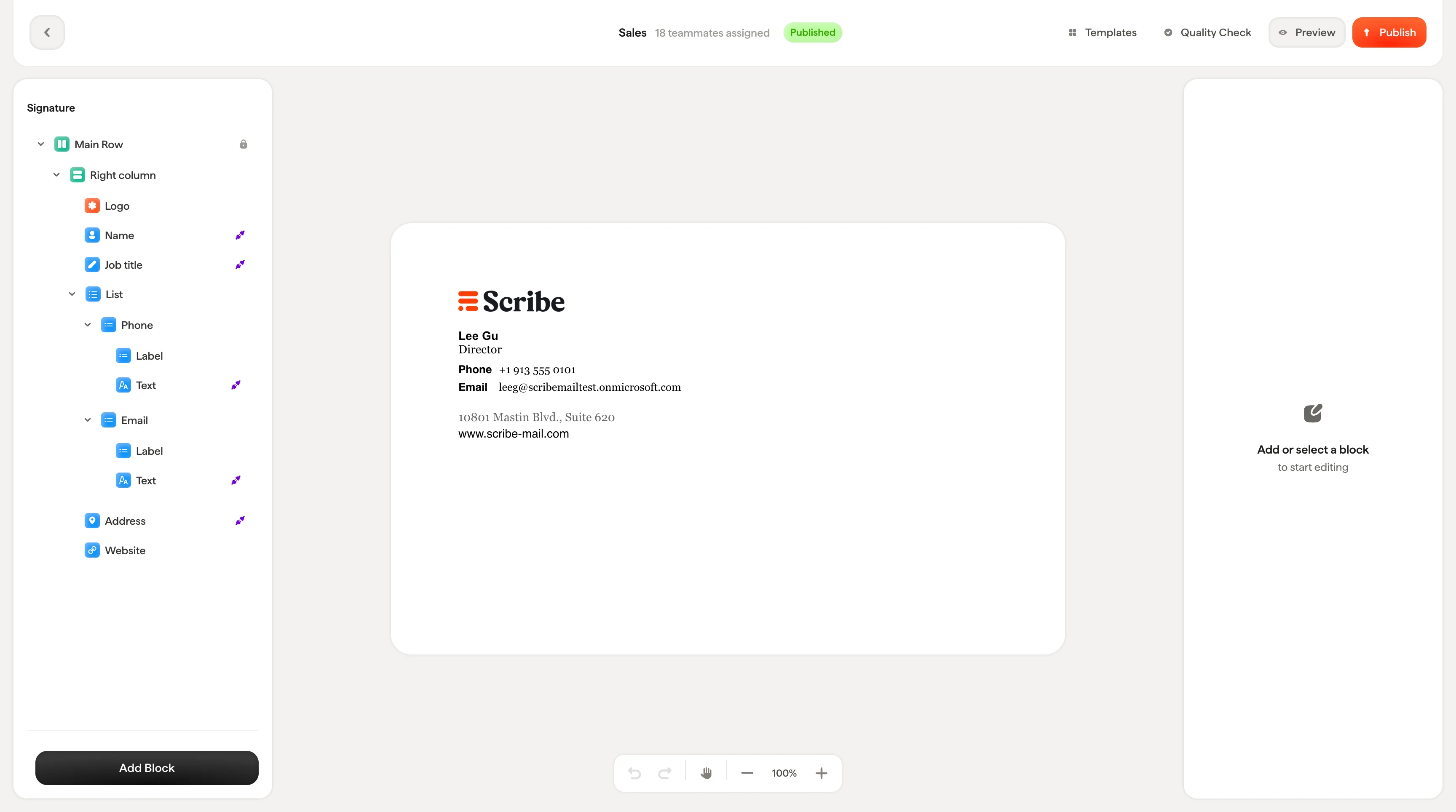
**Tree panel (left)**: Shows the hierarchical structure of your signature as a collapsible tree. Every block in your signature appears here: columns, text blocks, images, banners. You can select, reorder, duplicate, hide, and delete blocks from this panel.
## Layout
**Tree panel (left)**: Shows the hierarchical structure of your signature as a collapsible tree. Every block in your signature appears here: columns, text blocks, images, banners. You can select, reorder, duplicate, hide, and delete blocks from this panel.
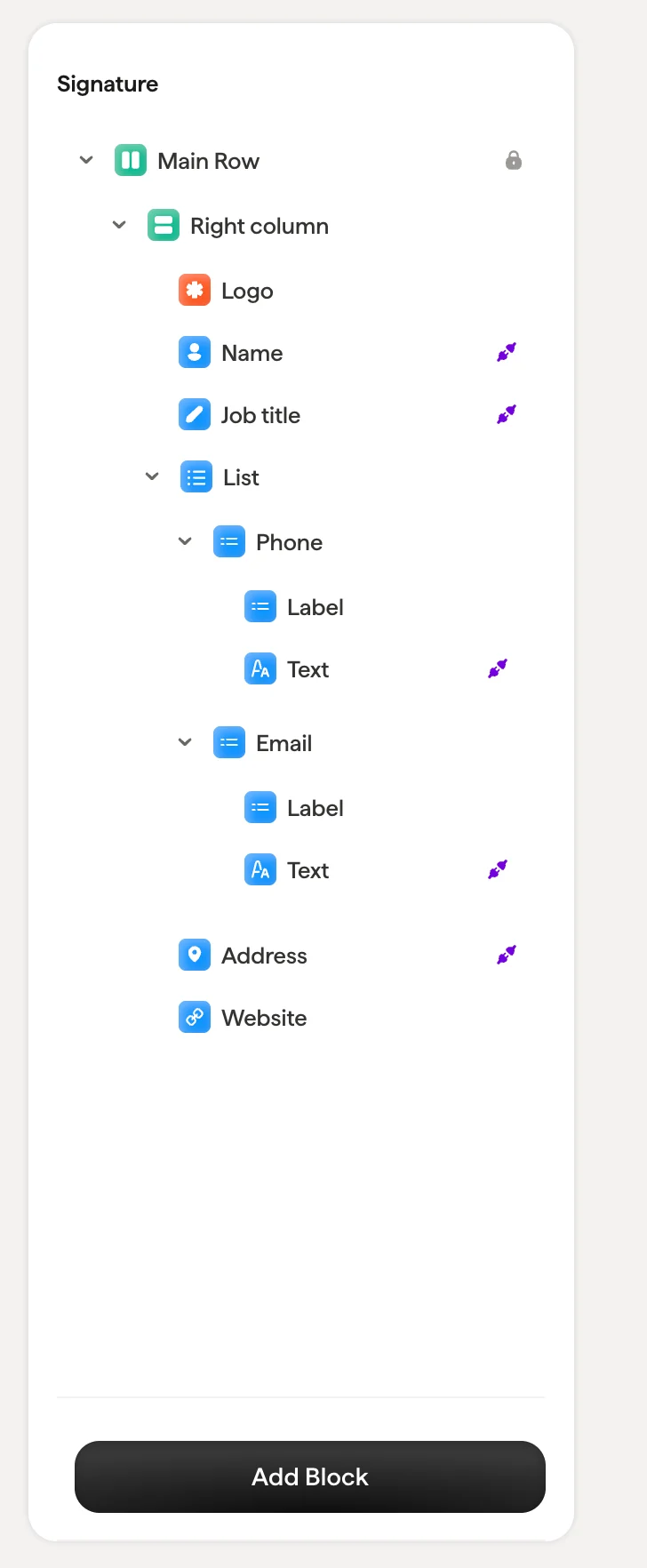 **Canvas (center)**: A live preview of your signature that updates in real time as you make changes. Click on any block directly in the canvas to select it, or use the tree panel. The canvas shows actual teammate data from Smart Fields so you can see how the signature will really look.
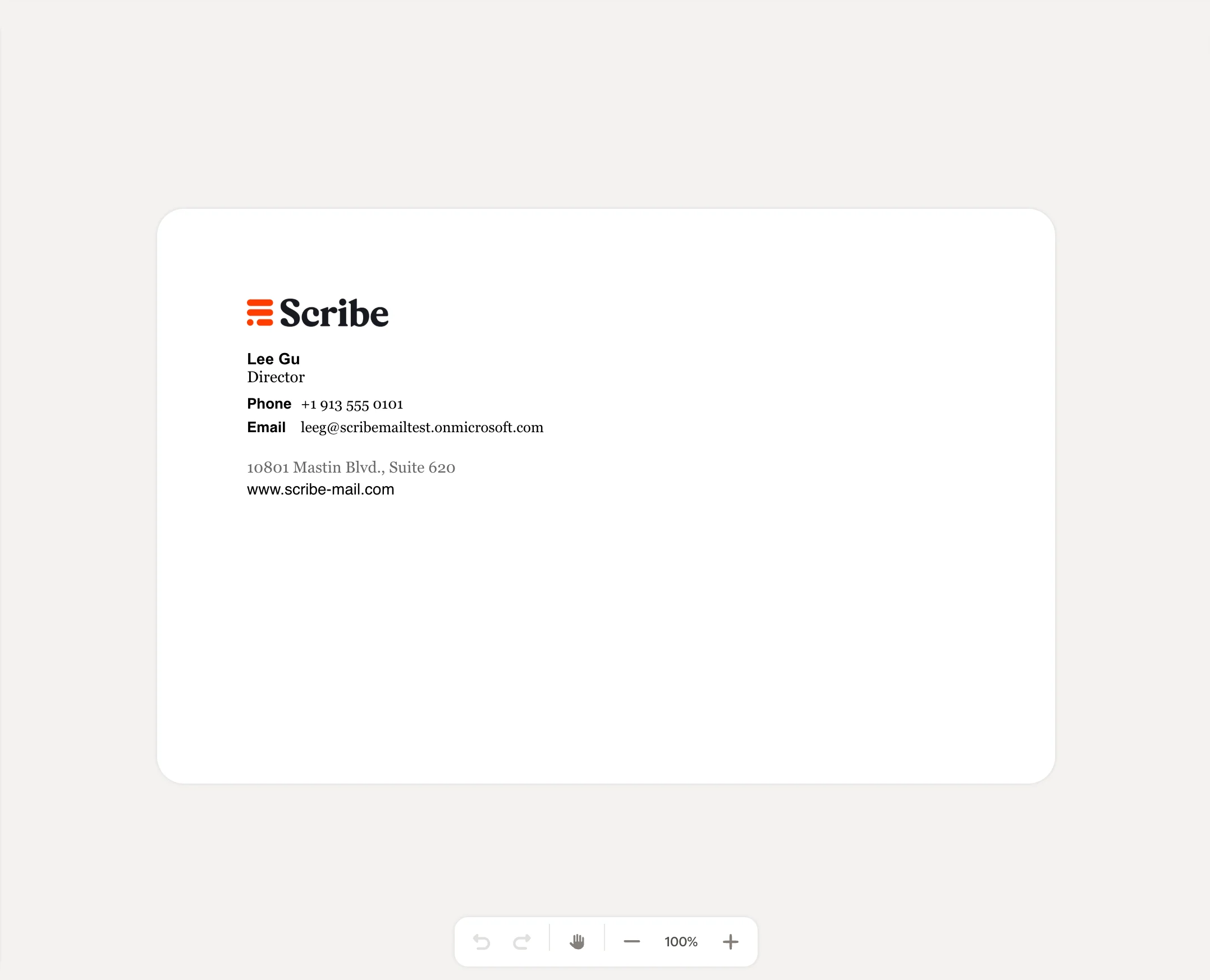 **Styling panel (right)**: Appears when you select a block. Shows all the styling options for that block, including layout properties, text formatting, colors, spacing, and Smart Field connections. The options change depending on which type of block is selected.
 ## Top bar
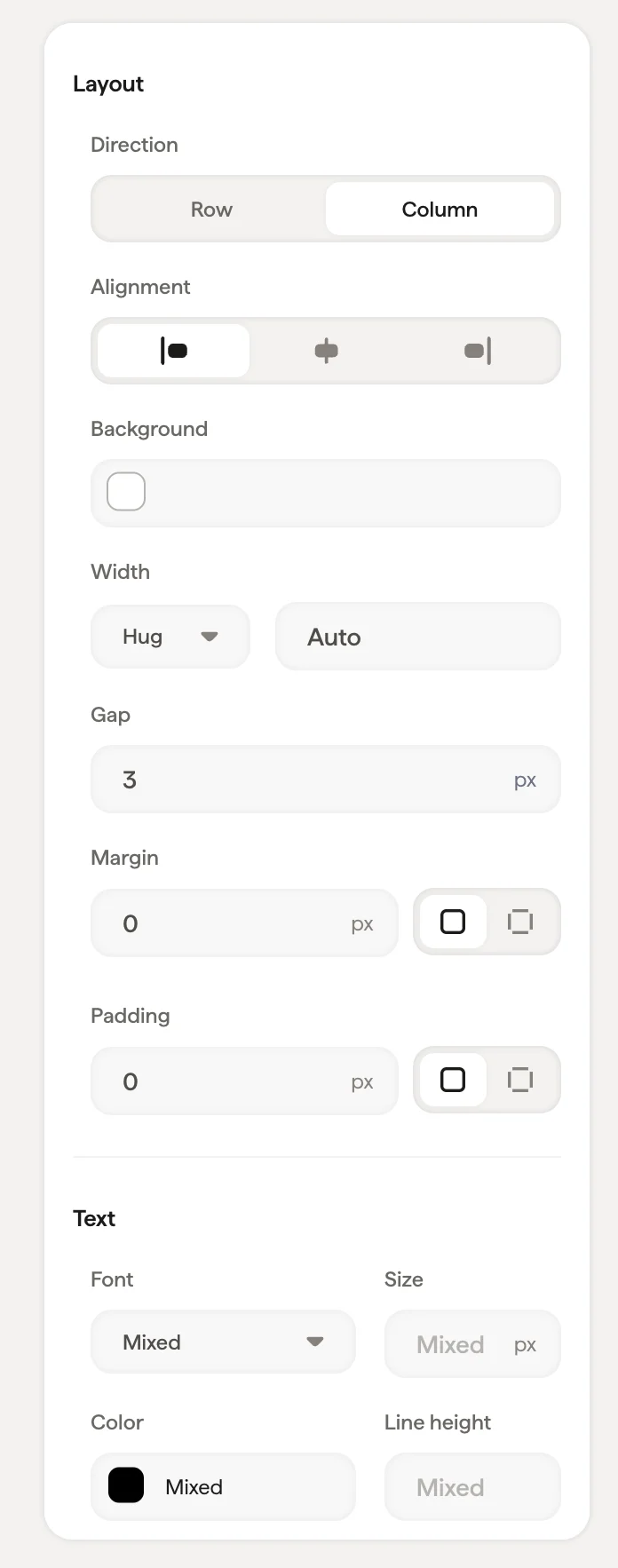
The [top bar](/en/editor/editor-top-bar) shows key information and actions:
* **Back arrow**: Return to the signature detail page
* **Signature name and status**: Shows the signature name, number of assigned teammates, and current status (Draft or Published)
* **Templates**: Browse the template library to start from a pre-built design
* **Quality check**: Runs a compatibility check on your signature design. Click to see a checklist that verifies your signature adapts responsively to all screen sizes, works with all email clients and browsers, functions across desktop/mobile/tablet, loads quickly with lightweight HTML, displays correctly when composing emails, and maintains image proportions across all platforms. All checks should show green before publishing.
* **Preview**: Open the preview modal to see how the signature looks for each teammate
* **Publish**: Push your design changes live. After publishing, updates are automatically sent to all installed teammates.
## Top bar
The [top bar](/en/editor/editor-top-bar) shows key information and actions:
* **Back arrow**: Return to the signature detail page
* **Signature name and status**: Shows the signature name, number of assigned teammates, and current status (Draft or Published)
* **Templates**: Browse the template library to start from a pre-built design
* **Quality check**: Runs a compatibility check on your signature design. Click to see a checklist that verifies your signature adapts responsively to all screen sizes, works with all email clients and browsers, functions across desktop/mobile/tablet, loads quickly with lightweight HTML, displays correctly when composing emails, and maintains image proportions across all platforms. All checks should show green before publishing.
* **Preview**: Open the preview modal to see how the signature looks for each teammate
* **Publish**: Push your design changes live. After publishing, updates are automatically sent to all installed teammates.
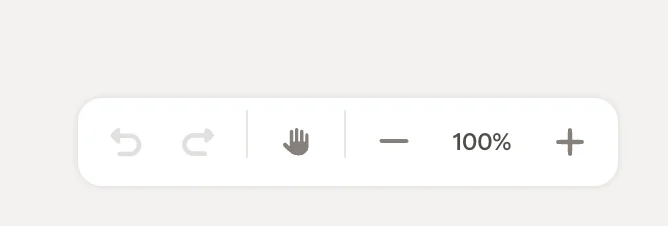
 ## Action bar
At the bottom of the canvas, the action bar provides:
* **Undo / Redo**: Step backward or forward through your changes
* **Drag handle**: Reposition the canvas view
* **Zoom controls**: Zoom in (+), zoom out (−), or set a specific zoom level (e.g., 100%)
## Action bar
At the bottom of the canvas, the action bar provides:
* **Undo / Redo**: Step backward or forward through your changes
* **Drag handle**: Reposition the canvas view
* **Zoom controls**: Zoom in (+), zoom out (−), or set a specific zoom level (e.g., 100%)
 ## Related articles
* [Action bar](/en/editor/action-bar)
* [Add blocks](/en/editor/add-blocks)
* [Building layouts with columns and rows](/en/editor/building-layouts-with-columns-and-rows)
## Related articles
* [Action bar](/en/editor/action-bar)
* [Add blocks](/en/editor/add-blocks)
* [Building layouts with columns and rows](/en/editor/building-layouts-with-columns-and-rows)