> ## Documentation Index
> Fetch the complete documentation index at: https://help.scribe-mail.com/llms.txt
> Use this file to discover all available pages before exploring further.
# Image blocks
> Add profile photos, logos, and banners to your email signature, then crop them, round the corners, set the size, and link the image to a URL.
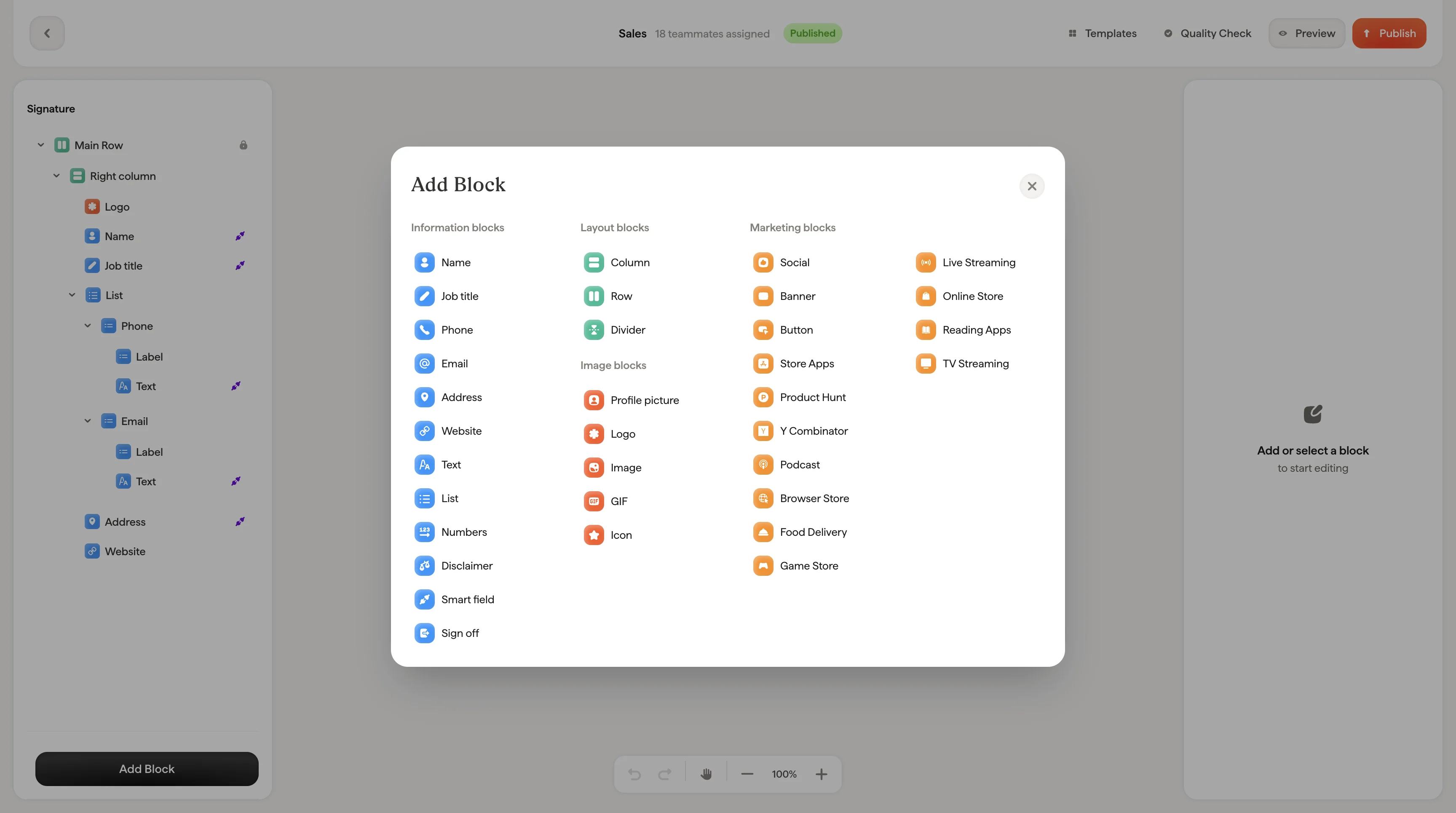
Image blocks handle profile photos, company logos, banners, and any other visual element in your signature.
 ## Image source
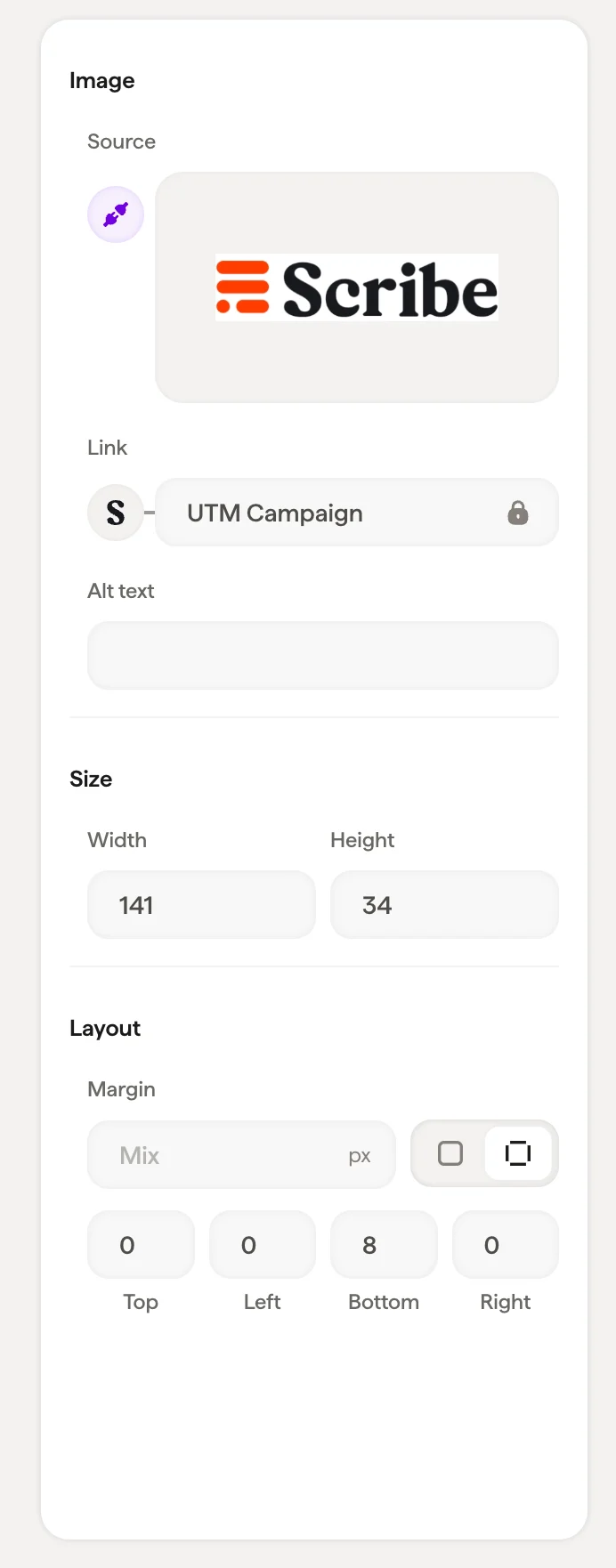
Click **Select image** to upload a new image or pick one from your [image library](/en/editor/image-library).
The panel adapts to the image state:
* **Empty**: Shows a placeholder with a "Select image" button
* **Uploaded**: Shows the image preview with options to replace or adjust it
* **Profile picture**: When synced from Google Workspace, shows the Google icon indicating the image updates automatically for each teammate
For profile pictures synced from [Google Workspace](/en/editor/google-workspace-directory), the image updates automatically when a teammate changes their Google profile photo. You don't need to manage these manually.
## Link
Add a URL so the image becomes clickable, useful for linking a company logo to your website or a banner to a landing page.
## Style
| Setting | What it does |
| ---------- | --------------------------------------------------------------------------------------------------------------------------------------------------------------- |
| **Crop** | Open the crop tool to adjust the visible area of the image |
| **Radius** | Corner rounding in pixels: set to `0` for sharp corners, increase for rounded corners, or use a high value for a fully circular crop (great for profile photos) |
## Size
Set the **Width** and **Height** in pixels. These control the display size of the image in the signature.
For profile photos, try equal width and height with a high border radius for a clean circular look.
## Layout
Padding controls the space around the image block.
## Related articles
* [Add blocks](/en/editor/add-blocks)
* [Styling panel](/en/editor/styling-panel)
* [Badge blocks](/en/editor/badge-blocks)
## Image source
Click **Select image** to upload a new image or pick one from your [image library](/en/editor/image-library).
The panel adapts to the image state:
* **Empty**: Shows a placeholder with a "Select image" button
* **Uploaded**: Shows the image preview with options to replace or adjust it
* **Profile picture**: When synced from Google Workspace, shows the Google icon indicating the image updates automatically for each teammate
For profile pictures synced from [Google Workspace](/en/editor/google-workspace-directory), the image updates automatically when a teammate changes their Google profile photo. You don't need to manage these manually.
## Link
Add a URL so the image becomes clickable, useful for linking a company logo to your website or a banner to a landing page.
## Style
| Setting | What it does |
| ---------- | --------------------------------------------------------------------------------------------------------------------------------------------------------------- |
| **Crop** | Open the crop tool to adjust the visible area of the image |
| **Radius** | Corner rounding in pixels: set to `0` for sharp corners, increase for rounded corners, or use a high value for a fully circular crop (great for profile photos) |
## Size
Set the **Width** and **Height** in pixels. These control the display size of the image in the signature.
For profile photos, try equal width and height with a high border radius for a clean circular look.
## Layout
Padding controls the space around the image block.
## Related articles
* [Add blocks](/en/editor/add-blocks)
* [Styling panel](/en/editor/styling-panel)
* [Badge blocks](/en/editor/badge-blocks)