> ## Documentation Index
> Fetch the complete documentation index at: https://help.scribe-mail.com/llms.txt
> Use this file to discover all available pages before exploring further.
# Personalize links with Smart Fields
> Add each teammate's details, like their name, email, or job title, to any link in your email signature. Prefill booking pages and forms automatically, or add UTM parameters to track who drives clicks.
Any link in a Scribe email signature (a button, an image, a social icon, or a text link) can carry personalized details about the teammate sending the email. Scribe adds these details to the end of the link's URL and fills them in automatically for every teammate, using their [Smart Fields](/en/smart-fields) data. Perfect for prefilling booking pages and forms, or tracking who drives clicks.
 ## How to personalize a link
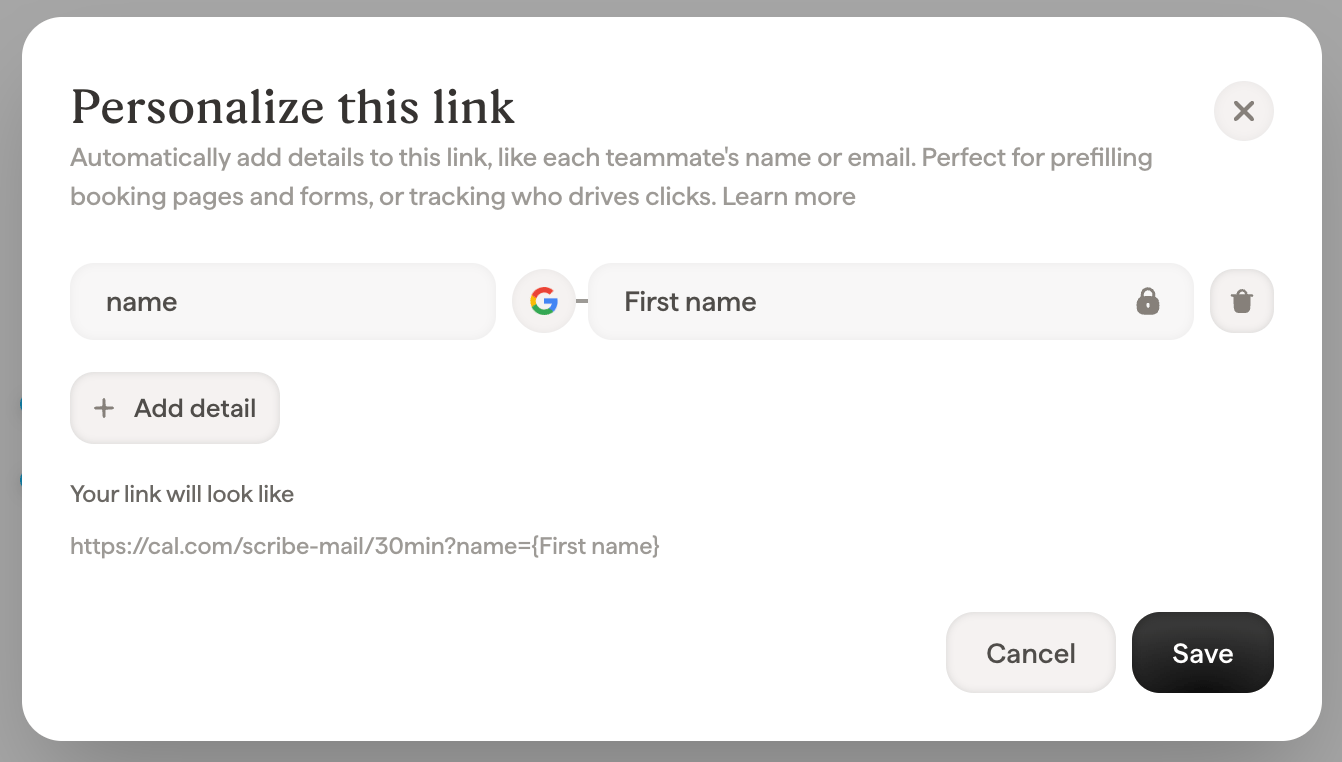
1. In the editor, select the block that carries the link (a button, an image, a social icon, or a text selection) and open its **Link** field.
2. Click **Personalize this link** under the URL.
3. Add one or more details. Each detail has a **name** (what the destination page receives, e.g. `name` or `utm_content`) and a **value**: fixed text, or a Smart Field that fills in per teammate.
4. Check **Your link will look like** to see the final URL, with Smart Fields shown as placeholders like `{First name}`.
5. Click **Save**.
The link's base URL can itself be a fixed URL or a Smart Field (like a personal booking link). Personalized details work with both.
## Example: prefill a booking page or form
Say your sales team's signatures have a **Book a call** button pointing to your scheduling page. Add these details so the booking form opens pre-filled with the sender's information:
| Detail name | Value |
| ----------- | ---------------------------- |
| `name` | Smart Field → **First name** |
| `email` | Smart Field → **Email** |
Your link will look like `https://cal.example.com/acme?name={First name}&email={Email}`. When a prospect clicks the button in Jane's email, the booking page already knows they were talking to Jane: one less form to fill, fewer drop-offs, and the meeting lands with the right person. The same approach prefills contact forms, demo requests, and survey tools that accept URL parameters (most scheduling and form products do).
## Example: track who drives clicks with UTM parameters
To see in your analytics tool which teammate's signature drives traffic, add standard UTM parameters:
| Detail name | Value |
| ------------- | ---------------------------- |
| `utm_source` | Text → `email-signature` |
| `utm_medium` | Text → `email` |
| `utm_content` | Smart Field → **First name** |
Every click now arrives tagged with the campaign source and the teammate who sent the email, so your analytics tool can answer "which signatures convert?".
## How is this different from Scribe's built-in tracking?
Personalized link details and Scribe's analytics are **two different datasets**. Scribe measures your signatures and reports inside Scribe; personalized details are sent to your own tools and reported there. Neither replaces or changes the other.
Personalized details and Scribe's own tracking produce two separate, complementary datasets:
| | Scribe's built-in tracking | Personalized link details (UTM, etc.) |
| ------------------------ | ------------------------------------------------------------------------------------------------------------------------ | ------------------------------------------------------------------------------- |
| **Where the data lives** | Your Scribe dashboard: [signature analytics](/en/signature-analytics) and [conversion tracking](/en/conversion-tracking) | Your own tools: web analytics, CRM, scheduling or form product |
| **What it measures** | Views and clicks on your signatures, per signature, link, and recipient | Whatever your tool does with URL parameters: sessions, campaigns, form prefills |
| **Setup needed** | None, it works out of the box | Add the details your destination tool expects |
Adding personalized details never changes or replaces Scribe's tracking: both keep working on the same links, each feeding its own reports. Use Scribe analytics to compare signatures and campaigns inside Scribe, and personalized details to make signature traffic visible inside the tools your team already uses.
Because each side counts with its own rules, don't expect the two reports to show identical numbers. Scribe counts every click on the signature link itself, while your analytics tool applies its own sessions, filters, and consent handling. Treat each report as its own source of truth for what it measures.
## Good to know
* **Missing data never breaks a link.** If a teammate's Smart Field is empty, that detail is simply left off their link, and the link still works.
* **Existing URL parameters are kept.** If the destination URL already contains parameters, your details are merged in, and a detail with the same name replaces the URL's own value.
* **Everything is encoded for you.** Spaces, accents, and special characters in values are safely encoded, so there is nothing to prepare.
* **Email and phone links can't be personalized.** Links to an email address (`mailto:`) or phone number (`tel:`) don't carry details.
## Frequently asked questions
### Can I add UTM parameters to my email signature links?
Yes. Open the link's **Personalize this link** option and add your UTM parameters as details: fixed text for `utm_source` and `utm_medium`, and a Smart Field (like First name) for `utm_content` to identify the teammate. Every signature gets the right values automatically.
### Can I prefill a Calendly, HubSpot, or Typeform page from an email signature?
Yes. Add details whose names match the parameters your scheduling or form tool accepts (for example `name` and `email`), and bind their values to Smart Fields. Each teammate's link then opens the page pre-filled with their own details.
### Does adding UTM parameters change or duplicate Scribe's click tracking?
No. Scribe's click tracking keeps working exactly as before, and your UTM parameters travel to your own analytics tool. They are two different datasets: Scribe reports signature performance in your Scribe dashboard, while UTM data appears in your web analytics. Their numbers can legitimately differ, since each tool counts with its own rules.
### What happens when a teammate doesn't have the data yet?
The personalized detail is skipped for that teammate and the link still points to the base URL. Once their Smart Field is filled in, manually or from a connected data source, their links pick it up automatically, without republishing anything by hand.
## Related articles
* [Smart Fields](/en/smart-fields)
* [Button blocks](/en/editor/button-blocks)
* [Signature analytics](/en/signature-analytics)
* [Conversion tracking](/en/conversion-tracking)
## How to personalize a link
1. In the editor, select the block that carries the link (a button, an image, a social icon, or a text selection) and open its **Link** field.
2. Click **Personalize this link** under the URL.
3. Add one or more details. Each detail has a **name** (what the destination page receives, e.g. `name` or `utm_content`) and a **value**: fixed text, or a Smart Field that fills in per teammate.
4. Check **Your link will look like** to see the final URL, with Smart Fields shown as placeholders like `{First name}`.
5. Click **Save**.
The link's base URL can itself be a fixed URL or a Smart Field (like a personal booking link). Personalized details work with both.
## Example: prefill a booking page or form
Say your sales team's signatures have a **Book a call** button pointing to your scheduling page. Add these details so the booking form opens pre-filled with the sender's information:
| Detail name | Value |
| ----------- | ---------------------------- |
| `name` | Smart Field → **First name** |
| `email` | Smart Field → **Email** |
Your link will look like `https://cal.example.com/acme?name={First name}&email={Email}`. When a prospect clicks the button in Jane's email, the booking page already knows they were talking to Jane: one less form to fill, fewer drop-offs, and the meeting lands with the right person. The same approach prefills contact forms, demo requests, and survey tools that accept URL parameters (most scheduling and form products do).
## Example: track who drives clicks with UTM parameters
To see in your analytics tool which teammate's signature drives traffic, add standard UTM parameters:
| Detail name | Value |
| ------------- | ---------------------------- |
| `utm_source` | Text → `email-signature` |
| `utm_medium` | Text → `email` |
| `utm_content` | Smart Field → **First name** |
Every click now arrives tagged with the campaign source and the teammate who sent the email, so your analytics tool can answer "which signatures convert?".
## How is this different from Scribe's built-in tracking?
Personalized link details and Scribe's analytics are **two different datasets**. Scribe measures your signatures and reports inside Scribe; personalized details are sent to your own tools and reported there. Neither replaces or changes the other.
Personalized details and Scribe's own tracking produce two separate, complementary datasets:
| | Scribe's built-in tracking | Personalized link details (UTM, etc.) |
| ------------------------ | ------------------------------------------------------------------------------------------------------------------------ | ------------------------------------------------------------------------------- |
| **Where the data lives** | Your Scribe dashboard: [signature analytics](/en/signature-analytics) and [conversion tracking](/en/conversion-tracking) | Your own tools: web analytics, CRM, scheduling or form product |
| **What it measures** | Views and clicks on your signatures, per signature, link, and recipient | Whatever your tool does with URL parameters: sessions, campaigns, form prefills |
| **Setup needed** | None, it works out of the box | Add the details your destination tool expects |
Adding personalized details never changes or replaces Scribe's tracking: both keep working on the same links, each feeding its own reports. Use Scribe analytics to compare signatures and campaigns inside Scribe, and personalized details to make signature traffic visible inside the tools your team already uses.
Because each side counts with its own rules, don't expect the two reports to show identical numbers. Scribe counts every click on the signature link itself, while your analytics tool applies its own sessions, filters, and consent handling. Treat each report as its own source of truth for what it measures.
## Good to know
* **Missing data never breaks a link.** If a teammate's Smart Field is empty, that detail is simply left off their link, and the link still works.
* **Existing URL parameters are kept.** If the destination URL already contains parameters, your details are merged in, and a detail with the same name replaces the URL's own value.
* **Everything is encoded for you.** Spaces, accents, and special characters in values are safely encoded, so there is nothing to prepare.
* **Email and phone links can't be personalized.** Links to an email address (`mailto:`) or phone number (`tel:`) don't carry details.
## Frequently asked questions
### Can I add UTM parameters to my email signature links?
Yes. Open the link's **Personalize this link** option and add your UTM parameters as details: fixed text for `utm_source` and `utm_medium`, and a Smart Field (like First name) for `utm_content` to identify the teammate. Every signature gets the right values automatically.
### Can I prefill a Calendly, HubSpot, or Typeform page from an email signature?
Yes. Add details whose names match the parameters your scheduling or form tool accepts (for example `name` and `email`), and bind their values to Smart Fields. Each teammate's link then opens the page pre-filled with their own details.
### Does adding UTM parameters change or duplicate Scribe's click tracking?
No. Scribe's click tracking keeps working exactly as before, and your UTM parameters travel to your own analytics tool. They are two different datasets: Scribe reports signature performance in your Scribe dashboard, while UTM data appears in your web analytics. Their numbers can legitimately differ, since each tool counts with its own rules.
### What happens when a teammate doesn't have the data yet?
The personalized detail is skipped for that teammate and the link still points to the base URL. Once their Smart Field is filled in, manually or from a connected data source, their links pick it up automatically, without republishing anything by hand.
## Related articles
* [Smart Fields](/en/smart-fields)
* [Button blocks](/en/editor/button-blocks)
* [Signature analytics](/en/signature-analytics)
* [Conversion tracking](/en/conversion-tracking)