> ## Documentation Index
> Fetch the complete documentation index at: https://help.scribe-mail.com/llms.txt
> Use this file to discover all available pages before exploring further.
# Styling panel
> Style any signature block from the right-side styling panel, with content, style, size, and layout sections plus padding, brand colors, and link controls.
The styling panel is where you control the look and feel of your email signature. Select any block on the canvas, and the panel on the right updates to show all available options for that element.
Think of it like a design tool: click on something, style it on the right.
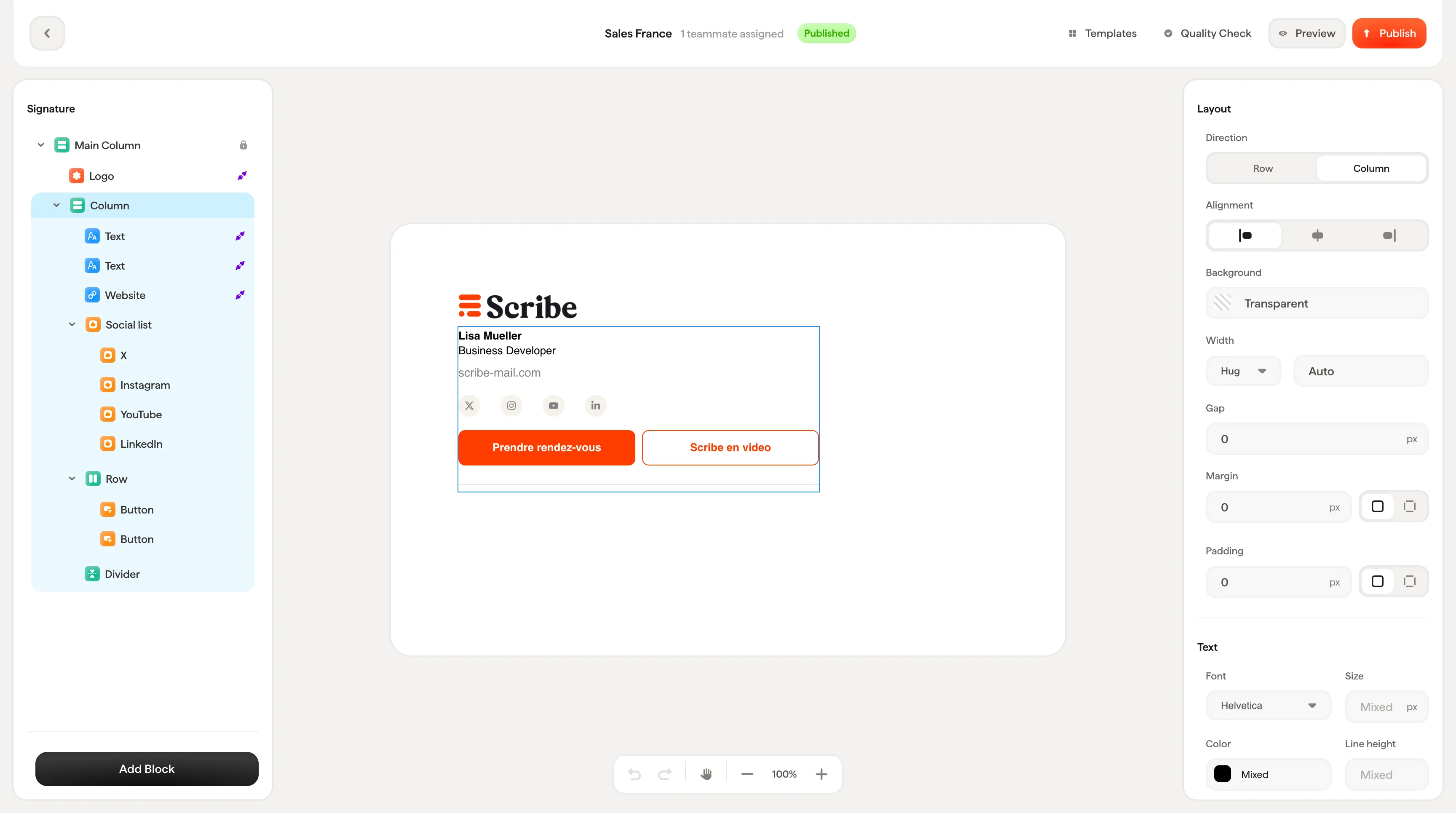 The options you see depend on the block you've selected. A text block shows font and color settings. An [image block](/en/editor/image-blocks) shows size and crop options. Each block type has its own set of controls.
## How it works
The styling panel is organized into consistent sections that appear depending on the block type:
* **Content settings**: What the block contains (text values, Smart Field connections, image source, links)
* **Style**: How it looks (colors, fonts, formatting, icon variants)
* **Size**: Dimensions when applicable (width, height)
* **Layout**: How it sits in the signature (padding, gap, alignment, direction)
Not every block has all four sections. A simple [text block](/en/editor/text-blocks) might only show content and style settings, while a [container block](/en/editor/containers-and-columns) focuses on layout and alignment.
When no block is selected, the panel shows "Add or select a block to start editing." Click any element on the canvas or add a new block from the left panel to begin.
***
## Common controls
These controls appear across multiple block types and work the same way everywhere.
### Padding
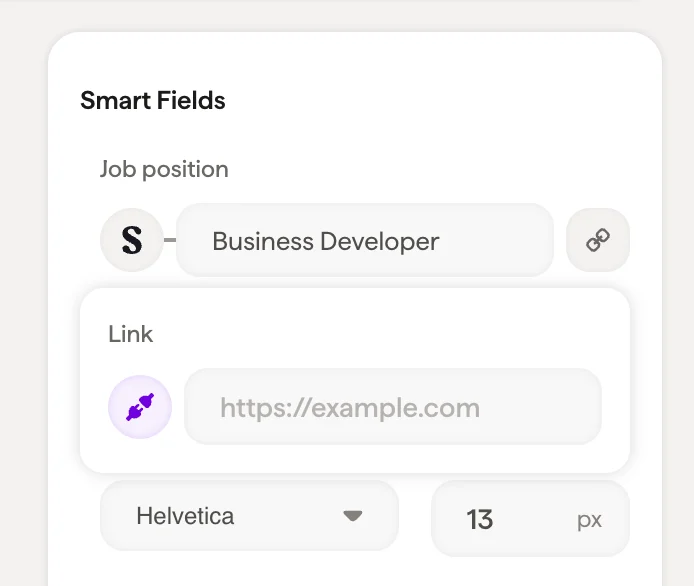
Every block has padding controls in its Layout section. Padding is the space between the block's edge and the surrounding elements.
You can set padding globally (one value for all sides) or expand the control to set each side individually: Top, Right, Bottom, Left.
The options you see depend on the block you've selected. A text block shows font and color settings. An [image block](/en/editor/image-blocks) shows size and crop options. Each block type has its own set of controls.
## How it works
The styling panel is organized into consistent sections that appear depending on the block type:
* **Content settings**: What the block contains (text values, Smart Field connections, image source, links)
* **Style**: How it looks (colors, fonts, formatting, icon variants)
* **Size**: Dimensions when applicable (width, height)
* **Layout**: How it sits in the signature (padding, gap, alignment, direction)
Not every block has all four sections. A simple [text block](/en/editor/text-blocks) might only show content and style settings, while a [container block](/en/editor/containers-and-columns) focuses on layout and alignment.
When no block is selected, the panel shows "Add or select a block to start editing." Click any element on the canvas or add a new block from the left panel to begin.
***
## Common controls
These controls appear across multiple block types and work the same way everywhere.
### Padding
Every block has padding controls in its Layout section. Padding is the space between the block's edge and the surrounding elements.
You can set padding globally (one value for all sides) or expand the control to set each side individually: Top, Right, Bottom, Left.
 ### Color picker
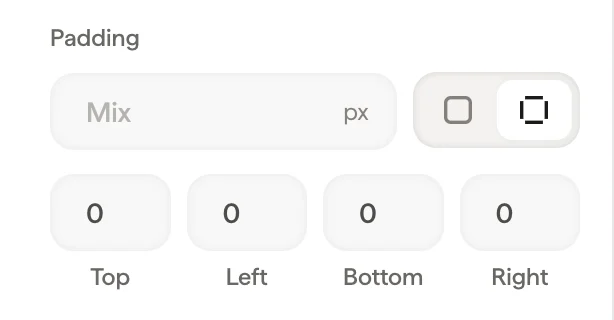
Anywhere you see a color field, clicking it opens the color picker with:
* A color gradient selector for visual picking
* A hue slider for selecting the base color
* A hex input for entering exact color values
* Your **Brand Colors** at the bottom for quick access to your company's color palette
### Brand colors
Brand colors are shared across all your signature templates. Editing a brand color updates it everywhere it's used. Change your brand blue once, and every signature using that color updates automatically.
You can add new brand colors with the **+** button directly from the color picker.
### Color picker
Anywhere you see a color field, clicking it opens the color picker with:
* A color gradient selector for visual picking
* A hue slider for selecting the base color
* A hex input for entering exact color values
* Your **Brand Colors** at the bottom for quick access to your company's color palette
### Brand colors
Brand colors are shared across all your signature templates. Editing a brand color updates it everywhere it's used. Change your brand blue once, and every signature using that color updates automatically.
You can add new brand colors with the **+** button directly from the color picker.
 ### Links
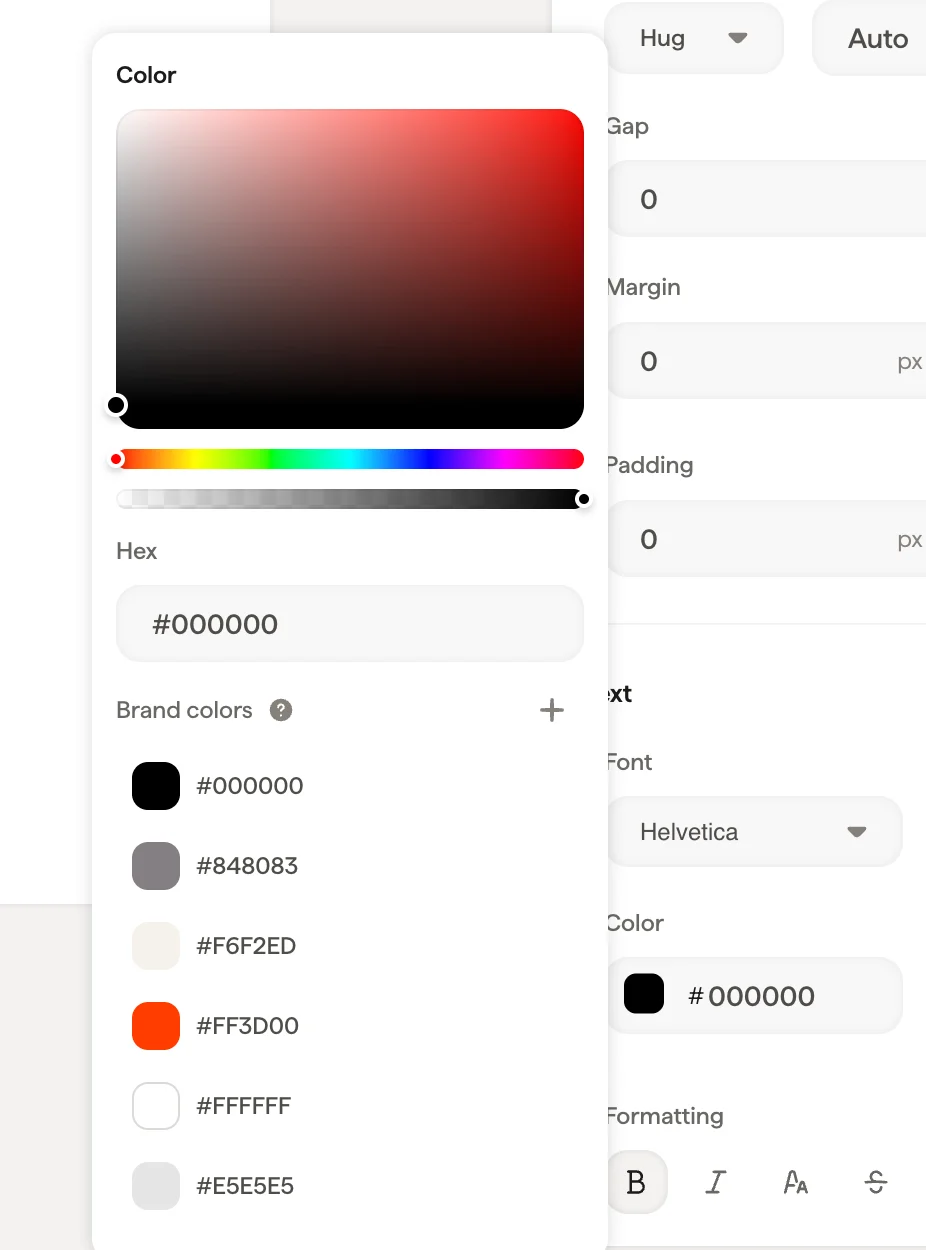
Most blocks support links. The link input accepts any URL and makes the block clickable in the final signature, useful for driving traffic to your website, booking page, or social profiles.
### Links
Most blocks support links. The link input accepts any URL and makes the block clickable in the final signature, useful for driving traffic to your website, booking page, or social profiles.
 ## Related articles
* [Editor overview](/en/editor/editor-overview)
* [Add blocks](/en/editor/add-blocks)
* [Canvas](/en/editor/canvas)
## Related articles
* [Editor overview](/en/editor/editor-overview)
* [Add blocks](/en/editor/add-blocks)
* [Canvas](/en/editor/canvas)