> ## Documentation Index
> Fetch the complete documentation index at: https://help.scribe-mail.com/llms.txt
> Use this file to discover all available pages before exploring further.
# Home overview
> Your Scribe dashboard at a glance. See the status of your signatures, teammates, integrations, campaigns, and analytics, all from one screen.
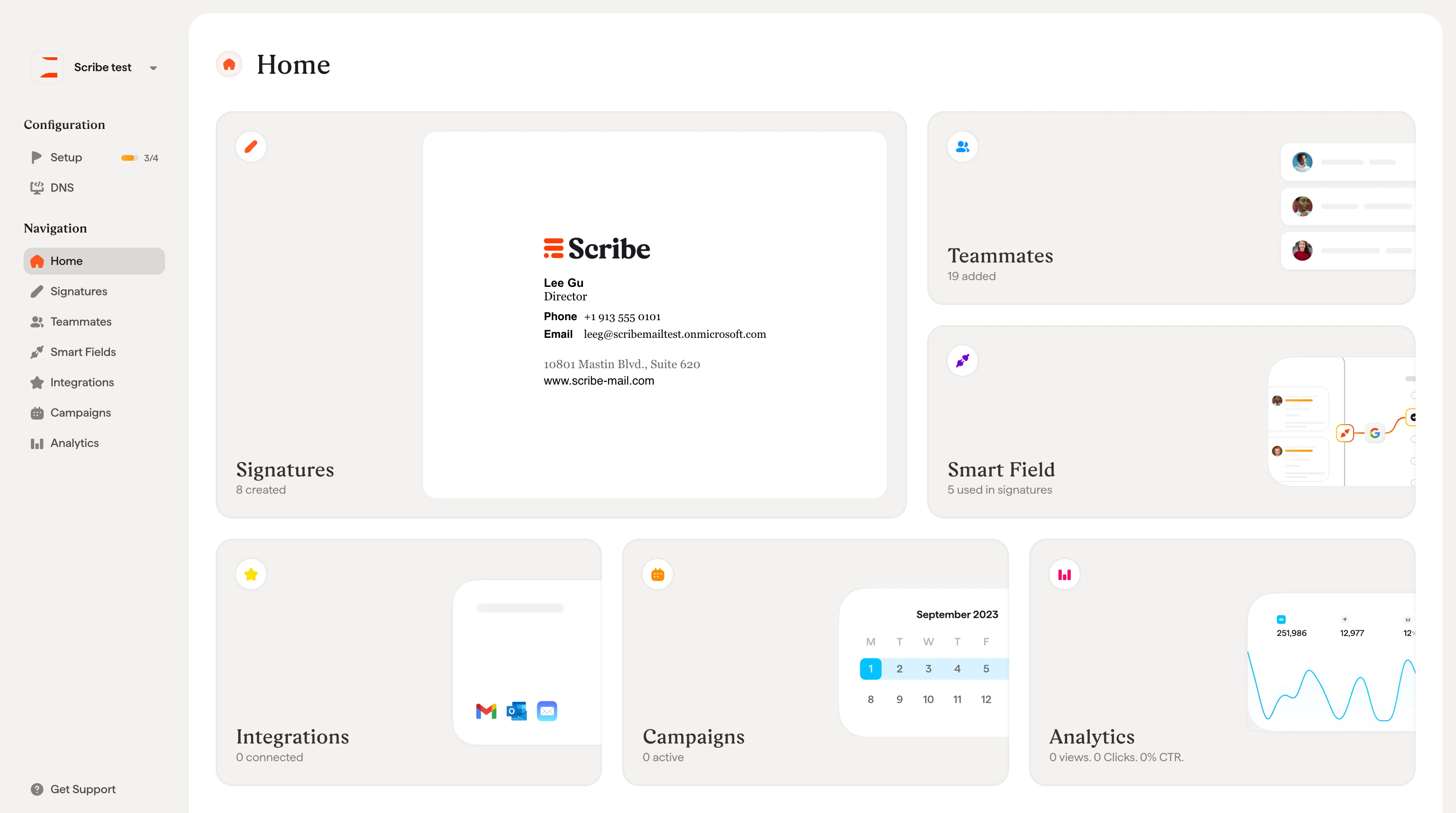
The Home screen is your central dashboard in Scribe. It gives you a quick overview of everything happening in your workspace: how many signatures you've created, how many teammates are connected, which Smart Fields are in use, which integrations are active, and how your campaigns are performing.
Each card on the Home screen links directly to its dedicated section so that you can jump into any part of Scribe with one click.
 ## What each card shows
**Signatures**: The number of signatures created in your workspace, with a preview of your most recent one. Click to create, edit, or manage your signatures.
**Teammates**: The number of teammates added to your workspace. Click to add new teammates, sync from your email provider, or manage existing profiles.
**Smart Fields**: The number of Smart Fields currently used in your signatures. Smart Fields are dynamic fields that automatically personalize each signature with individual teammates' information, such as name, job title, or phone number. The data can come from an external source (synced from your Google Workspace or Microsoft Entra ID directory) or managed internally using Scribe as your database. Click to configure them.
**Integrations**: The number of integrations connected (Google Workspace, Microsoft 365, or both). Click to connect a new integration or manage existing ones.
**Campaigns**: The number of campaigns currently running. Campaigns let you add promotional banners to your signatures and schedule them over time. Click to create or manage campaigns.
**Analytics**: A snapshot of your signature performance: total views, clicks, and click-through rate (CTR). Click to access detailed analytics and track the impact of your signatures and campaigns.
Create and manage your email signatures
Add and manage your team
Configure dynamic signature fields
Connect Google Workspace or Microsoft 365
Schedule promotional banners
Track signature performance
## What each card shows
**Signatures**: The number of signatures created in your workspace, with a preview of your most recent one. Click to create, edit, or manage your signatures.
**Teammates**: The number of teammates added to your workspace. Click to add new teammates, sync from your email provider, or manage existing profiles.
**Smart Fields**: The number of Smart Fields currently used in your signatures. Smart Fields are dynamic fields that automatically personalize each signature with individual teammates' information, such as name, job title, or phone number. The data can come from an external source (synced from your Google Workspace or Microsoft Entra ID directory) or managed internally using Scribe as your database. Click to configure them.
**Integrations**: The number of integrations connected (Google Workspace, Microsoft 365, or both). Click to connect a new integration or manage existing ones.
**Campaigns**: The number of campaigns currently running. Campaigns let you add promotional banners to your signatures and schedule them over time. Click to create or manage campaigns.
**Analytics**: A snapshot of your signature performance: total views, clicks, and click-through rate (CTR). Click to access detailed analytics and track the impact of your signatures and campaigns.
Create and manage your email signatures
Add and manage your team
Configure dynamic signature fields
Connect Google Workspace or Microsoft 365
Schedule promotional banners
Track signature performance