> ## Documentation Index
> Fetch the complete documentation index at: https://help.scribe-mail.com/llms.txt
> Use this file to discover all available pages before exploring further.

# Apple Mail

> Install Scribe email signatures on Apple Mail in minutes by downloading the Scribe desktop app and turning on the integration on your Mac.

Follow the steps below to [install your signatures](/en/install-signatures) in Apple Mail.

<Info>
  **Each user has to install and configure the integration.**
</Info>

<Info>
  **Users see signatures when composing emails.**
</Info>

<Info>
  **Cloud-based installation.** Emails don't go through Scribe servers.
</Info>

## Installation guide

### Prerequisites

* A Scribe account
* At least one signature created in Scribe
* macOS with Apple Mail installed

<Steps>
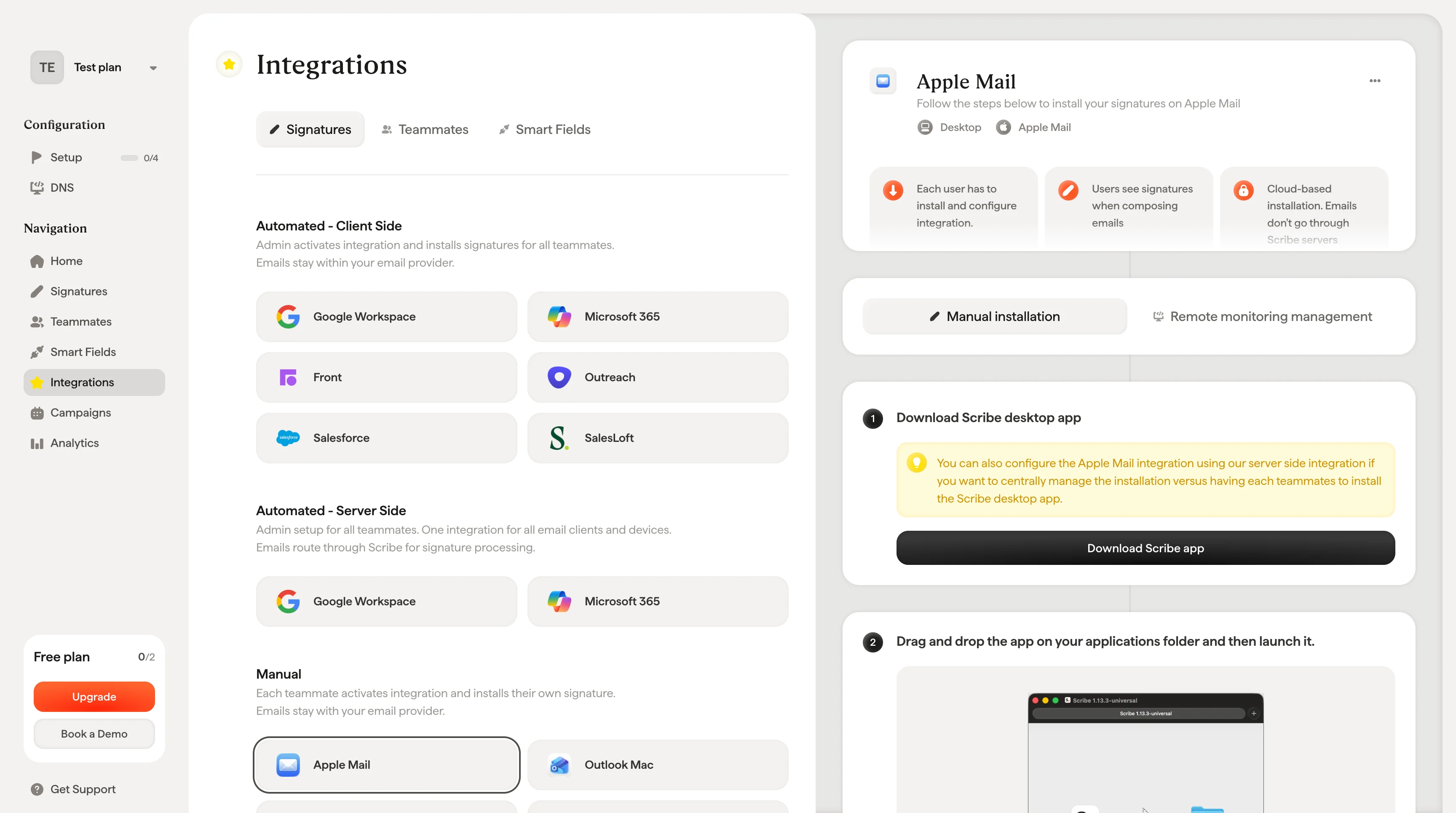
  <Step title="Download Scribe desktop app">
    <Warning>
      You can also configure the Apple Mail integration using our server-side integration if you want to [centrally manage the installation](/en/integrations/signatures/apple-mail-rmm) versus having each teammate install the Scribe desktop app.
    </Warning>

    Download the Scribe desktop app from the integrations page.
    <Frame>
      <img src="https://mintcdn.com/scribe/Z_G2D9X-Tlrxu_Eh/images/apple-mail-download-scribe-app.png?fit=max&auto=format&n=Z_G2D9X-Tlrxu_Eh&q=85&s=13ade988e4036e475a944017e2d7a379" alt="Download Scribe desktop app from the integrations page" width="3456" height="1930" data-path="images/apple-mail-download-scribe-app.png" />
    </Frame>
  </Step>

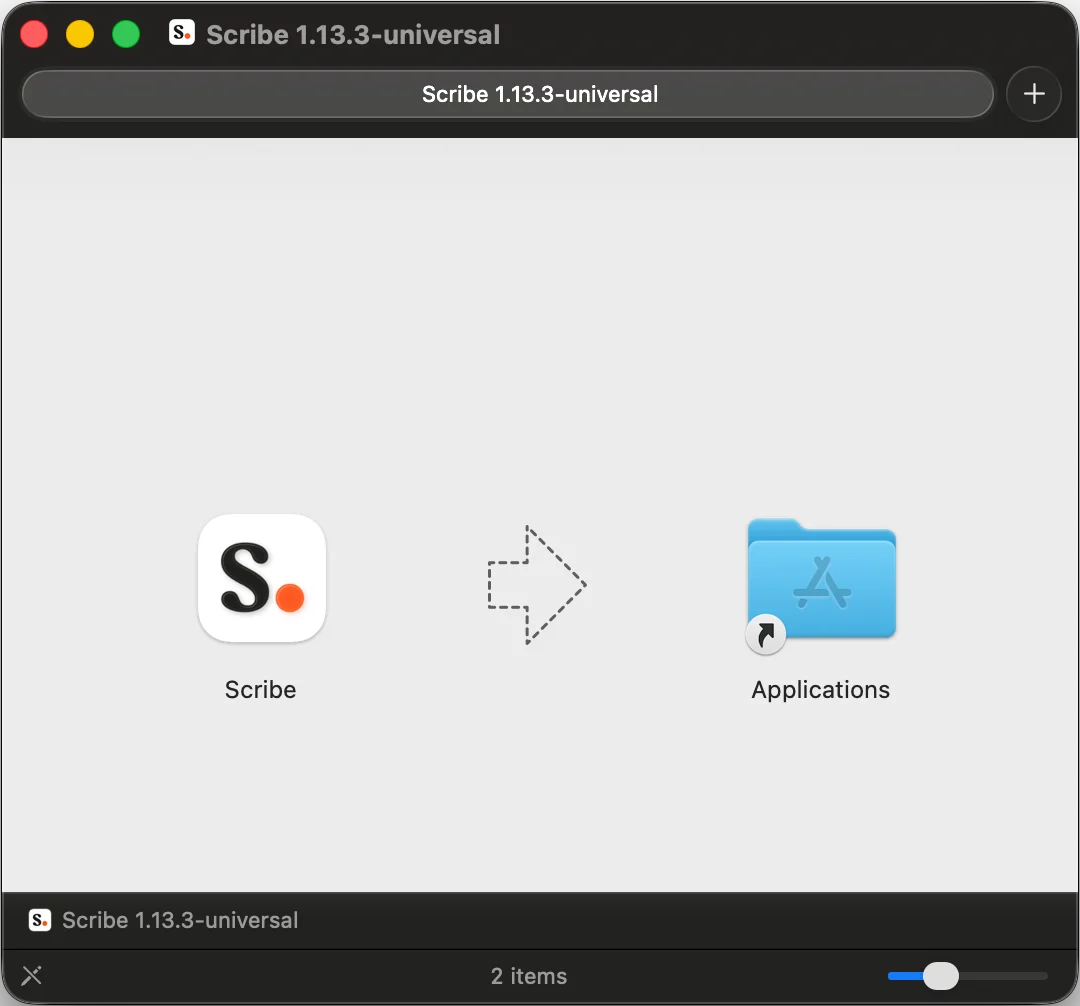
  <Step title="Drag and drop the app into your Applications folder and then launch it">
    <Frame>
      <img src="https://mintcdn.com/scribe/I5V9iTucPI_EY3nq/integrations/signatures/images/apple-mail-step-2.png?fit=max&auto=format&n=I5V9iTucPI_EY3nq&q=85&s=454e4796d4b4fbb4c2db2ddc97c83f80" alt="Drag Scribe to Applications folder" className="mx-auto" style={{ width:"70%" }} width="1080" height="1006" data-path="integrations/signatures/images/apple-mail-step-2.png" />
    </Frame>
  </Step>

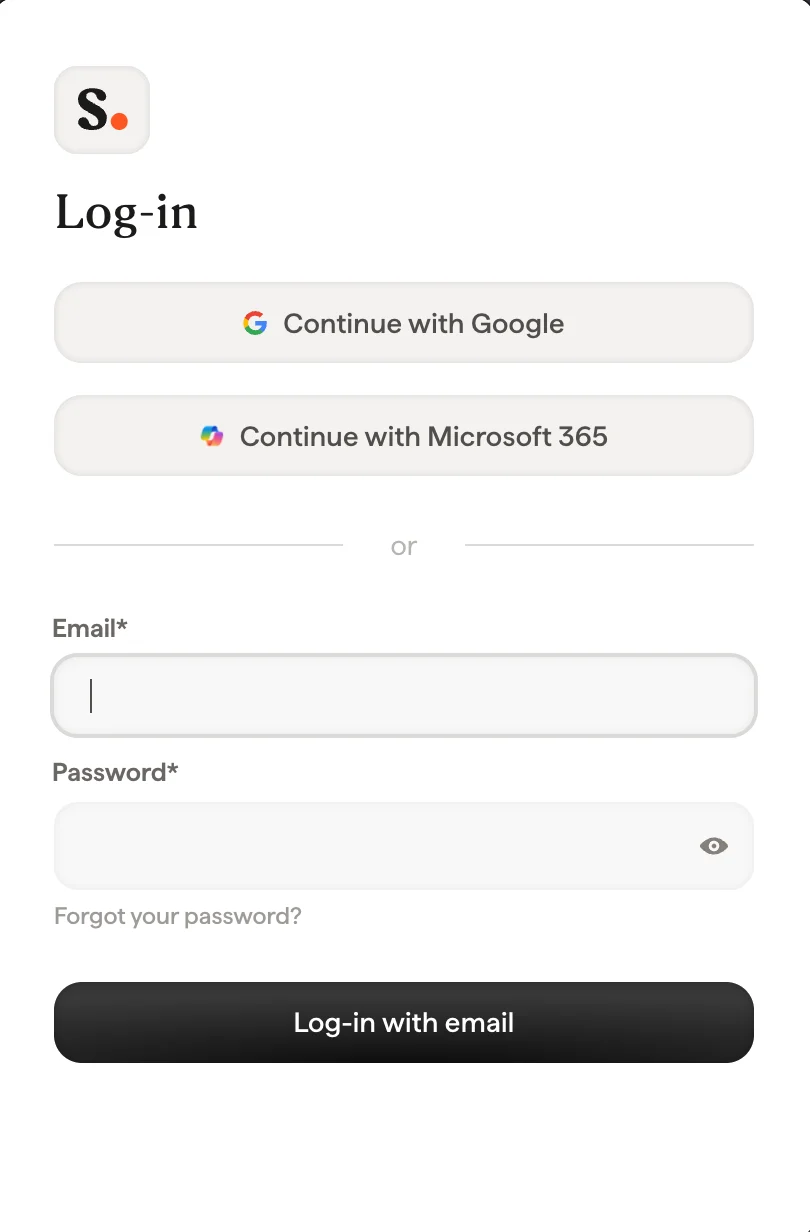
  <Step title="Log in with your Scribe credentials">
    Log in to the Scribe app just as you do on Scribe's website.
    <Frame>
      <img src="https://mintcdn.com/scribe/xbQhr3JjkYildsKM/images/scribe-app-login.png?fit=max&auto=format&n=xbQhr3JjkYildsKM&q=85&s=5f5ded1413970e4830f850a1a55d7388" alt="Scribe desktop app login screen" title="Scribe desktop app login screen" className="mx-auto" style={{ width:"63%" }} width="810" height="1232" data-path="images/scribe-app-login.png" />
    </Frame>
  </Step>

  <Step title="Turn on Apple Mail installation">
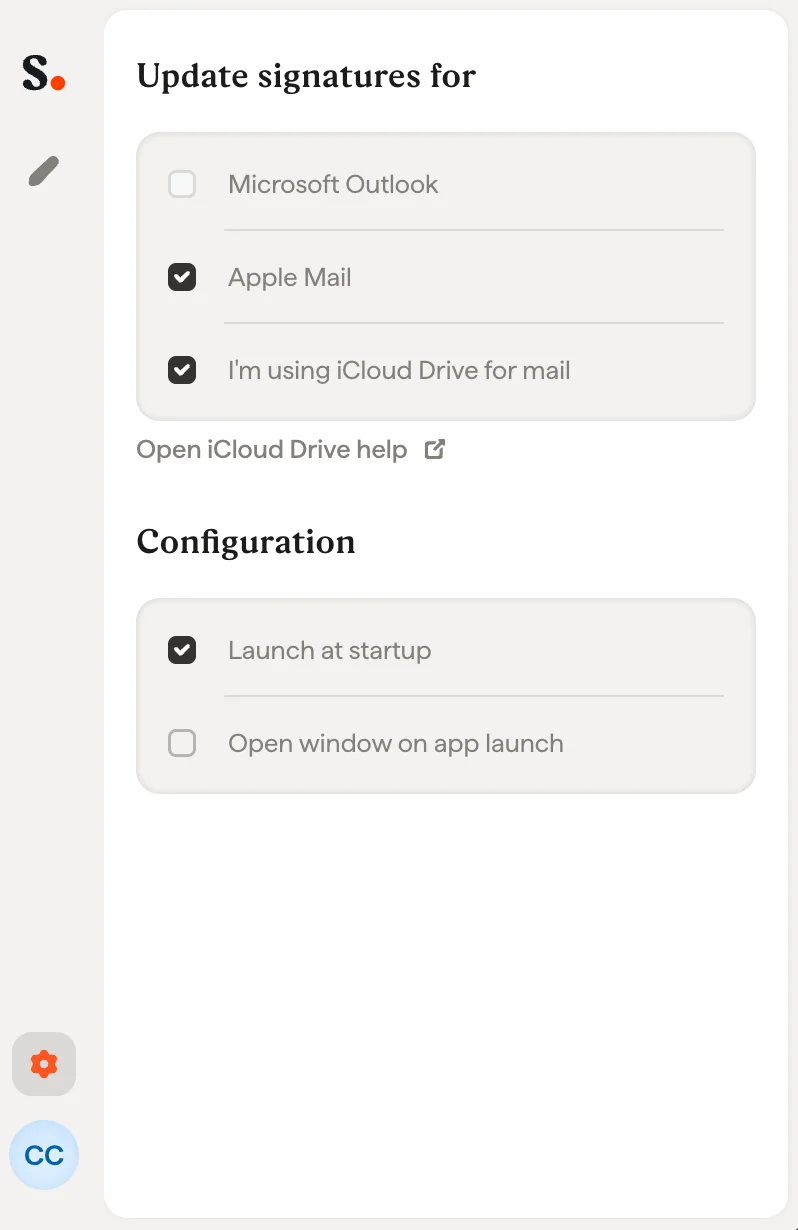
    Click the settings wheel and activate Apple Mail.
    <Frame>
      <img src="https://mintcdn.com/scribe/xbQhr3JjkYildsKM/images/scribe-app-activate-email-client.png?fit=max&auto=format&n=xbQhr3JjkYildsKM&q=85&s=5d8407f7903c0031672a5d20f452bf1f" alt="Activating the email client in Scribe app settings" title="Activating the email client in Scribe app settings" className="mx-auto" style={{ width:"71%" }} width="798" height="1230" data-path="images/scribe-app-activate-email-client.png" />
    </Frame>
  </Step>

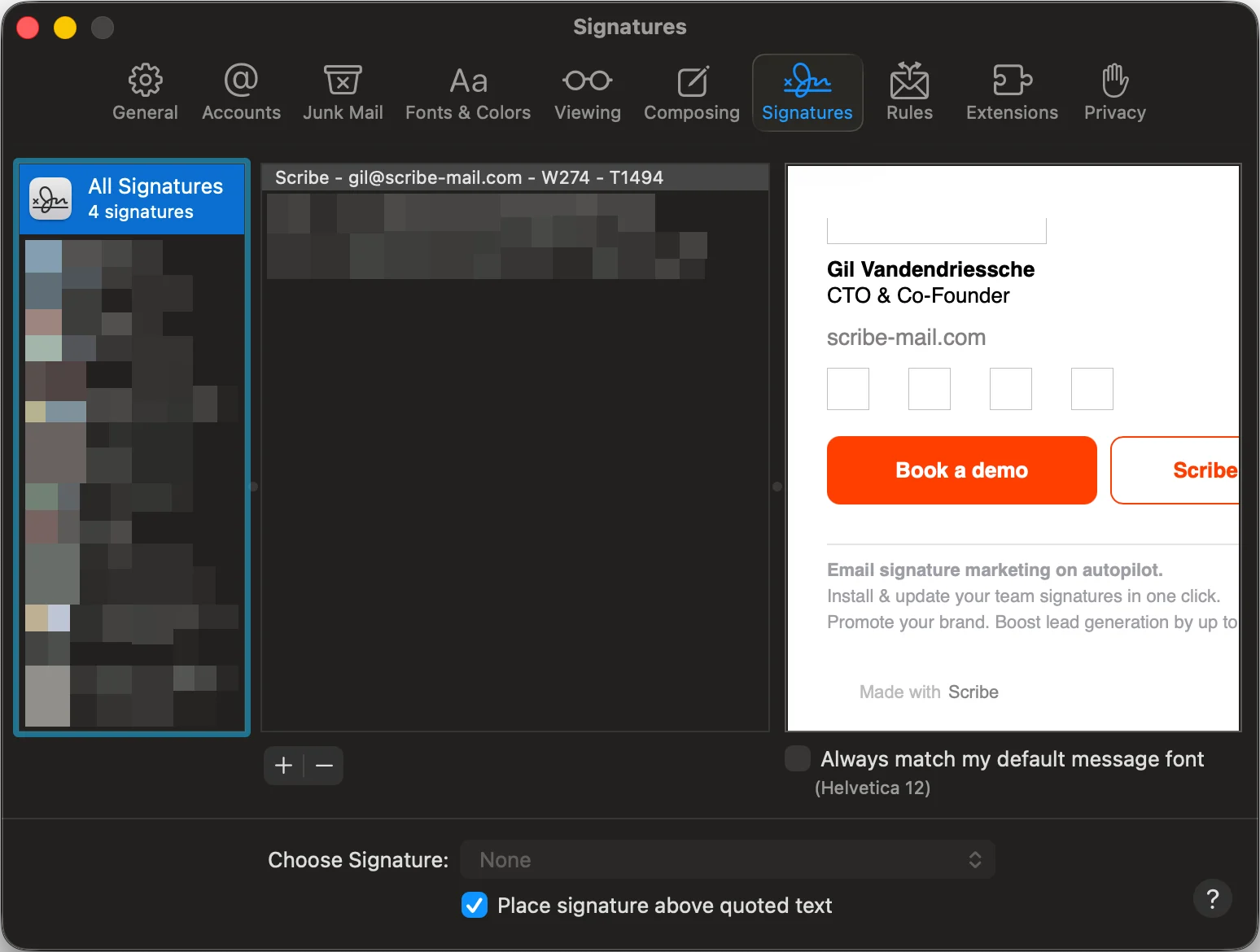
  <Step title="Open Apple Mail and go to Settings then the Signatures tab">
    <Frame>
      <img src="https://mintcdn.com/scribe/I5V9iTucPI_EY3nq/integrations/signatures/images/apple-mail-step-5.png?fit=max&auto=format&n=I5V9iTucPI_EY3nq&q=85&s=8e0cfc9b69576693cc0be960137f6924" alt="Apple Mail signatures settings" width="1548" height="1170" data-path="integrations/signatures/images/apple-mail-step-5.png" />
    </Frame>
  </Step>

  <Step title="Select Scribe signature">
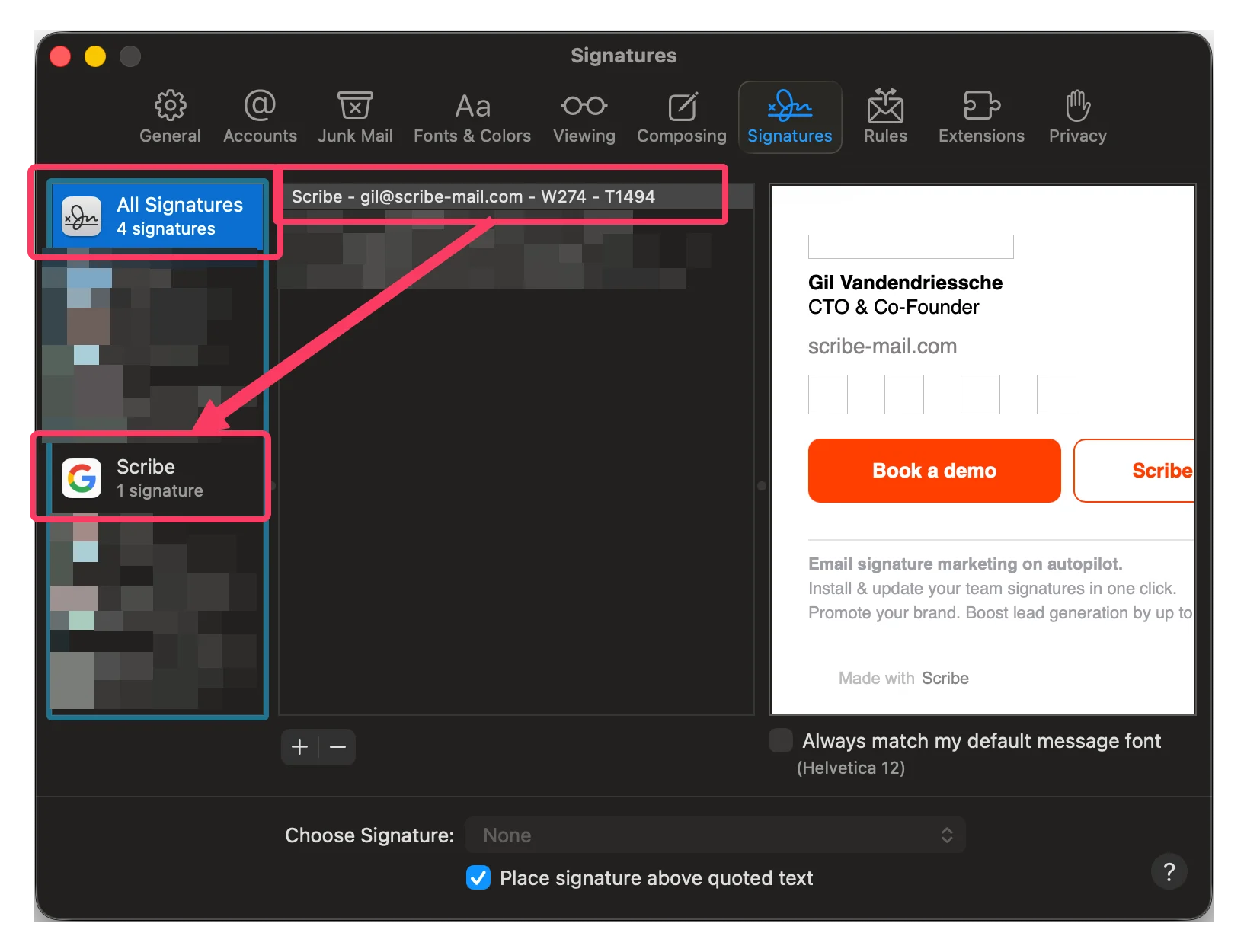
    Click on the 'All signatures' tab. Then, drag your Scribe signature to the linked email account.
    <Frame>
      <img src="https://mintcdn.com/scribe/I5V9iTucPI_EY3nq/integrations/signatures/images/apple-mail-step-6.png?fit=max&auto=format&n=I5V9iTucPI_EY3nq&q=85&s=18b9a02d3e6ecbe4acc2505e02b31c77" alt="Drag Scribe signature to email account" width="1633" height="1250" data-path="integrations/signatures/images/apple-mail-step-6.png" />
    </Frame>
  </Step>

  <Step title="Set the signature as default in Apple Mail">
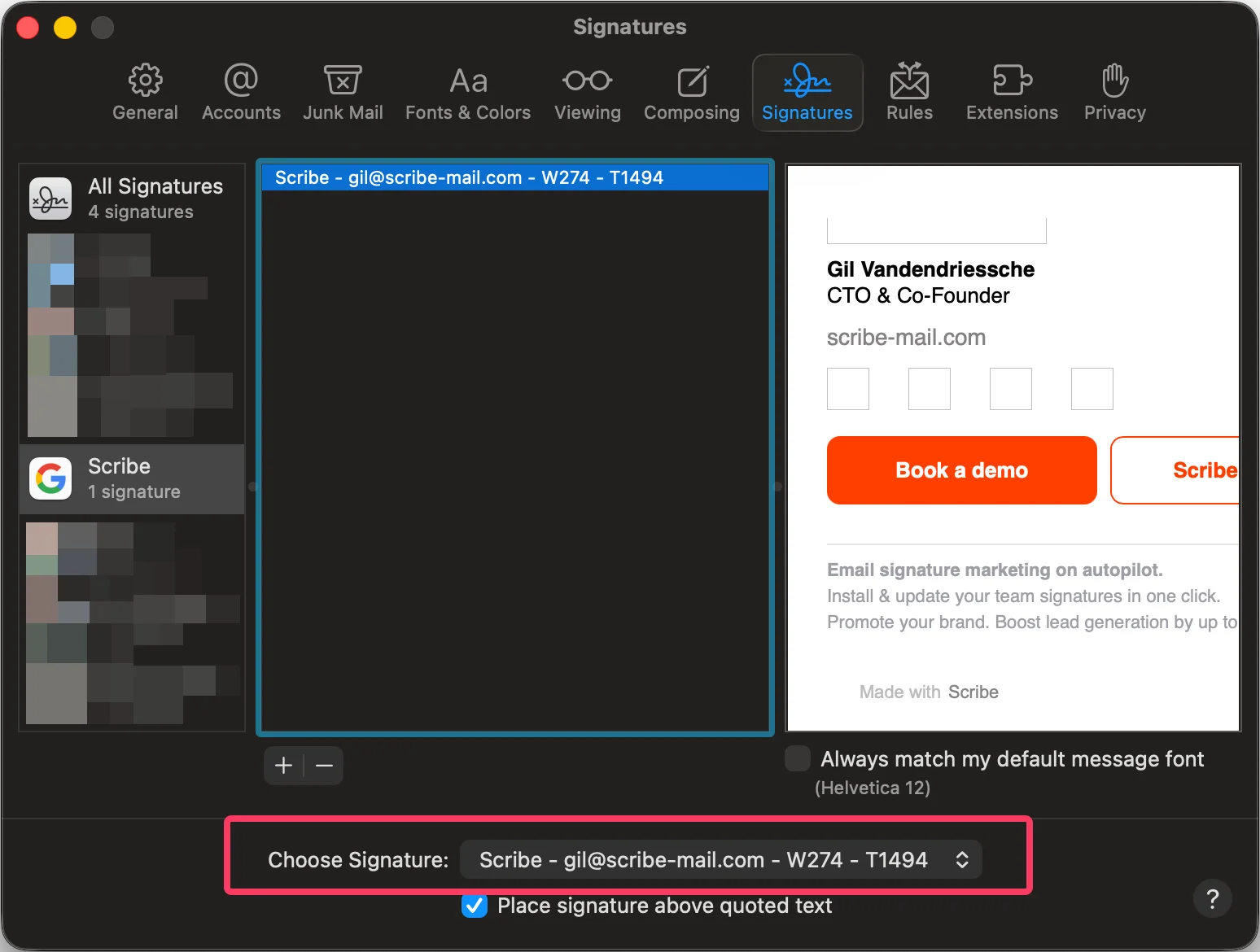
    In the 'choose your signature' field, pick your Scribe signature.
    <Frame>
      <img src="https://mintcdn.com/scribe/I5V9iTucPI_EY3nq/integrations/signatures/images/apple-mail-step-7.png?fit=max&auto=format&n=I5V9iTucPI_EY3nq&q=85&s=ab31fde7eda3c3052ef0cb7b4b28adf9" alt="Set Scribe signature as default" width="1548" height="1170" data-path="integrations/signatures/images/apple-mail-step-7.png" />
    </Frame>
  </Step>

  <Step title="Install team signatures">
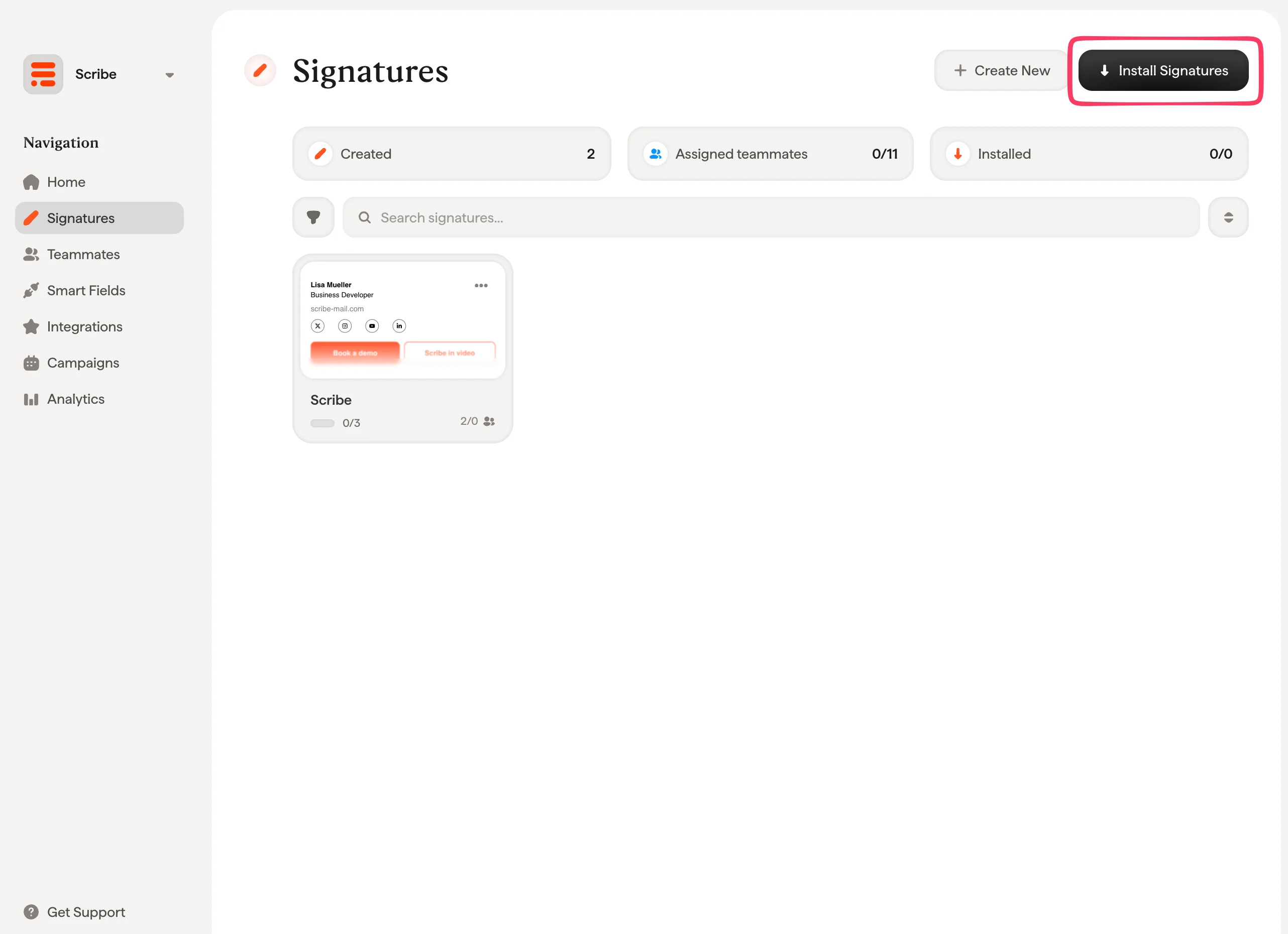
    From your signatures list, install all signatures at once for your teammates or install them one by one for a progressive rollout.
    <Frame>
      <img src="https://mintcdn.com/scribe/I5V9iTucPI_EY3nq/integrations/signatures/images/apple-mail-step-8.png?fit=max&auto=format&n=I5V9iTucPI_EY3nq&q=85&s=67baf3011bfd721a7ebbe6ffe45c229e" alt="Install signatures for teammates" width="2564" height="1860" data-path="integrations/signatures/images/apple-mail-step-8.png" />
    </Frame>
  </Step>
</Steps>

## Related articles

* [Integrations overview](/en/integrations-overview): all the ways to deploy Scribe signatures, cloud or server side.
* [Images are not showing](/en/troubleshooting/images-are-not-showing): fix missing images in installed signatures.
* [Unable to install signature](/en/troubleshooting/unable-to-install-signature): fix a signature that will not install.