> ## Documentation Index
> Fetch the complete documentation index at: https://help.scribe-mail.com/llms.txt
> Use this file to discover all available pages before exploring further.
# Front
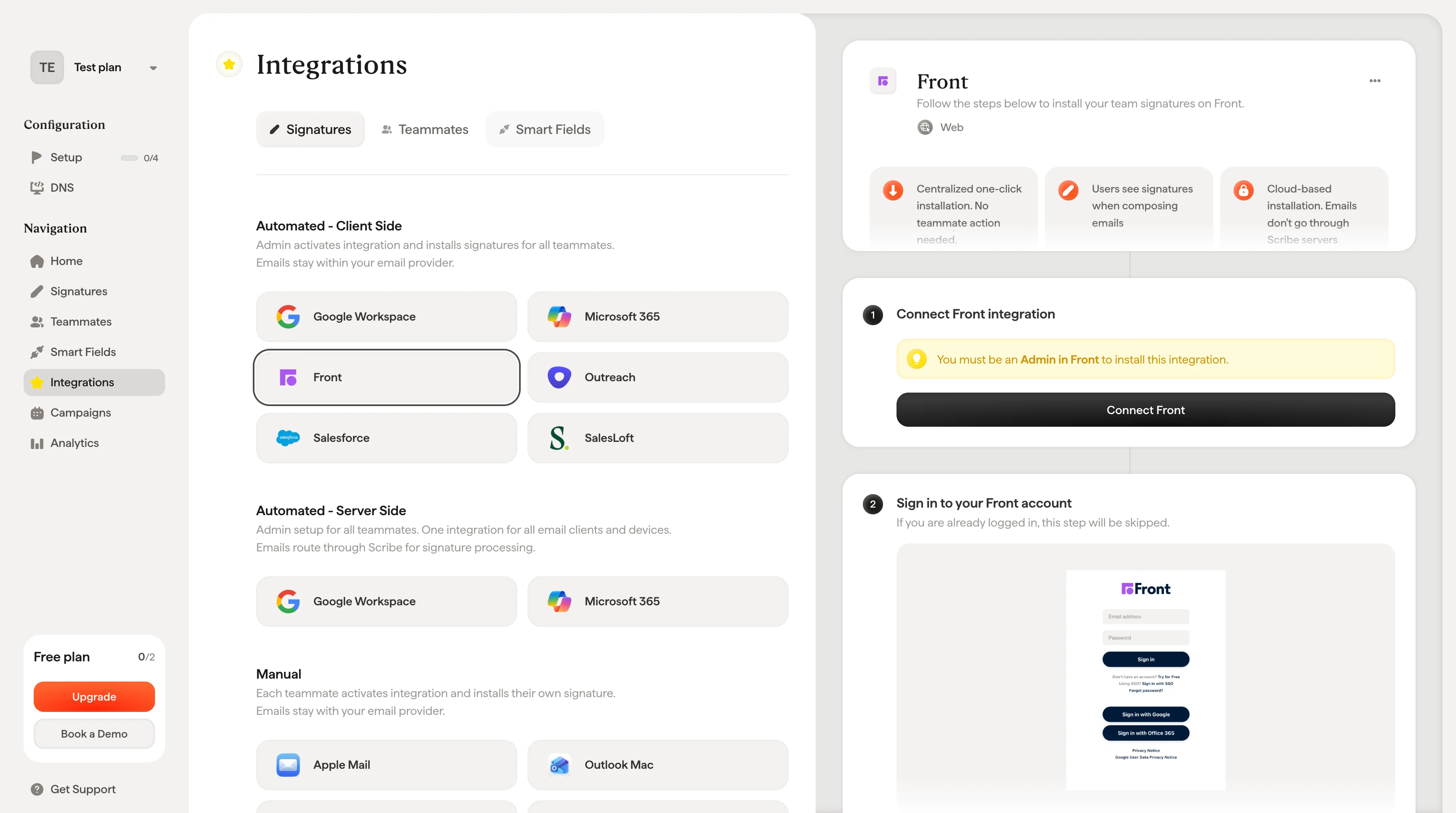
> Install Scribe email signatures across your team's Front in one click by connecting the integration as a Front admin, no teammate action needed.
**Centralized one-click installation.** No teammate action needed. Users see signatures when composing emails. Cloud-based installation: emails don't go through Scribe servers.
**Supported platforms:** Web
## Installation guide
You must be an **Admin in Front** to install this integration.
Click **Connect Front** in Scribe to start the integration.
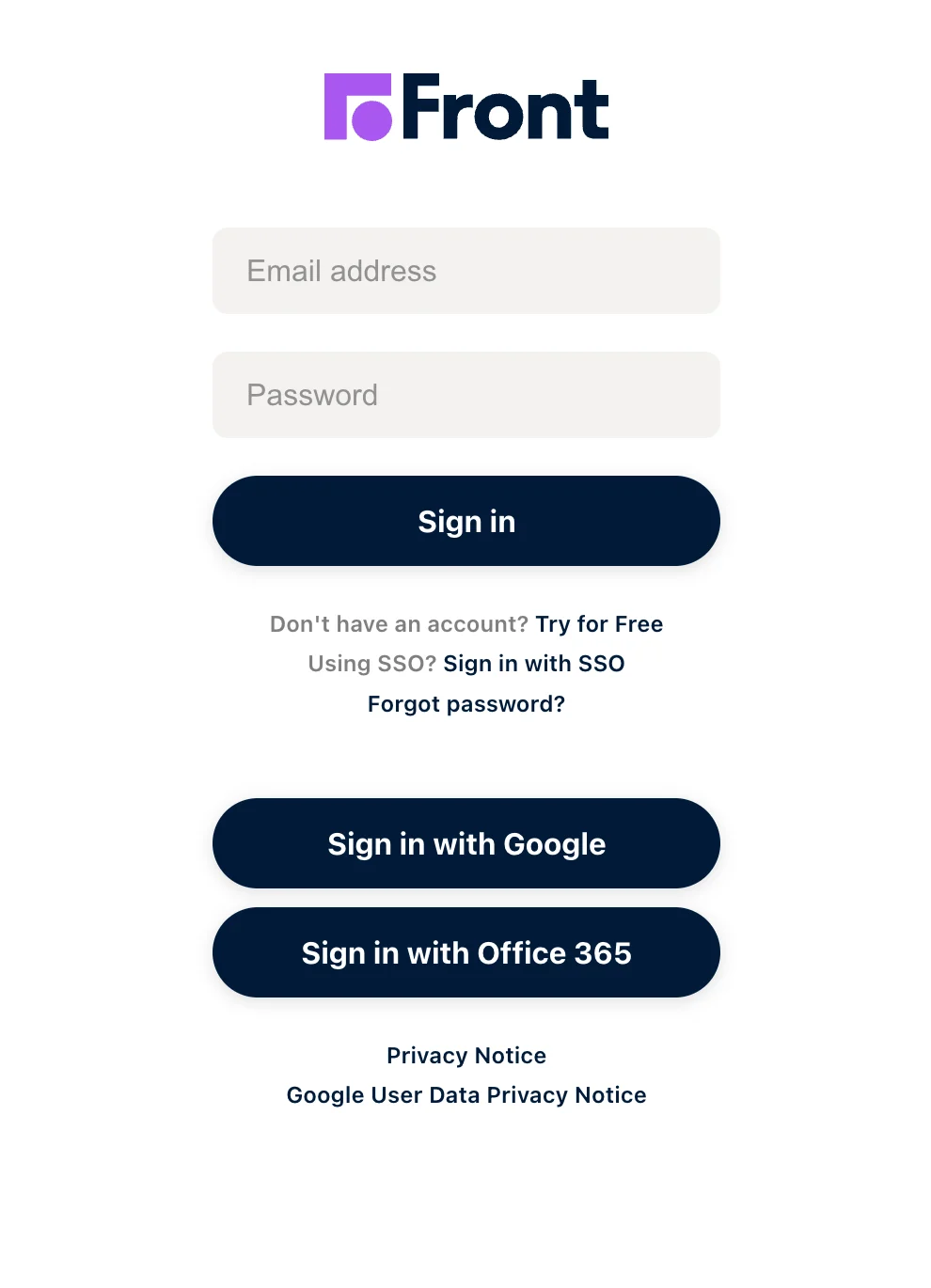
 If you are already logged in, this step will be skipped.
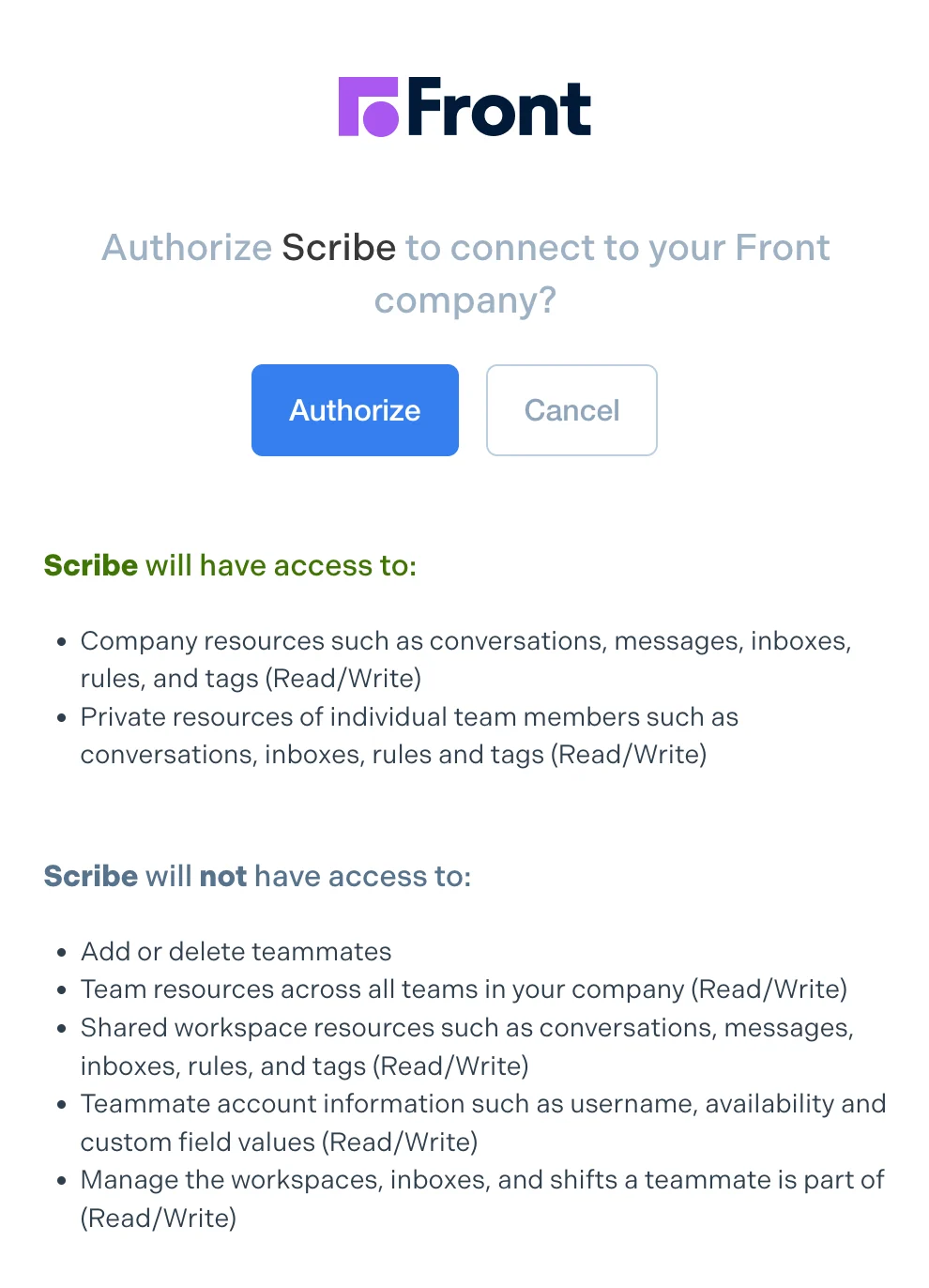
 Once you authorize, the integration connects automatically.
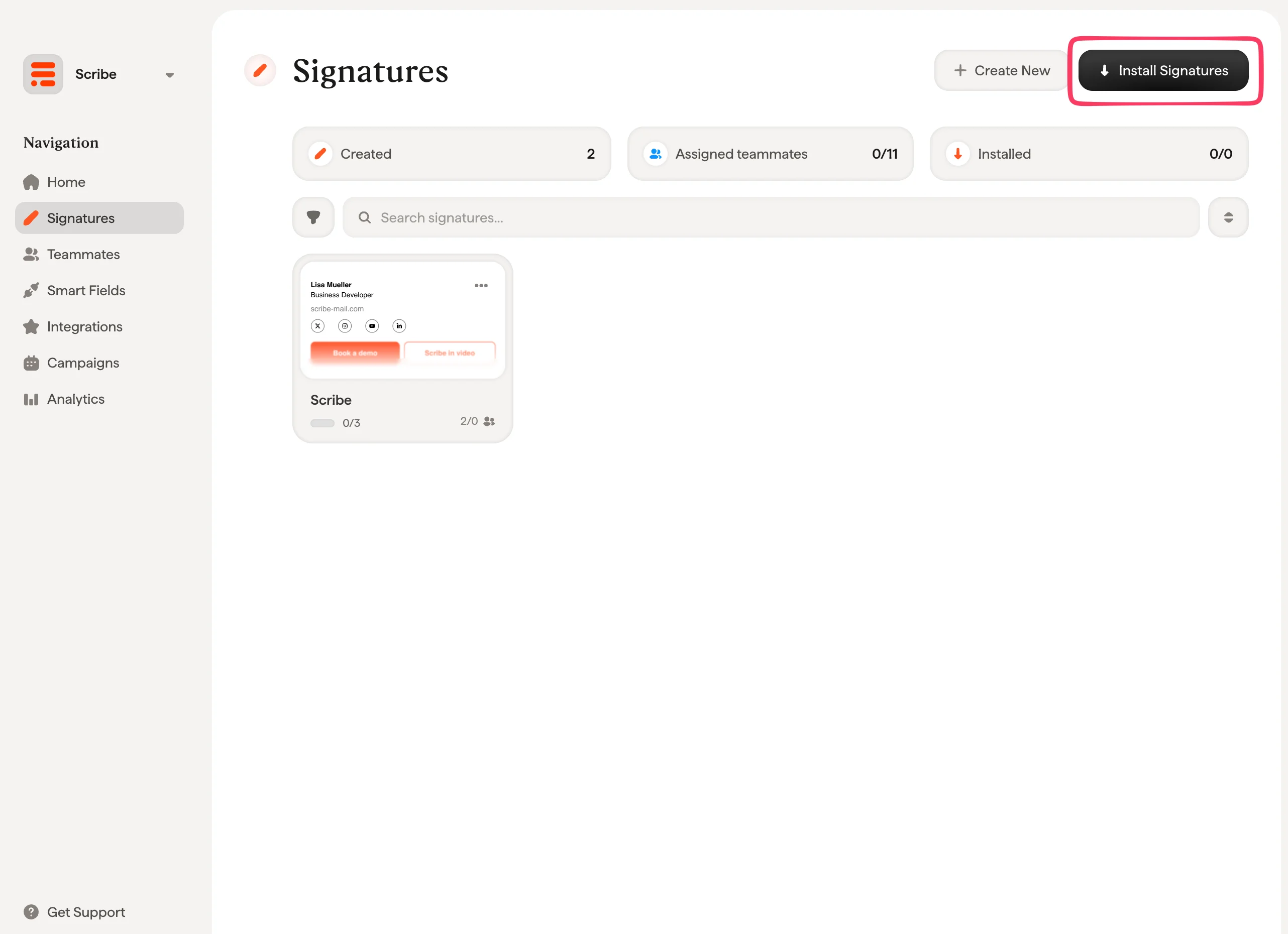
 From your signatures list, [install all signatures at once for your teammates](/en/install-signatures) or install them one by one for a progressive rollout.
 ## Related articles
* [Integrations overview](/en/integrations-overview): all the ways to deploy Scribe signatures, cloud or server side.
* [Google Workspace](/en/integrations/signatures/google-workspace-client-side): one-click cloud install for Google Workspace.
* [Microsoft 365](/en/integrations/signatures/microsoft-365-client-side): one-click cloud install for Microsoft 365 and Outlook.
* [Installation statuses and errors](/en/signature-installation-statuses-and-errors): what each installation status means and how to fix errors.
## Related articles
* [Integrations overview](/en/integrations-overview): all the ways to deploy Scribe signatures, cloud or server side.
* [Google Workspace](/en/integrations/signatures/google-workspace-client-side): one-click cloud install for Google Workspace.
* [Microsoft 365](/en/integrations/signatures/microsoft-365-client-side): one-click cloud install for Microsoft 365 and Outlook.
* [Installation statuses and errors](/en/signature-installation-statuses-and-errors): what each installation status means and how to fix errors.