> ## Documentation Index
> Fetch the complete documentation index at: https://help.scribe-mail.com/llms.txt
> Use this file to discover all available pages before exploring further.

# Google Workspace

> Install Scribe email signatures across your team's Google Workspace in one click by adding the Scribe add-in as a super admin, no teammate action needed.

<Info>
  **Centralized one-click installation.** No teammate action needed. Users see signatures when composing emails. Cloud-based installation: [emails don't go through Scribe servers](/en/integrations/signatures/google-workspace-server-side).
</Info>

<Info>
  **Supported platforms:** Web, iOS
</Info>

## Installation guide

<Warning>
  You must be a **Super admin** of your Google Workspace to install the Scribe App.
</Warning>

<Steps>
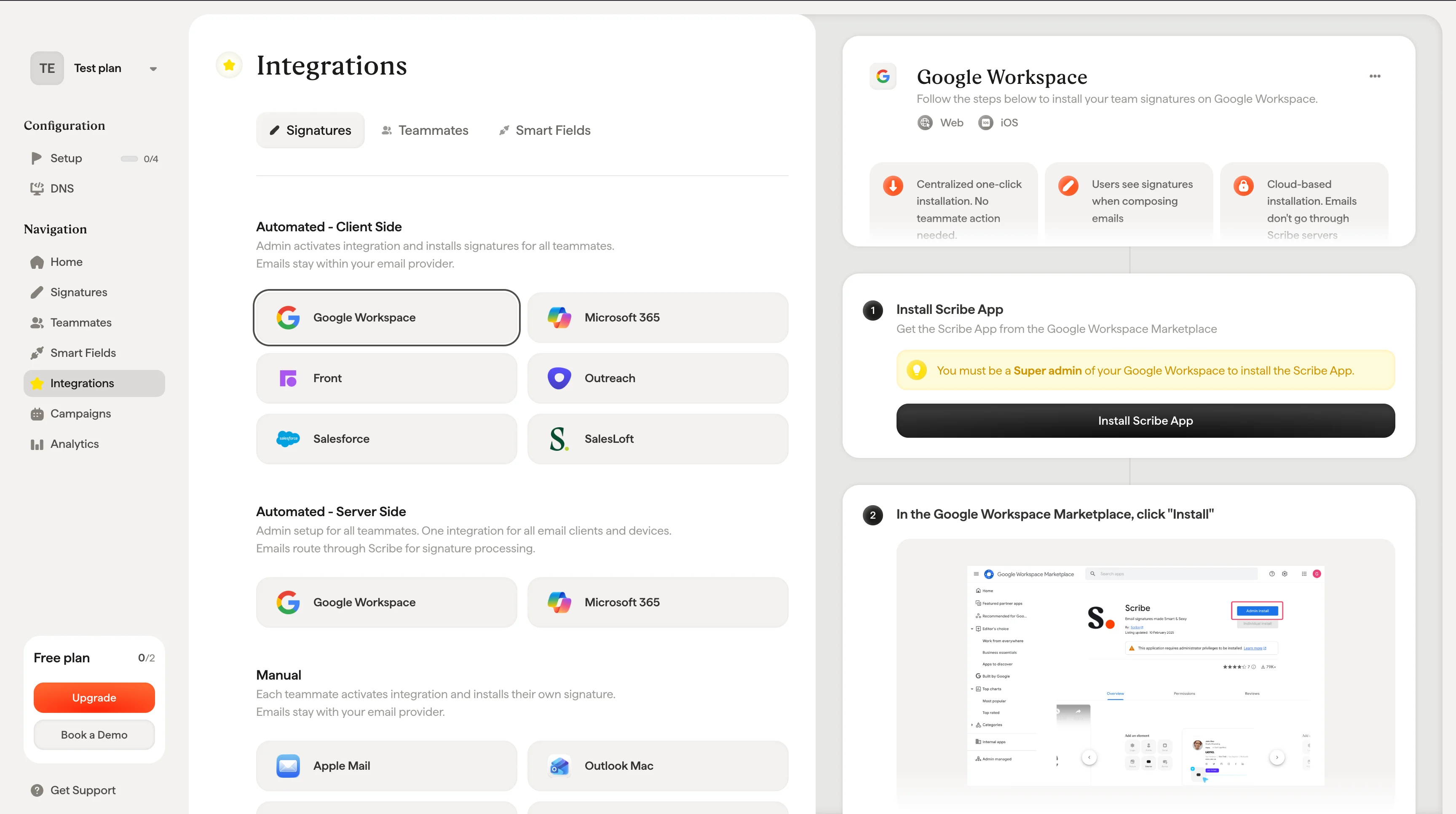
  <Step title="Install Scribe App">
    Get the Scribe App from the Google Workspace Marketplace.

    Click **Install Scribe App** in Scribe to open the Google Workspace Marketplace.
    <Frame>
      <img src="https://mintcdn.com/scribe/Z_G2D9X-Tlrxu_Eh/images/google-workspace-install-scribe-app-button.png?fit=max&auto=format&n=Z_G2D9X-Tlrxu_Eh&q=85&s=81129db47cad097bef6fe5c4a671dfad" alt="Install Scribe App button in Scribe Google Workspace setup" width="3456" height="1932" data-path="images/google-workspace-install-scribe-app-button.png" />
    </Frame>
  </Step>

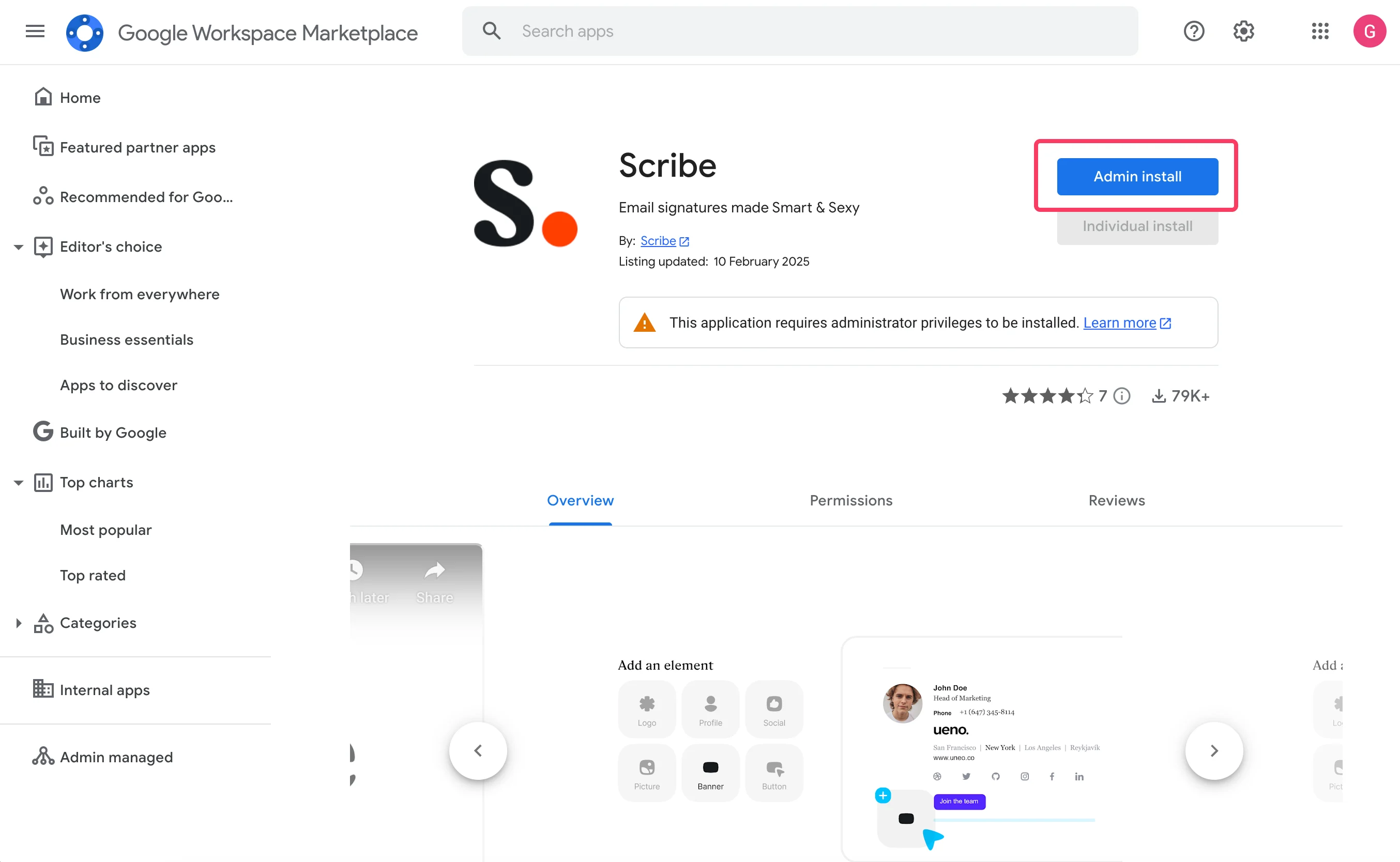
  <Step title="In the Google Workspace Marketplace, click &#x22;Install&#x22;">
    <Frame>
      <img src="https://mintcdn.com/scribe/I5V9iTucPI_EY3nq/integrations/signatures/images/gw-step-2.png?fit=max&auto=format&n=I5V9iTucPI_EY3nq&q=85&s=a48f84df85039c58b423b68ae8fc65f4" alt="Scribe app listing in Google Workspace Marketplace with Admin Install button highlighted" width="2708" height="1668" data-path="integrations/signatures/images/gw-step-2.png" />
    </Frame>
  </Step>

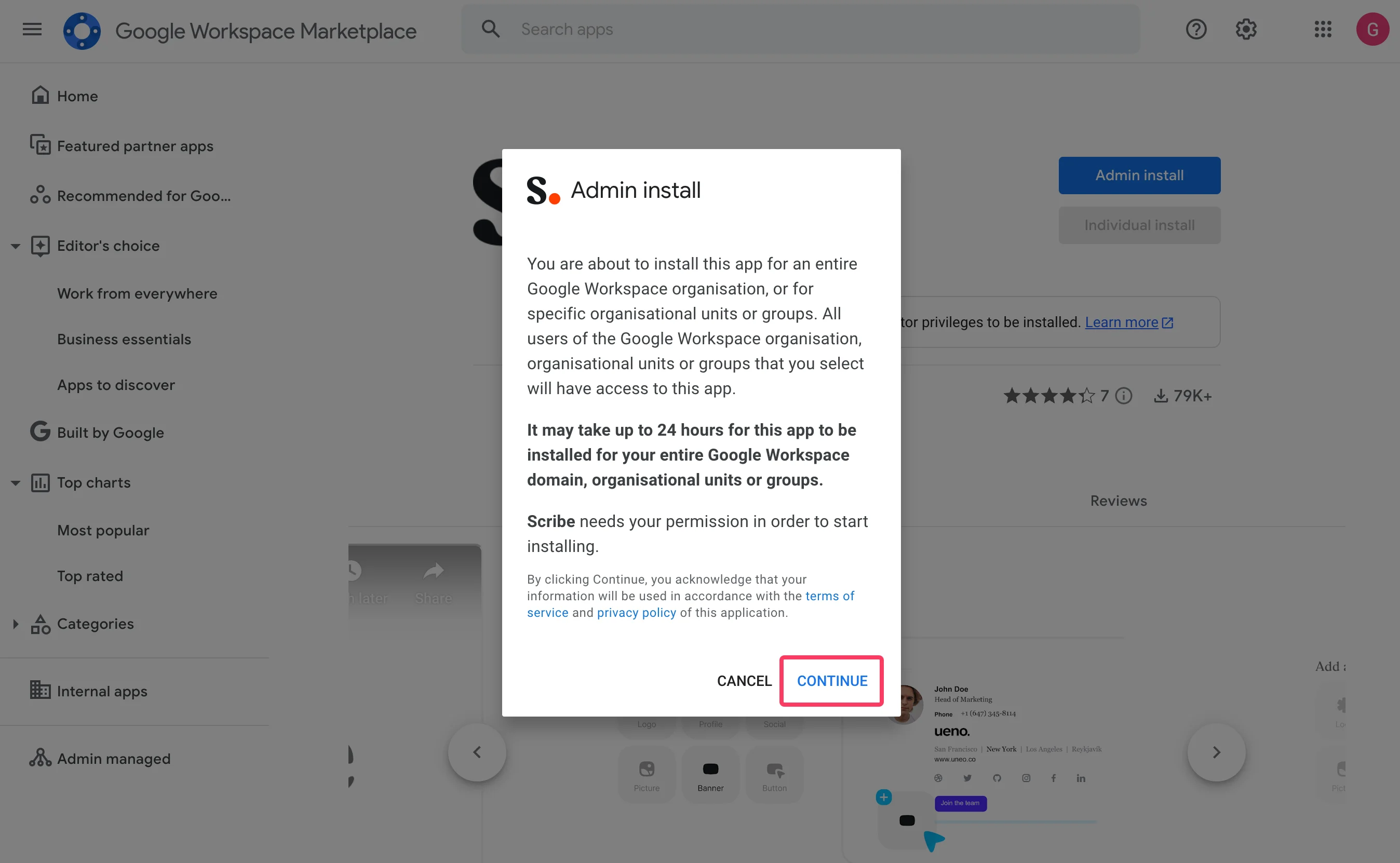
  <Step title="Click on &#x22;Continue&#x22; in the &#x22;Admin install&#x22; modal">
    <Frame>
      <img src="https://mintcdn.com/scribe/I5V9iTucPI_EY3nq/integrations/signatures/images/gw-step-3.png?fit=max&auto=format&n=I5V9iTucPI_EY3nq&q=85&s=de382ac3ca41cf702f31bbc8576ef1dc" alt="Admin install modal in Google Workspace Marketplace with Continue button highlighted" width="2696" height="1662" data-path="integrations/signatures/images/gw-step-3.png" />
    </Frame>
  </Step>

  <Step title="Validate data access">
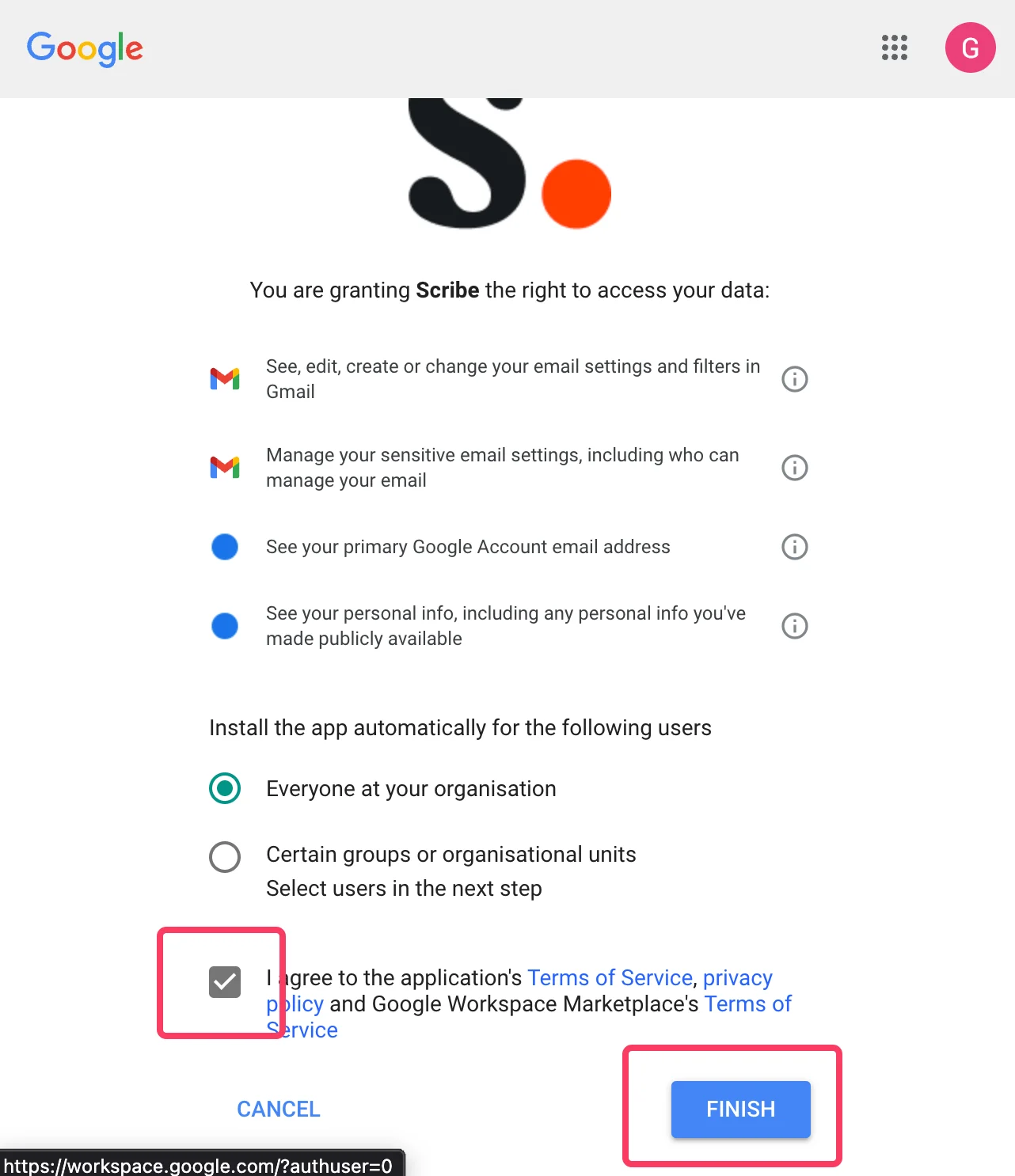
    Make sure to select "Everyone at your organization" and "I agree to the application terms of service."
    <Frame>
      <img src="https://mintcdn.com/scribe/I5V9iTucPI_EY3nq/integrations/signatures/images/gw-step-4.png?fit=max&auto=format&n=I5V9iTucPI_EY3nq&q=85&s=69c222aa3d1317946df0ba5562498481" alt="Google data access validation screen with Everyone at your organization selected and terms of service checkbox highlighted" className="mx-auto" style={{ width:"68%" }} width="1282" height="1486" data-path="integrations/signatures/images/gw-step-4.png" />
    </Frame>
  </Step>

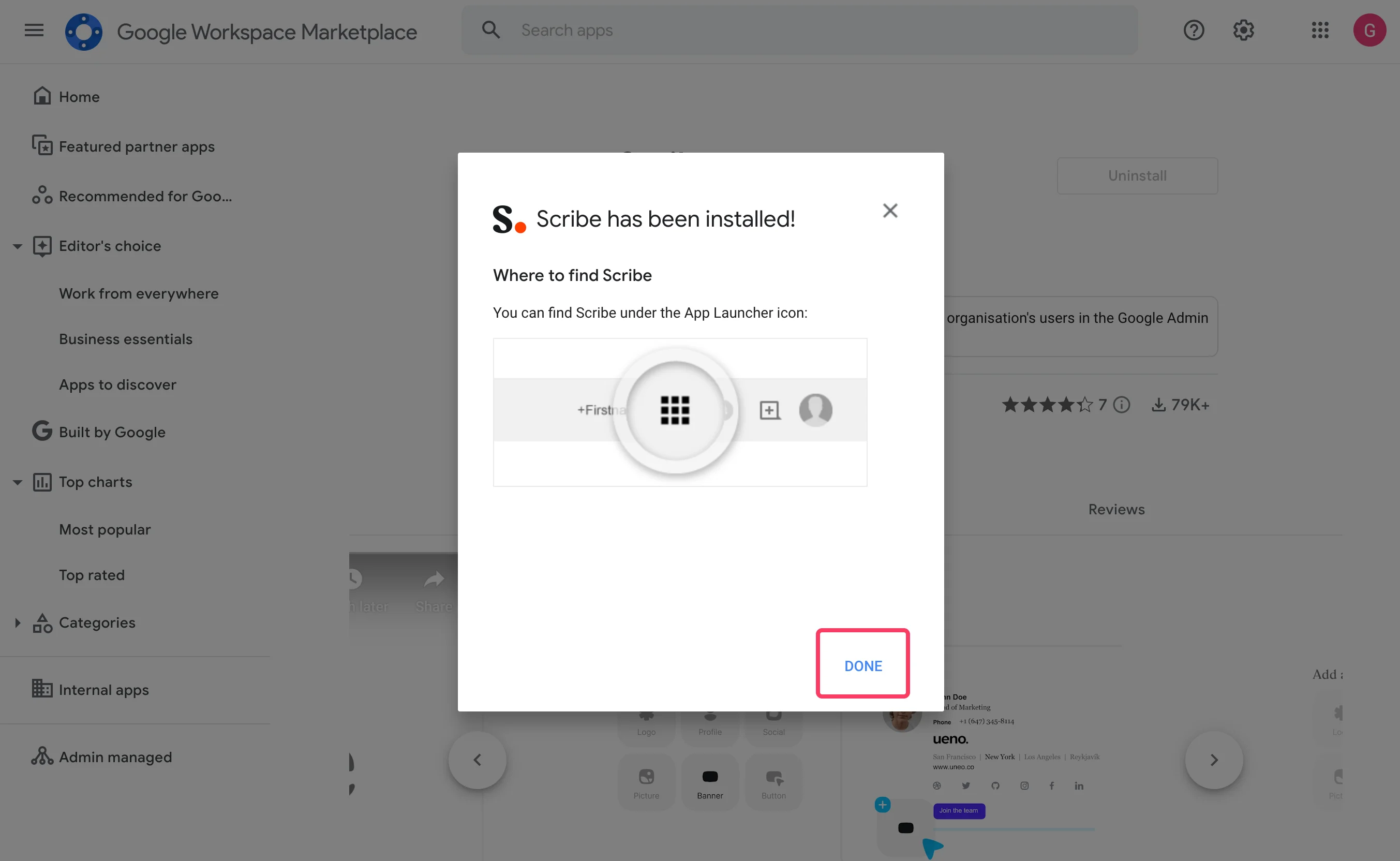
  <Step title="Click on &#x22;Done&#x22; and go back to Scribe">
    <Frame>
      <img src="https://mintcdn.com/scribe/I5V9iTucPI_EY3nq/integrations/signatures/images/gw-step-5.png?fit=max&auto=format&n=I5V9iTucPI_EY3nq&q=85&s=4b864e736a0d2419c73d425a1cd17676" alt="Scribe has been installed confirmation modal with Done button highlighted" width="2706" height="1664" data-path="integrations/signatures/images/gw-step-5.png" />
    </Frame>
  </Step>

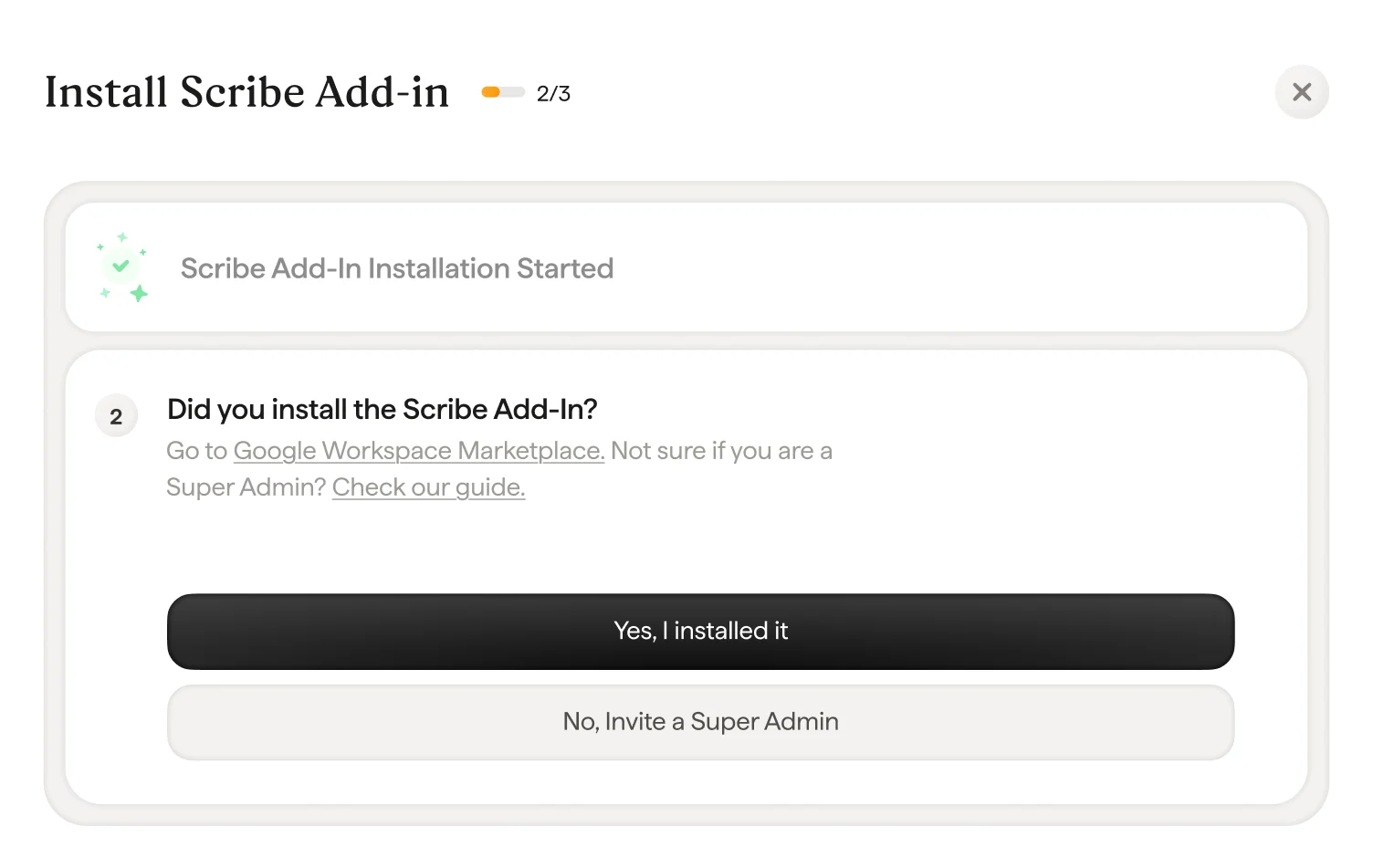
  <Step title="In Scribe, confirm the add-in validation by clicking &#x22;Yes I installed it&#x22;">
    <Frame>
      <img src="https://mintcdn.com/scribe/I5V9iTucPI_EY3nq/integrations/signatures/images/gw-step-6.png?fit=max&auto=format&n=I5V9iTucPI_EY3nq&q=85&s=0f1b7c8df87de1e02214609e2406e7db" alt="Scribe add-in validation screen with Yes I installed it button" width="1504" height="951" data-path="integrations/signatures/images/gw-step-6.png" />
    </Frame>
  </Step>

  <Step title="Wait for Google validation">
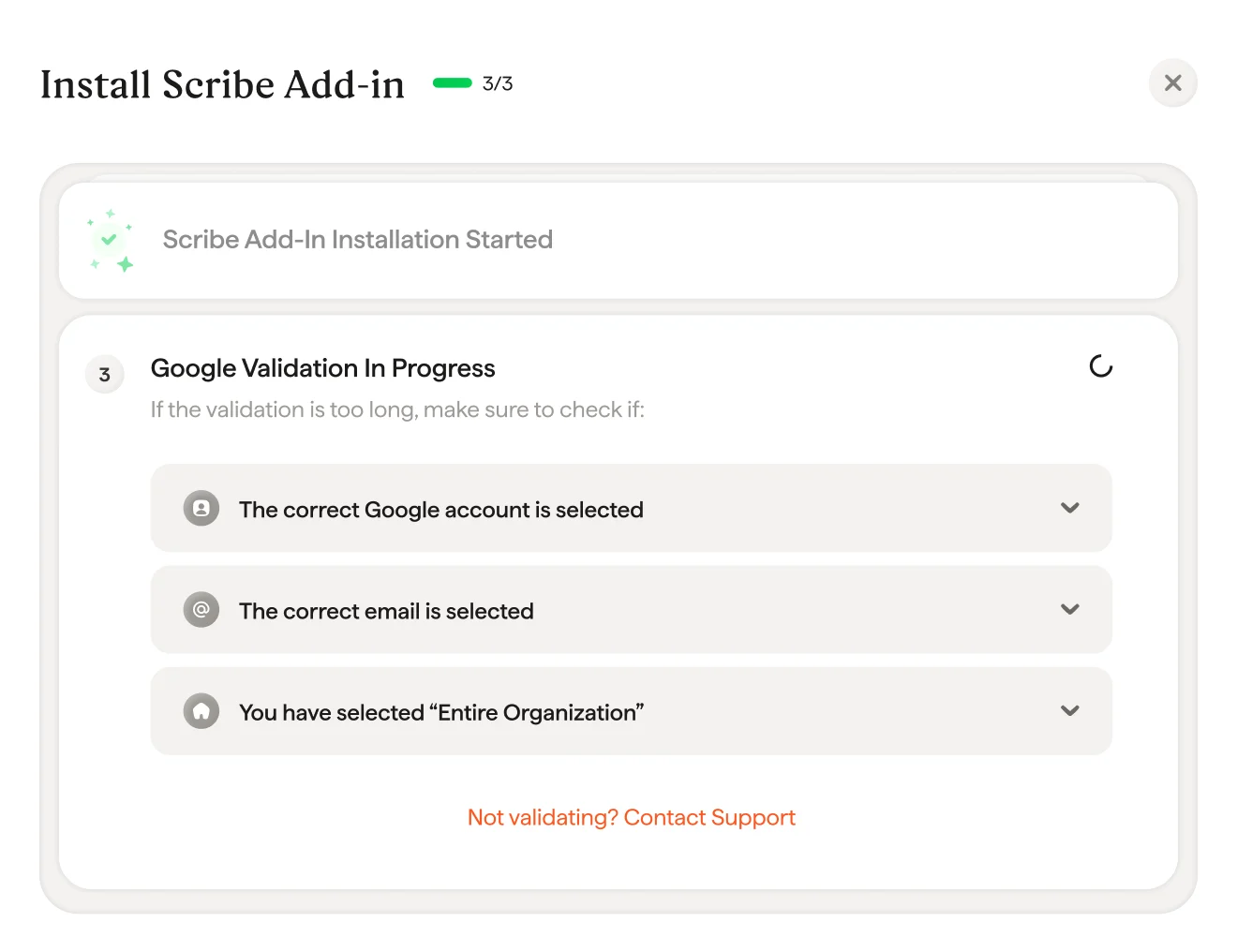
    The validation usually takes a few seconds. If not, make sure to check the troubleshooting list in the modal.
    <Frame>
      <img src="https://mintcdn.com/scribe/I5V9iTucPI_EY3nq/integrations/signatures/images/gw-step-7.png?fit=max&auto=format&n=I5V9iTucPI_EY3nq&q=85&s=2129366880b09719832617b555734dfa" alt="Google validation in progress screen with troubleshooting checklist" width="1320" height="1016" data-path="integrations/signatures/images/gw-step-7.png" />
    </Frame>
  </Step>

  <Step title="Scribe add-in installed">
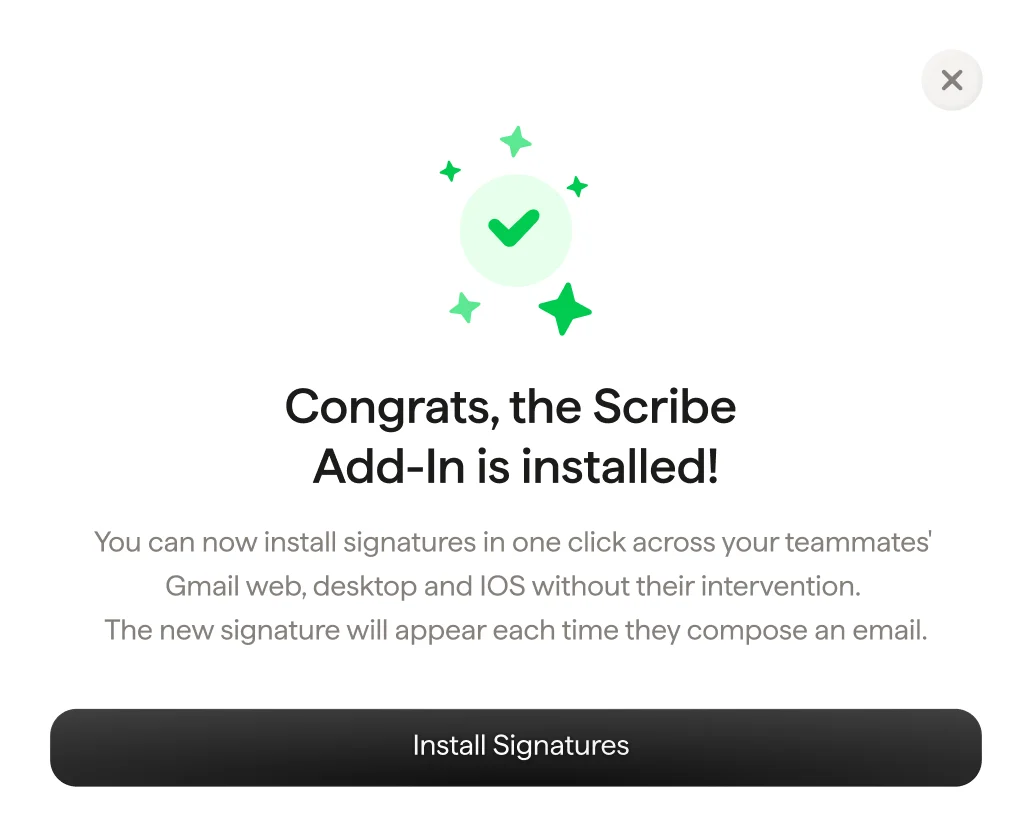
    Once you get the validation modal, click "Install signature" to go to your Scribe signatures list.
    <Frame>
      <img src="https://mintcdn.com/scribe/I5V9iTucPI_EY3nq/integrations/signatures/images/gw-step-8.png?fit=max&auto=format&n=I5V9iTucPI_EY3nq&q=85&s=838f8310a4802a92ab3433b06cc02945" alt="Congrats the Scribe Add-In is installed confirmation screen with Install Signatures button" className="mx-auto" style={{ width:"82%" }} width="1032" height="836" data-path="integrations/signatures/images/gw-step-8.png" />
    </Frame>
  </Step>

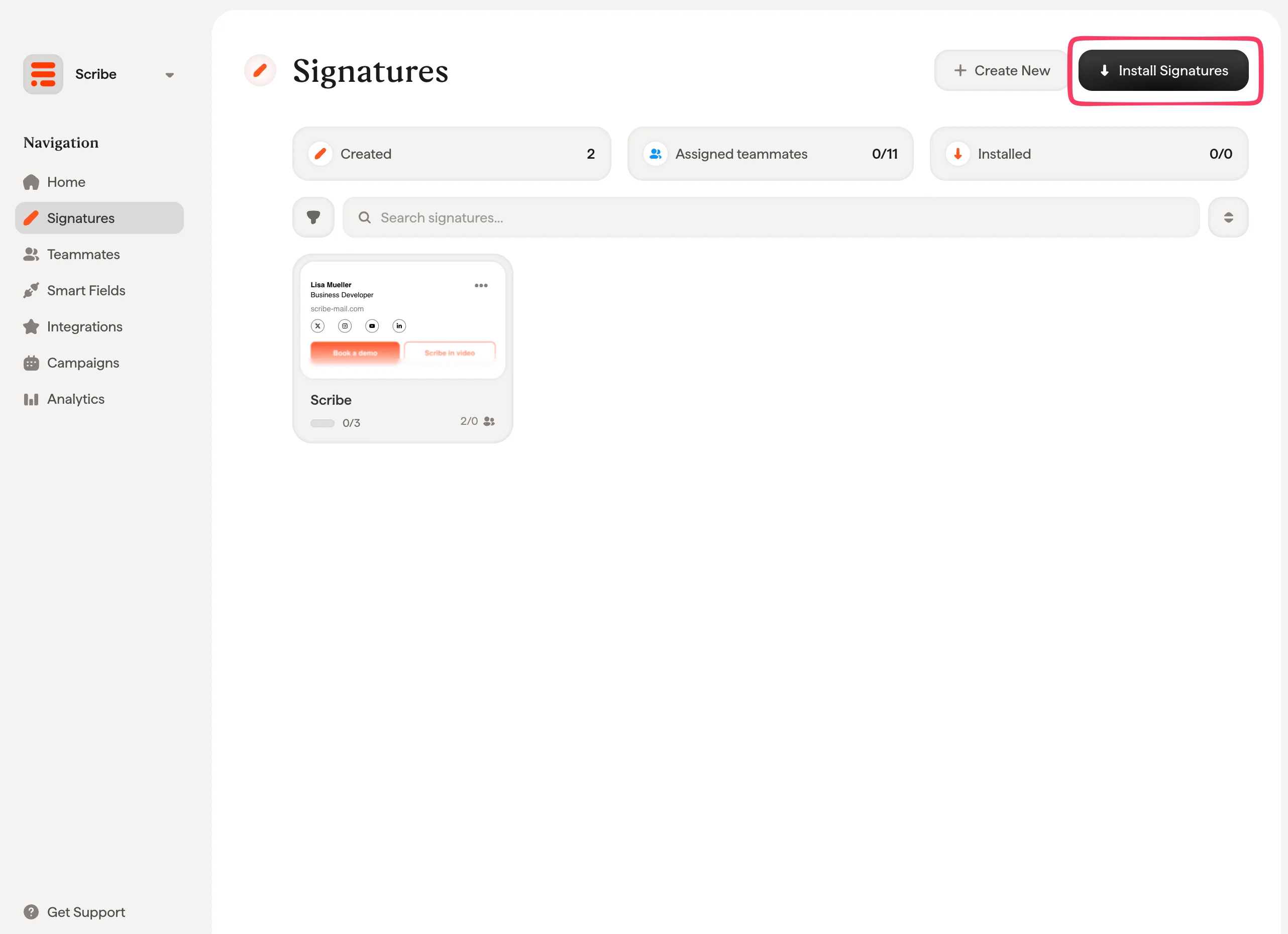
  <Step title="Install team signatures">
    From your signatures list, [install all signatures at once for your teammates](/en/install-signatures) or install them one by one for a progressive rollout.
    <Frame>
      <img src="https://mintcdn.com/scribe/I5V9iTucPI_EY3nq/integrations/signatures/images/gw-step-9.png?fit=max&auto=format&n=I5V9iTucPI_EY3nq&q=85&s=7966ca1cc3ae1bd87801ce67cd060f10" alt="Scribe signatures list with Install Signatures button highlighted" width="2564" height="1860" data-path="integrations/signatures/images/gw-step-9.png" />
    </Frame>
  </Step>
</Steps>

## Related articles

* [Integrations overview](/en/integrations-overview): all the ways to deploy Scribe signatures, cloud or server side.
* [Microsoft 365](/en/integrations/signatures/microsoft-365-client-side): one-click cloud install for Microsoft 365 and Outlook.
* [Installation statuses and errors](/en/signature-installation-statuses-and-errors): what each installation status means and how to fix errors.