> ## Documentation Index
> Fetch the complete documentation index at: https://help.scribe-mail.com/llms.txt
> Use this file to discover all available pages before exploring further.

# Outlook Mac

> Install Scribe email signatures on Outlook for Mac by downloading the Scribe desktop app, made for users without a Microsoft 365 cloud license.

Follow the steps below to install your signatures on Outlook Mac.

<Info>
  **Each user has to install and configure integration.**
</Info>

<Info>
  **Users see signatures when composing emails.**
</Info>

<Info>
  **Cloud-based installation.** Emails don't go through Scribe servers.
</Info>

## Installation guide

### Prerequisites

* A Scribe account
* At least one signature created in Scribe
* macOS with Outlook installed

<Steps>
  <Step title="Download Scribe desktop app">
    <Warning>
      This integration is only required for users who don't have a Microsoft 365 cloud license. Use our [Microsoft 365 integration](/en/integrations/signatures/microsoft-365-client-side) instead for complete automation.
    </Warning>

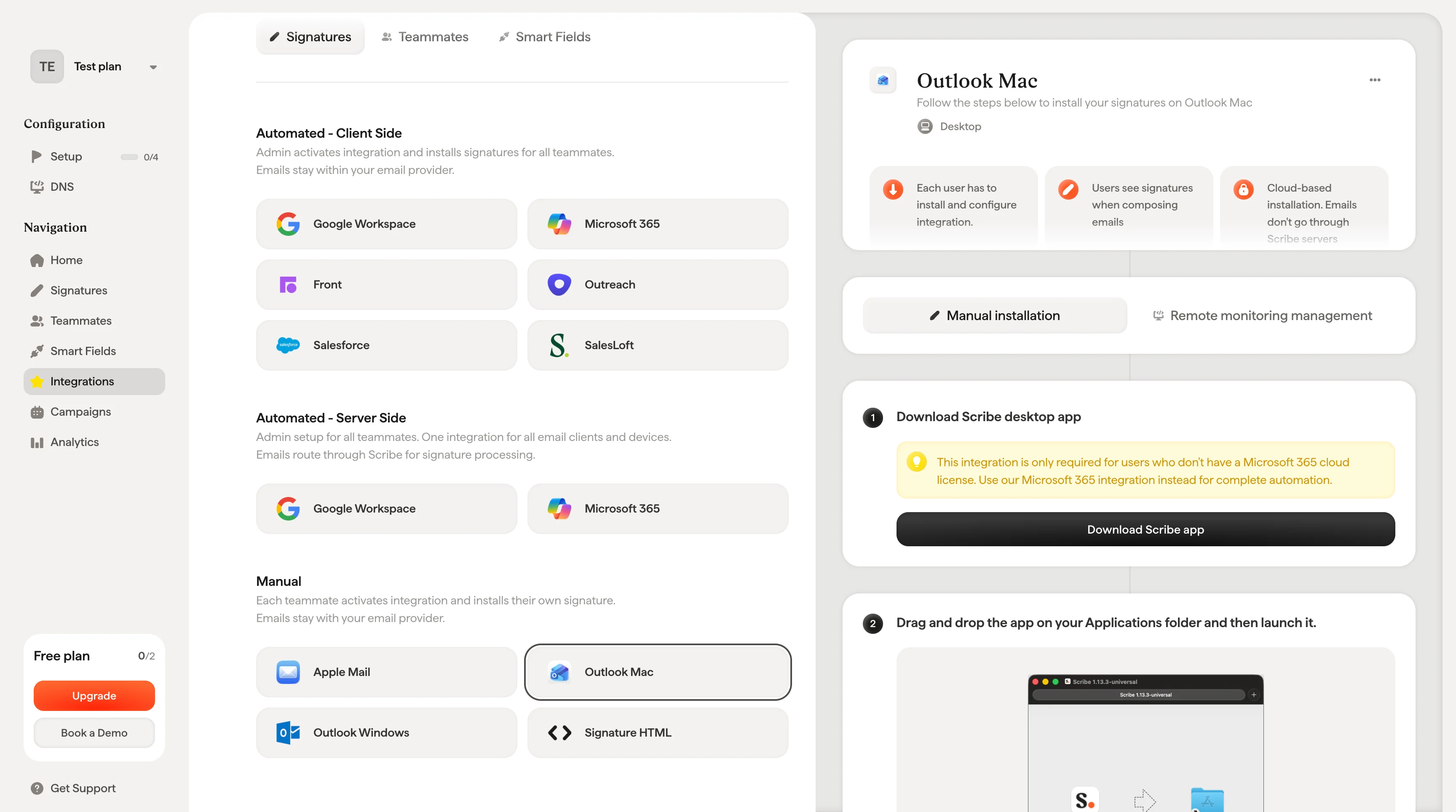
    Download the Scribe desktop app from the integrations page.
    <Frame>
      <img src="https://mintcdn.com/scribe/xbQhr3JjkYildsKM/images/outlook-mac-download-scribe-app.png?fit=max&auto=format&n=xbQhr3JjkYildsKM&q=85&s=02626a4d06fd9ffa93cb59cdd513f0f0" alt="Download Scribe desktop app from the integrations page" width="3456" height="1928" data-path="images/outlook-mac-download-scribe-app.png" />
    </Frame>
  </Step>

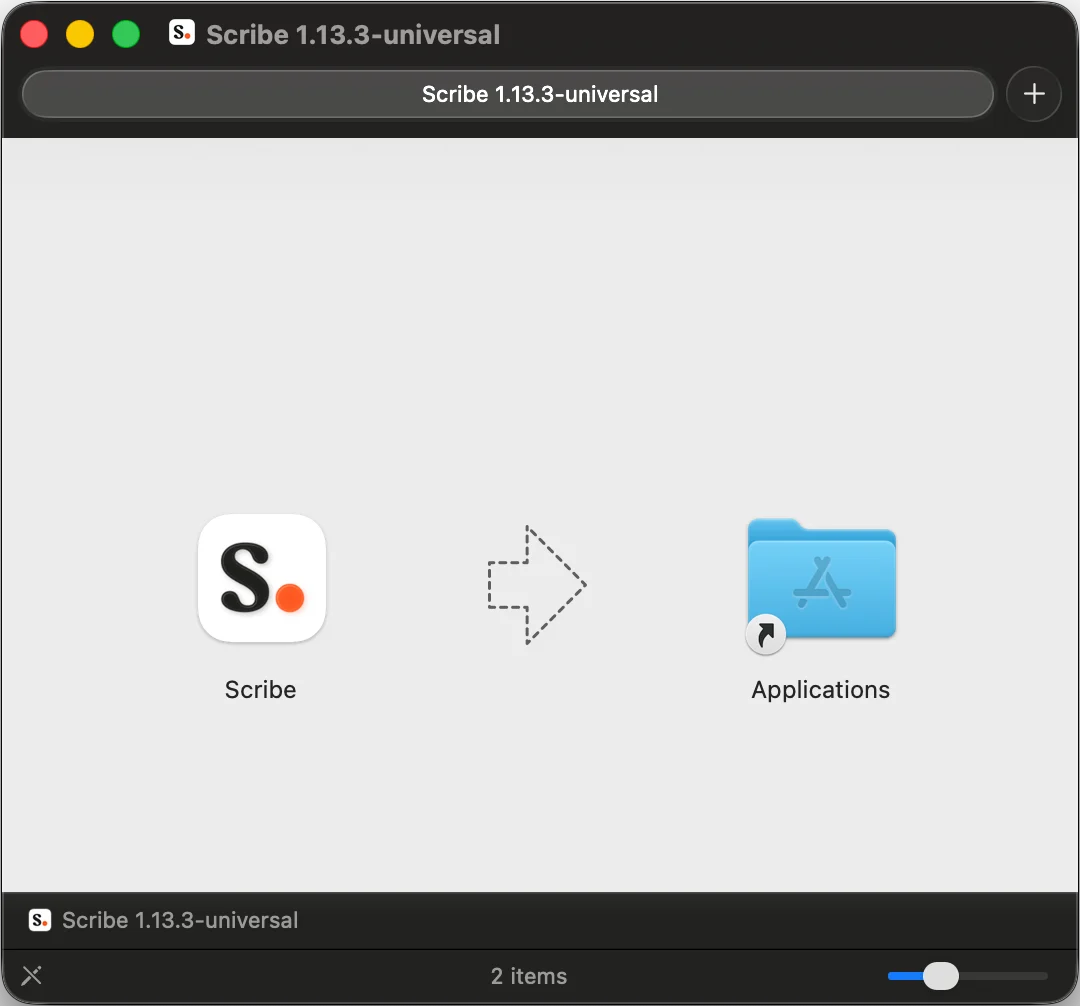
  <Step title="Drag and drop the app on your Applications folder and then launch it">
    <Frame>
      <img src="https://mintcdn.com/scribe/I5V9iTucPI_EY3nq/integrations/signatures/images/outlook-mac-step-2.png?fit=max&auto=format&n=I5V9iTucPI_EY3nq&q=85&s=6ceb4998576ebef9f2e270880833ef97" alt="Drag Scribe to Applications folder" width="1080" height="1006" data-path="integrations/signatures/images/outlook-mac-step-2.png" />
    </Frame>
  </Step>

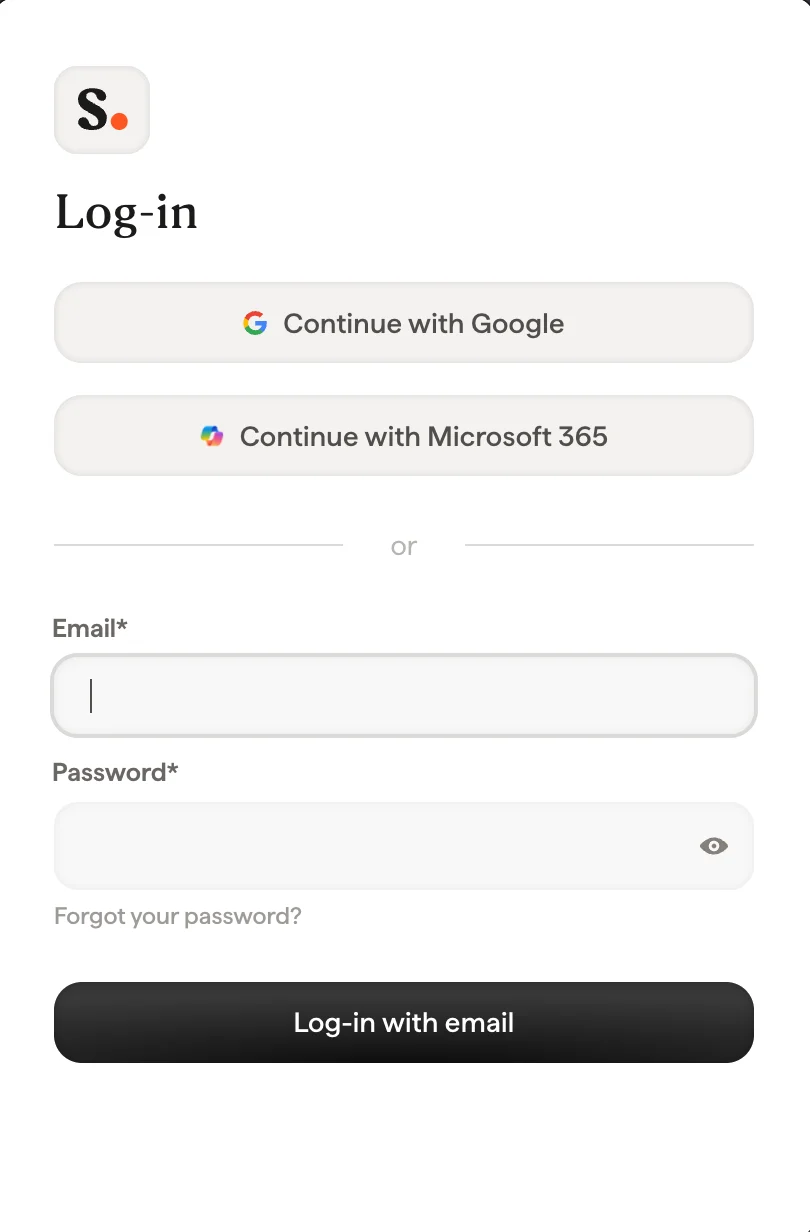
  <Step title="Log in with your Scribe credentials">
    Log in to the Scribe app just as you do on Scribe's website.
    <Frame>
      <img src="https://mintcdn.com/scribe/xbQhr3JjkYildsKM/images/scribe-app-login.png?fit=max&auto=format&n=xbQhr3JjkYildsKM&q=85&s=5f5ded1413970e4830f850a1a55d7388" alt="Scribe desktop app login screen" title="Scribe desktop app login screen" className="mx-auto" style={{ width:"56%" }} width="810" height="1232" data-path="images/scribe-app-login.png" />
    </Frame>
  </Step>

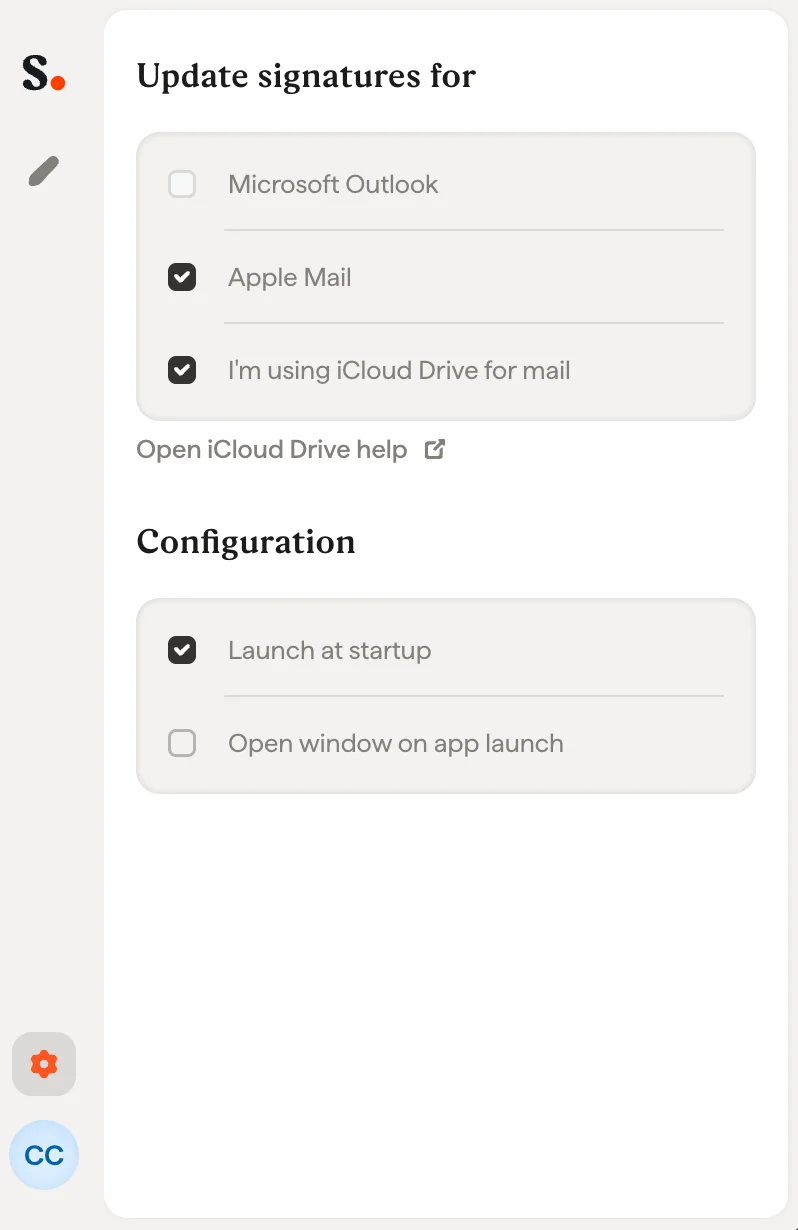
  <Step title="Turn on Outlook installation">
    Click the settings wheel and activate Outlook.
    <Frame>
      <img src="https://mintcdn.com/scribe/xbQhr3JjkYildsKM/images/scribe-app-activate-email-client.png?fit=max&auto=format&n=xbQhr3JjkYildsKM&q=85&s=5d8407f7903c0031672a5d20f452bf1f" alt="Activating the email client in Scribe app settings" title="Activating the email client in Scribe app settings" className="mx-auto" style={{ width:"68%" }} width="798" height="1230" data-path="images/scribe-app-activate-email-client.png" />
    </Frame>
  </Step>

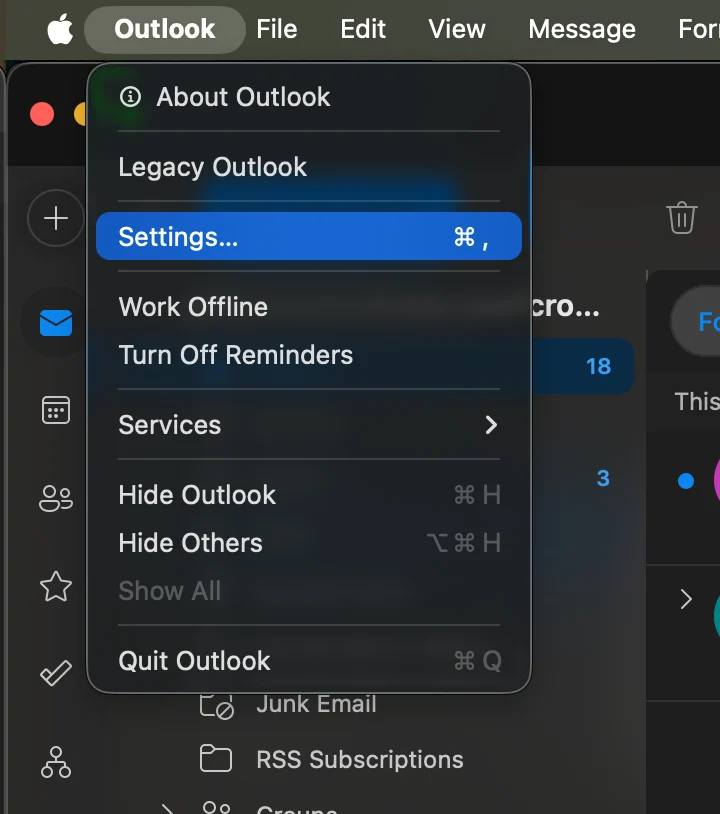
  <Step title="Start Outlook Mac and go to settings">
    <Frame>
      <img src="https://mintcdn.com/scribe/I5V9iTucPI_EY3nq/integrations/signatures/images/outlook-mac-step-5.png?fit=max&auto=format&n=I5V9iTucPI_EY3nq&q=85&s=f1768e7d731355d42e2b89ac4be332c1" alt="Outlook Mac settings menu" className="mx-auto" style={{ width:"69%" }} width="720" height="814" data-path="integrations/signatures/images/outlook-mac-step-5.png" />
    </Frame>
  </Step>

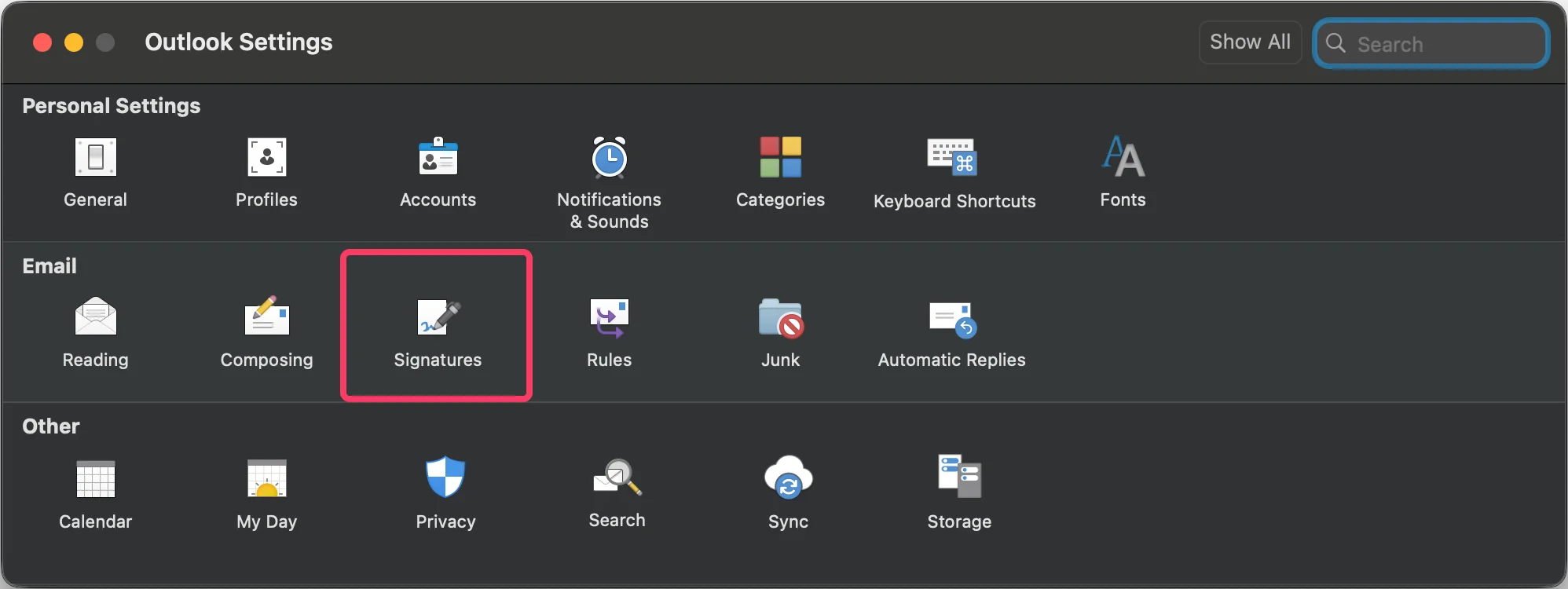
  <Step title="Go to signatures settings">
    <Frame>
      <img src="https://mintcdn.com/scribe/I5V9iTucPI_EY3nq/integrations/signatures/images/outlook-mac-step-6.png?fit=max&auto=format&n=I5V9iTucPI_EY3nq&q=85&s=9d1d11d2da92156676690ff6672a449f" alt="Outlook Settings with Signatures highlighted" width="1996" height="750" data-path="integrations/signatures/images/outlook-mac-step-6.png" />
    </Frame>
  </Step>

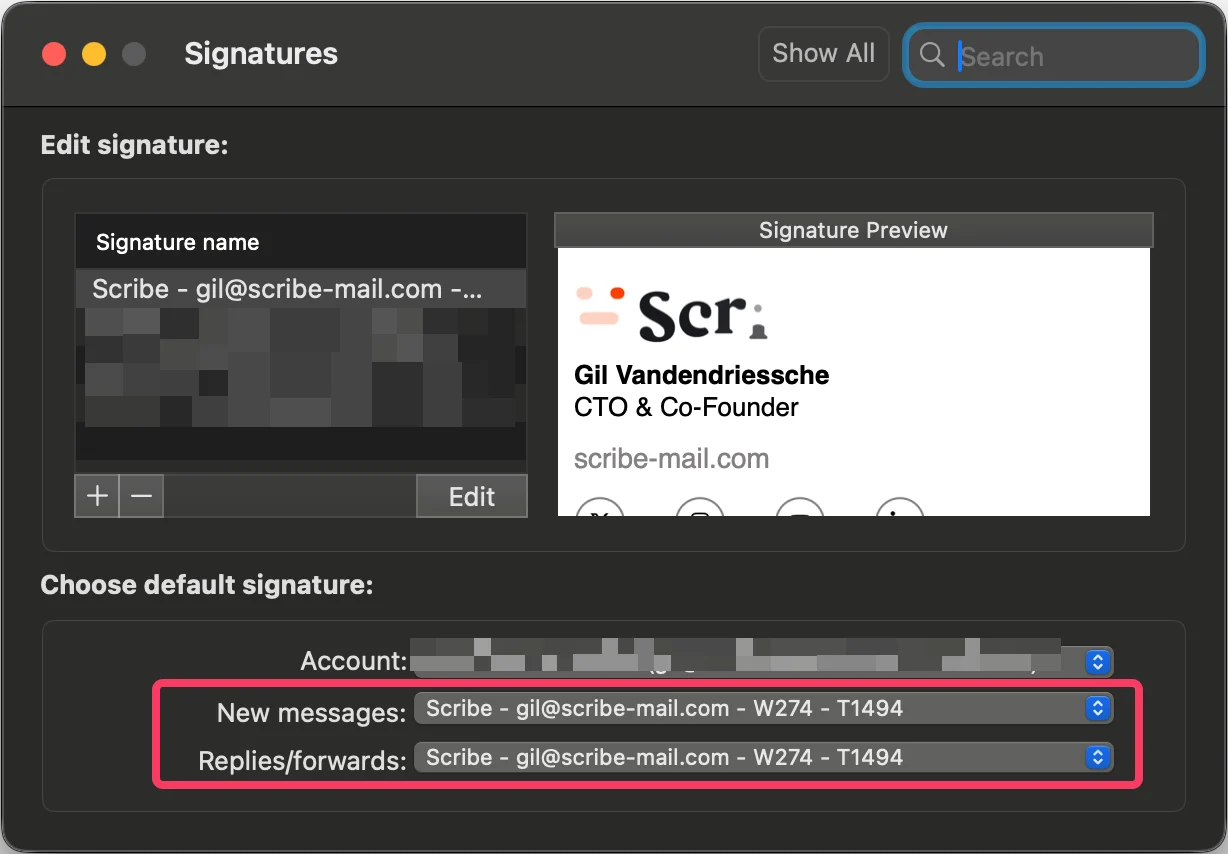
  <Step title="Configure default signature">
    Set the Scribe signature as default for new messages and replies/forwards.
    <Frame>
      <img src="https://mintcdn.com/scribe/I5V9iTucPI_EY3nq/integrations/signatures/images/outlook-mac-step-7.png?fit=max&auto=format&n=I5V9iTucPI_EY3nq&q=85&s=d3b8981845f7927b21c0ee0dbc73978c" alt="Set Scribe signature as default for new messages and replies/forwards" width="1228" height="854" data-path="integrations/signatures/images/outlook-mac-step-7.png" />
    </Frame>
  </Step>

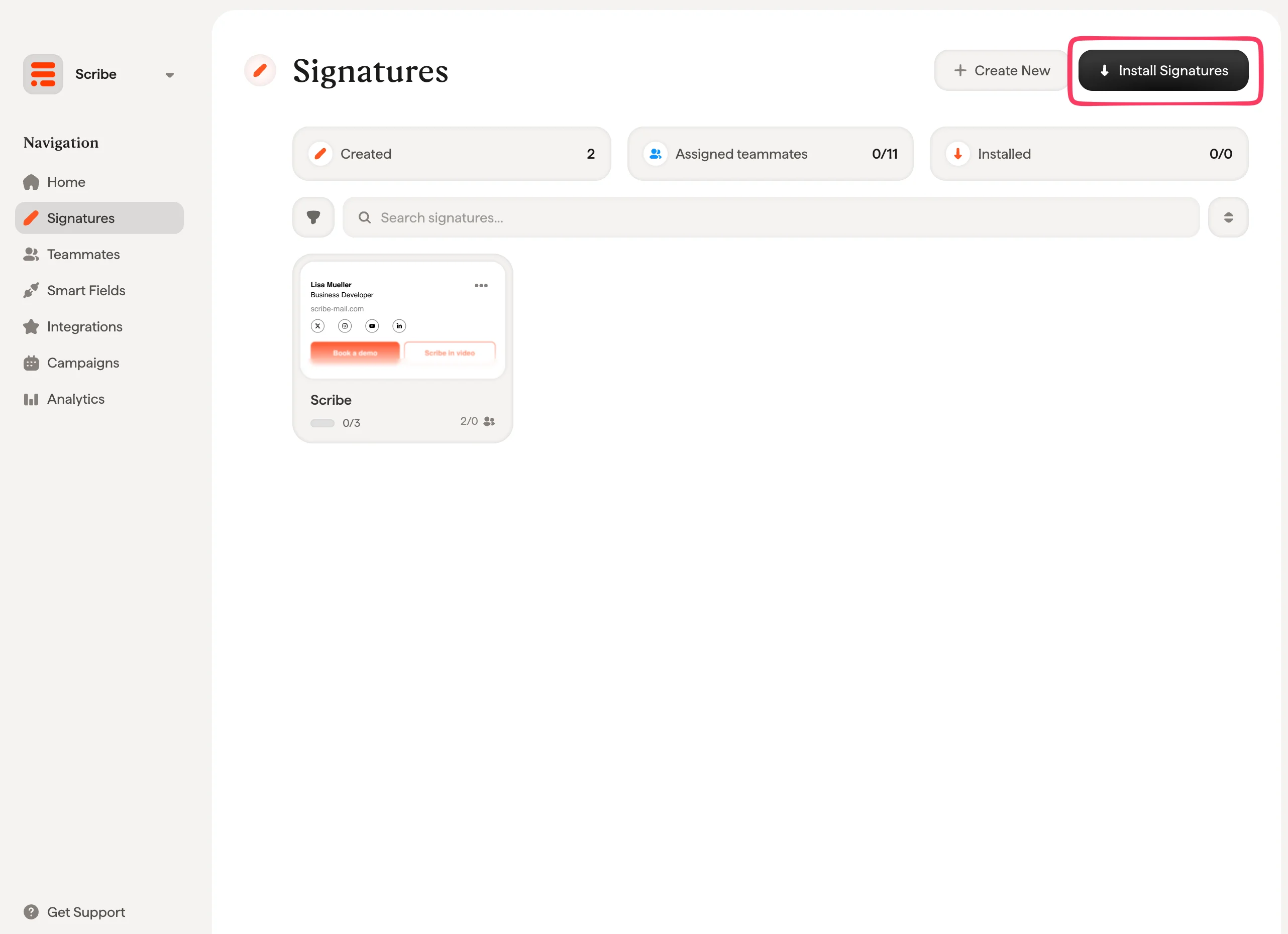
  <Step title="Install team signatures">
    From your signatures list, [install all signatures at once for your teammates](/en/install-signatures) or install them one by one for a progressive rollout.
    <Frame>
      <img src="https://mintcdn.com/scribe/I5V9iTucPI_EY3nq/integrations/signatures/images/outlook-mac-step-8.png?fit=max&auto=format&n=I5V9iTucPI_EY3nq&q=85&s=c0dcc36e9e89bce4e3c7a0c020079dcd" alt="Install signatures for teammates" width="2564" height="1860" data-path="integrations/signatures/images/outlook-mac-step-8.png" />
    </Frame>
  </Step>
</Steps>

## Related articles

* [Integrations overview](/en/integrations-overview): all the ways to deploy Scribe signatures, cloud or server side.
* [Outlook Mac (Remote Monitoring)](/en/integrations/signatures/outlook-mac-rmm): push the Outlook Mac install through your RMM tool.
* [Switch to the new Outlook](/en/troubleshooting/switch-to-new-outlook-version): move signatures to the new Outlook.