> ## Documentation Index
> Fetch the complete documentation index at: https://help.scribe-mail.com/llms.txt
> Use this file to discover all available pages before exploring further.
# Outlook Windows (Remote Monitoring)
> Deploy Scribe signatures across your whole team's Outlook for Windows at once by silently pushing the Scribe app and a registry key through your RMM tool.
Follow the steps below to install your signatures on Outlook Windows.
**Each user has to install and configure integration.**
**Users see signatures when composing emails.**
**Cloud-based installation.** Emails don't go through Scribe servers.
## Advanced Installation
This is an advanced user feature. IT support is required to set up this integration.
* This integration is only required for users who don't have a Microsoft 365 cloud license. Use our [Microsoft 365 integration](/en/integrations/signatures/microsoft-365-client-side) instead for complete automation.
* Once you install the Scribe app on your team's devices using your remote monitoring tools, team members are automatically logged in and their signatures are installed in Outlook. No action required from them.
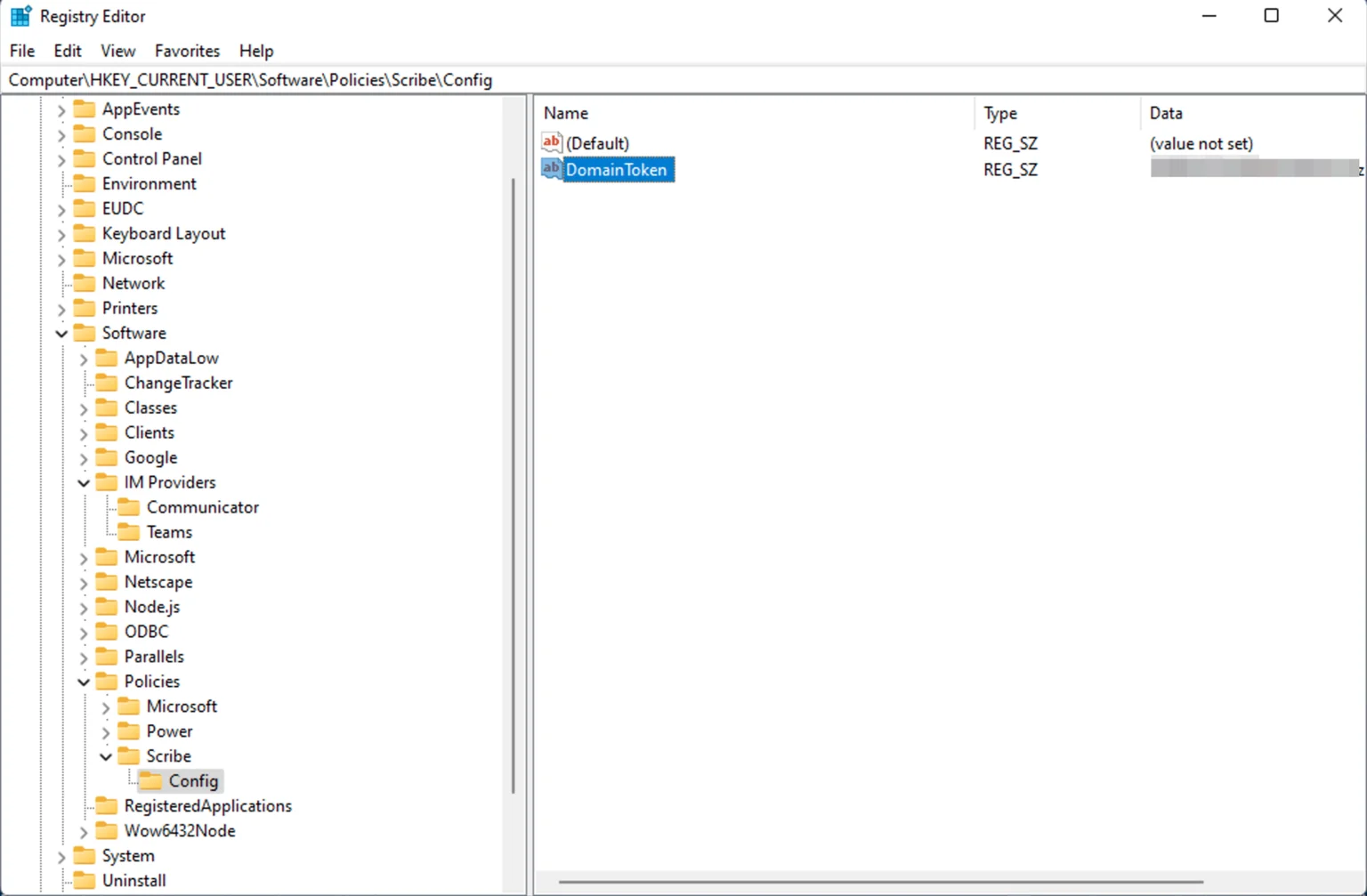
Deploy a registry key using your remote monitoring management tool on each computer.
The key name is "DomainToken"
The key should be at `HKLM:\SOFTWARE\Policies\Scribe\Config`
The key value should be your domain token. You can copy your domain token from the integrations page.
 Use the Scribe silent installer with any remote monitoring and management tool:
```text theme={null}
https://scribe-mail.com/desktop-app/windows-installer/latest
```
You just have to run the installer with the following command and the application will be installed silently:
```powershell theme={null}
Scribe-Setup-X.X.X.exe /S
```
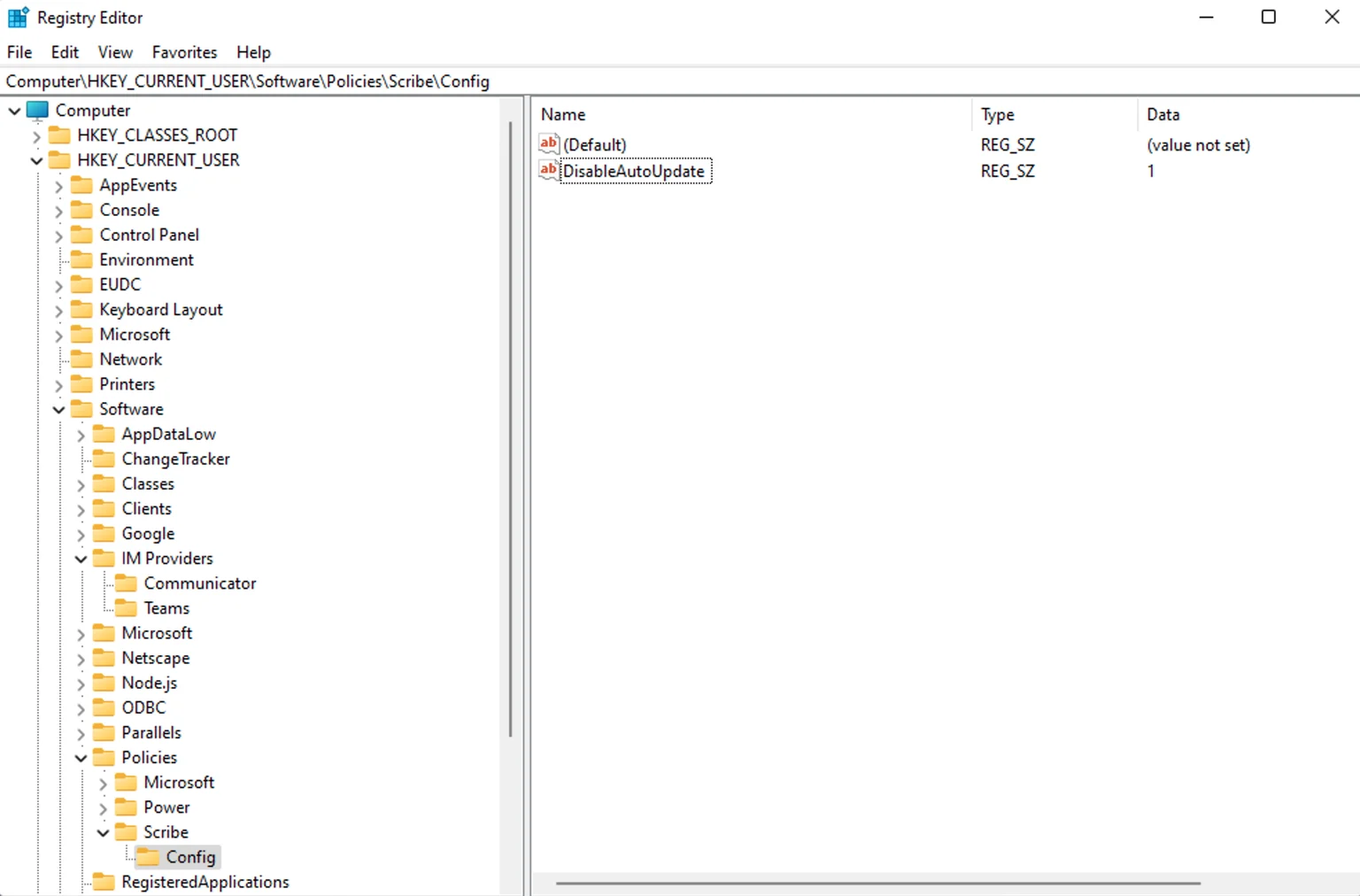
The Scribe app auto-updates by default. To disable this, deploy a registry key on each computer.
The key name is "DisableAutoUpdate"
The key should be at `HKLM:\SOFTWARE\Policies\Scribe\Config`
The key value should be "1"
Use the Scribe silent installer with any remote monitoring and management tool:
```text theme={null}
https://scribe-mail.com/desktop-app/windows-installer/latest
```
You just have to run the installer with the following command and the application will be installed silently:
```powershell theme={null}
Scribe-Setup-X.X.X.exe /S
```
The Scribe app auto-updates by default. To disable this, deploy a registry key on each computer.
The key name is "DisableAutoUpdate"
The key should be at `HKLM:\SOFTWARE\Policies\Scribe\Config`
The key value should be "1"
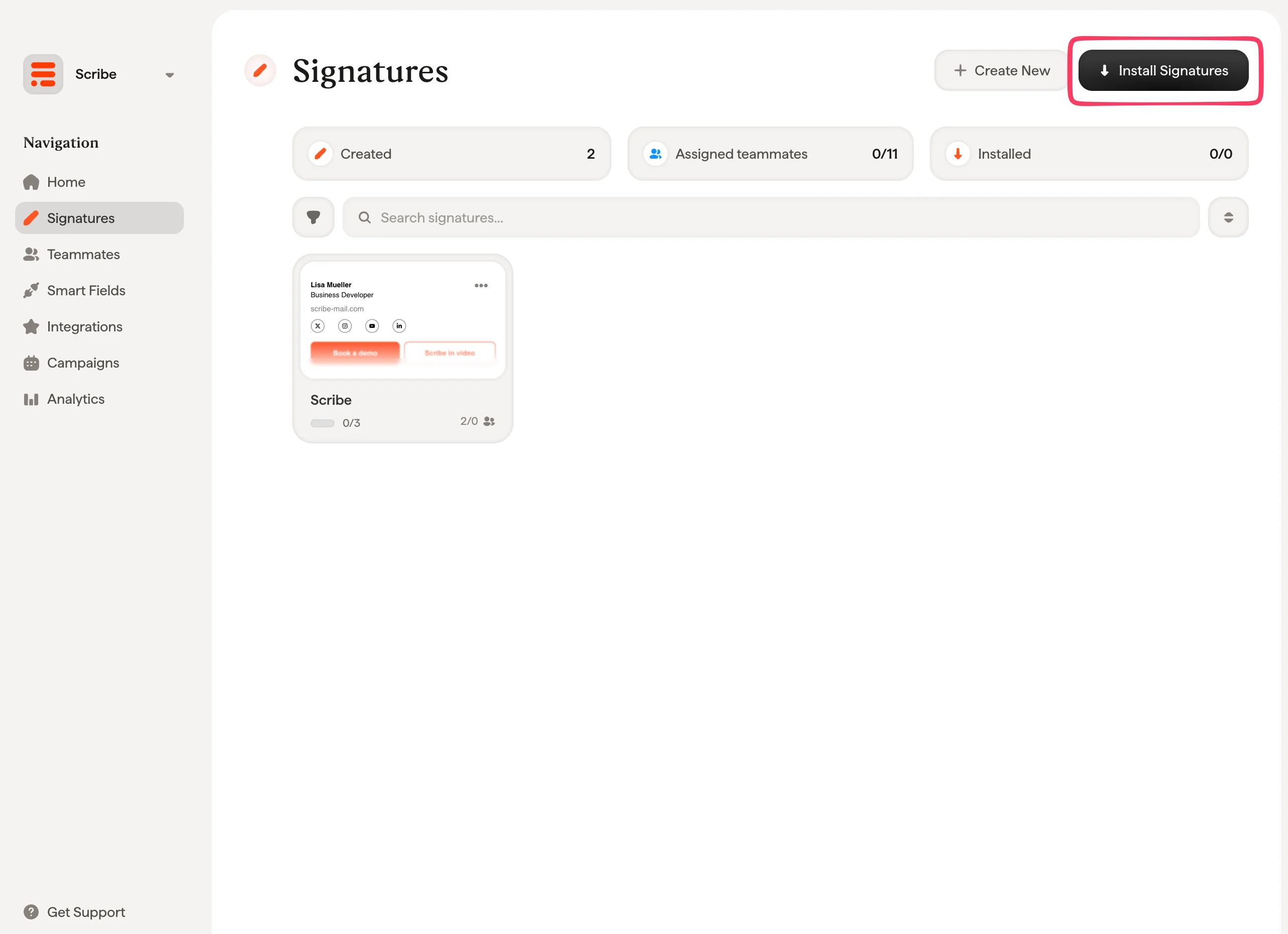
 From your signatures list, [install all signatures at once for your teammates](/en/install-signatures) or install them one by one for a progressive rollout.
 ## Related articles
* [Integrations overview](/en/integrations-overview): all the ways to deploy Scribe signatures, cloud or server side.
* [Outlook Windows](/en/integrations/signatures/outlook-windows): per-user manual install on Outlook for Windows.
* [Installation statuses and errors](/en/signature-installation-statuses-and-errors): what each installation status means and how to fix errors.
## Related articles
* [Integrations overview](/en/integrations-overview): all the ways to deploy Scribe signatures, cloud or server side.
* [Outlook Windows](/en/integrations/signatures/outlook-windows): per-user manual install on Outlook for Windows.
* [Installation statuses and errors](/en/signature-installation-statuses-and-errors): what each installation status means and how to fix errors.