> ## Documentation Index
> Fetch the complete documentation index at: https://help.scribe-mail.com/llms.txt
> Use this file to discover all available pages before exploring further.
# Outlook Windows
> Install Scribe email signatures on Outlook for Windows by downloading the Scribe desktop app, made for users without a Microsoft 365 cloud license.
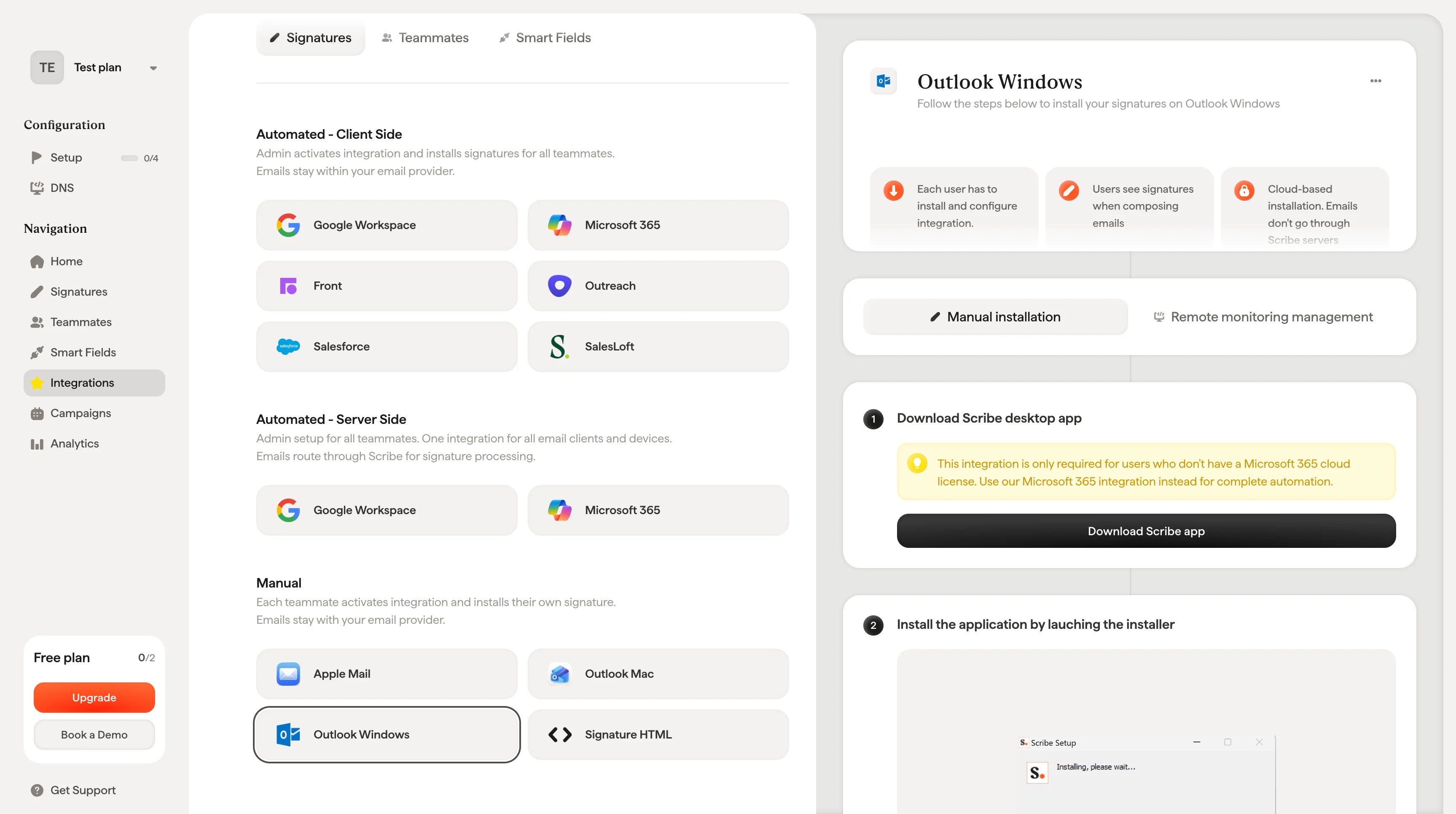
Follow the steps below to install your signatures on Outlook Windows.
**Each user has to install and configure integration.**
**Users see signatures when composing emails.**
**Cloud-based installation.** Emails don't go through Scribe servers.
## Installation guide
### Prerequisites
* A Scribe account
* At least one signature created in Scribe
* Windows with Outlook installed
This integration is only required for users who don't have a Microsoft 365 cloud license. Use our [Microsoft 365 integration](/en/integrations/signatures/microsoft-365-client-side) instead for complete automation.
Download the Scribe desktop app from the integrations page.
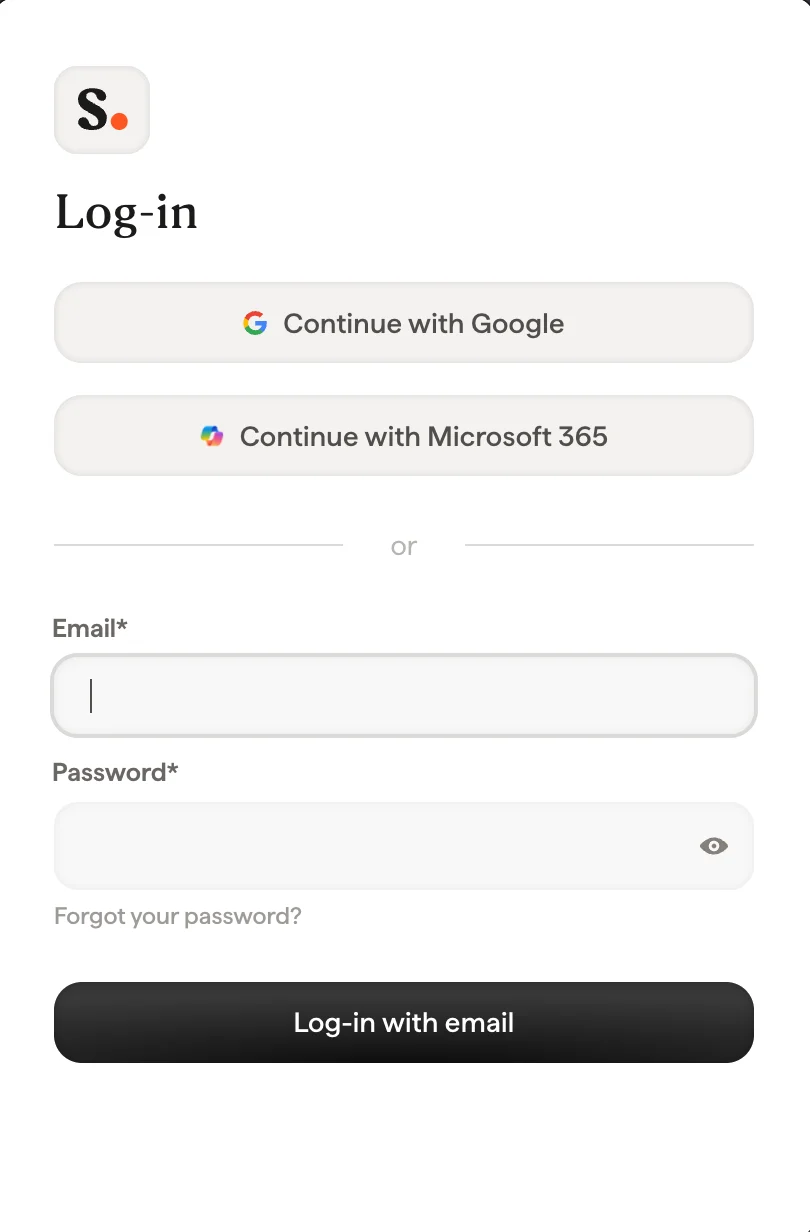
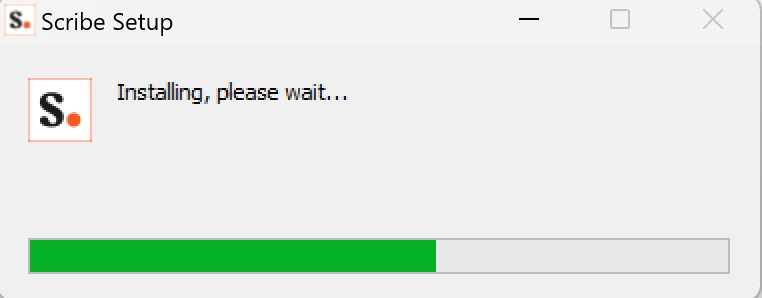 Log in to the Scribe app just as you do on Scribe's website.
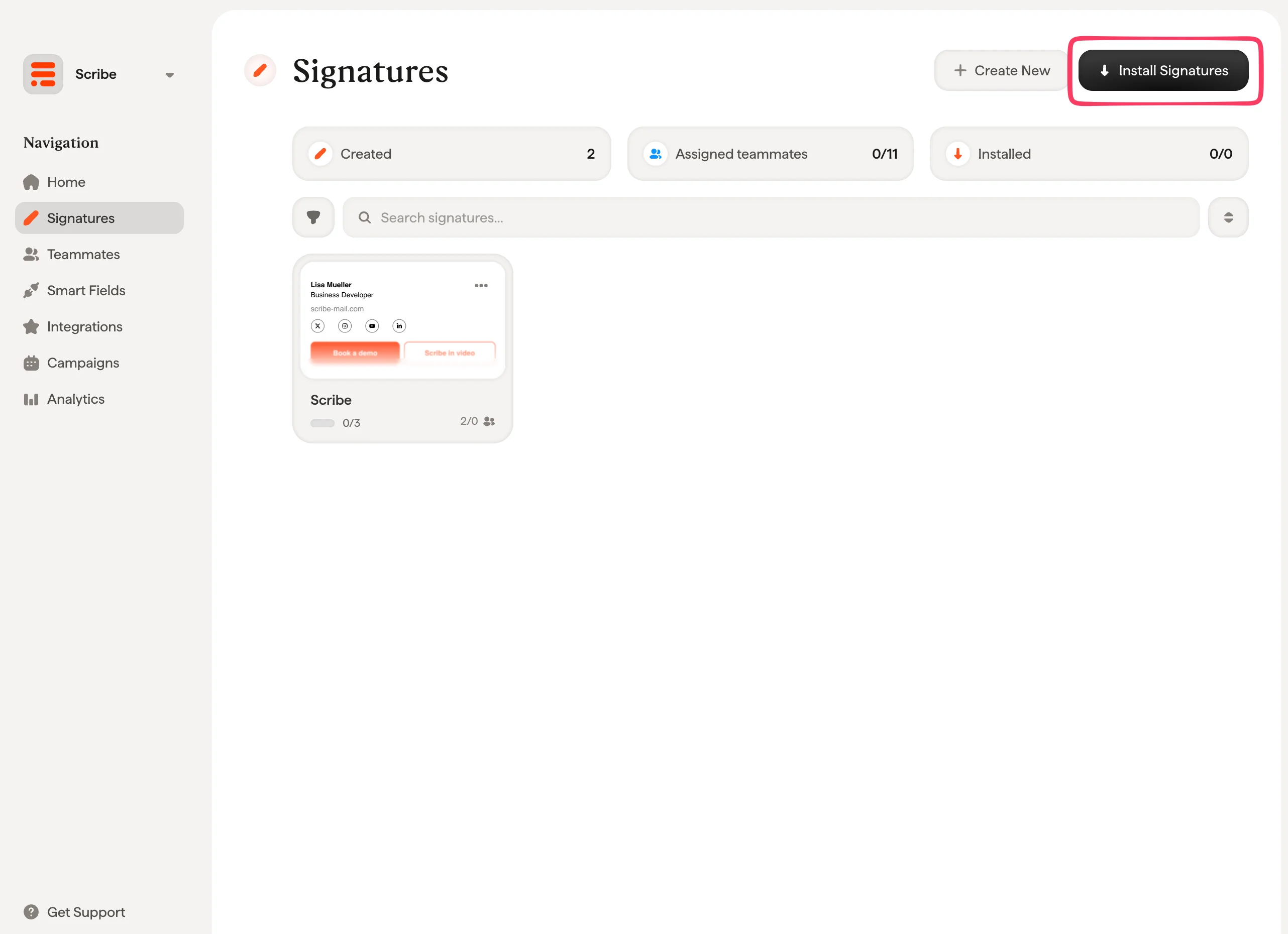
 From your signatures list, [install all signatures at once for your teammates](/en/install-signatures) or install them one by one for a progressive rollout.
 ## Related articles
* [Integrations overview](/en/integrations-overview): all the ways to deploy Scribe signatures, cloud or server side.
* [Outlook Windows (Remote Monitoring)](/en/integrations/signatures/outlook-windows-rmm): push the Outlook Windows install through your RMM tool.
* [Outlook add-in not validating](/en/troubleshooting/outlook-add-in-installation-not-validating): fix an Outlook add-in that will not validate.
## Related articles
* [Integrations overview](/en/integrations-overview): all the ways to deploy Scribe signatures, cloud or server side.
* [Outlook Windows (Remote Monitoring)](/en/integrations/signatures/outlook-windows-rmm): push the Outlook Windows install through your RMM tool.
* [Outlook add-in not validating](/en/troubleshooting/outlook-add-in-installation-not-validating): fix an Outlook add-in that will not validate.