> ## Documentation Index
> Fetch the complete documentation index at: https://help.scribe-mail.com/llms.txt
> Use this file to discover all available pages before exploring further.
# Install HTML signature in Outlook
> Install your Scribe email signature in Outlook on the web by pasting the HTML into settings and setting it as your default for new messages and replies.
Follow these steps to install your Scribe HTML signature in Outlook on the web.
These instructions are for **Outlook on the web** (outlook.office.com). For Outlook desktop on Windows or Mac, we recommend using the [Outlook Windows](/en/integrations/signatures/outlook-windows) or [Outlook Mac](/en/integrations/signatures/outlook-mac) integration instead.
## Prerequisites
* Your Scribe signature HTML copied to clipboard ([copy it from here](/en/integrations/signatures/signature-html))
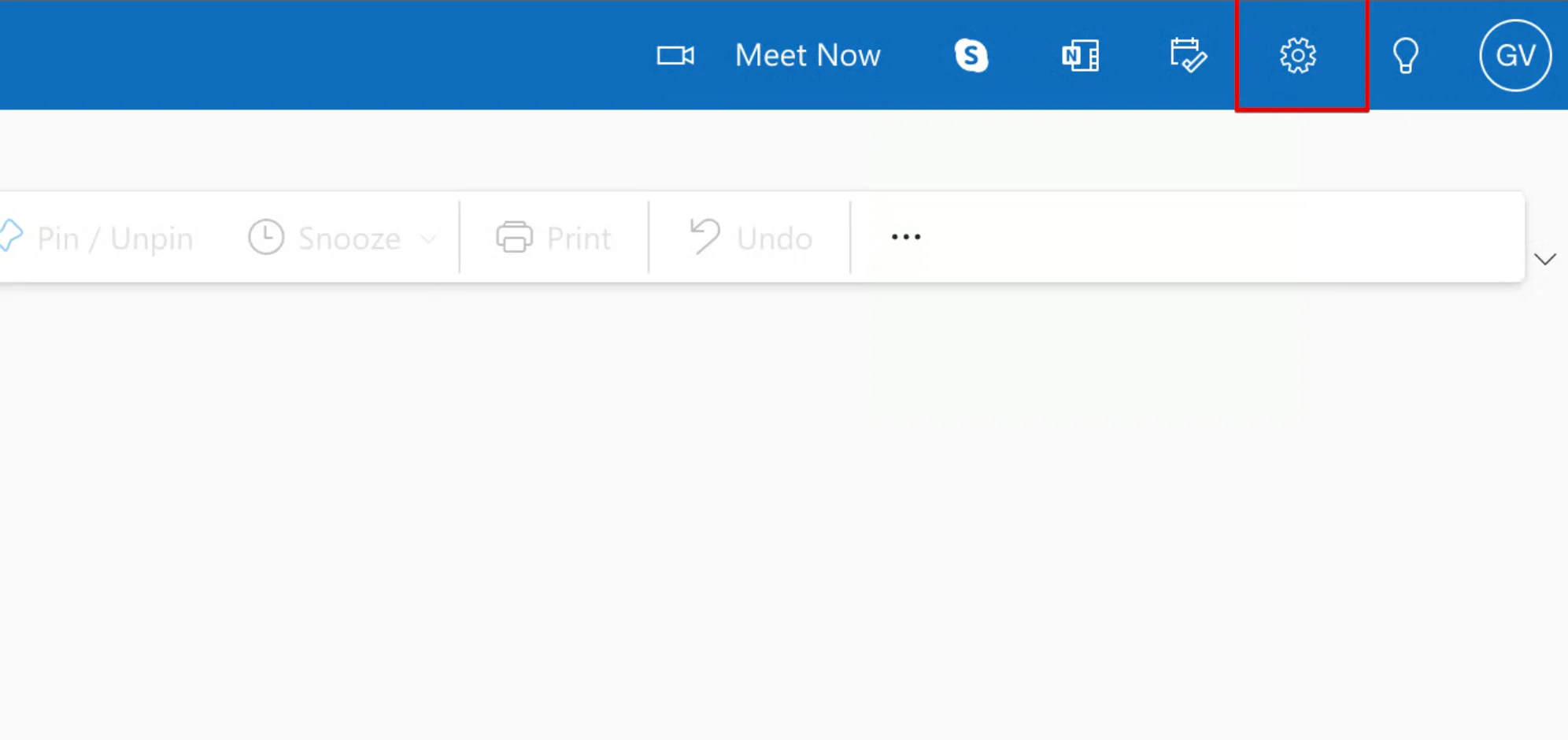
In Outlook on the web, click the gear icon in the top right corner to open **Settings**.
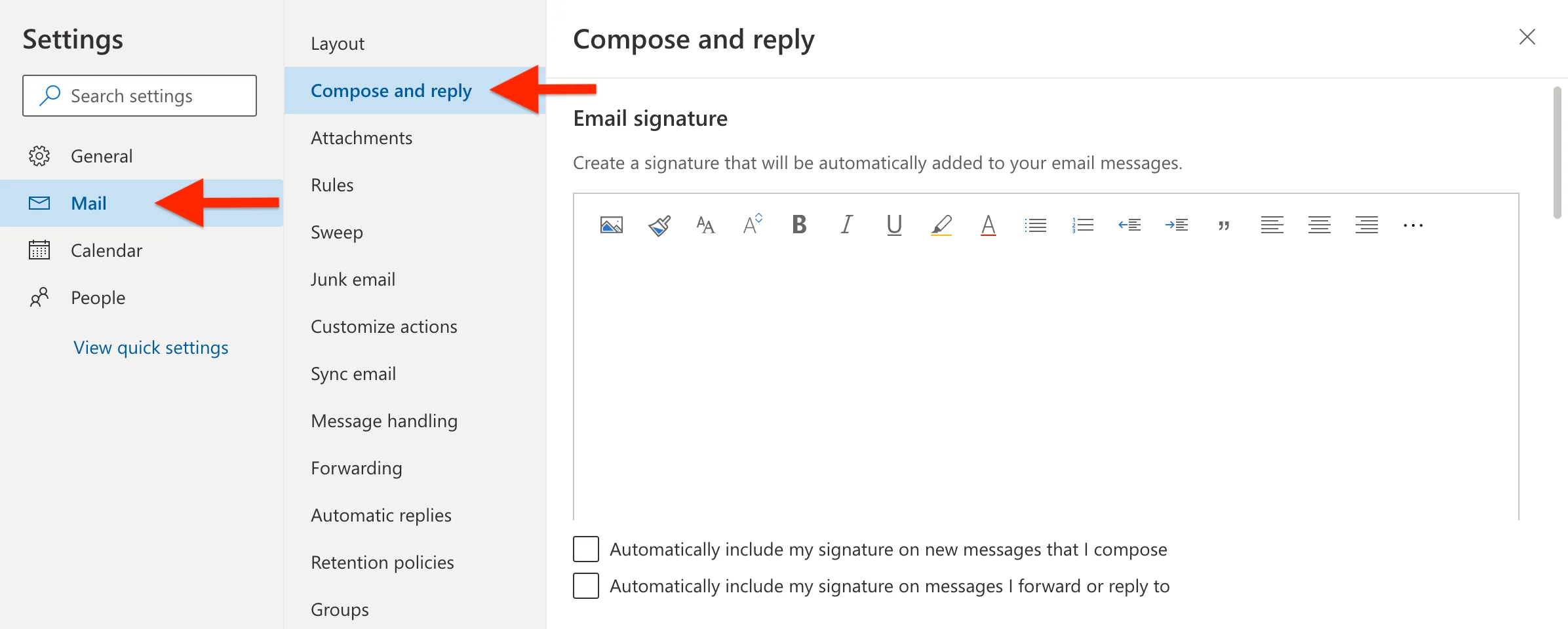
 In the settings panel, navigate to **Email**, then select **Compose and reply**.
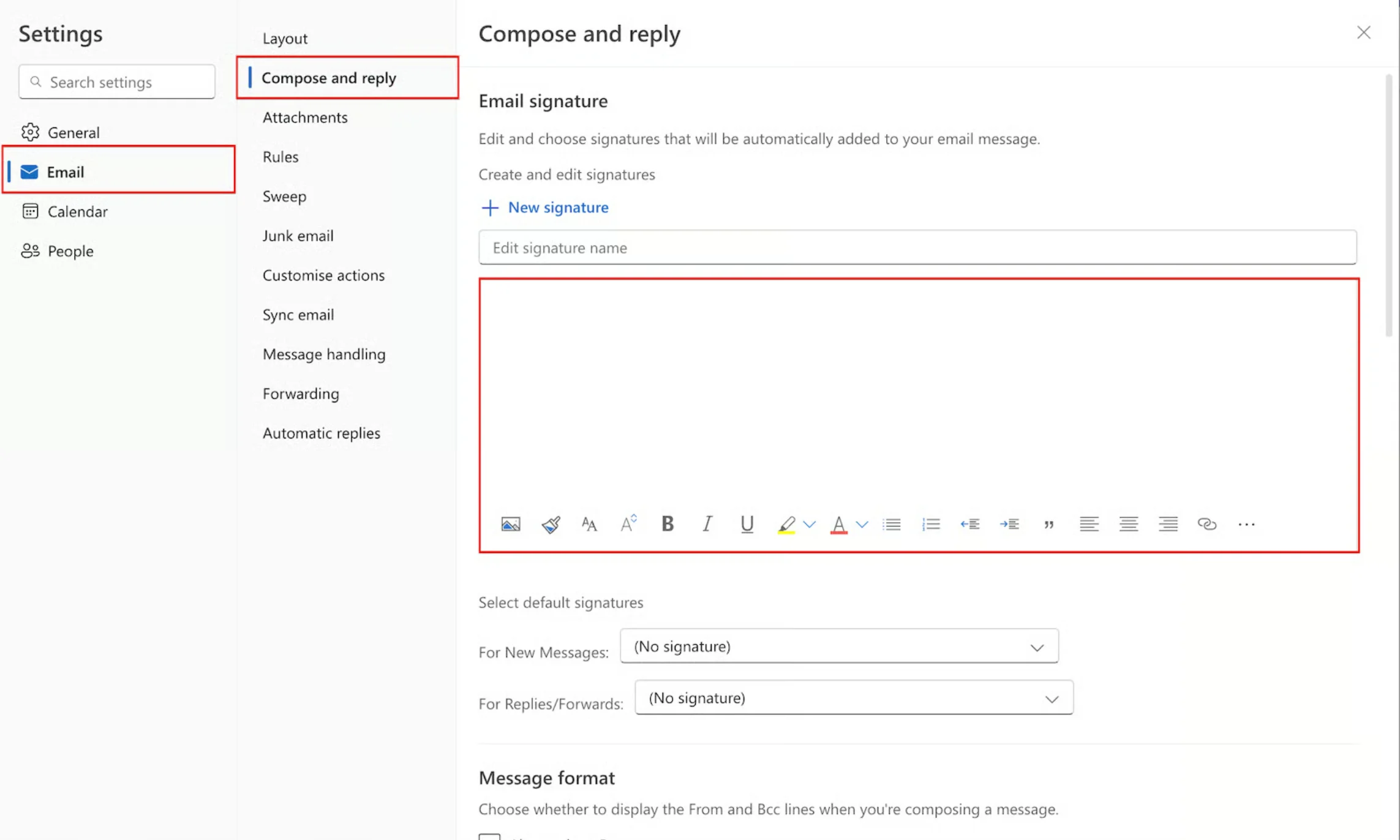
 Click inside the signature text box, then paste your Scribe HTML signature using **Ctrl+V** (Windows) or **Cmd+V** (Mac).
Make sure to paste in the signature editor area, not in the name field. Outlook will automatically render the HTML as a formatted signature.
Click inside the signature text box, then paste your Scribe HTML signature using **Ctrl+V** (Windows) or **Cmd+V** (Mac).
Make sure to paste in the signature editor area, not in the name field. Outlook will automatically render the HTML as a formatted signature.
 At the bottom of the signature section, set your default signatures:
* **For new messages:** select your Scribe signature
* **For replies/forwards:** select your Scribe signature
At the bottom of the signature section, set your default signatures:
* **For new messages:** select your Scribe signature
* **For replies/forwards:** select your Scribe signature
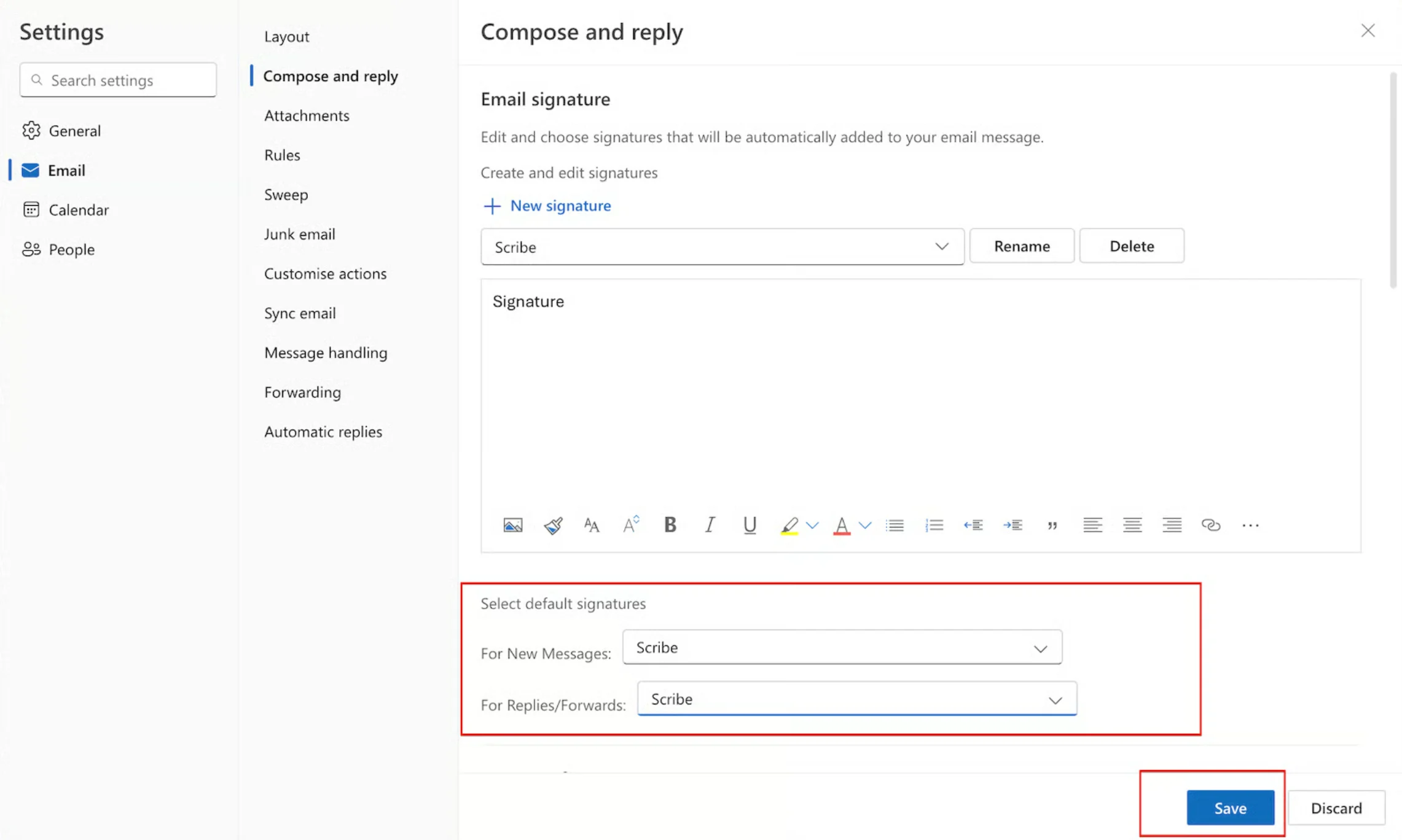 Click **Save** to apply your new signature.