> ## Documentation Index
> Fetch the complete documentation index at: https://help.scribe-mail.com/llms.txt
> Use this file to discover all available pages before exploring further.
# Signature HTML
> Copy your Scribe signature as HTML to install it manually on any email platform, or invite teammates to add and install their own signature themselves.
Follow these steps to copy your Scribe signature HTML to third-party platforms.
**Each user must manually install their signature HTML.**
**Users see signatures when composing emails.**
**Cloud-based installation.** Emails don't go through Scribe servers.
## Manual HTML installation
### Prerequisites
* A Scribe account
* At least one signature created in Scribe
* Teammates added to your workspace
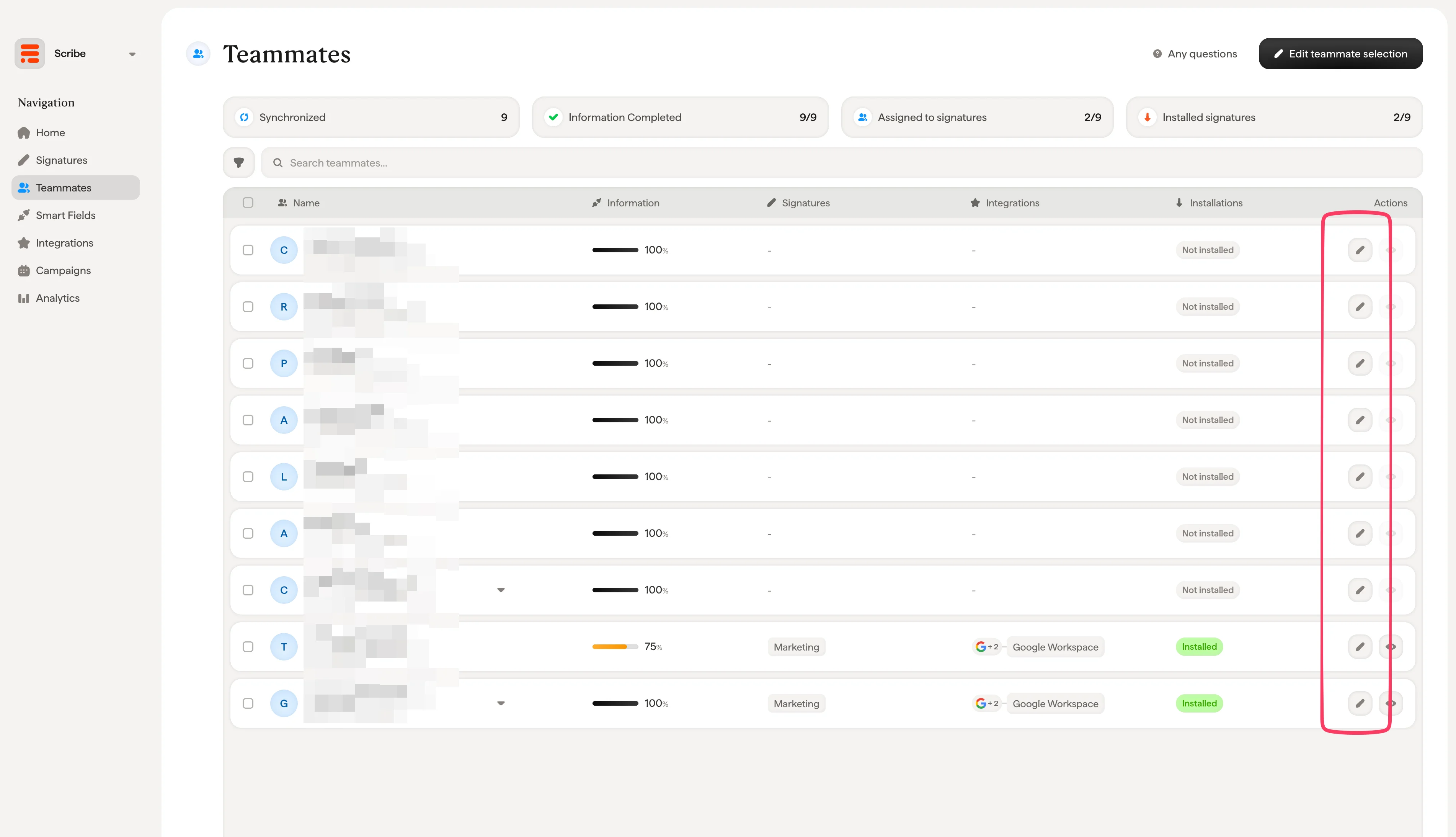 Select your platform, then copy the HTML code to install it.
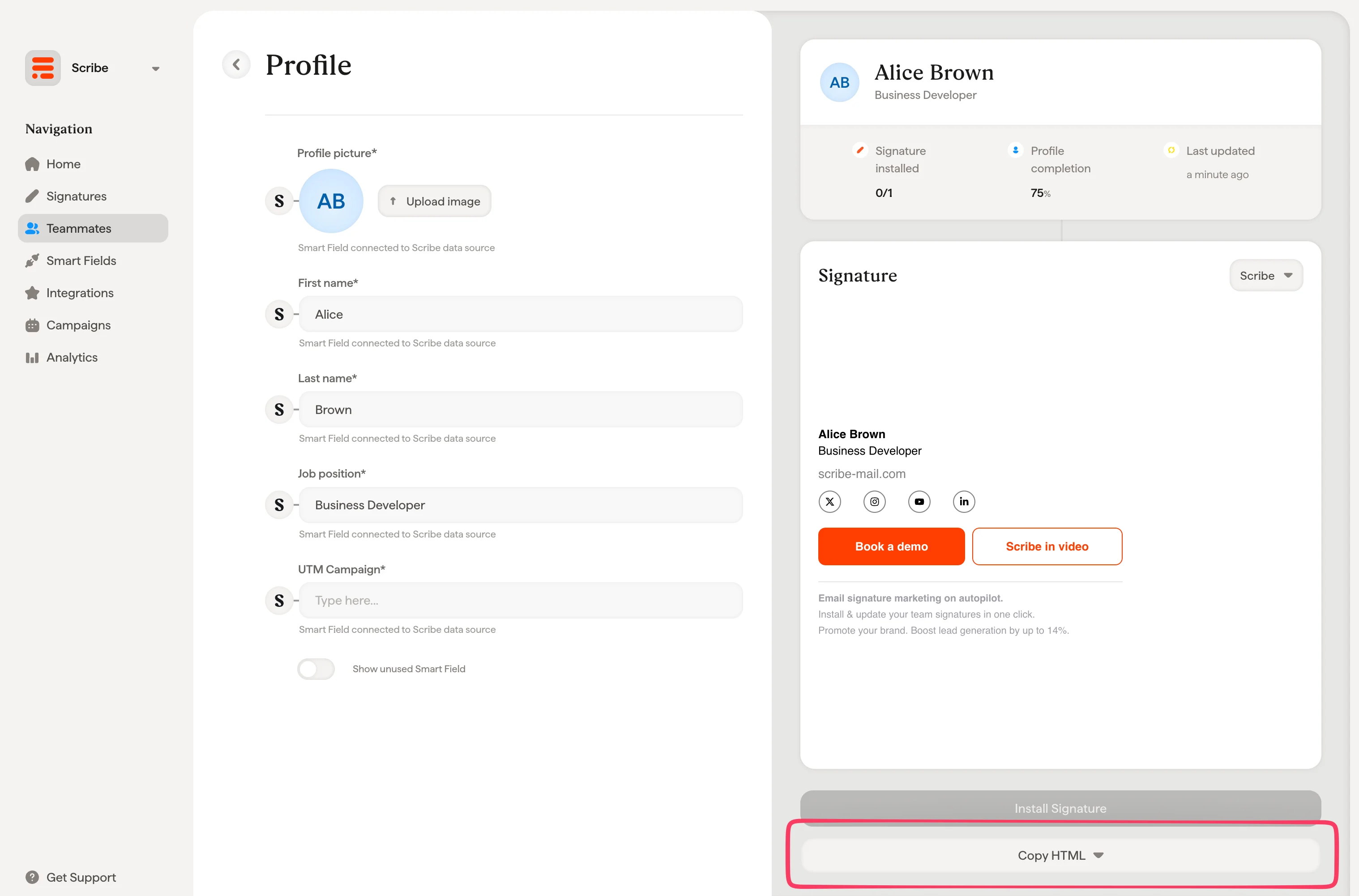 Find step-by-step instructions for your email platform:
Install your signature in Gmail
Install your signature in Outlook
## Invite teammates to install HTML
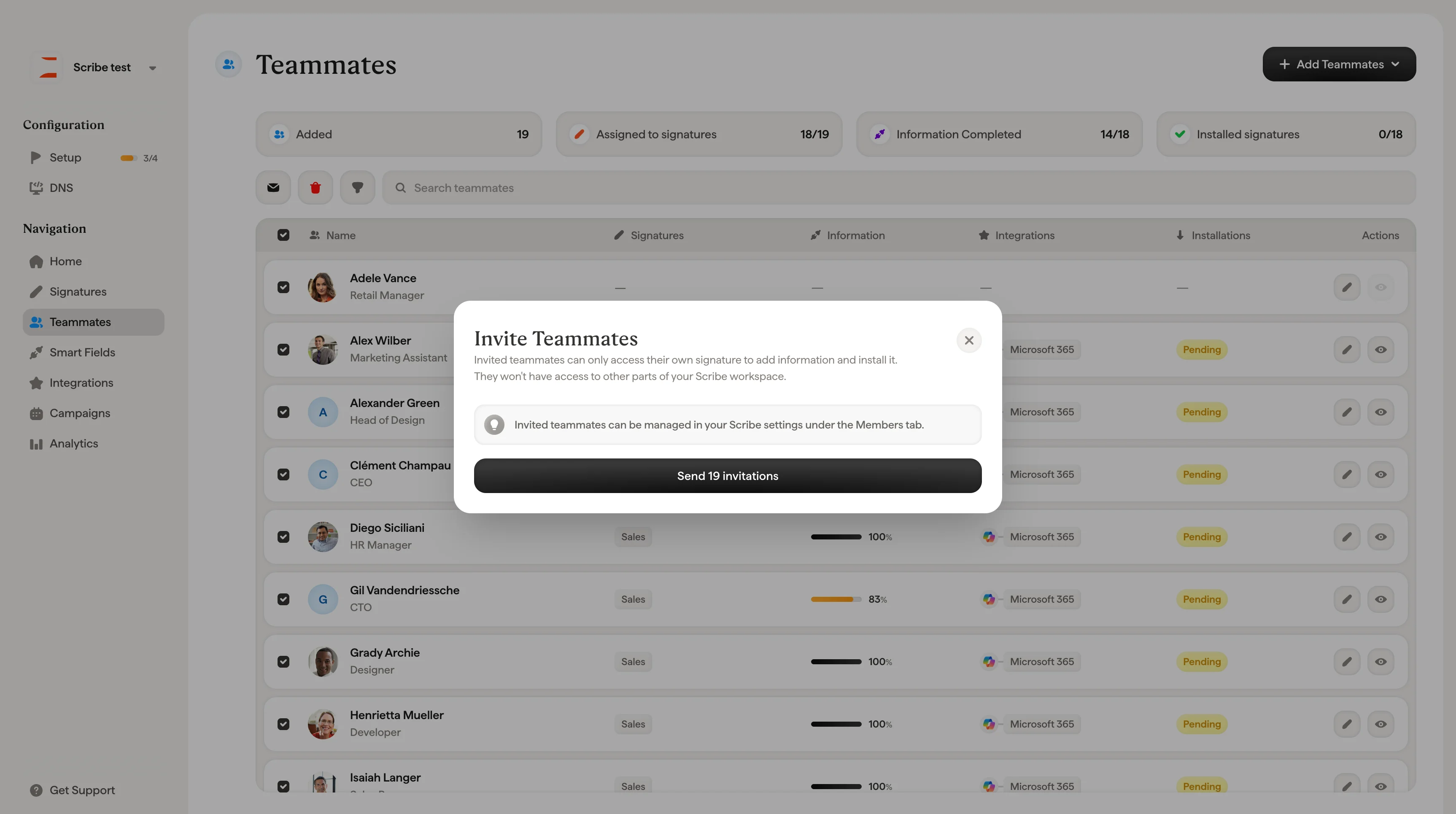
Instead of copying the HTML yourself, you can invite teammates to install their own signature. Invited teammates can only access their own signature to add information and install it. They won't have access to other parts of your Scribe workspace.
Find step-by-step instructions for your email platform:
Install your signature in Gmail
Install your signature in Outlook
## Invite teammates to install HTML
Instead of copying the HTML yourself, you can invite teammates to install their own signature. Invited teammates can only access their own signature to add information and install it. They won't have access to other parts of your Scribe workspace.
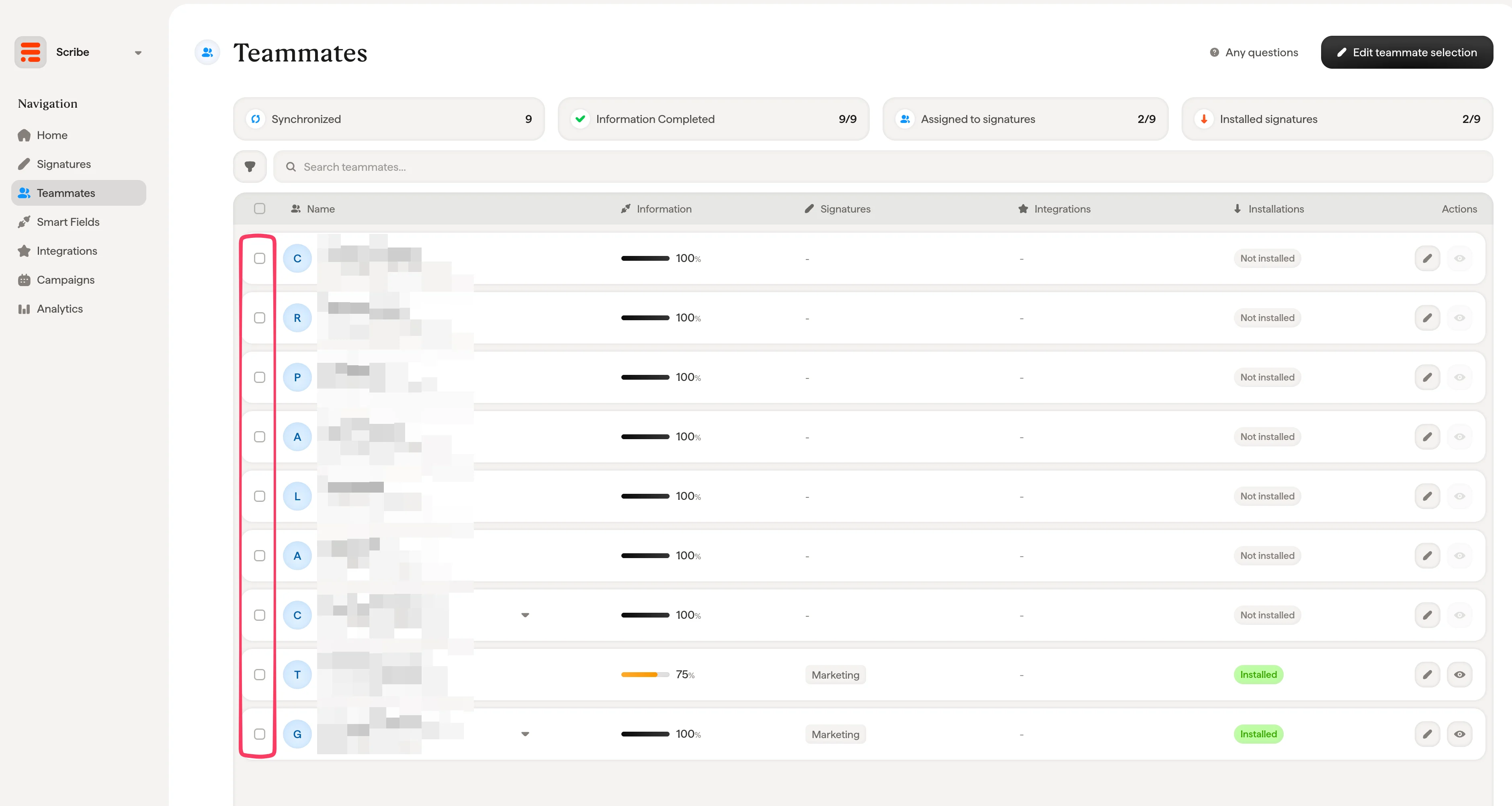
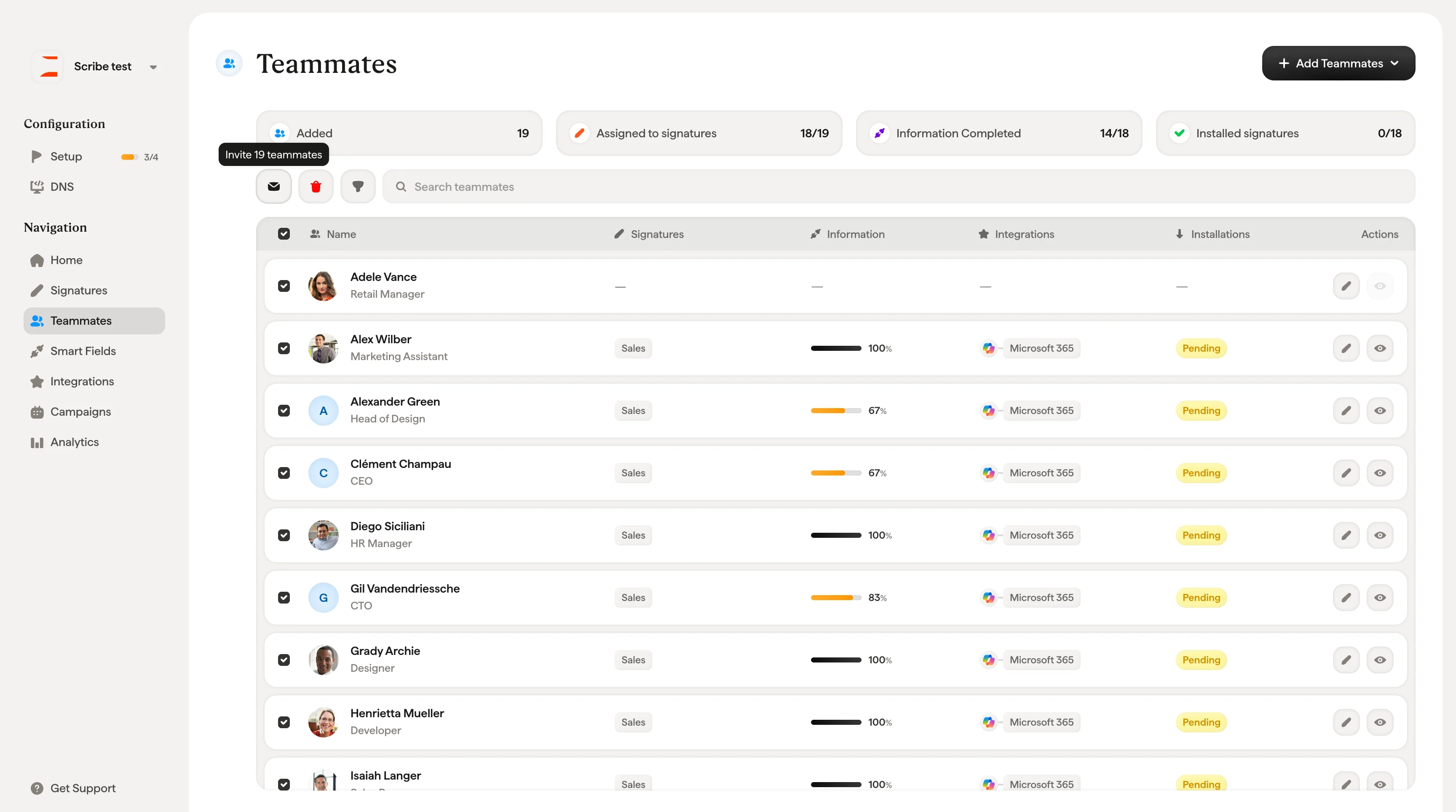 Invited teammates will only have access to their own signature to add information and install it. They won't have access to other parts of your Scribe workspace.
Invited teammates can be managed in your Scribe settings under the Members tab.
Invited teammates will only have access to their own signature to add information and install it. They won't have access to other parts of your Scribe workspace.
Invited teammates can be managed in your Scribe settings under the Members tab.