> ## Documentation Index
> Fetch the complete documentation index at: https://help.scribe-mail.com/llms.txt
> Use this file to discover all available pages before exploring further.
# Zoho Mail
> Install Scribe email signatures across your team's Zoho Mail in one click as a Zoho Mail admin, with no teammate action needed. Free on every plan.
**Centralized one-click installation.** No teammate action needed. Users see signatures when composing emails. Cloud-based installation: emails don't go through Scribe servers.
**Supported platforms:** Zoho Mail on the web
## How it works
Scribe writes each teammate's signature into Zoho Mail as a signature added by an administrator. Zoho Mail then inserts it by itself:
* in new emails, replies and forwards, above the quoted text;
* on each address it is installed for: the teammate's main address and, if you [import aliases](/en/integrations/teammates/zoho-mail-teammates), each alias with its own signature.
Your teammates can't edit the signature: Zoho Mail shows it as created by their administrator. When you publish a change in Scribe, or a teammate's details change, Scribe updates the same signature in Zoho Mail.
When a teammate is assigned more than one signature, Scribe installs each of them in Zoho Mail. Zoho Mail adds one signature per address to new emails: your highest priority signature (see [Signature priority](/en/signature-priority)). The others are added to the teammate's Zoho Mail signatures without being assigned to the address.
Zoho Mail adds the signature only in Zoho Mail. Emails sent from another app connected to Zoho Mail over IMAP or SMTP, such as Apple Mail or Outlook, don't carry it. For those apps, use a [manual installation](/en/integrations-overview#manual).
Zoho Mail signatures are free on every plan.
## Installation guide
### Prerequisites
* A Scribe account with admin access
* A Zoho Mail organization, with a **Super Admin** or **Admin** account
You must be a **Super Admin or Admin in Zoho Mail** to install this integration.
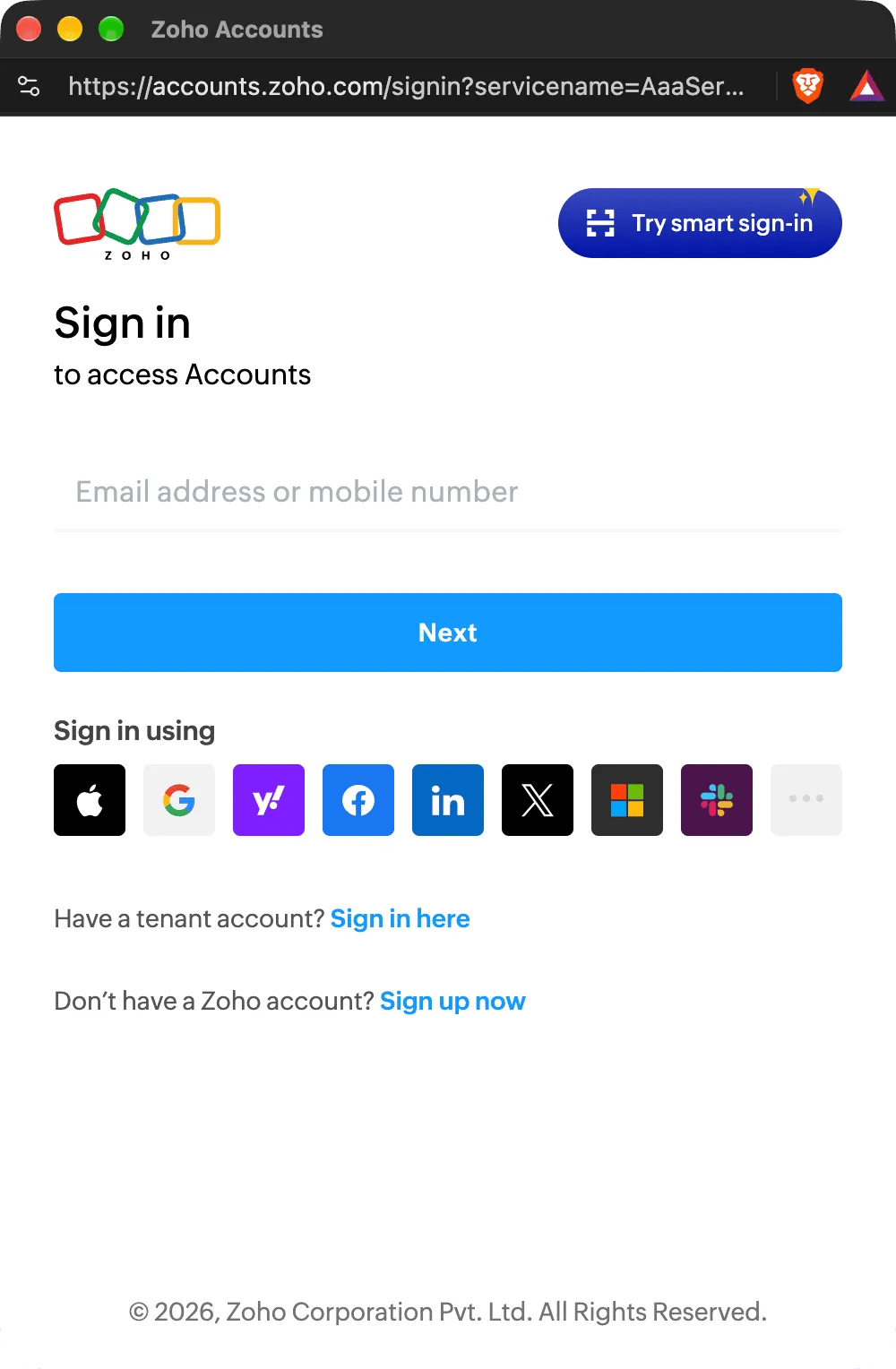
In Scribe, go to Integrations, open **Zoho Mail** under Signatures, and click **Connect Zoho Mail**.
If you are already signed in to Zoho, this step is skipped.
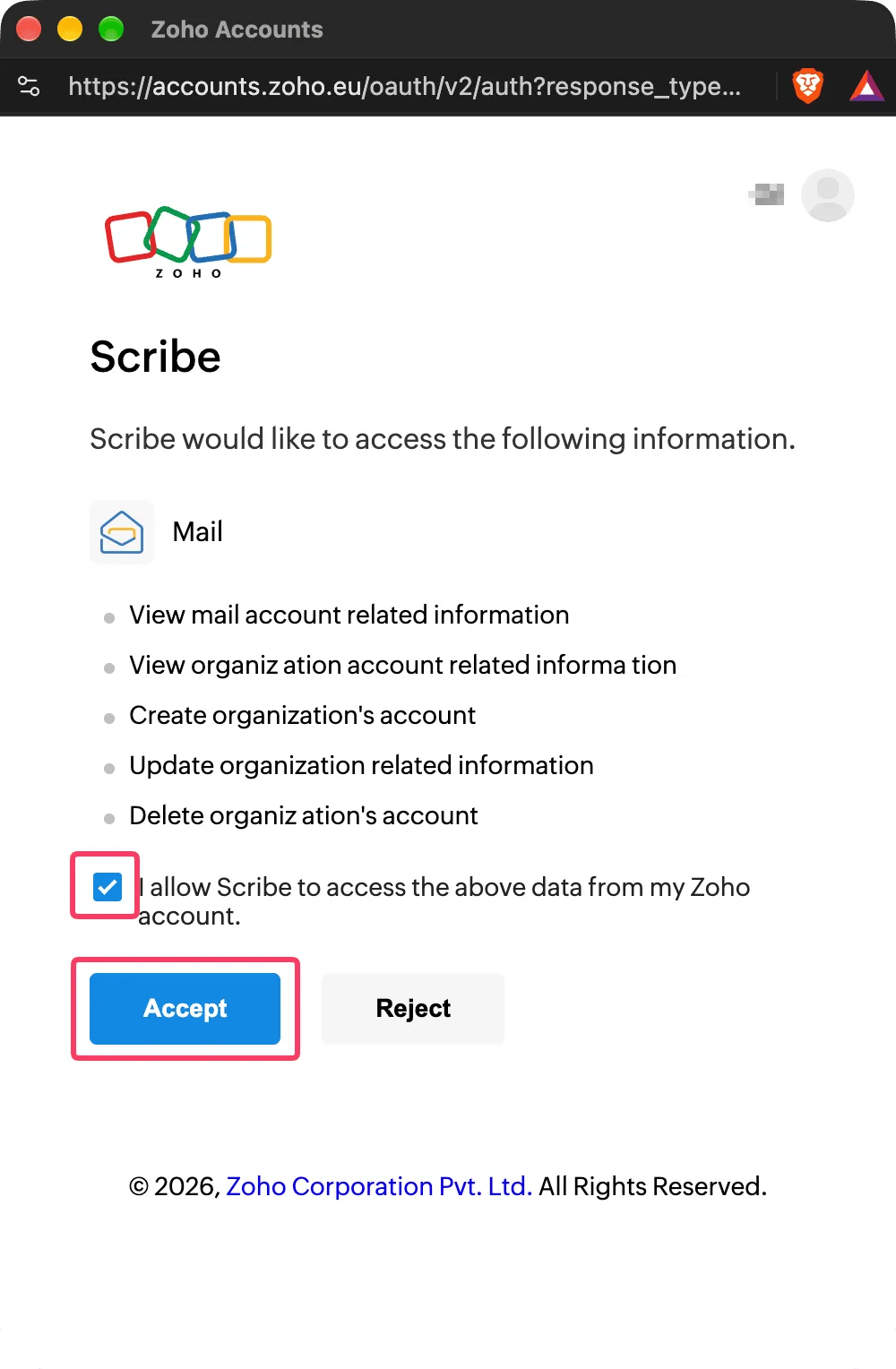
 Zoho has no permission for signatures alone, so it asks you to let Scribe manage your organization's user accounts. Scribe only adds, updates and removes your teammates' signatures. You can find the scopes we use from the Zoho Mail API [here](/en/security/scopes-used-from-zoho-mail).
Check **I allow Scribe to access the above data from my Zoho account**, then click **Accept**. The integration connects automatically.
Zoho has no permission for signatures alone, so it asks you to let Scribe manage your organization's user accounts. Scribe only adds, updates and removes your teammates' signatures. You can find the scopes we use from the Zoho Mail API [here](/en/security/scopes-used-from-zoho-mail).
Check **I allow Scribe to access the above data from my Zoho account**, then click **Accept**. The integration connects automatically.
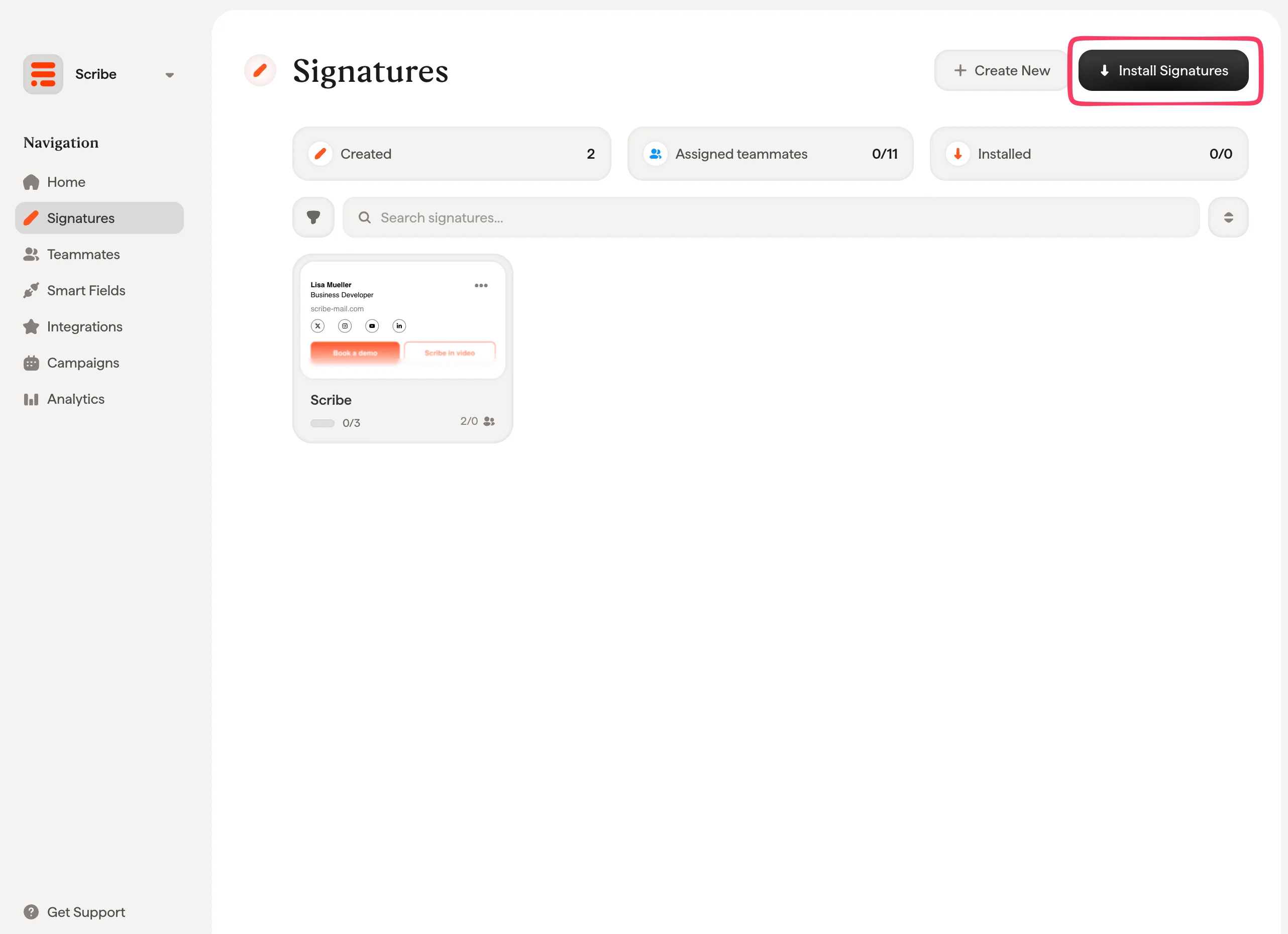
 From your signatures list, [install all signatures at once for your teammates](/en/install-signatures) or install them one by one for a progressive rollout. Zoho Mail installs each signature at once: there is no waiting time.
 Scribe supports Zoho accounts in every Zoho data center except China (zoho.com.cn). One Zoho Mail organization can be connected to one Scribe workspace.
## Troubleshooting
When an installation fails, the teammate's status in Scribe says why. Each reason has its own page:
* [Signature too long for Zoho Mail](/en/troubleshooting/zoho-mail-signature-too-long): Zoho Mail refused the signature because of its size.
* [Zoho Mail access lost](/en/troubleshooting/zoho-mail-access-lost): Scribe can no longer write signatures in your Zoho Mail organization.
* [Zoho Mail signature not installed](/en/troubleshooting/zoho-mail-signature-not-installed): the teammate's address has no active mailbox in your Zoho Mail organization.
If the connection fails, Scribe shows one of these messages:
| Message | What to do |
| - | - |
| You need to be an admin of your Zoho Mail organization to activate this integration. | Sign in to Zoho with a **Super Admin** or **Admin** account, or invite an admin to your Scribe workspace to connect it. |
| This Zoho Mail organization is already linked to another Scribe workspace. | Disconnect Zoho Mail from the other workspace first, or connect from that workspace. |
| Scribe does not support the Zoho data center of your account. | Your Zoho account is hosted in China, which Scribe does not support. |
| There is an issue with your credentials. Please try again. | Start again from **Connect Zoho Mail** and accept all the scopes. |
| Zoho Mail is not responding. Please try again in a few minutes. | Zoho did not answer. Wait a few minutes and try again. |
## Related articles
* [Integrations overview](/en/integrations-overview): all the ways to deploy Scribe signatures, cloud or server side.
* [Zoho Mail teammates](/en/integrations/teammates/zoho-mail-teammates): sync your Zoho Mail users and groups with Scribe.
* [Installation statuses and errors](/en/signature-installation-statuses-and-errors): what each installation status means and how to fix errors.
This documentation is built and hosted on [Mintlify](https://mintlify.com), a developer documentation platform.
Scribe supports Zoho accounts in every Zoho data center except China (zoho.com.cn). One Zoho Mail organization can be connected to one Scribe workspace.
## Troubleshooting
When an installation fails, the teammate's status in Scribe says why. Each reason has its own page:
* [Signature too long for Zoho Mail](/en/troubleshooting/zoho-mail-signature-too-long): Zoho Mail refused the signature because of its size.
* [Zoho Mail access lost](/en/troubleshooting/zoho-mail-access-lost): Scribe can no longer write signatures in your Zoho Mail organization.
* [Zoho Mail signature not installed](/en/troubleshooting/zoho-mail-signature-not-installed): the teammate's address has no active mailbox in your Zoho Mail organization.
If the connection fails, Scribe shows one of these messages:
| Message | What to do |
| - | - |
| You need to be an admin of your Zoho Mail organization to activate this integration. | Sign in to Zoho with a **Super Admin** or **Admin** account, or invite an admin to your Scribe workspace to connect it. |
| This Zoho Mail organization is already linked to another Scribe workspace. | Disconnect Zoho Mail from the other workspace first, or connect from that workspace. |
| Scribe does not support the Zoho data center of your account. | Your Zoho account is hosted in China, which Scribe does not support. |
| There is an issue with your credentials. Please try again. | Start again from **Connect Zoho Mail** and accept all the scopes. |
| Zoho Mail is not responding. Please try again in a few minutes. | Zoho did not answer. Wait a few minutes and try again. |
## Related articles
* [Integrations overview](/en/integrations-overview): all the ways to deploy Scribe signatures, cloud or server side.
* [Zoho Mail teammates](/en/integrations/teammates/zoho-mail-teammates): sync your Zoho Mail users and groups with Scribe.
* [Installation statuses and errors](/en/signature-installation-statuses-and-errors): what each installation status means and how to fix errors.
This documentation is built and hosted on [Mintlify](https://mintlify.com), a developer documentation platform.