> ## Documentation Index
> Fetch the complete documentation index at: https://help.scribe-mail.com/llms.txt
> Use this file to discover all available pages before exploring further.

# ChartHop

> Keep email signatures accurate and up to date by syncing employee details from ChartHop, your HR and org-chart platform, like job title and department.

Follow these steps to [auto-fill your teammate's signatures](/en/smart-fields) using ChartHop as a data source.

<Info>
  **No action needed from your teammates.**
</Info>

<Info>
  **Changes in your ChartHop auto-sync to Scribe.**
</Info>

<Info>
  **SOC 2 Type II Certified.** [Your data is safe](/en/security/data-collection/charthop).
</Info>

## Installation guide

### Prerequisites

* A Scribe account with admin access
* A ChartHop account with access to Apps & Bundles
<Steps>
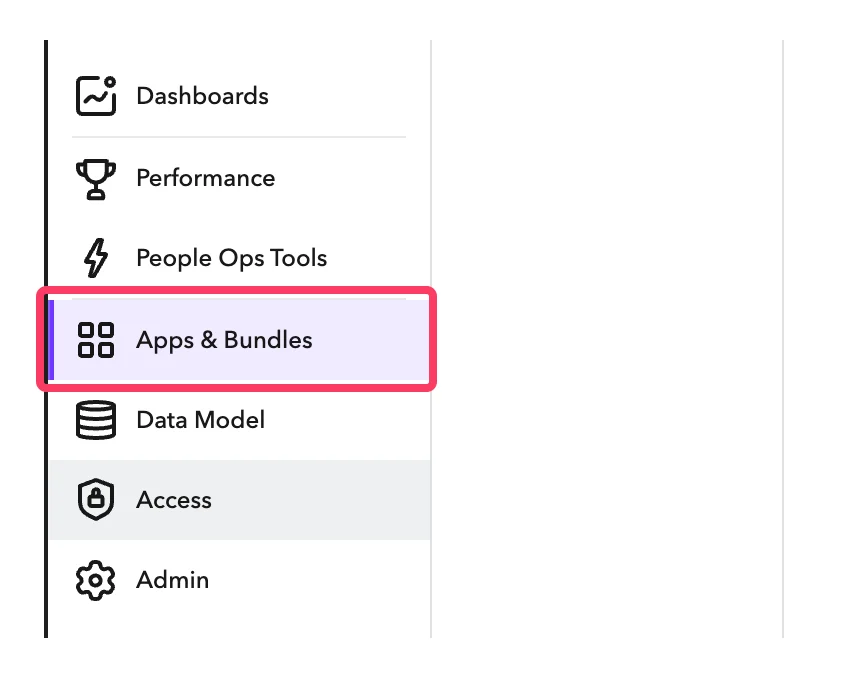
  <Step title="In your ChartHop account, go to Apps & Bundles">
    <Frame>
      <img src="https://mintcdn.com/scribe/I5V9iTucPI_EY3nq/integrations/smart-fields/images/charthop-step-1.png?fit=max&auto=format&n=I5V9iTucPI_EY3nq&q=85&s=a5ce5fb34e956605f619e21d5d68b5b8" alt="ChartHop sidebar with Apps & Bundles selected" className="mx-auto" style={{ width:"62%" }} width="848" height="678" data-path="integrations/smart-fields/images/charthop-step-1.png" />
    </Frame>
  </Step>

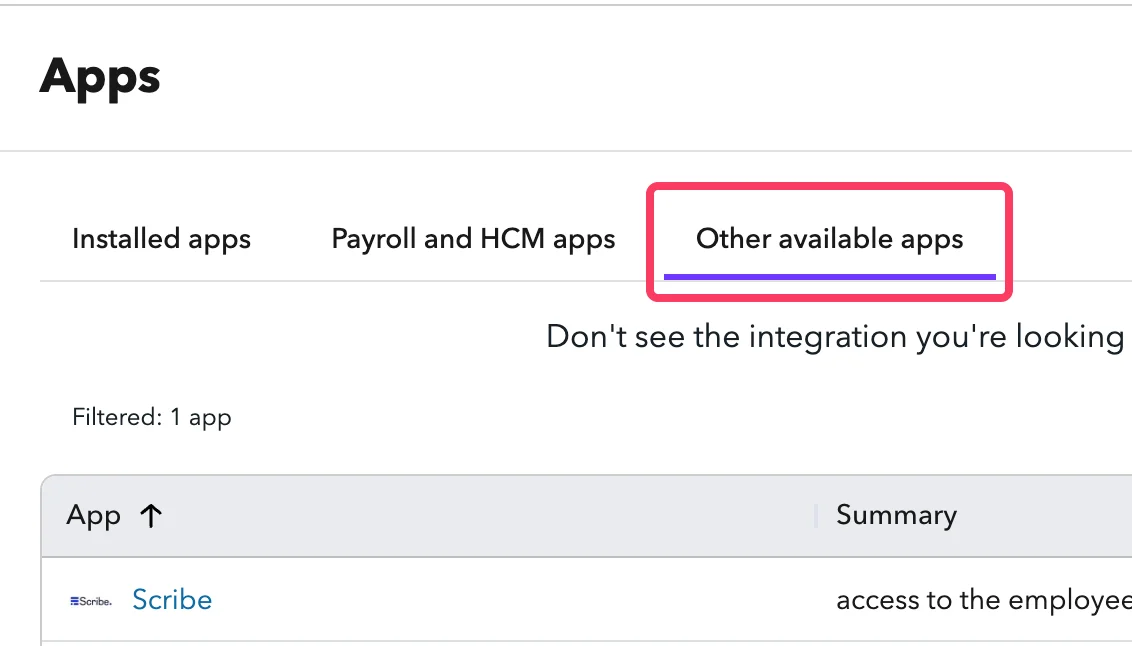
  <Step title="Click on 'Other available apps'">
    <Frame>
      <img src="https://mintcdn.com/scribe/I5V9iTucPI_EY3nq/integrations/smart-fields/images/charthop-step-2.png?fit=max&auto=format&n=I5V9iTucPI_EY3nq&q=85&s=355b0b39c29f6934ebf12900b6dfeb95" alt="Apps page with Other available apps tab" className="mx-auto" style={{ width:"72%" }} width="1132" height="646" data-path="integrations/smart-fields/images/charthop-step-2.png" />
    </Frame>
  </Step>

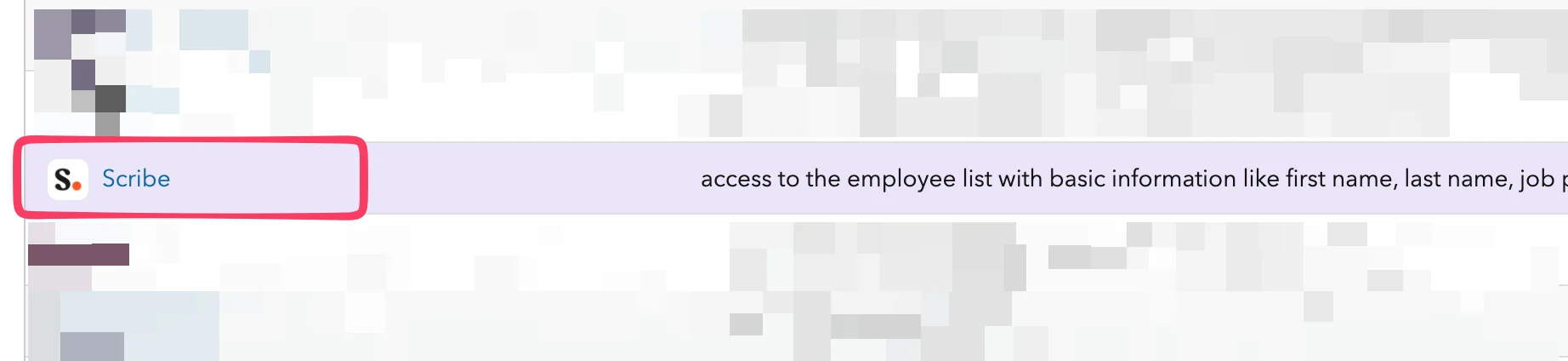
  <Step title="In the list, find 'Scribe' and click on it">
    <Frame>
      <img src="https://mintcdn.com/scribe/I5V9iTucPI_EY3nq/integrations/smart-fields/images/charthop-step-3.png?fit=max&auto=format&n=I5V9iTucPI_EY3nq&q=85&s=9fdba62ee41b55db630a61be0c335fe1" alt="Scribe app in the available apps list" className="mx-auto" style={{ width:"78%" }} width="1844" height="424" data-path="integrations/smart-fields/images/charthop-step-3.png" />
    </Frame>
  </Step>

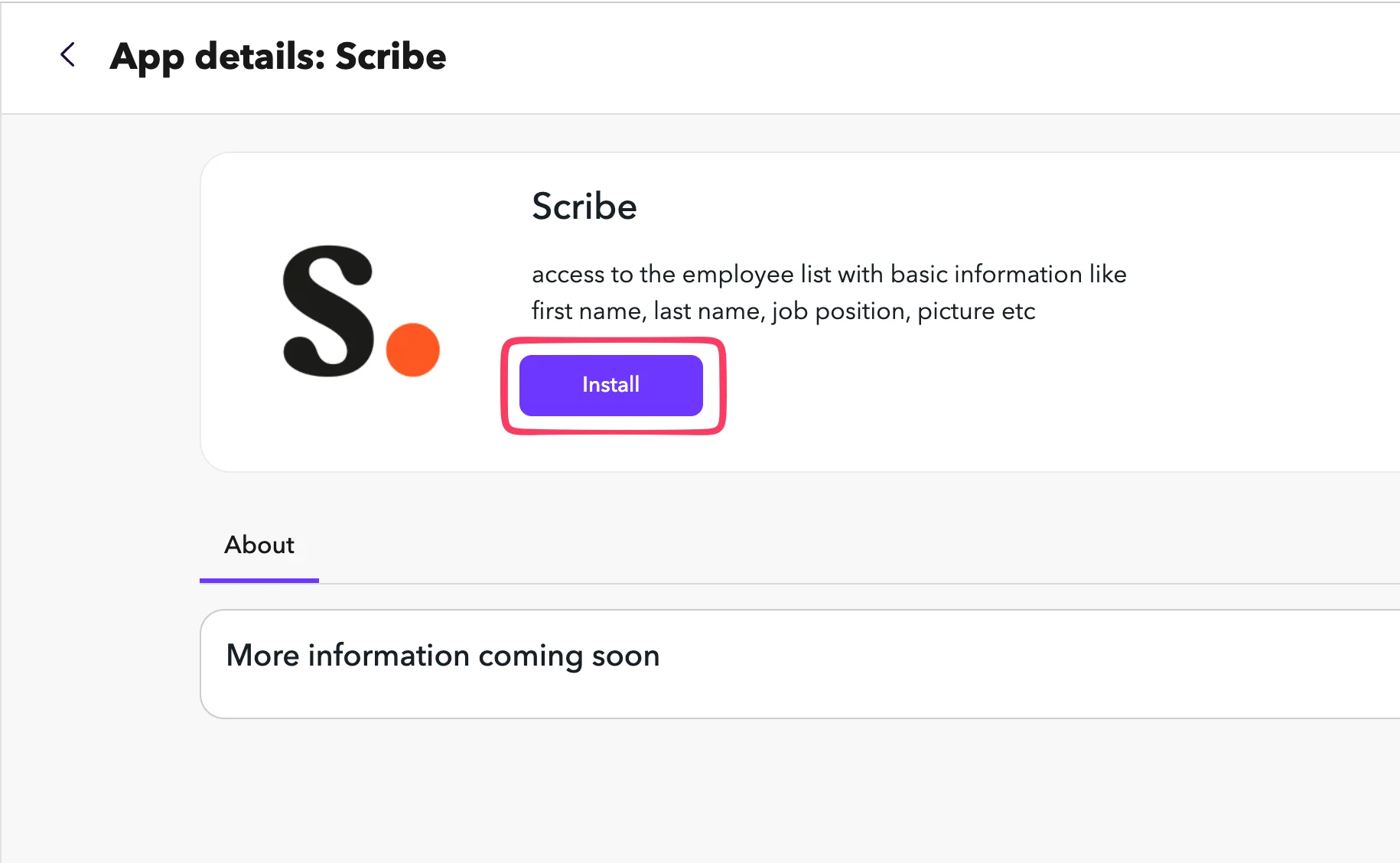
  <Step title="Click Install">
    <Frame>
      <img src="https://mintcdn.com/scribe/I5V9iTucPI_EY3nq/integrations/smart-fields/images/charthop-step-4.png?fit=max&auto=format&n=I5V9iTucPI_EY3nq&q=85&s=5086bedfb627927490e03cf1feebfa7a" alt="Scribe app details page with Install button" className="mx-auto" style={{ width:"68%" }} width="1830" height="1128" data-path="integrations/smart-fields/images/charthop-step-4.png" />
    </Frame>
  </Step>

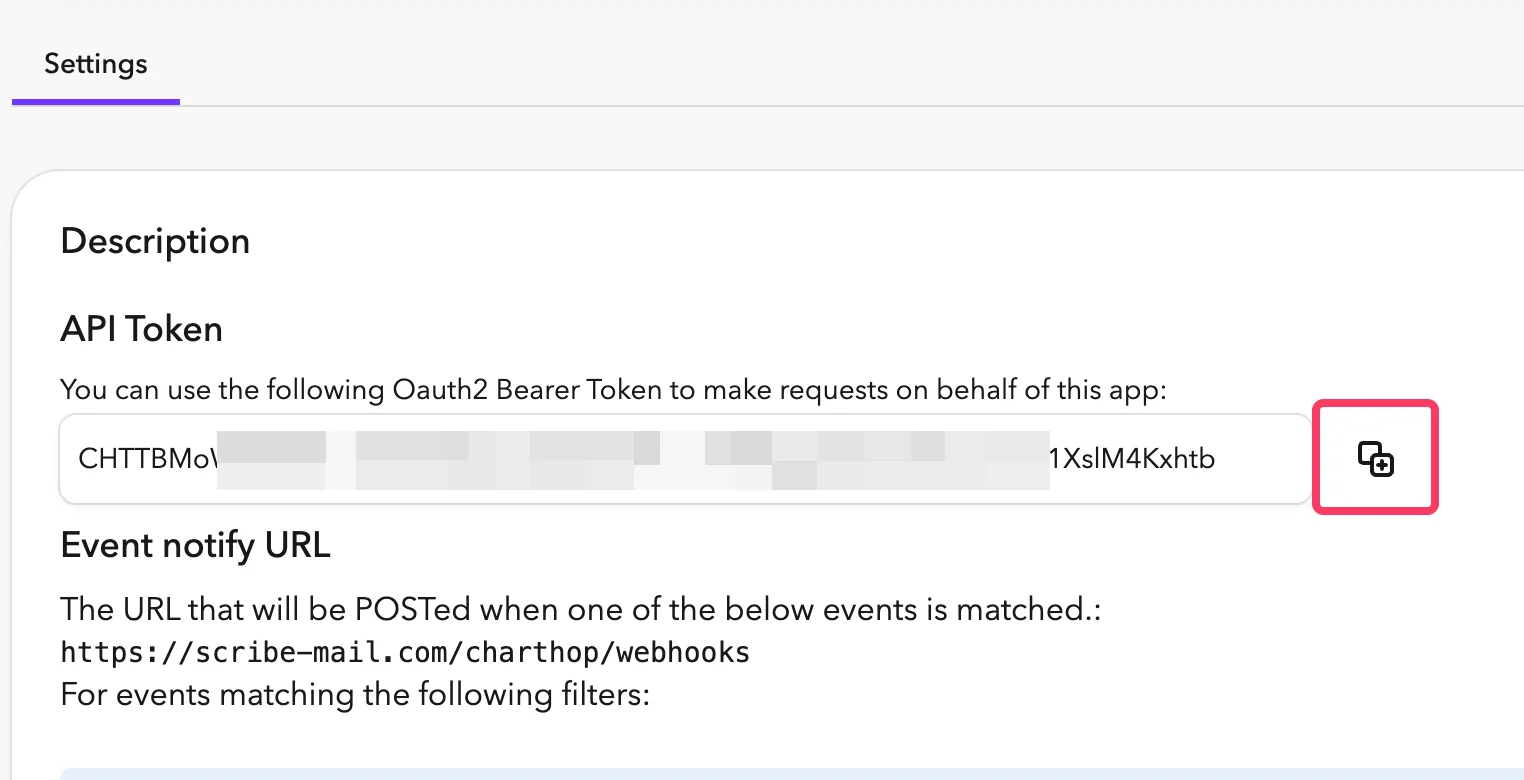
  <Step title="Copy the API Token and paste it into Scribe">
    In ChartHop, go to the **Settings** tab of the Scribe app. Copy the **API Token** and paste it into the API Token field in Scribe.
    <Frame>
      <img src="https://mintcdn.com/scribe/pvZJQ56rCCLLmCwt/integrations/smart-fields/images/charthop-step-5.png?fit=max&auto=format&n=pvZJQ56rCCLLmCwt&q=85&s=b03871665847eac7cb4e3ca93ff4cb11" alt="ChartHop Settings tab with API Token" className="mx-auto" style={{ width:"76%" }} width="1524" height="780" data-path="integrations/smart-fields/images/charthop-step-5.png" />
    </Frame>
  </Step>

  <Step title="Copy your Org Nickname from the URL bar and paste it into Scribe, then connect ChartHop.">
    Your Org Nickname is the part right after `app.charthop.com/` in your ChartHop URL. Enter it in the **ChartHop Org Nickname** field in Scribe, then click **Connect ChartHop**.

    <Frame>
      <img src="https://mintcdn.com/scribe/pvZJQ56rCCLLmCwt/integrations/smart-fields/images/charthop-step-6.png?fit=max&auto=format&n=pvZJQ56rCCLLmCwt&q=85&s=48224a25fad95589135fda6cedad11cf" alt="ChartHop URL bar showing Org Nickname and Scribe connection fields" className="mx-auto" style={{ width:"77%" }} width="892" height="152" data-path="integrations/smart-fields/images/charthop-step-6.png" />
    </Frame>
  </Step>
</Steps>

## Related articles

* [Deel](/en/integrations/smart-fields/deel-smart-fields): sync Deel data into your signatures.
* [Gusto](/en/integrations/smart-fields/gusto-smart-fields): sync Gusto data into your signatures.
* [Assign teammates to a signature](/en/assign-teammates-to-a-signature): use Smart Field conditions to assign signatures automatically.