> ## Documentation Index
> Fetch the complete documentation index at: https://help.scribe-mail.com/llms.txt
> Use this file to discover all available pages before exploring further.

# Lucca

> Keep email signatures accurate and automatically up to date by syncing employee details from Lucca, your HR software, like name, job title, and department.

Follow these steps to [auto-fill your teammate's signatures](/en/smart-fields) using Lucca as a data source.

<Info>
  **No action needed from your teammates.**
</Info>

<Info>
  **Changes in your Lucca auto-sync to Scribe.**
</Info>

<Info>
  **SOC 2 Type II Certified.** [Your data is safe](/en/security/data-collection/lucca).
</Info>

## Installation guide

### Prerequisites

* Admin access to your Lucca account
* A Scribe account with admin access

<Steps>
  <Step title="Go to your Lucca account and copy the instance domain from the URL bar">
    Your Lucca domain looks like `your-company.ilucca.net`. Copy it from the URL bar and paste it in the **Domain** field in Scribe.

    <Frame>
      <img src="https://mintcdn.com/scribe/pvZJQ56rCCLLmCwt/integrations/smart-fields/images/lucca-step-1.png?fit=max&auto=format&n=pvZJQ56rCCLLmCwt&q=85&s=307de25cb7860b39ebccc35073690481" alt="Lucca URL bar showing the instance domain" className="mx-auto" style={{ width:"72%" }} width="974" height="152" data-path="integrations/smart-fields/images/lucca-step-1.png" />
    </Frame>
  </Step>

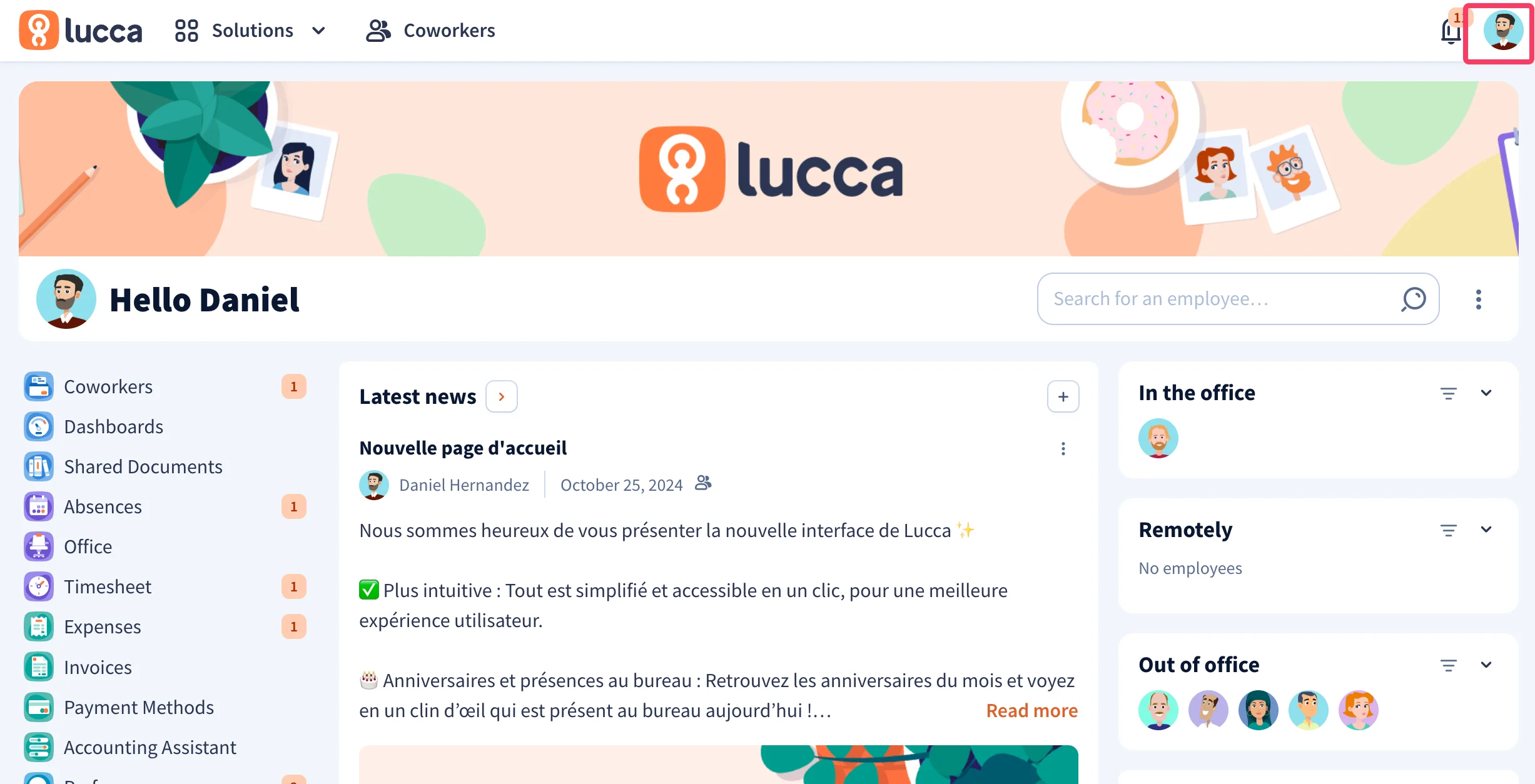
  <Step title="In your Lucca account, click on your profile picture in the top-right corner">
    <Frame>
      <img src="https://mintcdn.com/scribe/pvZJQ56rCCLLmCwt/integrations/smart-fields/images/lucca-step-2.png?fit=max&auto=format&n=pvZJQ56rCCLLmCwt&q=85&s=7da338e927e45cf875e330d1966f0647" alt="Lucca dashboard with profile picture highlighted in top-right corner" className="mx-auto" style={{ width:"78%" }} width="2454" height="1254" data-path="integrations/smart-fields/images/lucca-step-2.png" />
    </Frame>
  </Step>

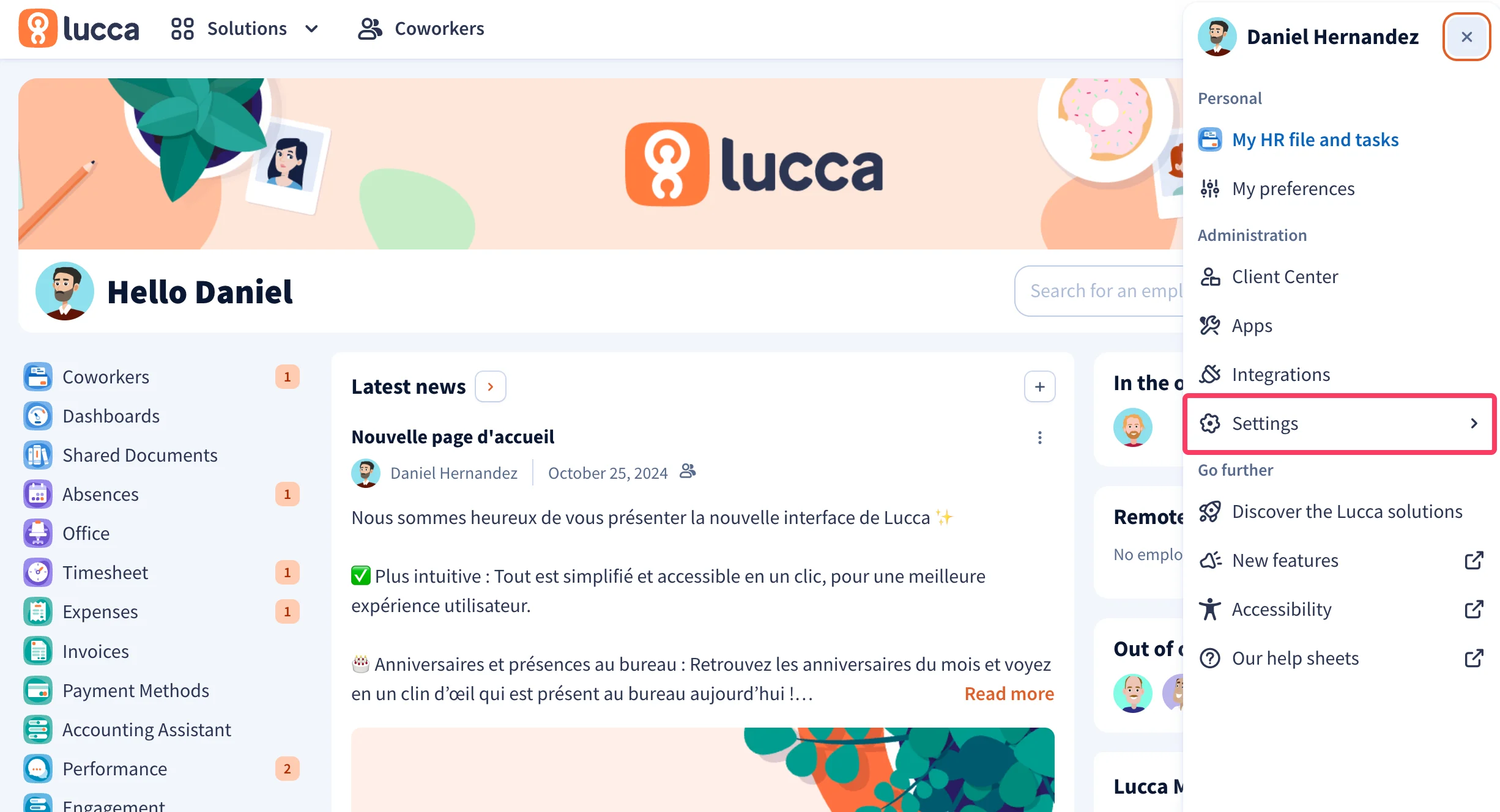
  <Step title="In the dropdown menu, click on 'Settings'">
    <Frame>
      <img src="https://mintcdn.com/scribe/pvZJQ56rCCLLmCwt/integrations/smart-fields/images/lucca-step-3.png?fit=max&auto=format&n=pvZJQ56rCCLLmCwt&q=85&s=9750472f86ed179d4904c277eb55ac8b" alt="Lucca dropdown menu with Settings option highlighted" className="mx-auto" style={{ width:"88%" }} width="2452" height="1328" data-path="integrations/smart-fields/images/lucca-step-3.png" />
    </Frame>
  </Step>

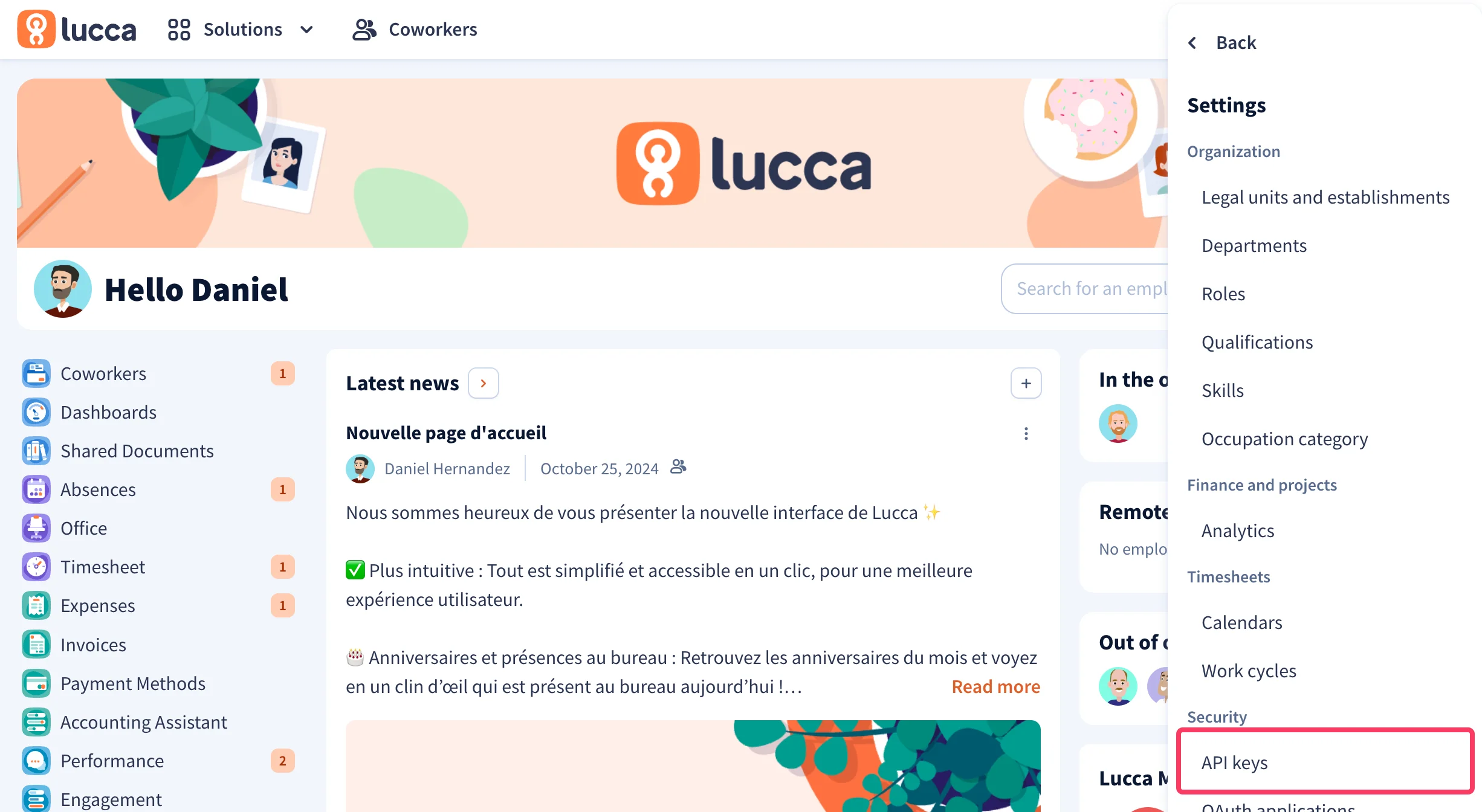
  <Step title="In the dropdown menu, click on 'API Keys'">
    Under the **Security** section, click **API keys**.
    <Frame>
      <img src="https://mintcdn.com/scribe/pvZJQ56rCCLLmCwt/integrations/smart-fields/images/lucca-step-4.png?fit=max&auto=format&n=pvZJQ56rCCLLmCwt&q=85&s=369206d41d382ce4ad42f2046d8b9888" alt="Lucca Settings menu with API Keys option highlighted under Security" className="mx-auto" style={{ width:"80%" }} width="2452" height="1344" data-path="integrations/smart-fields/images/lucca-step-4.png" />
    </Frame>
  </Step>

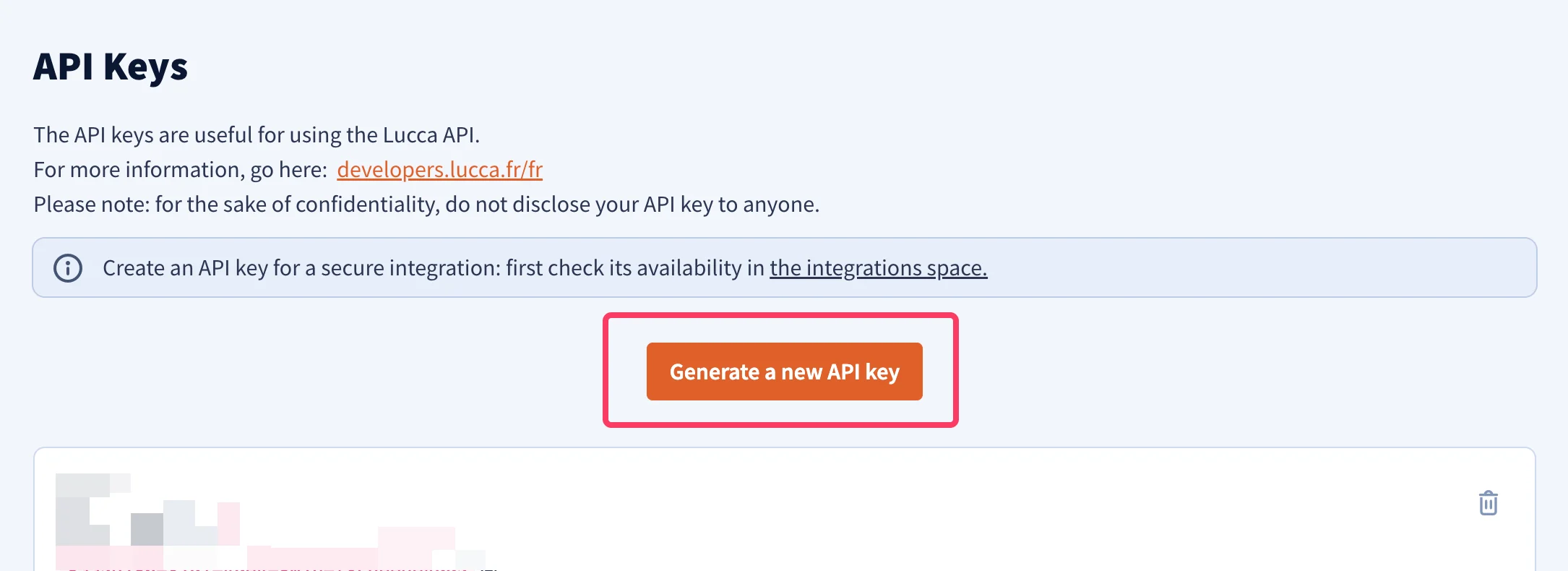
  <Step title="Click on 'Generate a new API key' button">
    <Frame>
      <img src="https://mintcdn.com/scribe/pvZJQ56rCCLLmCwt/integrations/smart-fields/images/lucca-step-5.png?fit=max&auto=format&n=pvZJQ56rCCLLmCwt&q=85&s=26b65f4e5c6653f0821dc39b7538dcbd" alt="Lucca API Keys page with Generate a new API key button" className="mx-auto" style={{ width:"85%" }} width="2170" height="790" data-path="integrations/smart-fields/images/lucca-step-5.png" />
    </Frame>
  </Step>

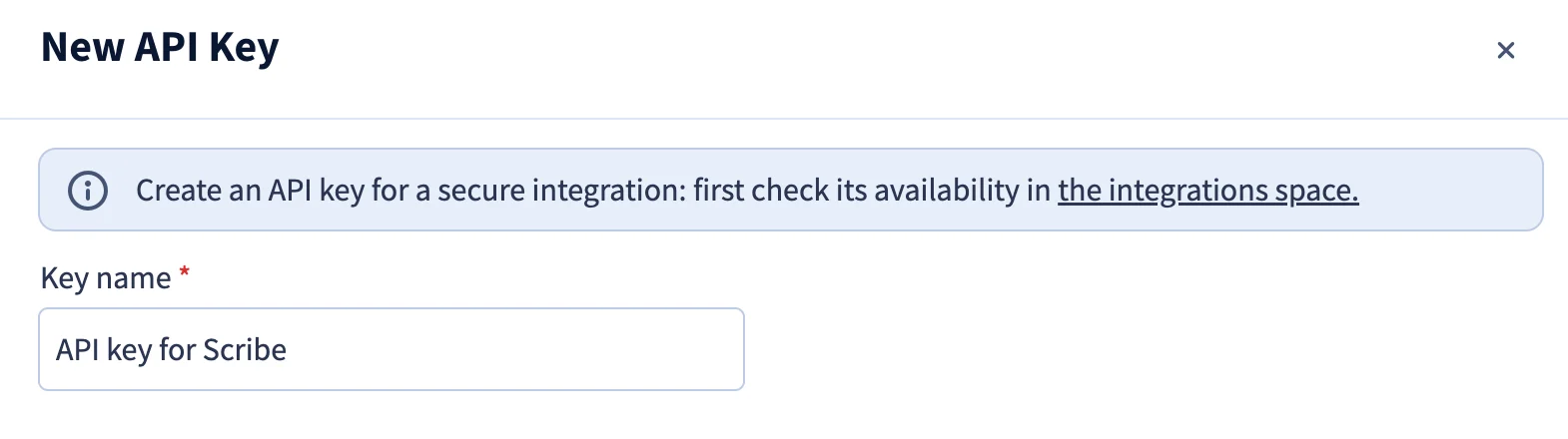
  <Step title="Enter a name for your API key">
    For example, enter `API key for Scribe`.
    <Frame>
      <img src="https://mintcdn.com/scribe/pvZJQ56rCCLLmCwt/integrations/smart-fields/images/lucca-step-6.png?fit=max&auto=format&n=pvZJQ56rCCLLmCwt&q=85&s=b01dad542cb54f4635beeb92923982bf" alt="New API Key dialog with key name field" className="mx-auto" style={{ width:"85%" }} width="1570" height="440" data-path="integrations/smart-fields/images/lucca-step-6.png" />
    </Frame>
  </Step>

  <Step title="Select the 'Co-workers' scope">
    Check the **Consult / create / modify users** permission under the **Co-workers** scope.

    <Frame>
      <img src="https://mintcdn.com/scribe/pvZJQ56rCCLLmCwt/integrations/smart-fields/images/lucca-step-7.png?fit=max&auto=format&n=pvZJQ56rCCLLmCwt&q=85&s=46b4801fdc2854d906a31d20cd6fedda" alt="Co-workers scope with Consult / create / modify users selected" className="mx-auto" style={{ width:"90%" }} width="1202" height="186" data-path="integrations/smart-fields/images/lucca-step-7.png" />
    </Frame>
  </Step>

  <Step title="Enter a technical contact email">
    <Frame>
      <img src="https://mintcdn.com/scribe/pvZJQ56rCCLLmCwt/integrations/smart-fields/images/lucca-step-8.png?fit=max&auto=format&n=pvZJQ56rCCLLmCwt&q=85&s=f903fea34a611b045586b9e06d4c906d" alt="Technical contact email field" className="mx-auto" style={{ width:"86%" }} width="1118" height="218" data-path="integrations/smart-fields/images/lucca-step-8.png" />
    </Frame>
  </Step>

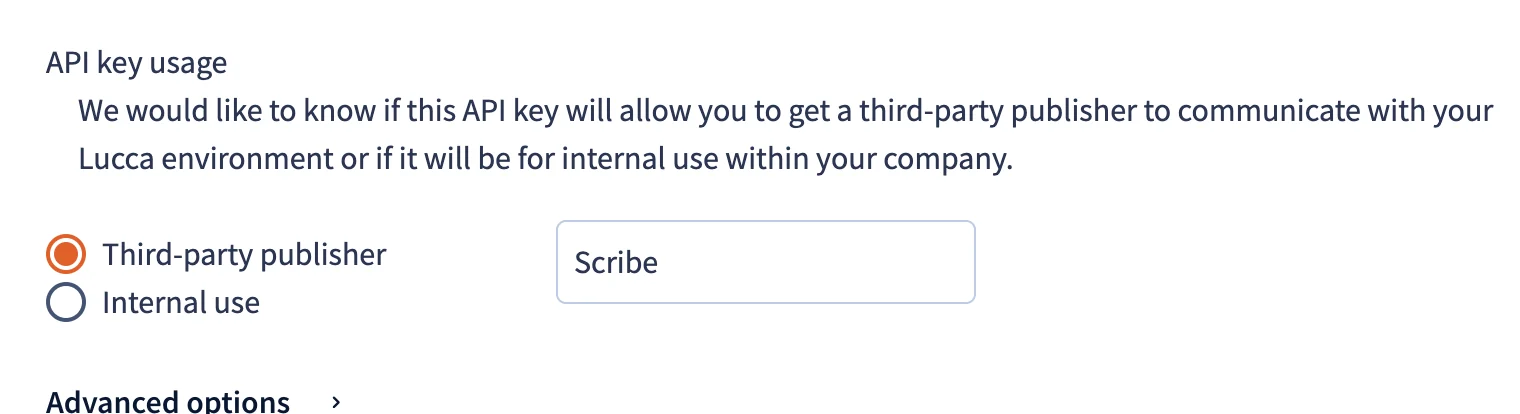
  <Step title="Enter Scribe as Third-party publisher name">
    Under **API key usage**, select **Third-party publisher** and enter `Scribe` as the publisher name.

    <Frame>
      <img src="https://mintcdn.com/scribe/pvZJQ56rCCLLmCwt/integrations/smart-fields/images/lucca-step-9.png?fit=max&auto=format&n=pvZJQ56rCCLLmCwt&q=85&s=2f86a3183d22b08e3caab3669dcb752c" alt="API key usage section with Third-party publisher selected and Scribe entered" className="mx-auto" style={{ width:"80%" }} width="1520" height="414" data-path="integrations/smart-fields/images/lucca-step-9.png" />
    </Frame>
  </Step>

  <Step title="Click on 'Generate a new API key' button">
    <Frame>
      <img src="https://mintcdn.com/scribe/pvZJQ56rCCLLmCwt/integrations/smart-fields/images/lucca-step-10.png?fit=max&auto=format&n=pvZJQ56rCCLLmCwt&q=85&s=4faf52c4c595a6428408f0ca1f4c0333" alt="Generate a new API key confirmation button" className="mx-auto" style={{ width:"75%" }} width="1122" height="196" data-path="integrations/smart-fields/images/lucca-step-10.png" />
    </Frame>
  </Step>

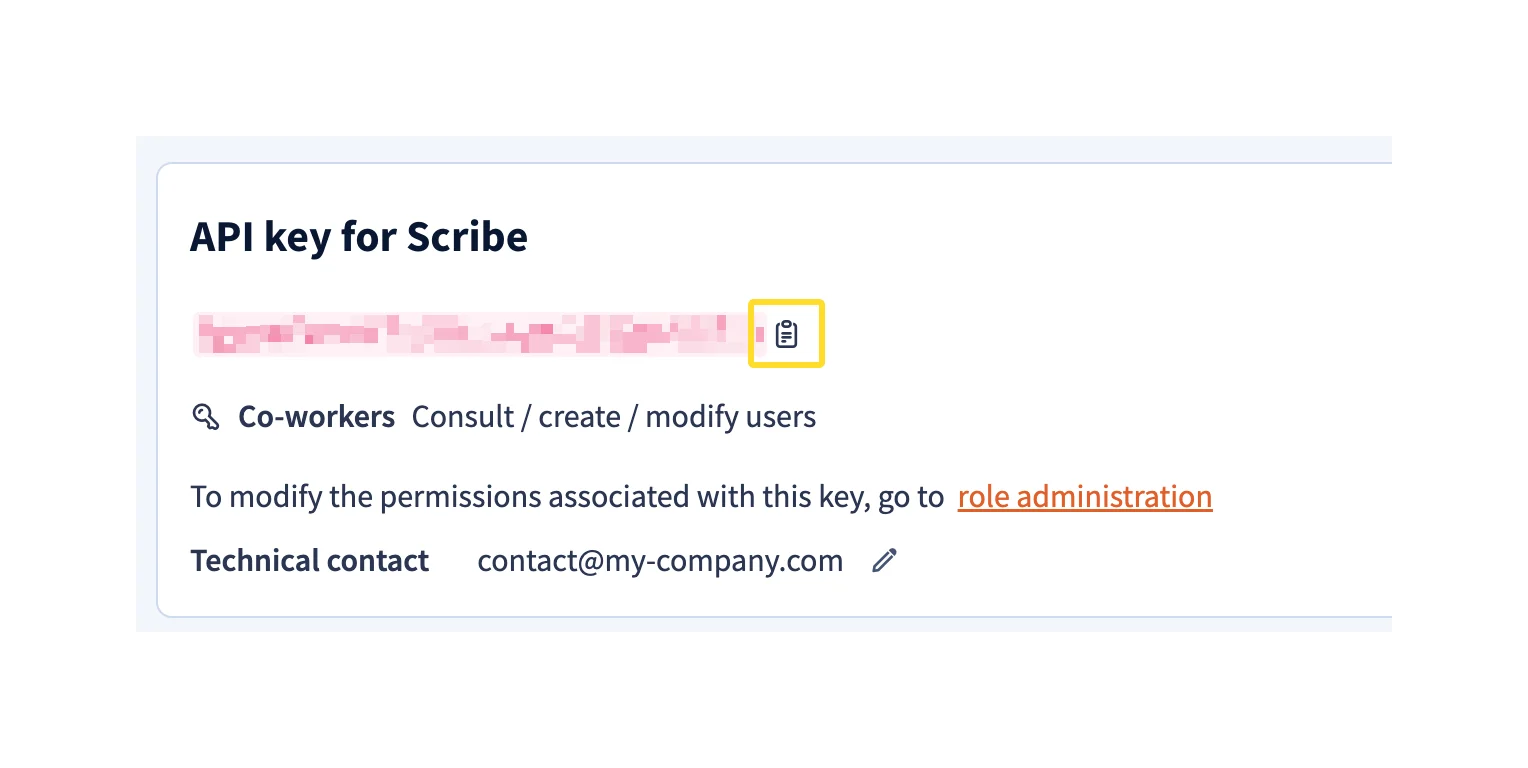
  <Step title="Copy the generated API key and paste it in Scribe">
    Copy the API key from Lucca and paste it in the **API Key** field in Scribe, then click **Connect Lucca**.
    <Frame>
      <img src="https://mintcdn.com/scribe/pvZJQ56rCCLLmCwt/integrations/smart-fields/images/lucca-step-11.png?fit=max&auto=format&n=pvZJQ56rCCLLmCwt&q=85&s=f3584db41ca03567c0156ef1ecedc053" alt="Generated API key with copy button and Scribe API Key field with Connect Lucca button" className="mx-auto" style={{ width:"84%" }} width="1528" height="768" data-path="integrations/smart-fields/images/lucca-step-11.png" />
    </Frame>
  </Step>
</Steps>

## Related articles

* [Okta](/en/integrations/smart-fields/okta-smart-fields): sync Okta data into your signatures.
* [Payfit](/en/integrations/smart-fields/payfit-smart-fields): sync Payfit data into your signatures.
* [Assign teammates to a signature](/en/assign-teammates-to-a-signature): use Smart Field conditions to assign signatures automatically.