> ## Documentation Index
> Fetch the complete documentation index at: https://help.scribe-mail.com/llms.txt
> Use this file to discover all available pages before exploring further.
# Outreach
> Keep email signatures accurate and up to date by syncing teammate details from Outreach, your sales engagement platform, so rep mailboxes stay current.
Follow these steps to [auto-fill your teammate's signatures](/en/smart-fields) using Outreach as a data source.
**No action is needed from your teammates.**
**Changes in your Outreach auto-sync to Scribe.**
**SOC 2 Type II Certified.** [Your data is safe](/en/security/data-collection/outreach).
## Installation guide
### Prerequisites
* Admin access to your Outreach account
* A Scribe account with admin access
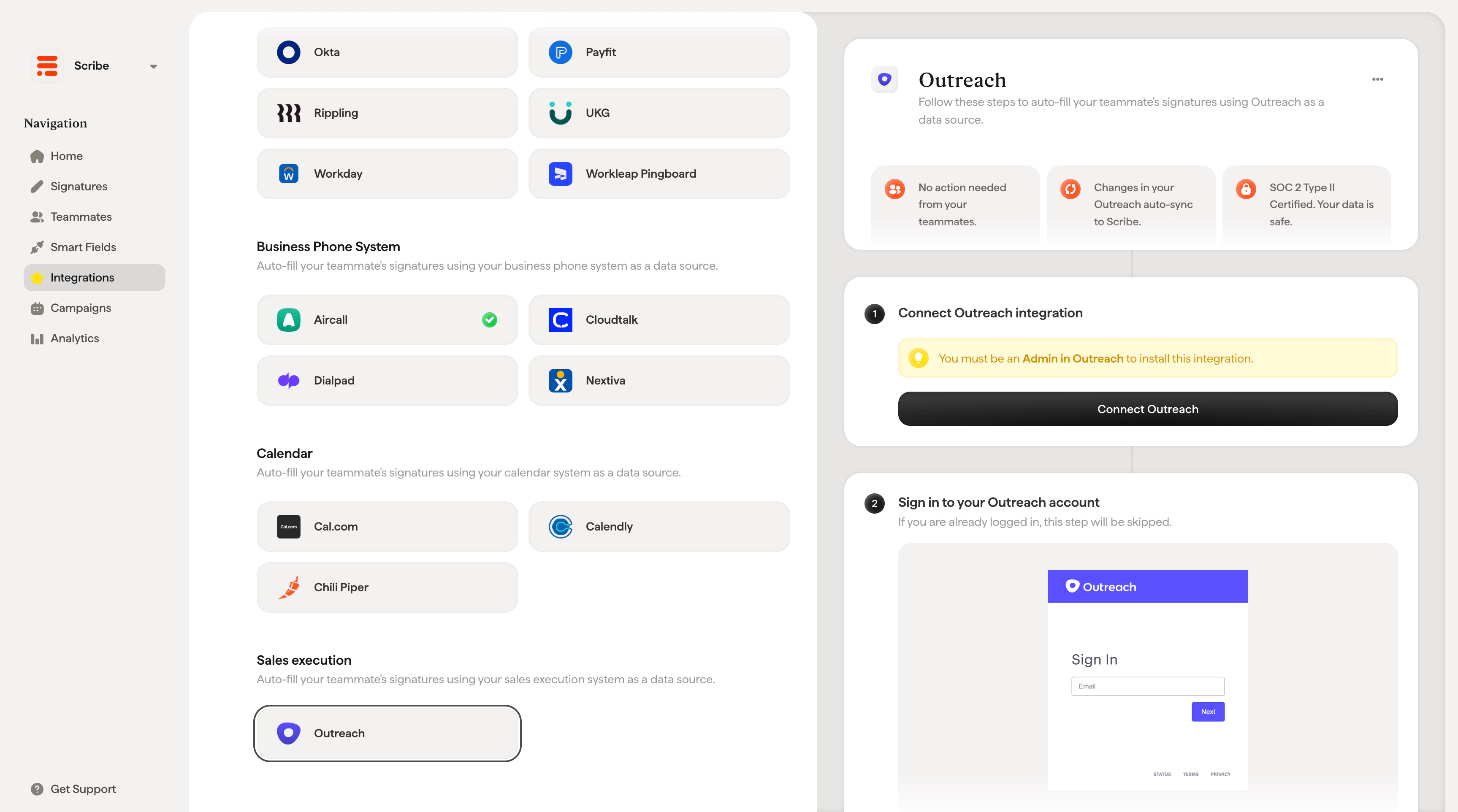
You must be an **Admin in Outreach** to install this integration.
Click **Connect Outreach** to start the integration.
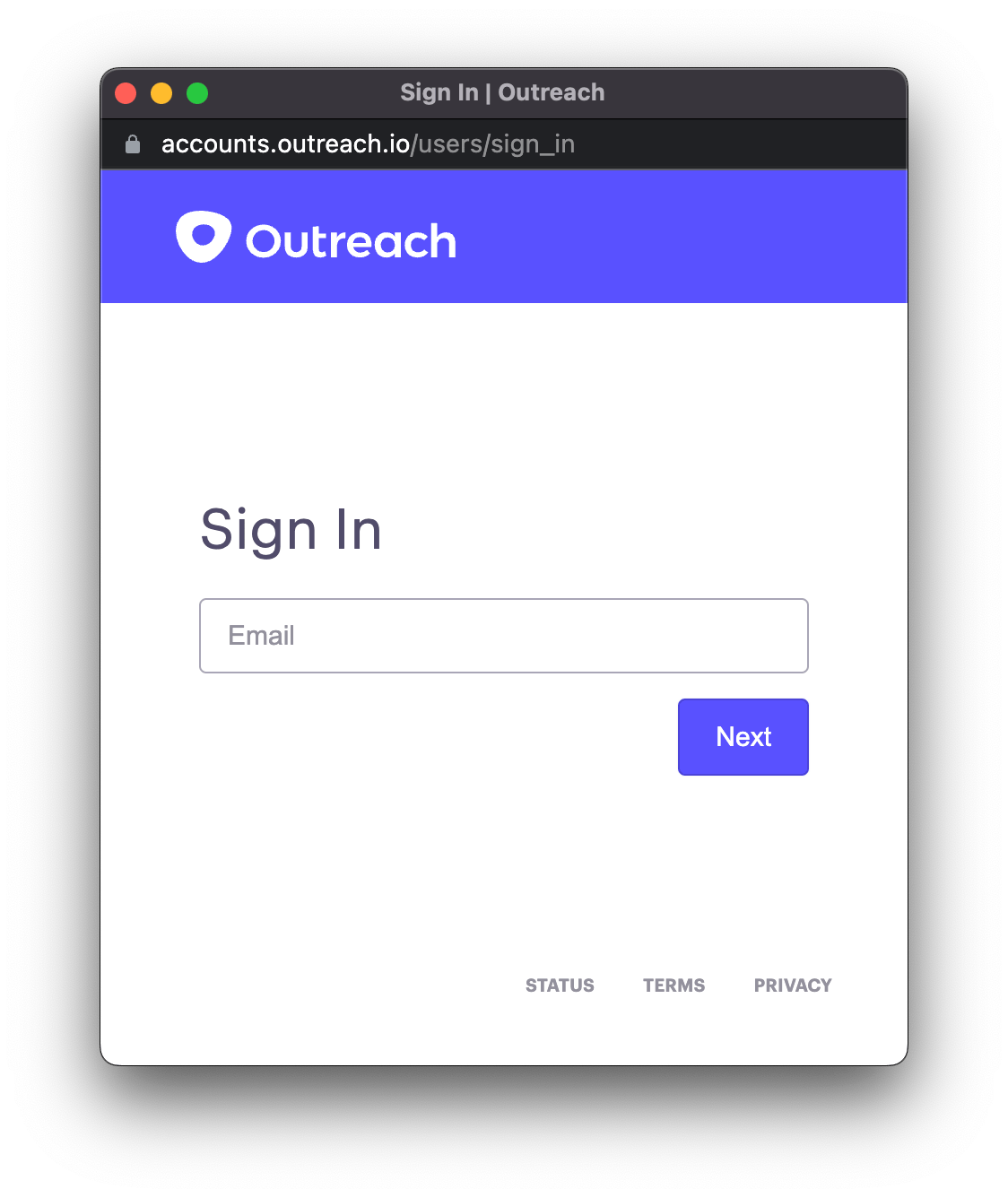
 If you are already logged in, this step will be skipped.
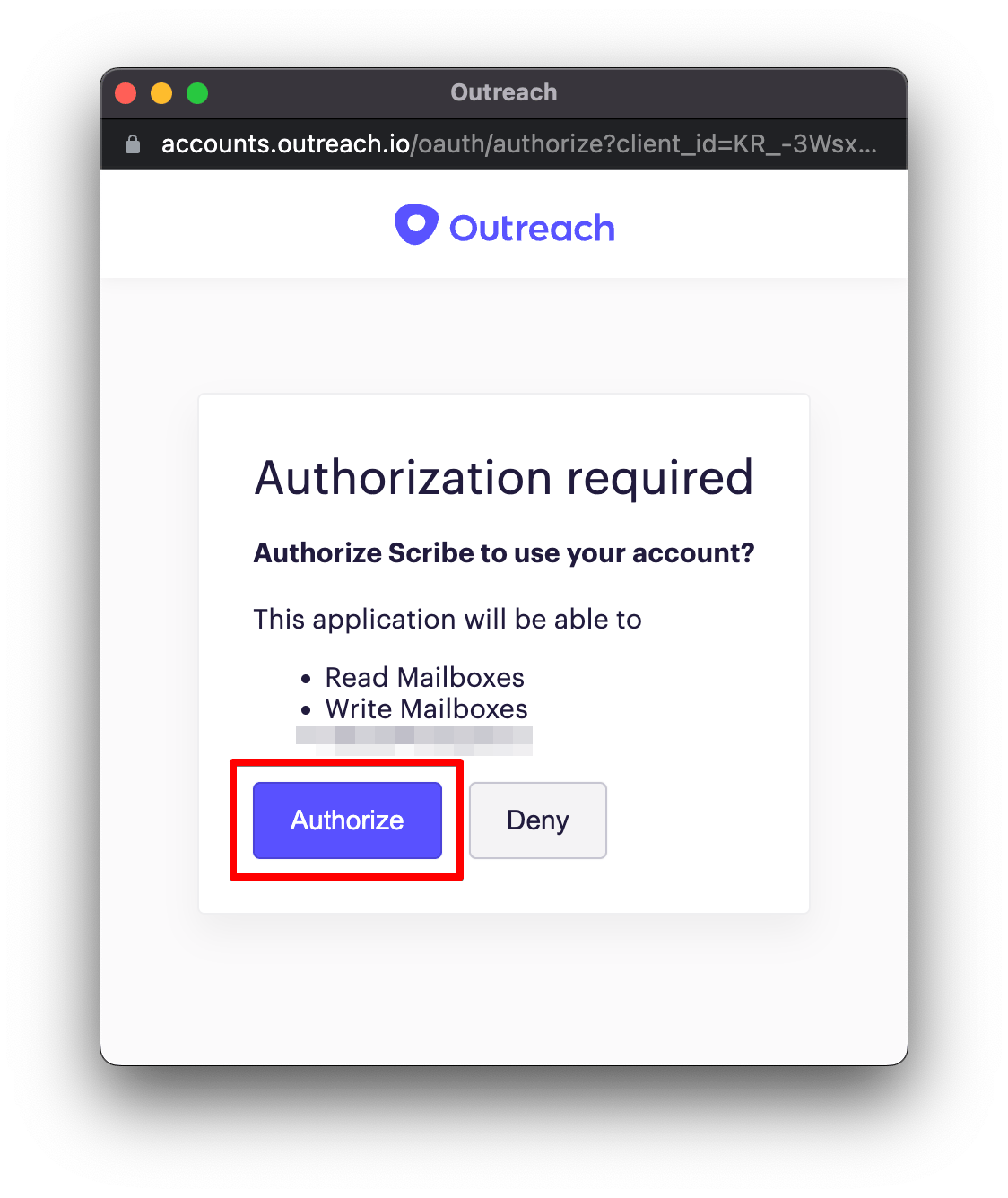
 Once you authorize, the integration connects automatically. Click **Authorize** to grant Scribe access to read and write mailboxes.
 ## Related articles
* [Outreach](/en/integrations/signatures/outreach-client-side): install Scribe signatures in Outreach.
* [Assign teammates to a signature](/en/assign-teammates-to-a-signature): use Smart Field conditions to assign signatures automatically.
* [Signature detail page](/en/signature-detail-page): see which Smart Fields a signature uses.
## Related articles
* [Outreach](/en/integrations/signatures/outreach-client-side): install Scribe signatures in Outreach.
* [Assign teammates to a signature](/en/assign-teammates-to-a-signature): use Smart Field conditions to assign signatures automatically.
* [Signature detail page](/en/signature-detail-page): see which Smart Fields a signature uses.