> ## Documentation Index
> Fetch the complete documentation index at: https://help.scribe-mail.com/llms.txt
> Use this file to discover all available pages before exploring further.
# Payfit
> Keep email signatures accurate and up to date by syncing employee details from PayFit, your HR and payroll platform, like job title and department.
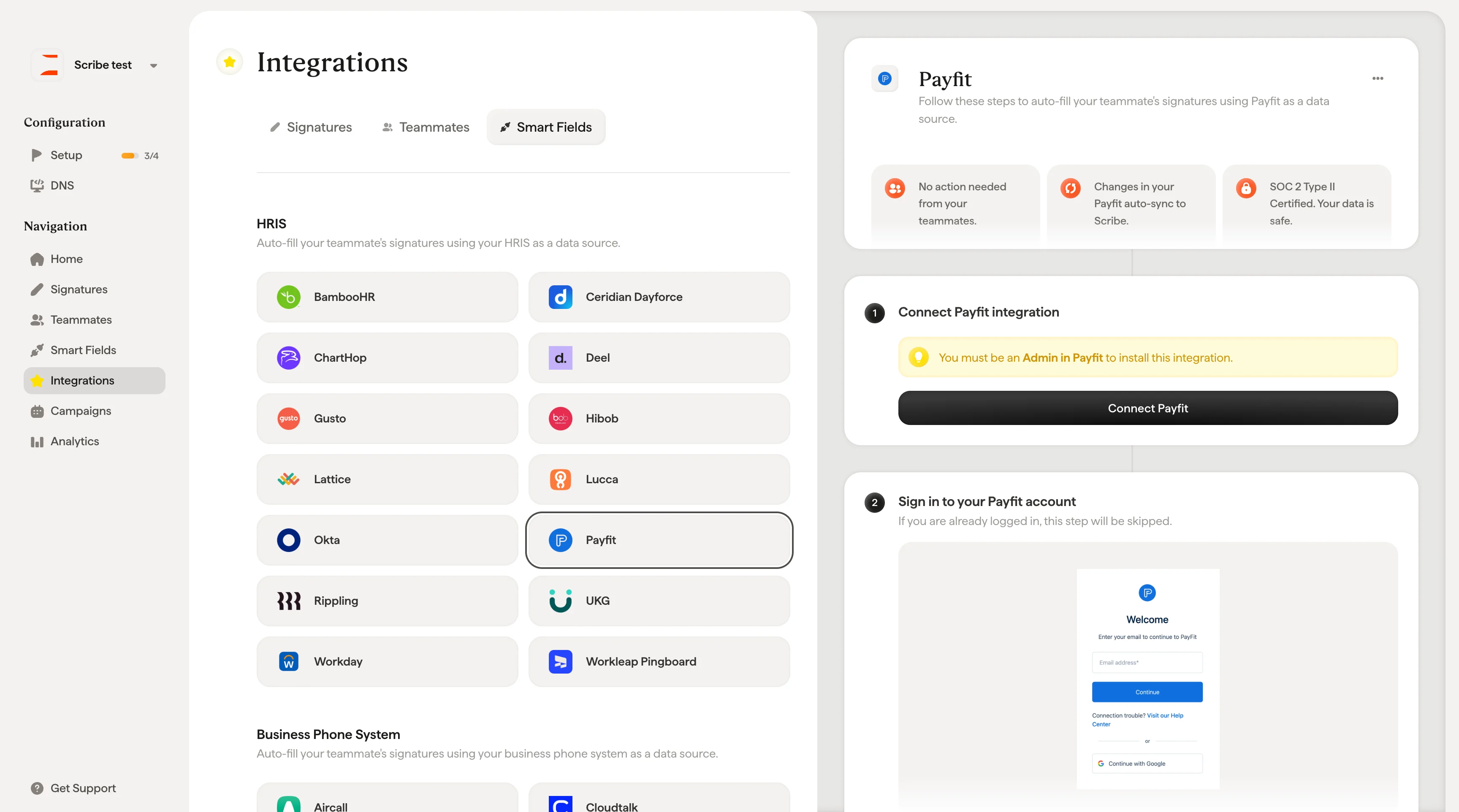
Follow these steps to [auto-fill your teammates' signatures](/en/smart-fields) using Payfit as a data source.
**No action is needed from your teammates.**
**Changes in your Payfit auto-sync to Scribe.**
**SOC 2 Type II Certified.** [Your data is safe](/en/security/data-collection/payfit).
## Installation guide
### Prerequisites
* Admin access to your Payfit account
* A Scribe account with admin access
You must be an **Admin in Payfit** to install this integration.
Click **Connect Payfit** to start the integration.
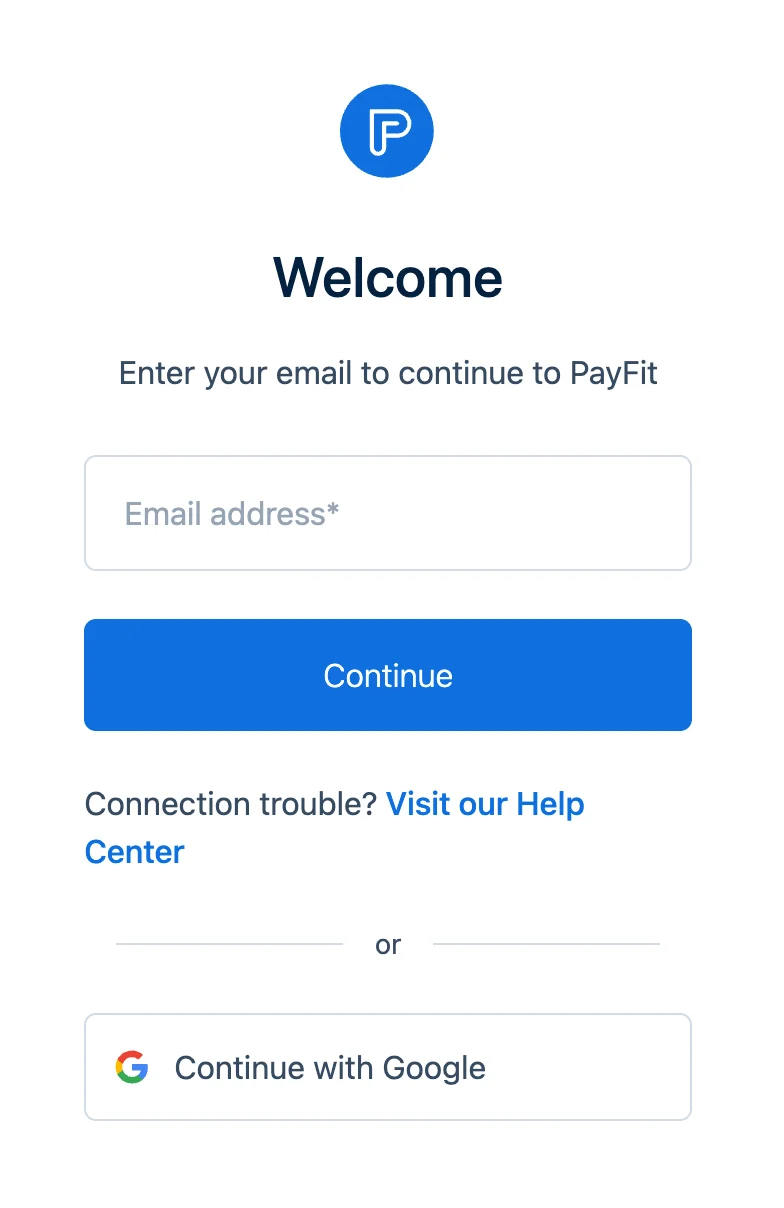
 If you are already logged in, this step will be skipped.
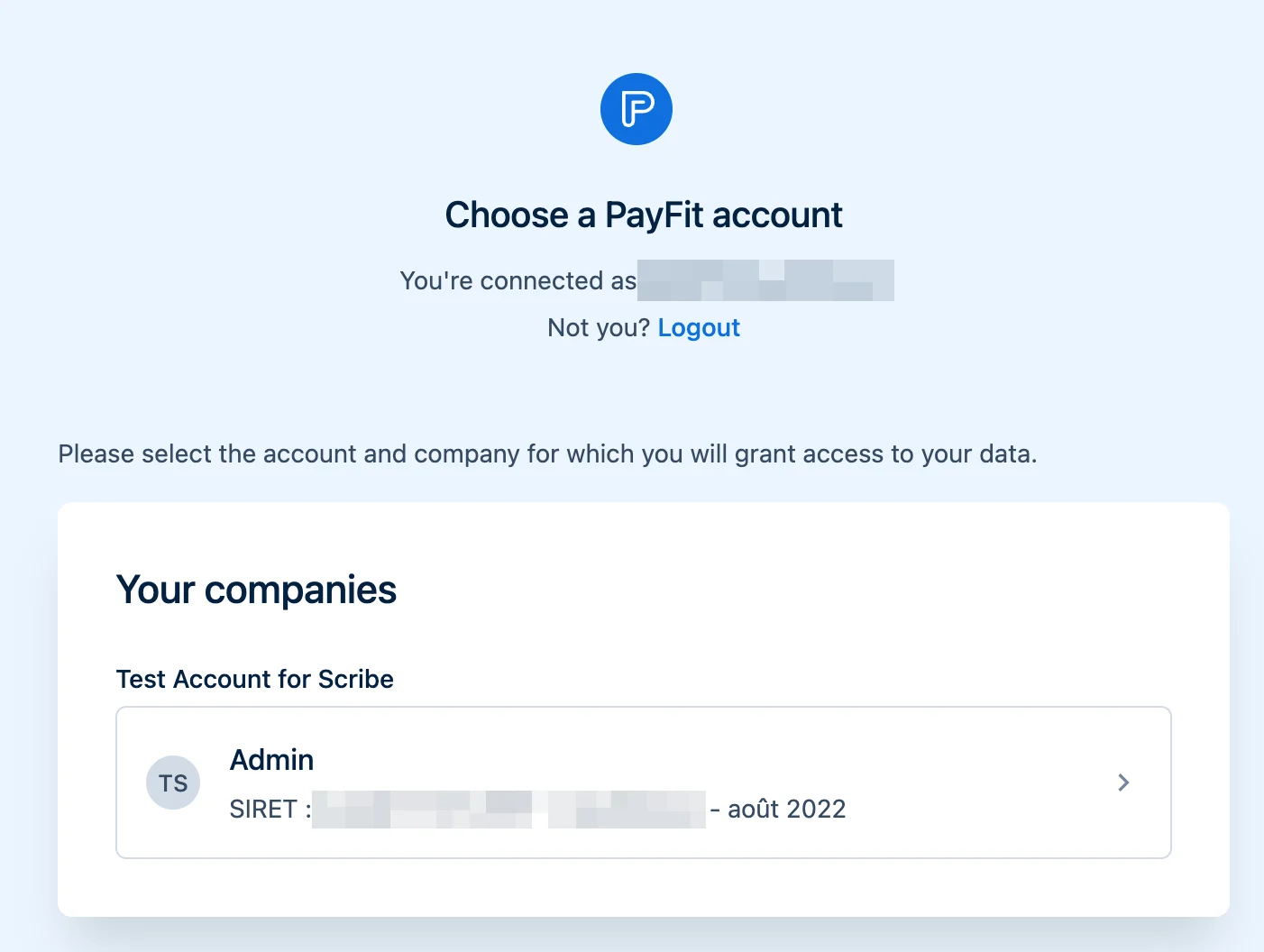
 Choose the Payfit account and company you want to connect to Scribe.
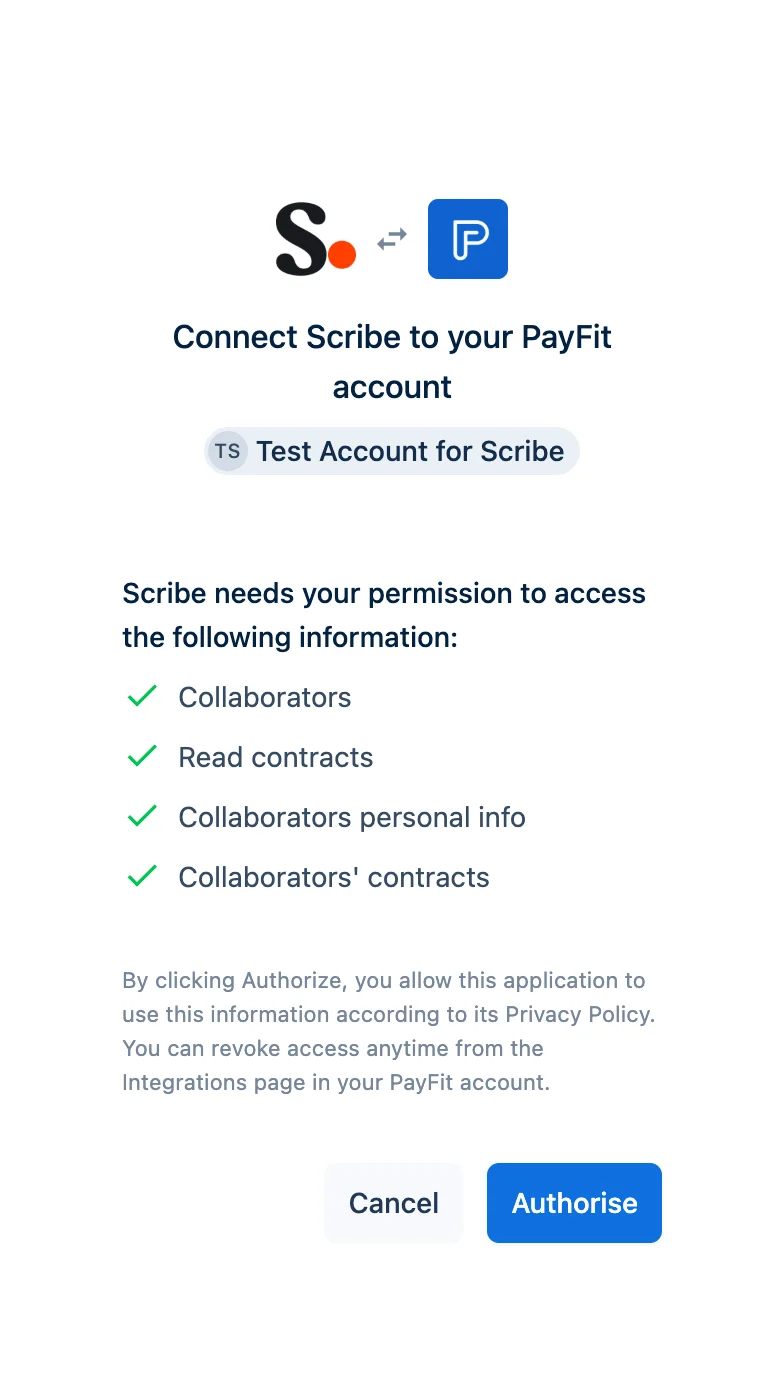
 Scribe has only read access to your data. Click **Authorize** to complete the connection.
 ## Related articles
* [Rippling](/en/integrations/smart-fields/rippling-smart-fields): sync Rippling data into your signatures.
* [UKG](/en/integrations/smart-fields/ukg-smart-fields): sync UKG data into your signatures.
* [Assign teammates to a signature](/en/assign-teammates-to-a-signature): use Smart Field conditions to assign signatures automatically.
## Related articles
* [Rippling](/en/integrations/smart-fields/rippling-smart-fields): sync Rippling data into your signatures.
* [UKG](/en/integrations/smart-fields/ukg-smart-fields): sync UKG data into your signatures.
* [Assign teammates to a signature](/en/assign-teammates-to-a-signature): use Smart Field conditions to assign signatures automatically.