> ## Documentation Index
> Fetch the complete documentation index at: https://help.scribe-mail.com/llms.txt
> Use this file to discover all available pages before exploring further.
# Rippling
> Keep email signatures accurate and automatically up to date by syncing employee details from Rippling, your HR and IT platform, like job title and department.
Follow these steps to [auto-fill your teammate's signatures](/en/smart-fields) using Rippling as a data source.
**No action needed from your teammates.**
**Changes in your Rippling auto-sync to Scribe.**
**SOC 2 Type II Certified.** [Your data is safe](/en/security/data-collection/rippling).
## Installation guide
### Prerequisites
* Admin access to your Rippling account
* A Scribe account with admin access
You must be an **Admin in Rippling** to install this integration.
Click **Go to Rippling app store** to start the integration.
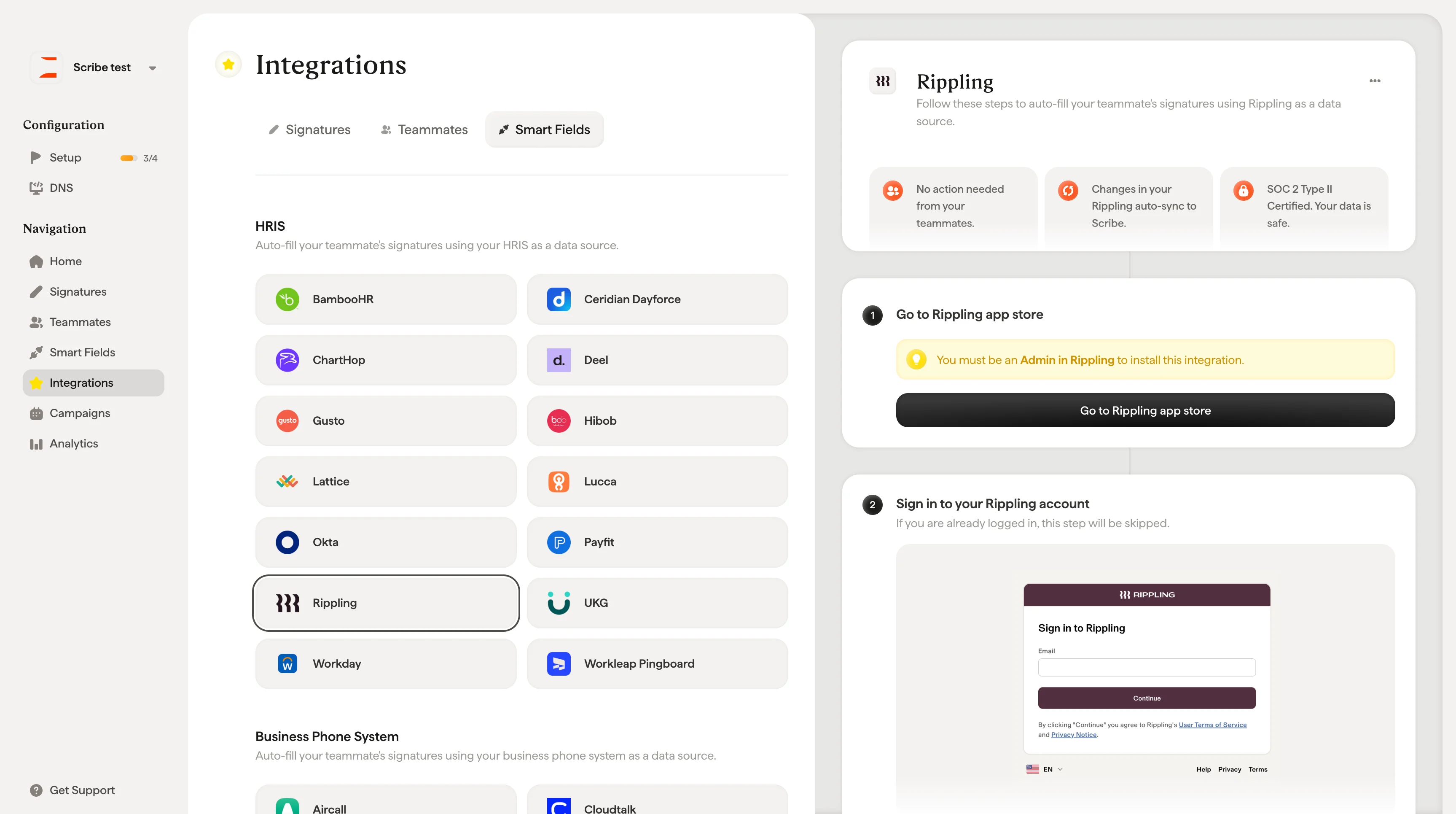 If you are already logged in, this step will be skipped.
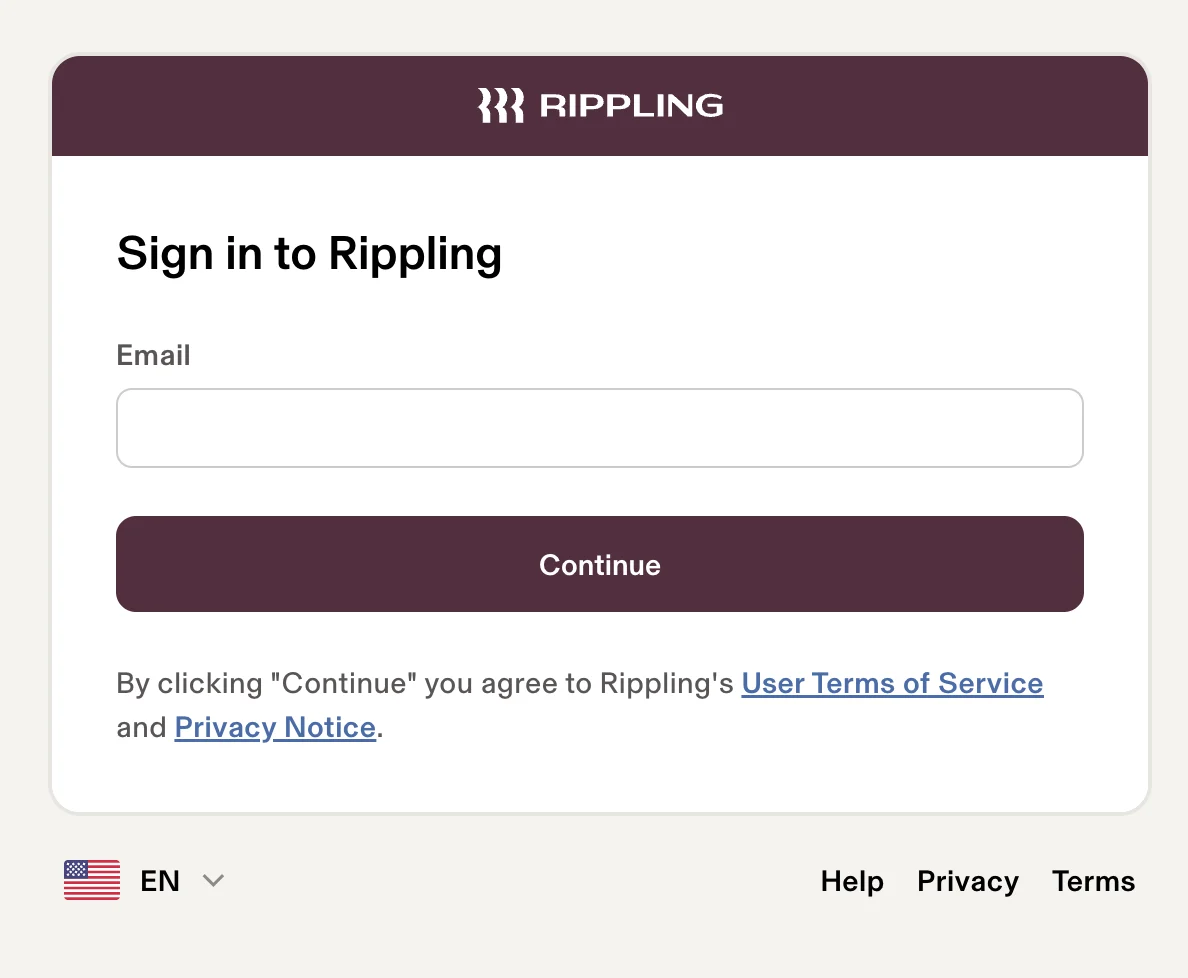 On the Scribe app page in the Rippling app store, click **Connect account**.
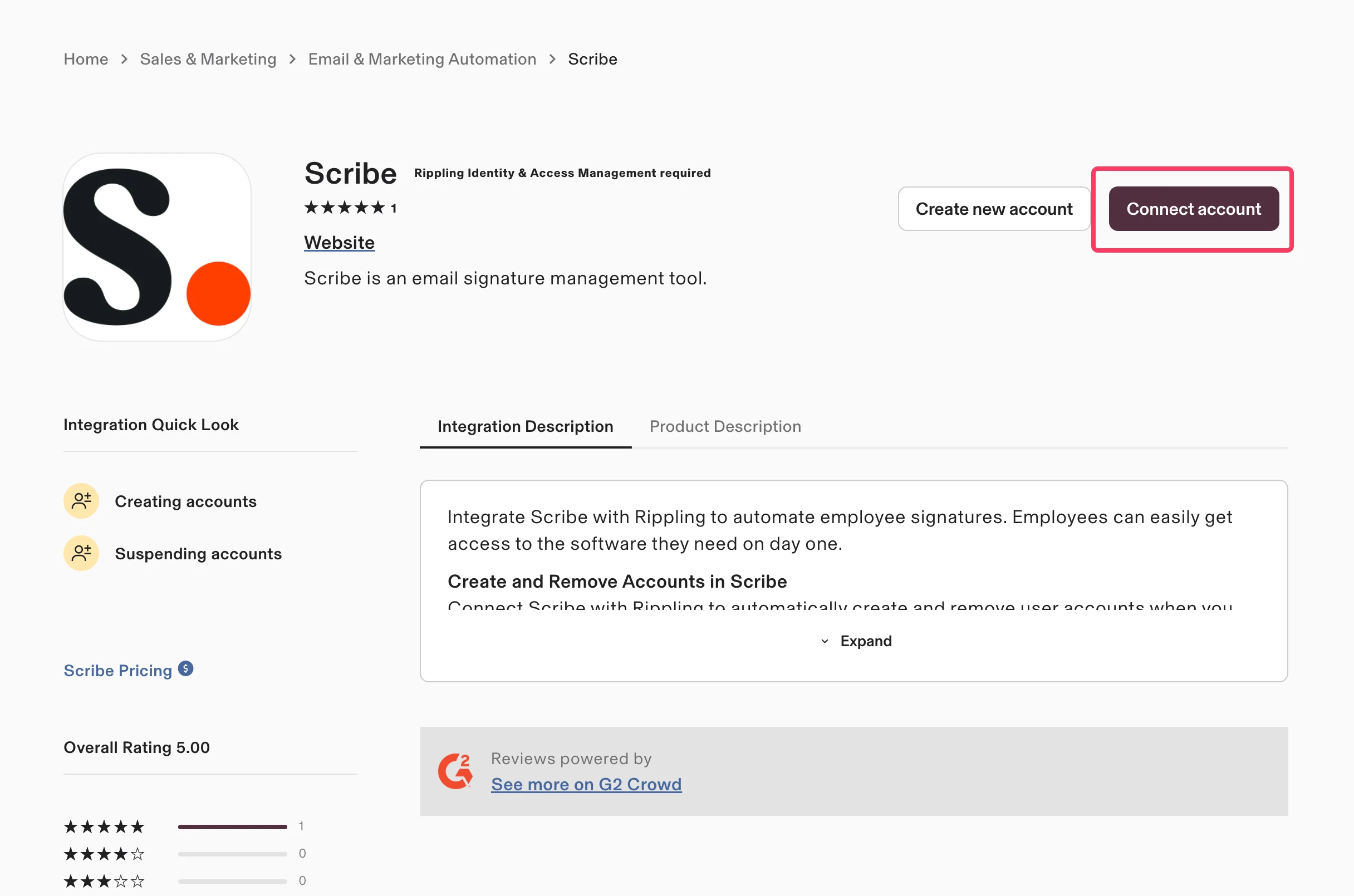 Select **Yes, I'll install this integration** to confirm that you manage Scribe for your organization, then click **Continue**.
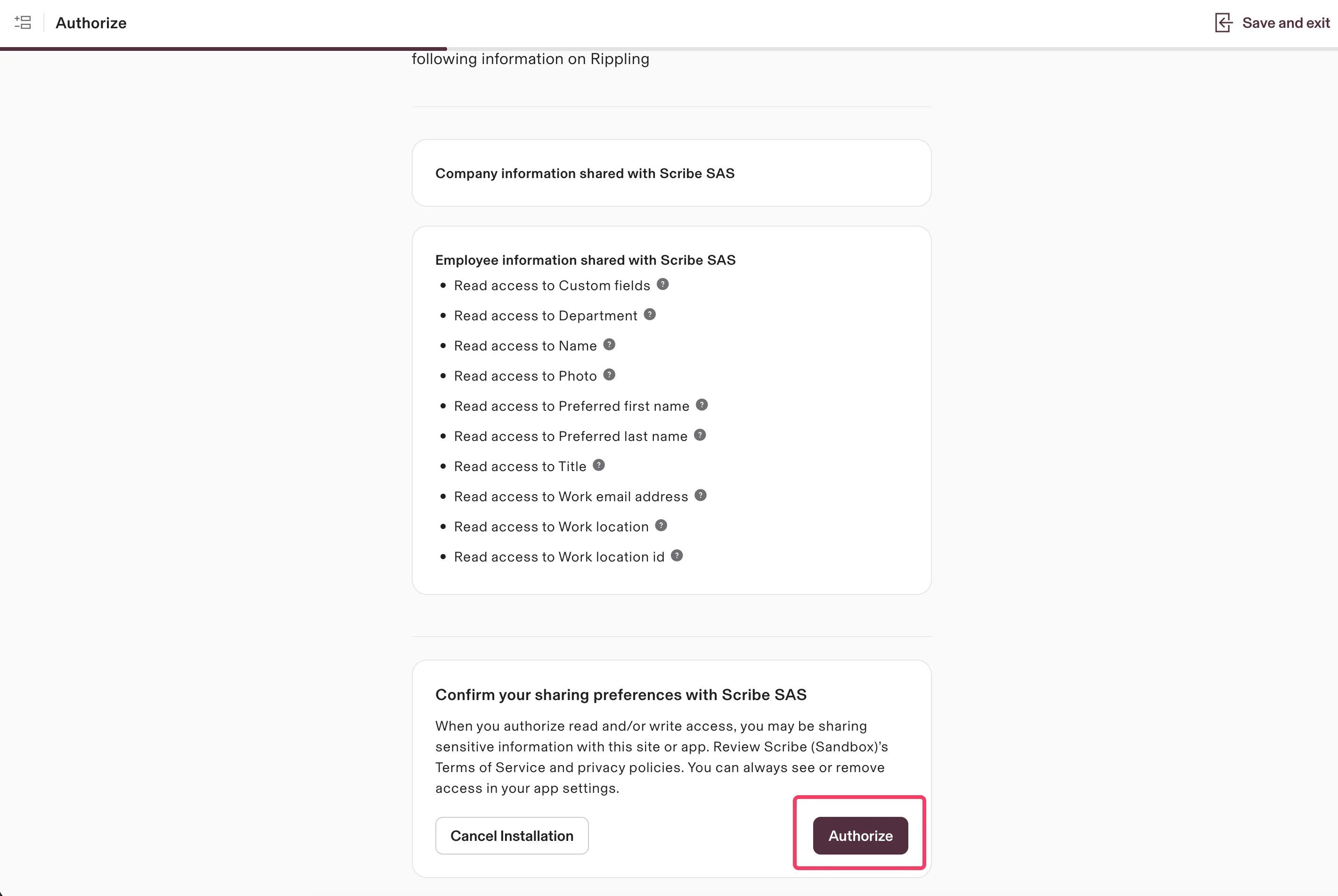
 Scribe has only read access to your data. Review the requested permissions and click **Authorize**.
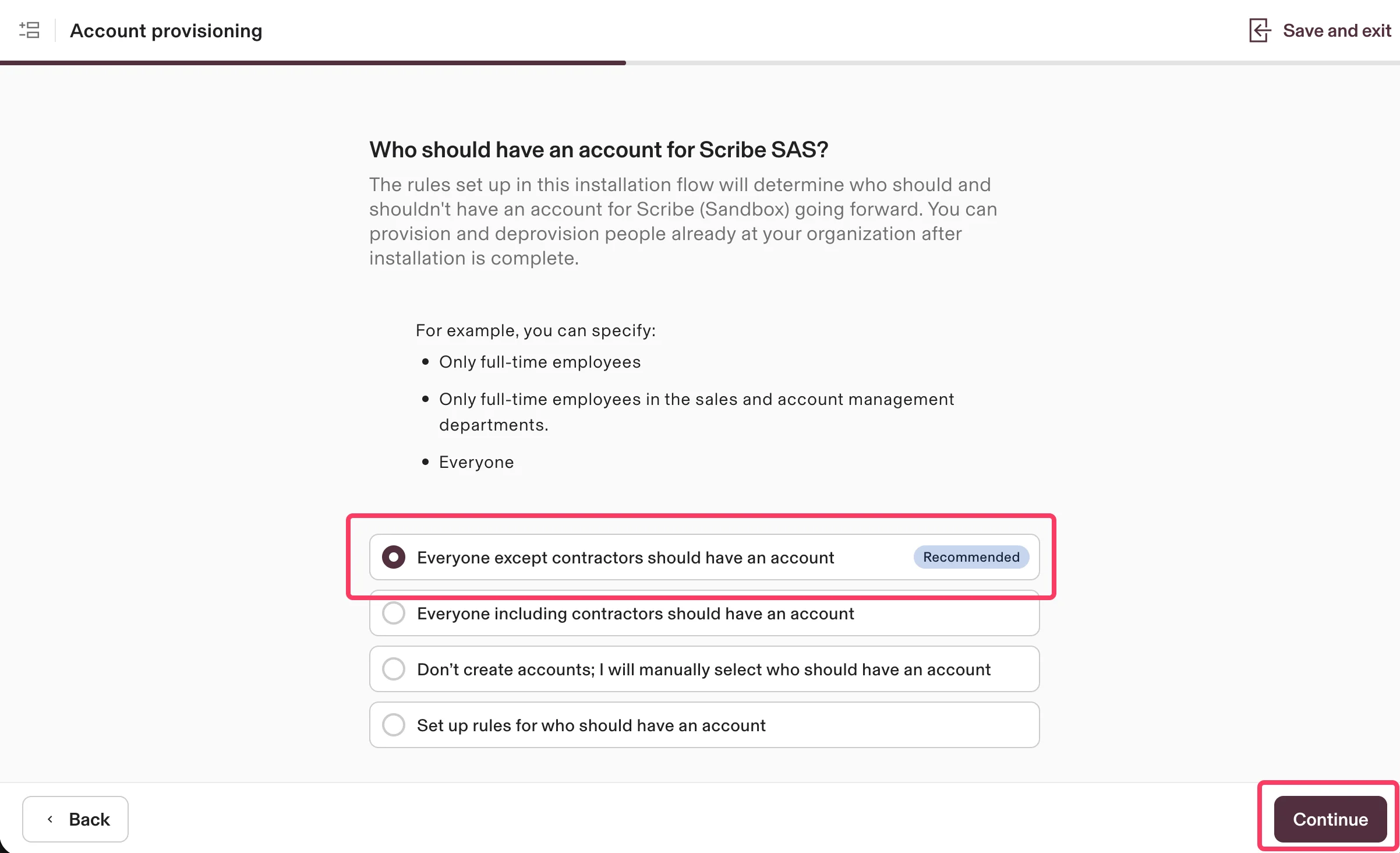
 Choose who should have an account for Scribe. The recommended option is **Everyone except contractors should have an account**. Click **Continue**.
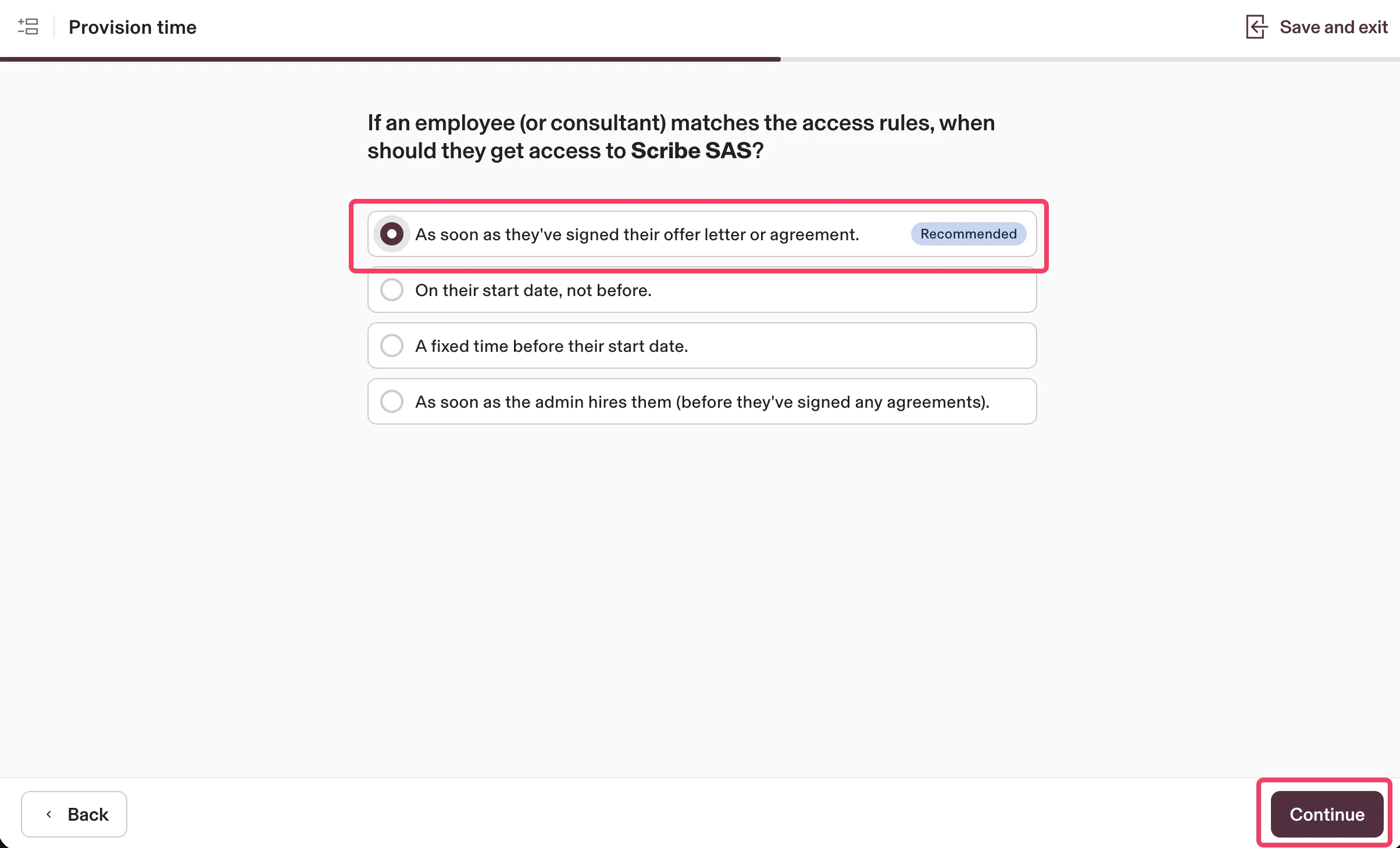
 Choose when employees should get access to Scribe. The recommended option is **As soon as they've signed their offer letter or agreement**. Click **Continue**.
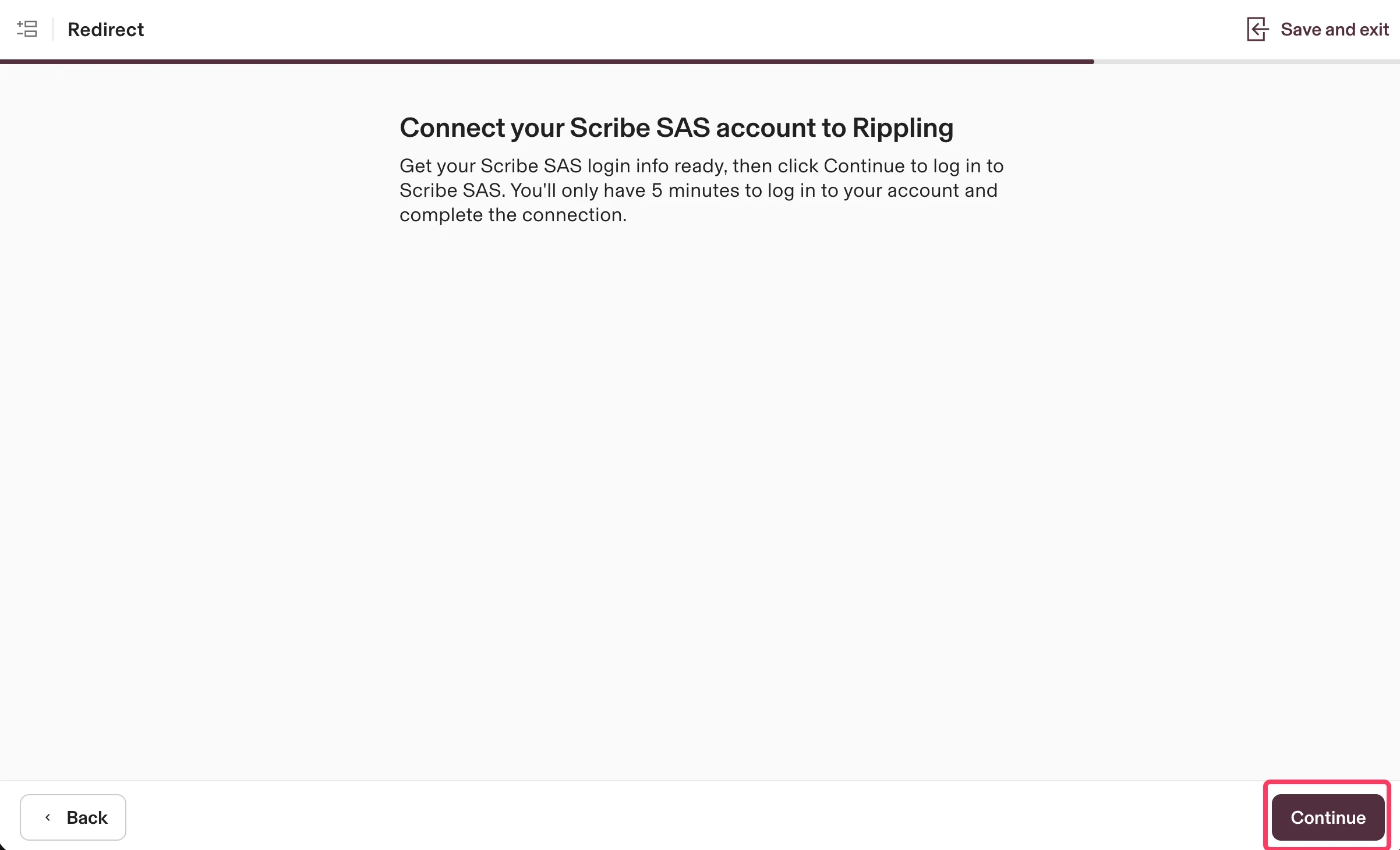
 Click **Continue** to connect your Scribe account to Rippling and complete the integration.
 ## Related articles
* [UKG](/en/integrations/smart-fields/ukg-smart-fields): sync UKG data into your signatures.
* [Workday](/en/integrations/smart-fields/workday-smart-fields): sync Workday data into your signatures.
* [Assign teammates to a signature](/en/assign-teammates-to-a-signature): use Smart Field conditions to assign signatures automatically.
## Related articles
* [UKG](/en/integrations/smart-fields/ukg-smart-fields): sync UKG data into your signatures.
* [Workday](/en/integrations/smart-fields/workday-smart-fields): sync Workday data into your signatures.
* [Assign teammates to a signature](/en/assign-teammates-to-a-signature): use Smart Field conditions to assign signatures automatically.