> ## Documentation Index
> Fetch the complete documentation index at: https://help.scribe-mail.com/llms.txt
> Use this file to discover all available pages before exploring further.
# Workleap Pingboard
> Keep email signatures accurate and up to date by syncing details from Workleap Pingboard, your org-chart and directory tool, like job title and department.
Follow these steps to [auto-fill your teammate's signatures](/en/smart-fields) using Workleap Pingboard as a data source.
**No action needed from your teammates.**
**Changes in your Workleap Pingboard auto-sync to Scribe.**
**SOC 2 Type II Certified.** [Your data is safe](/en/security/data-collection/pingboard).
## Installation guide
### Prerequisites
* Admin access to your Pingboard account
* A Scribe account with admin access
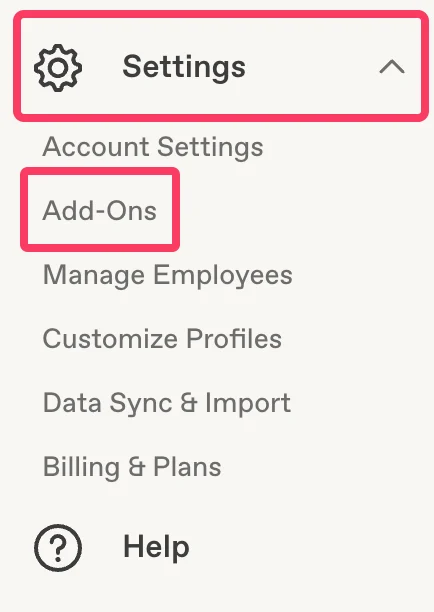
In your Pingboard account, open the **Settings** menu and click **Add-Ons**.
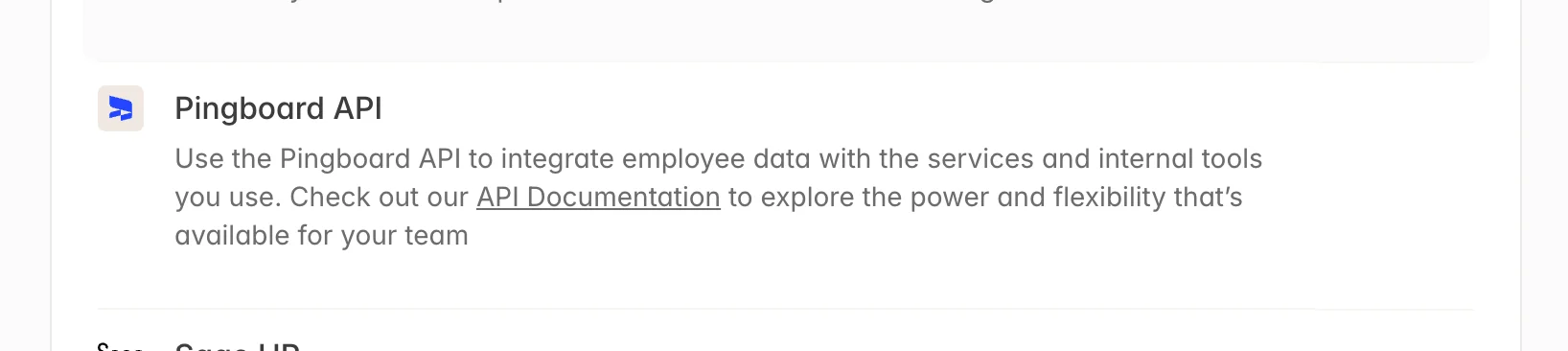
 Select the **Pingboard API** add-on from the list.
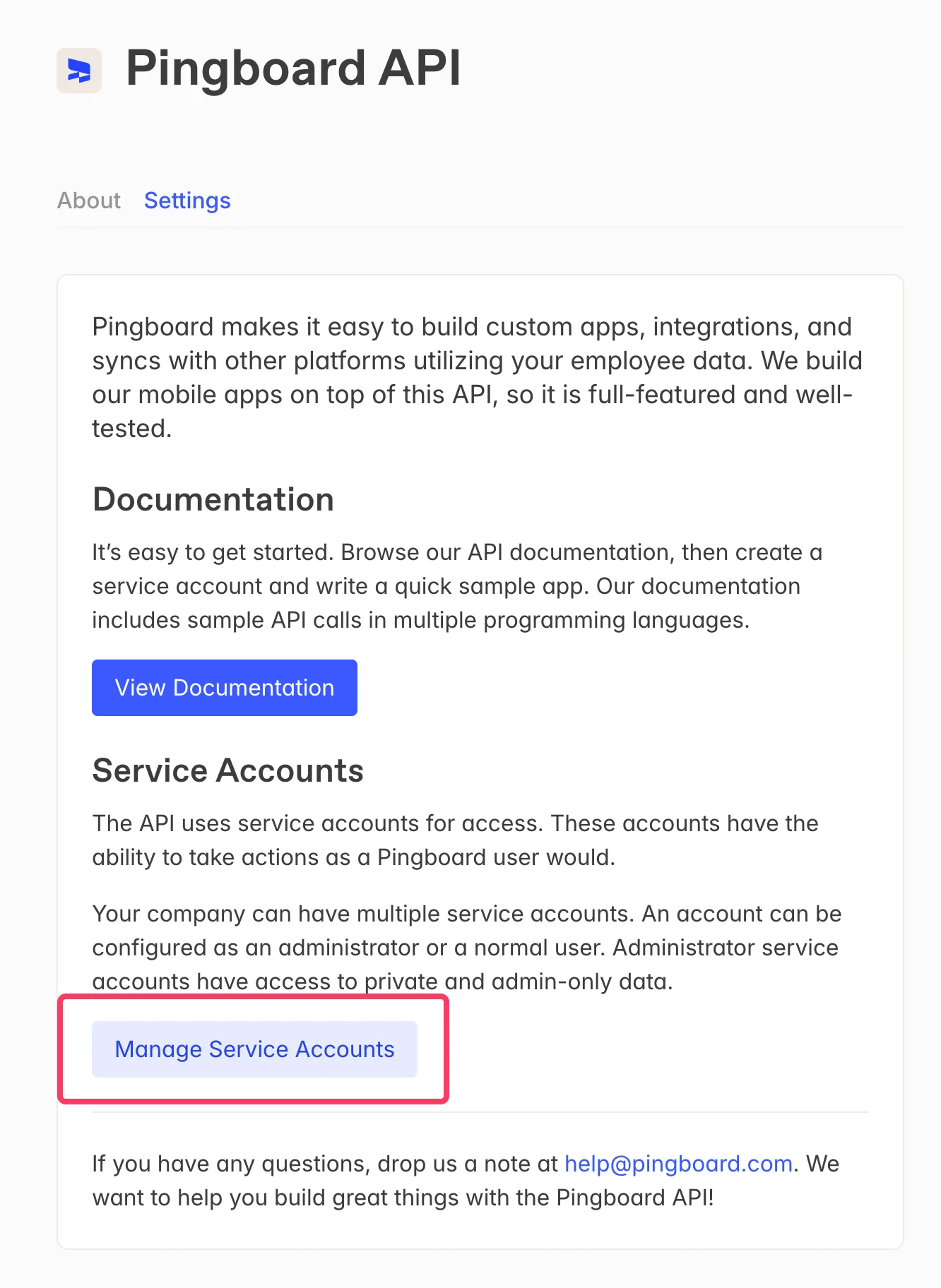
 On the Pingboard API page, click **Manage Service Accounts**.
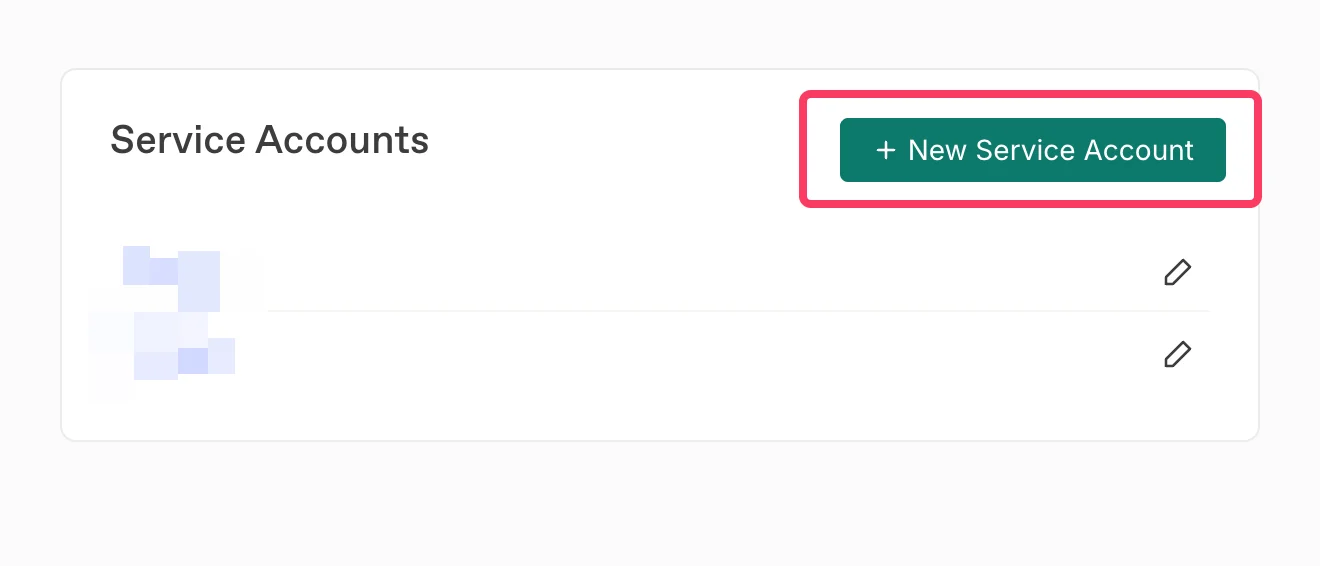
 Click **+ New Service Account** to create a new service account for Scribe.
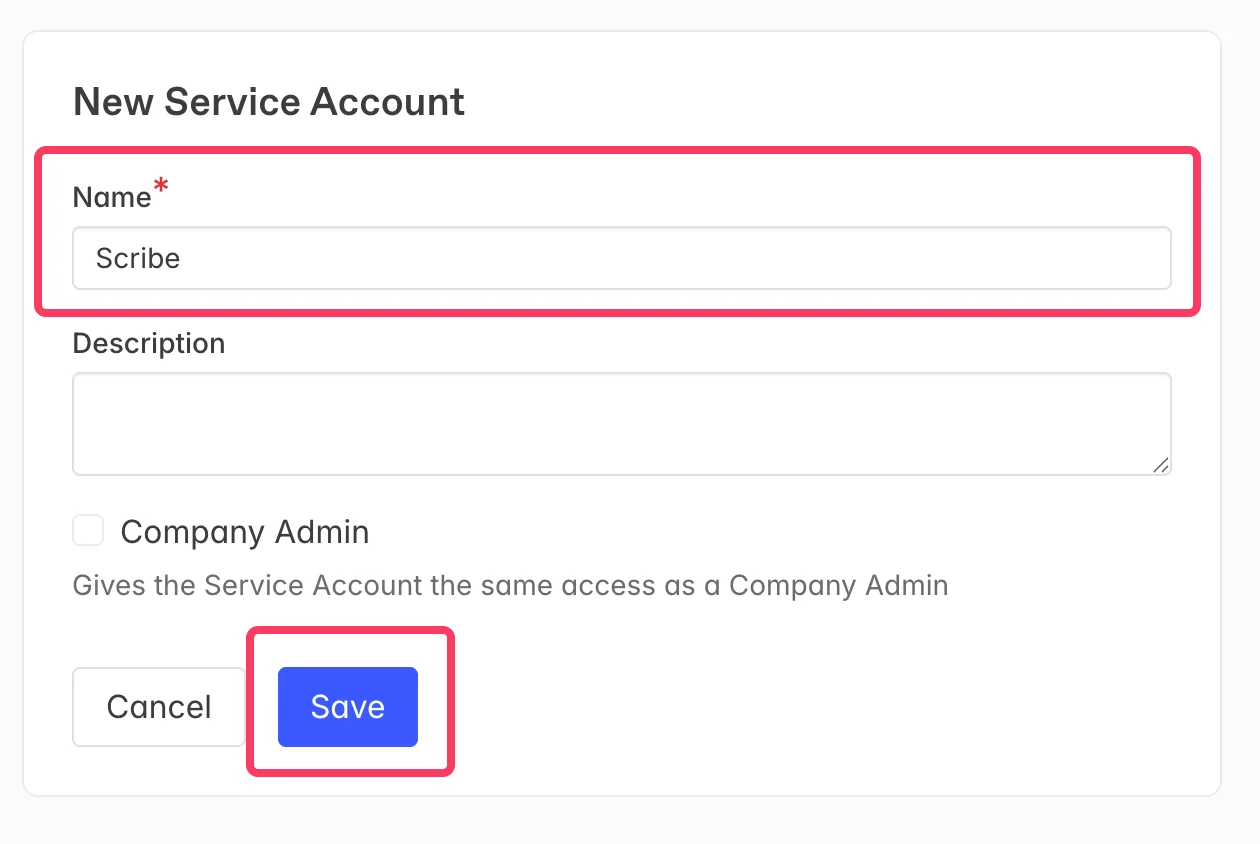
 Enter **Scribe** as the name for the service account, then click **Save**.
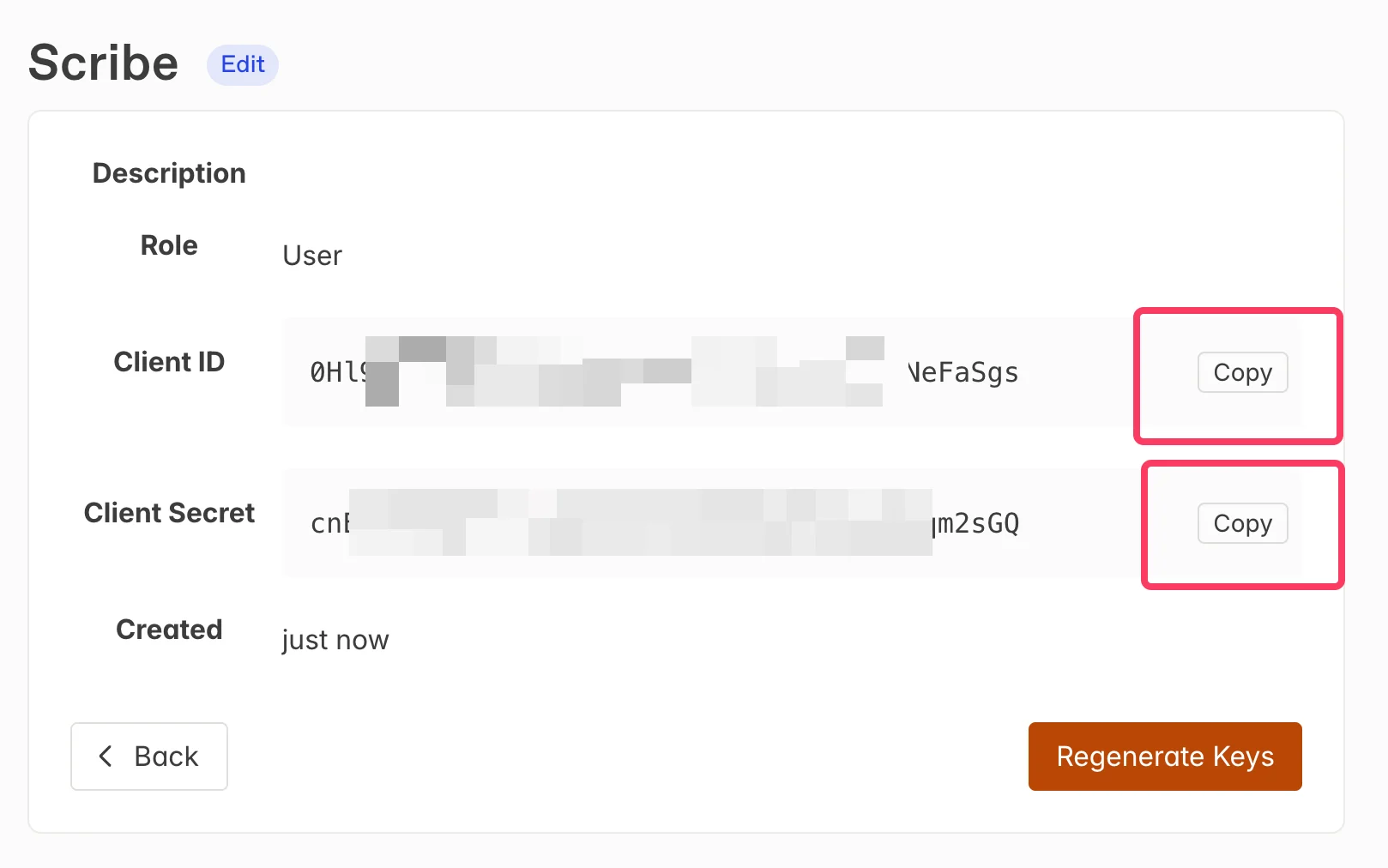
 Copy the **Client ID** and **Client Secret** from Pingboard using the **Copy** buttons, then paste them into the corresponding fields in Scribe. Click **Connect Pingboard** to complete the integration.
 ## Related articles
* [BambooHR](/en/integrations/smart-fields/bamboohr-smart-fields): sync BambooHR data into your signatures.
* [Ceridian Dayforce](/en/integrations/smart-fields/ceridian-dayforce-smart-fields): sync Ceridian Dayforce data into your signatures.
* [Assign teammates to a signature](/en/assign-teammates-to-a-signature): use Smart Field conditions to assign signatures automatically.
## Related articles
* [BambooHR](/en/integrations/smart-fields/bamboohr-smart-fields): sync BambooHR data into your signatures.
* [Ceridian Dayforce](/en/integrations/smart-fields/ceridian-dayforce-smart-fields): sync Ceridian Dayforce data into your signatures.
* [Assign teammates to a signature](/en/assign-teammates-to-a-signature): use Smart Field conditions to assign signatures automatically.