> ## Documentation Index
> Fetch the complete documentation index at: https://help.scribe-mail.com/llms.txt
> Use this file to discover all available pages before exploring further.
# Google Workspace
> Connect Google Workspace to Scribe and sync the teammates you choose from your units and groups, with details and future changes kept up to date automatically.
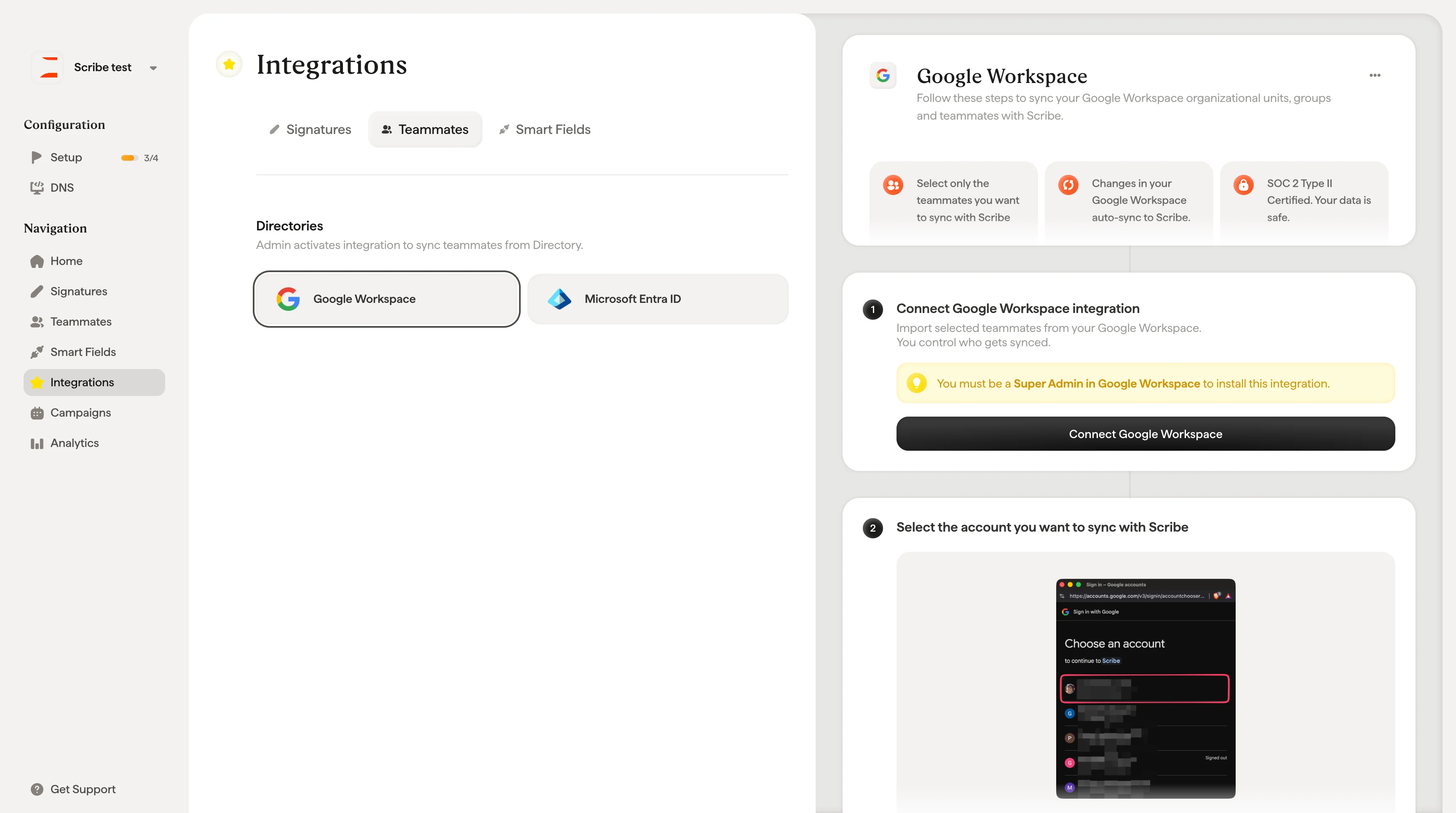
Follow these steps to sync your Google Workspace organizational units, groups and teammates with Scribe.
**Select only the teammates you want to sync with Scribe.**
**Changes in your Google Workspace auto-sync to Scribe.**
**SOC 2 Type II Certified.** Your data is safe.
## Installation guide
### Prerequisites
* A Scribe account with admin access
* A Google Workspace account with **Super Admin** privileges
Import selected teammates from your Google Workspace. You control who gets synced.
You must be a **Super Admin** in Google Workspace to install this integration.
Click **Connect Google Workspace** to start the setup.
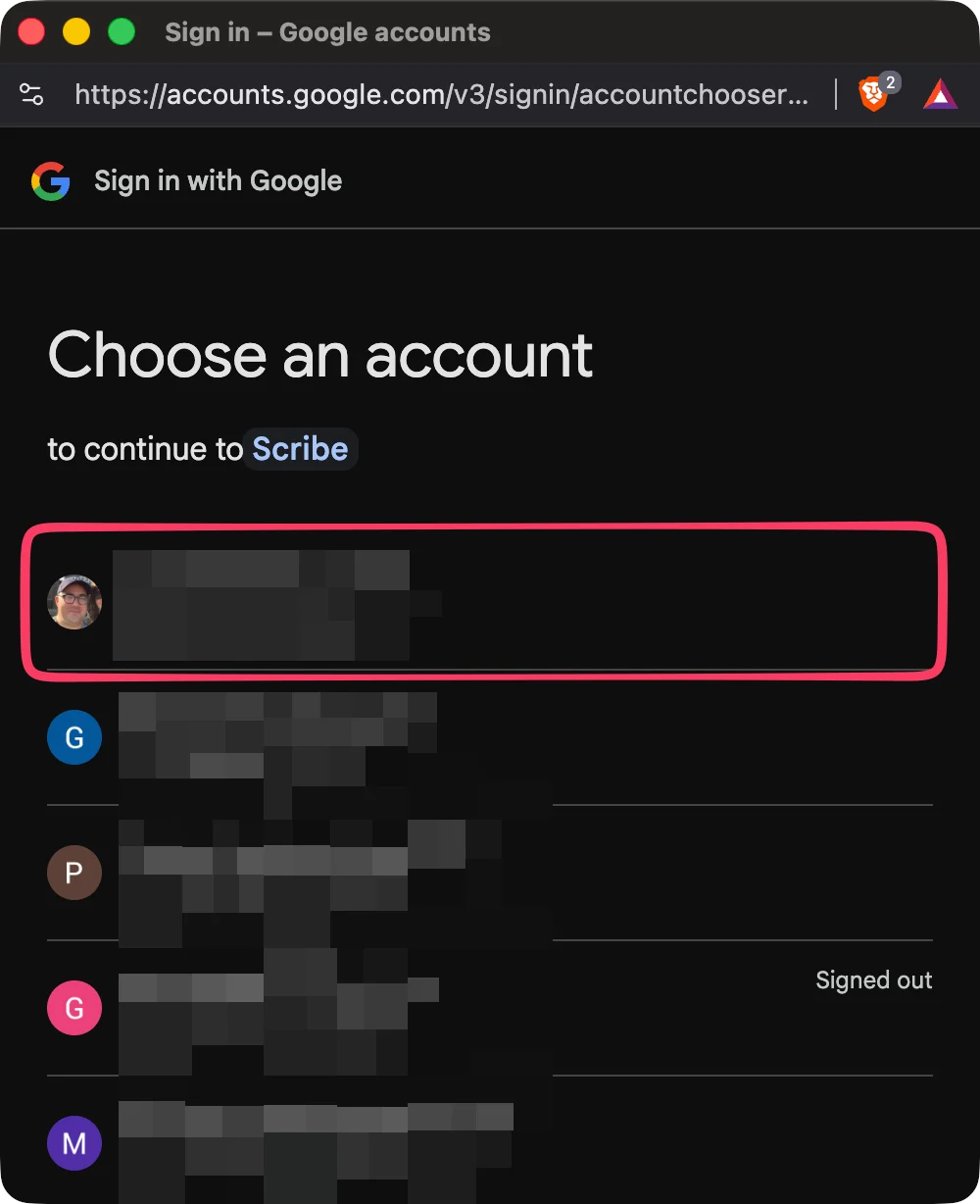
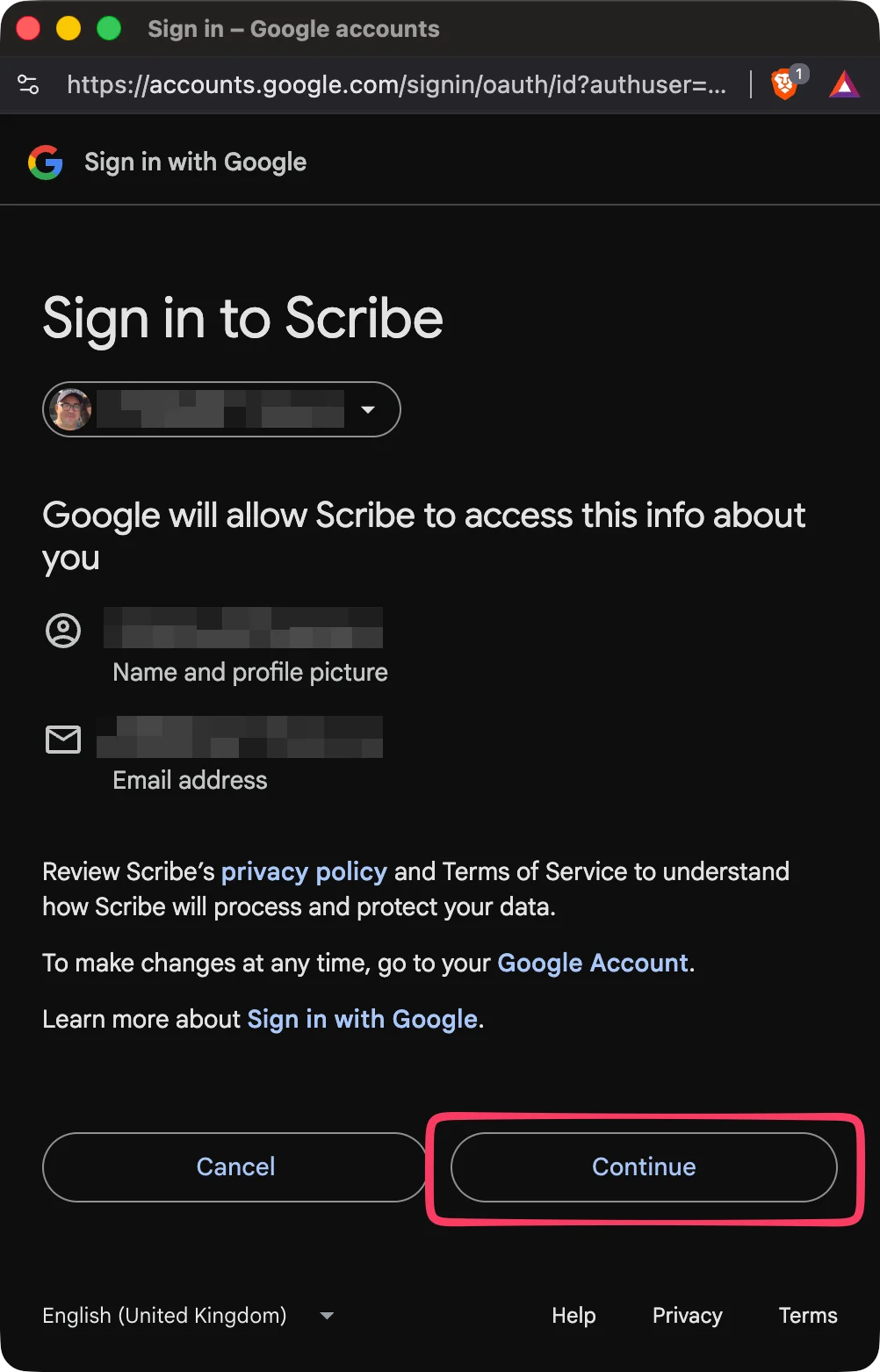 Scribe is SOC 2 Type II compliant. You can find the scopes we use from the Google API [here](https://support.google.com/a/answer/162106). We can't send or read your emails.
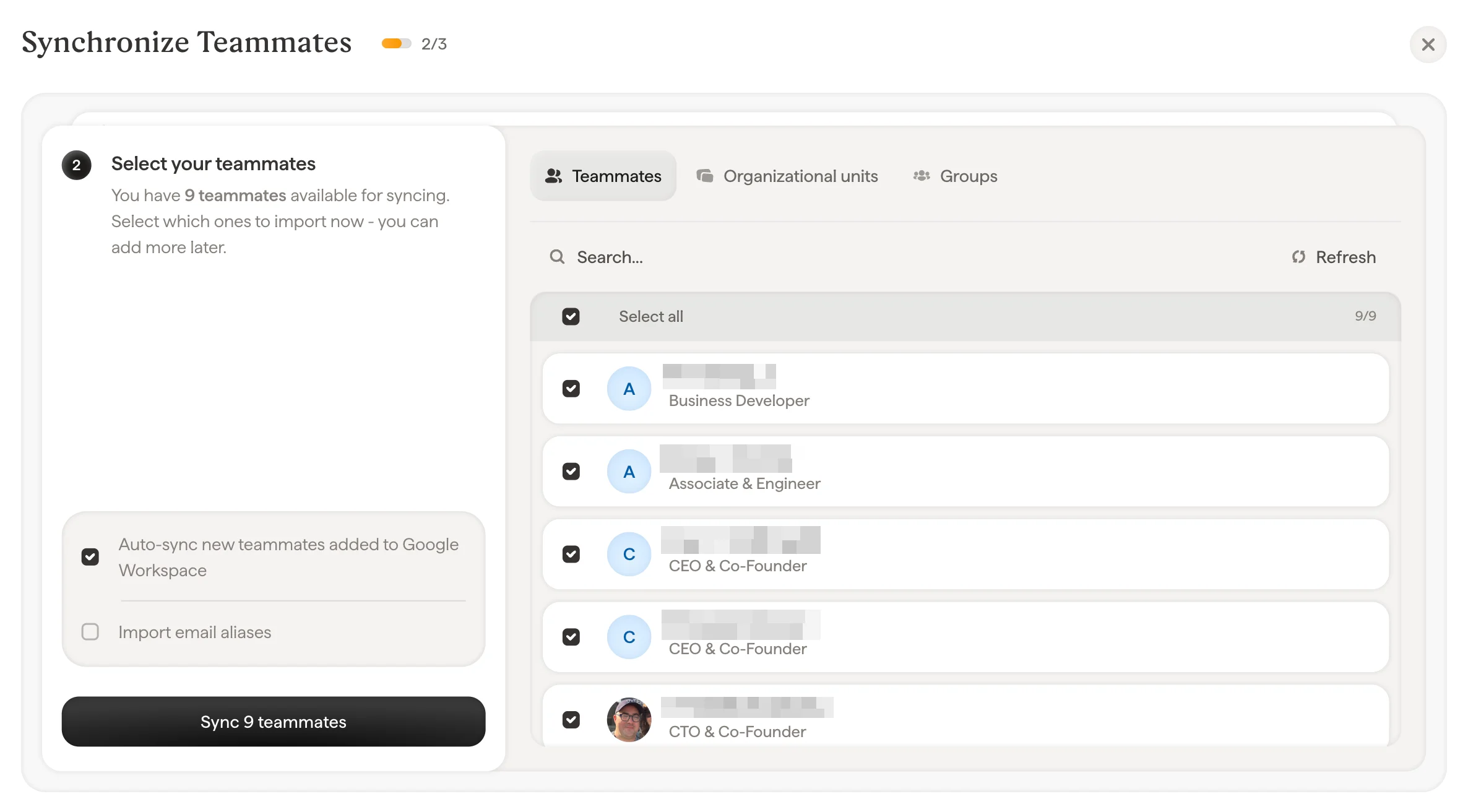
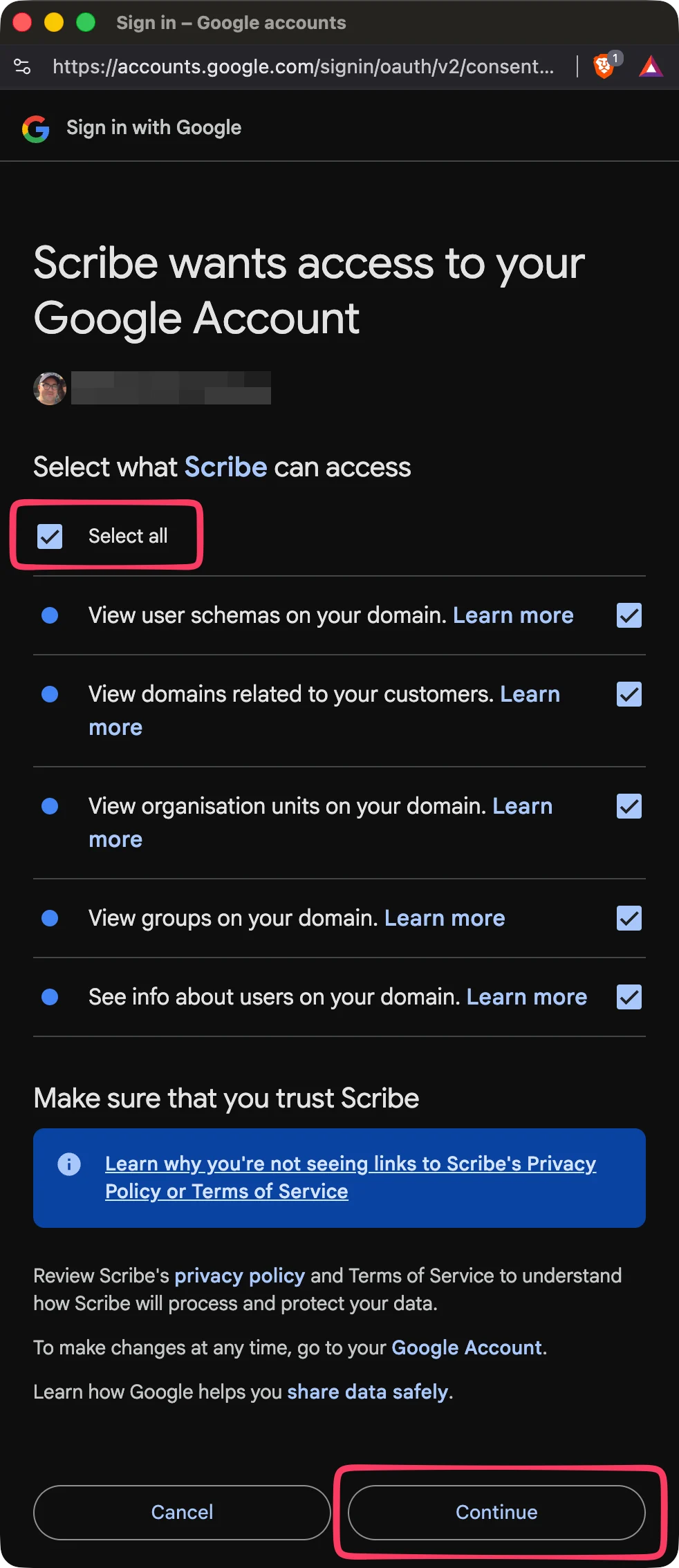 You can select teammates from your teammates list, Units, or Groups. Select which ones to import now. You can add more later. Their information is also synced so you can auto-fill their signatures later using [Smart Field](/en/smart-fields).
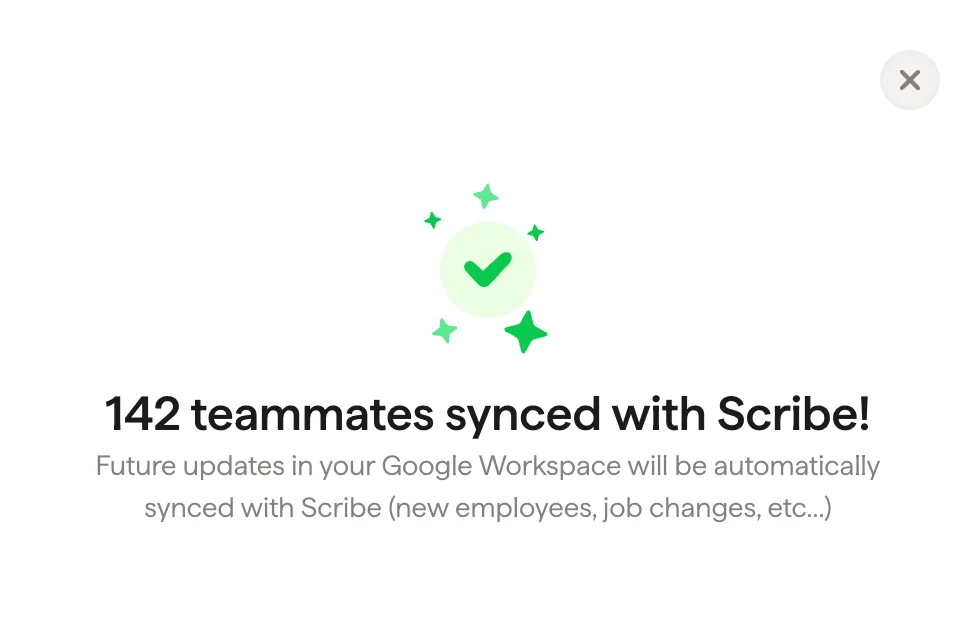
 Go to Signatures to [assign teammates](/en/assign-teammates-to-a-signature) and create their signatures. Future updates in your Google Workspace will be automatically synced with Scribe (new employees, job changes, etc.).
 ## Related articles
* [Teammates overview](/en/teammates/teammates-overview)
* [Microsoft Entra ID](/en/integrations/teammates/microsoft-entra-id-teammates)
* [What Scribe does concerning security](/en/what-scribe-does-concerning-security)
## Related articles
* [Teammates overview](/en/teammates/teammates-overview)
* [Microsoft Entra ID](/en/integrations/teammates/microsoft-entra-id-teammates)
* [What Scribe does concerning security](/en/what-scribe-does-concerning-security)