> ## Documentation Index
> Fetch the complete documentation index at: https://help.scribe-mail.com/llms.txt
> Use this file to discover all available pages before exploring further.
# Zoho Mail
> Connect Zoho Mail to Scribe and sync the teammates you choose from your users and groups, with details and future changes kept up to date automatically.
Follow these steps to sync your Zoho Mail users and groups with Scribe.
**Select only the teammates you want to sync with Scribe.**
**Changes in your Zoho Mail auto-sync to Scribe.**
**SOC 2 Type II Certified.** Your data is safe.
## Installation guide
### Prerequisites
* A Scribe account with admin access
* A Zoho Mail organization, with a **Super Admin** or **Admin** account
Import selected teammates from your Zoho Mail organization. You control who gets synced.
You must be a **Super Admin or Admin in Zoho Mail** to install this integration.
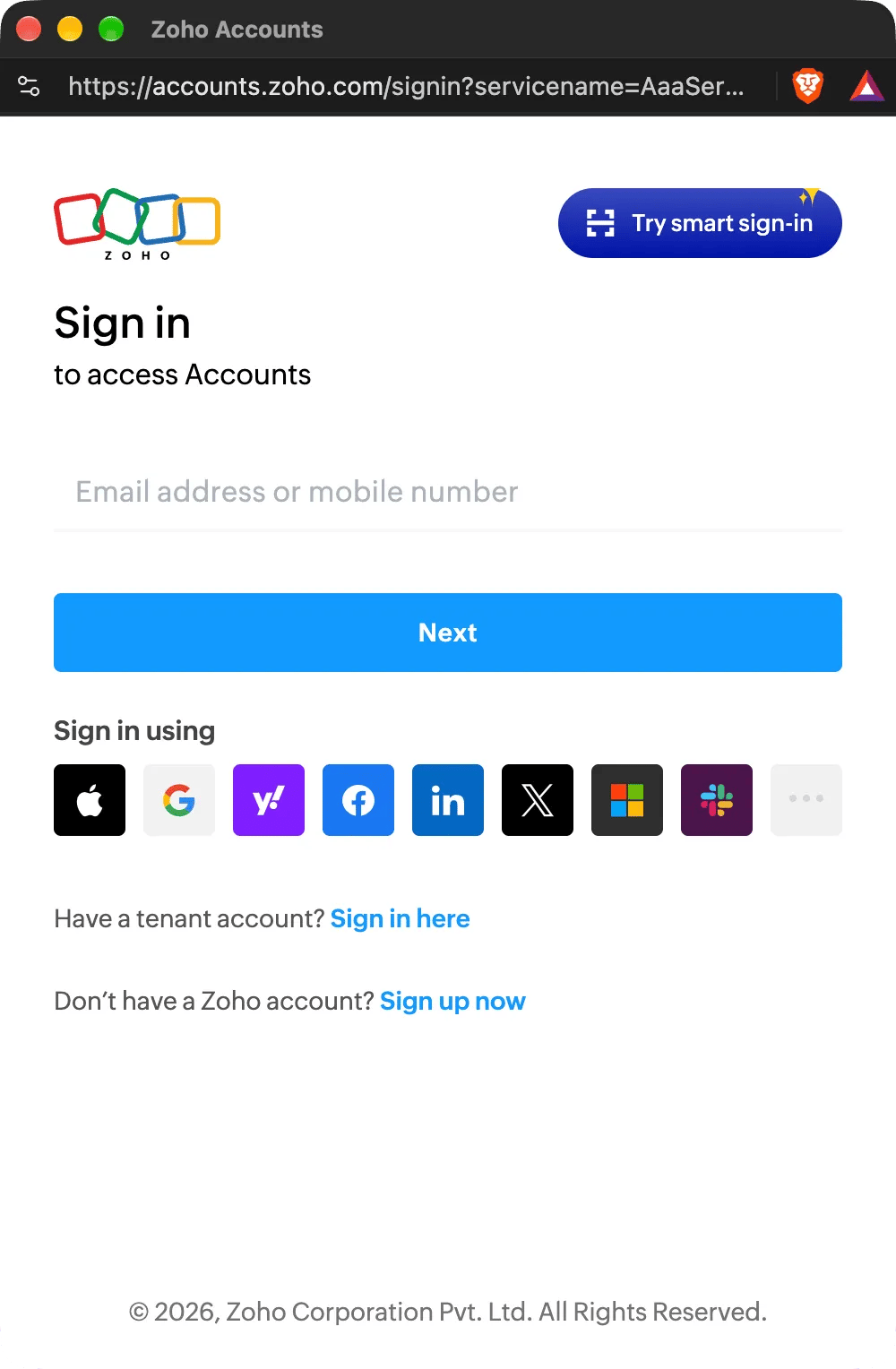
Click **Connect Zoho Mail** to start the setup.
If you are already signed in to Zoho, this step is skipped.
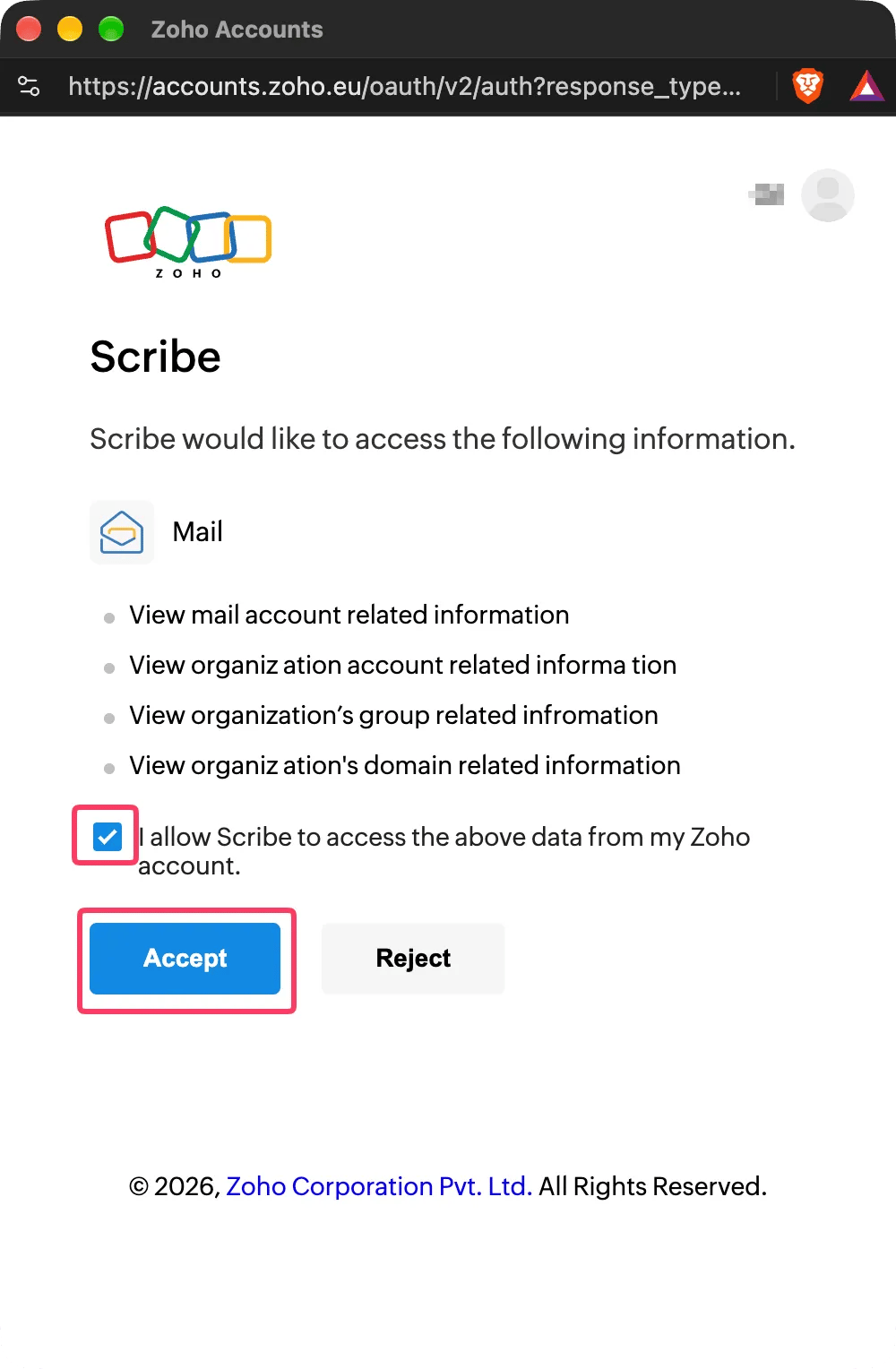
 Scribe only reads your users, their aliases, your groups and your domains. It changes nothing in Zoho Mail and can't send or read your emails. You can find the scopes we use from the Zoho Mail API [here](/en/security/scopes-used-from-zoho-mail).
Check **I allow Scribe to access the above data from my Zoho account**, then click **Accept**.
Scribe only reads your users, their aliases, your groups and your domains. It changes nothing in Zoho Mail and can't send or read your emails. You can find the scopes we use from the Zoho Mail API [here](/en/security/scopes-used-from-zoho-mail).
Check **I allow Scribe to access the above data from my Zoho account**, then click **Accept**.
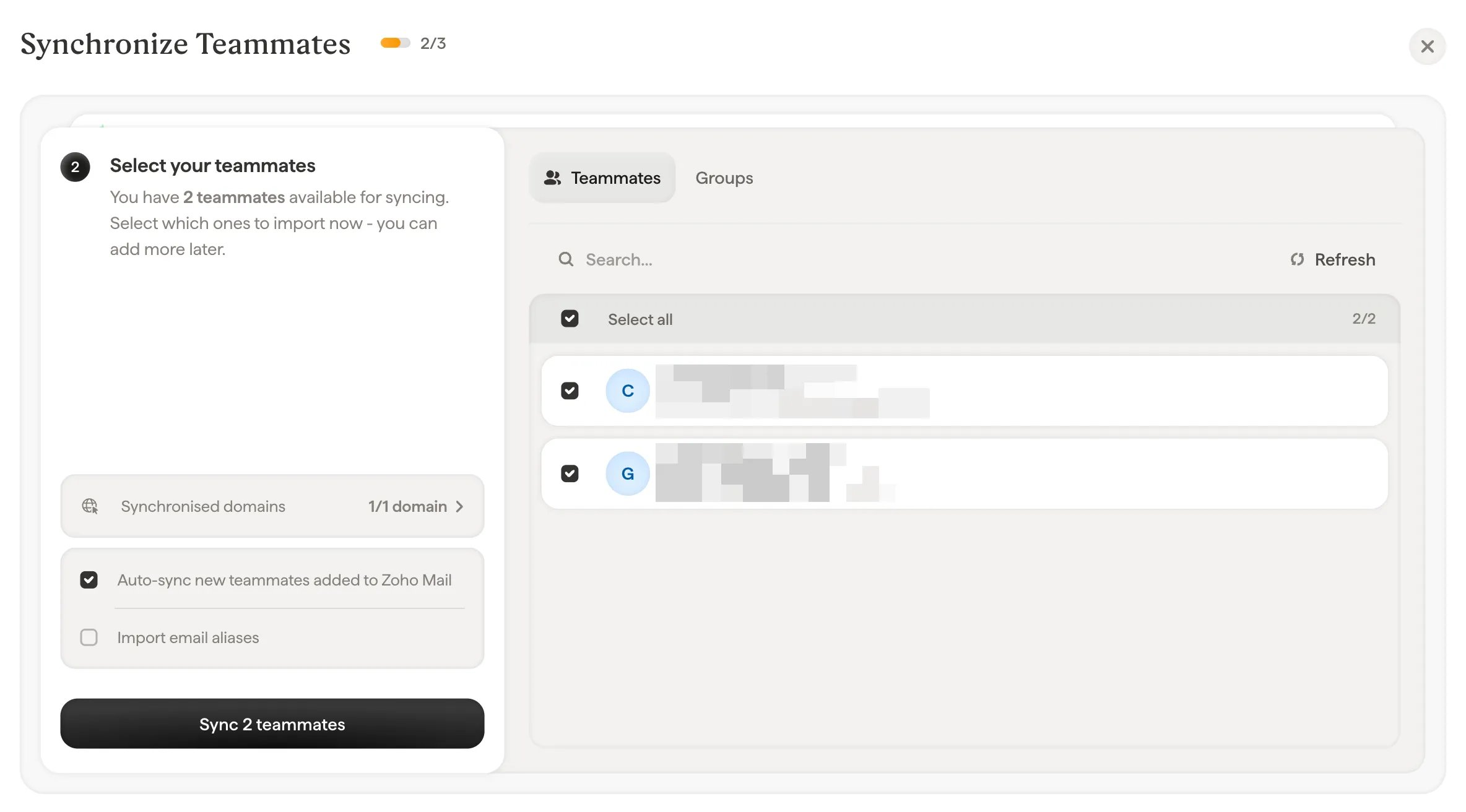
 You can select teammates from your teammates list or Groups. Select which ones to import now. You can add more later. Their information is also synced so you can auto-fill their signatures later using [Smart Field](/en/smart-fields).
Two options sit under the list:
* **Auto-sync new teammates added to Zoho Mail**: new users in your organization are imported as they appear.
* **Import email aliases**: each teammate's confirmed aliases are imported too, so each alias can get its own signature.
You can select teammates from your teammates list or Groups. Select which ones to import now. You can add more later. Their information is also synced so you can auto-fill their signatures later using [Smart Field](/en/smart-fields).
Two options sit under the list:
* **Auto-sync new teammates added to Zoho Mail**: new users in your organization are imported as they appear.
* **Import email aliases**: each teammate's confirmed aliases are imported too, so each alias can get its own signature.
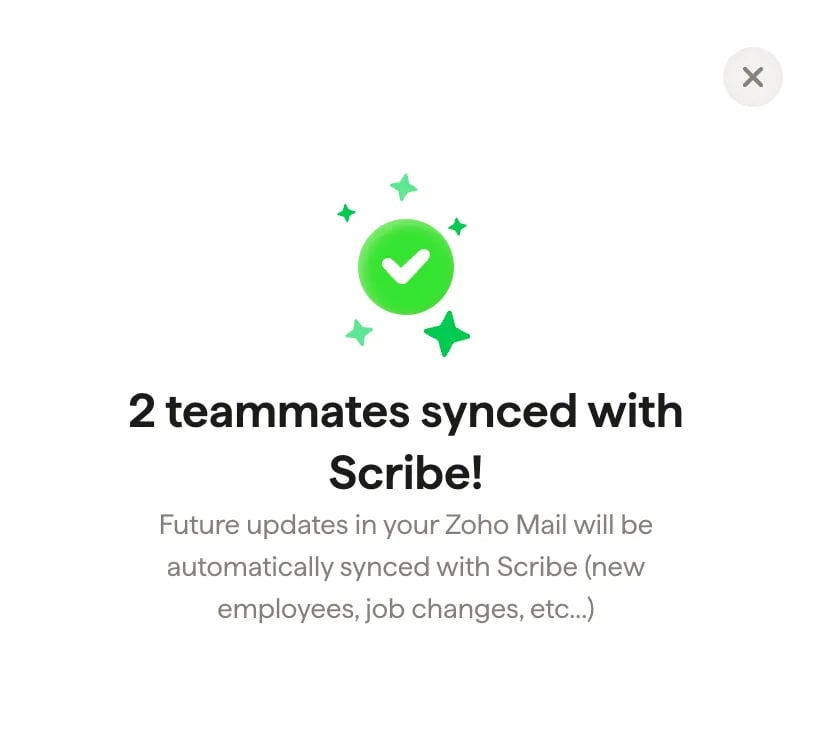
 Go to Signatures to [assign teammates](/en/assign-teammates-to-a-signature) and create their signatures. Future updates in your Zoho Mail will be automatically synced with Scribe (new employees, name changes, etc.).
 ## What Scribe syncs from Zoho Mail
Scribe imports the users of your Zoho Mail organization that have an active mailbox. A user whose mailbox is disabled, or whose account is deactivated, is not imported, and is removed from Scribe at the next sync.
For each teammate, Scribe reads the fields of the user's page in the Zoho Mail Admin Console:
* First name and last name
* Email address and, if you import them, confirmed aliases
* Mobile phone and work phone
* Street address, city, state or province, zip or postal code, and country
* Custom information fields
* Job position and department, when Zoho fills them for your users
The Zoho Mail Admin Console has no job title field. To sync one, add it as a custom information field in Zoho Mail, then map it to the Job position [Smart Field](/en/smart-fields).
Zoho Mail does not share profile pictures with Scribe. To show a photo in a signature, map the profile picture [Smart Field](/en/smart-fields) to another source, or fill it in Scribe.
Scribe syncs your Zoho Mail organization once a day. Click **Refresh** on the Teammates page to sync at any time.
Scribe supports Zoho accounts in every Zoho data center except China (zoho.com.cn). One Zoho Mail organization can be connected to one Scribe workspace.
## Disconnect Zoho Mail
When you disconnect Zoho Mail, Scribe revokes its access to your organization. Your teammates stay in Scribe as manual teammates. If you connect Zoho Mail again later, Scribe links the same teammates back instead of creating duplicates.
## Troubleshooting
If the connection fails, Scribe shows one of these messages:
| Message | What to do |
| - | - |
| You need to be an admin of your Zoho Mail organization to activate this integration. | Sign in to Zoho with a **Super Admin** or **Admin** account, or invite an admin to your Scribe workspace to connect it. |
| This Zoho Mail organization is already linked to another Scribe workspace. | Disconnect Zoho Mail from the other workspace first, or connect from that workspace. |
| This domain is already linked to another Scribe workspace. | Your Zoho Mail domain belongs to another Scribe workspace. Connect from that workspace, or contact us. |
| This email is already linked to another Scribe workspace. | Your Zoho Mail address is a teammate in another Scribe workspace. Connect from that workspace, or contact us. |
| Scribe does not support the Zoho data center of your account. | Your Zoho account is hosted in China, which Scribe does not support. |
| There is an issue with your credentials. Please try again. | Start again from **Connect Zoho Mail** and accept all the scopes. |
| Zoho Mail is not responding. Please try again in a few minutes. | Zoho did not answer. Wait a few minutes and try again. |
If Scribe loses access to your Zoho Mail organization later, see [Zoho Mail access lost](/en/troubleshooting/zoho-mail-access-lost).
## Related articles
* [Teammates overview](/en/teammates/teammates-overview)
* [Zoho Mail signatures](/en/integrations/signatures/zoho-mail)
* [Scopes used from Zoho Mail](/en/security/scopes-used-from-zoho-mail)
* [What Scribe does concerning security](/en/what-scribe-does-concerning-security)
This documentation is built and hosted on [Mintlify](https://mintlify.com), a developer documentation platform.
## What Scribe syncs from Zoho Mail
Scribe imports the users of your Zoho Mail organization that have an active mailbox. A user whose mailbox is disabled, or whose account is deactivated, is not imported, and is removed from Scribe at the next sync.
For each teammate, Scribe reads the fields of the user's page in the Zoho Mail Admin Console:
* First name and last name
* Email address and, if you import them, confirmed aliases
* Mobile phone and work phone
* Street address, city, state or province, zip or postal code, and country
* Custom information fields
* Job position and department, when Zoho fills them for your users
The Zoho Mail Admin Console has no job title field. To sync one, add it as a custom information field in Zoho Mail, then map it to the Job position [Smart Field](/en/smart-fields).
Zoho Mail does not share profile pictures with Scribe. To show a photo in a signature, map the profile picture [Smart Field](/en/smart-fields) to another source, or fill it in Scribe.
Scribe syncs your Zoho Mail organization once a day. Click **Refresh** on the Teammates page to sync at any time.
Scribe supports Zoho accounts in every Zoho data center except China (zoho.com.cn). One Zoho Mail organization can be connected to one Scribe workspace.
## Disconnect Zoho Mail
When you disconnect Zoho Mail, Scribe revokes its access to your organization. Your teammates stay in Scribe as manual teammates. If you connect Zoho Mail again later, Scribe links the same teammates back instead of creating duplicates.
## Troubleshooting
If the connection fails, Scribe shows one of these messages:
| Message | What to do |
| - | - |
| You need to be an admin of your Zoho Mail organization to activate this integration. | Sign in to Zoho with a **Super Admin** or **Admin** account, or invite an admin to your Scribe workspace to connect it. |
| This Zoho Mail organization is already linked to another Scribe workspace. | Disconnect Zoho Mail from the other workspace first, or connect from that workspace. |
| This domain is already linked to another Scribe workspace. | Your Zoho Mail domain belongs to another Scribe workspace. Connect from that workspace, or contact us. |
| This email is already linked to another Scribe workspace. | Your Zoho Mail address is a teammate in another Scribe workspace. Connect from that workspace, or contact us. |
| Scribe does not support the Zoho data center of your account. | Your Zoho account is hosted in China, which Scribe does not support. |
| There is an issue with your credentials. Please try again. | Start again from **Connect Zoho Mail** and accept all the scopes. |
| Zoho Mail is not responding. Please try again in a few minutes. | Zoho did not answer. Wait a few minutes and try again. |
If Scribe loses access to your Zoho Mail organization later, see [Zoho Mail access lost](/en/troubleshooting/zoho-mail-access-lost).
## Related articles
* [Teammates overview](/en/teammates/teammates-overview)
* [Zoho Mail signatures](/en/integrations/signatures/zoho-mail)
* [Scopes used from Zoho Mail](/en/security/scopes-used-from-zoho-mail)
* [What Scribe does concerning security](/en/what-scribe-does-concerning-security)
This documentation is built and hosted on [Mintlify](https://mintlify.com), a developer documentation platform.