> ## Documentation Index
> Fetch the complete documentation index at: https://help.scribe-mail.com/llms.txt
> Use this file to discover all available pages before exploring further.
# Email signature marketing campaigns
> Turn every email your team sends into a marketing channel: add campaign banners to signatures centrally and roll them out automatically across the team.
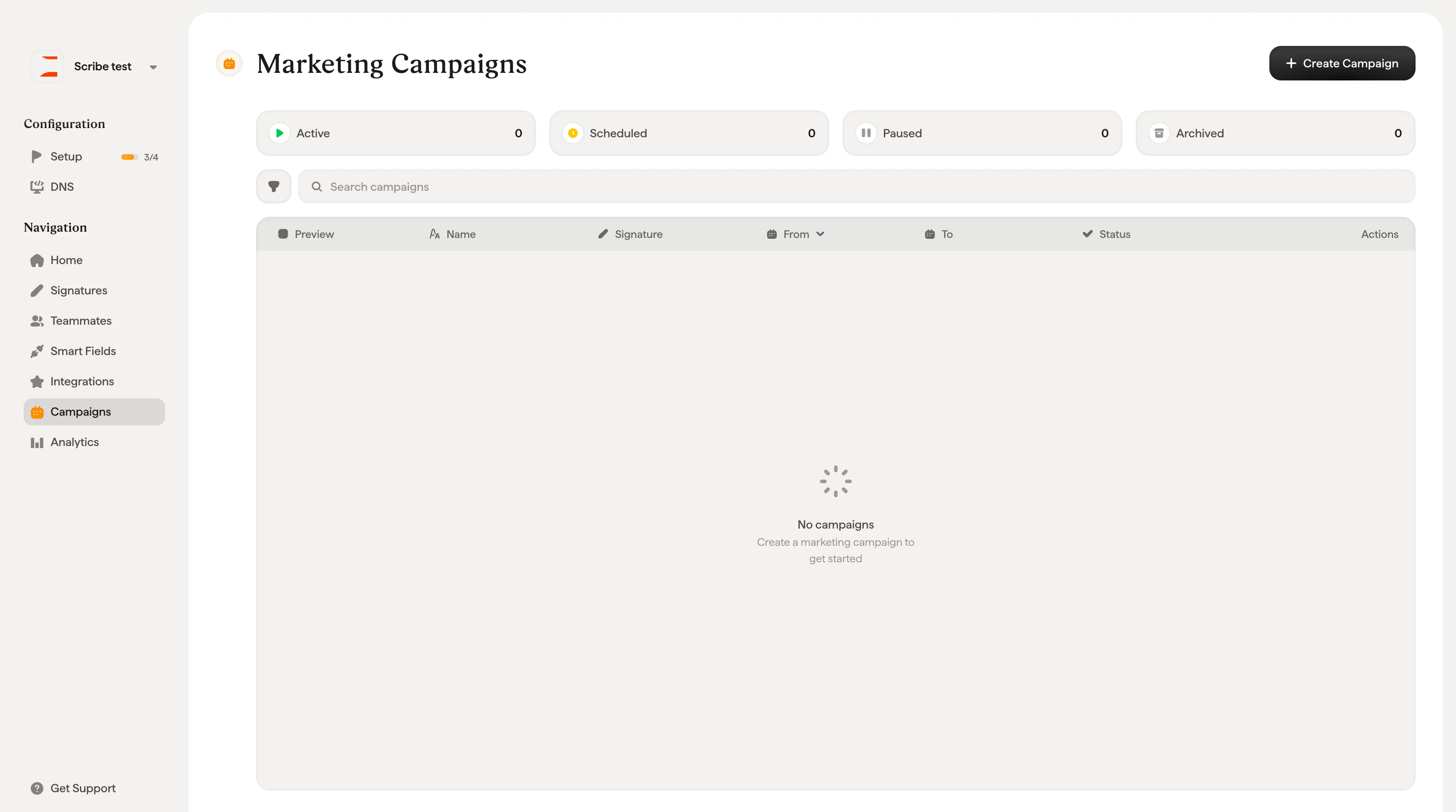
Marketing campaigns let you add [promotional banners](/en/can-i-add-a-promotional-banner-in-my-email-signature), buttons, and other marketing elements to your teammates' email signatures, turning every outgoing email into a branded touchpoint. Instead of relying on teammates to update their own signatures, you control the campaign centrally, and it rolls out automatically.
 ## Why use marketing campaigns
Every email your team sends is a chance to promote something: a product launch, an upcoming event, a new blog post, a podcast, or an app download. Marketing campaigns let you take advantage of that real estate without disrupting anyone's workflow. Campaigns are deployed directly into signatures, so there's nothing for teammates to do. The marketing element simply appears in their outgoing emails for the duration you set.
You get full visibility into performance with built-in [analytics](/en/analytics-overview): total views, total clicks, and average click-through rate, updated over time so you can see what's working.
## How campaigns work
A campaign adds one or more **marketing blocks** to existing email signatures for a defined period of time. When the campaign ends, signatures revert to their previous state automatically.
Here's the general flow:
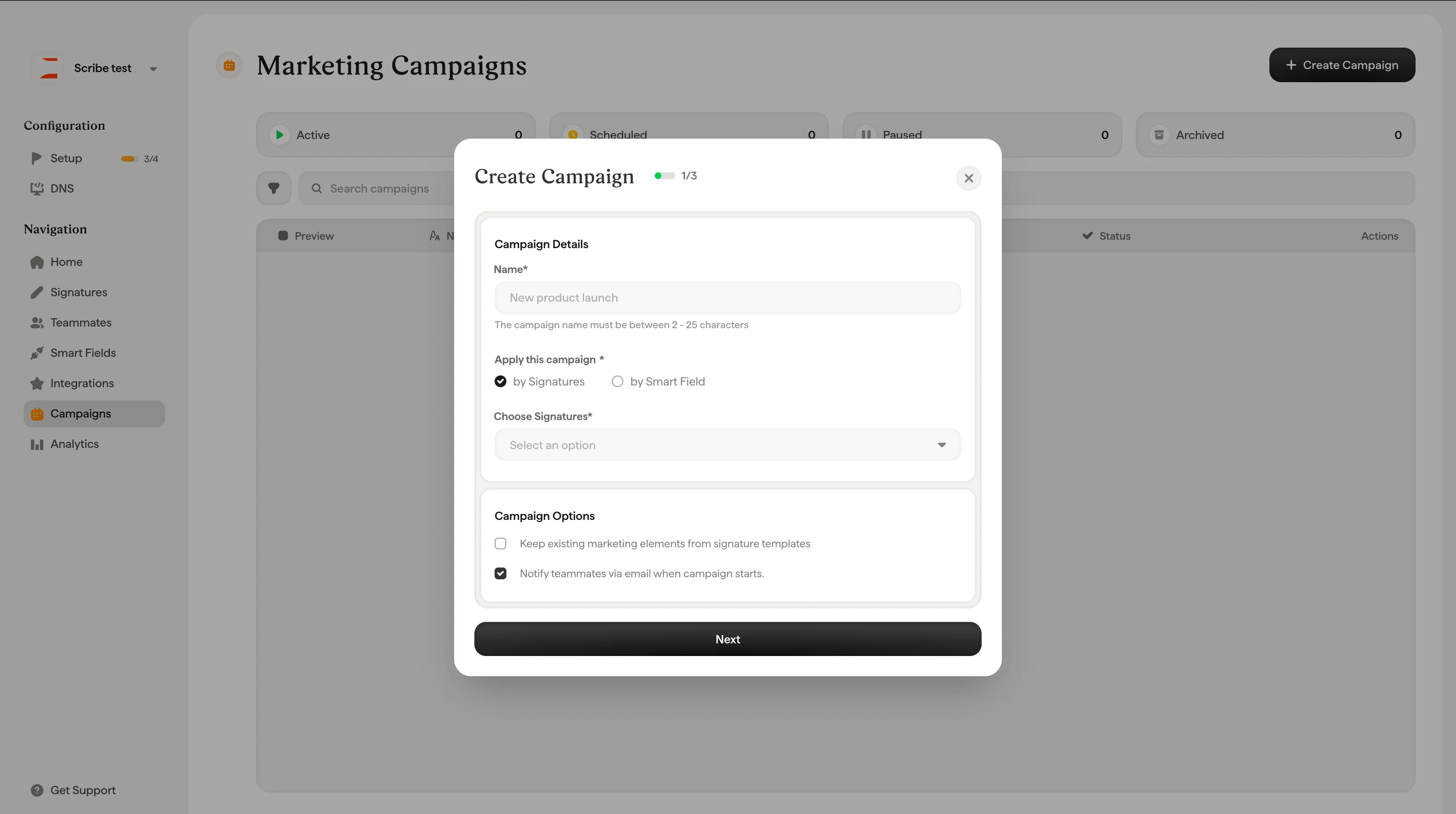
1. **Create a campaign.** Give it a name, choose which teammates or signatures to target, set a date range and time zone.
2. **Design the marketing block.** Pick from a library of block types (banners, buttons, social links, app store badges, and more) and customize the content and style.
3. **Launch.** The marketing elements appear in your teammates' signatures immediately. Optionally notify the team by email.
4. **Track performance.** Monitor views, clicks, and CTR from the campaign detail page.
5. **Pause, edit, or end.** Pause the campaign at any time to remove marketing elements from signatures. Edit a paused campaign to adjust targeting, dates, or the marketing block, then resume it. Or let it run to its end date and signatures revert automatically.
## Why use marketing campaigns
Every email your team sends is a chance to promote something: a product launch, an upcoming event, a new blog post, a podcast, or an app download. Marketing campaigns let you take advantage of that real estate without disrupting anyone's workflow. Campaigns are deployed directly into signatures, so there's nothing for teammates to do. The marketing element simply appears in their outgoing emails for the duration you set.
You get full visibility into performance with built-in [analytics](/en/analytics-overview): total views, total clicks, and average click-through rate, updated over time so you can see what's working.
## How campaigns work
A campaign adds one or more **marketing blocks** to existing email signatures for a defined period of time. When the campaign ends, signatures revert to their previous state automatically.
Here's the general flow:
1. **Create a campaign.** Give it a name, choose which teammates or signatures to target, set a date range and time zone.
2. **Design the marketing block.** Pick from a library of block types (banners, buttons, social links, app store badges, and more) and customize the content and style.
3. **Launch.** The marketing elements appear in your teammates' signatures immediately. Optionally notify the team by email.
4. **Track performance.** Monitor views, clicks, and CTR from the campaign detail page.
5. **Pause, edit, or end.** Pause the campaign at any time to remove marketing elements from signatures. Edit a paused campaign to adjust targeting, dates, or the marketing block, then resume it. Or let it run to its end date and signatures revert automatically.
 ## Campaign targeting
You can apply a campaign in two ways:
* **By Signatures.** Select one or more specific signature templates. Every teammate using those signatures will see the campaign.
* **By Smart Field.** Define targeting rules based on any [Smart Field](/en/smart-fields) from any source connected to Scribe. Combine multiple conditions to target exactly the right teammates (for example, "Department is Sales" and "Location is Paris"). This gives you fine-grained control over who sees the campaign without manually picking signatures.
## Campaign scheduling
Each campaign has a **From** and **To** date with a specific time, set in your chosen time zone (Guadalajara, Berlin, Paris, etc.). You also choose a **frequency**:
* **One time only.** Runs once for the defined period.
* **Monthly.** Repeats automatically every month.
* **Quarterly.** Repeats automatically every quarter.
* **Yearly.** Repeats automatically every year.
## Marketing block types
When building a campaign, you can add any of the following marketing blocks to your signatures:
| Category | Block types |
| ------------- | -------------------------------------------------------------------- |
| Links & CTAs | Button, Banner, Socials |
| App promotion | Browser store, Store apps, Games store |
| Content | Podcast, Live streaming, TV streaming, Music streaming, Reading apps |
| Social proof | Product Hunt, Y Combinator, Ratings |
| Commerce | Online store, Food delivery |
Each block can be customized with its own image, link, size, border radius, opacity, background color, and margins.
## Campaign analytics
Once a campaign is active, the detail page shows real-time performance data:
* **Total views.** How many times the marketing element was displayed in signatures.
* **Total clicks.** How many times recipients clicked on the marketing element.
* **Average CTR.** The click-through rate across all signatures in the campaign.
A timeline chart shows click volume over the campaign period so you can spot trends and measure the impact of your promotions.
## Campaign statuses
Campaigns can be in one of three states:
* **Active.** Currently running and visible in teammates' signatures.
* **Inactive.** Paused or ended. Marketing elements have been removed from signatures.
* **Archived.** No longer active and moved to the Archived tab for reference.
The Campaigns page organizes campaigns across three tabs: **Active Campaigns**, **Inactive Campaigns**, and **Archived Campaigns**, each showing a count of campaigns in that state.
## Related articles
* [Create a marketing campaign](/en/marketing-campaign): set up targeting, scheduling, and the marketing block step by step.
* [Analytics](/en/analytics-overview): track views, clicks, and CTR for every campaign.
* [Add a promotional banner](/en/can-i-add-a-promotional-banner-in-my-email-signature): formats, sizing, and use cases for signature banners.
* [Smart Fields](/en/smart-fields): target campaigns by department, location, or any synced field.
## Campaign targeting
You can apply a campaign in two ways:
* **By Signatures.** Select one or more specific signature templates. Every teammate using those signatures will see the campaign.
* **By Smart Field.** Define targeting rules based on any [Smart Field](/en/smart-fields) from any source connected to Scribe. Combine multiple conditions to target exactly the right teammates (for example, "Department is Sales" and "Location is Paris"). This gives you fine-grained control over who sees the campaign without manually picking signatures.
## Campaign scheduling
Each campaign has a **From** and **To** date with a specific time, set in your chosen time zone (Guadalajara, Berlin, Paris, etc.). You also choose a **frequency**:
* **One time only.** Runs once for the defined period.
* **Monthly.** Repeats automatically every month.
* **Quarterly.** Repeats automatically every quarter.
* **Yearly.** Repeats automatically every year.
## Marketing block types
When building a campaign, you can add any of the following marketing blocks to your signatures:
| Category | Block types |
| ------------- | -------------------------------------------------------------------- |
| Links & CTAs | Button, Banner, Socials |
| App promotion | Browser store, Store apps, Games store |
| Content | Podcast, Live streaming, TV streaming, Music streaming, Reading apps |
| Social proof | Product Hunt, Y Combinator, Ratings |
| Commerce | Online store, Food delivery |
Each block can be customized with its own image, link, size, border radius, opacity, background color, and margins.
## Campaign analytics
Once a campaign is active, the detail page shows real-time performance data:
* **Total views.** How many times the marketing element was displayed in signatures.
* **Total clicks.** How many times recipients clicked on the marketing element.
* **Average CTR.** The click-through rate across all signatures in the campaign.
A timeline chart shows click volume over the campaign period so you can spot trends and measure the impact of your promotions.
## Campaign statuses
Campaigns can be in one of three states:
* **Active.** Currently running and visible in teammates' signatures.
* **Inactive.** Paused or ended. Marketing elements have been removed from signatures.
* **Archived.** No longer active and moved to the Archived tab for reference.
The Campaigns page organizes campaigns across three tabs: **Active Campaigns**, **Inactive Campaigns**, and **Archived Campaigns**, each showing a count of campaigns in that state.
## Related articles
* [Create a marketing campaign](/en/marketing-campaign): set up targeting, scheduling, and the marketing block step by step.
* [Analytics](/en/analytics-overview): track views, clicks, and CTR for every campaign.
* [Add a promotional banner](/en/can-i-add-a-promotional-banner-in-my-email-signature): formats, sizing, and use cases for signature banners.
* [Smart Fields](/en/smart-fields): target campaigns by department, location, or any synced field.