> ## Documentation Index
> Fetch the complete documentation index at: https://help.scribe-mail.com/llms.txt
> Use this file to discover all available pages before exploring further.
# Upload a CSV
> Import many teammates into Scribe at once by uploading a CSV file: only email is required, columns map automatically, and rows are validated before submitting.
Import multiple teammates at once by uploading a CSV file. This is the fastest way to [add teammates manually](/en/teammates/add-teammates-manually) when you don't use a directory integration.
## How to upload a CSV
1. Go to **Teammates** and click **+ Add Teammates** in the top-right corner.
2. Select **Upload a CSV** under the Manual section.
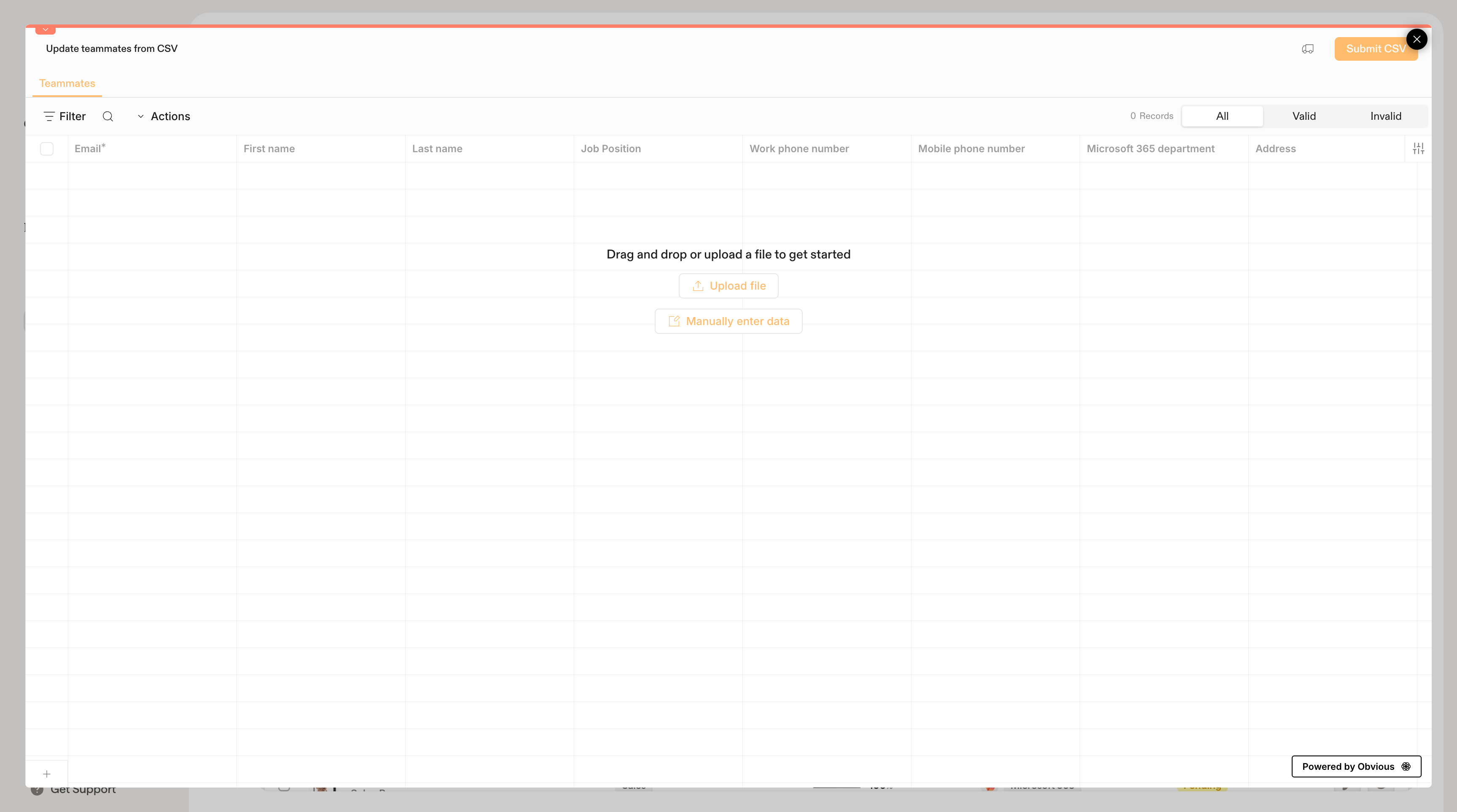
3. In the import modal, either **drag and drop** your CSV file or click **Upload file** to browse.
4. Review the imported data. Scribe will validate each row and flag any issues.
5. Click **Submit CSV** to import your teammates.
 ### CSV columns
Your file should include the following columns. Only **Email** is required; all other fields are optional.
| Column | Required | Description |
| ------------ | -------- | ------------------------------------------------------- |
| Email | Yes | The teammate's email address |
| Job position | No | Their role or title |
| Phone number | No | Direct phone number |
| Meeting Link | No | Link to their scheduling page (e.g., Cal.com, Calendly) |
| Book a demo | No | Link to a demo booking page |
You don't need to match the column names exactly. Scribe will map your columns automatically when possible and let you adjust the mapping before import.
### Enter data manually
If you don't have a CSV file ready, click **Manually enter data** in the import modal to type directly into the spreadsheet grid. This can be handy for pasting data from another source.
### Validation
Before submitting, Scribe checks each row and categorizes it as **Valid** or **Invalid**. Common issues include missing or malformed email addresses. Fix any flagged rows directly in the grid before submitting.
If you later connect a directory integration ([Google Workspace](/en/integrations/teammates/google-workspace-teammates) or [Microsoft Entra ID](/en/integrations/teammates/microsoft-entra-id-teammates)), it will override your CSV-imported teammates. Only use this option if you don't plan to sync from a directory, or if you need to add people who aren't in your directory.
## Related articles
* [Teammates overview](/en/teammates/teammates-overview)
* [Smart fields](/en/smart-fields)
* [Teammate profile](/en/teammates/teammate-profile)
### CSV columns
Your file should include the following columns. Only **Email** is required; all other fields are optional.
| Column | Required | Description |
| ------------ | -------- | ------------------------------------------------------- |
| Email | Yes | The teammate's email address |
| Job position | No | Their role or title |
| Phone number | No | Direct phone number |
| Meeting Link | No | Link to their scheduling page (e.g., Cal.com, Calendly) |
| Book a demo | No | Link to a demo booking page |
You don't need to match the column names exactly. Scribe will map your columns automatically when possible and let you adjust the mapping before import.
### Enter data manually
If you don't have a CSV file ready, click **Manually enter data** in the import modal to type directly into the spreadsheet grid. This can be handy for pasting data from another source.
### Validation
Before submitting, Scribe checks each row and categorizes it as **Valid** or **Invalid**. Common issues include missing or malformed email addresses. Fix any flagged rows directly in the grid before submitting.
If you later connect a directory integration ([Google Workspace](/en/integrations/teammates/google-workspace-teammates) or [Microsoft Entra ID](/en/integrations/teammates/microsoft-entra-id-teammates)), it will override your CSV-imported teammates. Only use this option if you don't plan to sync from a directory, or if you need to add people who aren't in your directory.
## Related articles
* [Teammates overview](/en/teammates/teammates-overview)
* [Smart fields](/en/smart-fields)
* [Teammate profile](/en/teammates/teammate-profile)