> ## Documentation Index
> Fetch the complete documentation index at: https://help.scribe-mail.com/llms.txt
> Use this file to discover all available pages before exploring further.
# Google add-in not validating
> Troubleshoot the Scribe Google add-in when the Google Workspace validation process takes too long, gets stuck, or fails to complete successfully.
If you have been waiting for more than 30 minutes for your [Google add-in](/en/integrations/signatures/google-workspace-client-side) to be validated, check the following.
Make sure you selected the correct Google account when installing the add-in from the [Google Workspace Marketplace](https://workspace.google.com/marketplace/app/scribe/456495922678). Sometimes users select a different domain name from their Google account.
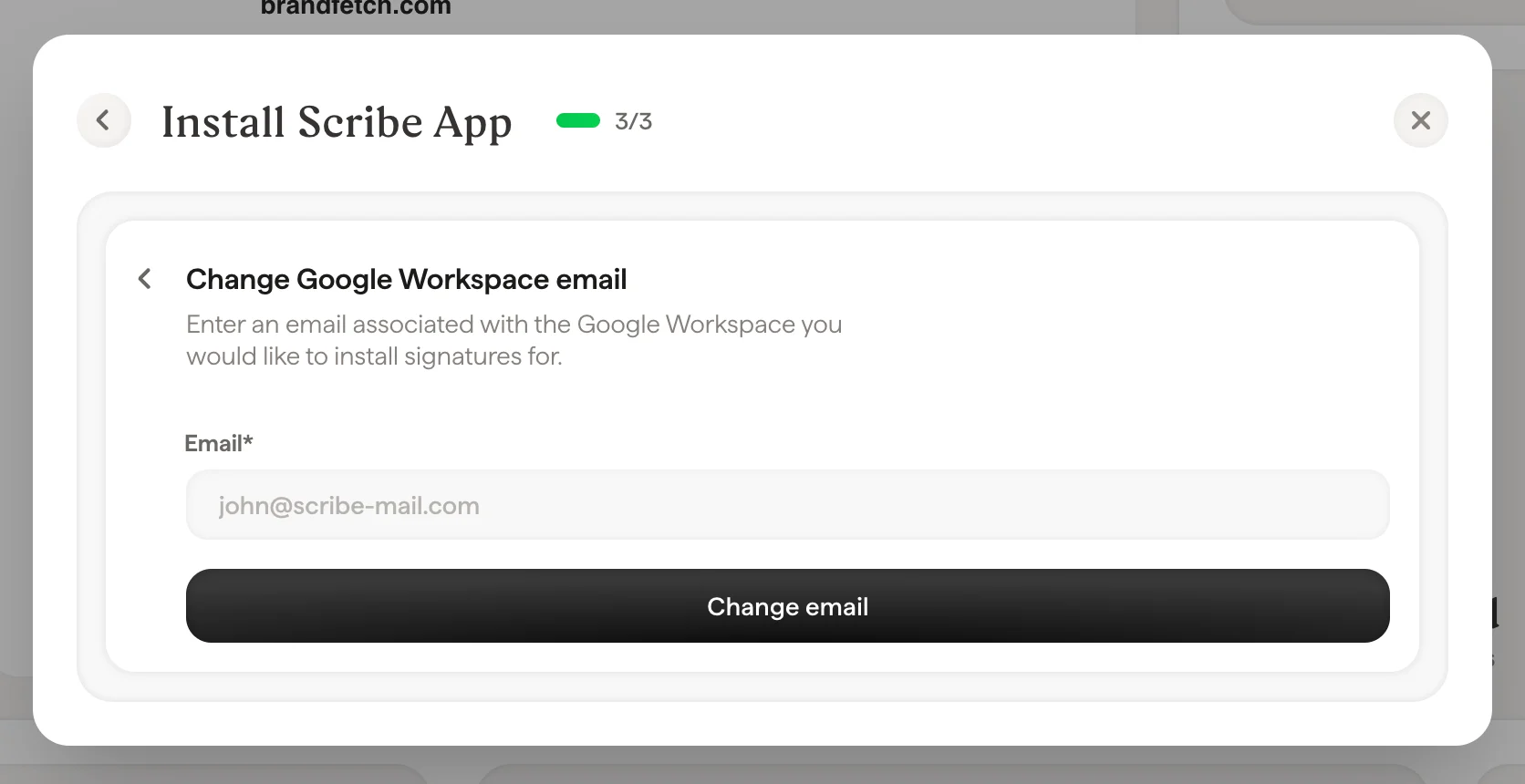
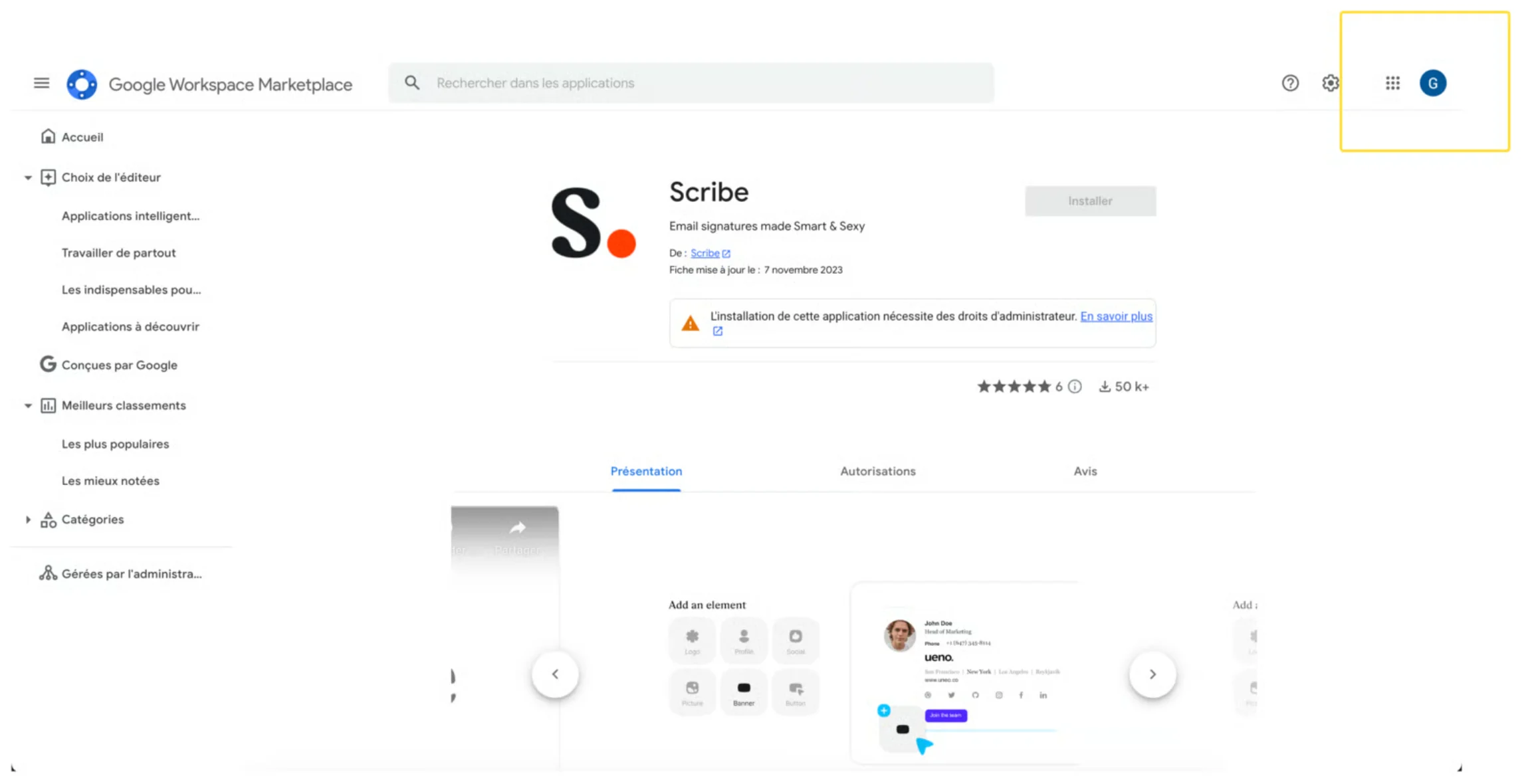 Make sure the email you selected to install the add-in is part of your Google Workspace account. You can change this email in Scribe by going to the [Integration page](/en/integrations-overview) and opening the Google Workspace integration:
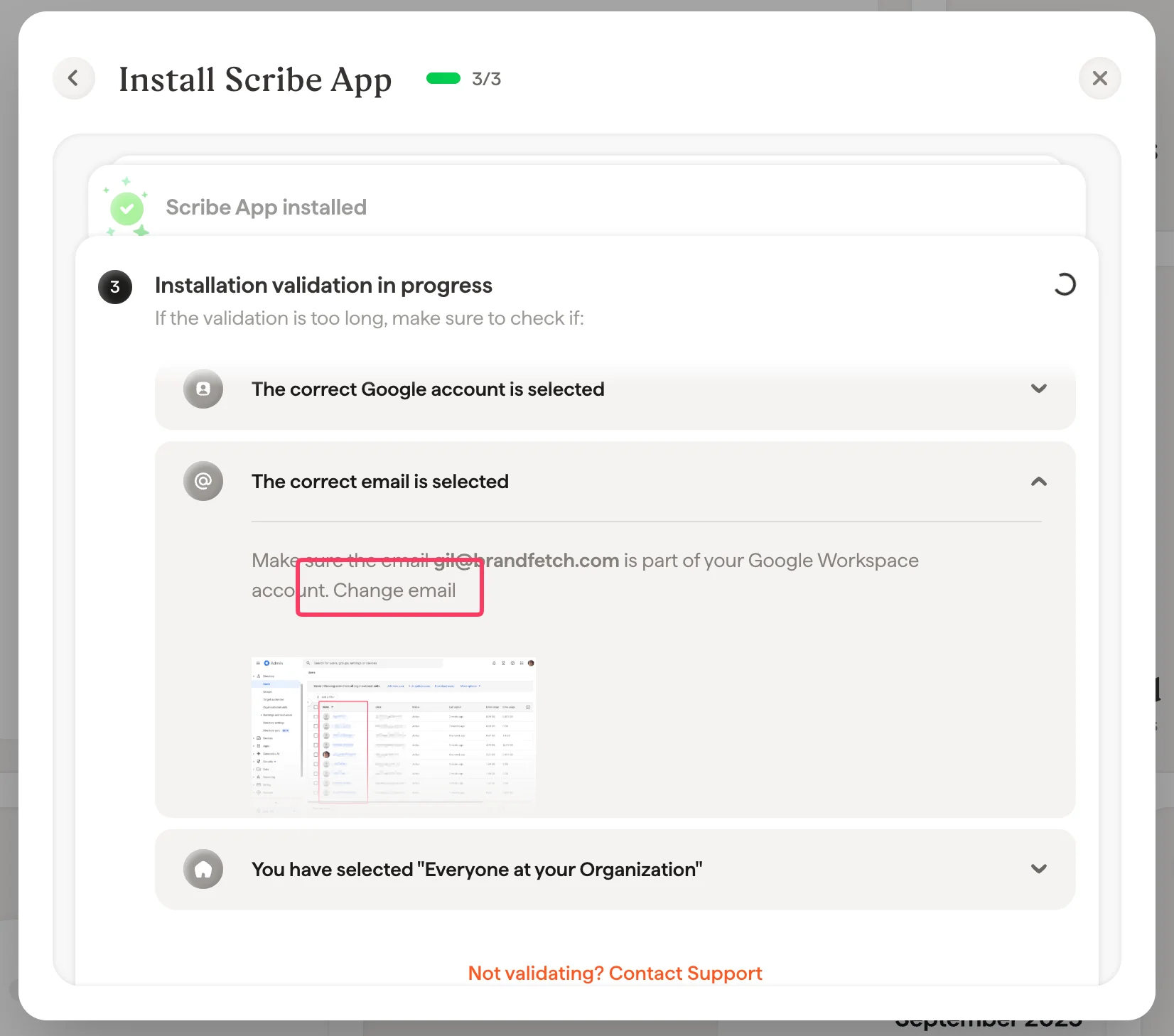 Make sure to select the option "Everyone at your organization" when installing the app.
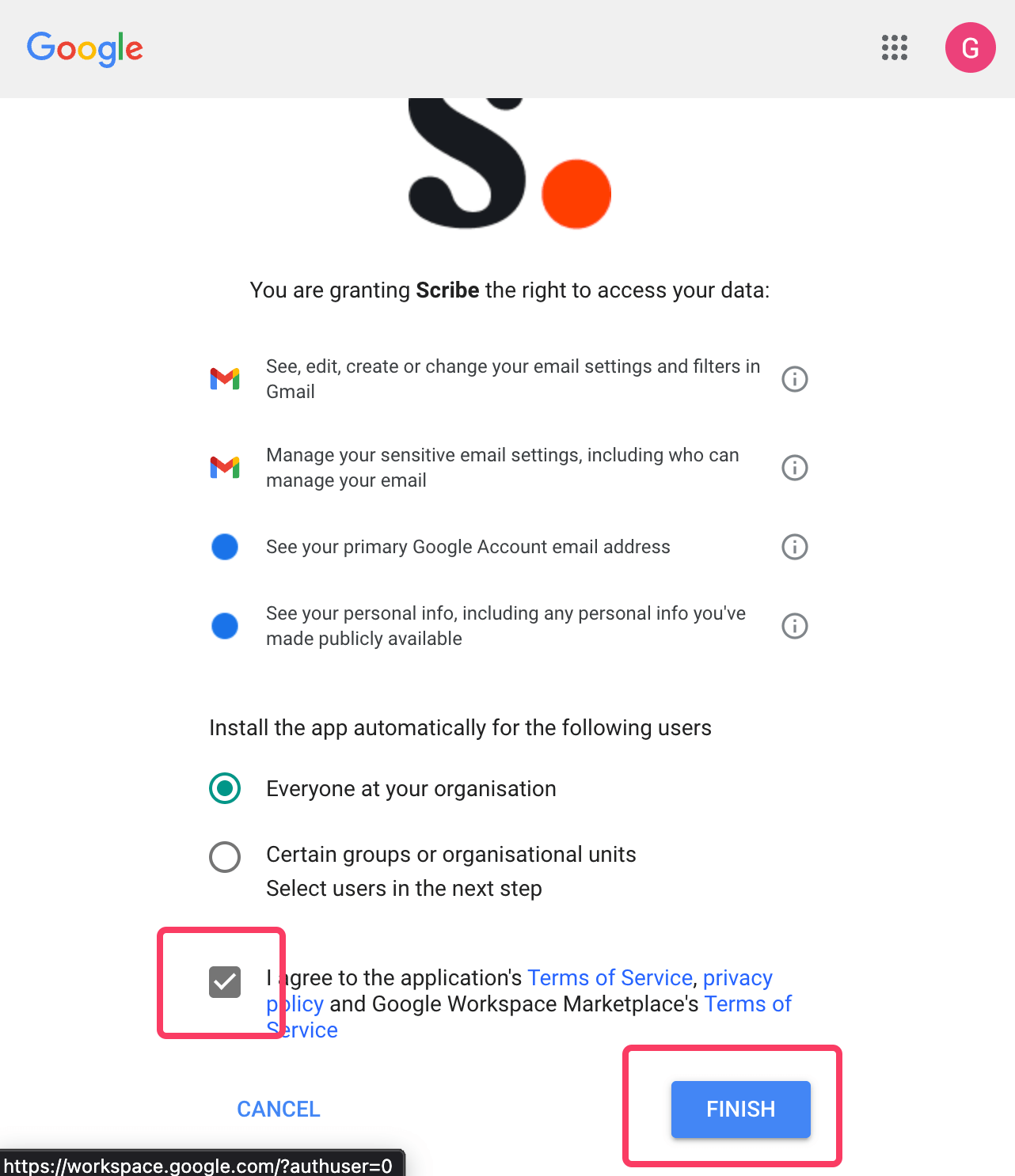 To give Scribe the required permissions, you need to be a Super Admin in your Google Workspace. Invite someone from IT if you are not a Super Admin.
This integration works for Google Workspace users, not personal Gmail accounts.
## Related articles
* [Admin Policy Enforced](/en/troubleshooting/admin-policy-enforced)
* [Google Workspace access lost](/en/troubleshooting/google-workspace-access-lost)
* [Outlook add-in installation is not validating](/en/troubleshooting/outlook-add-in-installation-not-validating)
To give Scribe the required permissions, you need to be a Super Admin in your Google Workspace. Invite someone from IT if you are not a Super Admin.
This integration works for Google Workspace users, not personal Gmail accounts.
## Related articles
* [Admin Policy Enforced](/en/troubleshooting/admin-policy-enforced)
* [Google Workspace access lost](/en/troubleshooting/google-workspace-access-lost)
* [Outlook add-in installation is not validating](/en/troubleshooting/outlook-add-in-installation-not-validating)