> ## Documentation Index
> Fetch the complete documentation index at: https://help.scribe-mail.com/llms.txt
> Use this file to discover all available pages before exploring further.
# Google Workspace API forbidden access
> Fix the Google Workspace API forbidden access error by turning on the Scribe add-in for the organizational unit or group your teammate belongs to.
When you see the message "Google Workspace API has forbidden access to this teammate's signature," Scribe is not allowed to install that teammate's signature. This happens when the Scribe [Google Workspace add-in](/en/integrations/signatures/google-workspace-client-side) is turned off for the organizational unit or group the teammate belongs to.
An administrator controls which users can access the add-in from the Google Workspace admin console. To let Scribe install the signature, turn the add-in on for that teammate's organizational unit or group, or for everyone.
You need to be a Super Admin in your Google Workspace to change these settings. Invite someone from IT if you are not a Super Admin.
## Change who can access the add-in
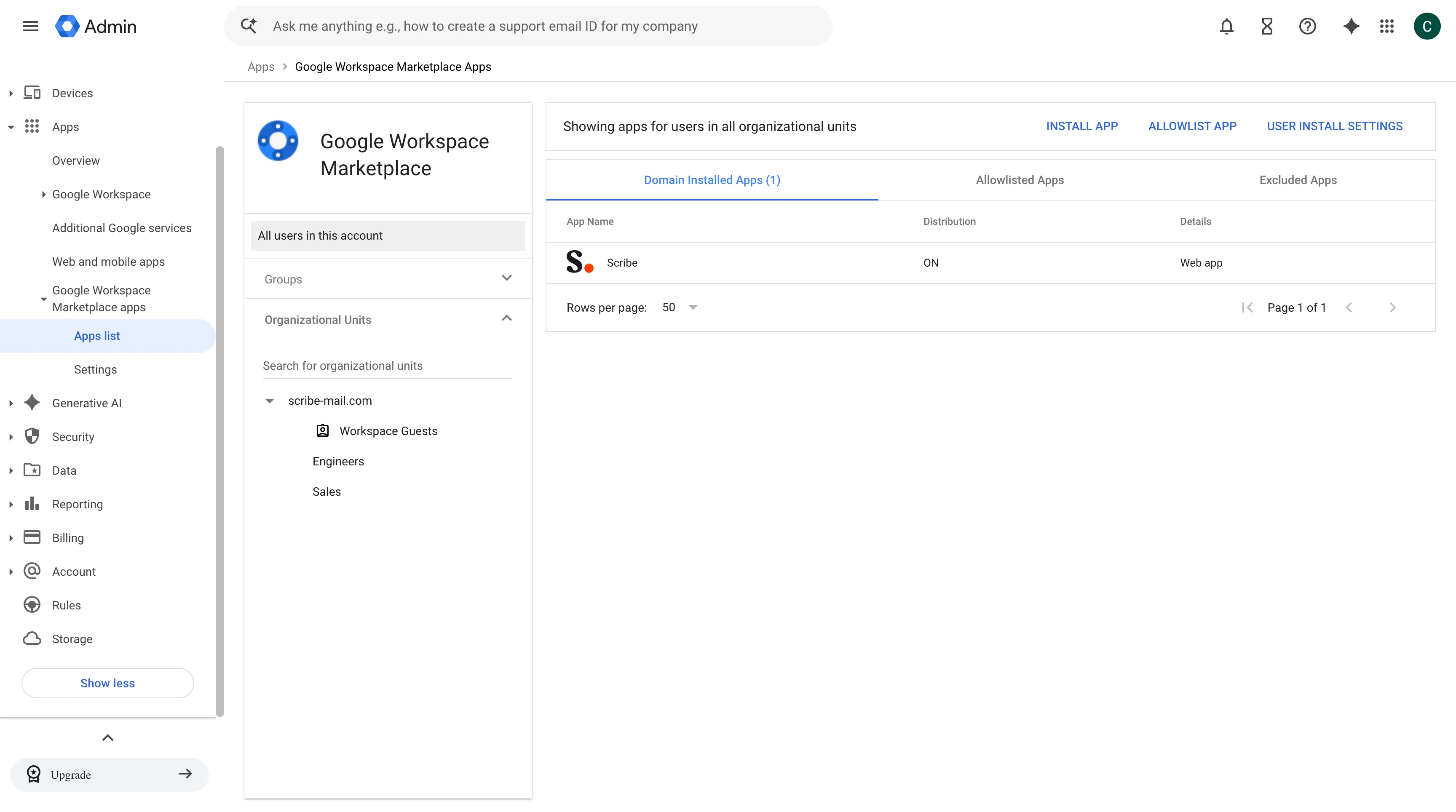
Open [your Google Workspace admin console](https://admin.google.com/), then go to Apps, Google Workspace Marketplace apps, and Apps list.
Select Scribe in the list of installed Marketplace apps.
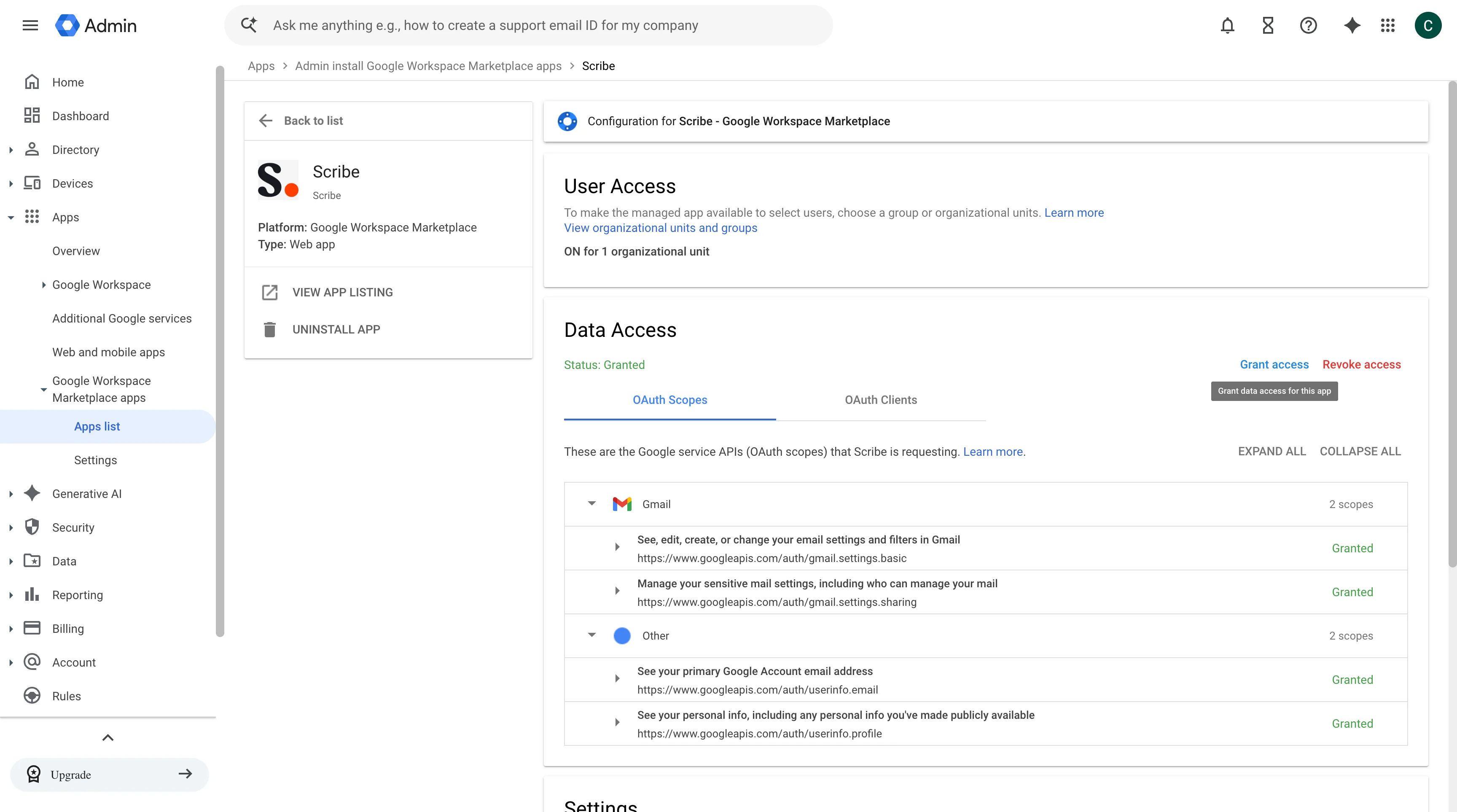
 In the User Access section, click "View organizational units and groups". This section also shows how many organizational units the add-in is currently turned on for.
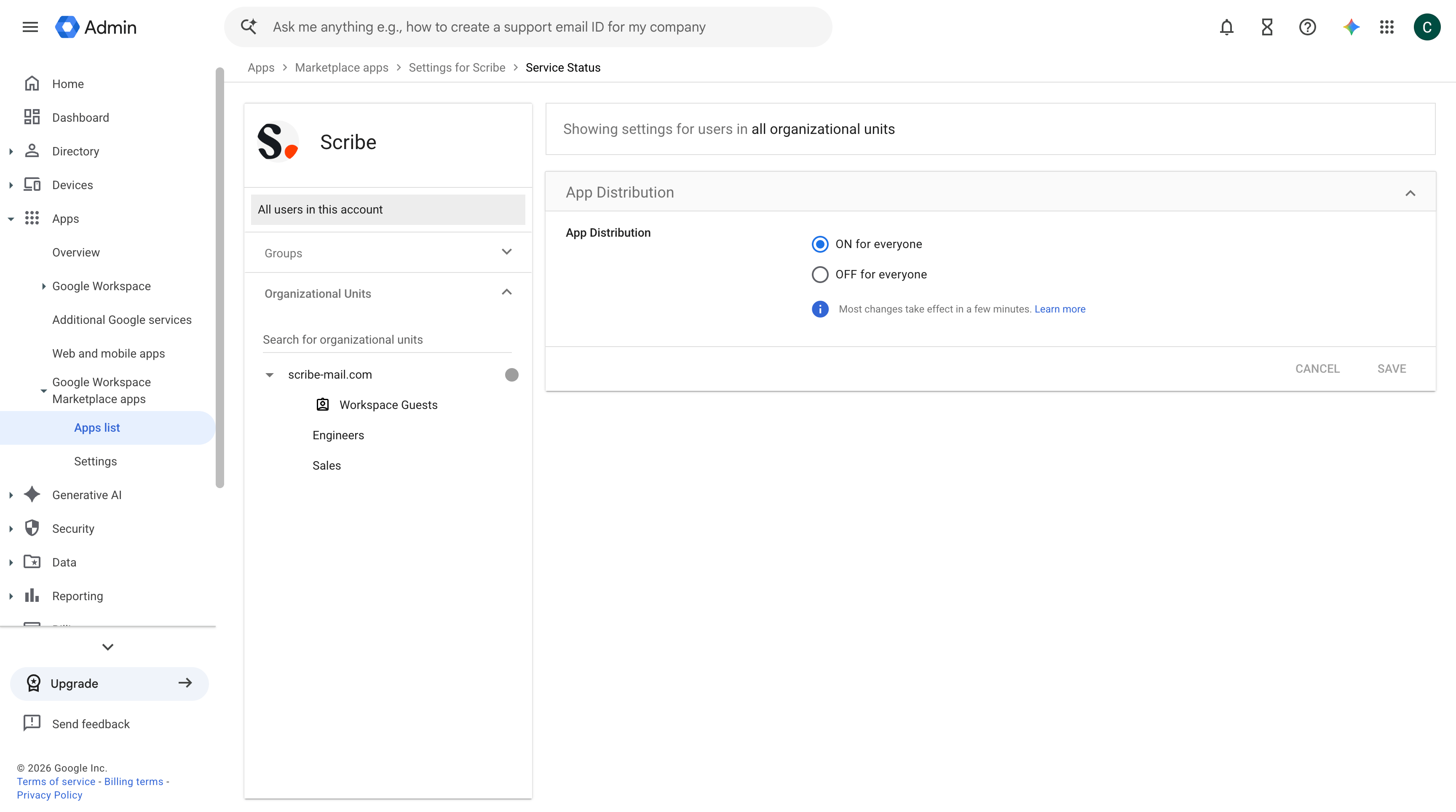
 Select the organizational unit or group that includes the teammate whose signature failed to install, then set App distribution to On. To make the add-in available to your whole domain instead, choose On for everyone. Click Save.
 Back in Scribe, install the teammate's signature again. Once the add-in has access, the status changes from Failed to Installed.
Changes in the Google Workspace admin console can take a few minutes to apply. If the signature still fails right after you save, wait a few minutes and reinstall.
## Related articles
* [Signature installation statuses and errors](/en/signature-installation-statuses-and-errors)
* [Google Workspace access lost](/en/troubleshooting/google-workspace-access-lost)
* [Google add-in not validating](/en/troubleshooting/google-add-in-not-validating)
* [Admin Policy Enforced](/en/troubleshooting/admin-policy-enforced)
Back in Scribe, install the teammate's signature again. Once the add-in has access, the status changes from Failed to Installed.
Changes in the Google Workspace admin console can take a few minutes to apply. If the signature still fails right after you save, wait a few minutes and reinstall.
## Related articles
* [Signature installation statuses and errors](/en/signature-installation-statuses-and-errors)
* [Google Workspace access lost](/en/troubleshooting/google-workspace-access-lost)
* [Google add-in not validating](/en/troubleshooting/google-add-in-not-validating)
* [Admin Policy Enforced](/en/troubleshooting/admin-policy-enforced)