> ## Documentation Index
> Fetch the complete documentation index at: https://help.scribe-mail.com/llms.txt
> Use this file to discover all available pages before exploring further.
# How to update the Scribe Microsoft add in
> Manually approve and install updates for the Scribe Microsoft add-in through the Microsoft 365 admin center so users get the latest version safely.
## Overview
Some updates to the Scribe [add-in](/en/integrations/signatures/microsoft-365-client-side) cannot be applied automatically. In these cases, you need to manually approve the update in the Microsoft admin center. Only the admin of your Microsoft 365 organization needs to do this once. No action is required from your teammates.
## Why update?
Keeping your Scribe add-in up to date ensures access to the latest signature features, automatic signature installation for iOS and Android Outlook apps, improved performance and security, and compatibility with the latest Microsoft 365 updates.
## How to update
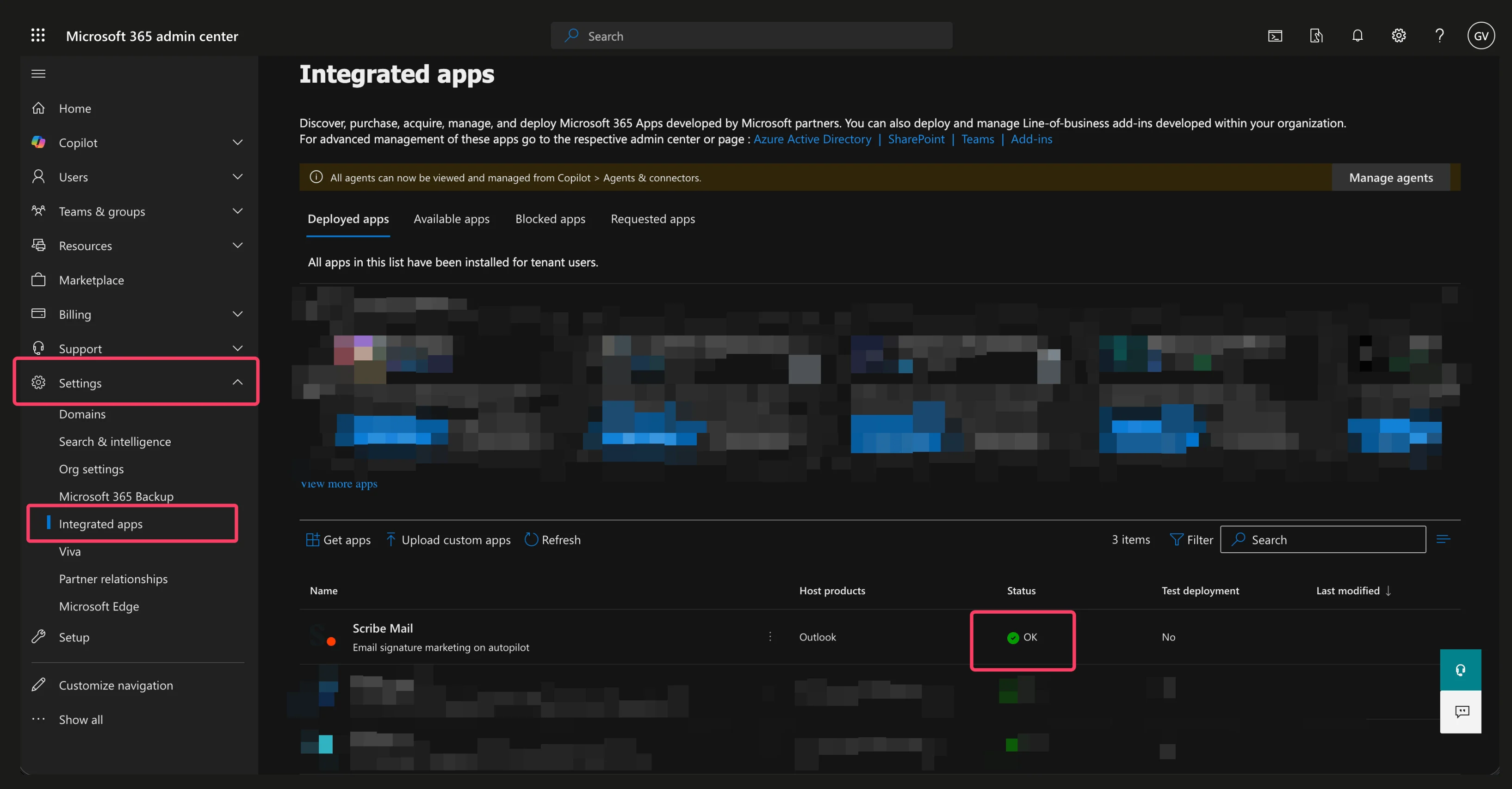
Go to the [Integrated apps](https://admin.cloud.microsoft.com/?#/Settings/IntegratedApps) section in your Microsoft 365 admin center.
Alternatively, navigate there manually by opening the Microsoft 365 admin center, clicking "Settings" in the left sidebar, and selecting "Integrated apps."
In the "Deployed apps" tab, locate "Scribe Mail" in the list of integrated apps. If an update is available, you will see "Upgrade" in the Status column. Click on the Scribe Mail row to open the details pane.
On the opened pane, if you see the message "Scribe Mail has updates pending," you have an update available.
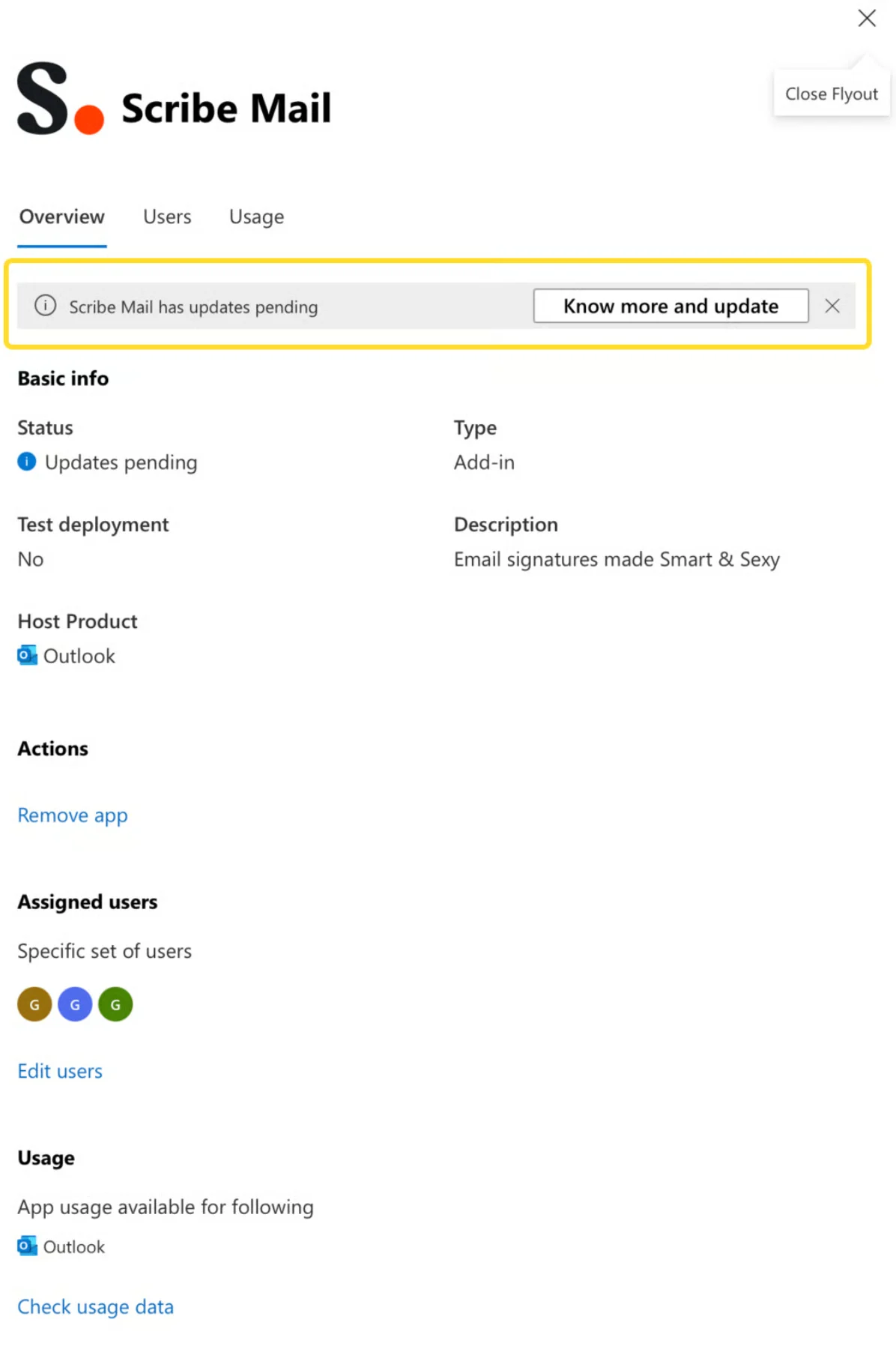 Click the "Know more and update" button and follow the prompts to approve and install the latest version. The update typically takes just a few moments.
After the update completes, return to the Integrated apps page. You should now see "OK" with a green indicator in the Status column for Scribe Mail, confirming that your add-in is up to date.
Click the "Know more and update" button and follow the prompts to approve and install the latest version. The update typically takes just a few moments.
After the update completes, return to the Integrated apps page. You should now see "OK" with a green indicator in the Status column for Scribe Mail, confirming that your add-in is up to date.
 ## What happens after the update
Once the update is complete, all users will automatically receive the latest version of the Scribe add-in. Email signatures will be automatically installed for iOS and Android Outlook apps for applicable updates. No action is required from end users, and signatures will continue to work seamlessly across all platforms.
We recommend checking for updates periodically or whenever you are notified of new features being released. If you encounter any issues during the update process, please [contact our support team](https://go.crisp.chat/chat/embed/?website_id=520828ac-2ec0-40d7-a5fd-b14c66323a7a).
## Related articles
* [Outlook add-in installation is not validating](/en/troubleshooting/outlook-add-in-installation-not-validating)
* [Outlook Web add-in signatures not being installed](/en/troubleshooting/outlook-web-add-in-signatures-not-being-installed)
* [Switch to new Outlook version](/en/troubleshooting/switch-to-new-outlook-version)
## What happens after the update
Once the update is complete, all users will automatically receive the latest version of the Scribe add-in. Email signatures will be automatically installed for iOS and Android Outlook apps for applicable updates. No action is required from end users, and signatures will continue to work seamlessly across all platforms.
We recommend checking for updates periodically or whenever you are notified of new features being released. If you encounter any issues during the update process, please [contact our support team](https://go.crisp.chat/chat/embed/?website_id=520828ac-2ec0-40d7-a5fd-b14c66323a7a).
## Related articles
* [Outlook add-in installation is not validating](/en/troubleshooting/outlook-add-in-installation-not-validating)
* [Outlook Web add-in signatures not being installed](/en/troubleshooting/outlook-web-add-in-signatures-not-being-installed)
* [Switch to new Outlook version](/en/troubleshooting/switch-to-new-outlook-version)