> ## Documentation Index
> Fetch the complete documentation index at: https://help.scribe-mail.com/llms.txt
> Use this file to discover all available pages before exploring further.
# Images are not showing
> Fix images not displaying in your Apple Mail email signature from Scribe by adjusting Mail privacy settings and clearing the cached signature data.
If images are not showing when sending an email, check your privacy settings and disable the "Protect Mail Activity" option.
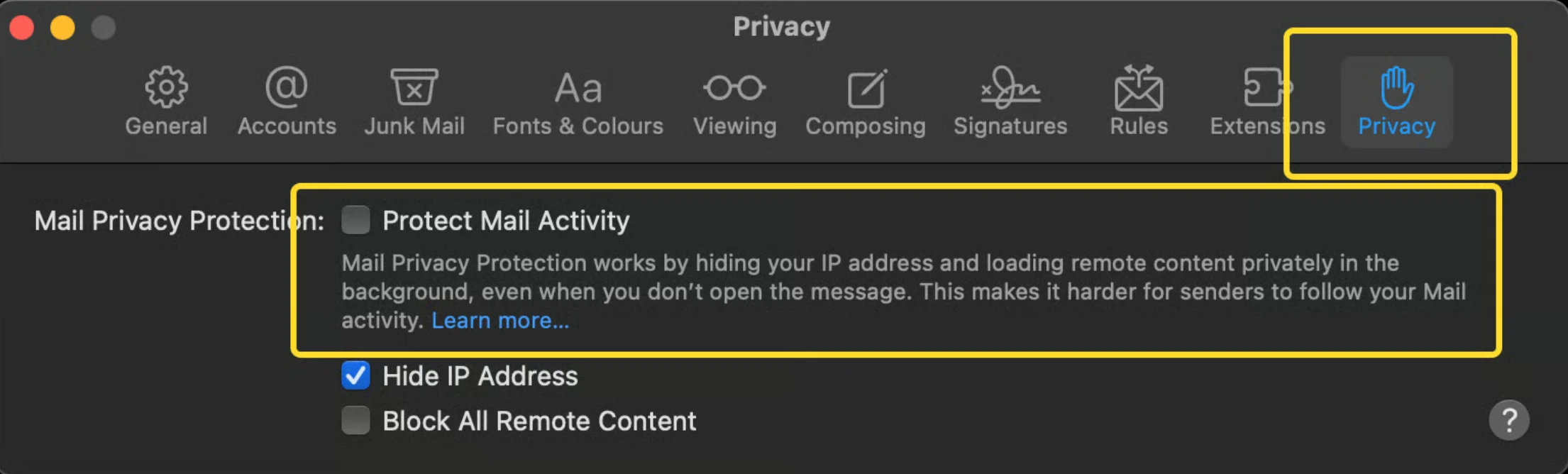 Sometimes, even if you disable this setting, [Apple Mail](/en/integrations/signatures/apple-mail) will not show your images. This is a known bug in Apple Mail HTML signatures. But do not worry, images will show up perfectly fine for your recipients.
## Related articles
* [Unable to install signature](/en/troubleshooting/unable-to-install-signature)
* [Signature not appearing](/en/troubleshooting/signature-not-appearing)
* [Install signatures](/en/install-signatures)
Sometimes, even if you disable this setting, [Apple Mail](/en/integrations/signatures/apple-mail) will not show your images. This is a known bug in Apple Mail HTML signatures. But do not worry, images will show up perfectly fine for your recipients.
## Related articles
* [Unable to install signature](/en/troubleshooting/unable-to-install-signature)
* [Signature not appearing](/en/troubleshooting/signature-not-appearing)
* [Install signatures](/en/install-signatures)