> ## Documentation Index
> Fetch the complete documentation index at: https://help.scribe-mail.com/llms.txt
> Use this file to discover all available pages before exploring further.
# Switch to new Outlook version
> Switch to the new Outlook version to fix Scribe signature insertion or display issues on Windows and macOS, with step-by-step toggle instructions.
If your signature is not being inserted in [Outlook](/en/integrations/signatures/microsoft-365-client-side) or is not displaying correctly, switch to the new Outlook version.
To do this, turn on the toggle switch located in the top right corner of your Outlook window.
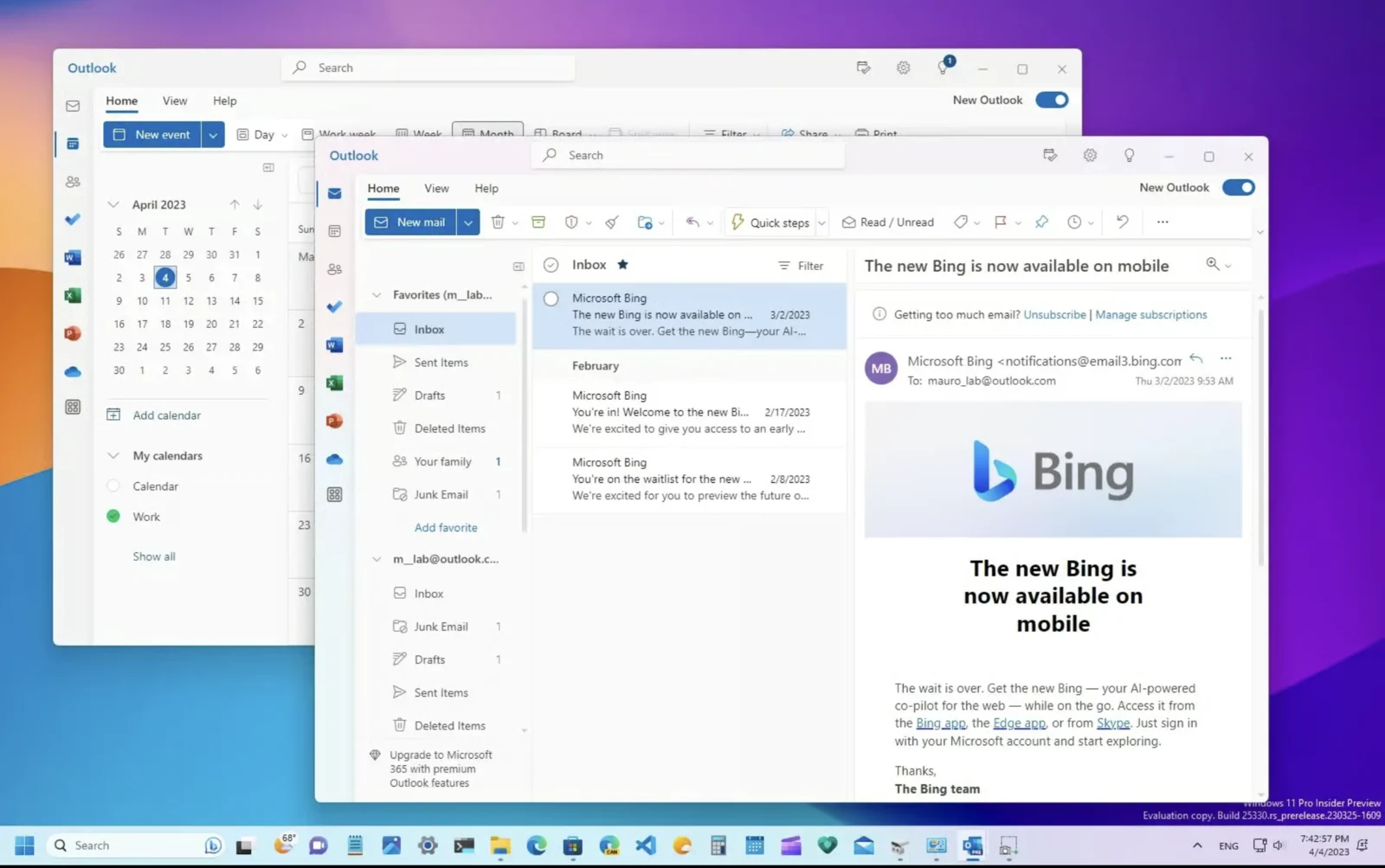 For detailed instructions, you can watch [Microsoft's tutorial video on getting started with the new Outlook for Windows](https://support.microsoft.com/en-us/office/getting-started-with-the-new-outlook-for-windows-656bb8d9-5a60-49b2-a98b-ba7822bc7627).
## Related articles
* [Outlook add-in installation is not validating](/en/troubleshooting/outlook-add-in-installation-not-validating)
* [How to update the Scribe Microsoft add-in](/en/troubleshooting/how-to-update-the-scribe-microsoft-add-in)
* [Outlook Web add-in signatures not being installed](/en/troubleshooting/outlook-web-add-in-signatures-not-being-installed)
For detailed instructions, you can watch [Microsoft's tutorial video on getting started with the new Outlook for Windows](https://support.microsoft.com/en-us/office/getting-started-with-the-new-outlook-for-windows-656bb8d9-5a60-49b2-a98b-ba7822bc7627).
## Related articles
* [Outlook add-in installation is not validating](/en/troubleshooting/outlook-add-in-installation-not-validating)
* [How to update the Scribe Microsoft add-in](/en/troubleshooting/how-to-update-the-scribe-microsoft-add-in)
* [Outlook Web add-in signatures not being installed](/en/troubleshooting/outlook-web-add-in-signatures-not-being-installed)