> ## Documentation Index
> Fetch the complete documentation index at: https://help.scribe-mail.com/llms.txt
> Use this file to discover all available pages before exploring further.
# ChartHop
> Mantén las firmas de correo electrónico precisas y actualizadas sincronizando los datos de empleados desde ChartHop, tu plataforma de RR. HH. y organigrama, como el puesto y el departamento.
Sigue estos pasos para [rellenar automáticamente las firmas de tus miembros del equipo](/es/smart-fields) usando ChartHop como fuente de datos.
**No se requiere ninguna acción por parte de tus miembros del equipo.**
**Los cambios en ChartHop se sincronizan automáticamente con Scribe.**
**Certificado SOC 2 Type II.** [Tus datos están seguros](/es/security/data-collection/charthop).
## Guía de instalación
### Requisitos previos
* Una cuenta de Scribe con acceso de administrador
* Una cuenta de ChartHop con acceso a Apps & Bundles
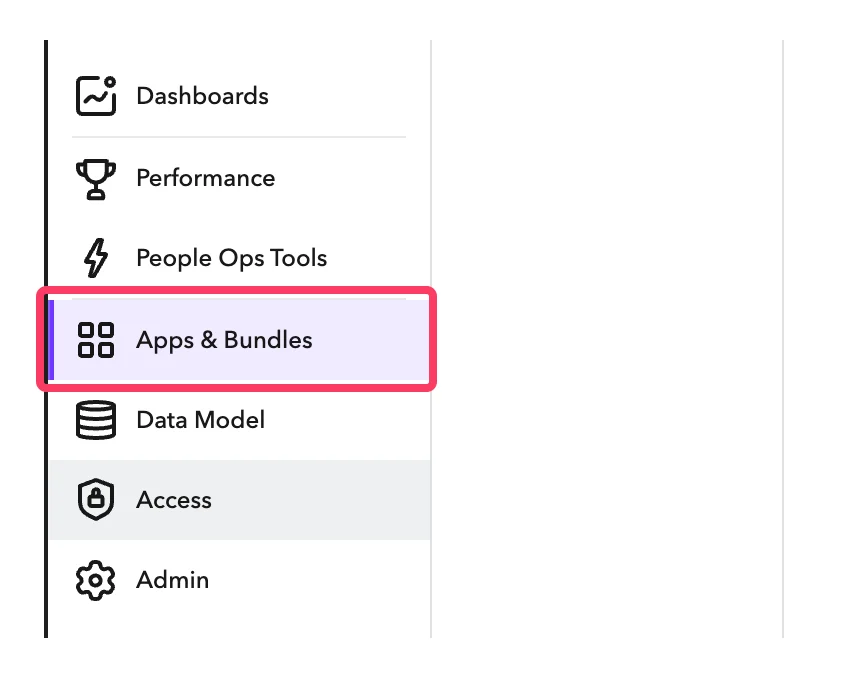
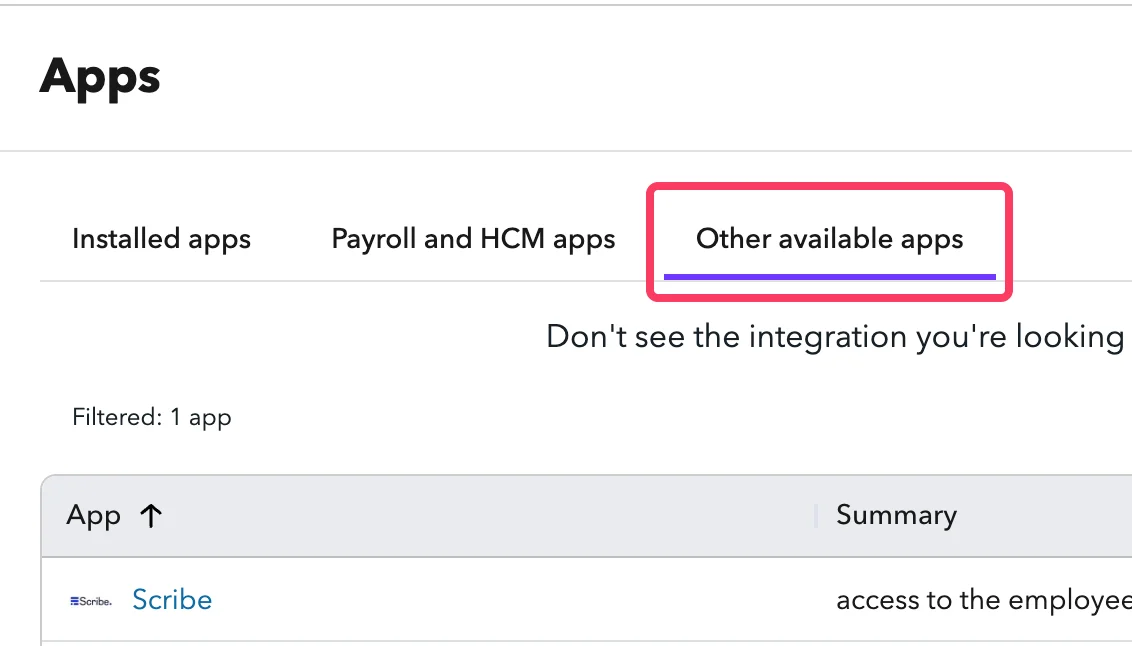
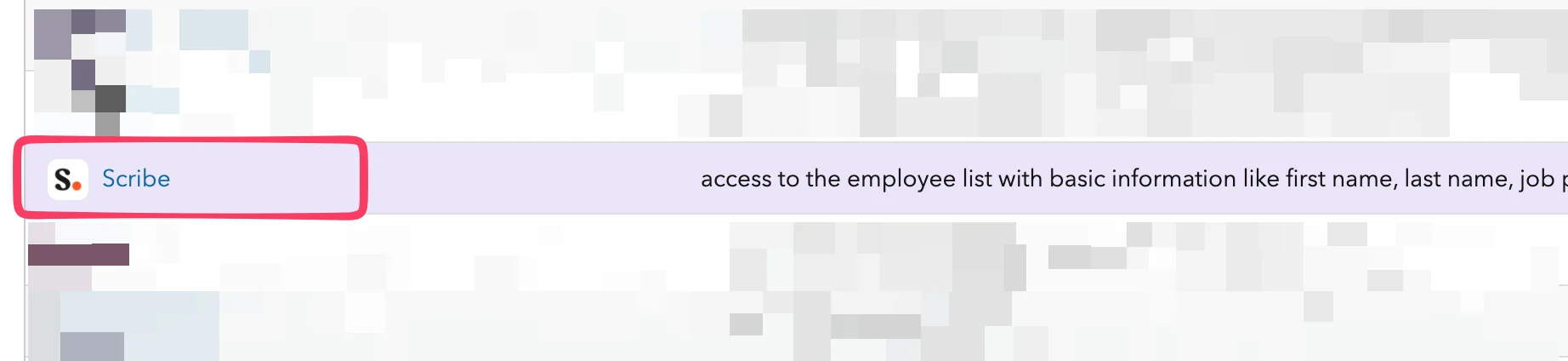
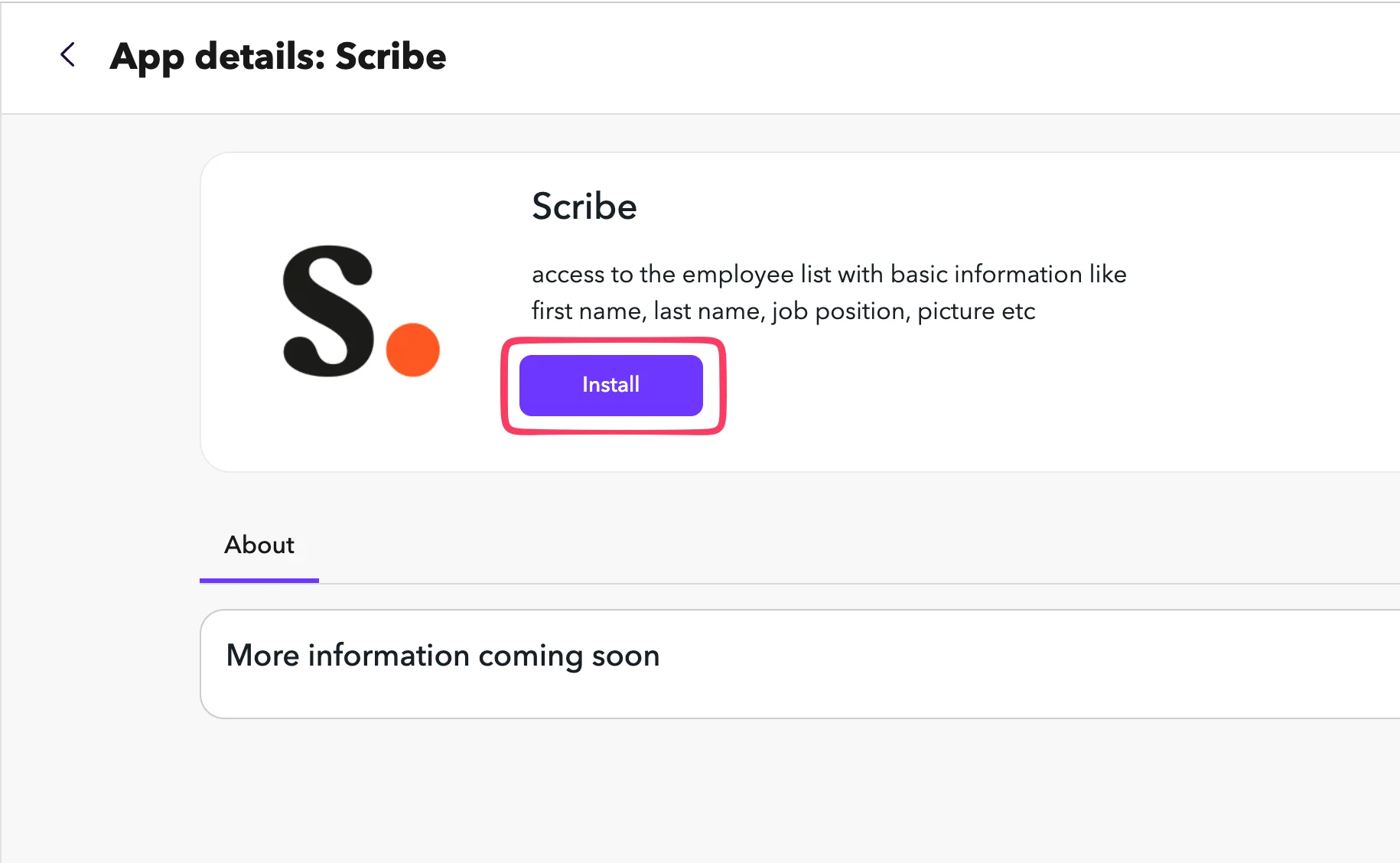 En ChartHop, ve a la pestaña **Settings** de la app de Scribe. Copia el **API Token** y pégalo en el campo API Token de Scribe.
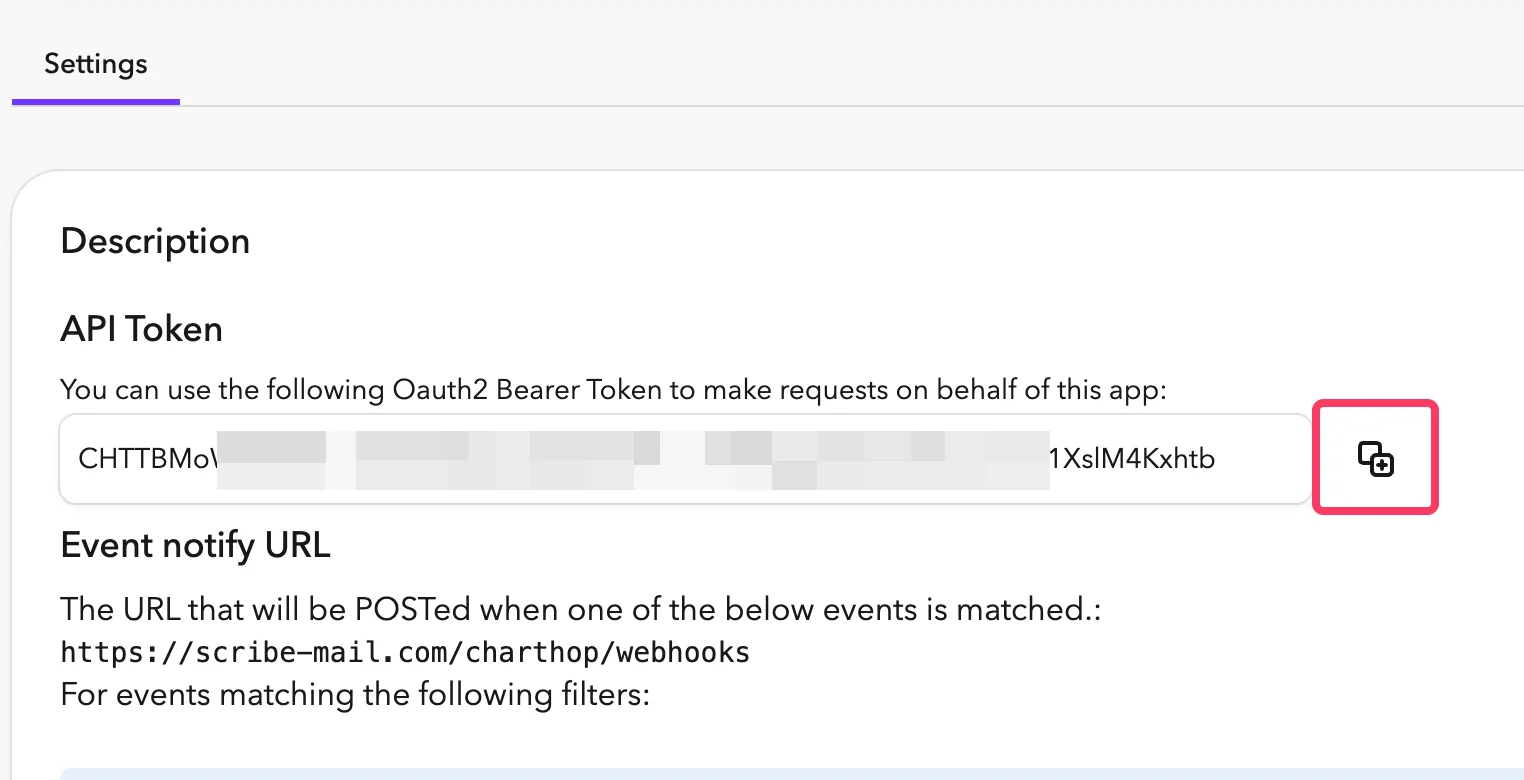 Tu Org Nickname es la parte que aparece justo después de `app.charthop.com/` en tu URL de ChartHop. Introdúcelo en el campo **ChartHop Org Nickname** de Scribe y luego haz clic en **Connect ChartHop**.
 ## Artículos relacionados
* [Deel](/es/integrations/smart-fields/deel-smart-fields): sincroniza los datos de Deel en tus firmas.
* [Gusto](/es/integrations/smart-fields/gusto-smart-fields): sincroniza los datos de Gusto en tus firmas.
* [Asignar miembros del equipo a una firma](/es/assign-teammates-to-a-signature): usa condiciones de Smartfield para asignar firmas automáticamente.
## Artículos relacionados
* [Deel](/es/integrations/smart-fields/deel-smart-fields): sincroniza los datos de Deel en tus firmas.
* [Gusto](/es/integrations/smart-fields/gusto-smart-fields): sincroniza los datos de Gusto en tus firmas.
* [Asignar miembros del equipo a una firma](/es/assign-teammates-to-a-signature): usa condiciones de Smartfield para asignar firmas automáticamente.