> ## Documentation Index
> Fetch the complete documentation index at: https://help.scribe-mail.com/llms.txt
> Use this file to discover all available pages before exploring further.

# Google Workspace

> Scribeのアドインをスーパー管理者としてワンクリックで追加するだけで、チームのGoogle Workspace全体にScribeのメール署名を導入できます。チームメンバー側での作業は不要です。

<Info>
  **一元化されたワンクリックインストール。** チームメンバー側での操作は不要です。ユーザーはメール作成時に署名を確認できます。クラウドベースのインストール:[メールはScribeのサーバーを経由しません](/ja/integrations/signatures/google-workspace-server-side)。
</Info>

<Info>
  **対応プラットフォーム:** Web、iOS
</Info>

## 導入ガイド

<Warning>
  Scribe Appを導入するには、Google Workspaceの**スーパー管理者**である必要があります。
</Warning>

<Steps>
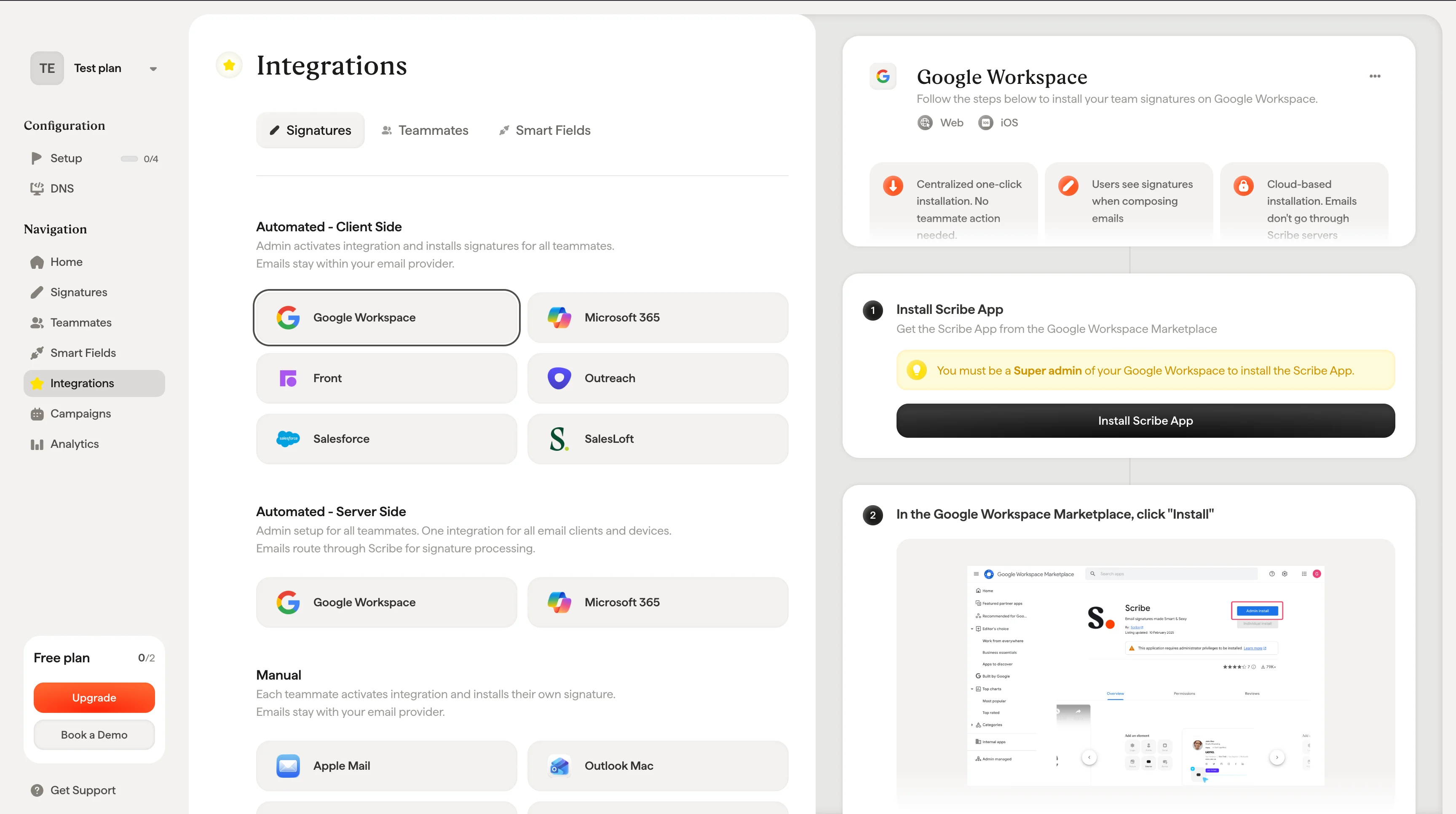
  <Step title="Scribe Appを導入">
    Google Workspace MarketplaceからScribe Appを入手します。

    Scribe内で**Install Scribe App**をクリックし、Google Workspace Marketplaceを開きます。
    <Frame>
      <img src="https://mintcdn.com/scribe/Z_G2D9X-Tlrxu_Eh/images/google-workspace-install-scribe-app-button.png?fit=max&auto=format&n=Z_G2D9X-Tlrxu_Eh&q=85&s=81129db47cad097bef6fe5c4a671dfad" alt="ScribeのGoogle Workspace設定画面に表示されるInstall Scribe Appボタン" width="3456" height="1932" data-path="images/google-workspace-install-scribe-app-button.png" />
    </Frame>
  </Step>

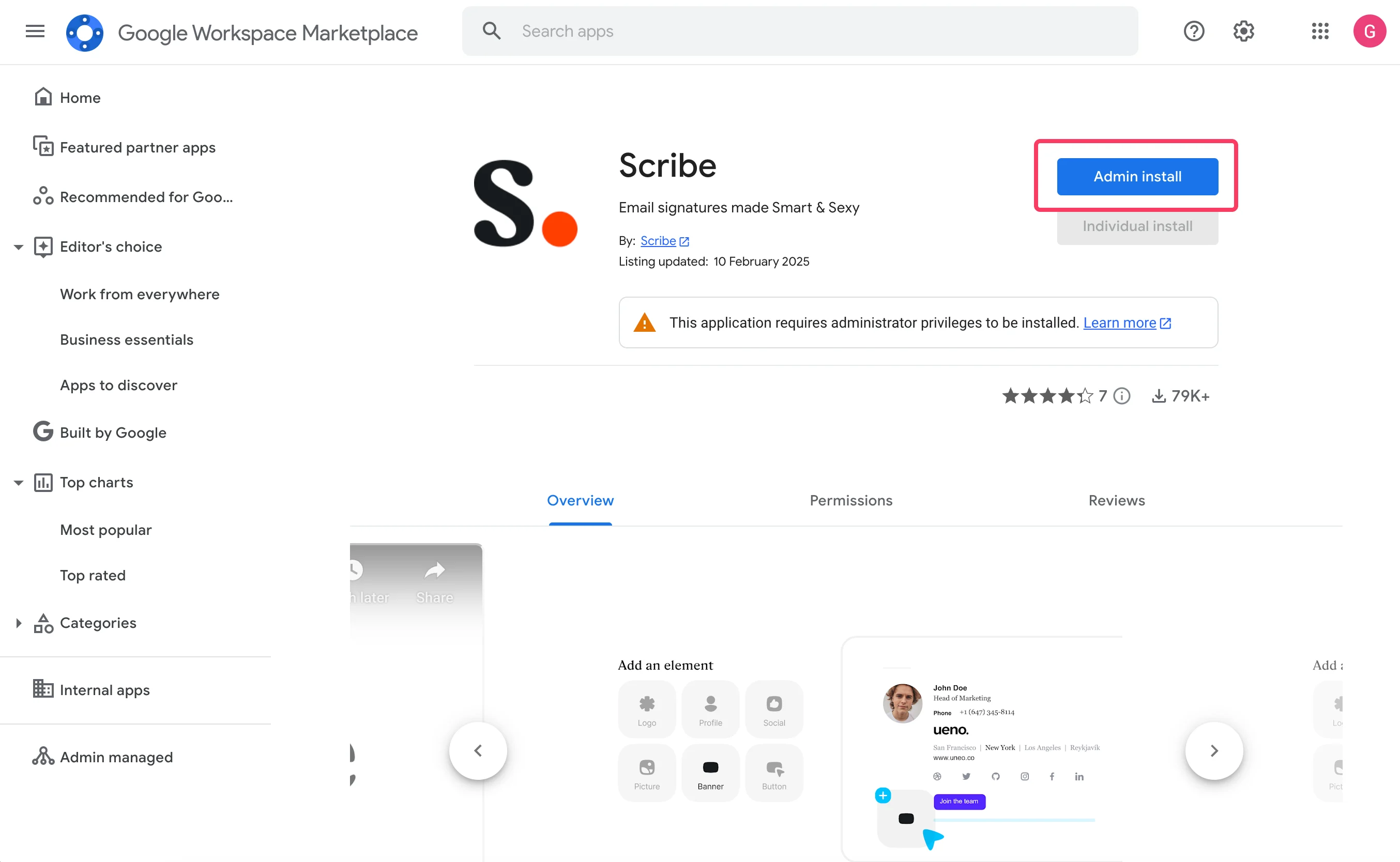
  <Step title="Google Workspace Marketplaceで &#x22;Install&#x22; をクリック">
    <Frame>
      <img src="https://mintcdn.com/scribe/I5V9iTucPI_EY3nq/integrations/signatures/images/gw-step-2.png?fit=max&auto=format&n=I5V9iTucPI_EY3nq&q=85&s=a48f84df85039c58b423b68ae8fc65f4" alt="Google Workspace MarketplaceのScribeアプリ掲載ページ。Admin Installボタンがハイライトされている" width="2708" height="1668" data-path="integrations/signatures/images/gw-step-2.png" />
    </Frame>
  </Step>

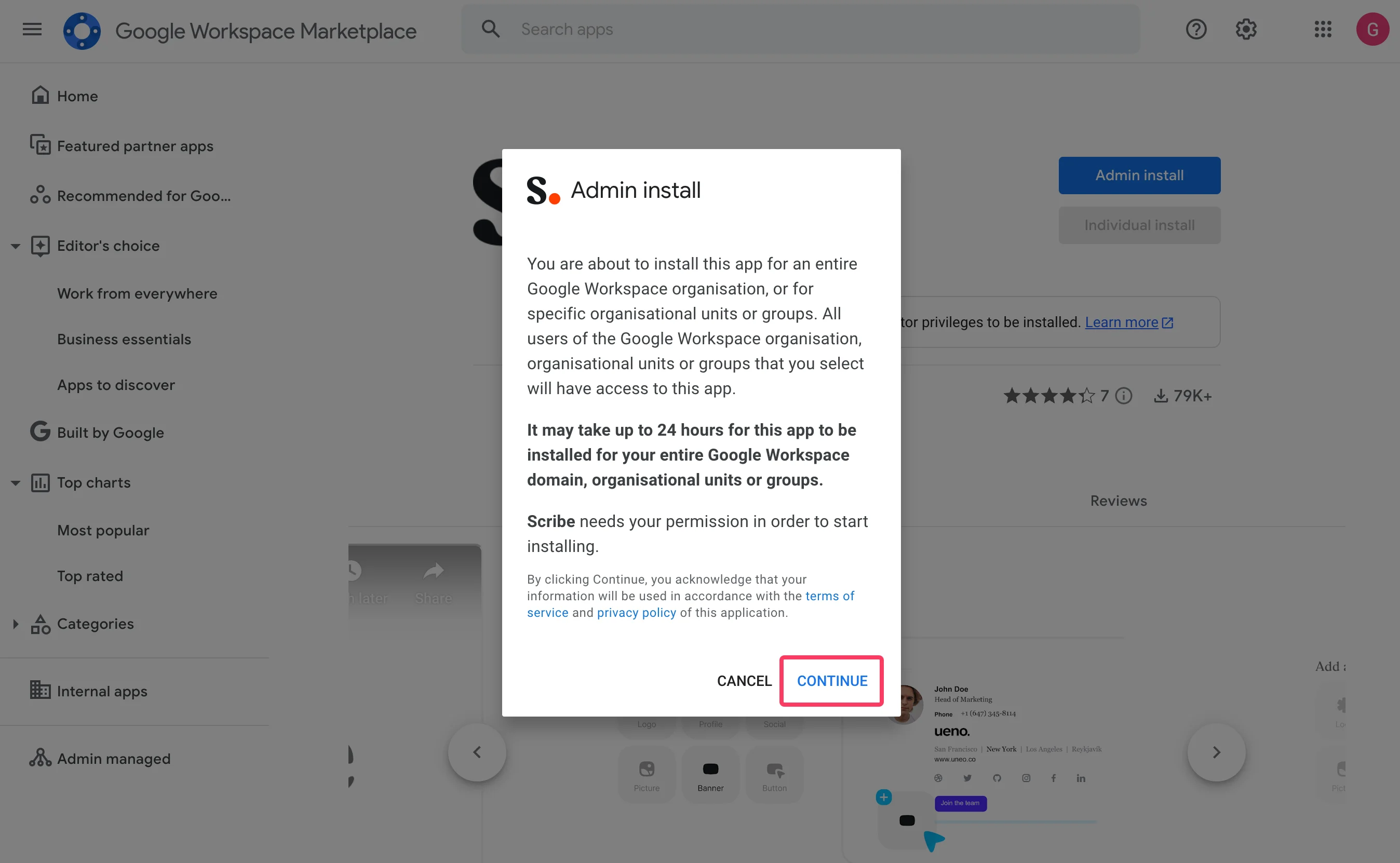
  <Step title="&#x22;Admin install&#x22; モーダルで &#x22;Continue&#x22; をクリック">
    <Frame>
      <img src="https://mintcdn.com/scribe/I5V9iTucPI_EY3nq/integrations/signatures/images/gw-step-3.png?fit=max&auto=format&n=I5V9iTucPI_EY3nq&q=85&s=de382ac3ca41cf702f31bbc8576ef1dc" alt="Google Workspace MarketplaceのAdmin installモーダル。Continueボタンがハイライトされている" width="2696" height="1662" data-path="integrations/signatures/images/gw-step-3.png" />
    </Frame>
  </Step>

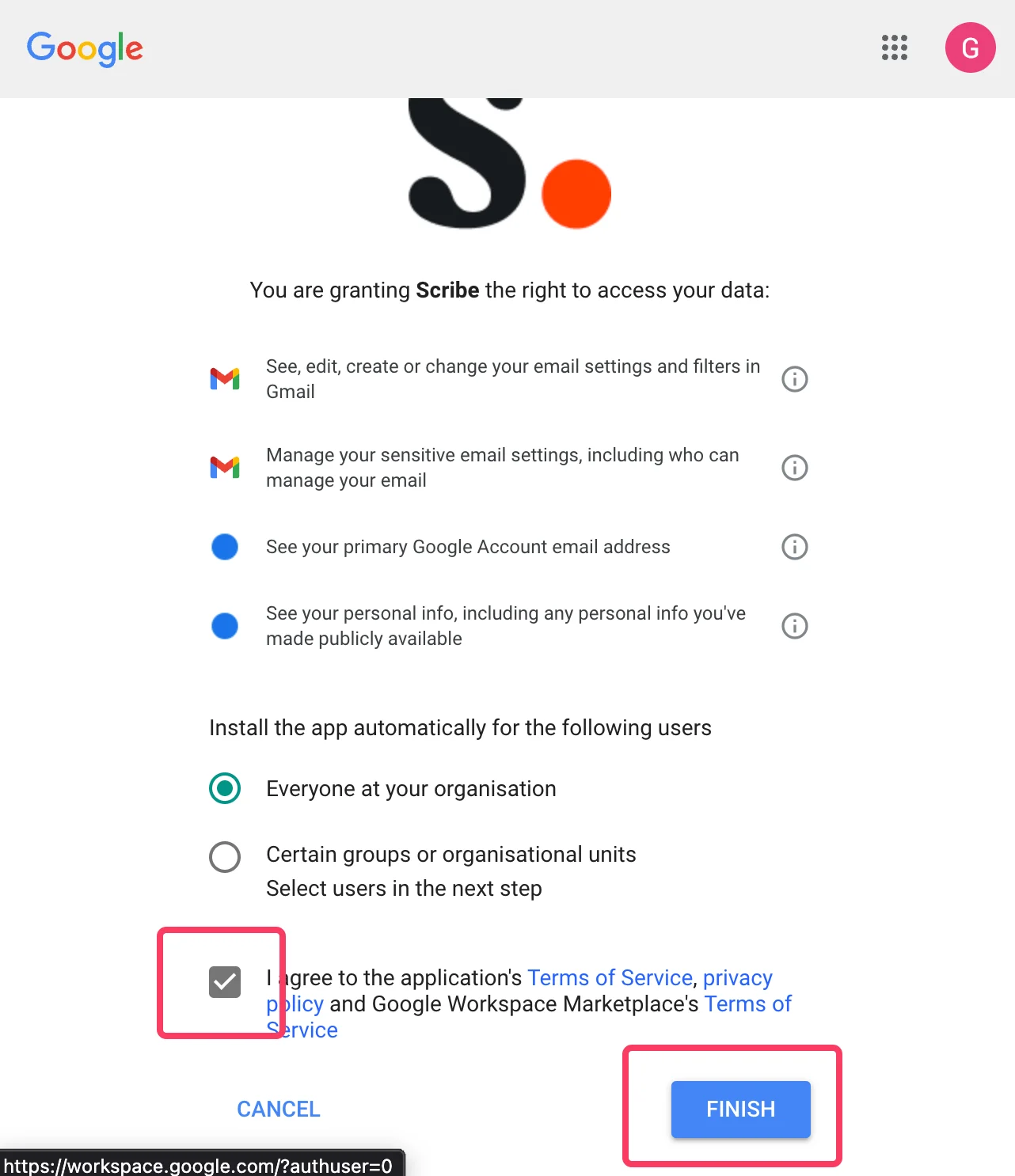
  <Step title="データアクセスを承認">
    "Everyone at your organization" と "I agree to the application terms of service." を必ず選択してください。
    <Frame>
      <img src="https://mintcdn.com/scribe/I5V9iTucPI_EY3nq/integrations/signatures/images/gw-step-4.png?fit=max&auto=format&n=I5V9iTucPI_EY3nq&q=85&s=69c222aa3d1317946df0ba5562498481" alt="Googleのデータアクセス承認画面。Everyone at your organizationが選択され、利用規約のチェックボックスがハイライトされている" className="mx-auto" style={{ width:"68%" }} width="1282" height="1486" data-path="integrations/signatures/images/gw-step-4.png" />
    </Frame>
  </Step>

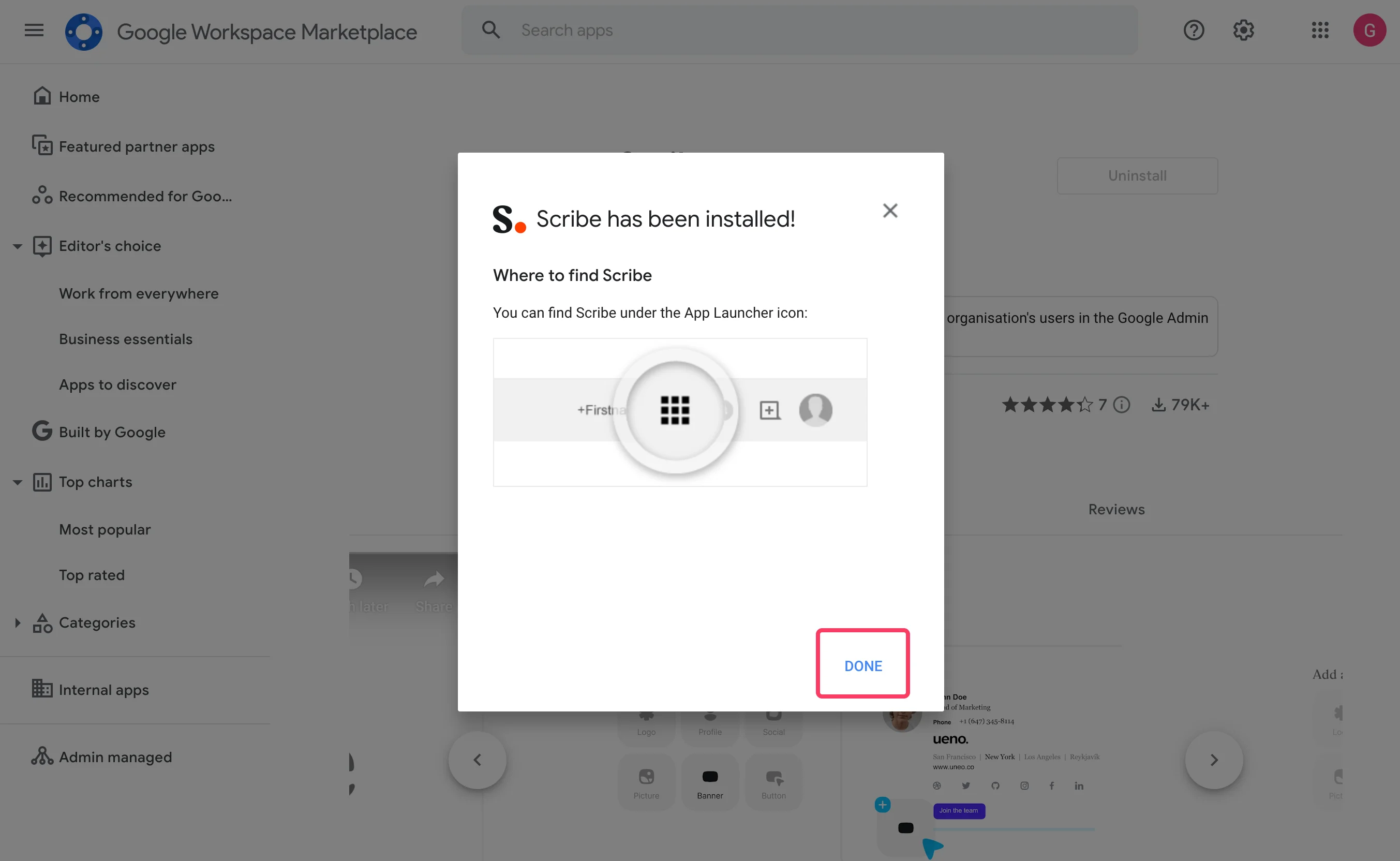
  <Step title="&#x22;Done&#x22; をクリックしてScribeに戻る">
    <Frame>
      <img src="https://mintcdn.com/scribe/I5V9iTucPI_EY3nq/integrations/signatures/images/gw-step-5.png?fit=max&auto=format&n=I5V9iTucPI_EY3nq&q=85&s=4b864e736a0d2419c73d425a1cd17676" alt="Scribeのインストール完了を知らせるモーダル。Doneボタンがハイライトされている" width="2706" height="1664" data-path="integrations/signatures/images/gw-step-5.png" />
    </Frame>
  </Step>

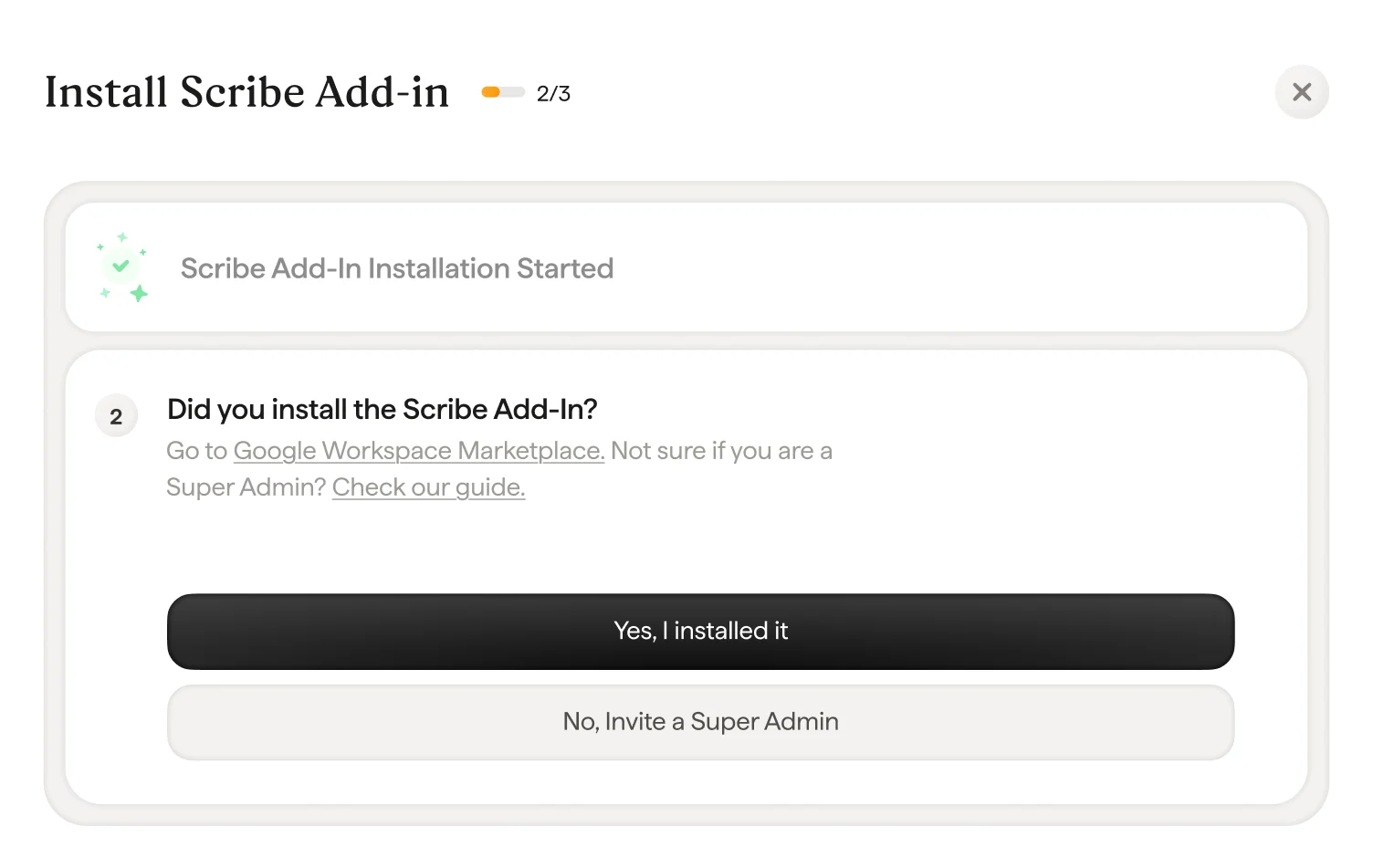
  <Step title="Scribeで &#x22;Yes I installed it&#x22; をクリックしてアドインの導入を確定">
    <Frame>
      <img src="https://mintcdn.com/scribe/I5V9iTucPI_EY3nq/integrations/signatures/images/gw-step-6.png?fit=max&auto=format&n=I5V9iTucPI_EY3nq&q=85&s=0f1b7c8df87de1e02214609e2406e7db" alt="ScribeのアドインインストールYes I installed itボタンが表示された確認画面" width="1504" height="951" data-path="integrations/signatures/images/gw-step-6.png" />
    </Frame>
  </Step>

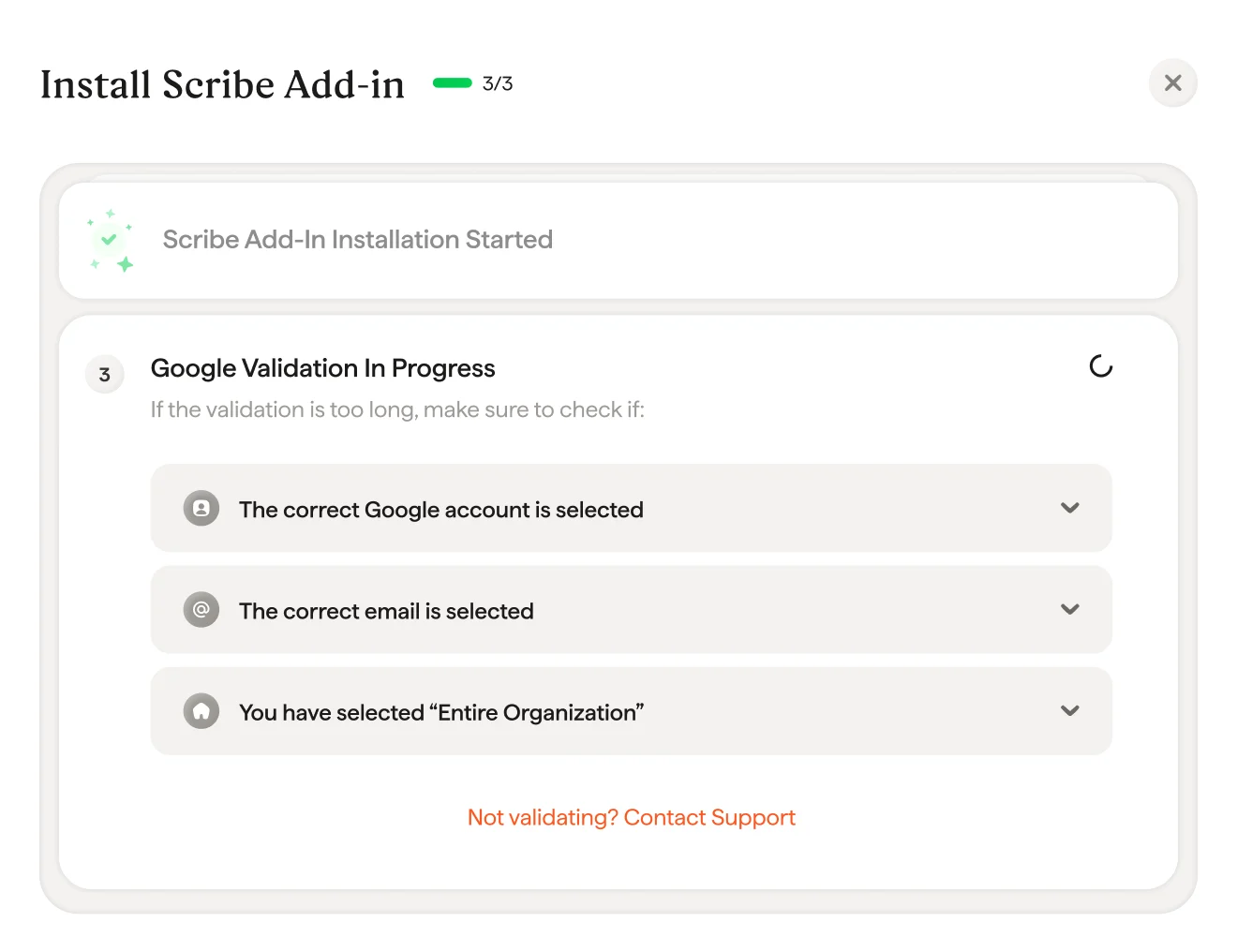
  <Step title="Googleの検証を待つ">
    検証は通常、数秒で完了します。完了しない場合は、モーダル内のトラブルシューティング一覧を必ず確認してください。
    <Frame>
      <img src="https://mintcdn.com/scribe/I5V9iTucPI_EY3nq/integrations/signatures/images/gw-step-7.png?fit=max&auto=format&n=I5V9iTucPI_EY3nq&q=85&s=2129366880b09719832617b555734dfa" alt="トラブルシューティングのチェックリストが表示されたGoogle検証中の画面" width="1320" height="1016" data-path="integrations/signatures/images/gw-step-7.png" />
    </Frame>
  </Step>

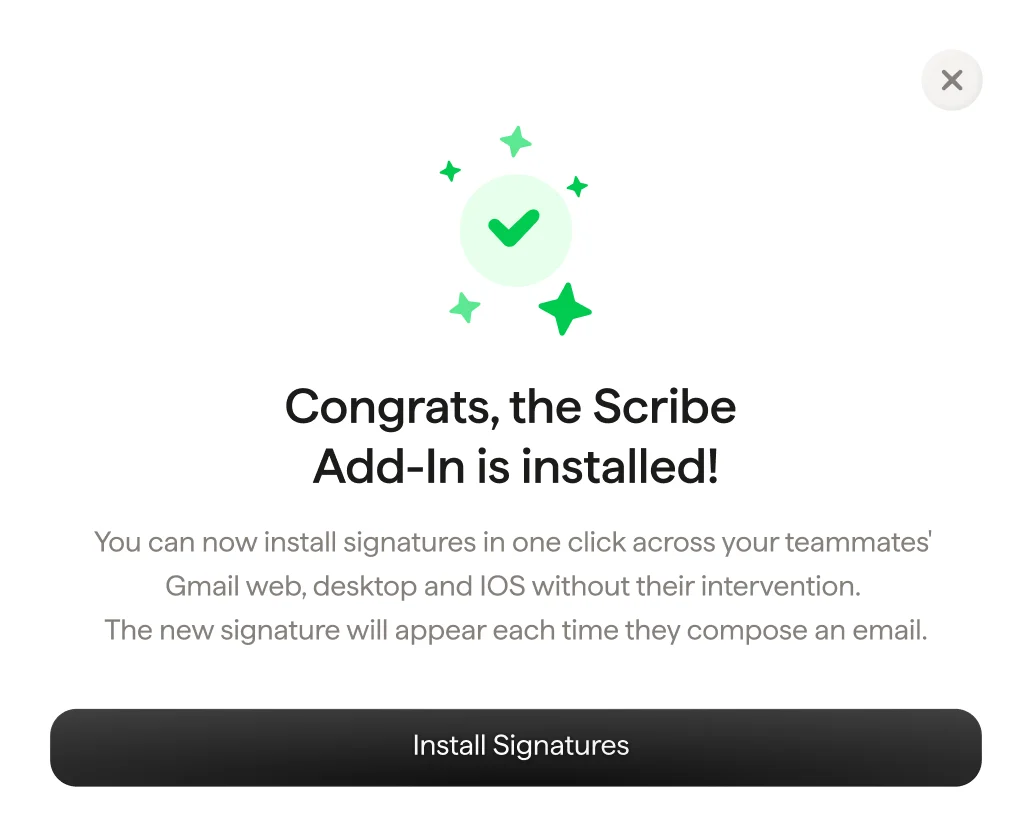
  <Step title="Scribeアドインのインストール完了">
    検証完了のモーダルが表示されたら、"Install signature" をクリックしてScribeの署名一覧に移動します。
    <Frame>
      <img src="https://mintcdn.com/scribe/I5V9iTucPI_EY3nq/integrations/signatures/images/gw-step-8.png?fit=max&auto=format&n=I5V9iTucPI_EY3nq&q=85&s=838f8310a4802a92ab3433b06cc02945" alt="Scribeアドインのインストール完了を知らせる確認画面と「Install Signatures」ボタン" className="mx-auto" style={{ width:"82%" }} width="1032" height="836" data-path="integrations/signatures/images/gw-step-8.png" />
    </Frame>
  </Step>

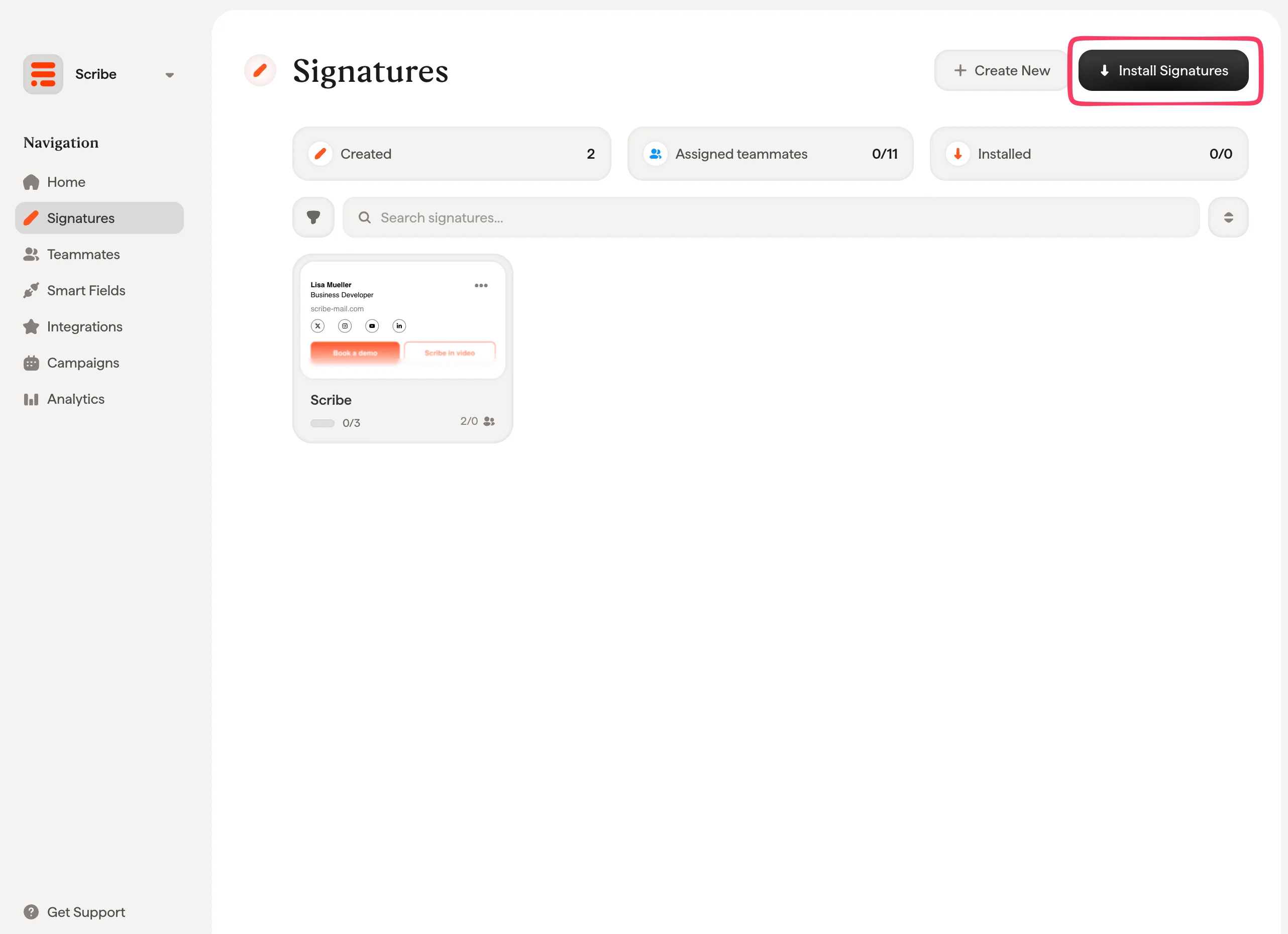
  <Step title="チーム署名をインストール">
    署名リストから、[チームメンバー全員分の署名を一括でインストール](/ja/install-signatures)するか、段階的に展開するため一つずつインストールできます。
    <Frame>
      <img src="https://mintcdn.com/scribe/I5V9iTucPI_EY3nq/integrations/signatures/images/gw-step-9.png?fit=max&auto=format&n=I5V9iTucPI_EY3nq&q=85&s=7966ca1cc3ae1bd87801ce67cd060f10" alt="Install Signaturesボタンが強調されたScribeの署名一覧" width="2564" height="1860" data-path="integrations/signatures/images/gw-step-9.png" />
    </Frame>
  </Step>
</Steps>

## 関連記事

* [連携の概要](/ja/integrations-overview):クラウドまたはサーバーサイドでScribe署名を展開するすべての方法。
* [Microsoft 365](/ja/integrations/signatures/microsoft-365-client-side):Microsoft 365とOutlook向けのワンクリッククラウドインストール。
* [インストール状態とエラー](/ja/signature-installation-statuses-and-errors):各インストール状態の意味とエラーの対処方法。