> ## Documentation Index
> Fetch the complete documentation index at: https://help.scribe-mail.com/llms.txt
> Use this file to discover all available pages before exploring further.

# ChartHop

> HRおよび組織図プラットフォームのChartHopから、役職や部署などの従業員情報を同期し、メール署名を正確かつ最新に保ちます。

ChartHopをデータソースとして[チームメンバーの署名を自動入力](/ja/smart-fields)するには、以下の手順に従ってください。

<Info>
  **チームメンバー側での操作は不要です。**
</Info>

<Info>
  **ChartHopの変更内容はScribeに自動同期されます。**
</Info>

<Info>
  **SOC 2 Type II 認証取得済み。**[データは安全に保護されます](/ja/security/data-collection/charthop)。
</Info>

## インストールガイド

### 前提条件

* 管理者権限を持つScribeアカウント
* Apps & Bundlesにアクセスできる ChartHopアカウント
<Steps>
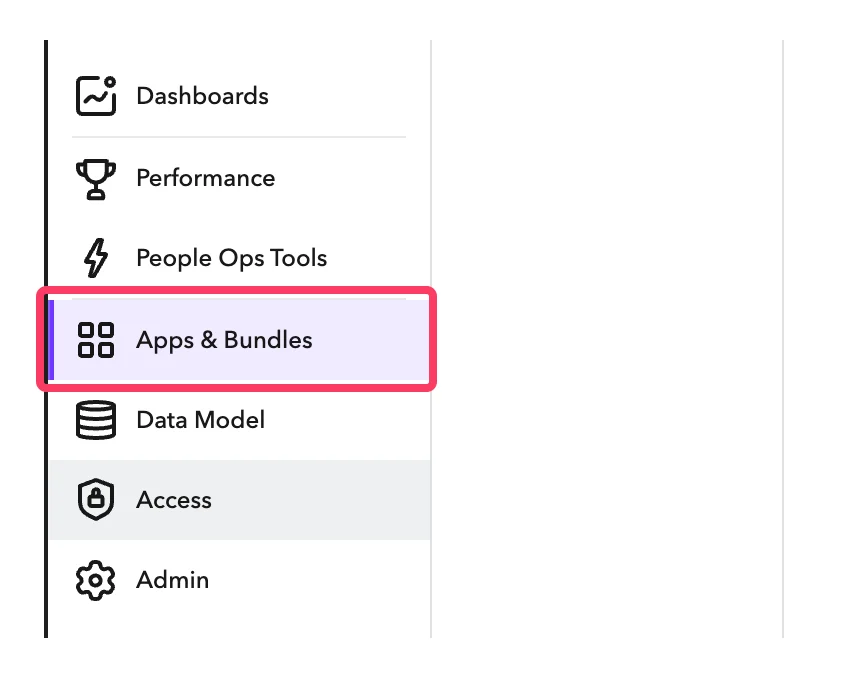
  <Step title="ChartHopアカウントで、Apps & Bundles に移動">
    <Frame>
      <img src="https://mintcdn.com/scribe/I5V9iTucPI_EY3nq/integrations/smart-fields/images/charthop-step-1.png?fit=max&auto=format&n=I5V9iTucPI_EY3nq&q=85&s=a5ce5fb34e956605f619e21d5d68b5b8" alt="Apps & Bundlesが選択されたChartHopのサイドバー" className="mx-auto" style={{ width:"62%" }} width="848" height="678" data-path="integrations/smart-fields/images/charthop-step-1.png" />
    </Frame>
  </Step>

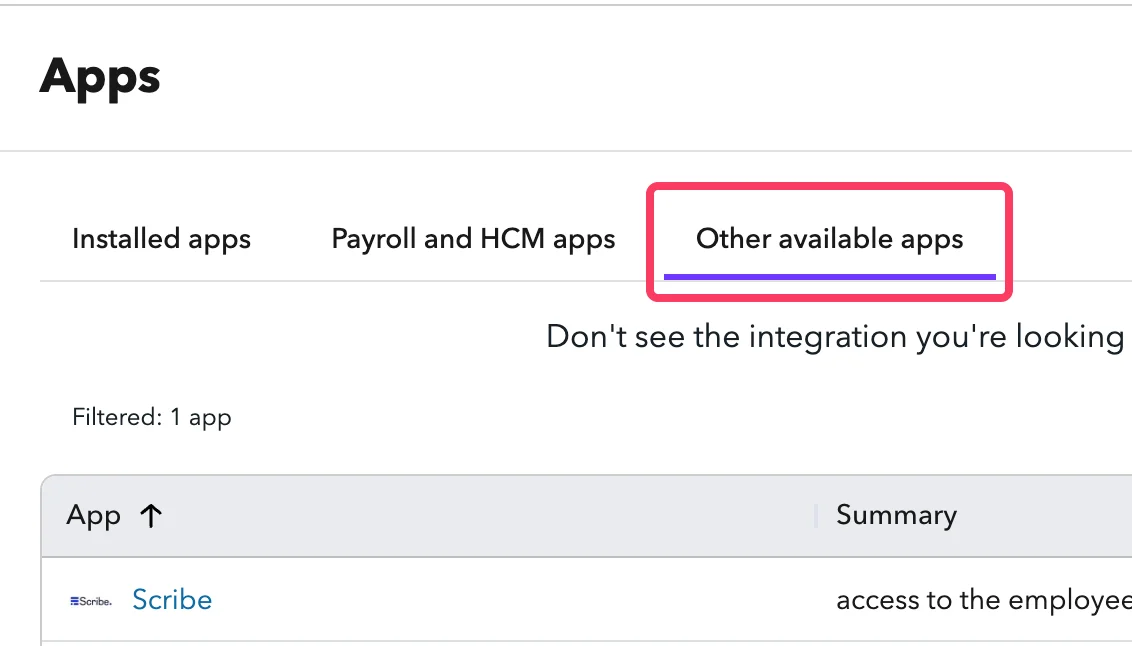
  <Step title="'Other available apps' をクリック">
    <Frame>
      <img src="https://mintcdn.com/scribe/I5V9iTucPI_EY3nq/integrations/smart-fields/images/charthop-step-2.png?fit=max&auto=format&n=I5V9iTucPI_EY3nq&q=85&s=355b0b39c29f6934ebf12900b6dfeb95" alt="Other available appsタブが表示されたAppsページ" className="mx-auto" style={{ width:"72%" }} width="1132" height="646" data-path="integrations/smart-fields/images/charthop-step-2.png" />
    </Frame>
  </Step>

  <Step title="一覧から 'Scribe' を見つけてクリック">
    <Frame>
      <img src="https://mintcdn.com/scribe/I5V9iTucPI_EY3nq/integrations/smart-fields/images/charthop-step-3.png?fit=max&auto=format&n=I5V9iTucPI_EY3nq&q=85&s=9fdba62ee41b55db630a61be0c335fe1" alt="利用可能なアプリ一覧内のScribeアプリ" className="mx-auto" style={{ width:"78%" }} width="1844" height="424" data-path="integrations/smart-fields/images/charthop-step-3.png" />
    </Frame>
  </Step>

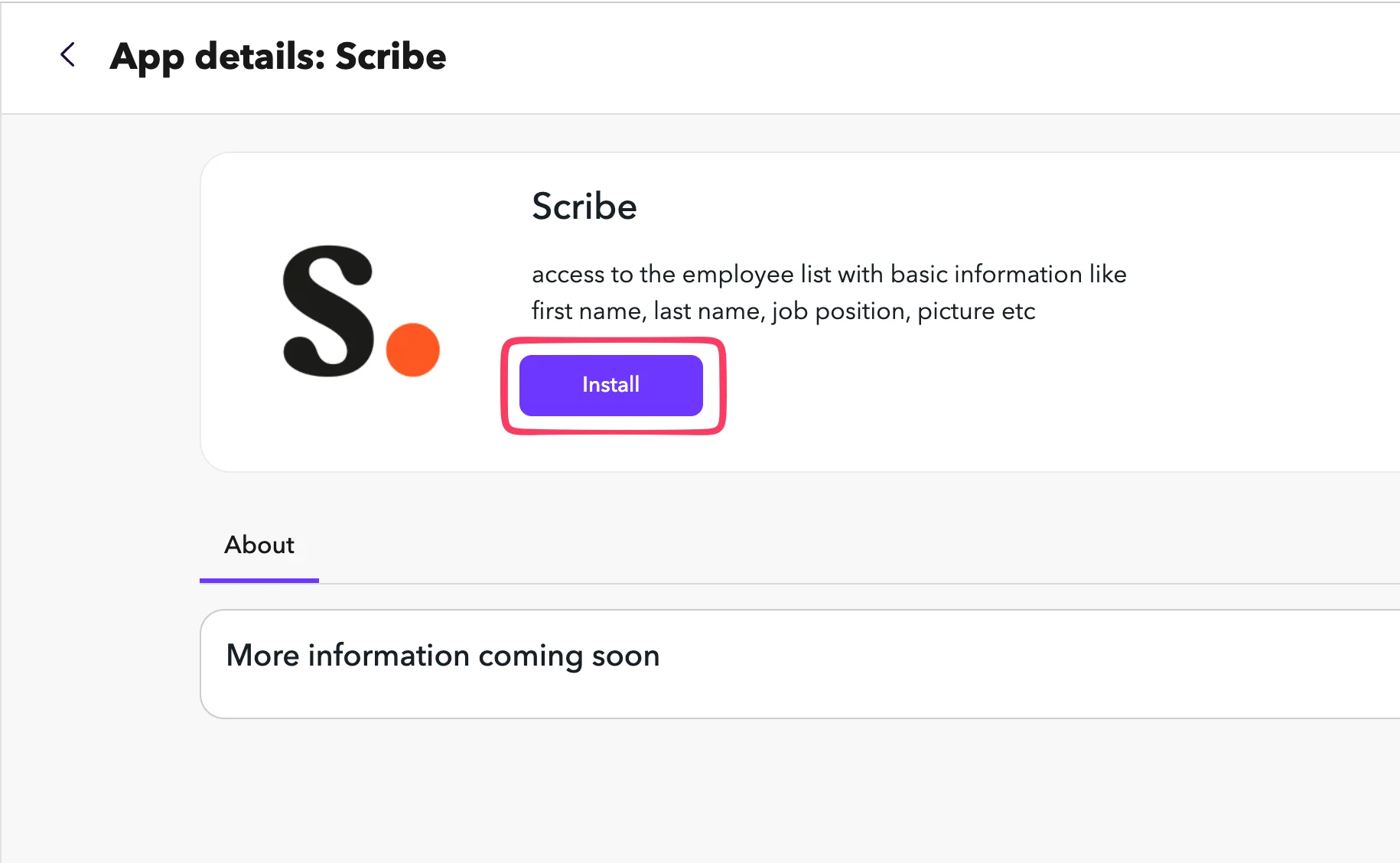
  <Step title="Install をクリック">
    <Frame>
      <img src="https://mintcdn.com/scribe/I5V9iTucPI_EY3nq/integrations/smart-fields/images/charthop-step-4.png?fit=max&auto=format&n=I5V9iTucPI_EY3nq&q=85&s=5086bedfb627927490e03cf1feebfa7a" alt="InstallボタンのあるScribeアプリ詳細ページ" className="mx-auto" style={{ width:"68%" }} width="1830" height="1128" data-path="integrations/smart-fields/images/charthop-step-4.png" />
    </Frame>
  </Step>

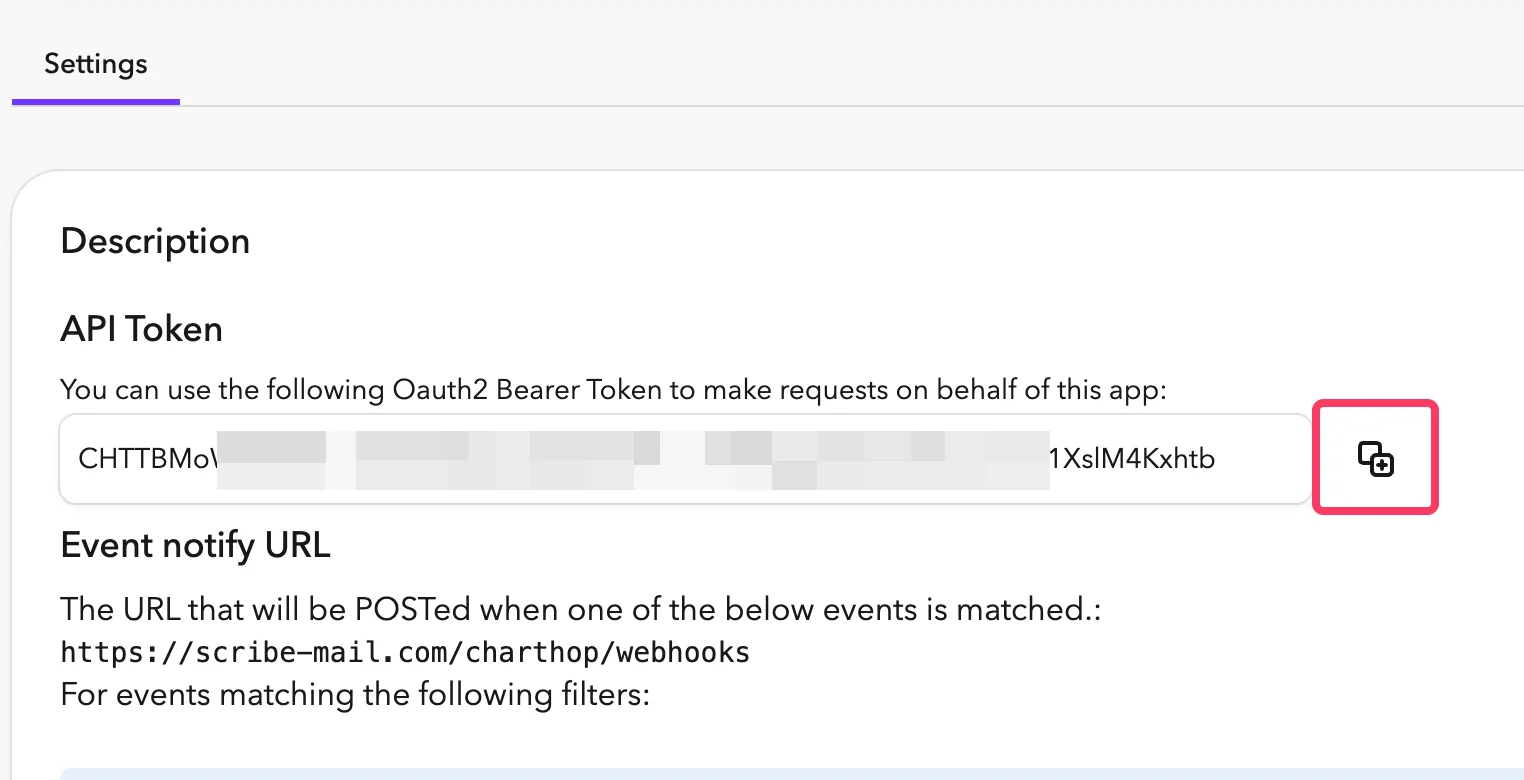
  <Step title="API Tokenをコピーし、Scribeに貼り付け">
    ChartHopで、Scribeアプリの **Settings** タブに移動します。**API Token** をコピーし、ScribeのAPI Tokenフィールドに貼り付けてください。
    <Frame>
      <img src="https://mintcdn.com/scribe/pvZJQ56rCCLLmCwt/integrations/smart-fields/images/charthop-step-5.png?fit=max&auto=format&n=pvZJQ56rCCLLmCwt&q=85&s=b03871665847eac7cb4e3ca93ff4cb11" alt="API TokenのあるChartHop Settingsタブ" className="mx-auto" style={{ width:"76%" }} width="1524" height="780" data-path="integrations/smart-fields/images/charthop-step-5.png" />
    </Frame>
  </Step>

  <Step title="URLバーからOrg Nicknameをコピーし、Scribeに貼り付けてからChartHopを接続">
    Org Nicknameは、ChartHopのURL内の`app.charthop.com/`の直後の部分です。Scribeの **ChartHop Org Nickname** フィールドに入力し、**Connect ChartHop** をクリックしてください。

    <Frame>
      <img src="https://mintcdn.com/scribe/pvZJQ56rCCLLmCwt/integrations/smart-fields/images/charthop-step-6.png?fit=max&auto=format&n=pvZJQ56rCCLLmCwt&q=85&s=48224a25fad95589135fda6cedad11cf" alt="組織のニックネームとScribe連携フィールドが表示されたChartHopのURLバー" className="mx-auto" style={{ width:"77%" }} width="892" height="152" data-path="integrations/smart-fields/images/charthop-step-6.png" />
    </Frame>
  </Step>
</Steps>

## 関連記事

* [Deel](/ja/integrations/smart-fields/deel-smart-fields):Deelのデータを署名に同期します。
* [Gusto](/ja/integrations/smart-fields/gusto-smart-fields):Gustoのデータを署名に同期します。
* [チームメンバーに署名を割り当てる](/ja/assign-teammates-to-a-signature):Smartfieldの条件を使って署名を自動的に割り当てます。