> ## Documentation Index
> Fetch the complete documentation index at: https://help.scribe-mail.com/llms.txt
> Use this file to discover all available pages before exploring further.
# Chili Piper
> スケジュール管理とリードルーティングのツールである Chili Piper からチームメンバーの情報を同期し、メール署名を正確かつ最新の状態に保ち、予約リンクを常に正しく表示します。
以下の手順で、Chili Piper をデータソースとして[チームメンバーの署名を自動入力](/ja/smart-fields)できます。
**チームメンバー側での操作は不要です。**
**Chili Piper の変更は Scribe に自動同期されます。**
**SOC 2 Type II 認証取得済み。**[データは安全に保護されます](/ja/what-scribe-does-concerning-security)。
## インストールガイド
### 前提条件
* Chili Piperアカウントの管理者権限
* 管理者権限を持つScribeアカウント
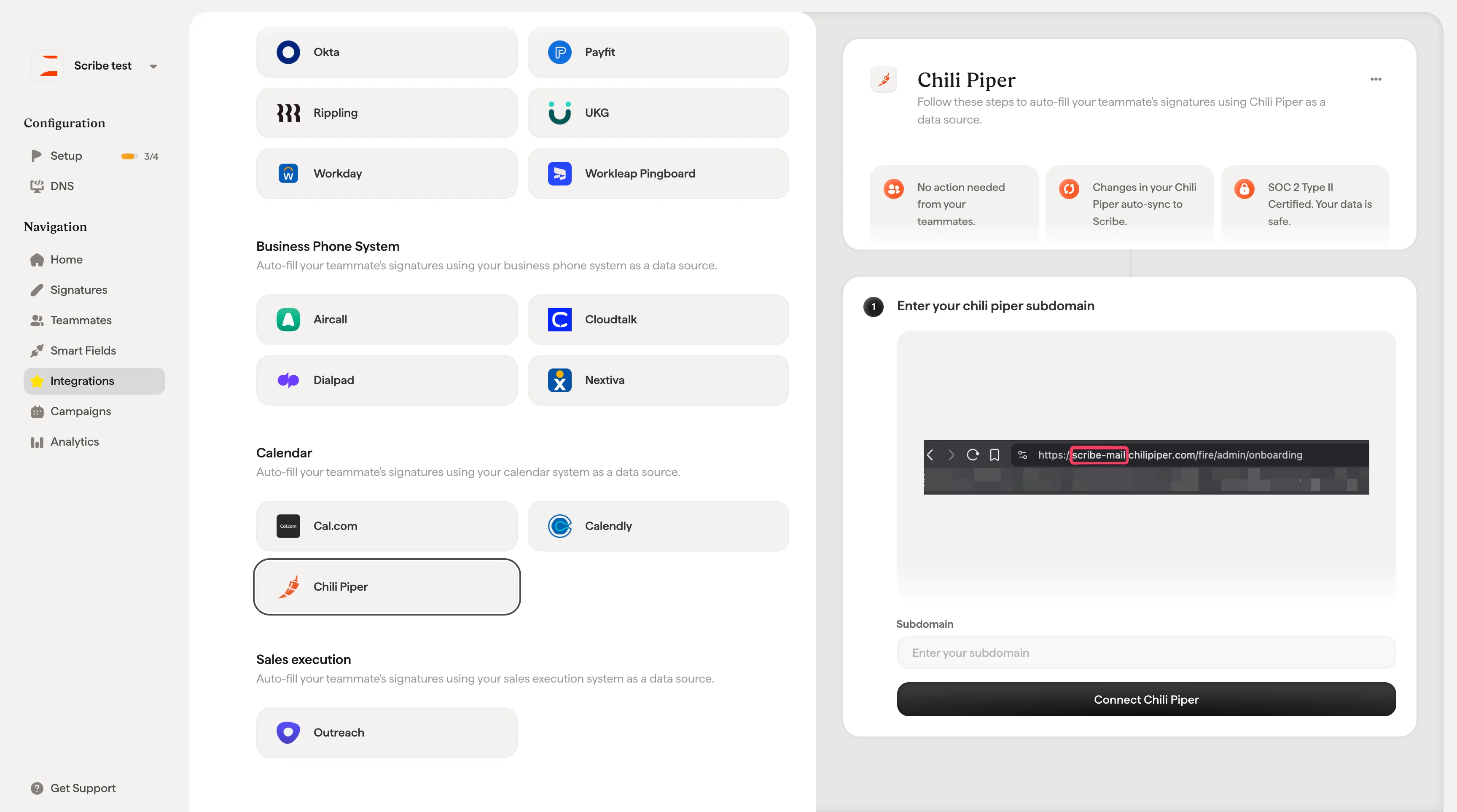
サブドメインは Chili Piper の URL に含まれています。`.chilipiper.com` より前の部分です(例:`https://scribe-mail.chilipiper.com/fire/admin/onboarding` の `scribe-mail`)。

 ## 関連記事
* [Cal.com](/ja/integrations/smart-fields/calcom-smart-fields):Cal.com のデータを署名に同期します。
* [Calendly](/ja/integrations/smart-fields/calendly-smart-fields):Calendly のデータを署名に同期します。
* [チームメンバーに署名を割り当てる](/ja/assign-teammates-to-a-signature):Smartfield の条件を使って署名を自動的に割り当てます。
## 関連記事
* [Cal.com](/ja/integrations/smart-fields/calcom-smart-fields):Cal.com のデータを署名に同期します。
* [Calendly](/ja/integrations/smart-fields/calendly-smart-fields):Calendly のデータを署名に同期します。
* [チームメンバーに署名を割り当てる](/ja/assign-teammates-to-a-signature):Smartfield の条件を使って署名を自動的に割り当てます。