> ## Documentation Index
> Fetch the complete documentation index at: https://help.scribe-mail.com/llms.txt
> Use this file to discover all available pages before exploring further.

# Lucca

> HRソフトウェアであるLuccaから氏名・役職・部署などの従業員情報を同期し、メール署名を常に正確かつ最新の状態に保ちます。

Luccaをデータソースとして[チームメンバーの署名を自動入力](/ja/smart-fields)するには、以下の手順に従ってください。

<Info>
  **チームメンバー側での操作は不要です。**
</Info>

<Info>
  **Luccaでの変更はScribeに自動同期されます。**
</Info>

<Info>
  **SOC 2 Type II 認証取得済み。**[データは安全に保護されます](/ja/security/data-collection/lucca)。
</Info>

## インストールガイド

### 前提条件

* Luccaアカウントの管理者権限
* 管理者権限のあるScribeアカウント

<Steps>
  <Step title="Luccaアカウントを開き、URLバーからインスタンスのドメインをコピーする">
    Luccaのドメインは`your-company.ilucca.net`のような形式です。URLバーからコピーし、Scribeの**ドメイン**欄に貼り付けてください。

    <Frame>
      <img src="https://mintcdn.com/scribe/pvZJQ56rCCLLmCwt/integrations/smart-fields/images/lucca-step-1.png?fit=max&auto=format&n=pvZJQ56rCCLLmCwt&q=85&s=307de25cb7860b39ebccc35073690481" alt="インスタンスのドメインが表示されたLuccaのURLバー" className="mx-auto" style={{ width:"72%" }} width="974" height="152" data-path="integrations/smart-fields/images/lucca-step-1.png" />
    </Frame>
  </Step>

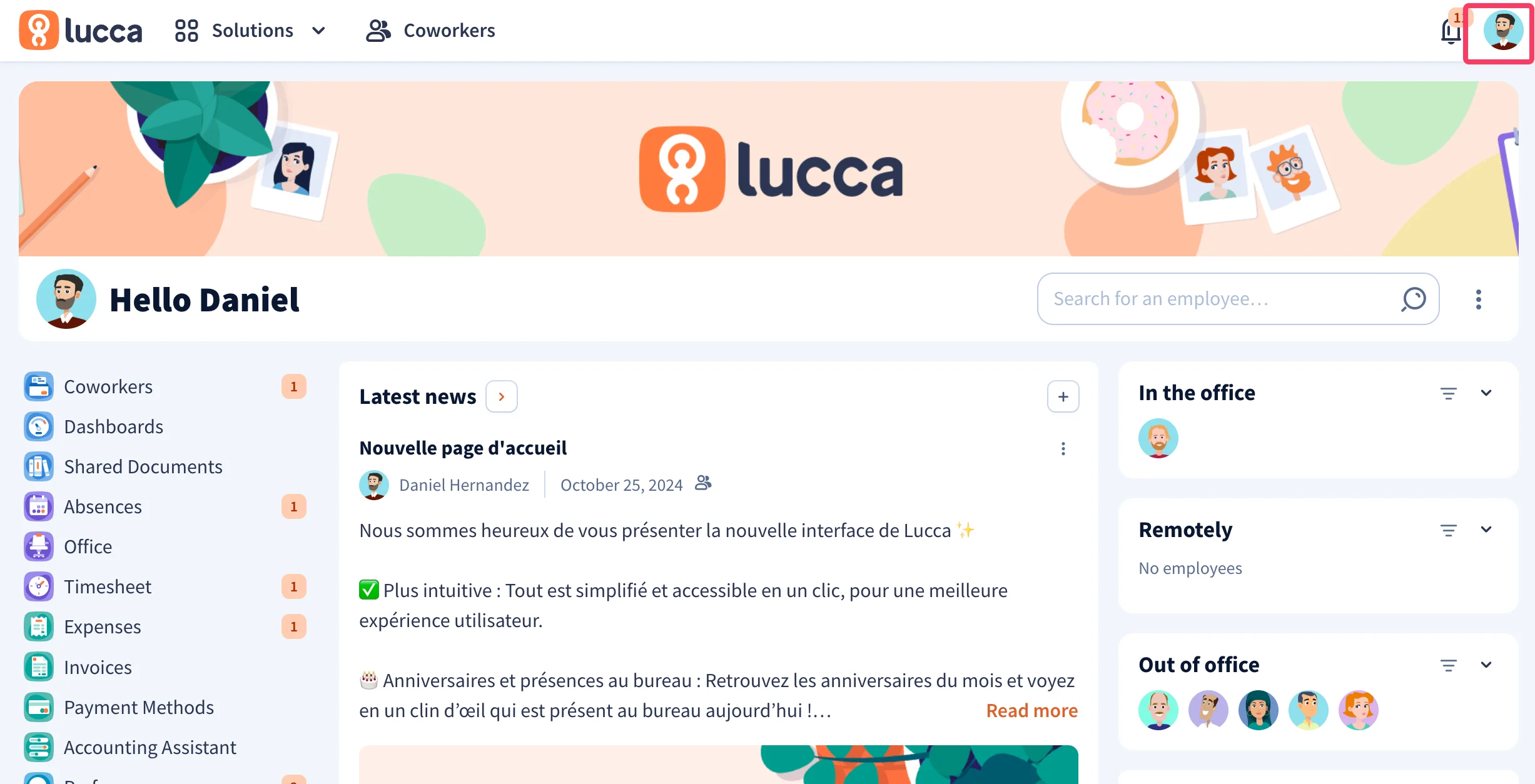
  <Step title="Luccaアカウントで、右上のプロフィール画像をクリックする">
    <Frame>
      <img src="https://mintcdn.com/scribe/pvZJQ56rCCLLmCwt/integrations/smart-fields/images/lucca-step-2.png?fit=max&auto=format&n=pvZJQ56rCCLLmCwt&q=85&s=7da338e927e45cf875e330d1966f0647" alt="右上のプロフィール画像が強調表示されたLuccaダッシュボード" className="mx-auto" style={{ width:"78%" }} width="2454" height="1254" data-path="integrations/smart-fields/images/lucca-step-2.png" />
    </Frame>
  </Step>

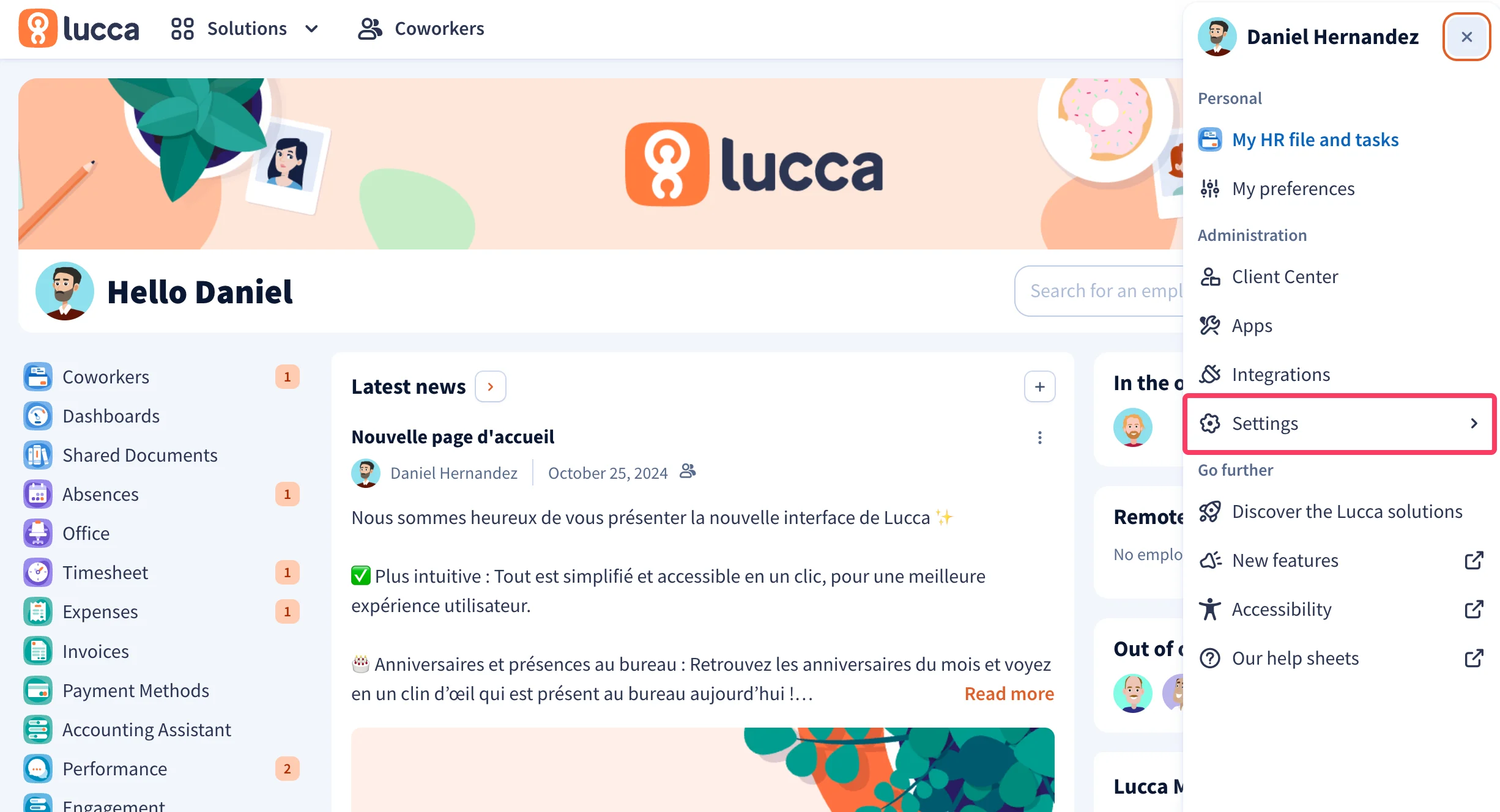
  <Step title="ドロップダウンメニューで「Settings」をクリックする">
    <Frame>
      <img src="https://mintcdn.com/scribe/pvZJQ56rCCLLmCwt/integrations/smart-fields/images/lucca-step-3.png?fit=max&auto=format&n=pvZJQ56rCCLLmCwt&q=85&s=9750472f86ed179d4904c277eb55ac8b" alt="Settingsオプションが強調表示されたLuccaのドロップダウンメニュー" className="mx-auto" style={{ width:"88%" }} width="2452" height="1328" data-path="integrations/smart-fields/images/lucca-step-3.png" />
    </Frame>
  </Step>

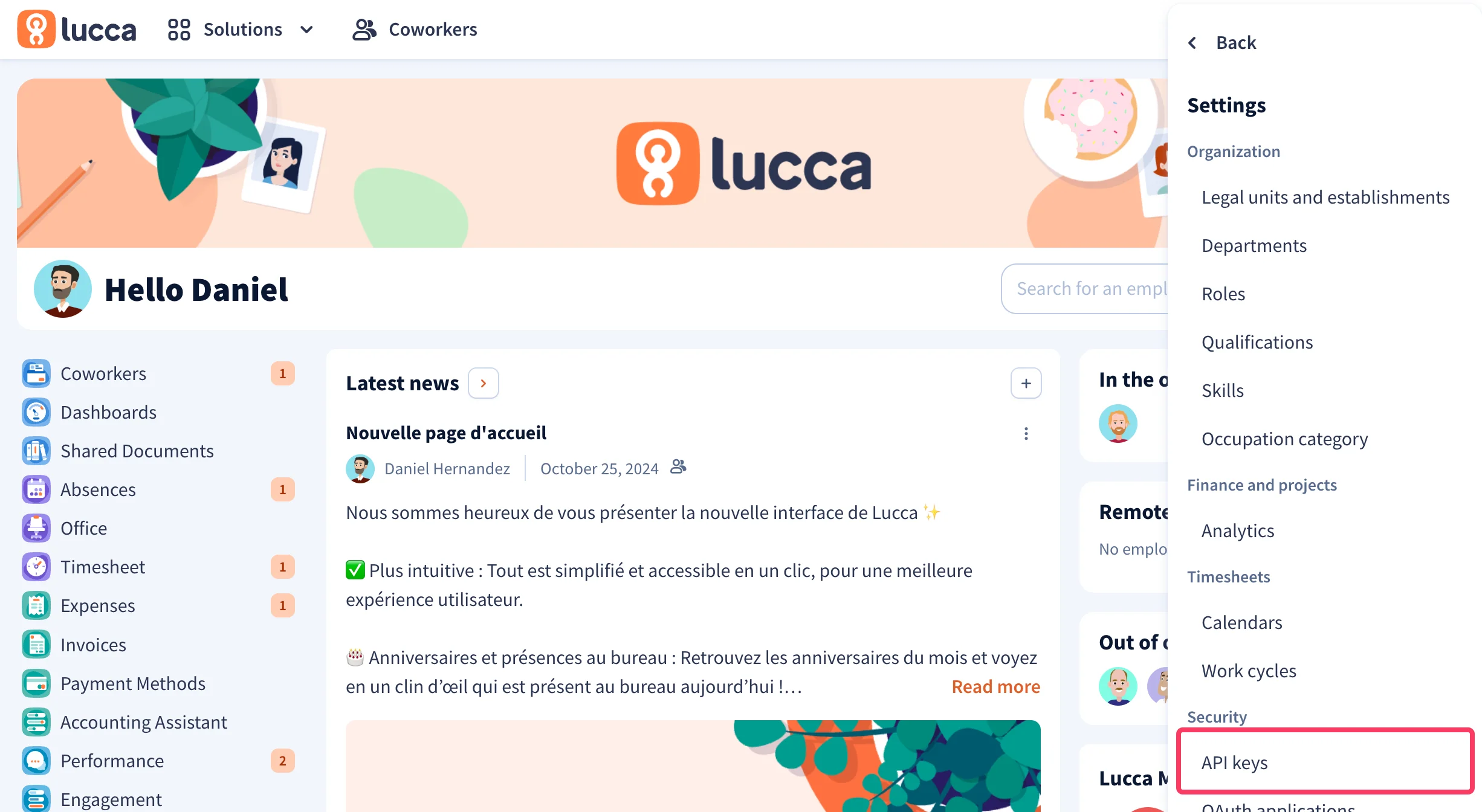
  <Step title="ドロップダウンメニューで「API Keys」をクリックする">
    **Security**セクションで**API keys**をクリックしてください。
    <Frame>
      <img src="https://mintcdn.com/scribe/pvZJQ56rCCLLmCwt/integrations/smart-fields/images/lucca-step-4.png?fit=max&auto=format&n=pvZJQ56rCCLLmCwt&q=85&s=369206d41d382ce4ad42f2046d8b9888" alt="SecurityセクションでAPI Keysオプションが強調表示されたLucca設定メニュー" className="mx-auto" style={{ width:"80%" }} width="2452" height="1344" data-path="integrations/smart-fields/images/lucca-step-4.png" />
    </Frame>
  </Step>

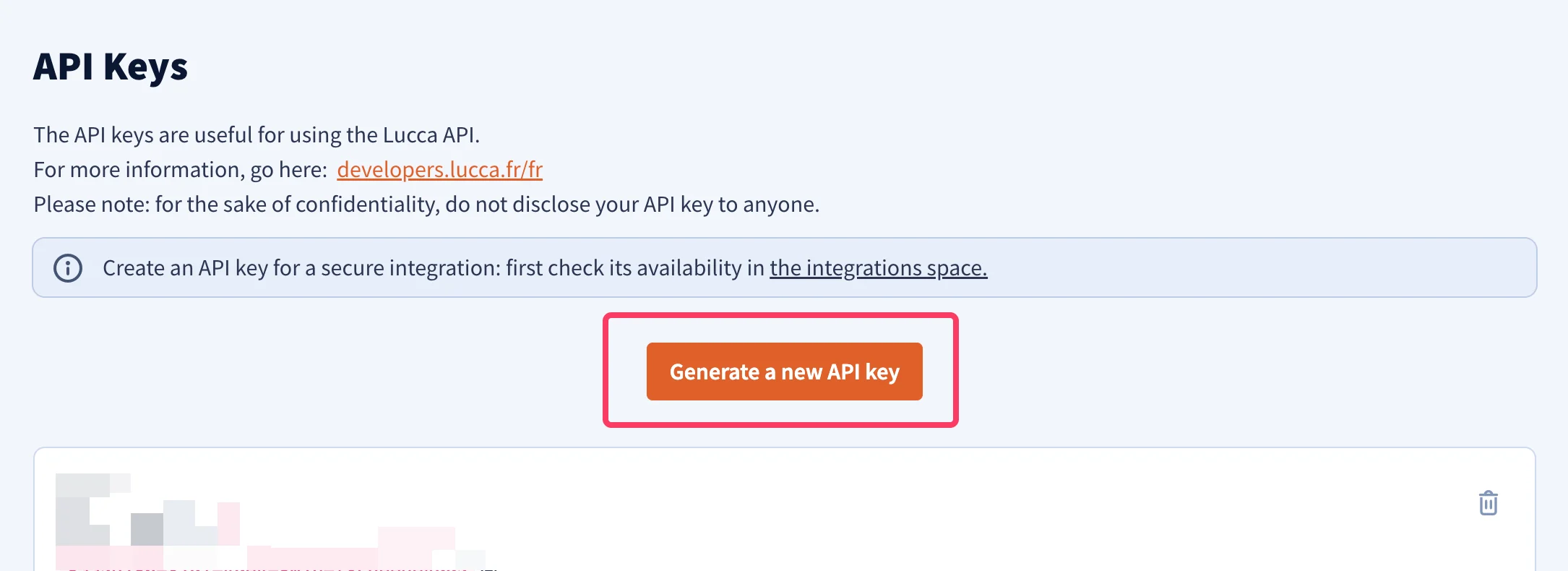
  <Step title="「Generate a new API key」ボタンをクリックする">
    <Frame>
      <img src="https://mintcdn.com/scribe/pvZJQ56rCCLLmCwt/integrations/smart-fields/images/lucca-step-5.png?fit=max&auto=format&n=pvZJQ56rCCLLmCwt&q=85&s=26b65f4e5c6653f0821dc39b7538dcbd" alt="Generate a new API keyボタンが表示されたLuccaのAPI Keysページ" className="mx-auto" style={{ width:"85%" }} width="2170" height="790" data-path="integrations/smart-fields/images/lucca-step-5.png" />
    </Frame>
  </Step>

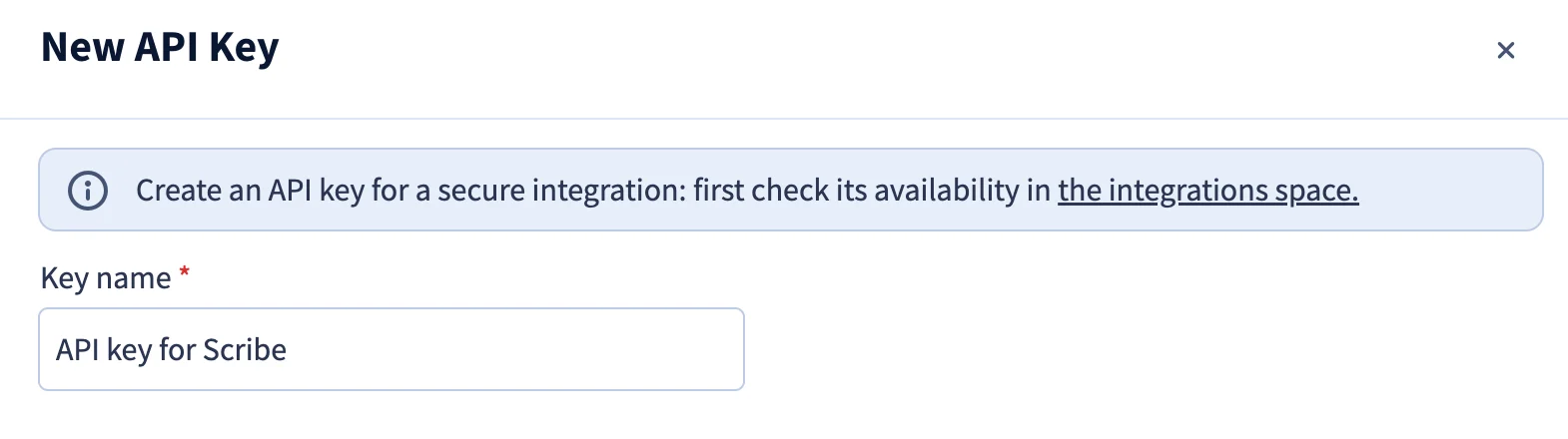
  <Step title="APIキーの名前を入力する">
    例えば、`API key for Scribe`と入力してください。

    <Frame>
      <img src="https://mintcdn.com/scribe/pvZJQ56rCCLLmCwt/integrations/smart-fields/images/lucca-step-6.png?fit=max&auto=format&n=pvZJQ56rCCLLmCwt&q=85&s=b01dad542cb54f4635beeb92923982bf" alt="キー名フィールドが表示された新規APIキーのダイアログ" className="mx-auto" style={{ width:"85%" }} width="1570" height="440" data-path="integrations/smart-fields/images/lucca-step-6.png" />
    </Frame>
  </Step>

  <Step title="'Co-workers' スコープを選択">
    **Co-workers** スコープ配下の **Consult / create / modify users** 権限にチェックを入れてください。

    <Frame>
      <img src="https://mintcdn.com/scribe/pvZJQ56rCCLLmCwt/integrations/smart-fields/images/lucca-step-7.png?fit=max&auto=format&n=pvZJQ56rCCLLmCwt&q=85&s=46b4801fdc2854d906a31d20cd6fedda" alt="Consult / create / modify users が選択された Co-workers スコープ" className="mx-auto" style={{ width:"90%" }} width="1202" height="186" data-path="integrations/smart-fields/images/lucca-step-7.png" />
    </Frame>
  </Step>

  <Step title="技術担当者のメールアドレスを入力">
    <Frame>
      <img src="https://mintcdn.com/scribe/pvZJQ56rCCLLmCwt/integrations/smart-fields/images/lucca-step-8.png?fit=max&auto=format&n=pvZJQ56rCCLLmCwt&q=85&s=f903fea34a611b045586b9e06d4c906d" alt="技術担当者のメールアドレス入力フィールド" className="mx-auto" style={{ width:"86%" }} width="1118" height="218" data-path="integrations/smart-fields/images/lucca-step-8.png" />
    </Frame>
  </Step>

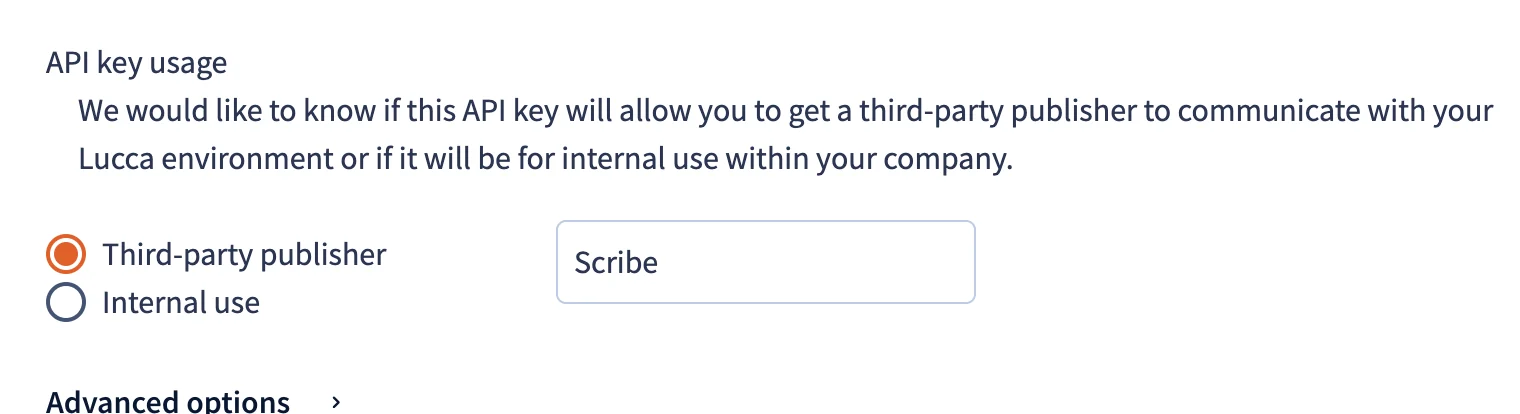
  <Step title="Third-party publisher 名として Scribe を入力">
    **API key usage** で **Third-party publisher** を選択し、publisher 名として `Scribe` を入力してください。
    <Frame>
      <img src="https://mintcdn.com/scribe/pvZJQ56rCCLLmCwt/integrations/smart-fields/images/lucca-step-9.png?fit=max&auto=format&n=pvZJQ56rCCLLmCwt&q=85&s=2f86a3183d22b08e3caab3669dcb752c" alt="Third-party publisher が選択され Scribe が入力された API key usage セクション" className="mx-auto" style={{ width:"80%" }} width="1520" height="414" data-path="integrations/smart-fields/images/lucca-step-9.png" />
    </Frame>
  </Step>

  <Step title="'Generate a new API key' ボタンをクリック">
    <Frame>
      <img src="https://mintcdn.com/scribe/pvZJQ56rCCLLmCwt/integrations/smart-fields/images/lucca-step-10.png?fit=max&auto=format&n=pvZJQ56rCCLLmCwt&q=85&s=4faf52c4c595a6428408f0ca1f4c0333" alt="新規APIキー生成の確認ボタン" className="mx-auto" style={{ width:"75%" }} width="1122" height="196" data-path="integrations/smart-fields/images/lucca-step-10.png" />
    </Frame>
  </Step>

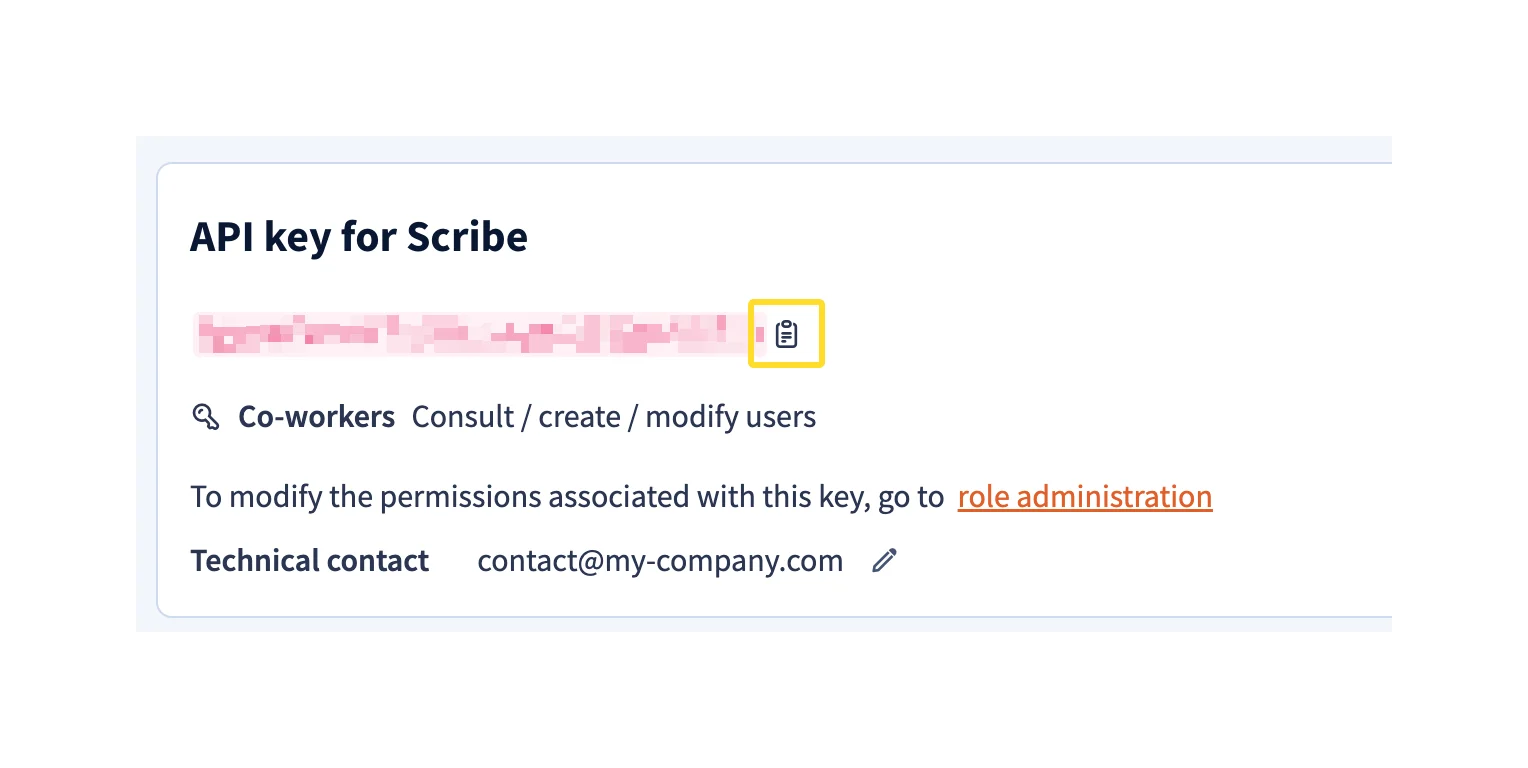
  <Step title="生成されたAPIキーをコピーしてScribeに貼り付け">
    Lucca でAPIキーをコピーし、Scribe の **API Key** フィールドに貼り付けてから、**Connect Lucca** をクリックしてください。
    <Frame>
      <img src="https://mintcdn.com/scribe/pvZJQ56rCCLLmCwt/integrations/smart-fields/images/lucca-step-11.png?fit=max&auto=format&n=pvZJQ56rCCLLmCwt&q=85&s=f3584db41ca03567c0156ef1ecedc053" alt="コピーボタン付きの生成済みAPIキーと、Connect Lucca ボタンのある Scribe の API Key フィールド" className="mx-auto" style={{ width:"84%" }} width="1528" height="768" data-path="integrations/smart-fields/images/lucca-step-11.png" />
    </Frame>
  </Step>
</Steps>

## 関連記事

* [Okta](/ja/integrations/smart-fields/okta-smart-fields):Oktaのデータを署名に同期します。
* [Payfit](/ja/integrations/smart-fields/payfit-smart-fields):Payfitのデータを署名に同期します。
* [署名にチームメンバーを割り当てる](/ja/assign-teammates-to-a-signature):Smartfieldの条件を使って署名を自動的に割り当てます。