> ## Documentation Index
> Fetch the complete documentation index at: https://help.scribe-mail.com/llms.txt
> Use this file to discover all available pages before exploring further.

# Rippling

> HR・IT プラットフォームの Rippling から役職や部署などの従業員情報を同期し、メール署名を常に正確かつ最新の状態に保ちます。

Ripplingをデータソースとして[チームメンバーの署名を自動入力](/ja/smart-fields)する手順は以下のとおりです。

<Info>
  **チームメンバー側での操作は不要です。**
</Info>

<Info>
  **Rippling での変更は Scribe に自動同期されます。**
</Info>

<Info>
  **SOC 2 Type II 認証取得済み。** [データは安全に保護されています](/ja/security/data-collection/rippling)。
</Info>

## インストールガイド

### 前提条件

* Rippling アカウントへの管理者アクセス権
* 管理者アクセス権を持つ Scribe アカウント

<Steps>
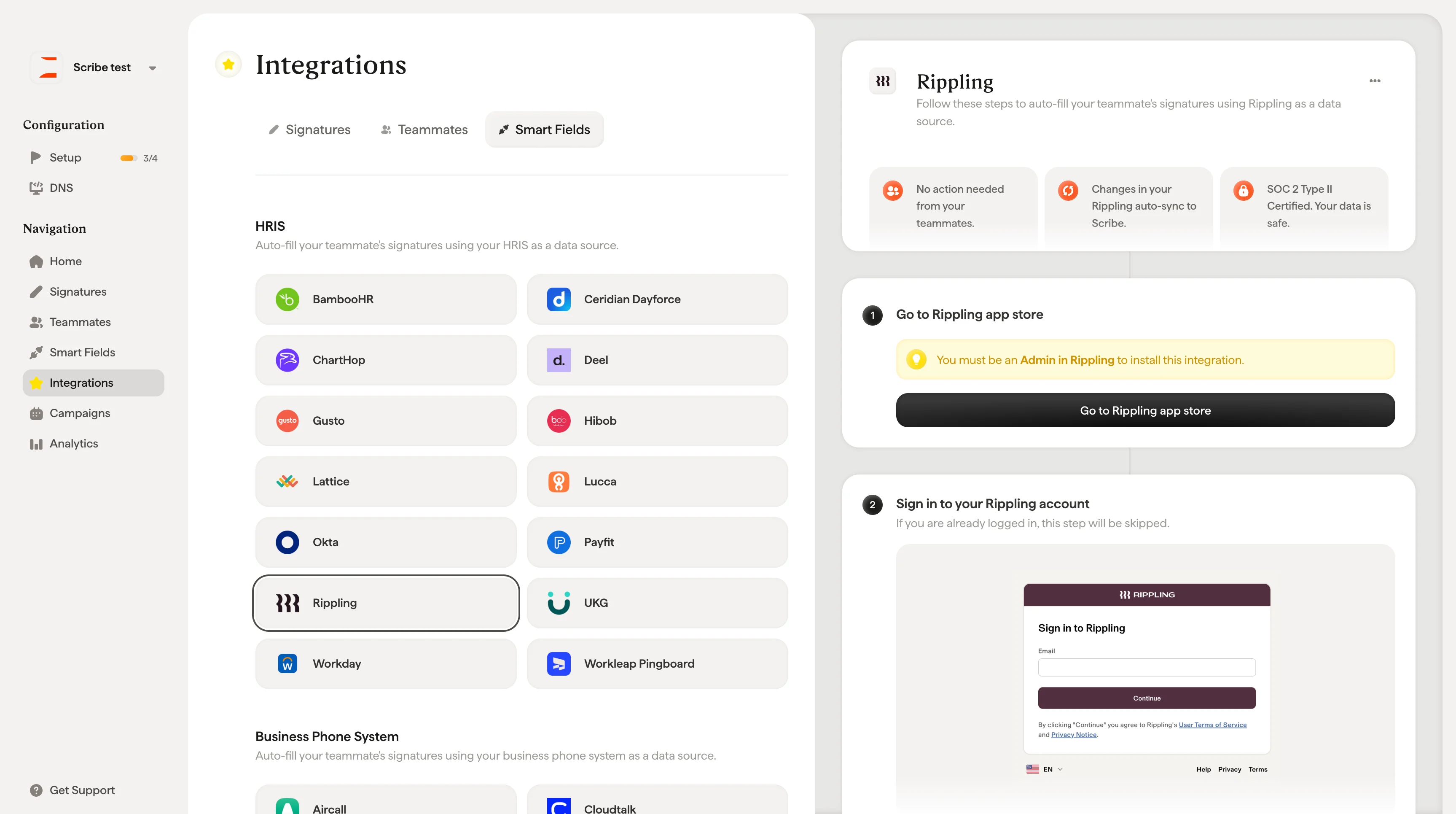
  <Step title="Rippling アプリストアへ移動">
    <Warning>
      この連携をインストールするには、**Rippling の管理者(Admin)** である必要があります。
    </Warning>

    **Go to Rippling app store** をクリックして連携を開始してください。
    <Frame>
      <img src="https://mintcdn.com/scribe/xbQhr3JjkYildsKM/images/rippling-go-to-app-store-button.png?fit=max&auto=format&n=xbQhr3JjkYildsKM&q=85&s=4a660fe55b175baabd0096772d6da332" alt="Scribe 連携設定画面の「Go to Rippling App Store」ボタン" width="3454" height="1930" data-path="images/rippling-go-to-app-store-button.png" />
    </Frame>
  </Step>

  <Step title="Rippling アカウントにサインイン">
    すでにログイン済みの場合、このステップはスキップされます。

    <Frame>
      <img src="https://mintcdn.com/scribe/pvZJQ56rCCLLmCwt/integrations/smart-fields/images/rippling-step-2.png?fit=max&auto=format&n=pvZJQ56rCCLLmCwt&q=85&s=ec0c411eae3d067156c43ddb45187b3d" alt="Rippling のサインイン画面" className="mx-auto" style={{ width:"72%" }} width="1188" height="978" data-path="integrations/smart-fields/images/rippling-step-2.png" />
    </Frame>
  </Step>

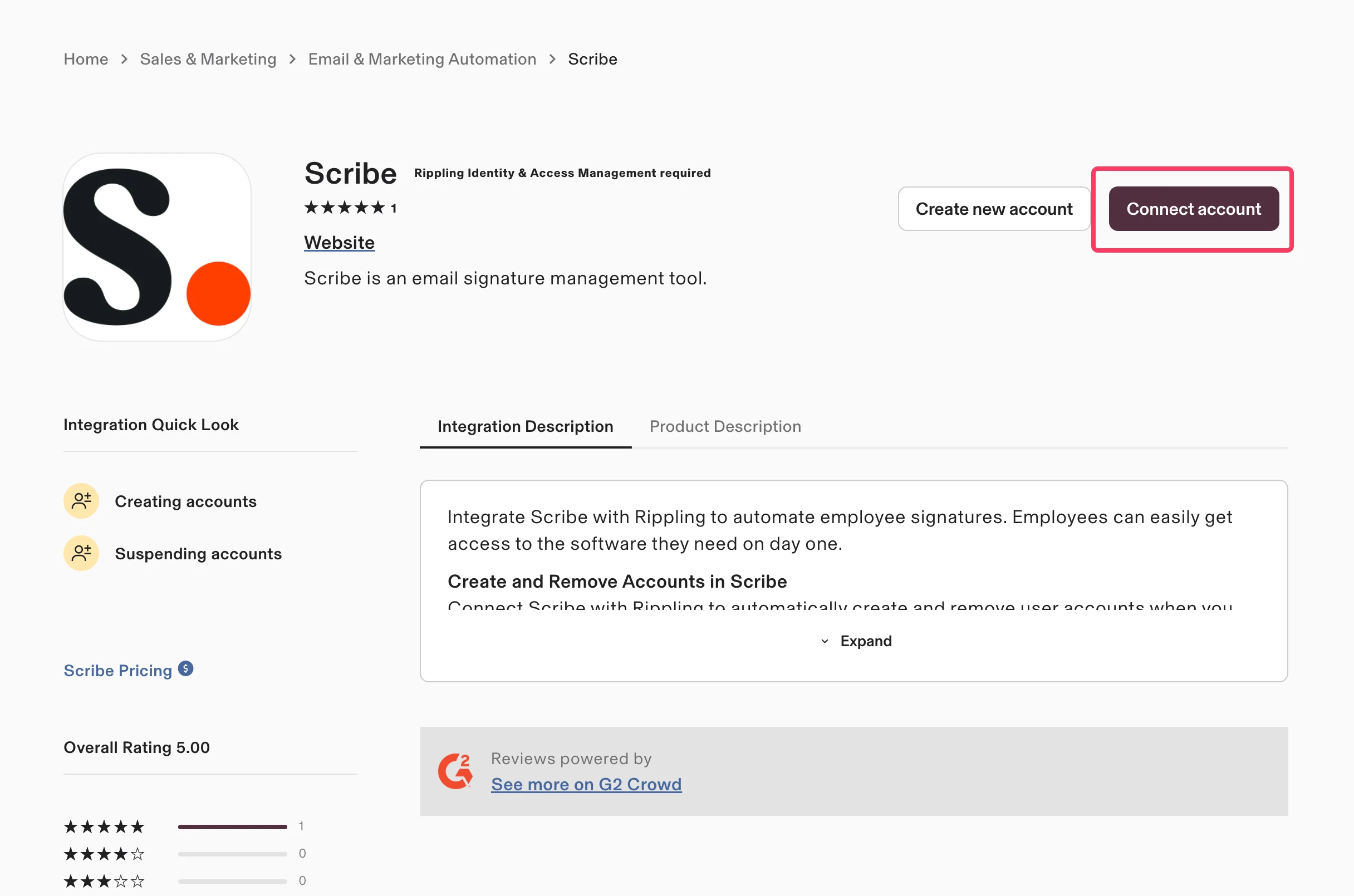
  <Step title="'Connect Account' をクリック">
    Rippling アプリストアの Scribe アプリページで **Connect account** をクリックしてください。
    <Frame>
      <img src="https://mintcdn.com/scribe/pvZJQ56rCCLLmCwt/integrations/smart-fields/images/rippling-step-3.png?fit=max&auto=format&n=pvZJQ56rCCLLmCwt&q=85&s=154decbf970c554142790ed6fb9d0809" alt="Rippling アプリストアの Scribe アプリページ。Connect account ボタンがハイライトされている" className="mx-auto" style={{ width:"69%" }} width="2432" height="1610" data-path="integrations/smart-fields/images/rippling-step-3.png" />
    </Frame>
  </Step>

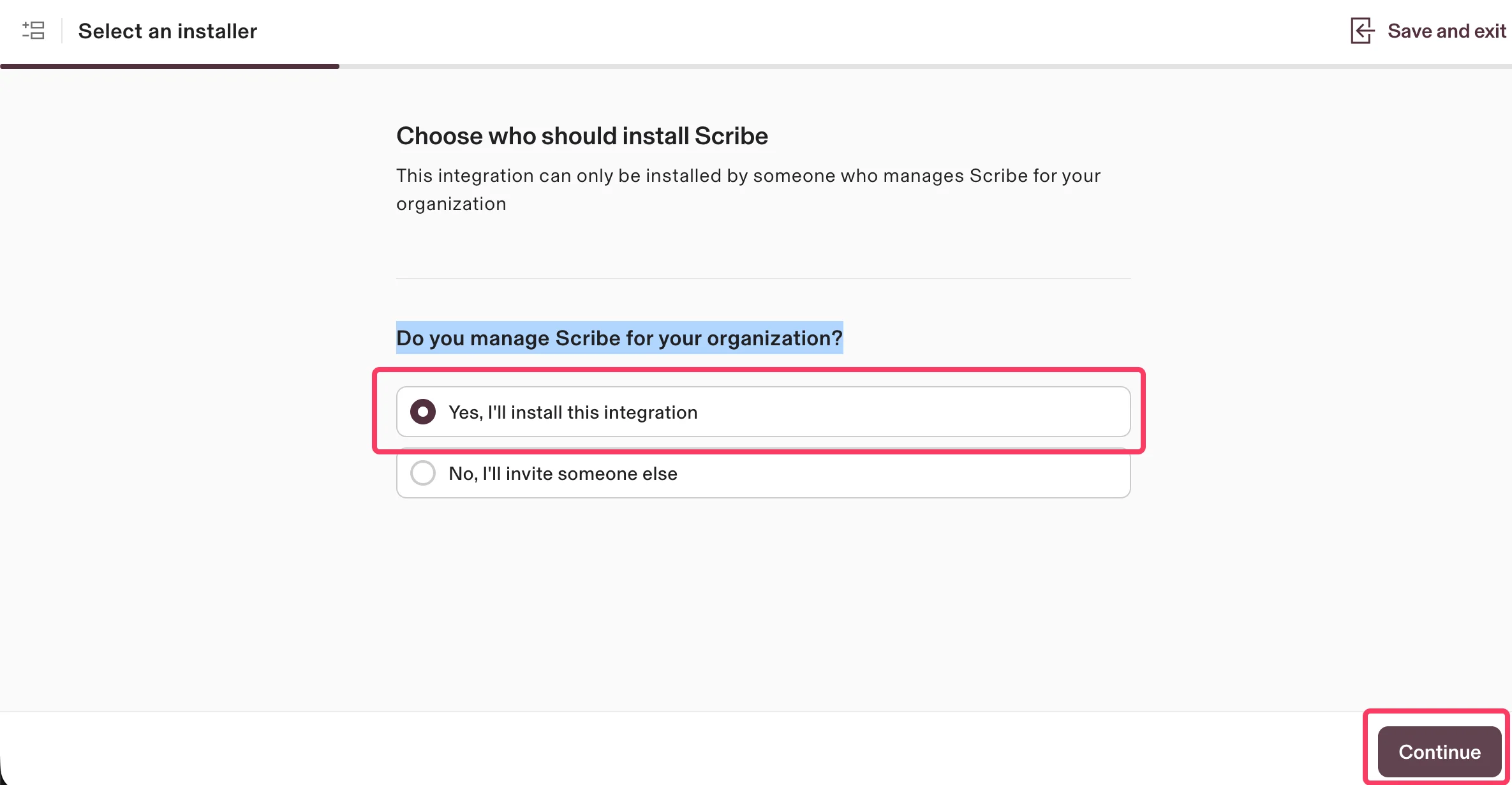
  <Step title="最初の選択肢を選び 'Continue' をクリック">
    **Yes, I'll install this integration** を選択して、組織の Scribe を管理していることを確認し、**Continue** をクリックしてください。
    <Frame>
      <img src="https://mintcdn.com/scribe/pvZJQ56rCCLLmCwt/integrations/smart-fields/images/rippling-step-4.png?fit=max&auto=format&n=pvZJQ56rCCLLmCwt&q=85&s=80a794fcf5edec50c717b7ad2493dec3" alt="インストール担当者を選択する画面。Yes I'll install this integration が選択されている" className="mx-auto" style={{ width:"82%" }} width="2370" height="1230" data-path="integrations/smart-fields/images/rippling-step-4.png" />
    </Frame>
  </Step>

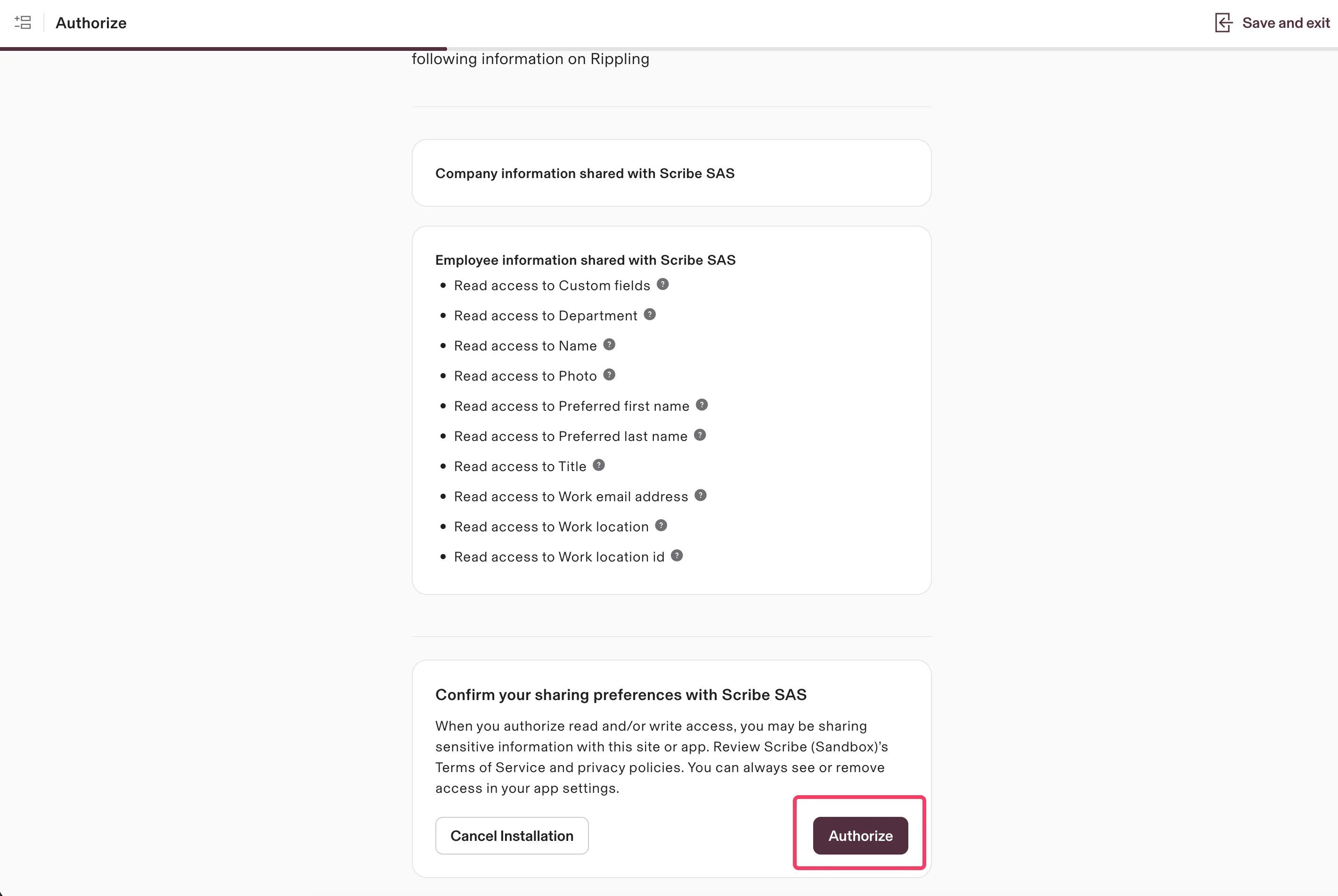
  <Step title="スコープを確認して 'Authorize' をクリック">
    Scribe にはデータへの読み取りアクセス権のみが付与されます。要求される権限を確認し、**Authorize** をクリックしてください。
    <Frame>
      <img src="https://mintcdn.com/scribe/pvZJQ56rCCLLmCwt/integrations/smart-fields/images/rippling-step-5.png?fit=max&auto=format&n=pvZJQ56rCCLLmCwt&q=85&s=cf9e5ad0b6fc25ce43eaa1a74906075c" alt="読み取り専用スコープと「承認」ボタンが表示された認可画面" className="mx-auto" style={{ width:"88%" }} width="2840" height="1902" data-path="integrations/smart-fields/images/rippling-step-5.png" />
    </Frame>
  </Step>

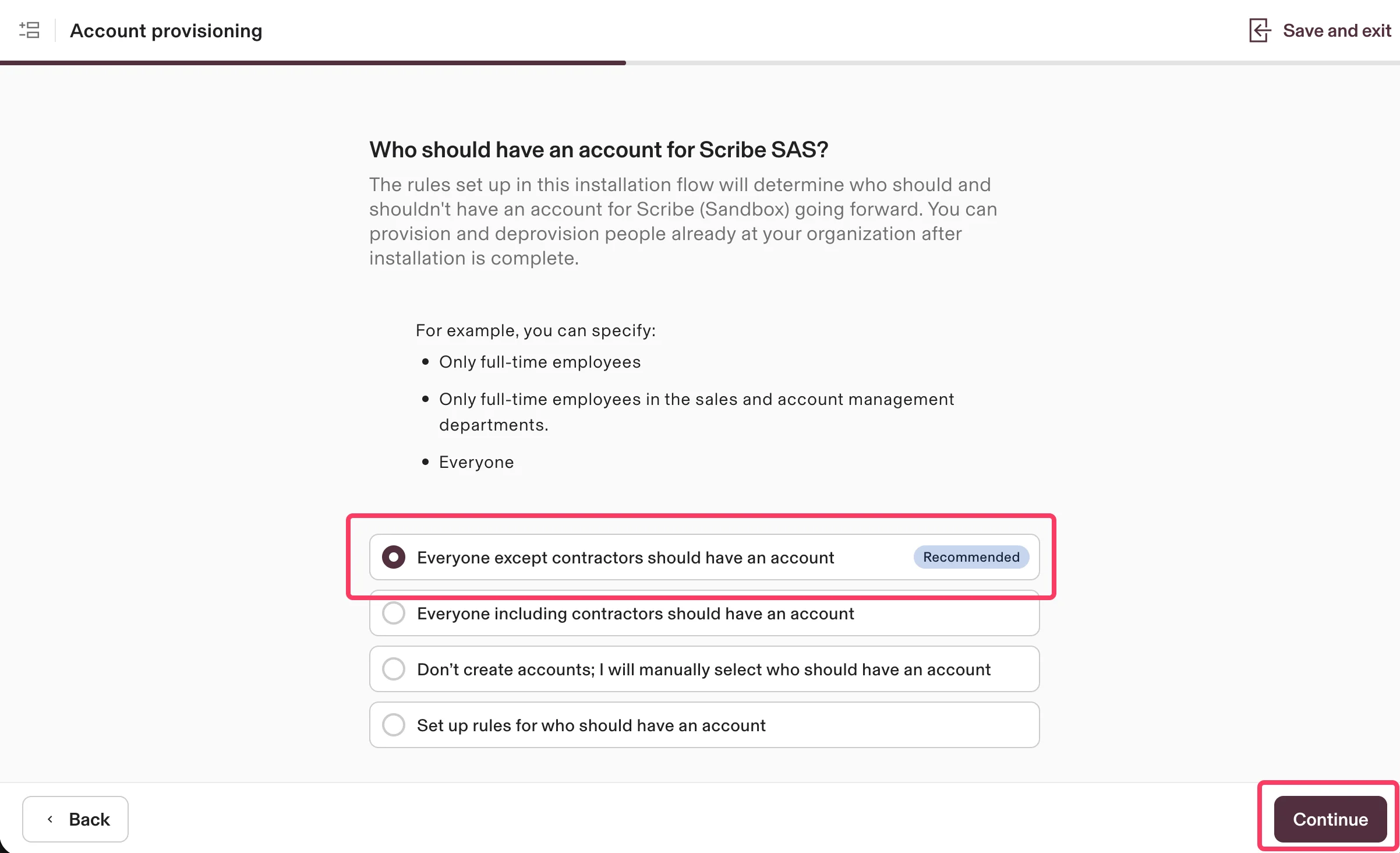
  <Step title="最初のオプションを選択し、'Continue' をクリック">
    Scribeのアカウントを付与する対象を選択します。推奨オプションは **Everyone except contractors should have an account**(業務委託を除く全員にアカウントを付与)です。**Continue** をクリックしてください。
    <Frame>
      <img src="https://mintcdn.com/scribe/pvZJQ56rCCLLmCwt/integrations/smart-fields/images/rippling-step-6.png?fit=max&auto=format&n=pvZJQ56rCCLLmCwt&q=85&s=f6ef83521cec9e2cb866f776edbe5eaa" alt="「業務委託を除く全員」のオプションが選択されたアカウントプロビジョニング画面" className="mx-auto" style={{ width:"89%" }} width="2404" height="1464" data-path="integrations/smart-fields/images/rippling-step-6.png" />
    </Frame>
  </Step>

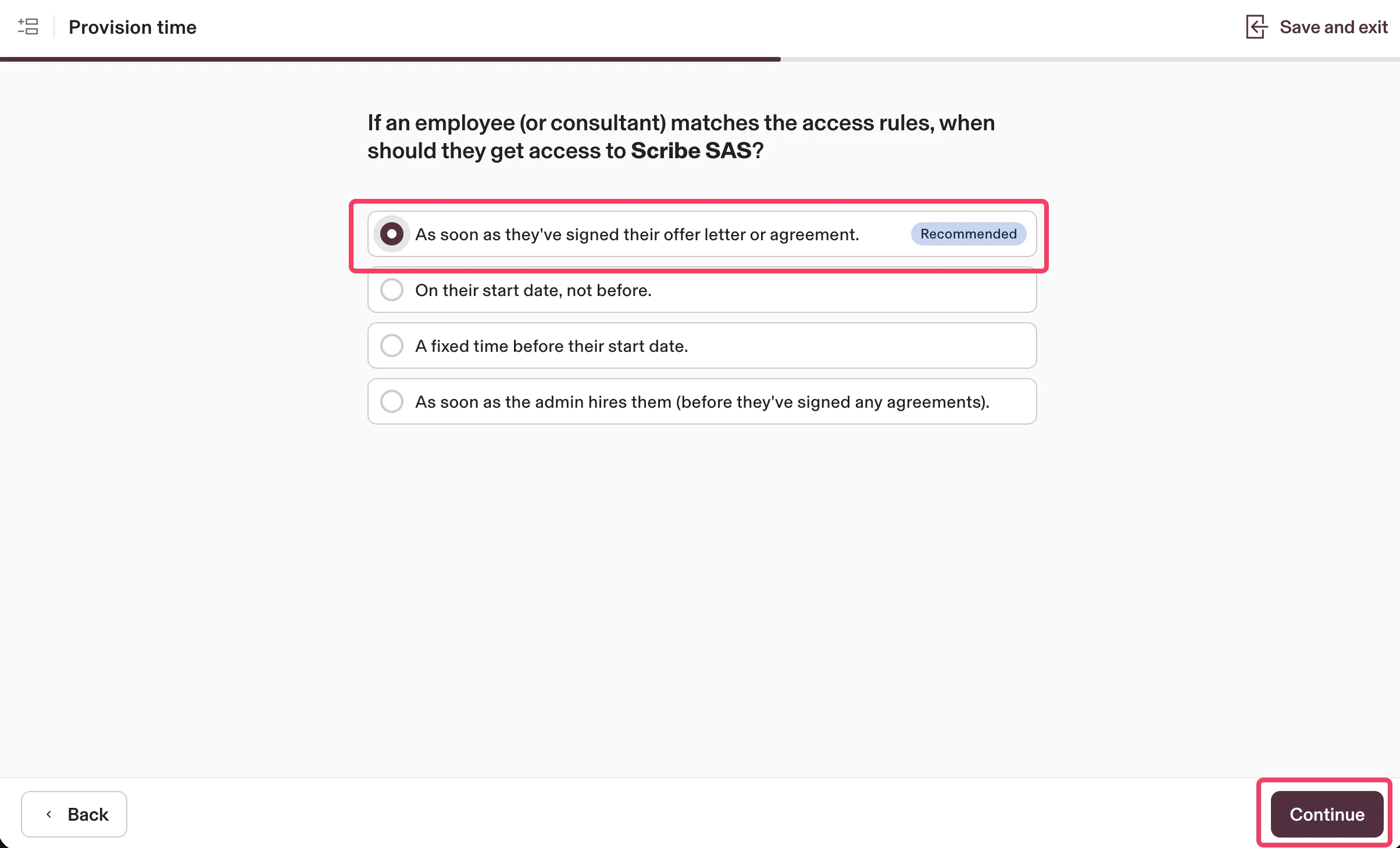
  <Step title="最初のオプションを選択し、'Continue' をクリック">
    従業員がScribeを利用できるようになるタイミングを選択します。推奨オプションは **As soon as they've signed their offer letter or agreement**(オファーレターまたは契約書に署名した時点)です。**Continue** をクリックしてください。
    <Frame>
      <img src="https://mintcdn.com/scribe/pvZJQ56rCCLLmCwt/integrations/smart-fields/images/rippling-step-7.png?fit=max&auto=format&n=pvZJQ56rCCLLmCwt&q=85&s=0f6453b885edb2a8e22e011c3a8318df" alt="推奨オプションが選択されたプロビジョニング時期の設定画面" className="mx-auto" style={{ width:"92%" }} width="2408" height="1458" data-path="integrations/smart-fields/images/rippling-step-7.png" />
    </Frame>
  </Step>

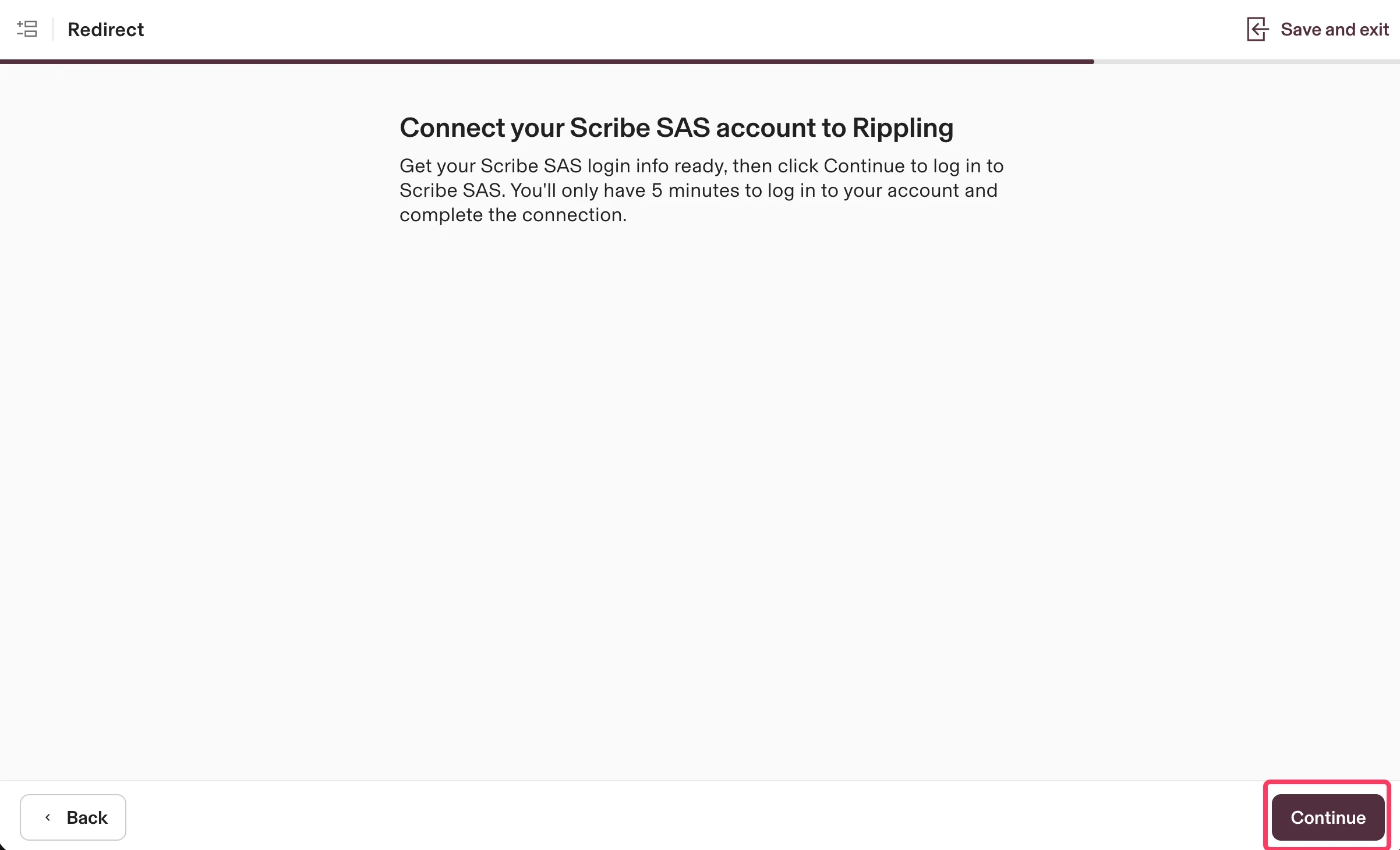
  <Step title="あと少しで完了。'Continue' をクリック">
    **Continue** をクリックして、ScribeアカウントをRipplingに接続し、連携を完了します。
    <Frame>
      <img src="https://mintcdn.com/scribe/pvZJQ56rCCLLmCwt/integrations/smart-fields/images/rippling-step-8.png?fit=max&auto=format&n=pvZJQ56rCCLLmCwt&q=85&s=0f5be8140ae551d3744338b3f607a56f" alt="ScribeアカウントをRipplingに接続するためのリダイレクト画面と「Continue」ボタン" className="mx-auto" style={{ width:"91%" }} width="2404" height="1460" data-path="integrations/smart-fields/images/rippling-step-8.png" />
    </Frame>
  </Step>
</Steps>

## 関連記事

* [UKG](/ja/integrations/smart-fields/ukg-smart-fields):UKGのデータを署名に同期します。
* [Workday](/ja/integrations/smart-fields/workday-smart-fields):Workdayのデータを署名に同期します。
* [チームメンバーに署名を割り当てる](/ja/assign-teammates-to-a-signature):Smartfieldの条件を使って署名を自動的に割り当てます。