> ## Documentation Index
> Fetch the complete documentation index at: https://help.scribe-mail.com/llms.txt
> Use this file to discover all available pages before exploring further.

# Workleap Pingboard

> 組織図・ディレクトリツールであるWorkleap Pingboardから役職や部署などの情報を同期し、メール署名を正確かつ最新の状態に保ちます。

Workleap Pingboardをデータソースとして[チームメンバーの署名を自動入力](/ja/smart-fields)するには、以下の手順に従ってください。

<Info>
  **チームメンバー側での操作は不要です。**
</Info>

<Info>
  **Workleap Pingboardでの変更はScribeに自動同期されます。**
</Info>

<Info>
  **SOC 2 Type II 認証取得済み。** [データは安全に保護されます](/ja/security/data-collection/pingboard)。
</Info>

## インストールガイド

### 前提条件

* Pingboardアカウントへの管理者アクセス権
* 管理者アクセス権を持つScribeアカウント

<Steps>
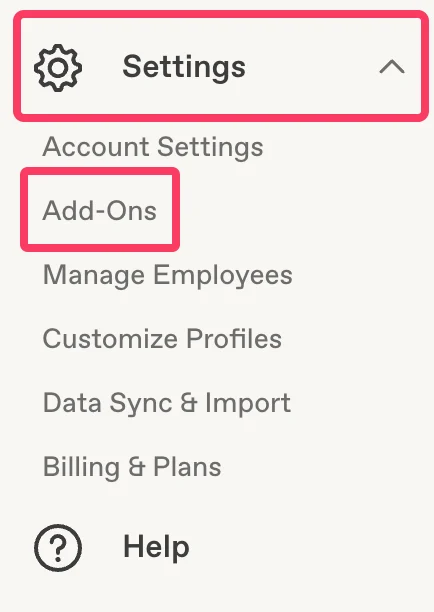
  <Step title="Pingboardアカウントを開き、'Settings' > 'Add-Ons' を選択">
    Pingboardアカウントで **Settings** メニューを開き、**Add-Ons** をクリックしてください。
    <Frame>
      <img src="https://mintcdn.com/scribe/pvZJQ56rCCLLmCwt/integrations/smart-fields/images/workleap-pingboard-step-1.png?fit=max&auto=format&n=pvZJQ56rCCLLmCwt&q=85&s=f521cb45ab27aff89dad87b3bd184b67" alt="Add-OnsオプションがハイライトされたPingboardのSettingsメニュー" className="mx-auto" style={{ width:"51%" }} width="434" height="612" data-path="integrations/smart-fields/images/workleap-pingboard-step-1.png" />
    </Frame>
  </Step>

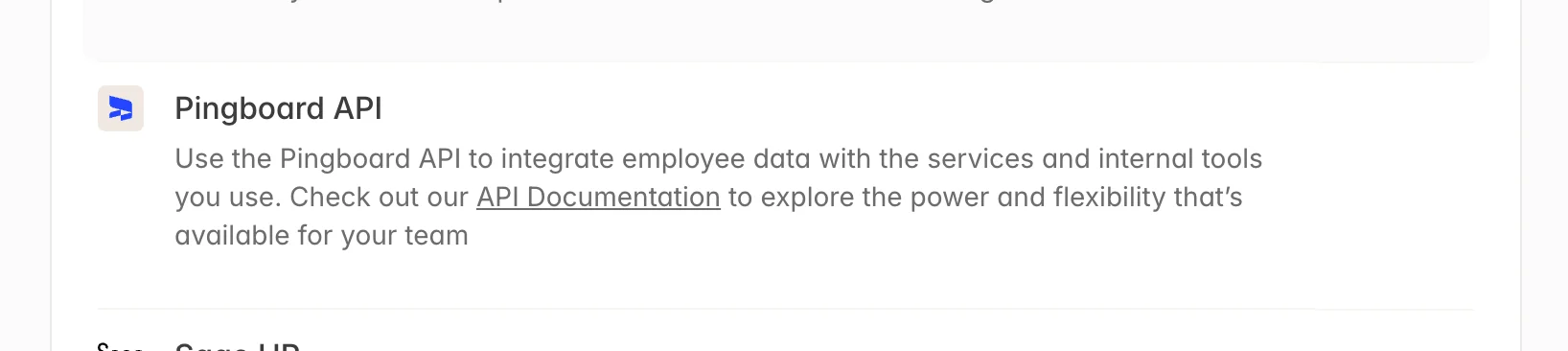
  <Step title="一覧から 'Pingboard API' をクリック">
    一覧から **Pingboard API** アドオンを選択してください。

    <Frame>
      <img src="https://mintcdn.com/scribe/pvZJQ56rCCLLmCwt/integrations/smart-fields/images/workleap-pingboard-step-2.png?fit=max&auto=format&n=pvZJQ56rCCLLmCwt&q=85&s=bf07fe9adefec6f46149cc954b2c4d0f" alt="一覧に表示されたPingboard APIアドオン" className="mx-auto" width="1636" height="366" data-path="integrations/smart-fields/images/workleap-pingboard-step-2.png" />
    </Frame>
  </Step>

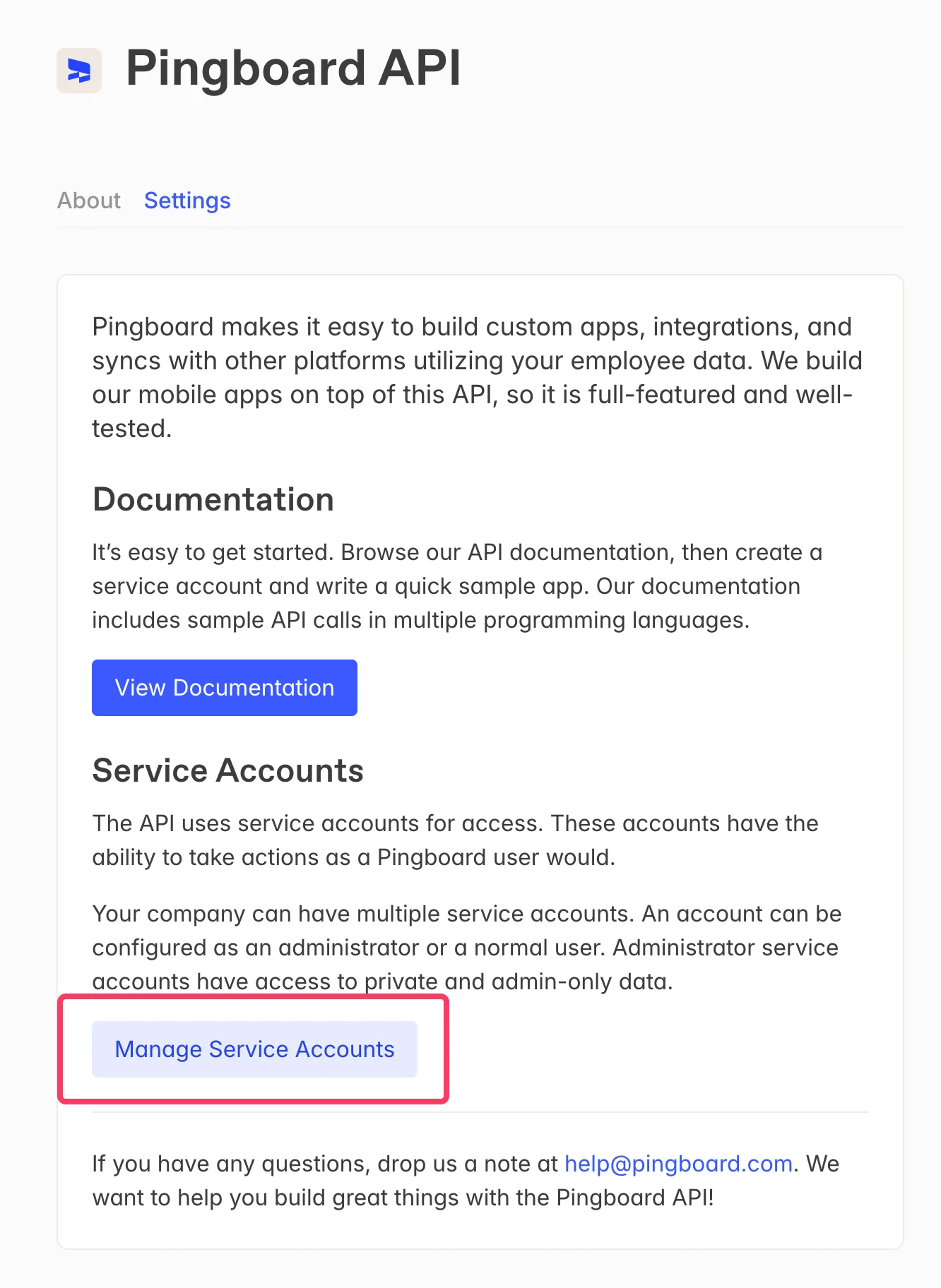
  <Step title="'Manage Service Accounts' をクリック">
    Pingboard APIのページで **Manage Service Accounts** をクリックしてください。
    <Frame>
      <img src="https://mintcdn.com/scribe/pvZJQ56rCCLLmCwt/integrations/smart-fields/images/workleap-pingboard-step-3.png?fit=max&auto=format&n=pvZJQ56rCCLLmCwt&q=85&s=3dc1903392aa0cd4920554be53ca622e" alt="Manage Service AccountsボタンがハイライトされたPingboard APIページ" className="mx-auto" style={{ width:"55%" }} width="1332" height="1824" data-path="integrations/smart-fields/images/workleap-pingboard-step-3.png" />
    </Frame>
  </Step>

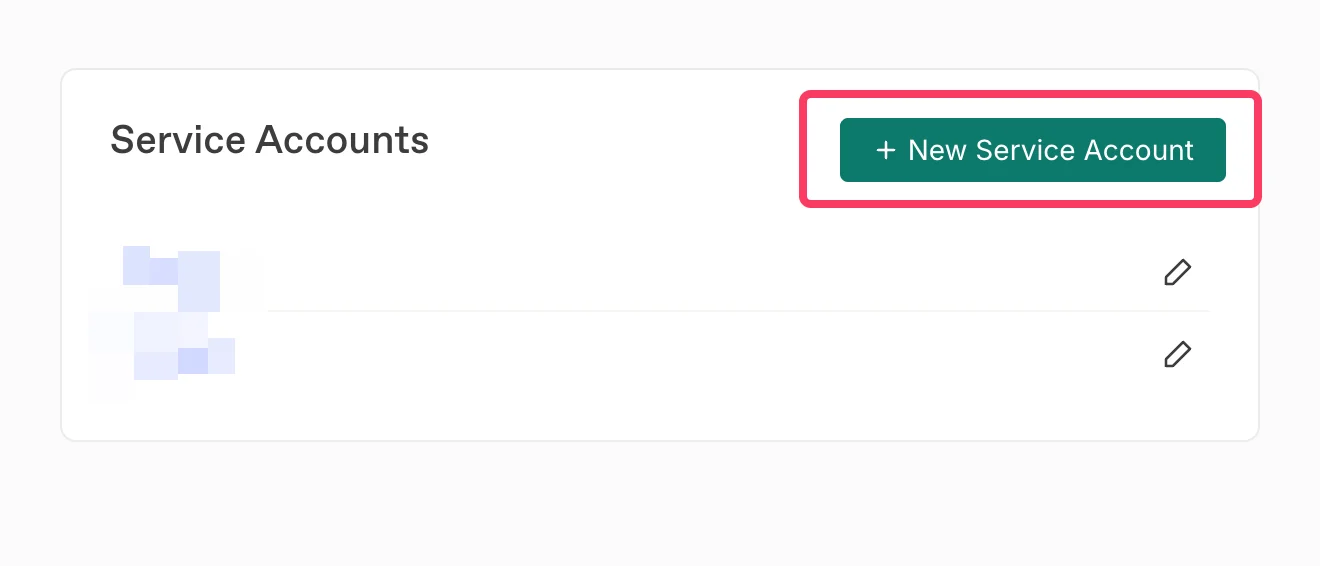
  <Step title="New Service Accountをクリック">
    **+ New Service Account** をクリックして、Scribe用の新しいサービスアカウントを作成してください。
    <Frame>
      <img src="https://mintcdn.com/scribe/pvZJQ56rCCLLmCwt/integrations/smart-fields/images/workleap-pingboard-step-4.png?fit=max&auto=format&n=pvZJQ56rCCLLmCwt&q=85&s=c4d8c5e3086c382eed874cef0c88feff" alt="New Service AccountボタンがハイライトされたService Accountsページ" className="mx-auto" style={{ width:"80%" }} width="1320" height="566" data-path="integrations/smart-fields/images/workleap-pingboard-step-4.png" />
    </Frame>
  </Step>

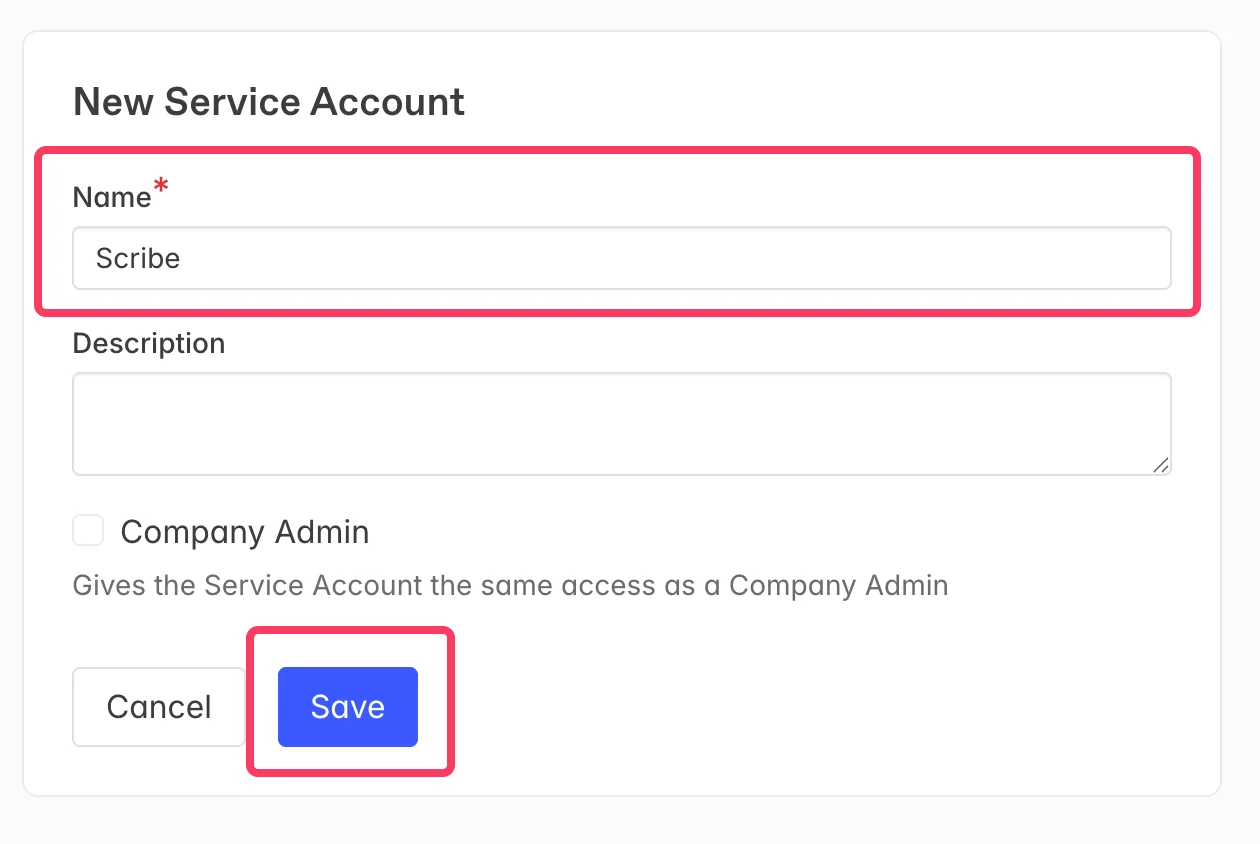
  <Step title="サービスアカウントキーに名前を付けて 'Save' をクリック">
    サービスアカウントの名前として **Scribe** を入力し、**Save** をクリックしてください。
    <Frame>
      <img src="https://mintcdn.com/scribe/pvZJQ56rCCLLmCwt/integrations/smart-fields/images/workleap-pingboard-step-5.png?fit=max&auto=format&n=pvZJQ56rCCLLmCwt&q=85&s=2e02f681d2577c76243ee046a946cdd0" alt="名前に Scribe と入力された新規サービスアカウントのフォーム" className="mx-auto" style={{ width:"81%" }} width="1260" height="844" data-path="integrations/smart-fields/images/workleap-pingboard-step-5.png" />
    </Frame>
  </Step>

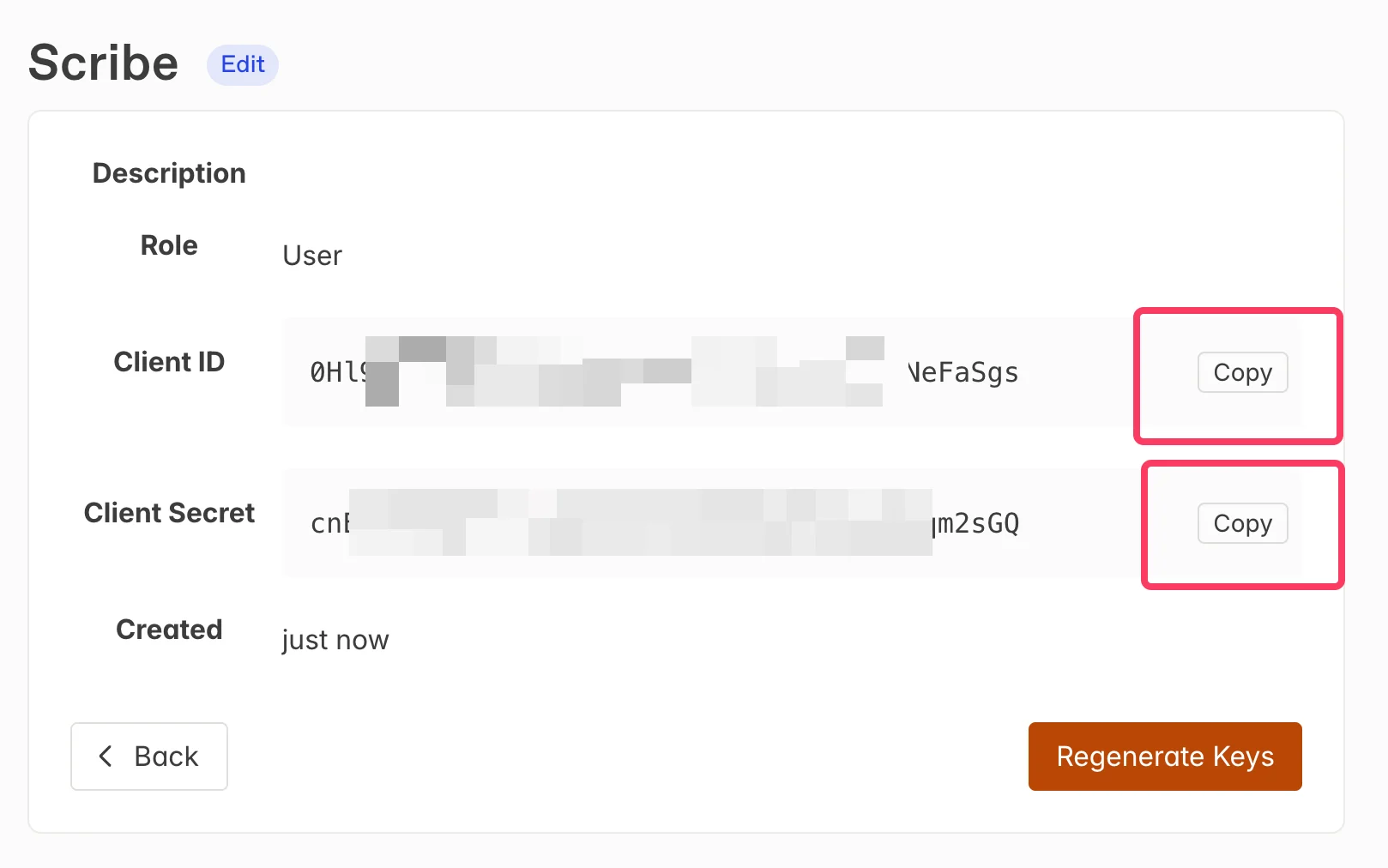
  <Step title="Client ID と Client Secret をコピーし、下のフィールドに貼り付け">
    Pingboard で **Copy** ボタンを使って **Client ID** と **Client Secret** をコピーし、Scribe の対応するフィールドに貼り付けます。**Connect Pingboard** をクリックして連携を完了してください。
    <Frame>
      <img src="https://mintcdn.com/scribe/pvZJQ56rCCLLmCwt/integrations/smart-fields/images/workleap-pingboard-step-6.png?fit=max&auto=format&n=pvZJQ56rCCLLmCwt&q=85&s=109136241fd76b4bce2383ecf9e8eff4" alt="Client ID と Client Secret のコピーボタンが付いたサービスアカウントの認証情報と、その下にある Scribe の入力フィールド" className="mx-auto" style={{ width:"85%" }} width="1618" height="1012" data-path="integrations/smart-fields/images/workleap-pingboard-step-6.png" />
    </Frame>
  </Step>
</Steps>

## 関連記事

* [BambooHR](/ja/integrations/smart-fields/bamboohr-smart-fields):BambooHRのデータを署名に同期。
* [Ceridian Dayforce](/ja/integrations/smart-fields/ceridian-dayforce-smart-fields):Ceridian Dayforceのデータを署名に同期。
* [チームメンバーに署名を割り当てる](/ja/assign-teammates-to-a-signature):Smartfieldの条件を使って署名を自動的に割り当てます。