> ## Documentation Index
> Fetch the complete documentation index at: https://help.scribe-mail.com/llms.txt
> Use this file to discover all available pages before exploring further.

# Google Workspace

> Google WorkspaceをScribeに連携し、組織部門やグループから選択したチームメンバーを同期できます。詳細情報や今後の変更も自動で最新の状態に保たれます。

以下の手順に従って、Google Workspaceの組織部門・グループ・チームメンバーをScribeと同期してください。

<Info>
  **Scribeと同期するチームメンバーのみを選択してください。**
</Info>

<Info>
  **Google Workspaceでの変更はScribeへ自動同期されます。**
</Info>

<Info>
  **SOC 2 Type II 認証取得済み。** データは安全に保護されます。
</Info>

## インストールガイド

### 前提条件

* 管理者権限を持つScribeアカウント
* **Super Admin**権限を持つGoogle Workspaceアカウント

<Steps>
  <Step title="Google Workspace連携を接続">
    Google Workspaceから選択したチームメンバーをインポートします。同期対象は自由に指定できます。

    <Warning>
      この連携をインストールするには、Google Workspaceの**Super Admin**である必要があります。
    </Warning>

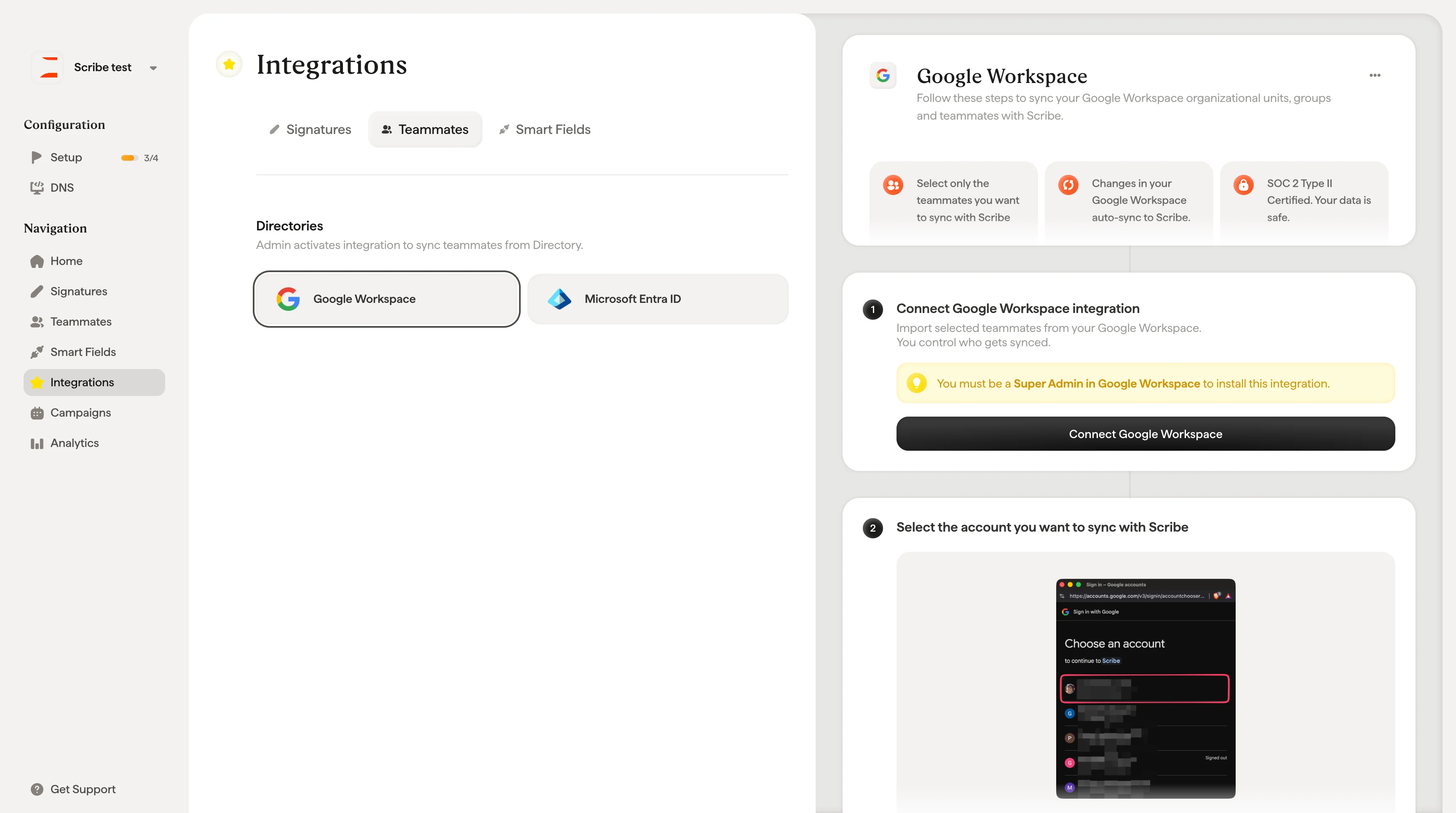
    **Connect Google Workspace**をクリックしてセットアップを開始してください。
    <Frame>
      <img src="https://mintcdn.com/scribe/Z_G2D9X-Tlrxu_Eh/images/google-workspace-teammates-connect-button.png?fit=max&auto=format&n=Z_G2D9X-Tlrxu_Eh&q=85&s=120b0fbbdf629b7901ab3c86fa5eba9e" alt="Scribeのチームメンバー設定画面にあるConnect Google Workspaceボタン" width="3456" height="1930" data-path="images/google-workspace-teammates-connect-button.png" />
    </Frame>
  </Step>

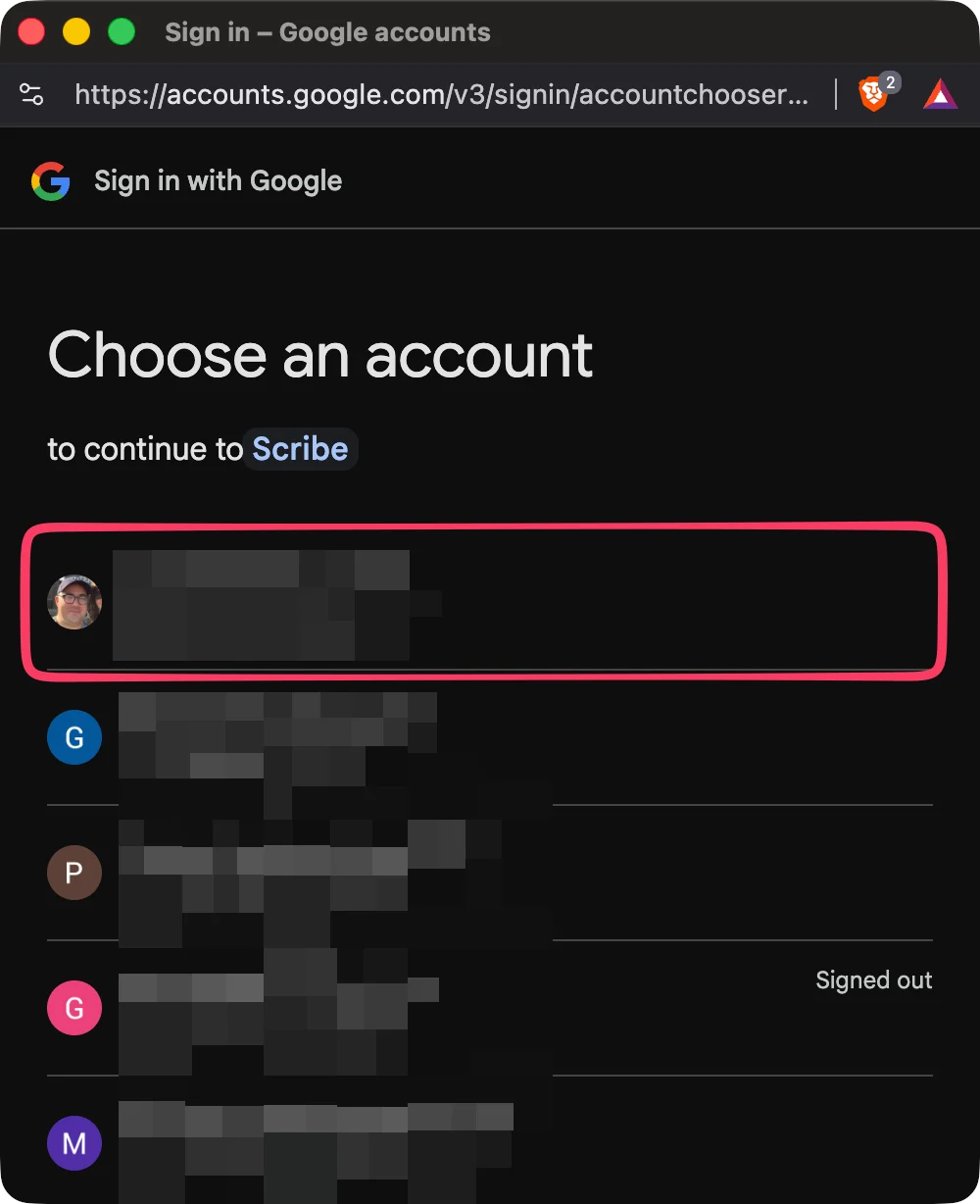
  <Step title="Scribeと同期するアカウントを選択">
    <Frame>
      <img src="https://mintcdn.com/scribe/pvZJQ56rCCLLmCwt/integrations/teammates/images/google-workspace-step-2.png?fit=max&auto=format&n=pvZJQ56rCCLLmCwt&q=85&s=c69f8e458a8e3a034dd726de24acb05f" alt="Googleアカウント選択画面" className="mx-auto" style={{ width:"59%" }} width="1000" height="1228" data-path="integrations/teammates/images/google-workspace-step-2.png" />
    </Frame>
  </Step>

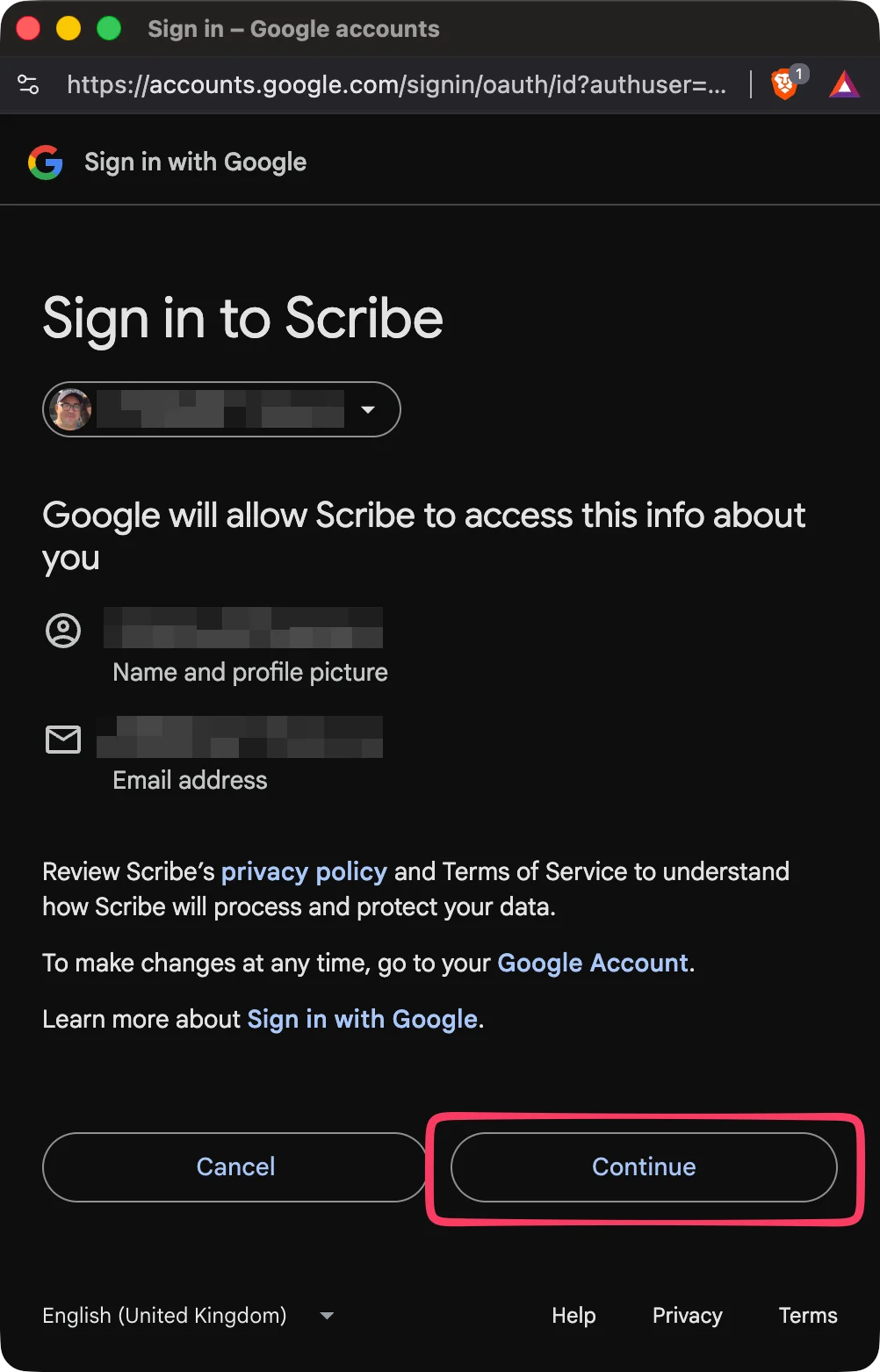
  <Step title="アカウントにサインイン">
    <Frame>
      <img src="https://mintcdn.com/scribe/pvZJQ56rCCLLmCwt/integrations/teammates/images/google-workspace-step-3.png?fit=max&auto=format&n=pvZJQ56rCCLLmCwt&q=85&s=cdad4d134da444212af5b06fe277f842" alt="GoogleでScribeにサインイン" className="mx-auto" style={{ width:"51%" }} width="1002" height="1562" data-path="integrations/teammates/images/google-workspace-step-3.png" />
    </Frame>
  </Step>

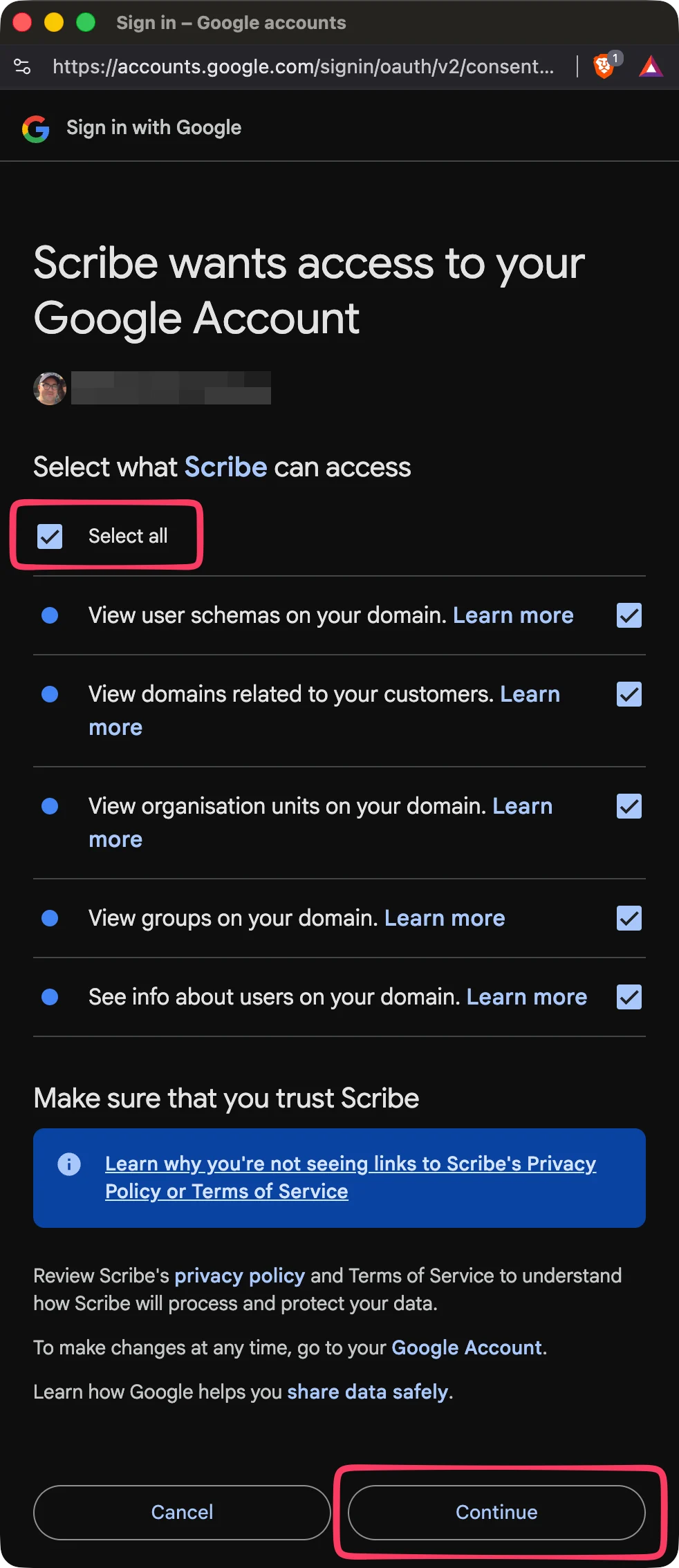
  <Step title="すべてのスコープを承認">
    ScribeはSOC 2 Type IIに準拠しています。利用するGoogle APIのスコープは[こちら](https://support.google.com/a/answer/162106)で確認できます。メールの送信や読み取りは行いません。
    <Frame>
      <img src="https://mintcdn.com/scribe/pvZJQ56rCCLLmCwt/integrations/teammates/images/google-workspace-step-4.png?fit=max&auto=format&n=pvZJQ56rCCLLmCwt&q=85&s=f4378bd11d5da43e9e1af3b665d52503" alt="Google APIスコープの選択" className="mx-auto" style={{ width:"42%" }} width="982" height="2268" data-path="integrations/teammates/images/google-workspace-step-4.png" />
    </Frame>
  </Step>

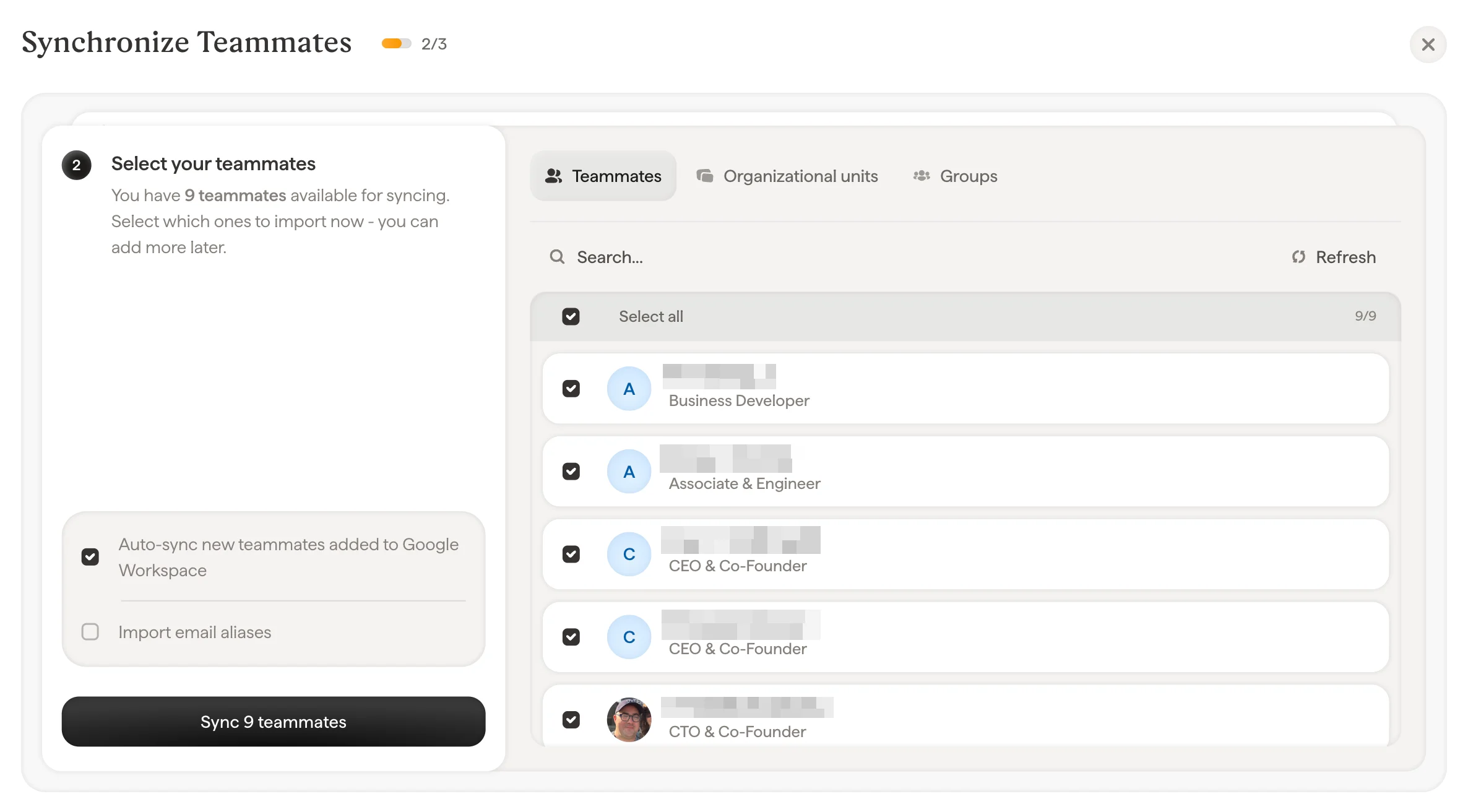
  <Step title="Scribeと同期するチームメンバーを選択">
    チームメンバーリスト、ユニット、またはグループからチームメンバーを選択できます。今すぐインポートする対象を選択してください。あとから追加することも可能です。情報も同期されるため、後ほど[Smartfield](/ja/smart-fields)を使って署名を自動入力できます。
    <Frame>
      <img src="https://mintcdn.com/scribe/pvZJQ56rCCLLmCwt/integrations/teammates/images/google-workspace-step-5.png?fit=max&auto=format&n=pvZJQ56rCCLLmCwt&q=85&s=d1b1bb5e43a7c07a73eb187dee0dfa3e" alt="チームメンバーの同期ダイアログ" width="2372" height="1312" data-path="integrations/teammates/images/google-workspace-step-5.png" />
    </Frame>
  </Step>

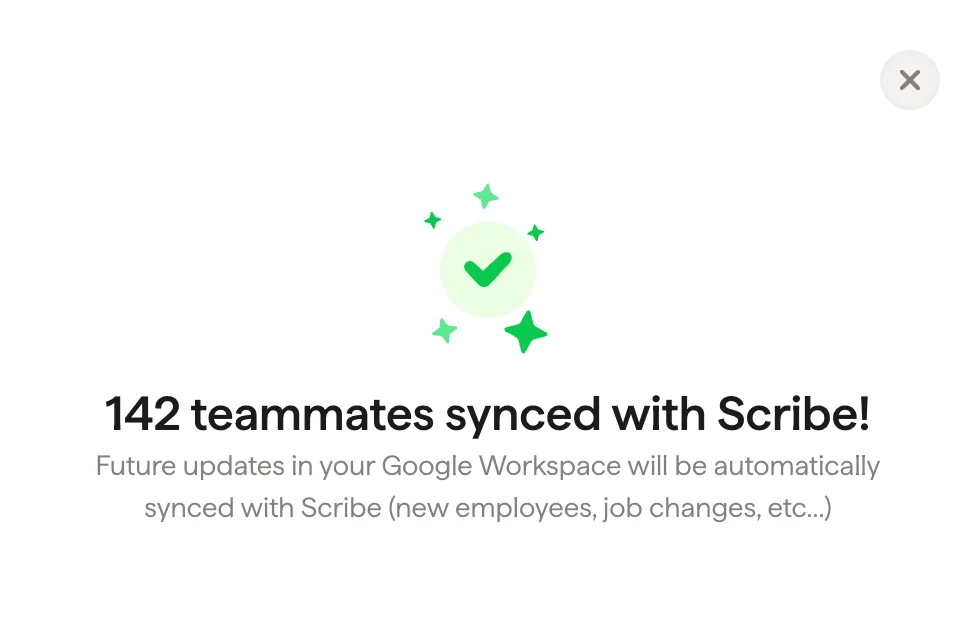
  <Step title="完了。チームメンバーがScribeと同期されました">
    署名画面に移動して、[チームメンバーを割り当て](/ja/assign-teammates-to-a-signature)、署名を作成してください。今後のGoogle Workspaceでの更新(新入社員、職務変更など)は自動的にScribeと同期されます。
    <Frame>
      <img src="https://mintcdn.com/scribe/pvZJQ56rCCLLmCwt/integrations/teammates/images/google-workspace-step-6.png?fit=max&auto=format&n=pvZJQ56rCCLLmCwt&q=85&s=c834c9e2d8e575f1ba6a533a36fffe06" alt="チームメンバー同期完了の確認" className="mx-auto" style={{ width:"66%" }} width="968" height="638" data-path="integrations/teammates/images/google-workspace-step-6.png" />
    </Frame>
  </Step>
</Steps>

## 関連記事

* [チームメンバーの概要](/ja/teammates/teammates-overview)
* [Microsoft Entra ID](/ja/integrations/teammates/microsoft-entra-id-teammates)
* [Scribeのセキュリティ対策](/ja/what-scribe-does-concerning-security)