> ## Documentation Index
> Fetch the complete documentation index at: https://help.scribe-mail.com/llms.txt
> Use this file to discover all available pages before exploring further.
# Googleアドインが検証されない
> Google Workspaceの検証プロセスに時間がかかりすぎる、止まる、正常に完了しない場合に、ScribeのGoogleアドインをトラブルシューティングする方法。
[Googleアドイン](/ja/integrations/signatures/google-workspace-client-side)の検証を30分以上待っている場合は、次の項目を確認してください。
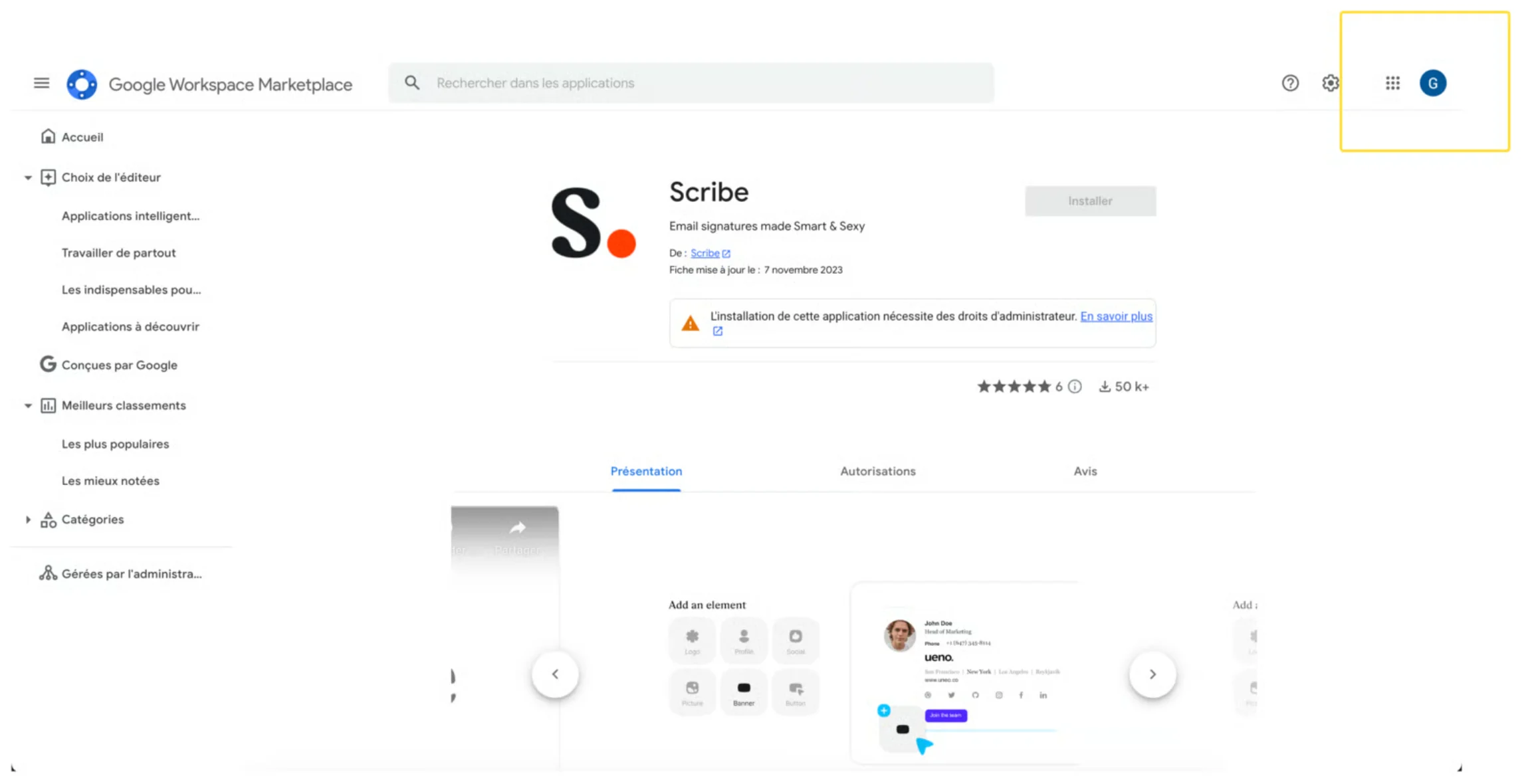
[Google Workspace Marketplace](https://workspace.google.com/marketplace/app/scribe/456495922678)からアドインをインストールする際に、正しいGoogleアカウントを選択しているか確認してください。Googleアカウントとは別のドメイン名を選んでしまうケースがあります。
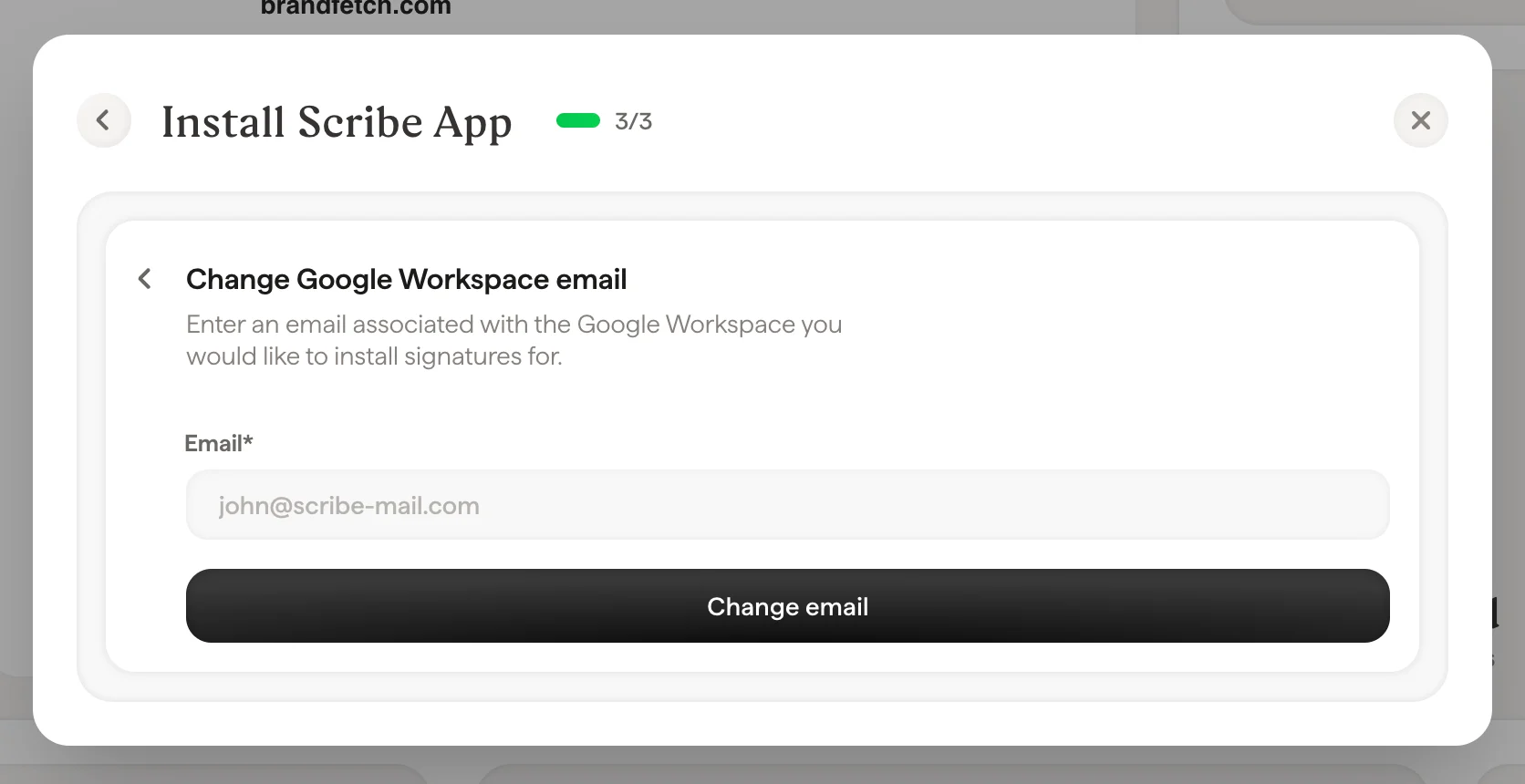
 アドインをインストールするために選択したメールアドレスが、Google Workspaceアカウントに含まれていることを確認してください。このメールアドレスはScribeで変更できます。[連携ページ](/ja/integrations-overview)を開き、Google Workspace連携を開いてください:
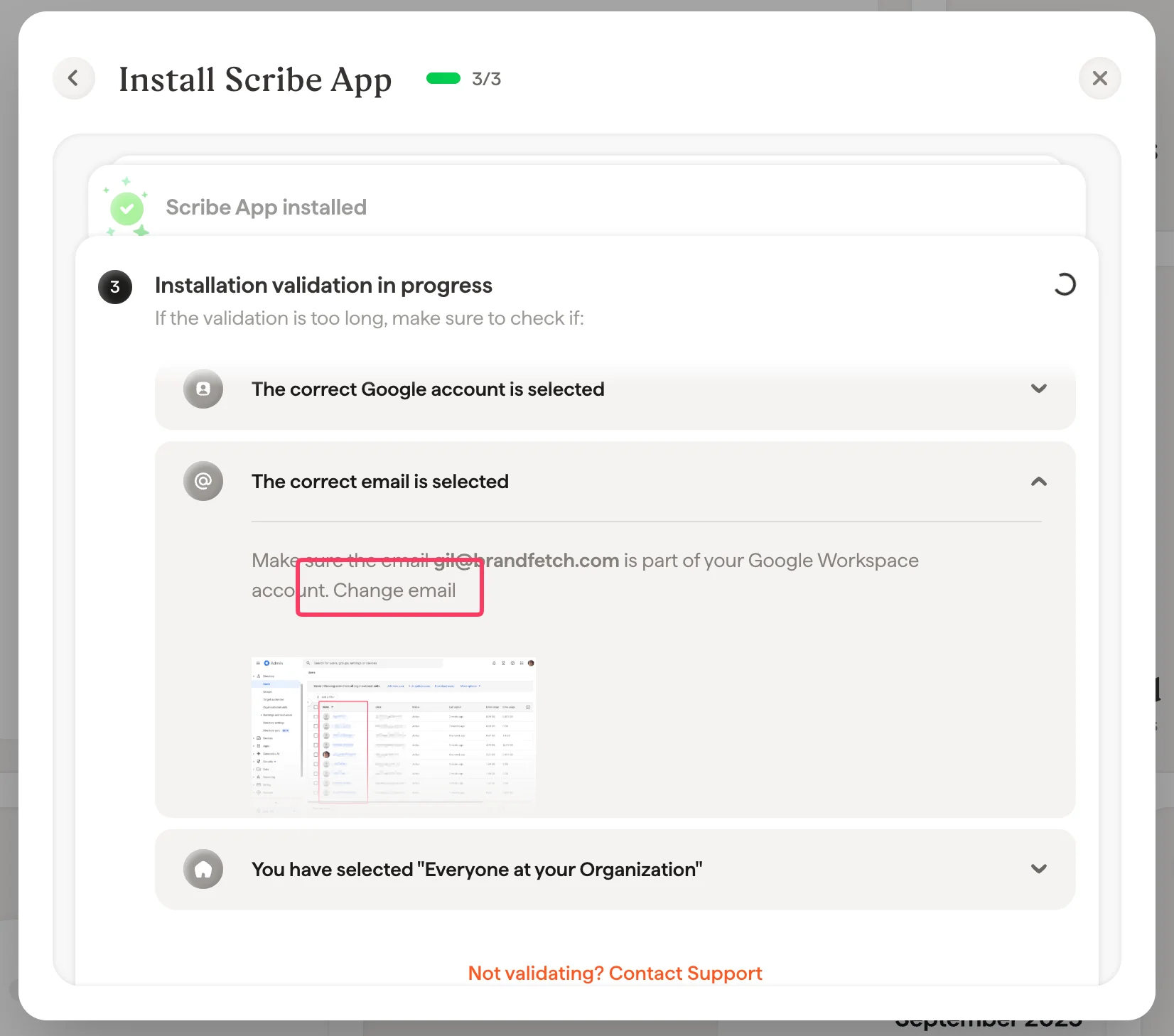 アプリをインストールする際は、必ず "Everyone at your organization" を選択してください。
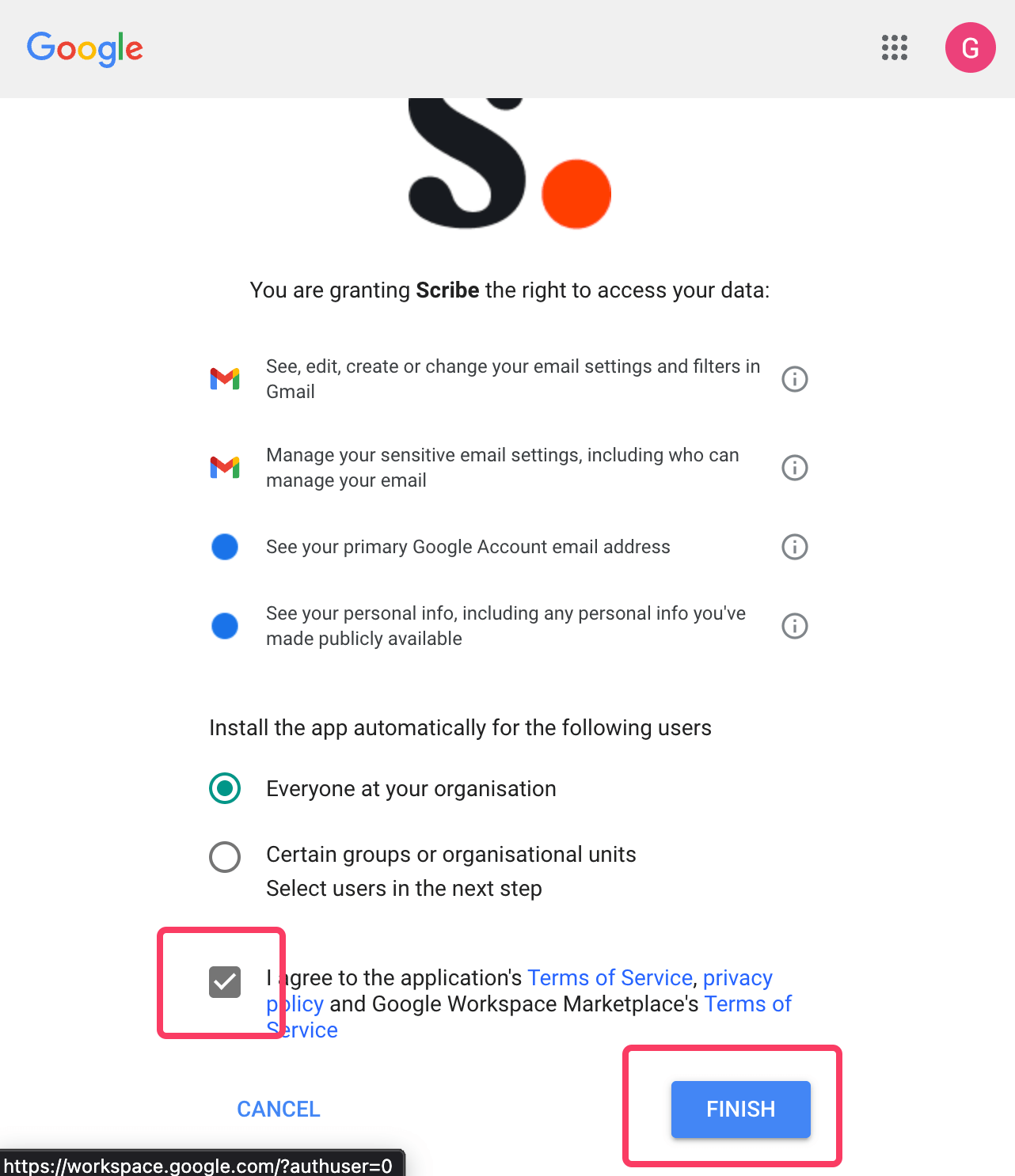 Scribeに必要な権限を付与するには、Google Workspaceのスーパー管理者である必要があります。スーパー管理者でない場合は、IT担当者を招待してください。
この連携は Google Workspace ユーザー向けで、個人の Gmail アカウントではご利用いただけません。
## 関連記事
* [管理者ポリシーによる制限](/ja/troubleshooting/admin-policy-enforced)
* [Google Workspaceへのアクセス喪失](/ja/troubleshooting/google-workspace-access-lost)
* [Outlookアドインのインストールが検証されない](/ja/troubleshooting/outlook-add-in-installation-not-validating)
Scribeに必要な権限を付与するには、Google Workspaceのスーパー管理者である必要があります。スーパー管理者でない場合は、IT担当者を招待してください。
この連携は Google Workspace ユーザー向けで、個人の Gmail アカウントではご利用いただけません。
## 関連記事
* [管理者ポリシーによる制限](/ja/troubleshooting/admin-policy-enforced)
* [Google Workspaceへのアクセス喪失](/ja/troubleshooting/google-workspace-access-lost)
* [Outlookアドインのインストールが検証されない](/ja/troubleshooting/outlook-add-in-installation-not-validating)