> ## Documentation Index
> Fetch the complete documentation index at: https://help.scribe-mail.com/llms.txt
> Use this file to discover all available pages before exploring further.
# 배지 블록
> App Store나 Google Play 버튼, 인증 로고 같은 미리 만들어진 배지를 이메일 서명에 추가하고, 링크·크기·여백을 설정하세요.
배지는 App Store 다운로드 버튼, Google Play 배지, 인증 로고, 수상 배지처럼 미리 디자인된 시각 요소예요. [버튼](/ko/editor/button-blocks)과 마찬가지로 클릭하면 특정 위치로 연결되지만, 디자인이 미리 갖춰져 있어서 원하는 배지를 고르고 링크만 추가하면 돼요.
 ## 배지 콘텐츠
| 설정 | 기능 |
| ------------- | ---------------------------------------------- |
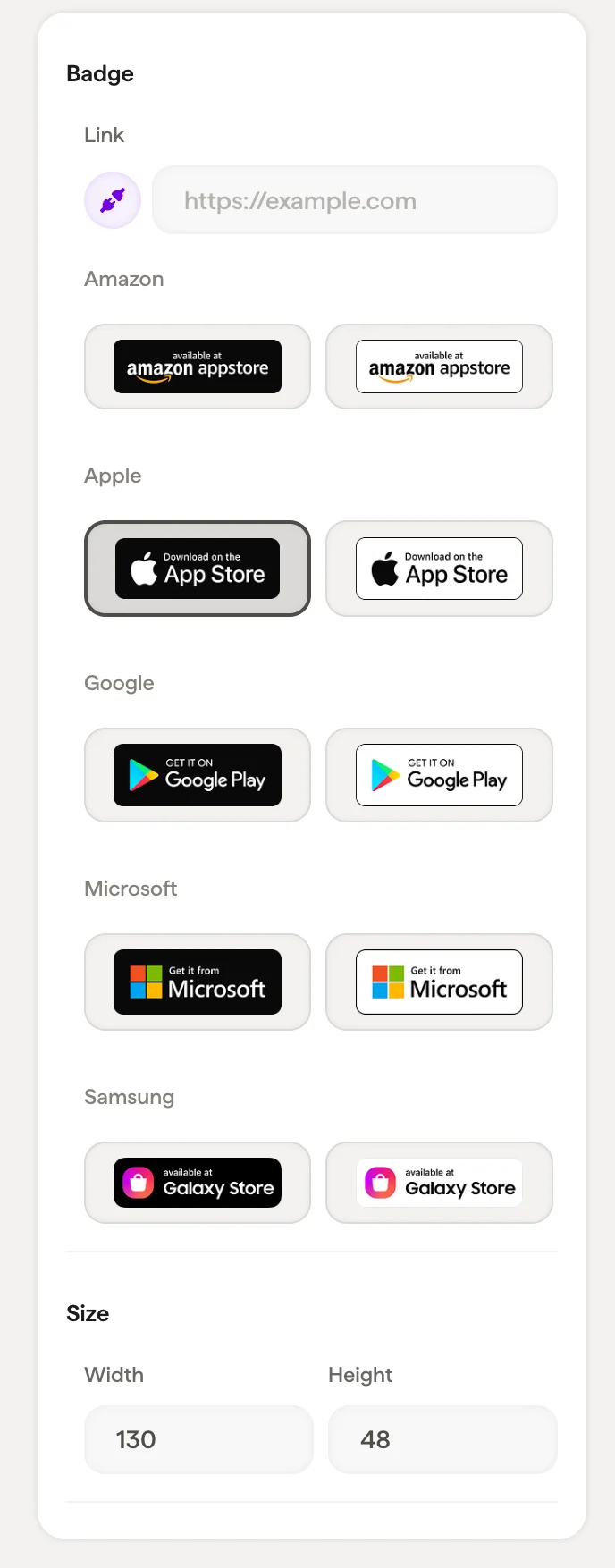
| **Link** | 배지를 클릭했을 때 연결되는 URL(예: App Store 페이지) |
| **App Store** | 사용할 수 있는 배지 디자인 중에서 선택. 각 스토어마다 여러 시각 스타일이 제공됨 |
배지 선택기에는 사용할 수 있는 모든 디자인이 그리드로 표시돼요. 서명의 분위기에 가장 잘 맞는 스타일을 클릭해서 선택하세요.
## 크기
배지의 **Width**와 **Height**를 픽셀 단위로 설정하세요.
## 레이아웃
여백으로 배지 블록 주변의 공간을 조절해요.
## 관련 문서
* [블록 추가](/ko/editor/add-blocks)
* [이미지 블록](/ko/editor/image-blocks)
* [소셜 아이콘](/ko/editor/social-icons)
## 배지 콘텐츠
| 설정 | 기능 |
| ------------- | ---------------------------------------------- |
| **Link** | 배지를 클릭했을 때 연결되는 URL(예: App Store 페이지) |
| **App Store** | 사용할 수 있는 배지 디자인 중에서 선택. 각 스토어마다 여러 시각 스타일이 제공됨 |
배지 선택기에는 사용할 수 있는 모든 디자인이 그리드로 표시돼요. 서명의 분위기에 가장 잘 맞는 스타일을 클릭해서 선택하세요.
## 크기
배지의 **Width**와 **Height**를 픽셀 단위로 설정하세요.
## 레이아웃
여백으로 배지 블록 주변의 공간을 조절해요.
## 관련 문서
* [블록 추가](/ko/editor/add-blocks)
* [이미지 블록](/ko/editor/image-blocks)
* [소셜 아이콘](/ko/editor/social-icons)