> ## Documentation Index
> Fetch the complete documentation index at: https://help.scribe-mail.com/llms.txt
> Use this file to discover all available pages before exploring further.
# Apple Mail (원격 모니터링)
> RMM 도구로 Scribe 데스크톱 앱을 자동 배포하여 팀 전체의 Apple Mail에 Scribe 서명을 한 번에 적용하세요.
아래 단계에 따라 [Apple Mail](/ko/integrations/signatures/apple-mail)에 서명을 설치하세요.
**사용자마다 연동을 설치하고 설정해야 해요.**
**이메일 작성 시 서명이 표시돼요.**
**클라우드 기반 설치.** 이메일은 Scribe 서버를 거치지 않아요.
## 고급 설치
고급 사용자 기능이에요. 이 연동을 설정하려면 IT 지원이 필요해요.
원격 모니터링·관리 도구에서 Scribe DMG를 사용하세요.
```text theme={null}
https://scribe-mail.com/desktop-app/mac-installer/latest
```
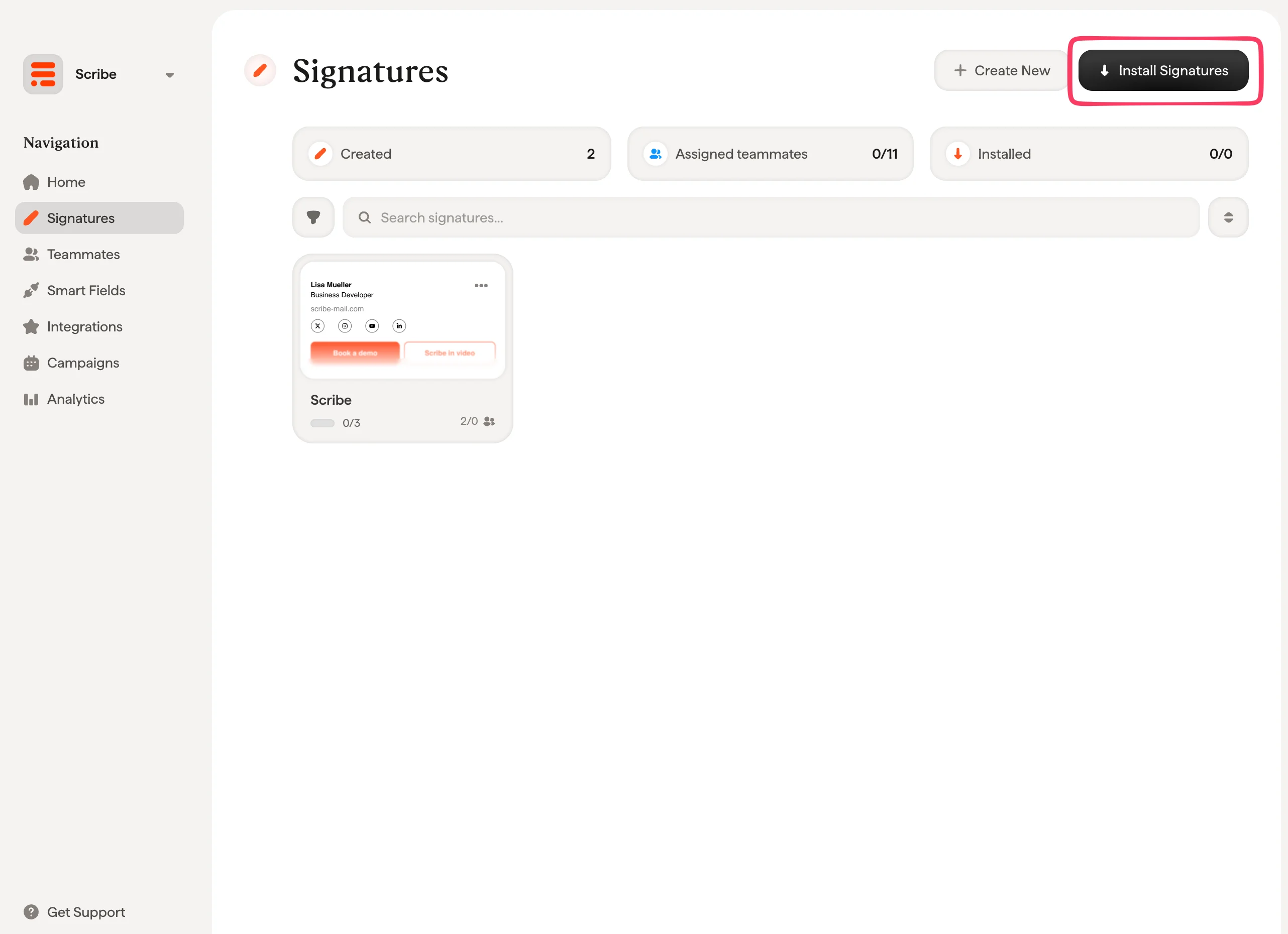
서명 목록에서 [팀원의 모든 서명을 한 번에 설치](/ko/install-signatures)하거나, 단계적 배포를 위해 하나씩 설치할 수 있어요.
 ## 관련 문서
* [연동 개요](/ko/integrations-overview): 클라우드 또는 서버 측에서 Scribe 서명을 배포하는 모든 방법.
* [설치 상태 및 오류](/ko/signature-installation-statuses-and-errors): 각 설치 상태의 의미와 오류 해결 방법.
* [서명을 설치할 수 없음](/ko/troubleshooting/unable-to-install-signature): 설치되지 않는 서명을 해결하는 방법.
## 관련 문서
* [연동 개요](/ko/integrations-overview): 클라우드 또는 서버 측에서 Scribe 서명을 배포하는 모든 방법.
* [설치 상태 및 오류](/ko/signature-installation-statuses-and-errors): 각 설치 상태의 의미와 오류 해결 방법.
* [서명을 설치할 수 없음](/ko/troubleshooting/unable-to-install-signature): 설치되지 않는 서명을 해결하는 방법.