> ## Documentation Index
> Fetch the complete documentation index at: https://help.scribe-mail.com/llms.txt
> Use this file to discover all available pages before exploring further.

# 서명 HTML

> Scribe 서명을 HTML로 복사해 모든 이메일 플랫폼에 직접 설치하거나, 팀원을 초대해 각자 서명을 추가하고 설치하도록 할 수 있어요.

다음 단계를 따라 Scribe 서명 HTML을 외부 플랫폼에 복사하세요.

<Info>
  **각 사용자는 서명 HTML을 직접 설치해야 해요.**
</Info>

<Info>
  **사용자는 이메일을 작성할 때 서명을 볼 수 있어요.**
</Info>

<Info>
  **클라우드 기반 설치.** 이메일은 Scribe 서버를 거치지 않아요.
</Info>

## HTML 직접 설치

### 사전 준비

* Scribe 계정
* Scribe에서 만든 서명 1개 이상
* 워크스페이스에 추가된 팀원
<Steps>
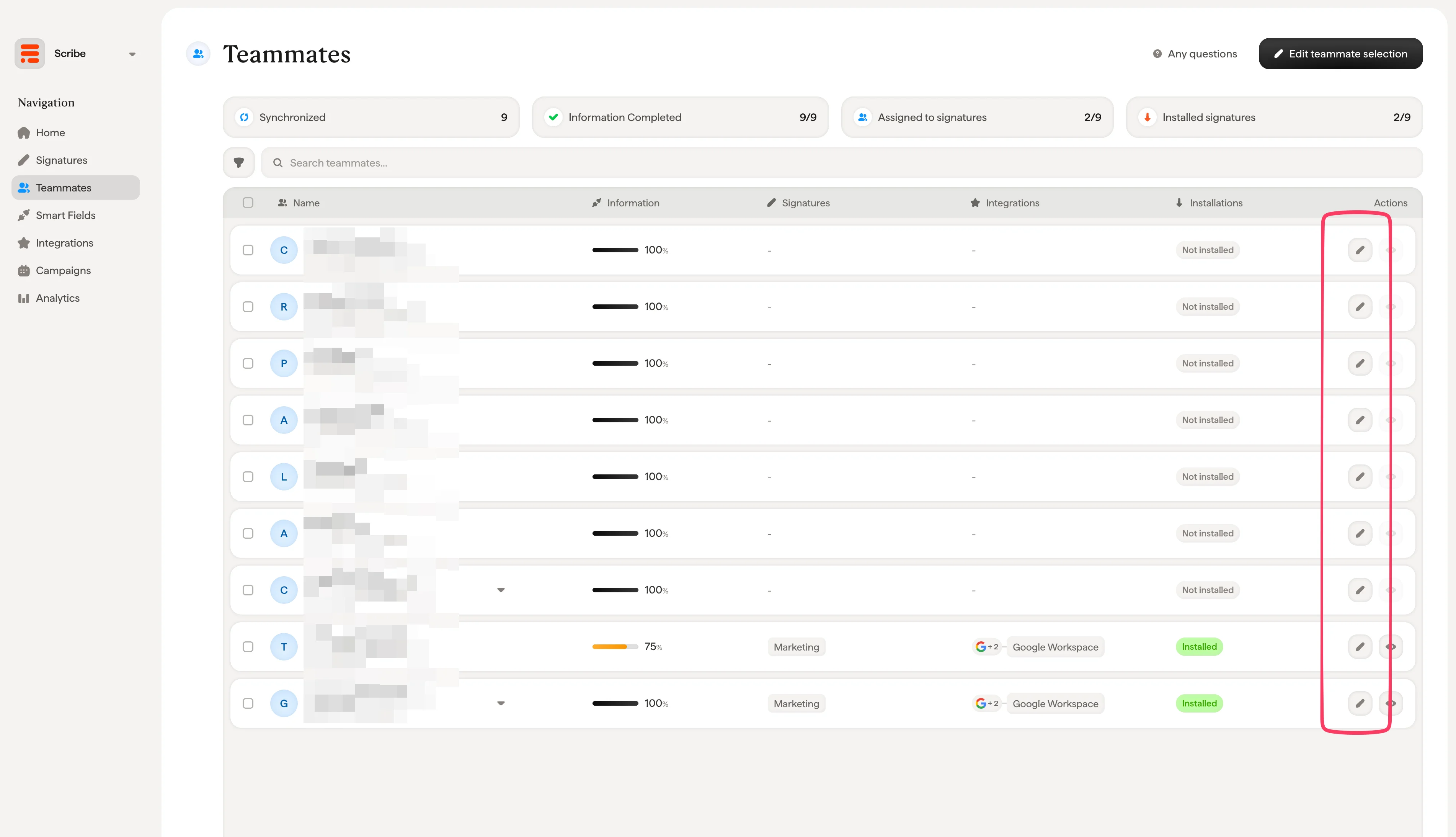
  <Step title="Scribe의 팀원 메뉴로 이동해 펜 아이콘을 클릭하여 팀원 프로필에 접근하세요">
    <Frame>
      <img src="https://mintcdn.com/scribe/I5V9iTucPI_EY3nq/integrations/signatures/images/signature-html-step-1.png?fit=max&auto=format&n=I5V9iTucPI_EY3nq&q=85&s=64c722aad8d0e76af498f8470327d968" alt="펜 아이콘이 강조된 팀원 목록" width="3804" height="2186" data-path="integrations/signatures/images/signature-html-step-1.png" />
    </Frame>
  </Step>

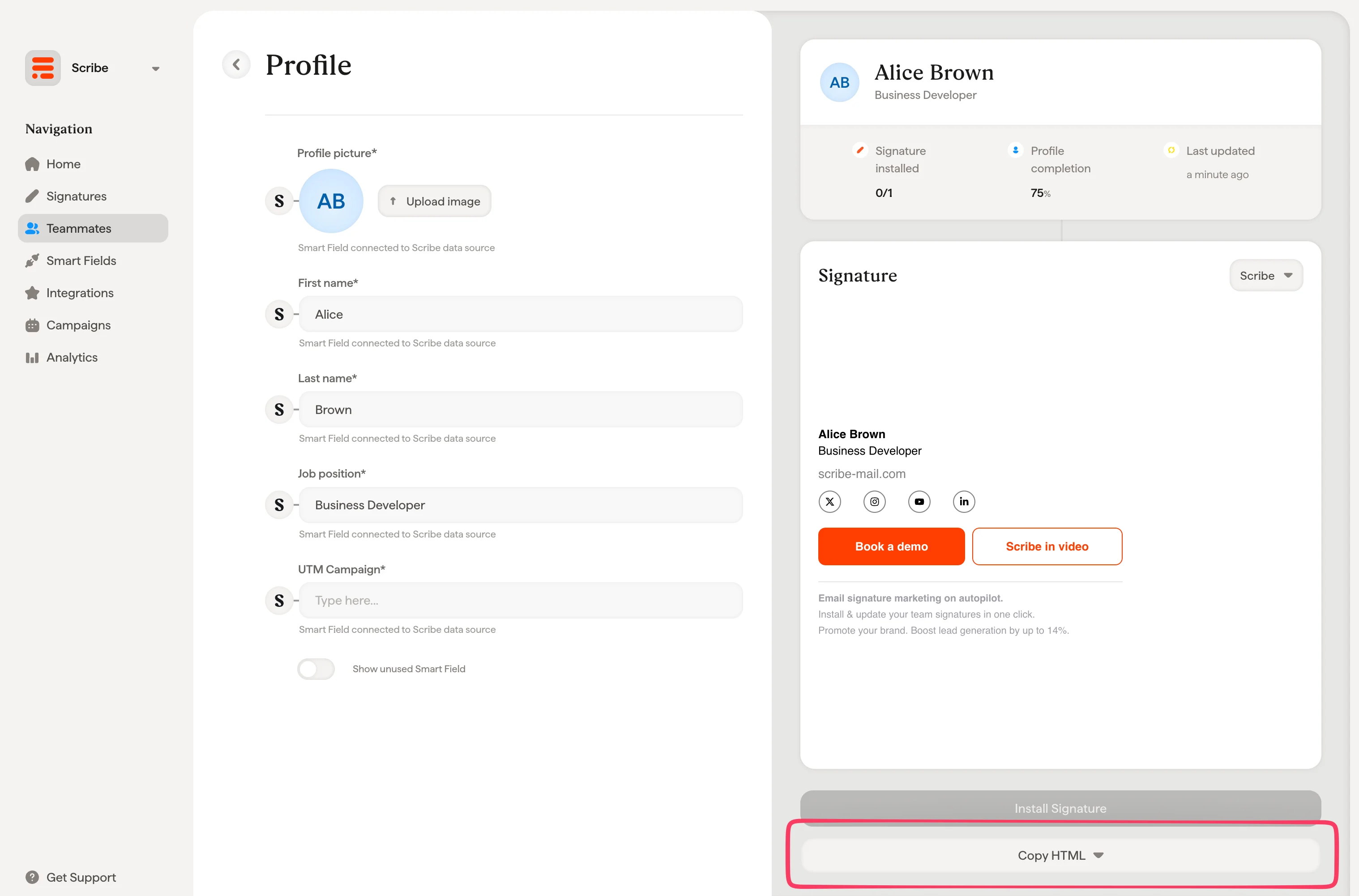
  <Step title="팀원 프로필에서 &#x22;Install signature&#x22; 버튼을 클릭하세요">
    플랫폼을 선택한 다음 HTML 코드를 복사해 설치하세요.

    <Frame>
      <img src="https://mintcdn.com/scribe/I5V9iTucPI_EY3nq/integrations/signatures/images/signature-html-step-2.png?fit=max&auto=format&n=I5V9iTucPI_EY3nq&q=85&s=a1c55c68645e637a095a5b2e54e2c41e" alt="Copy HTML 버튼이 강조된 팀원 프로필" width="3036" height="2002" data-path="integrations/signatures/images/signature-html-step-2.png" />
    </Frame>
  </Step>

  <Step title="이메일 플랫폼에 HTML을 설치하세요">
    사용 중인 이메일 플랫폼별 단계별 안내를 확인하세요:

    <CardGroup cols={2}>
      <Card title="Gmail" icon="envelope" href="/ko/integrations/signatures/signature-html-gmail">
        Gmail에 서명 설치하기
      </Card>

      <Card title="Outlook" icon="envelope" href="/ko/integrations/signatures/signature-html-outlook">
        Outlook에 서명 설치하기
      </Card>
    </CardGroup>
  </Step>
</Steps>

## 팀원을 초대해 HTML 설치하기

HTML을 직접 복사하는 대신, 팀원을 초대해 각자 서명을 설치하도록 할 수 있어요. 초대된 팀원은 자신의 서명에만 접근해 정보를 추가하고 설치할 수 있어요. Scribe 워크스페이스의 다른 영역에는 접근할 수 없어요.
<Steps>
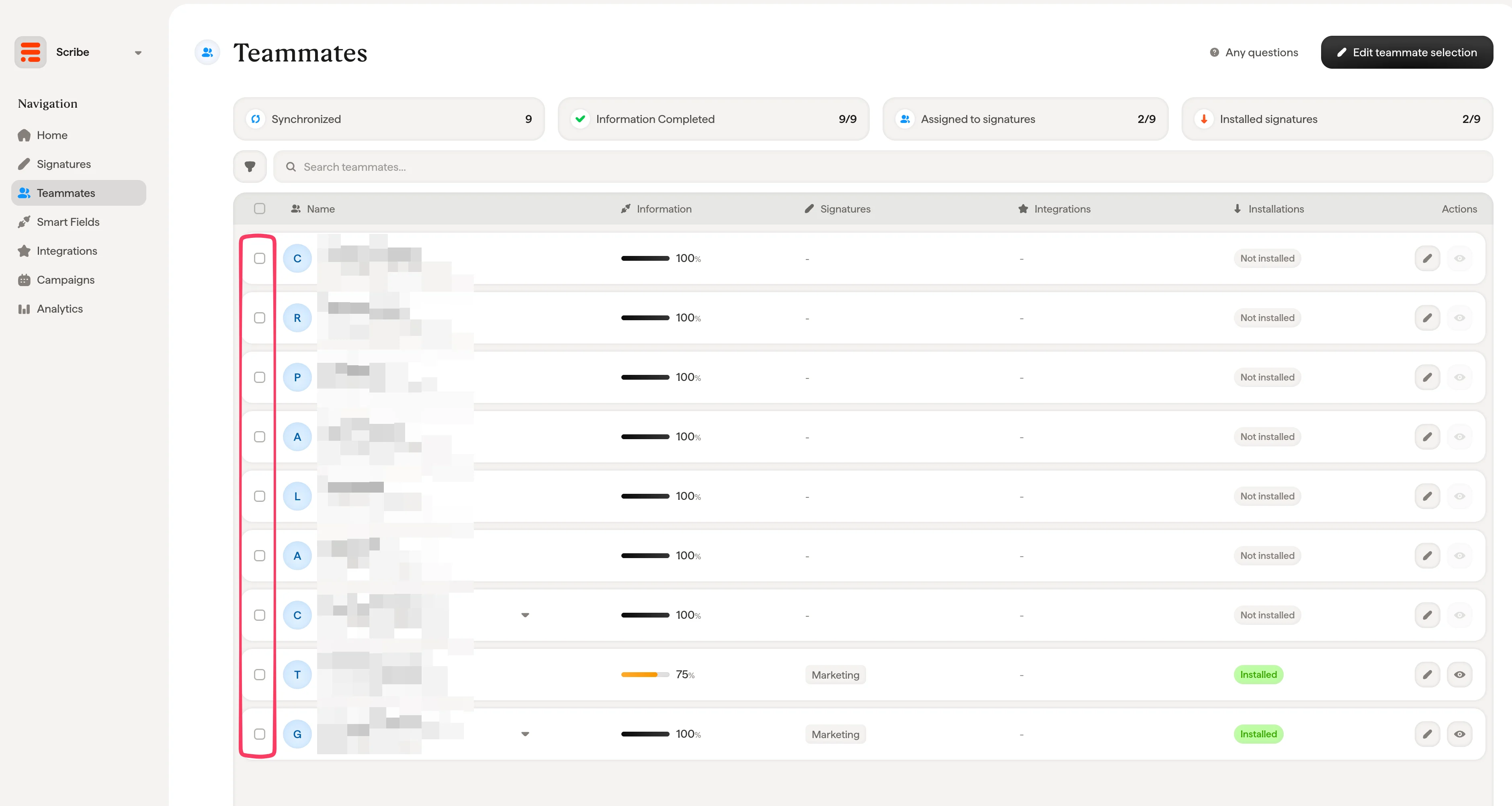
  <Step title="Scribe의 팀원 탭으로 이동해 초대할 팀원을 선택하세요">
    <Frame>
      <img src="https://mintcdn.com/scribe/I5V9iTucPI_EY3nq/integrations/signatures/images/signature-html-invite-step-1.png?fit=max&auto=format&n=I5V9iTucPI_EY3nq&q=85&s=5d982f94dbe591adb05175f5511b106d" alt="선택 체크박스가 있는 팀원 목록" width="3762" height="2006" data-path="integrations/signatures/images/signature-html-invite-step-1.png" />
    </Frame>
  </Step>

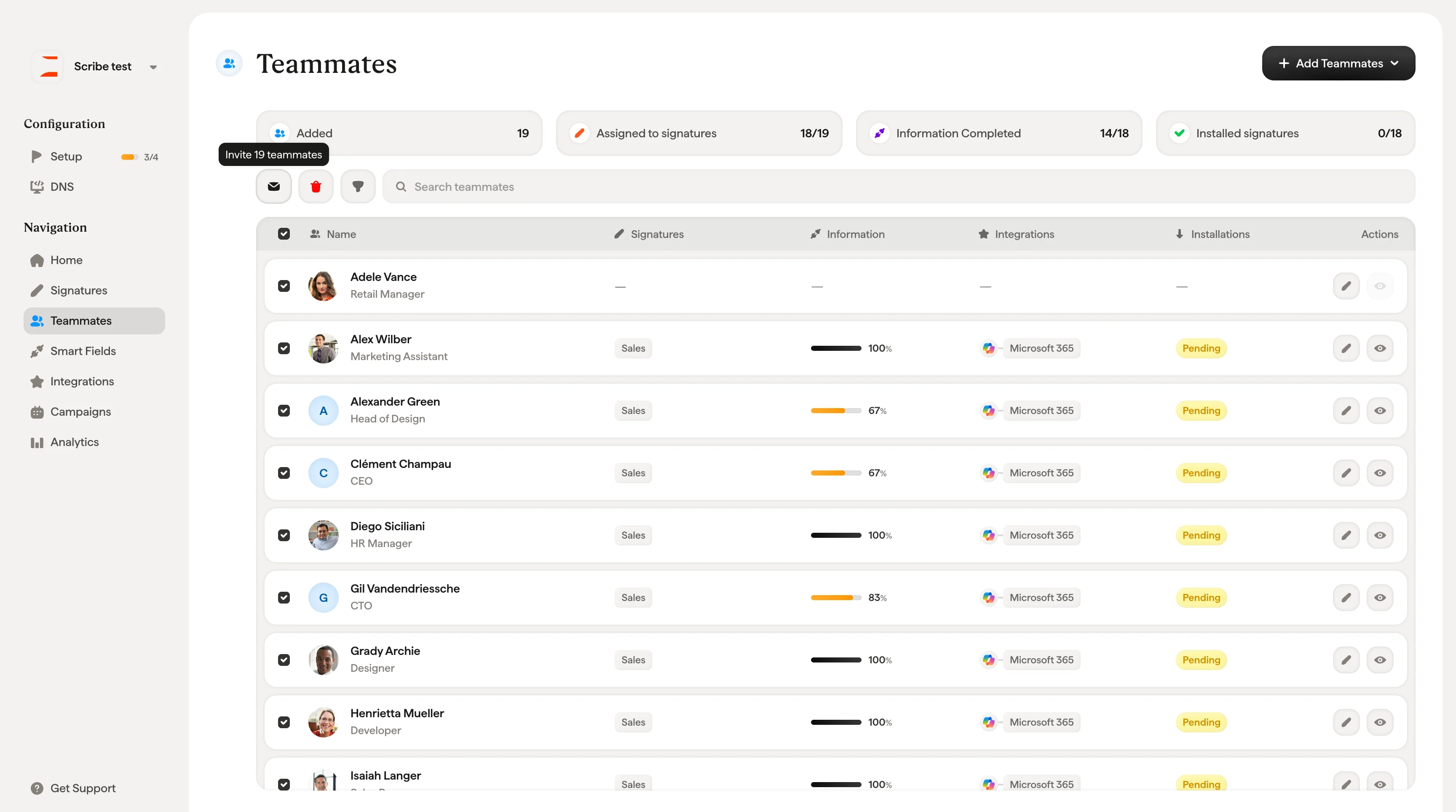
  <Step title="팀원을 선택하면 나타나는 봉투 아이콘을 클릭하세요">
    <Frame>
      <img src="https://mintcdn.com/scribe/xbQhr3JjkYildsKM/images/signature-html-select-teammates-envelope-icon.png?fit=max&auto=format&n=xbQhr3JjkYildsKM&q=85&s=b65c5ae165dd7f3f805a0a80b5a5ef37" alt="초대를 보내는 봉투 아이콘이 있는 Scribe 팀원 목록" width="3456" height="1928" data-path="images/signature-html-select-teammates-envelope-icon.png" />
    </Frame>
  </Step>

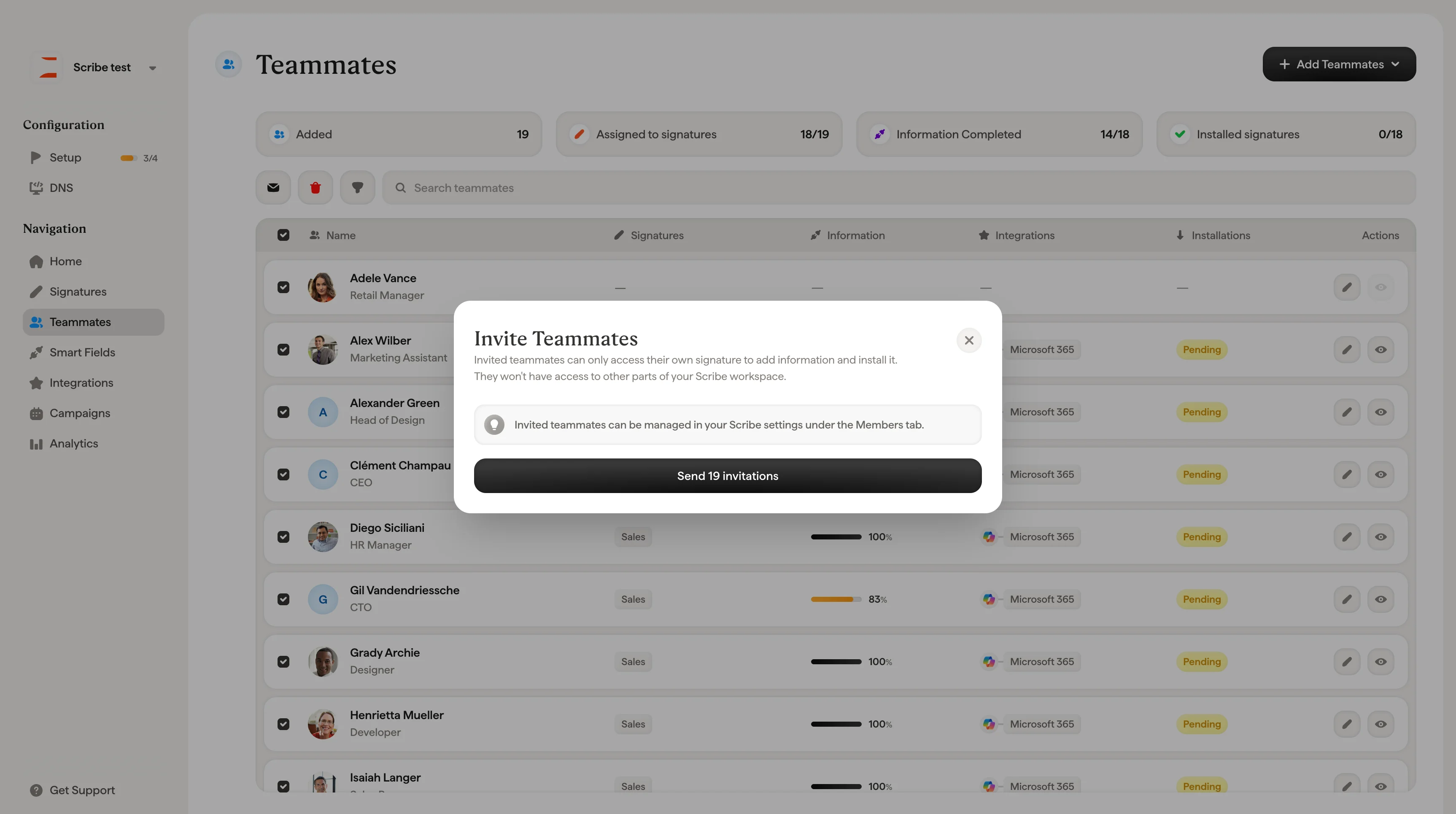
  <Step title="&#x22;Send invite&#x22;를 클릭하세요.">
    초대된 팀원은 정보를 추가하고 설치할 수 있도록 본인의 서명에만 접근할 수 있어요. Scribe 워크스페이스의 다른 영역에는 접근할 수 없어요.

    <Info>
      초대된 팀원은 Scribe 설정의 Members 탭에서 관리할 수 있어요.
    </Info>

    <Frame>
      <img src="https://mintcdn.com/scribe/xbQhr3JjkYildsKM/images/signature-html-send-invite-confirmation-dialog.png?fit=max&auto=format&n=xbQhr3JjkYildsKM&q=85&s=972cfc80c749ec3feebe80daf4024706" alt="팀원 접근 권한 안내가 포함된 초대 보내기 확인 대화상자" width="3452" height="1930" data-path="images/signature-html-send-invite-confirmation-dialog.png" />
    </Frame>
  </Step>
</Steps>