> ## Documentation Index
> Fetch the complete documentation index at: https://help.scribe-mail.com/llms.txt
> Use this file to discover all available pages before exploring further.
# Aircall
> 클라우드 전화 시스템 Aircall에서 직통 전화번호 등 팀원 정보를 동기화해 이메일 서명을 정확하고 최신 상태로 유지하세요.
Aircall을 데이터 소스로 사용해 [팀원 서명을 자동 입력](/ko/smart-fields)하려면 다음 단계를 따르세요.
**팀원이 별도로 할 일은 없어요.**
**Aircall의 변경 사항은 Scribe로 자동 동기화돼요.**
**SOC 2 Type II 인증.** [데이터는 안전하게 보호됩니다](/ko/what-scribe-does-concerning-security).
## 설치 가이드
### 사전 준비
* Aircall 계정의 관리자 권한
* 관리자 권한이 있는 Scribe 계정
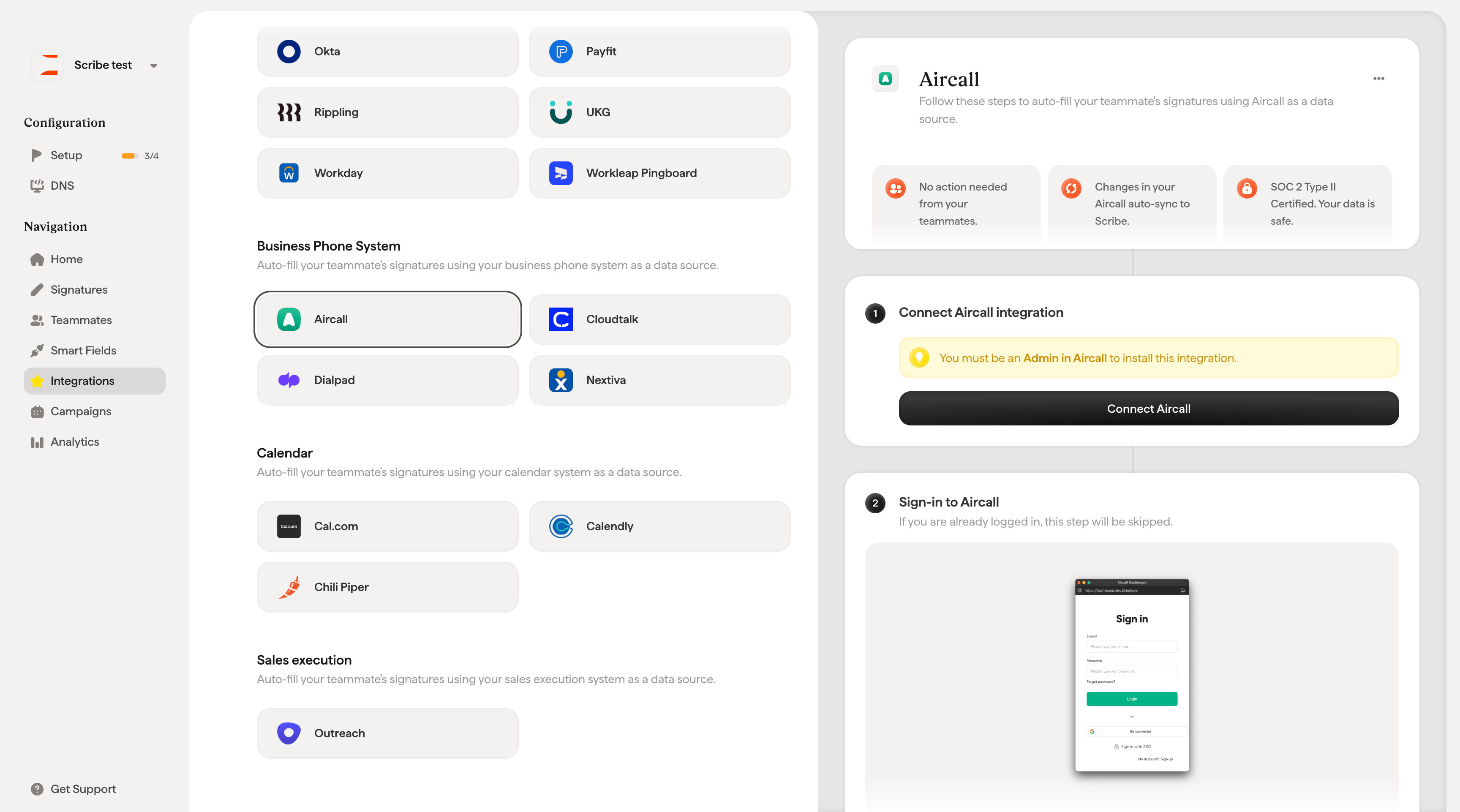
이 연동을 설치하려면 **Aircall의 Admin** 권한이 필요해요.
**Connect Aircall**을 클릭해 연동을 시작하세요.
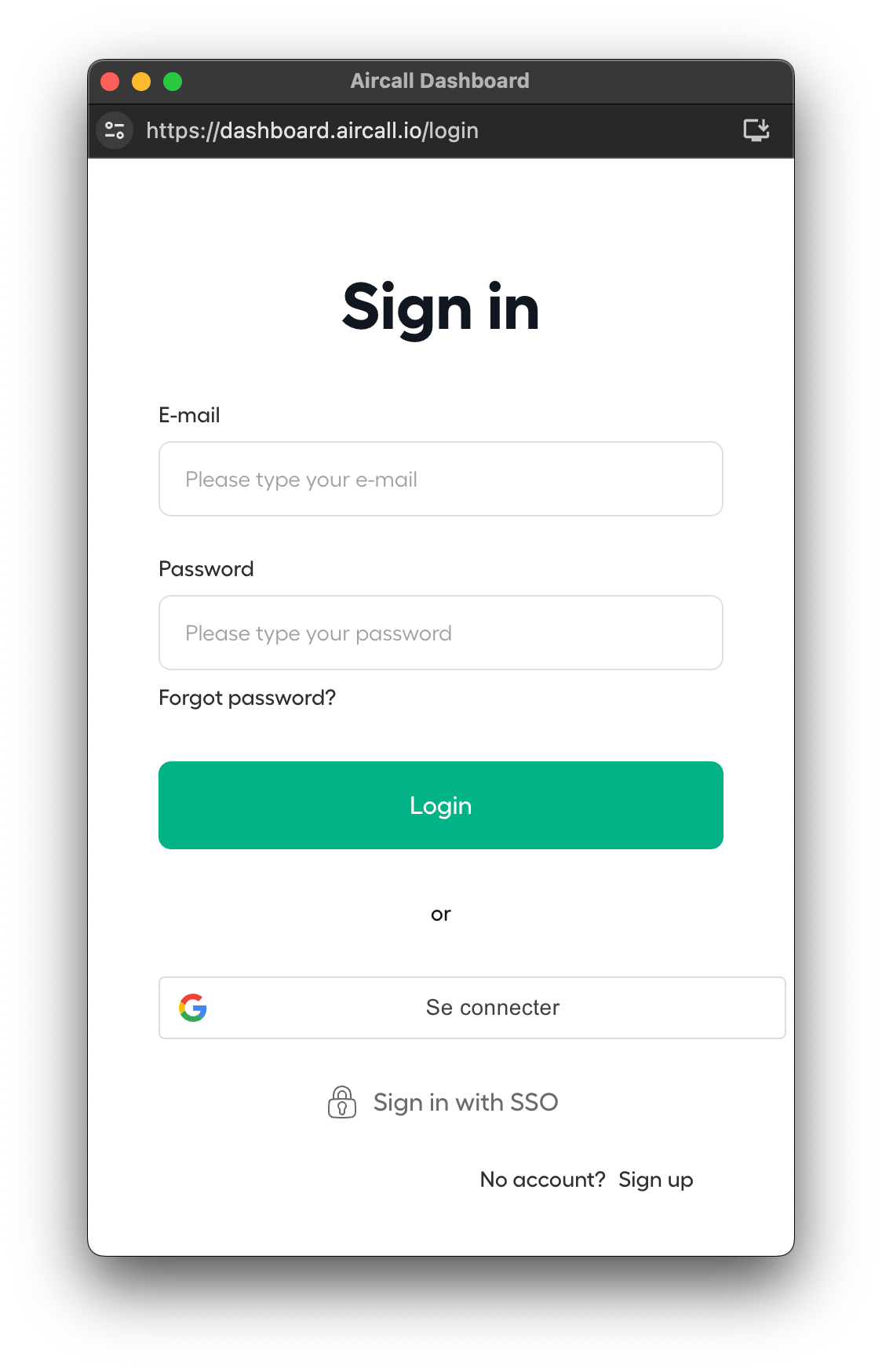
 이미 로그인되어 있으면 이 단계는 건너뛰어요.
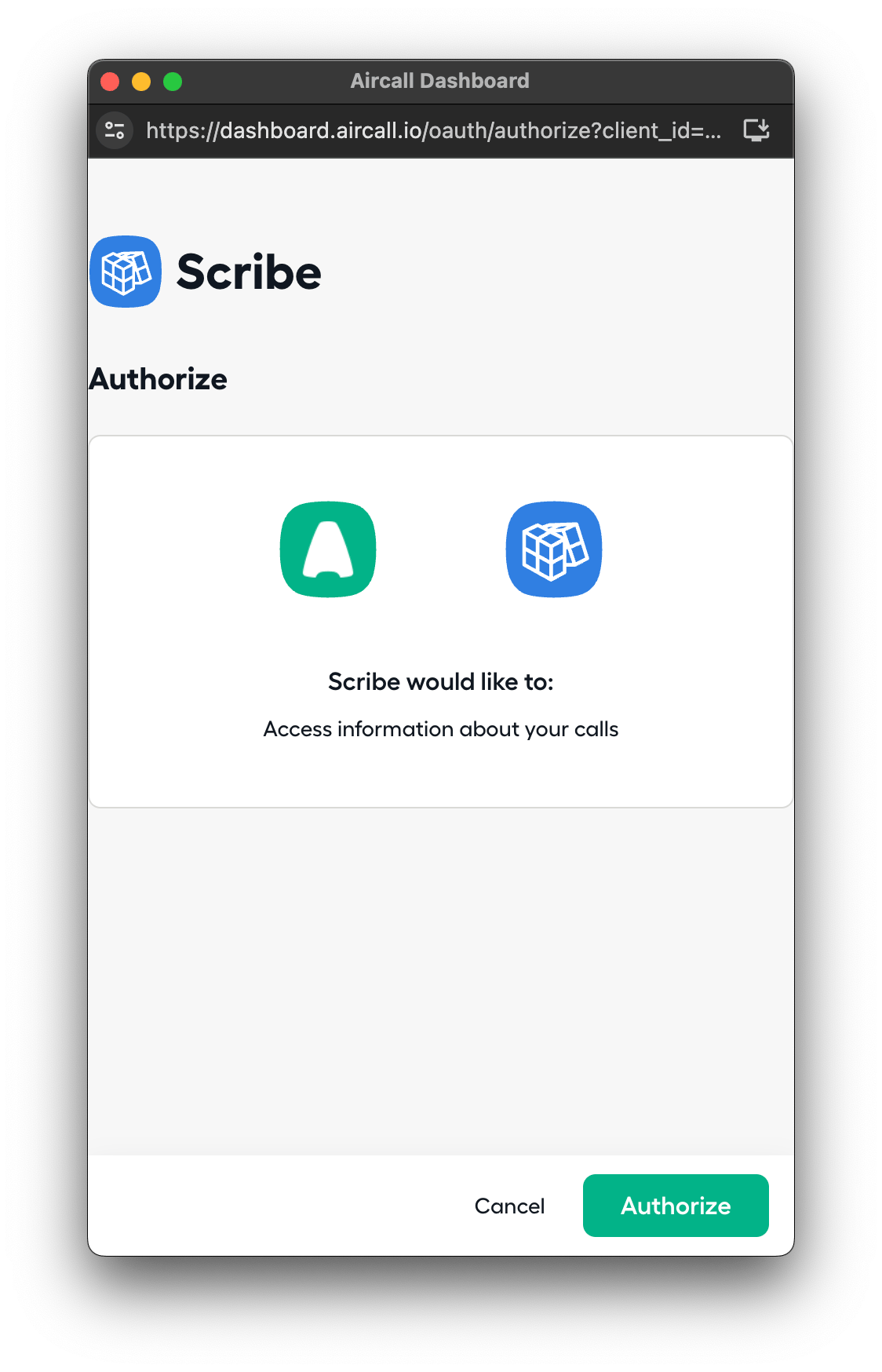
 Scribe가 통화 정보에 접근하려고 해요. **Authorize**를 클릭해 권한을 허용하세요.
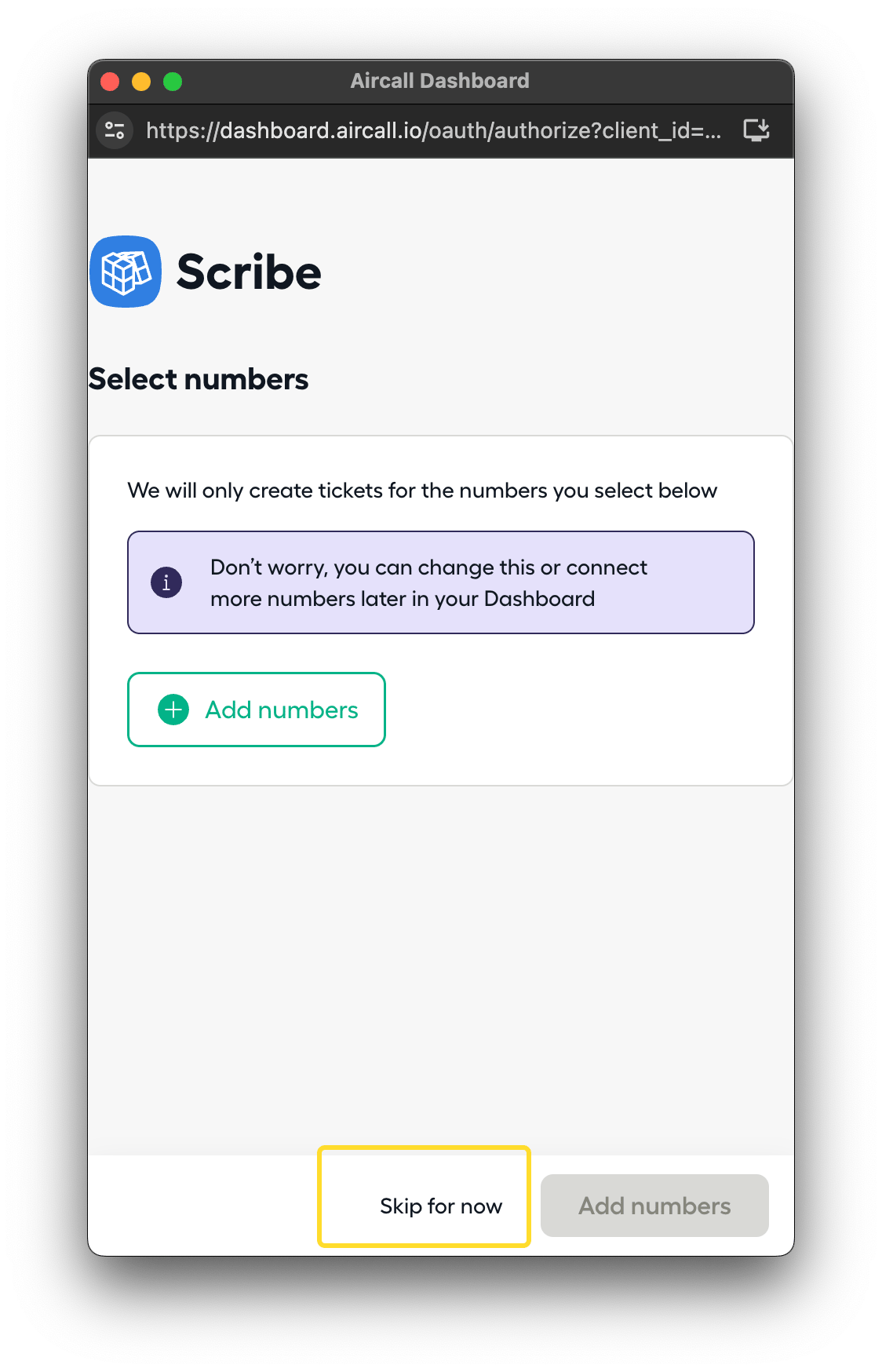
 전화번호 단계는 건너뛸 수 있어요. **Skip for now**를 클릭해 연동을 완료하세요.
 ## 관련 문서
* [Cloudtalk](/ko/integrations/smart-fields/cloudtalk-smart-fields): Cloudtalk 데이터를 서명에 동기화하세요.
* [Dialpad](/ko/integrations/smart-fields/dialpad-smart-fields): Dialpad 데이터를 서명에 동기화하세요.
* [팀원에게 서명 할당하기](/ko/assign-teammates-to-a-signature): Smartfield 조건을 사용해 서명을 자동으로 할당하세요.
## 관련 문서
* [Cloudtalk](/ko/integrations/smart-fields/cloudtalk-smart-fields): Cloudtalk 데이터를 서명에 동기화하세요.
* [Dialpad](/ko/integrations/smart-fields/dialpad-smart-fields): Dialpad 데이터를 서명에 동기화하세요.
* [팀원에게 서명 할당하기](/ko/assign-teammates-to-a-signature): Smartfield 조건을 사용해 서명을 자동으로 할당하세요.