> ## Documentation Index
> Fetch the complete documentation index at: https://help.scribe-mail.com/llms.txt
> Use this file to discover all available pages before exploring further.

# 서명을 설치할 수 없는 경우

> Scribe에서 Apple Mail 서명 설치 문제를 해결하는 방법을 알아보세요. Mail용 iCloud Drive 설정과 서명을 수동으로 새로 고치는 방법을 다뤄요.

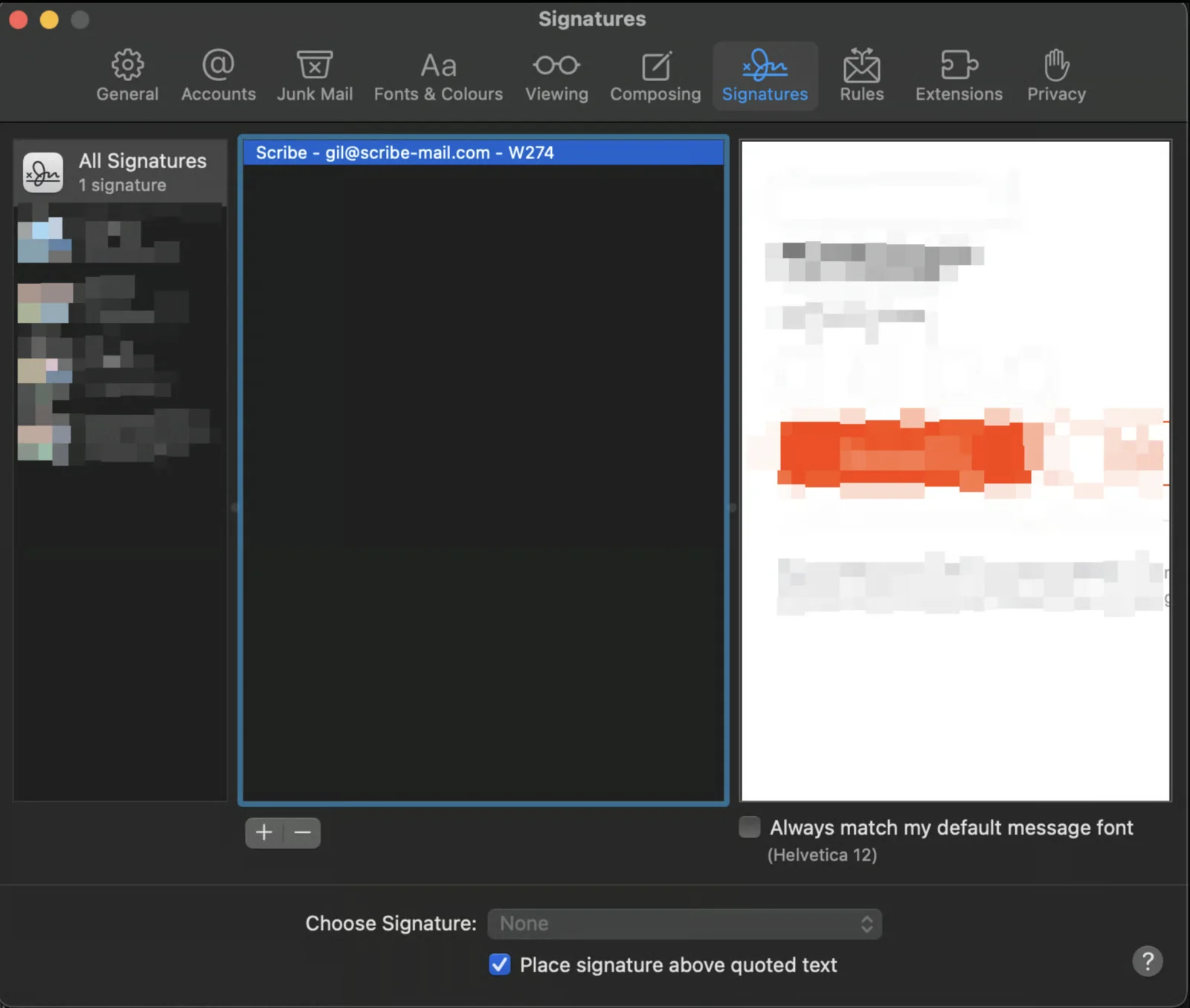
## 목록에 Scribe 서명이 보이는 경우

Scribe 서명은 "Scribe"로 시작하고 그 뒤에 이메일이 이어져요. 목록에서 서명이 보이면 [이 문서](/ko/integrations/signatures/apple-mail)를 따라 설치를 완료하세요.
<Frame>
  <img src="https://mintcdn.com/scribe/KUDX8_mR6_d8dnD-/images/unable-install-apple-mail-scribe-signature-in-list.png?fit=max&auto=format&n=KUDX8_mR6_d8dnD-&q=85&s=531016e2c0110feee7de67cac2836f5d" alt="Scribe 서명 항목이 표시된 Apple Mail 서명 목록" title="Scribe 서명 항목이 표시된 Apple Mail 서명 목록" width="1600" height="1355" data-path="images/unable-install-apple-mail-scribe-signature-in-list.png" />
</Frame>

## 목록에 Scribe 서명이 보이지 않는 경우

다음 단계를 따라 Mail에 iCloud Drive를 사용하고 있는지 확인하세요.

<Steps>
  <Step title="iCloud 설정 열기">
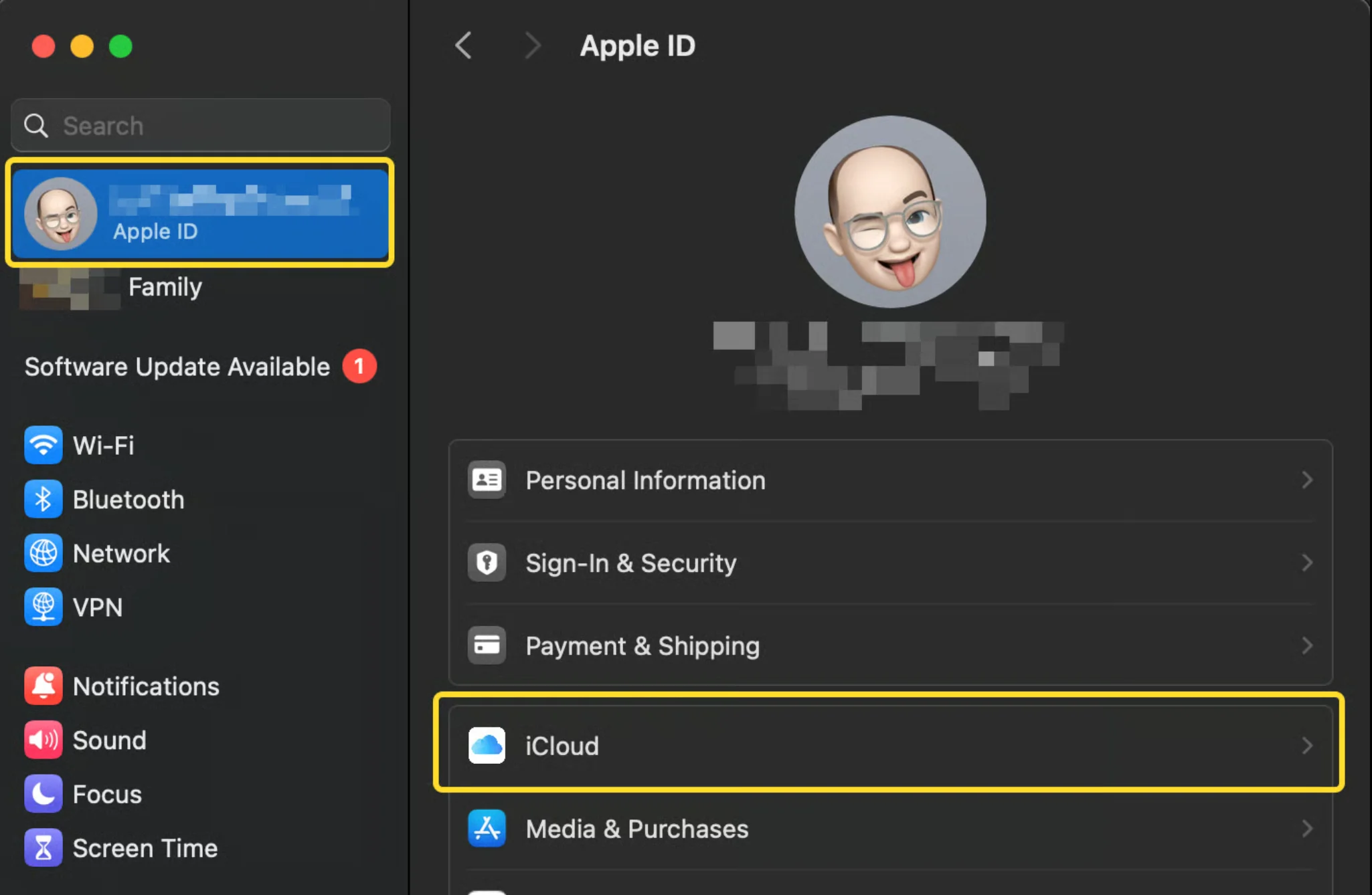
    시스템 설정을 열고 Apple ID 탭을 연 다음 iCloud를 클릭하세요.
    <Frame>
      <img src="https://mintcdn.com/scribe/xbQhr3JjkYildsKM/images/unable-install-icloud-settings-apple-id-tab.png?fit=max&auto=format&n=xbQhr3JjkYildsKM&q=85&s=ce147a3b951f5111c52cea407a4d7100" alt="Apple ID와 iCloud 탭이 열린 macOS 시스템 설정" width="2050" height="1338" data-path="images/unable-install-icloud-settings-apple-id-tab.png" />
    </Frame>
  </Step>

  <Step title="iCloud Drive 열기">
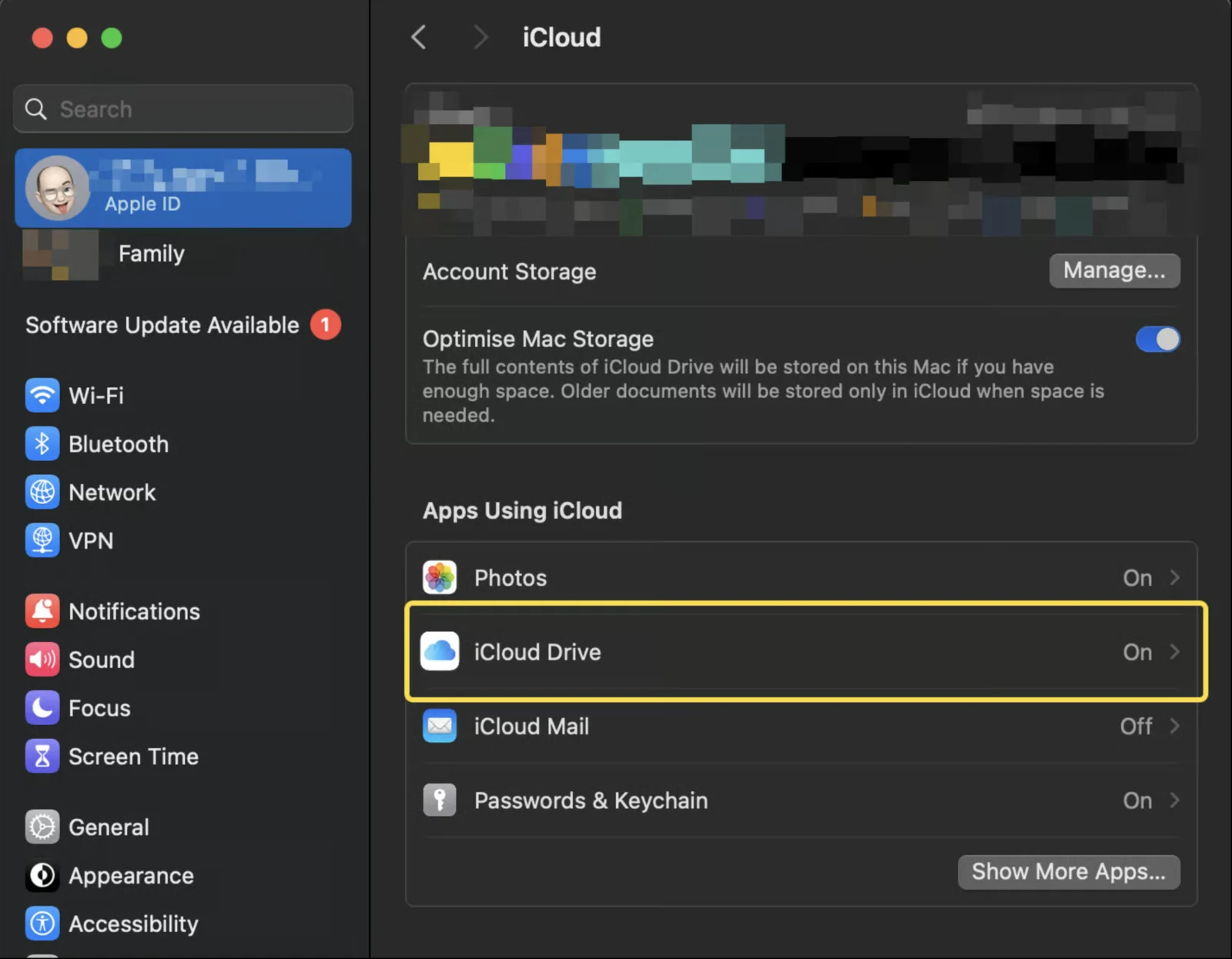
    iCloud 섹션에서 iCloud Drive를 클릭하세요.

    <Frame>
      <img src="https://mintcdn.com/scribe/KUDX8_mR6_d8dnD-/images/unable-install-icloud-drive-option.png?fit=max&auto=format&n=KUDX8_mR6_d8dnD-&q=85&s=5d416d9edbdc6480e8f84470b371a480" alt="iCloud Drive 옵션이 강조 표시된 iCloud 설정 패널" width="1600" height="1246" data-path="images/unable-install-icloud-drive-option.png" />
    </Frame>
  </Step>

  <Step title="iCloud Drive에 동기화되는 앱 열기">
    다음 창에서 "Apps syncing to iCloud Drive"를 클릭하세요.

    <Frame>
      ["Apps syncing to iCloud Drive" 링크가 있는 iCloud Drive 창](/images/unable-install-apps-syncing-icloud-drive.png)
    </Frame>
  </Step>

  <Step title="Mail 옵션 확인하기">
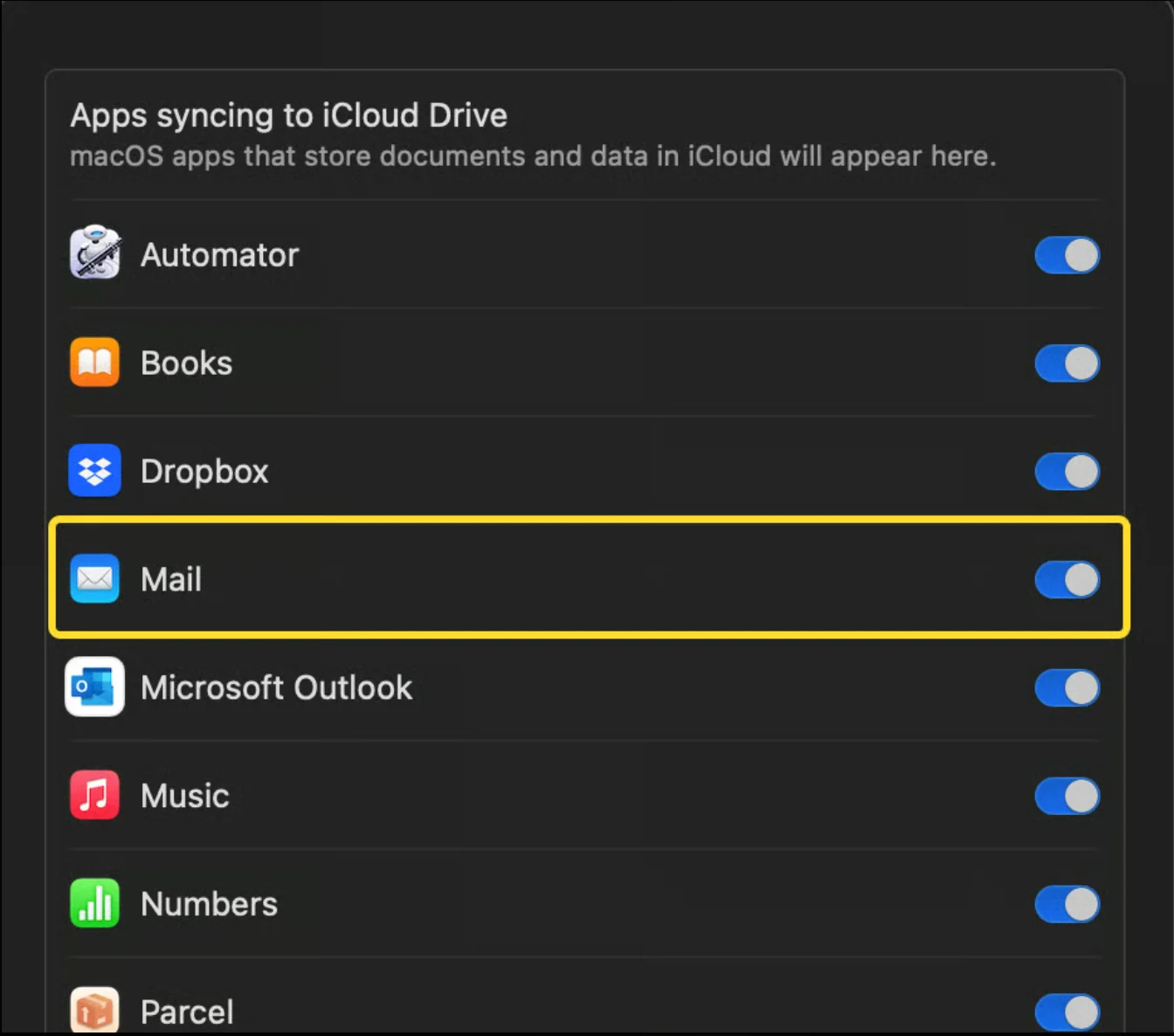
    다음 창에서 Mail 옵션이 활성화되어 있는지 확인하세요.

    <Frame>
      <img src="https://mintcdn.com/scribe/xbQhr3JjkYildsKM/images/unable-install-icloud-drive-mail-toggle.png?fit=max&auto=format&n=xbQhr3JjkYildsKM&q=85&s=dafea63cf47028df82a6acde34bcd043" alt="Mail 토글의 활성·비활성 상태가 표시된 iCloud Drive 앱 목록" width="1344" height="1186" data-path="images/unable-install-icloud-drive-mail-toggle.png" />
    </Frame>

    Mail 옵션이 활성화되어 있다면 Scribe 앱에서 "I am using iCloud Drive for Mail" 옵션을 활성화할 수 있어요. 그렇지 않다면 Scribe 앱에서 같은 옵션을 비활성화하세요.
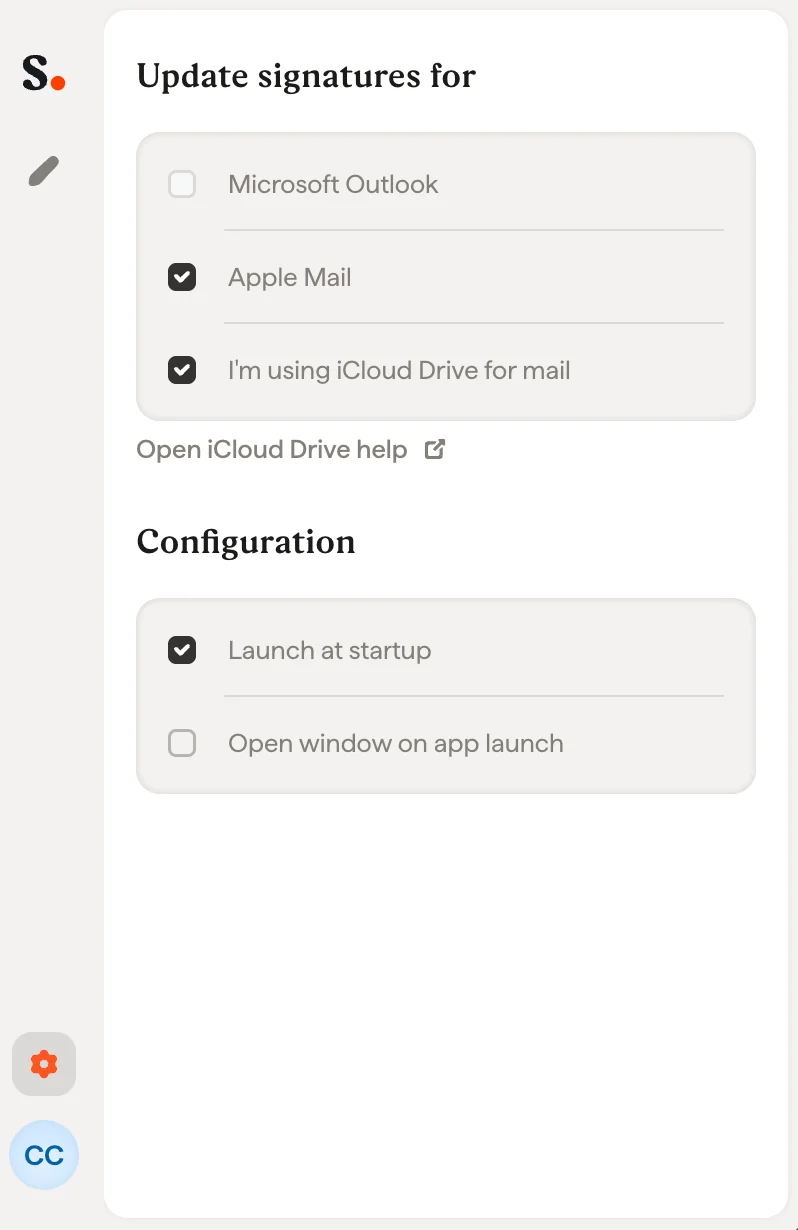
    <Frame>
      <img src="https://mintcdn.com/scribe/xbQhr3JjkYildsKM/images/unable-install-scribe-app-icloud-drive-setting.png?fit=max&auto=format&n=xbQhr3JjkYildsKM&q=85&s=363b5c84081c461c5707ff9a0d9cbfb7" alt="Mail용 iCloud Drive 옵션을 활성화하는 Scribe 앱 설정" title="Mail용 iCloud Drive 옵션을 활성화하는 Scribe 앱 설정" className="mx-auto" style={{ width:"54%" }} width="798" height="1230" data-path="images/unable-install-scribe-app-icloud-drive-setting.png" />
    </Frame>
  </Step>
</Steps>