> ## Documentation Index
> Fetch the complete documentation index at: https://help.scribe-mail.com/llms.txt
> Use this file to discover all available pages before exploring further.
# Front
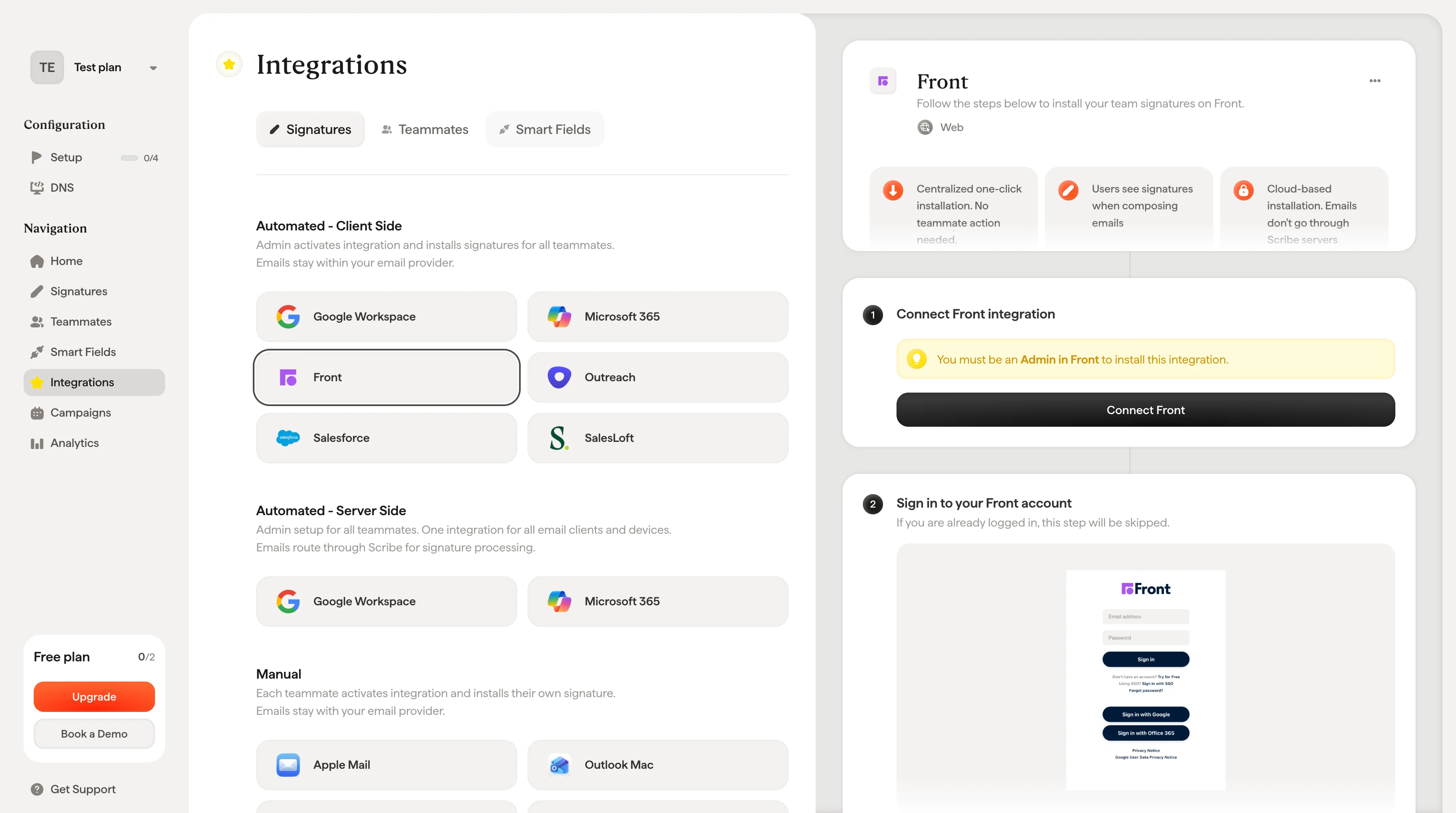
> Installeer Scribe-e-mailhandtekeningen met één klik in de Front van je team door de integratie als Front-beheerder te koppelen — zonder dat je teamleden iets hoeven te doen.
**Gecentraliseerde installatie met één klik.** Geen actie van teamleden nodig. Gebruikers zien handtekeningen tijdens het opstellen van e-mails. Installatie in de cloud: e-mails lopen niet via de servers van Scribe.
**Ondersteunde platforms:** web
## Installatiegids
Je moet **beheerder in Front** zijn om deze integratie te installeren.
Klik in Scribe op **Connect Front** om de integratie te starten.
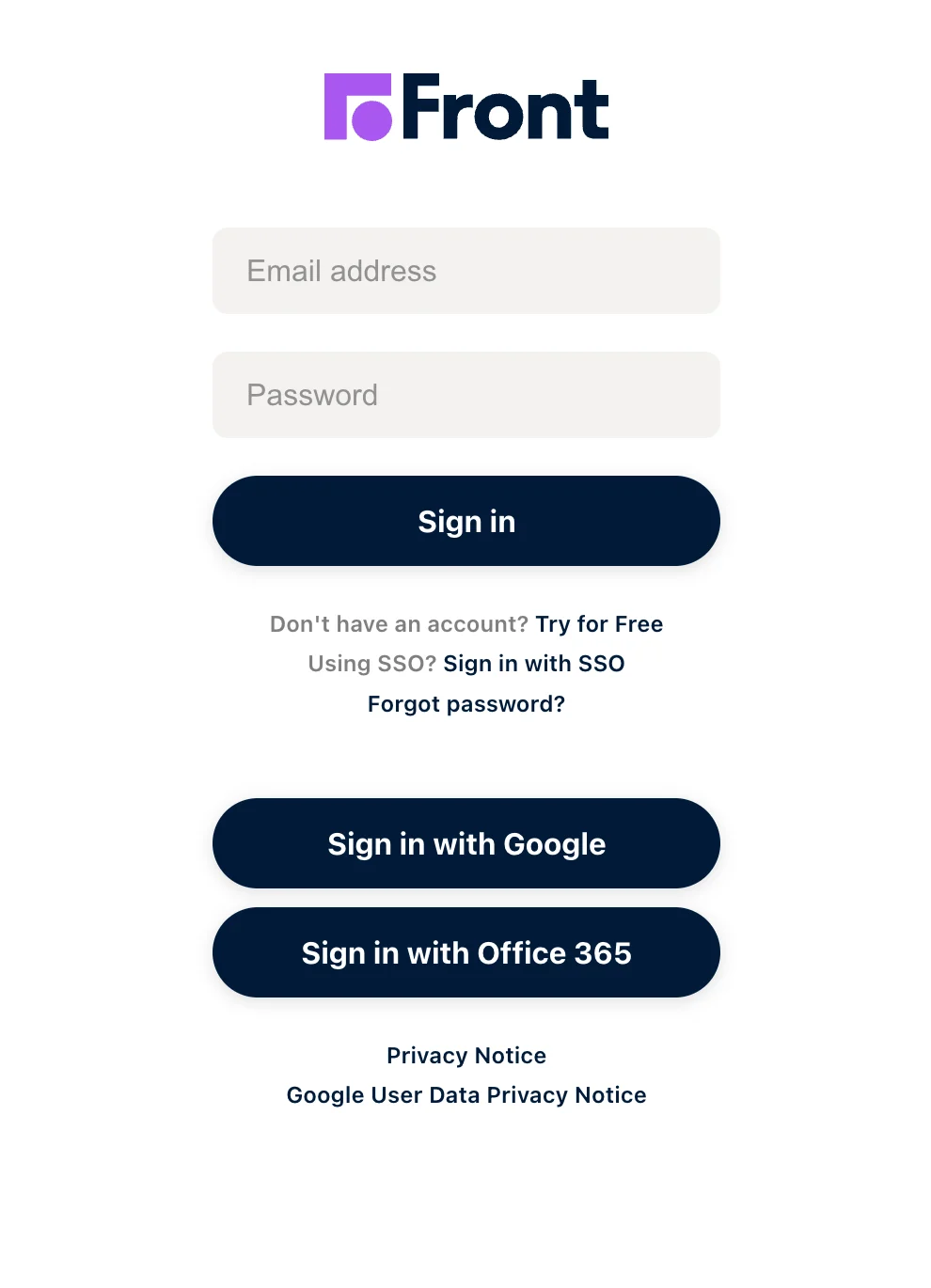
 Als je al bent aangemeld, wordt deze stap overgeslagen.
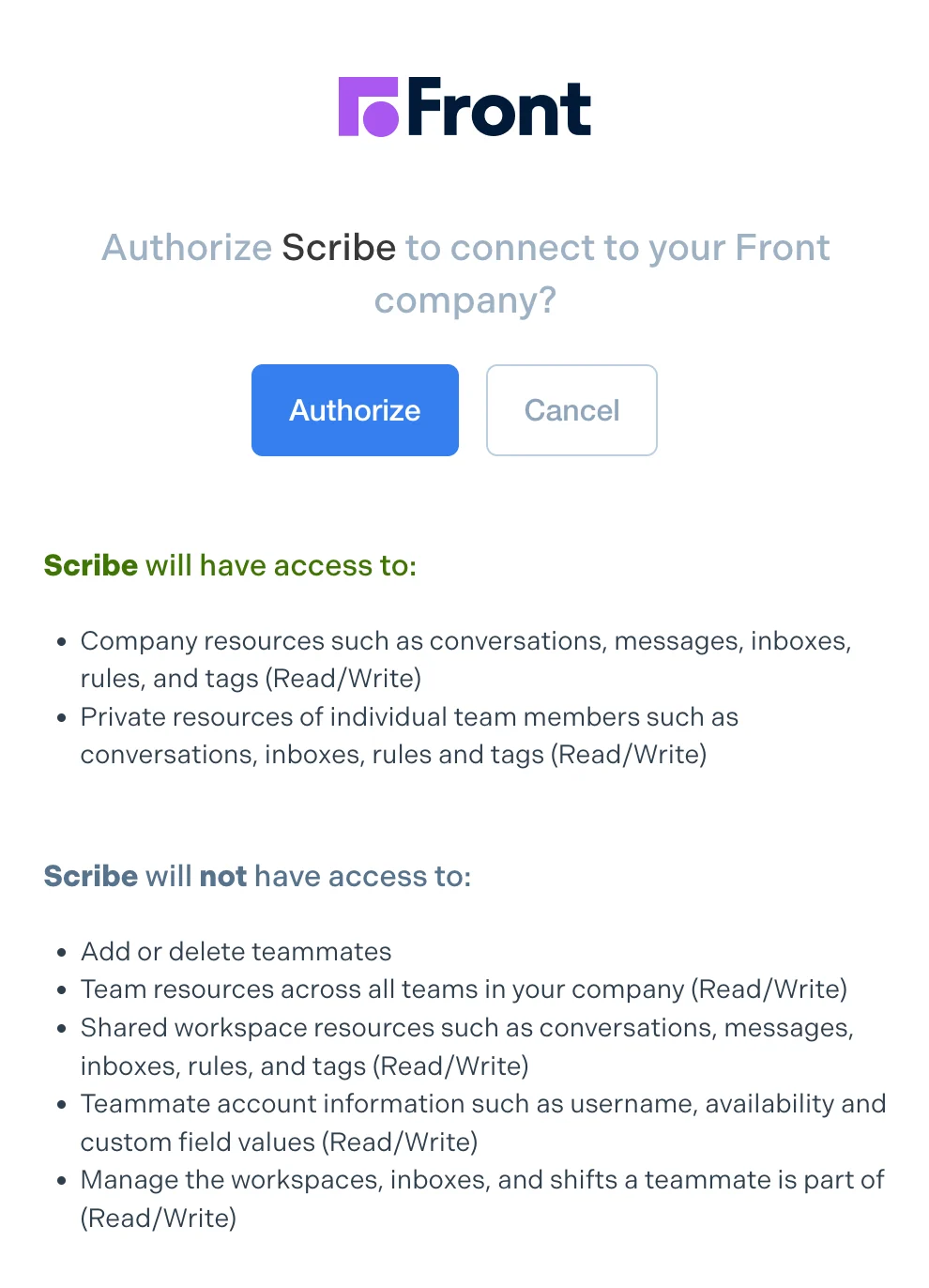
 Zodra je de machtigingen toestaat, wordt de integratie automatisch gekoppeld.
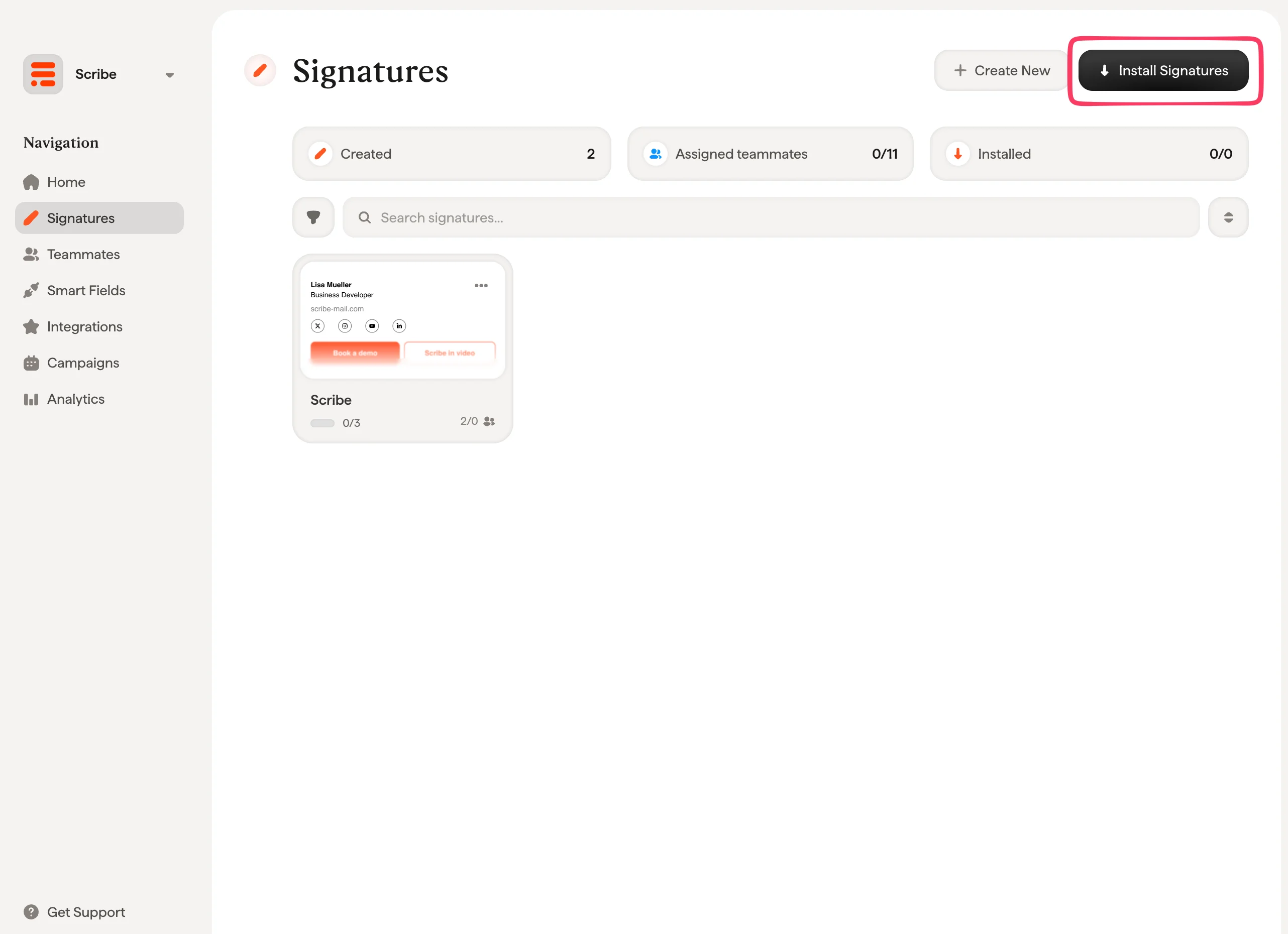
 Vanuit je handtekeningenlijst kun je [alle handtekeningen in één keer installeren voor je teamleden](/nl/install-signatures) of ze één voor één installeren voor een geleidelijke uitrol.
 ## Gerelateerde artikelen
* [Overzicht van integraties](/nl/integrations-overview): alle manieren om Scribe-handtekeningen uit te rollen, in de cloud of aan de serverzijde.
* [Google Workspace](/nl/integrations/signatures/google-workspace-client-side): cloudinstallatie met één klik voor Google Workspace.
* [Microsoft 365](/nl/integrations/signatures/microsoft-365-client-side): cloudinstallatie met één klik voor Microsoft 365 en Outlook.
* [Installatiestatussen en foutmeldingen](/nl/signature-installation-statuses-and-errors): wat elke installatiestatus betekent en hoe je fouten oplost.
## Gerelateerde artikelen
* [Overzicht van integraties](/nl/integrations-overview): alle manieren om Scribe-handtekeningen uit te rollen, in de cloud of aan de serverzijde.
* [Google Workspace](/nl/integrations/signatures/google-workspace-client-side): cloudinstallatie met één klik voor Google Workspace.
* [Microsoft 365](/nl/integrations/signatures/microsoft-365-client-side): cloudinstallatie met één klik voor Microsoft 365 en Outlook.
* [Installatiestatussen en foutmeldingen](/nl/signature-installation-statuses-and-errors): wat elke installatiestatus betekent en hoe je fouten oplost.