> ## Documentation Index
> Fetch the complete documentation index at: https://help.scribe-mail.com/llms.txt
> Use this file to discover all available pages before exploring further.
# ChartHop
> Houd e-mailhandtekeningen accuraat en up-to-date door medewerkergegevens zoals functie en afdeling te synchroniseren vanuit ChartHop, je HR- en organigramplatform.
Volg deze stappen om [de handtekeningen van je teamleden automatisch in te vullen](/nl/smart-fields) met ChartHop als gegevensbron.
**Geen actie nodig van je teamleden.**
**Wijzigingen in je ChartHop worden automatisch gesynchroniseerd met Scribe.**
**SOC 2 Type II-gecertificeerd.** [Je gegevens zijn veilig](/nl/security/data-collection/charthop).
## Installatiegids
### Vereisten
* Een Scribe-account met beheerderstoegang
* Een ChartHop-account met toegang tot Apps & Bundles
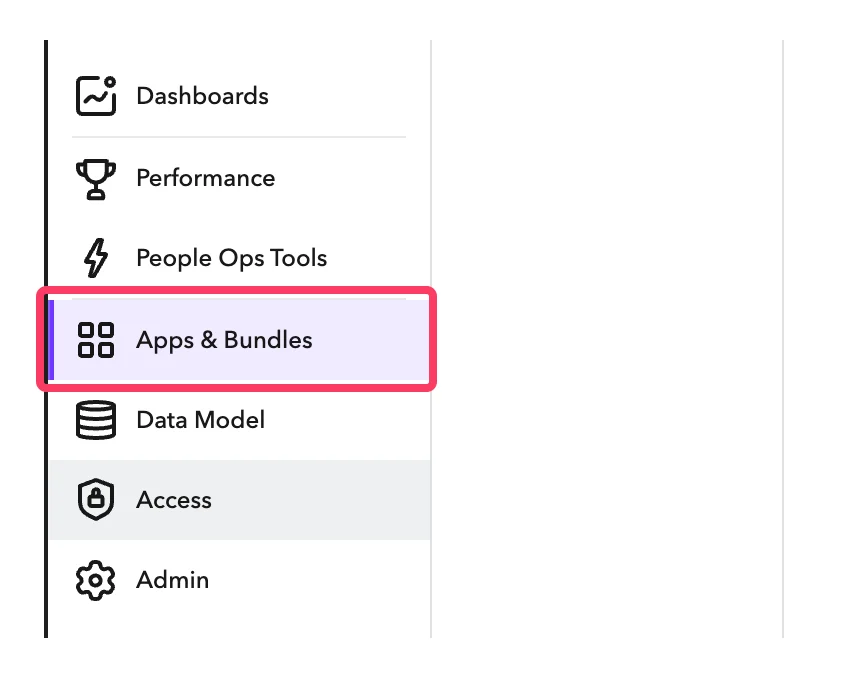
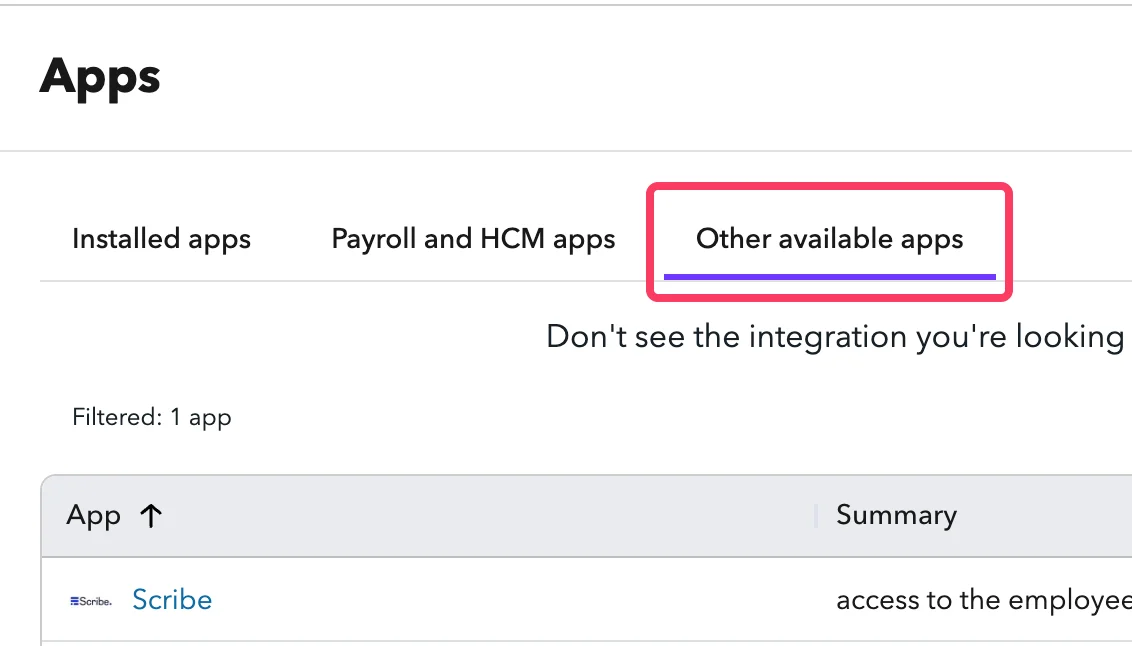
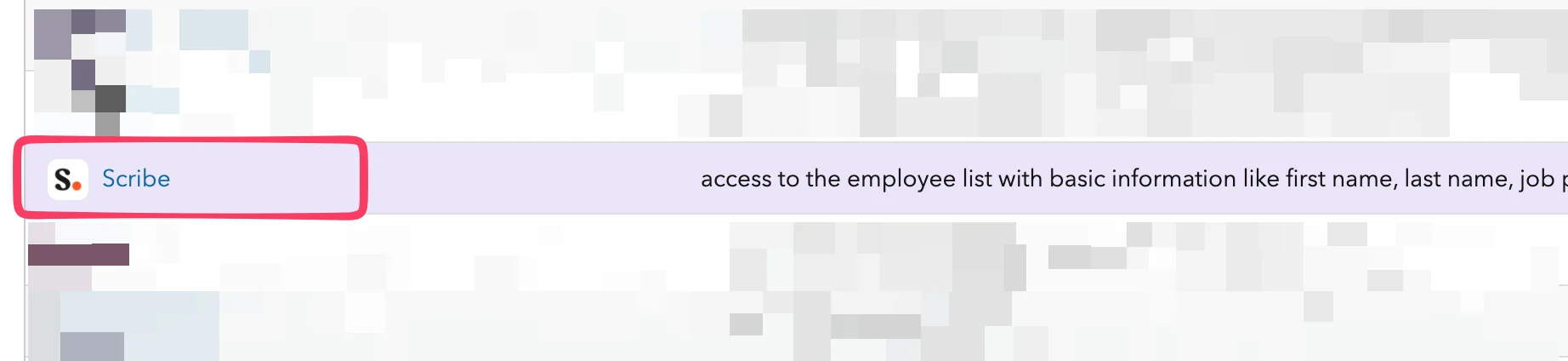
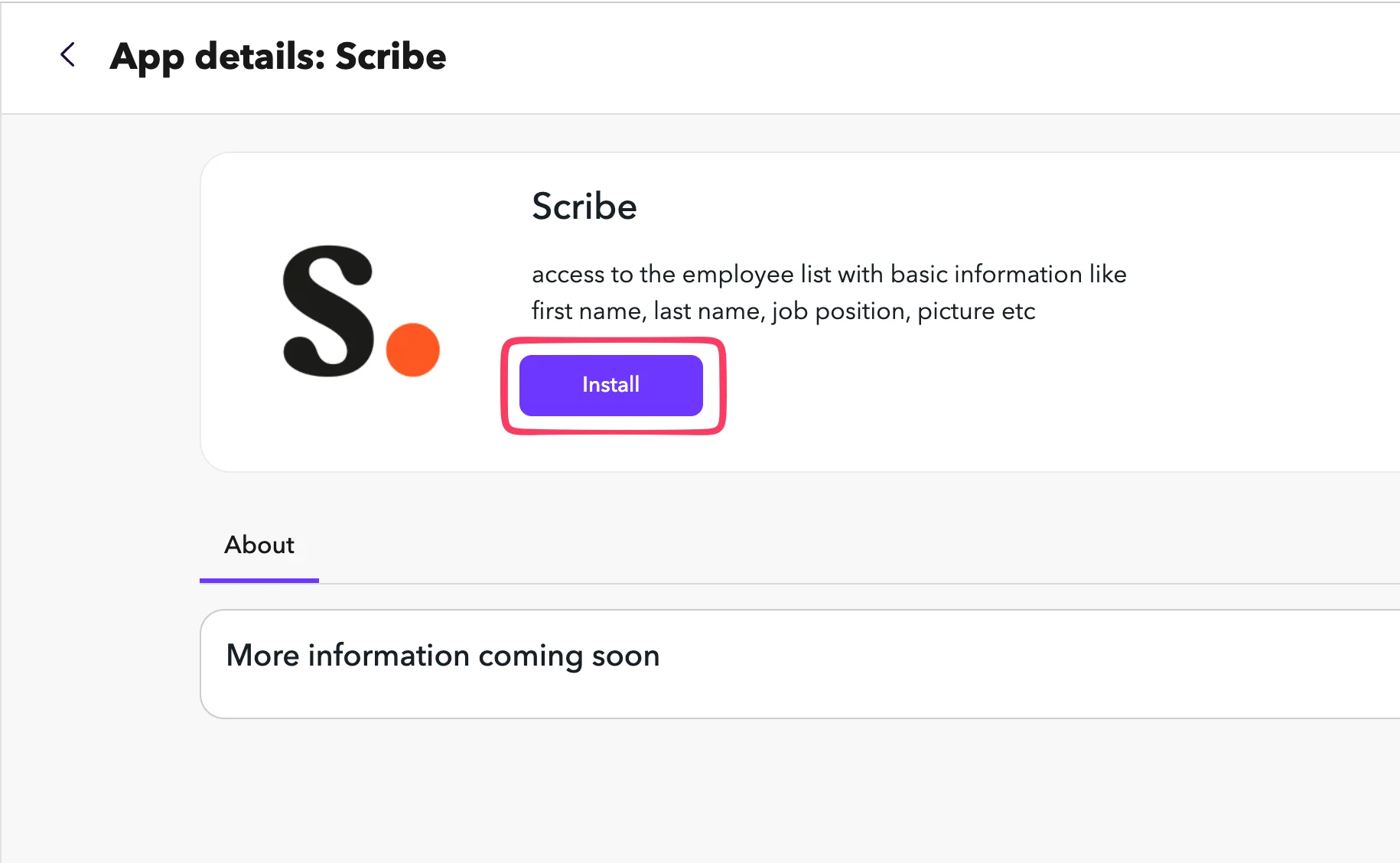 Ga in ChartHop naar het tabblad **Settings** van de Scribe-app. Kopieer de **API Token** en plak deze in het veld API Token in Scribe.
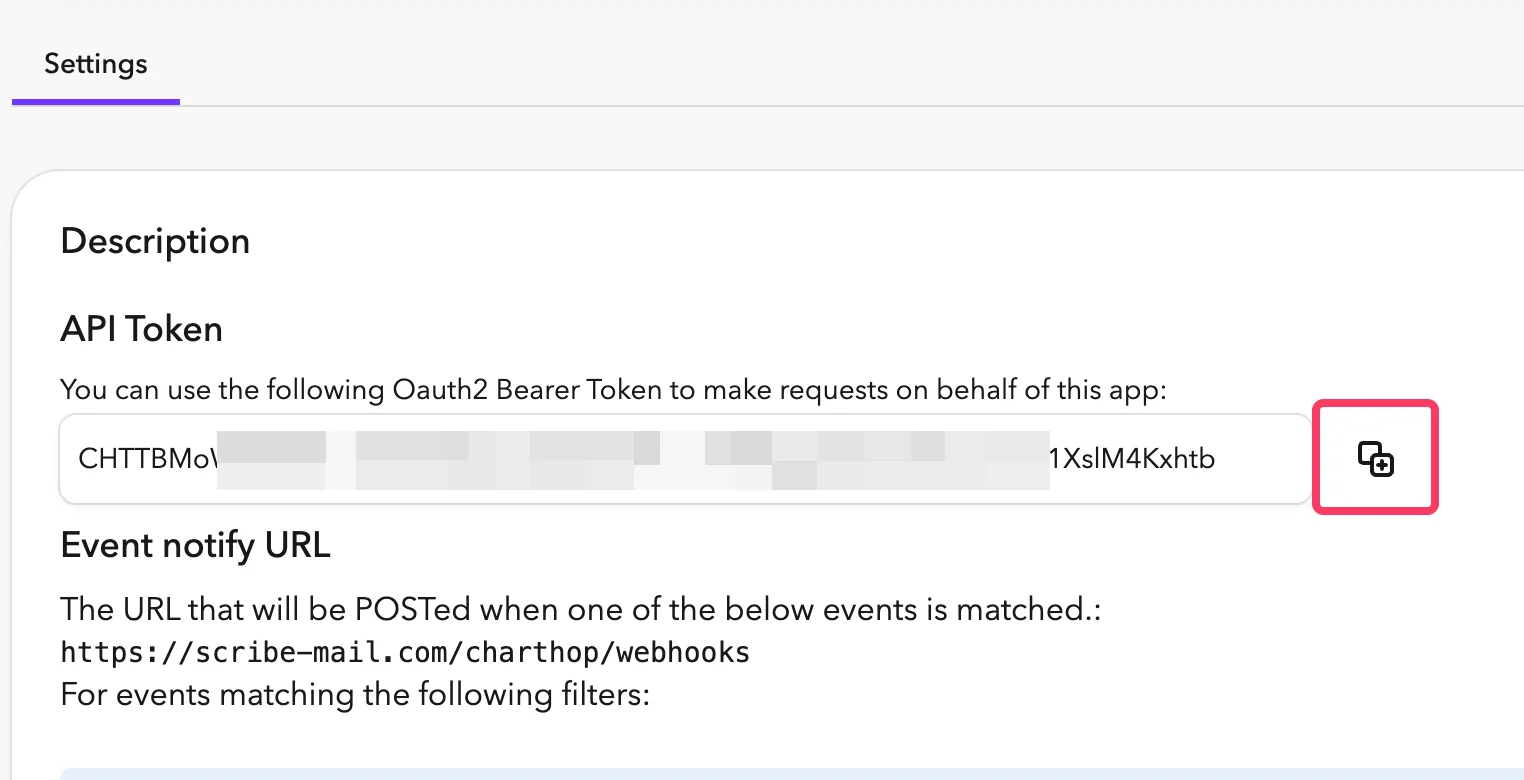 Je Org Nickname is het deel direct na `app.charthop.com/` in je ChartHop-URL. Vul dit in bij het veld **ChartHop Org Nickname** in Scribe en klik op **Connect ChartHop**.
 ## Gerelateerde artikelen
* [Deel](/nl/integrations/smart-fields/deel-smart-fields): synchroniseer gegevens uit Deel met je handtekeningen.
* [Gusto](/nl/integrations/smart-fields/gusto-smart-fields): synchroniseer gegevens uit Gusto met je handtekeningen.
* [Teamleden toewijzen aan een handtekening](/nl/assign-teammates-to-a-signature): gebruik Smartfield-voorwaarden om handtekeningen automatisch toe te wijzen.
## Gerelateerde artikelen
* [Deel](/nl/integrations/smart-fields/deel-smart-fields): synchroniseer gegevens uit Deel met je handtekeningen.
* [Gusto](/nl/integrations/smart-fields/gusto-smart-fields): synchroniseer gegevens uit Gusto met je handtekeningen.
* [Teamleden toewijzen aan een handtekening](/nl/assign-teammates-to-a-signature): gebruik Smartfield-voorwaarden om handtekeningen automatisch toe te wijzen.