> ## Documentation Index
> Fetch the complete documentation index at: https://help.scribe-mail.com/llms.txt
> Use this file to discover all available pages before exploring further.
# Google Workspace
> Verbind Google Workspace met Scribe en synchroniseer de teamleden die je kiest uit je organisatie-eenheden en groepen, waarbij gegevens en toekomstige wijzigingen automatisch worden bijgewerkt.
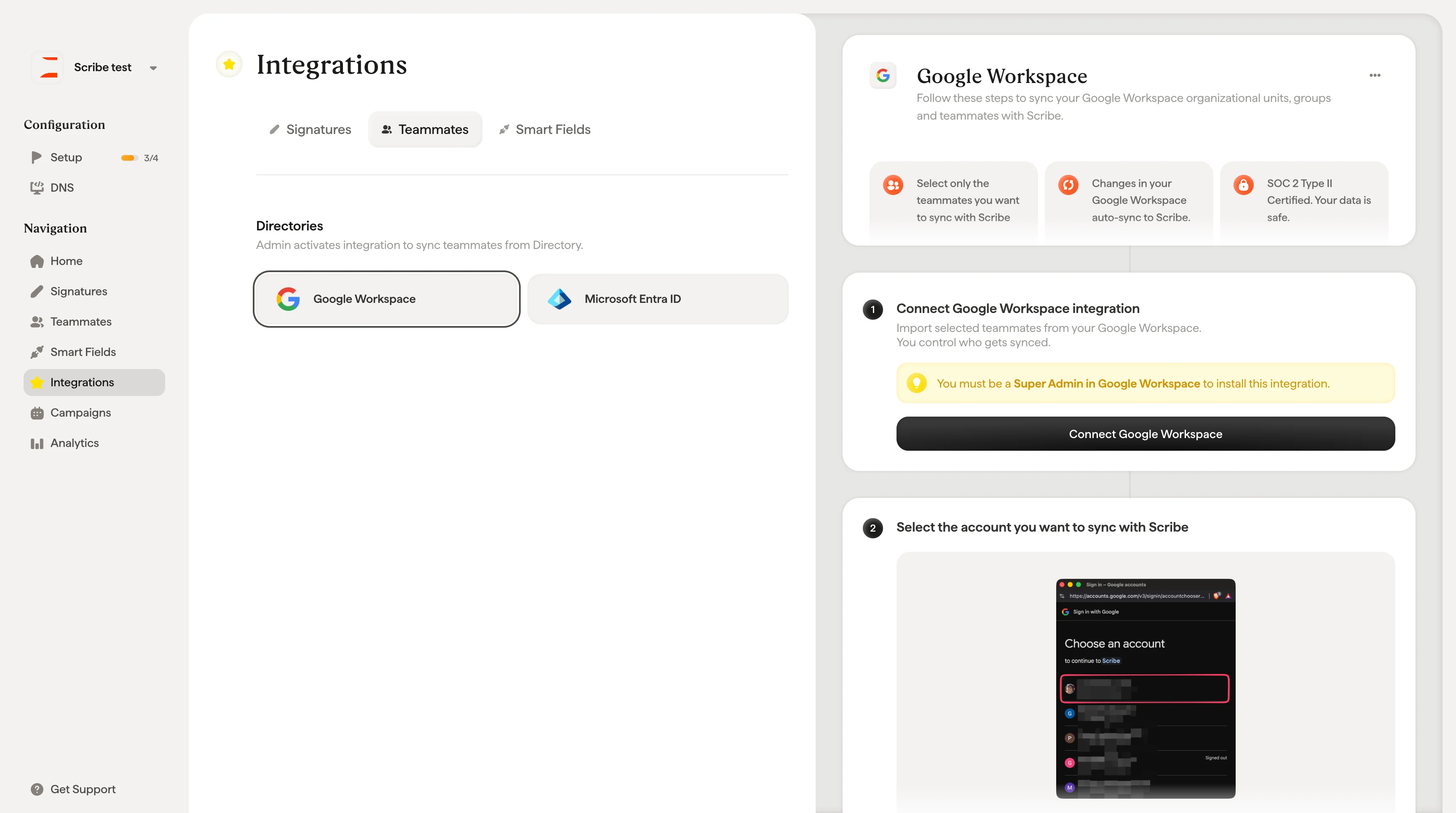
Volg deze stappen om je organisatie-eenheden, groepen en teamleden uit Google Workspace met Scribe te synchroniseren.
**Selecteer alleen de teamleden die je met Scribe wilt synchroniseren.**
**Wijzigingen in je Google Workspace worden automatisch met Scribe gesynchroniseerd.**
**SOC 2 Type II-gecertificeerd.** Je gegevens zijn veilig.
## Installatiehandleiding
### Vereisten
* Een Scribe-account met beheerderstoegang
* Een Google Workspace-account met **Super Admin**-rechten
Importeer geselecteerde teamleden uit je Google Workspace. Jij bepaalt wie er wordt gesynchroniseerd.
Je moet **Super Admin** zijn in Google Workspace om deze integratie te installeren.
Klik op **Connect Google Workspace** om de configuratie te starten.
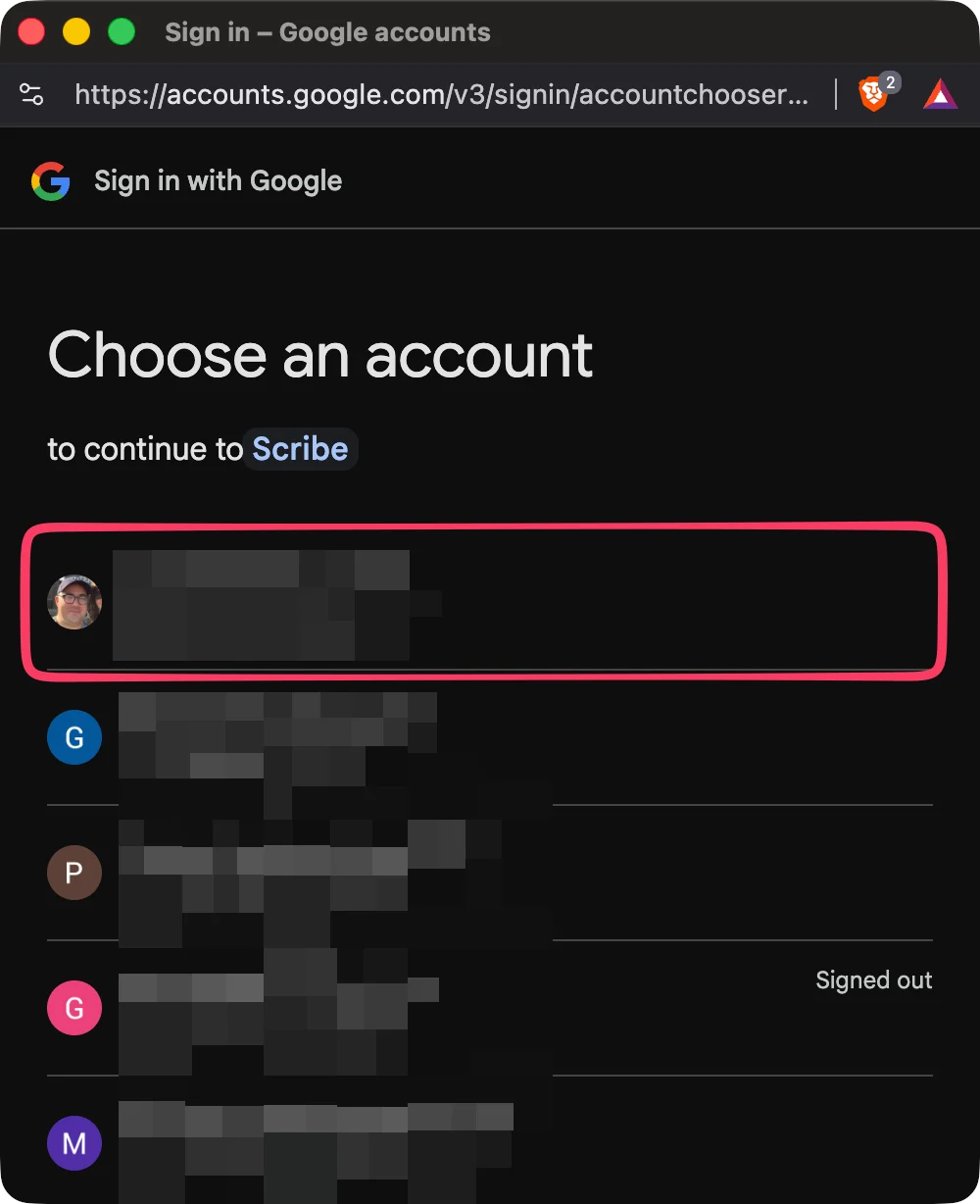
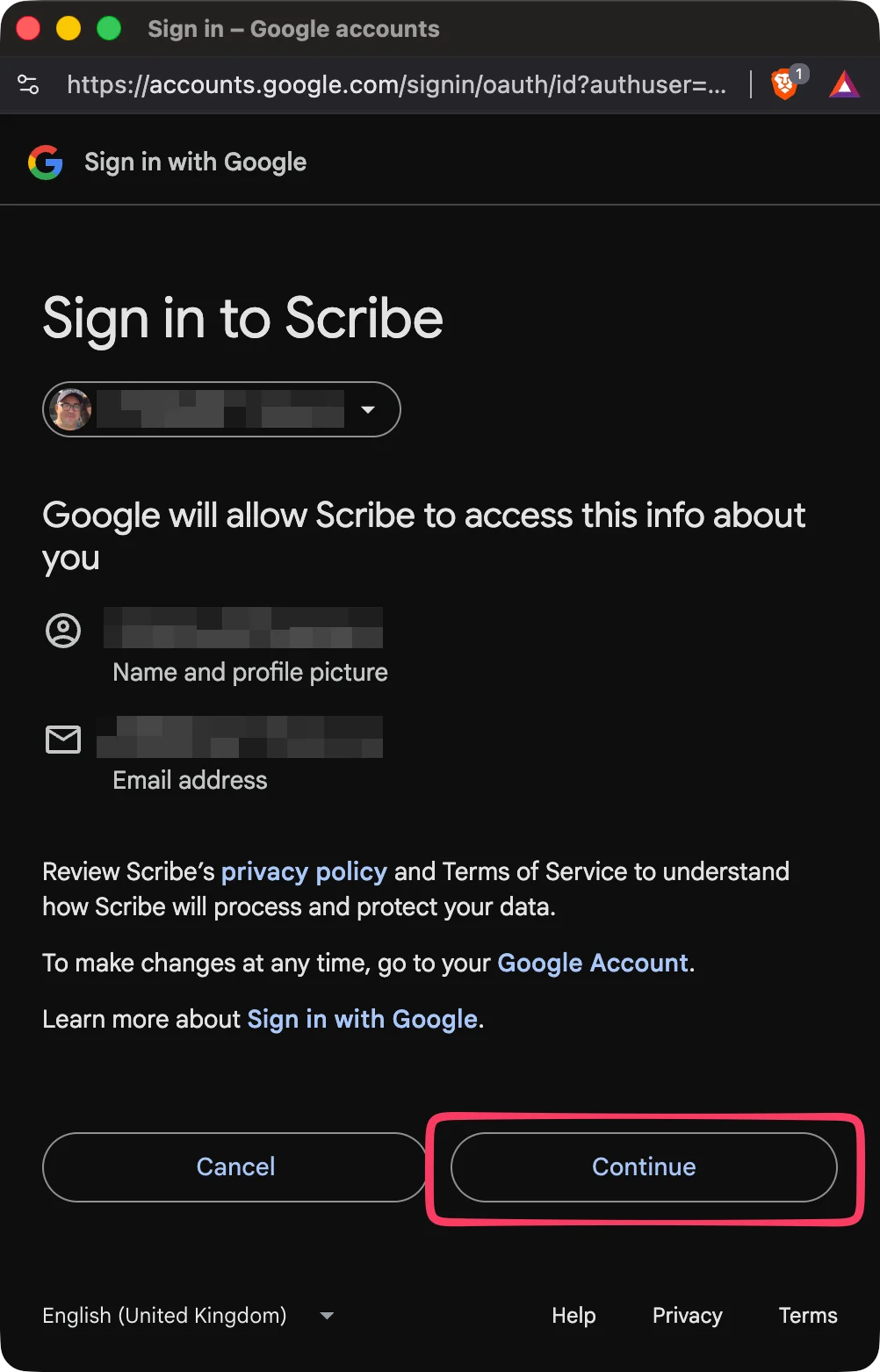 Scribe voldoet aan SOC 2 Type II. De scopes die we van de Google API gebruiken vind je [hier](https://support.google.com/a/answer/162106). We kunnen je e-mails niet verzenden of lezen.
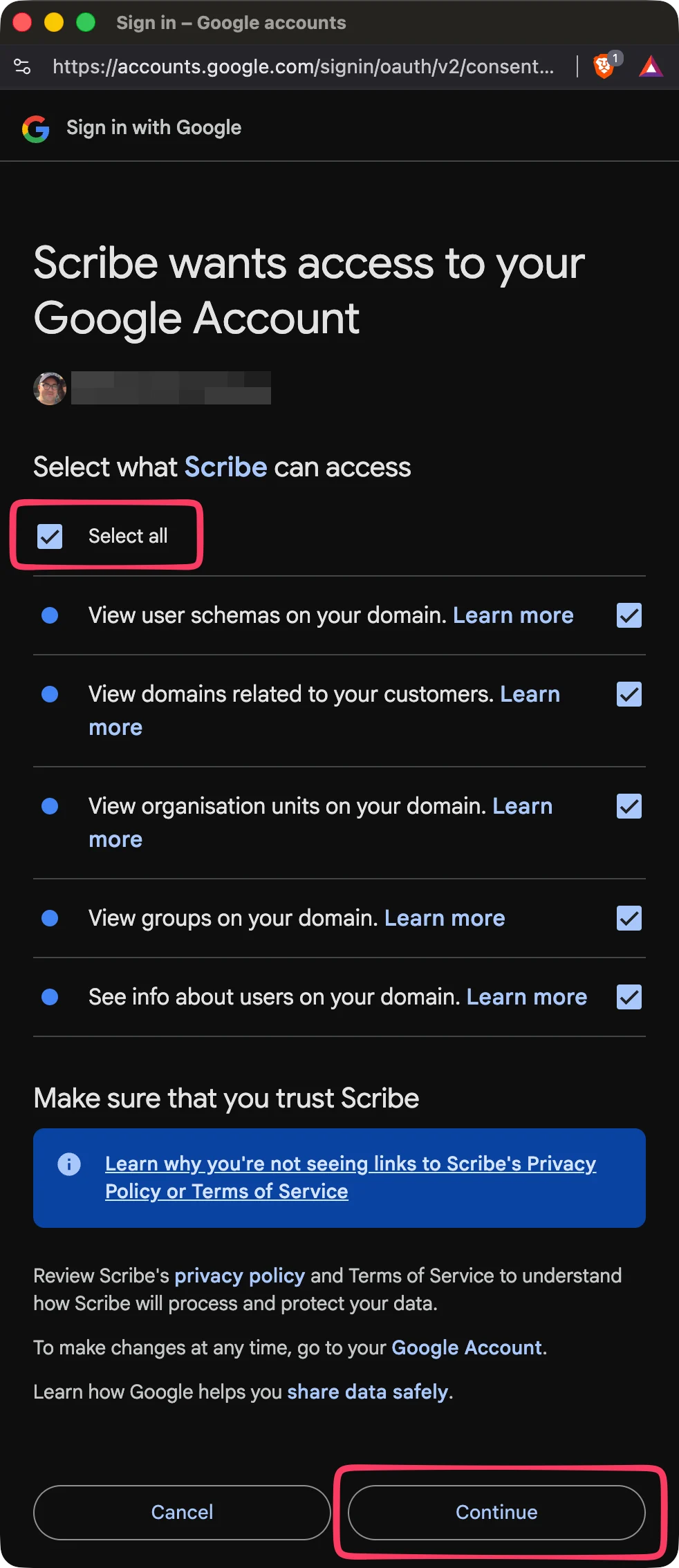 Je kunt teamleden selecteren uit je lijst met teamleden, Units of Groepen. Selecteer welke je nu wilt importeren. Je kunt er later meer toevoegen. Hun gegevens worden ook gesynchroniseerd, zodat je hun handtekeningen later automatisch kunt invullen met een [Smartfield](/nl/smart-fields).
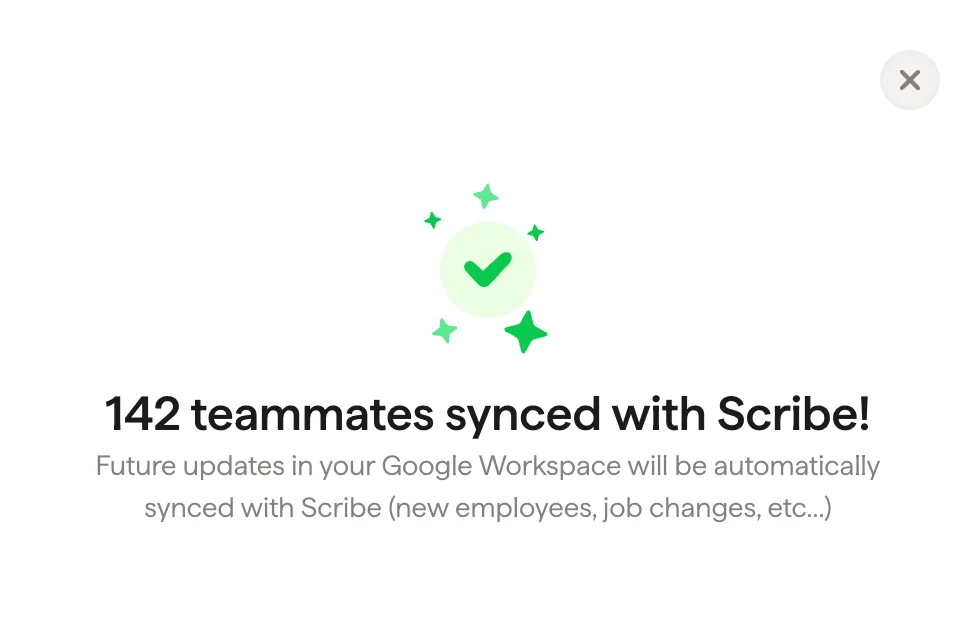
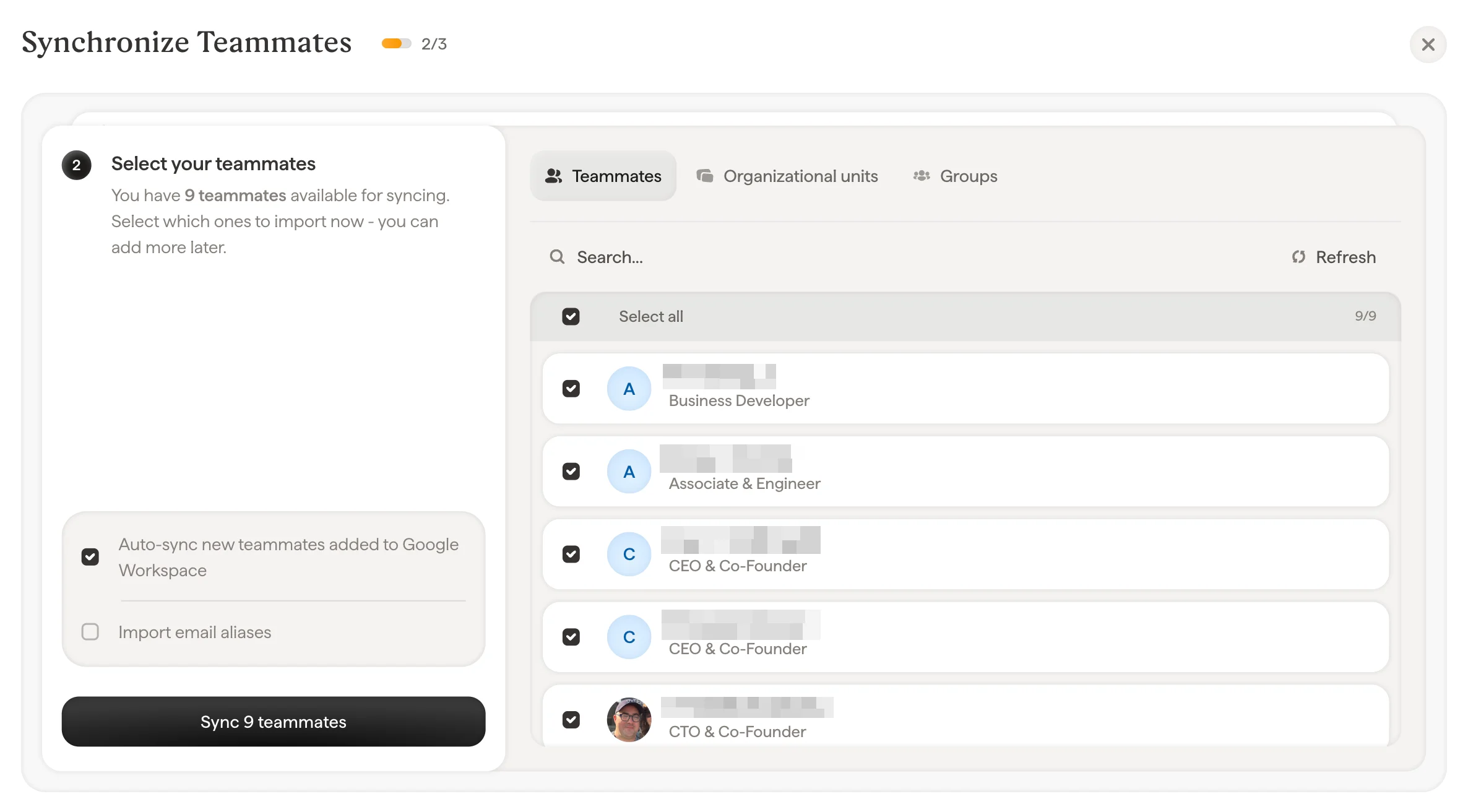 Ga naar Handtekeningen om [teamleden toe te wijzen](/nl/assign-teammates-to-a-signature) en hun handtekeningen aan te maken. Toekomstige updates in je Google Workspace worden automatisch gesynchroniseerd met Scribe (nieuwe medewerkers, functiewijzigingen enzovoort).
 ## Gerelateerde artikelen
* [Overzicht teamleden](/nl/teammates/teammates-overview)
* [Microsoft Entra ID](/nl/integrations/teammates/microsoft-entra-id-teammates)
* [Wat Scribe doet op het gebied van beveiliging](/nl/what-scribe-does-concerning-security)
## Gerelateerde artikelen
* [Overzicht teamleden](/nl/teammates/teammates-overview)
* [Microsoft Entra ID](/nl/integrations/teammates/microsoft-entra-id-teammates)
* [Wat Scribe doet op het gebied van beveiliging](/nl/what-scribe-does-concerning-security)